

Fresh or factory-reset TV
Use this during the initial setup wizard, right after you power on a new or factory-reset display.1
Select your language
On the Welcome to Samsung SMART Signage screen, use the Up and Down buttons to choose your language, then press OK.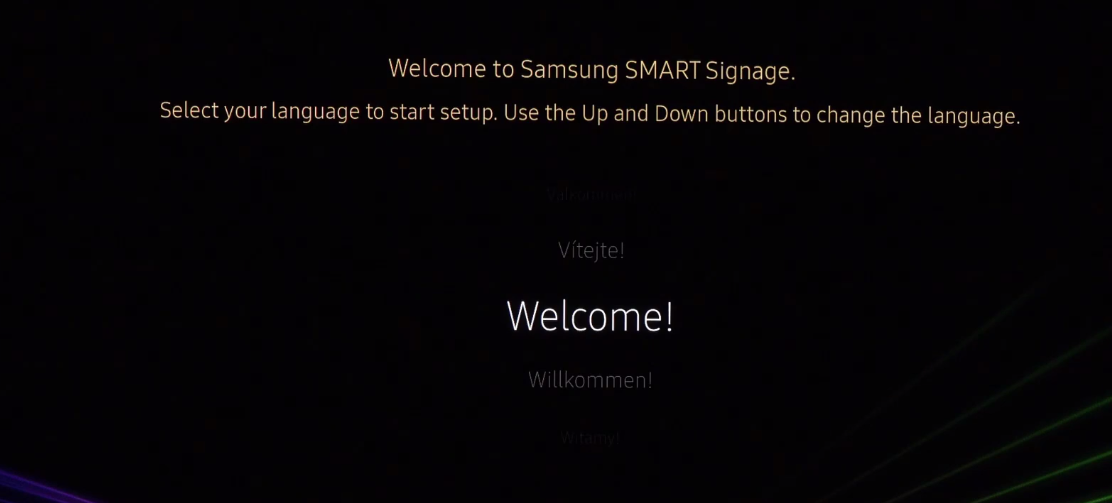
2
Choose Basic Setup
On the Installation Type screen, select Basic Setup and press OK.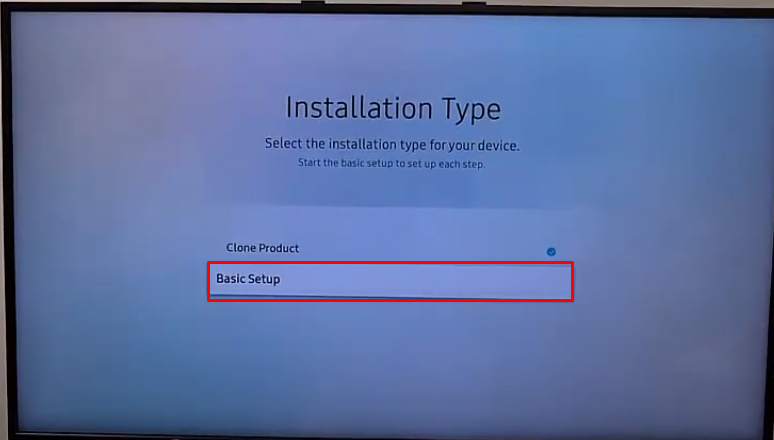
3
Set Display Orientation to Portrait
On the Display Orientation screen, select Portrait and press OK. The display switches to portrait.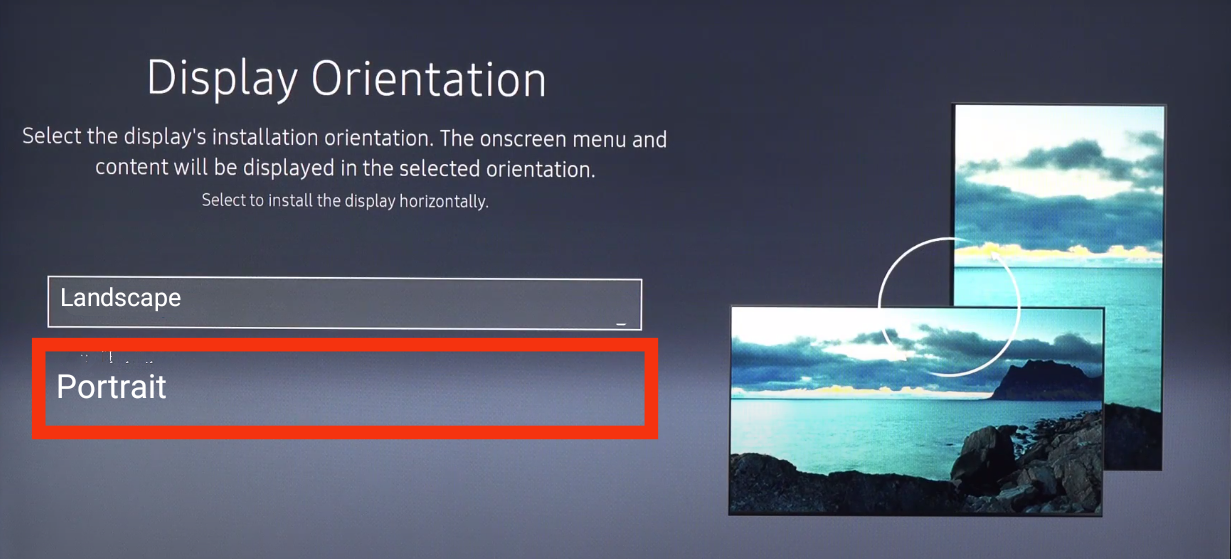
TV already set up
Use this if Pickcel software is already installed or the URL launcher settings are already configured. You’ll change the orientation from the On-Screen Display menu using the remote.1
Press Home on the remote
Press the Home button on the remote control.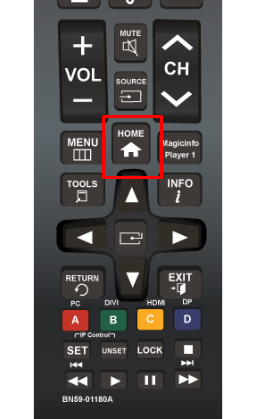
2
Press Menu on the remote
Press the Menu button on the remote control.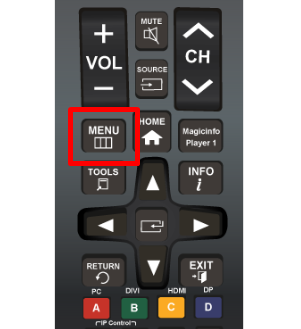
3
Open On-Screen Display
In the menu, select On-Screen Display.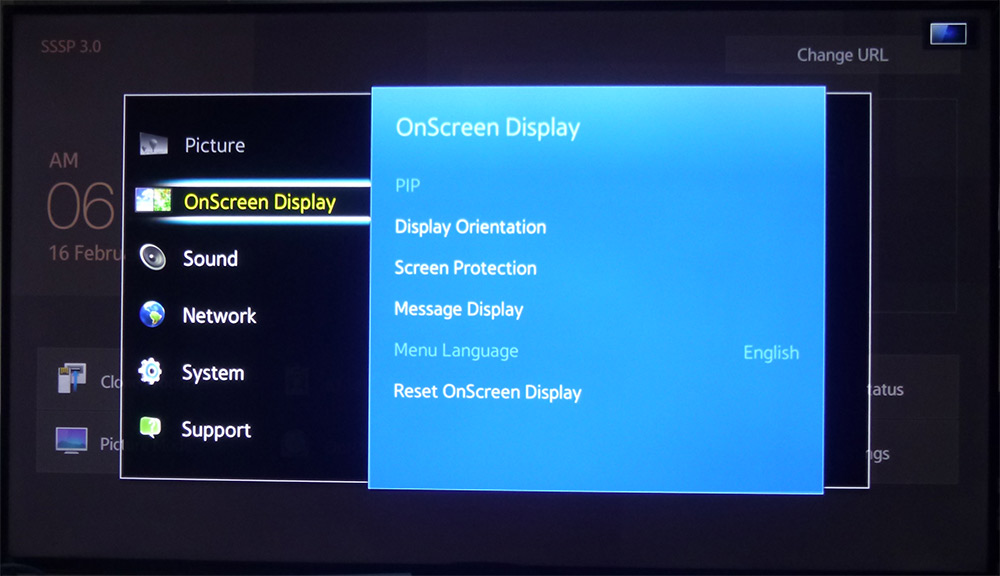
4
Switch Display Orientation to Portrait
Move to the right and open Display Orientation. Change it from Landscape to Portrait. Your screen switches from landscape to portrait.
Related Articles
Player App Orientation
Change orientation from the Pickcel player app on the device.
Console Orientation
Change orientation remotely from the Pickcel console.