

My screen shows “Waiting for content” for a long time, what should I do?
Try these actions from your console, in order. Open the Screens module, click the screen showing “Waiting for content”, then click the three dots at the top-right: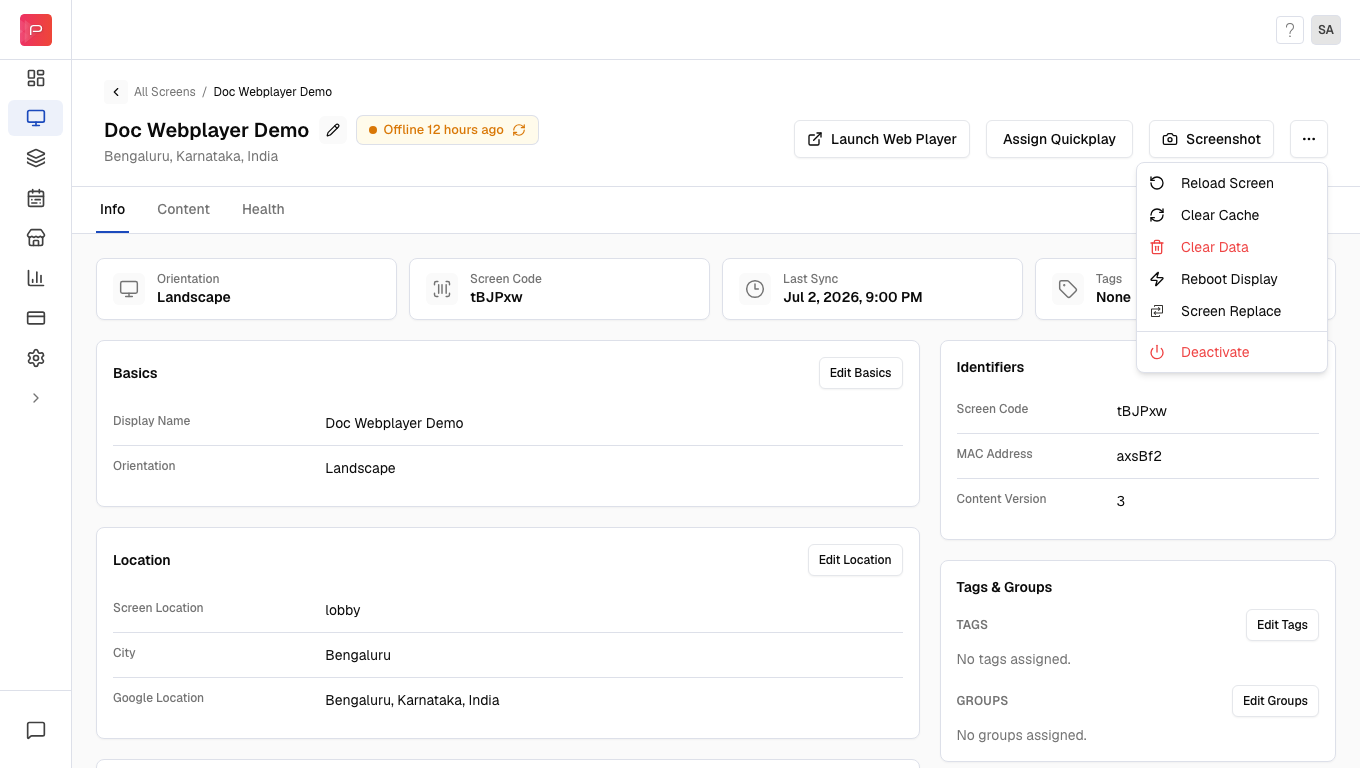
1
Reload the screen
Click Reload to relaunch the app. This often resolves the issue on its own.
2
Clear cache
If reloading doesn’t help, Clear Cache so the device downloads fresh content.
3
Reboot the screen
If it still fails, Reboot the screen. This clears device problems caused by high CPU or RAM usage.
4
Clear data
As a last resort, Clear Data to fetch content anew. It takes a moment to reload from the server.
Why is my Samsung Tizen TV stuck on the “Waiting for content” screen?
Two things usually cause this on Tizen:- An unstable internet connection. Verify your connection, when it’s stable, all three dots in the bottom-right corner of the screen turn green.
- The TV storage is full. Clear it from the TV: press the Menu button on the remote → System → General → Empty Storage.
Why is my Android 11 TV (TCL, Sony, etc.) showing a black screen or “waiting for content”?
This usually follows an OS update or an outdated app:- Recently updated from Android 9 to 11: install the latest Pickcel app, then grant permissions for all media files in the device settings (see Configure Files and Media Permissions).
- Running a Pickcel app older than 5.1: install the latest Pickcel app and grant all media-file permissions afterward.
I assigned an app to the screen, but it shows a black screen. How do I fix it?
This is usually a stale cache on the device rather than a problem with the app itself, so clearing it first resolves most cases:- Log in to the Pickcel console, open the screen details, and Clear Cache / Clear Data from the options.
- If it still doesn’t work, create a fresh copy of the app and reassign it to the screen.
Why am I getting “Player rendering failed” on my screen?
There are two common causes:- The video you uploaded is 4K, and your screen doesn’t support that resolution.
- Two or more videos are playing at the same time in different zones.
My content is freezing or showing white space, what should I do?
If the screen is freezing: restart the screen or device. We also recommend turning the screen off for a while at least once a day, which usually clears freezing. If there’s white space on the edges: some screen models have a hardware quirk where, in Portrait mode, white space appears at the edges. In that case, consider a different Android box or TV. Devices we suggest: Fire TV Stick, Mi Box, Sony Android Smart TV, TCL Android Smart TV. See Media Players & Hardware for more on supported players. If freezing persists, contact support.Why do my images and videos look blurry or pixelated?
Blurriness or pixelation is usually caused by stretching lower-resolution content to fit a larger screen resolution. Use high-resolution images and videos that match your screen. If high-resolution media still looks blurry, contact support.Why is the screen turning off automatically after some time?
When a screen stays idle for a while, it can enter automatic power-off mode, usually because the device’s screen saver is enabled. Disable the screen-saver setting on the device to prevent it from going into standby. If it still powers off, contact support.Why isn’t my content responsive or loading when I use the URL app?
When a website fails to load or doesn’t fit the screen, it’s usually a restriction on the website’s side, not Pickcel. Common causes:- Cross-origin restrictions
X-Frame-Optionsheader- Content Security Policies (CSP)
- JavaScript errors
- Incompatible features
- Websites that block iframes
- HTTP links, only HTTPS links are allowed
- Frame-breaking scripts
Why isn’t my YouTube app playing automatically?
YouTube introduced security patches that affected Auto Play on some players. Pickcel added an Auto Play option when creating the YouTube app, so you can enable or disable it based on your device’s compatibility.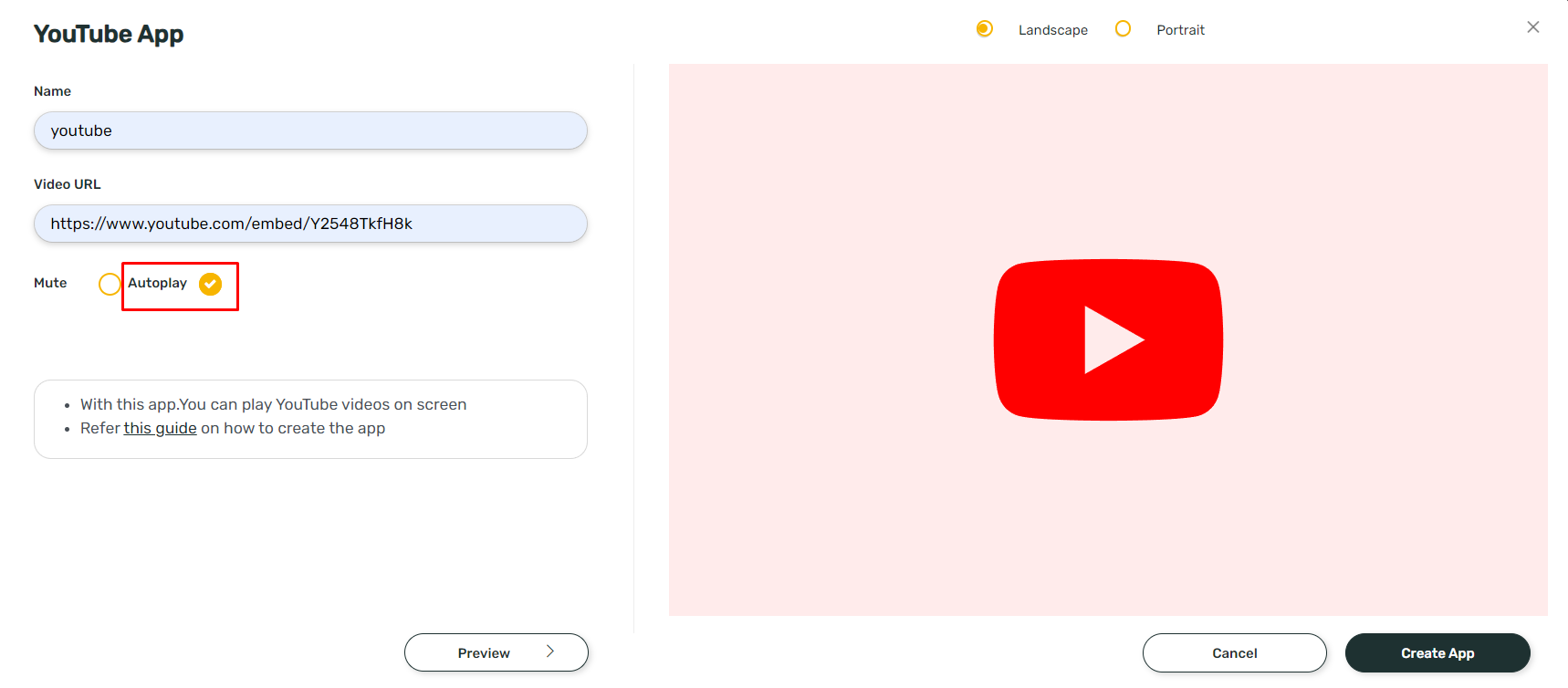
If you don’t see the Auto Play option, create a fresh YouTube app; it’s a newer feature and only appears on newly created apps.
Why isn’t my PDF auto-switching pages on Android?
This usually means the slide duration is too short for the PDF to advance through its pages. Increase the slide duration so each page has enough time on screen. We recommend at least 10 seconds per page for reliable auto-switching. The total play time is simply the number of pages multiplied by the per-page duration:Example: A 5-page PDF at 10 seconds per page plays for:5 pages × 10 seconds = 50 secondsSet the slide duration to at least 50 seconds so every page gets its turn before the PDF loops.
Why can’t I connect my Pickcel account to a TV provided by Etisalat?
If you received the digital signage device from Etisalat, please reach out to their support team directly for help connecting it to your Pickcel account.Related guides
Health Indicators
What the three status dots on your screen mean.
Connectivity & Offline
Offline playback and checking a screen’s connection.
Players & Hardware
Supported media players and display hardware.
Back to FAQs
Browse all Pickcel FAQ articles.