

Switching Method
1
Press Source button
Press the Source button on your Samsung remote control.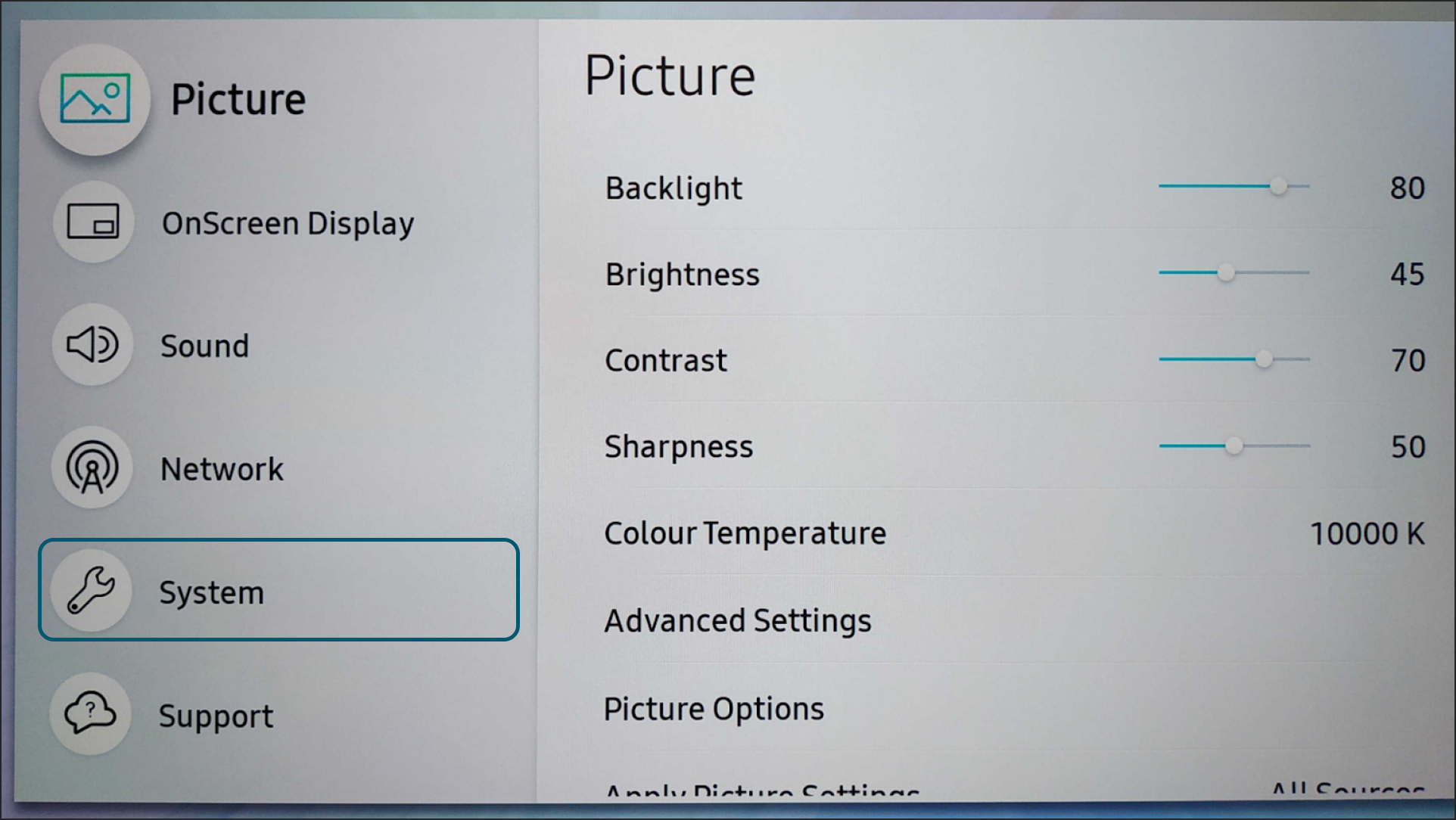
2
Select HDMI input
Select HDMI (or another source like DVI) to switch away from MagicInfo. MagicInfo runs as its own source on these displays, so you need to leave it before the System menu settings become accessible.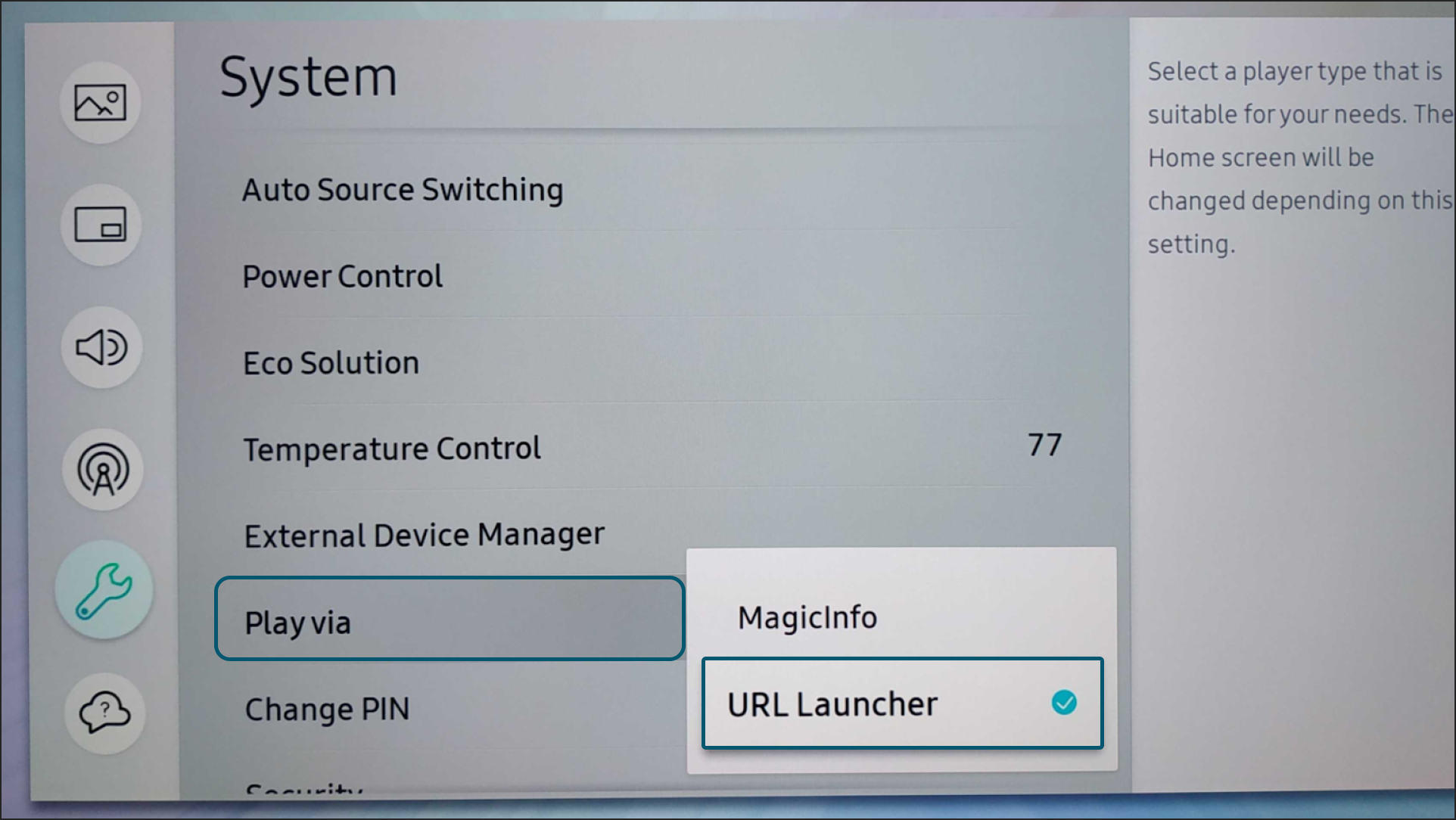
3
Open System menu
Press the Menu button on your remote and navigate to System.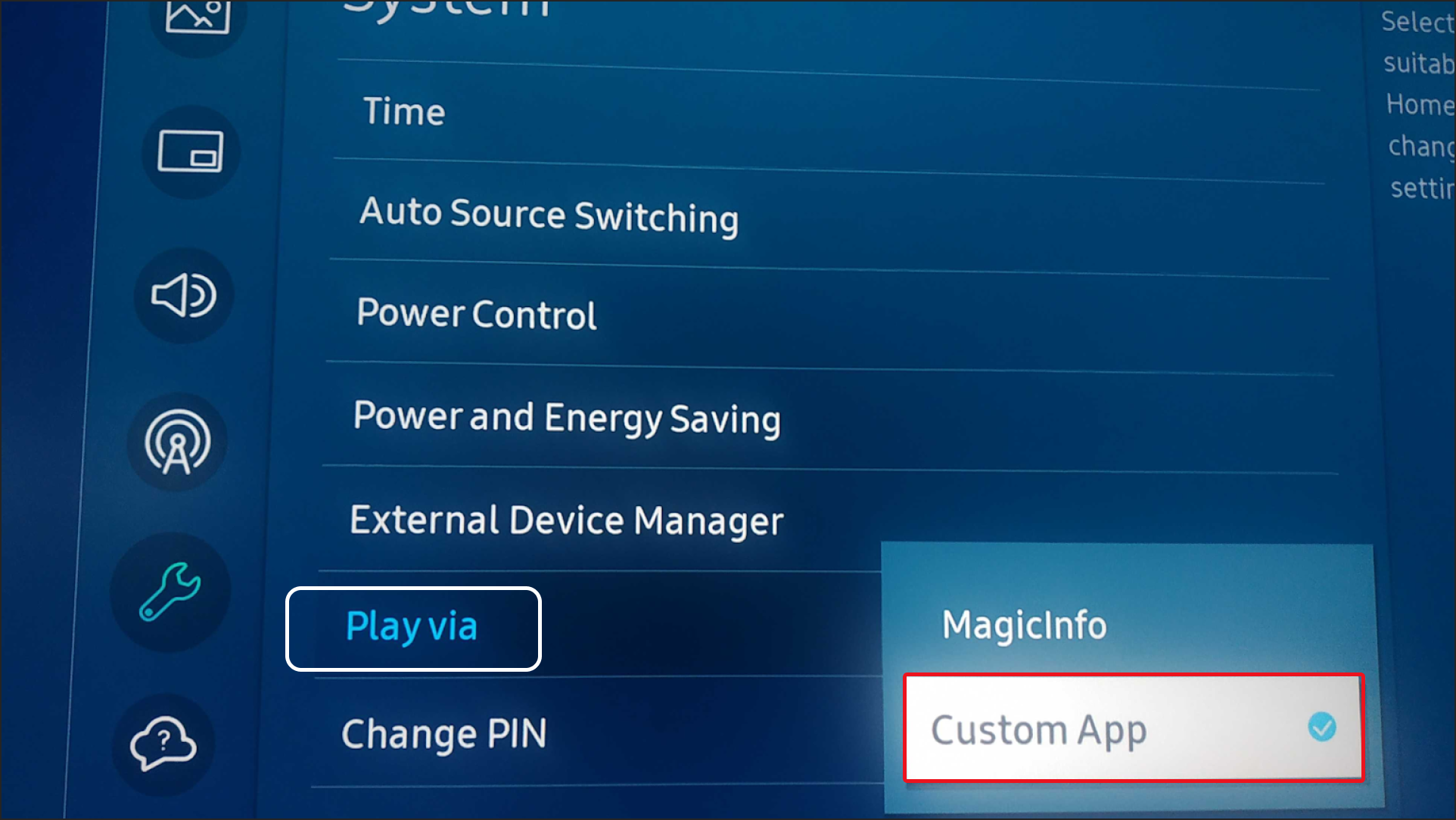
4
Change Play Via setting
Scroll down to the bottom of the System menu and locate the Play Via option. Change the setting from MagicInfo to URL Launcher.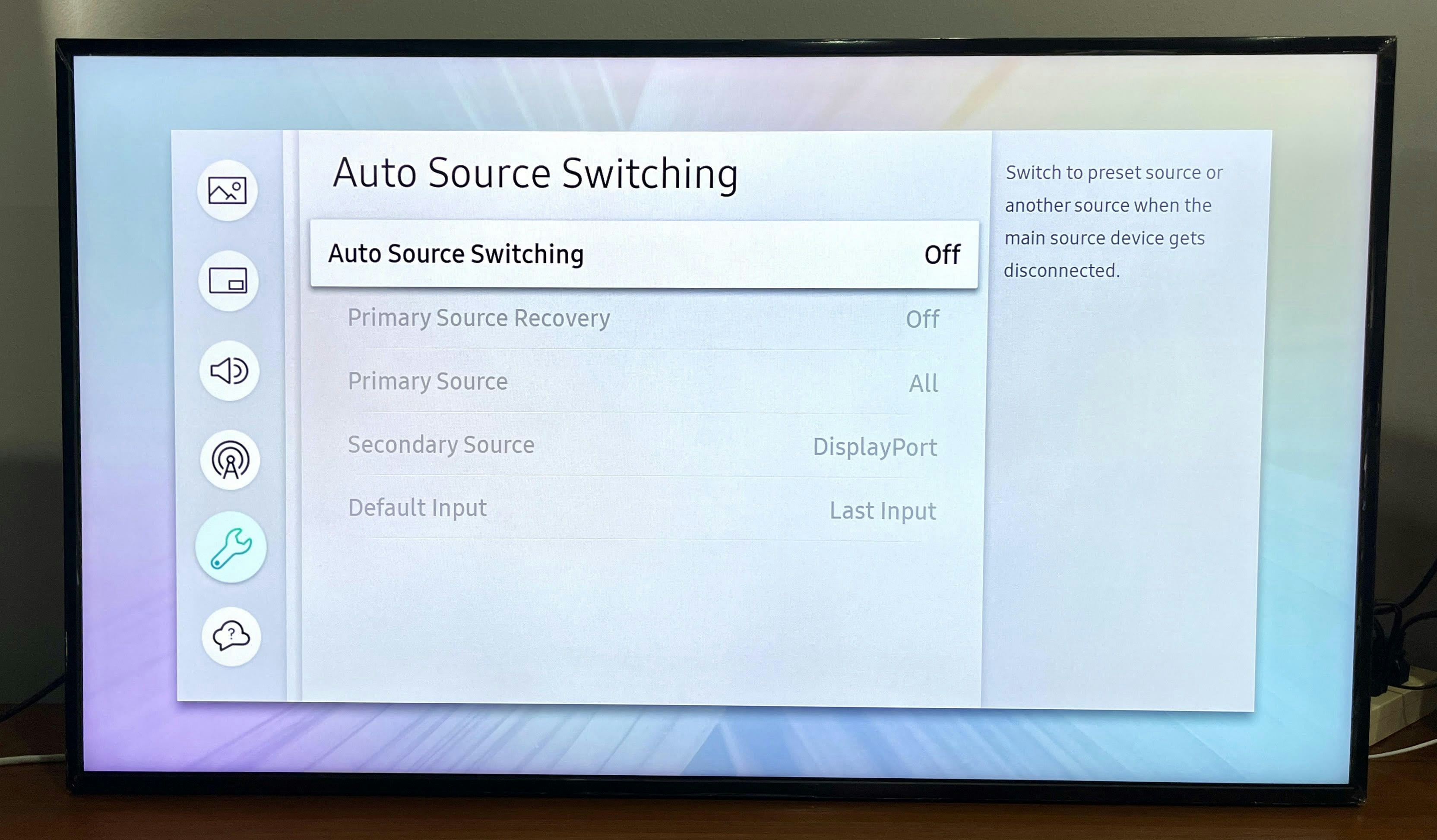
Version Note: On Tizen 6.5 and above, this option may appear as Custom App instead of URL Launcher.
5
Power cycle the display
Power off the display completely, then turn it back on to apply the changes.
6
Launch URL Launcher
After the display restarts, press the Home button and select URL Launcher from the home menu to launch it.
Preventing Auto-Switch Back to MagicInfo
To ensure your display doesn’t automatically switch back to MagicInfo, disable the Auto Source Switching feature.1
Access System menu
Press Home on your remote and select System.
2
Disable Auto Source Switching
Navigate to Auto Source Switching in the System menu and set it to OFF.
Reverting to MagicInfo
You can always switch back to MagicInfo by returning to the Play Via setting in the System menu and changing it from URL Launcher/Custom App back to MagicInfo.Related Articles
Samsung Tizen Installation - SSSP
Complete guide to install Pickcel on Samsung Tizen using SSSP method
Samsung Tizen Installation - USB
Complete guide to install Pickcel on Samsung Tizen using USB method
Screen Registration Guide
Learn how to register your Samsung Tizen display with Pickcel
Back to FAQs
Browse more troubleshooting guides and FAQs