

Re-activate a deactivated screen
1
Log in to Pickcel Console and Navigate to Screen Module
Log in to Pickcel console and navigate to the Screen module to access your screens list.
2
Filter Deactivated Screens
Deactivated screens are hidden from the default screen list, so filter for them first. Click the filter icon in the top-right corner of the screen list.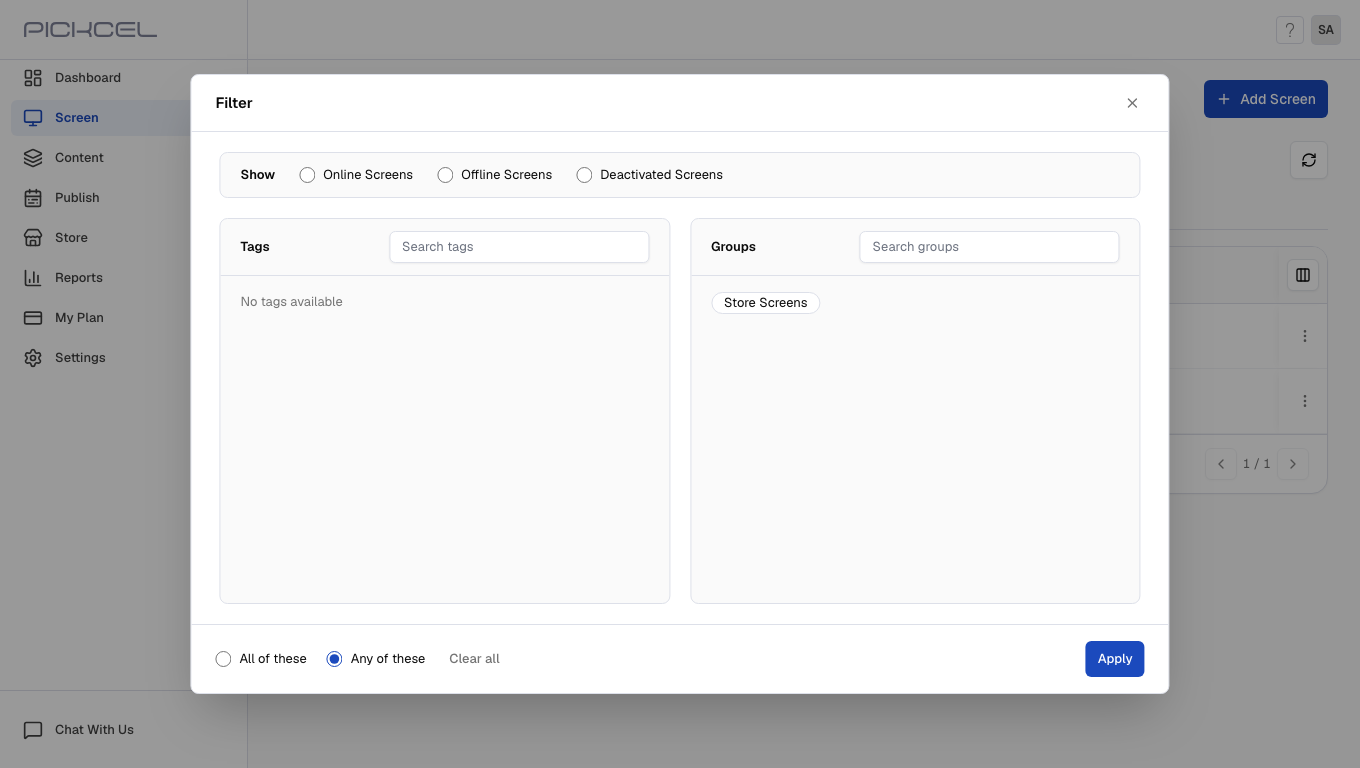 In the filter menu, select Deactivated screens and apply the filter.
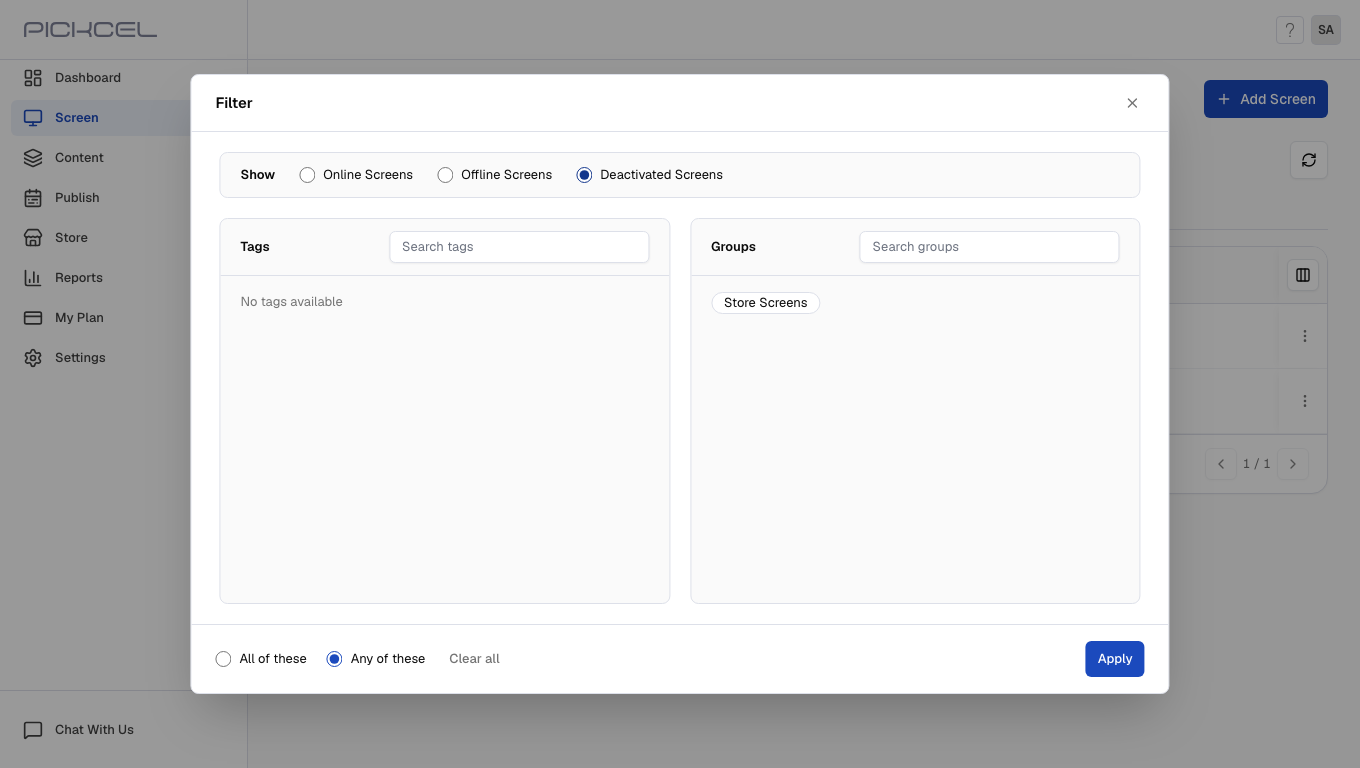 Only your deactivated screens are shown now, making it easy to find the one you want to bring back.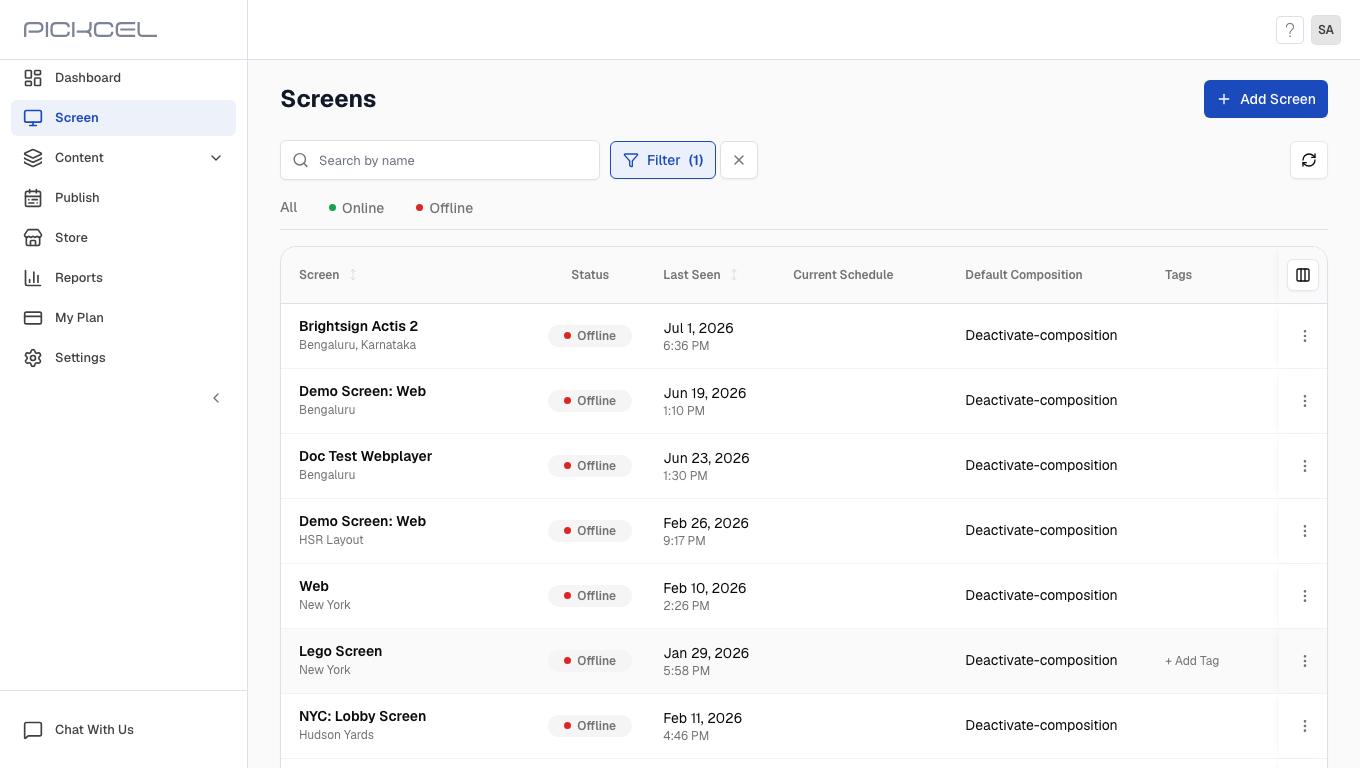
3
Re-activate the Screen
Select the screen you want to reactivate, open its details, and click Screen actions (⋮) at the top of the screen details page.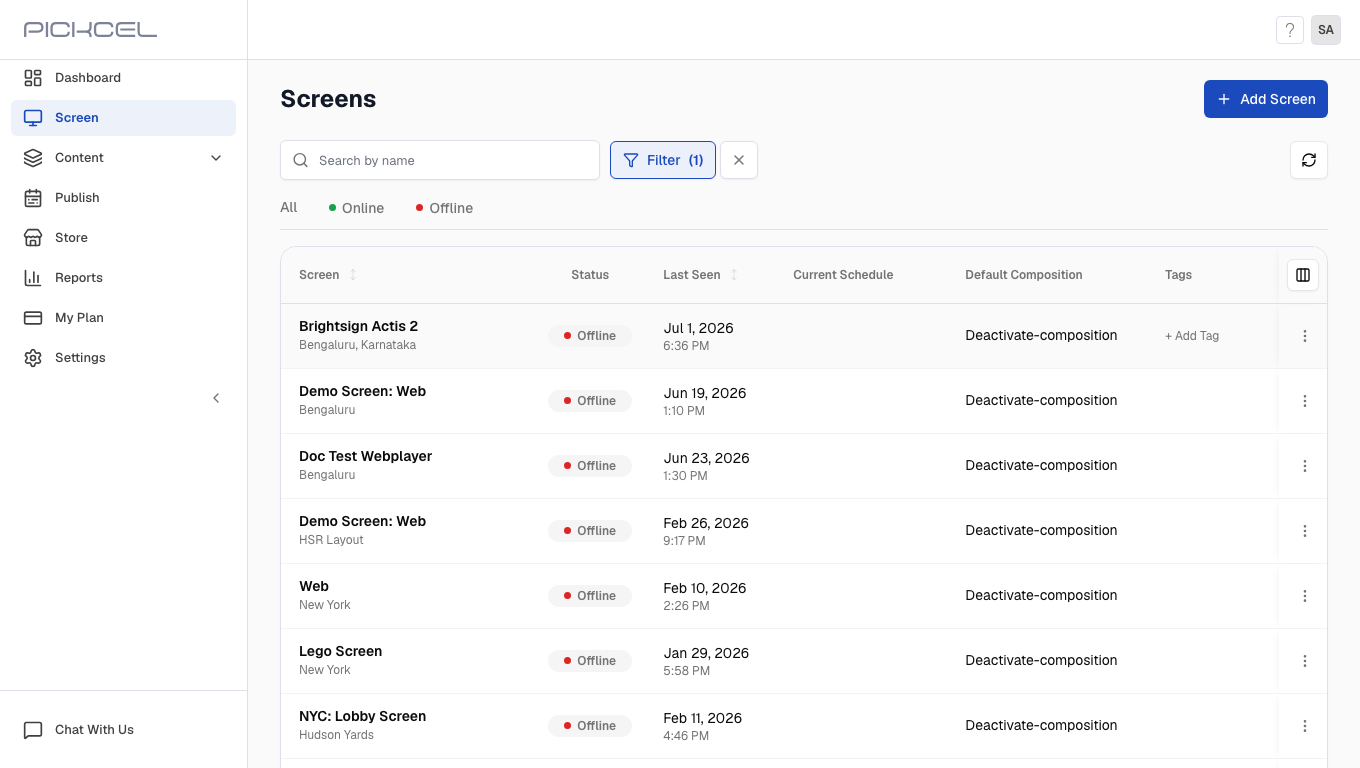
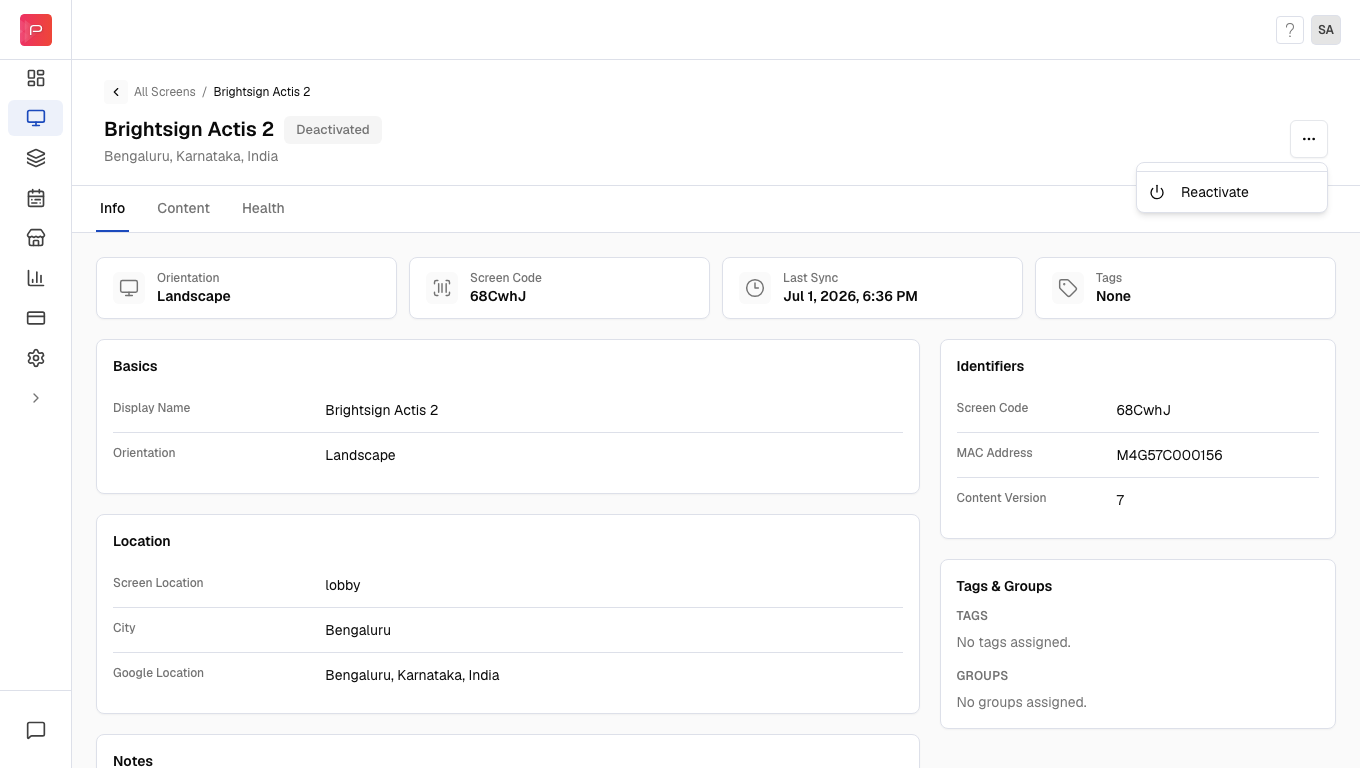 Click Reactivate in the dropdown menu.
4
Confirm Re-activation
Confirm the re-activation in the dialog that appears.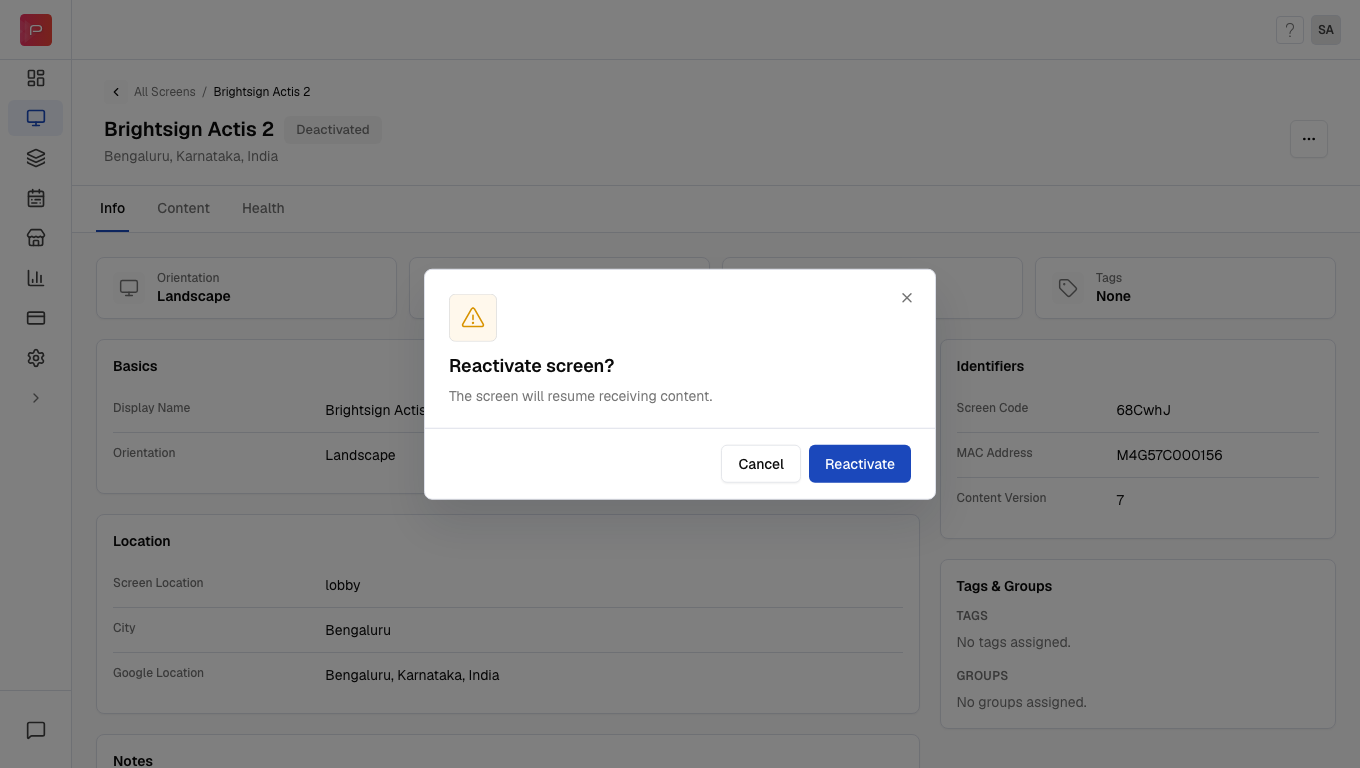 A confirmation message appears once the screen has been successfully reactivated.
5
View Re-activated Screen
The filter is still applied, so clear it to see the full screen list again.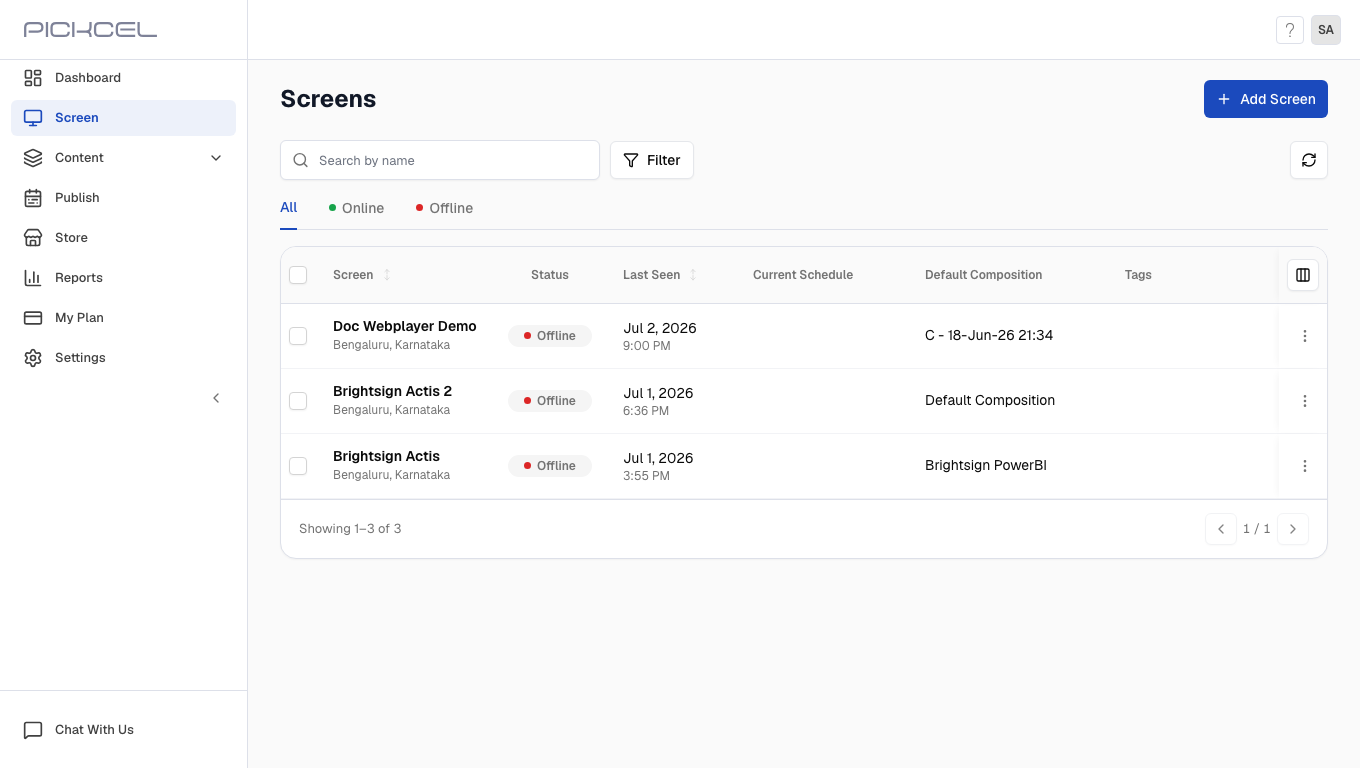 Your screen is back in the active screens list and ready to display content again.
Reactivating a screen restores its previous default composition automatically, you don’t need to reassign content.
Related guides
Account & Login
What “Deactivated” and other on-screen status messages mean.
Screen Registration
Register and configure a new display.
Back to FAQs
Browse all Pickcel FAQ articles.