

How screen sleep works on Android
Screen sleep needs two pieces working together:The device profile, in the console
This is where you define the schedule: sleep start time, sleep end time, and which screens it applies to. It is configuration only, it does not talk to the TV’s power controls directly.
The Pickcel launcher, on the Android TV
The launcher is installed on the device as an APK, alongside the Pickcel player app. It reads the schedule from the assigned device profile and enforces it: at the sleep start time it stops the Pickcel app and drives that TV’s own sleep controls, and at the sleep end time it wakes the display and brings the app back.
Because those controls differ from model to model, installing the launcher is specific to each Android TV. That process is covered in its own guide, separate from this page. Install the launcher on your TV first, then come back and set the schedule below.
Set up the sleep schedule
1
Open the Device Profile tab
In the Pickcel console, go to the Settings module and open the Device Profile tab. Click Add Profile in the top-right corner.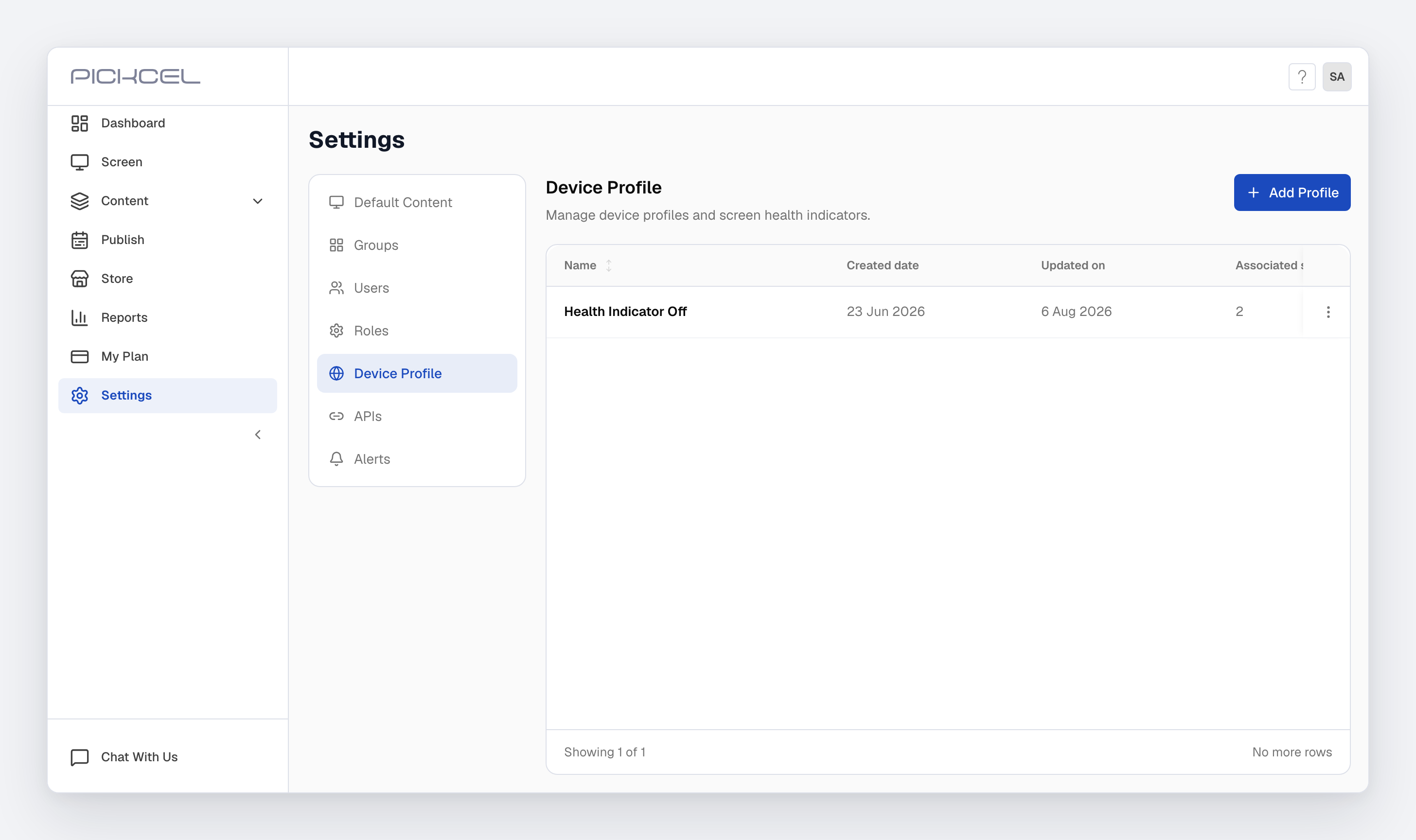
2
Name the profile
Enter a unique Profile Name so you can identify the profile later, for example “Schedule Off”.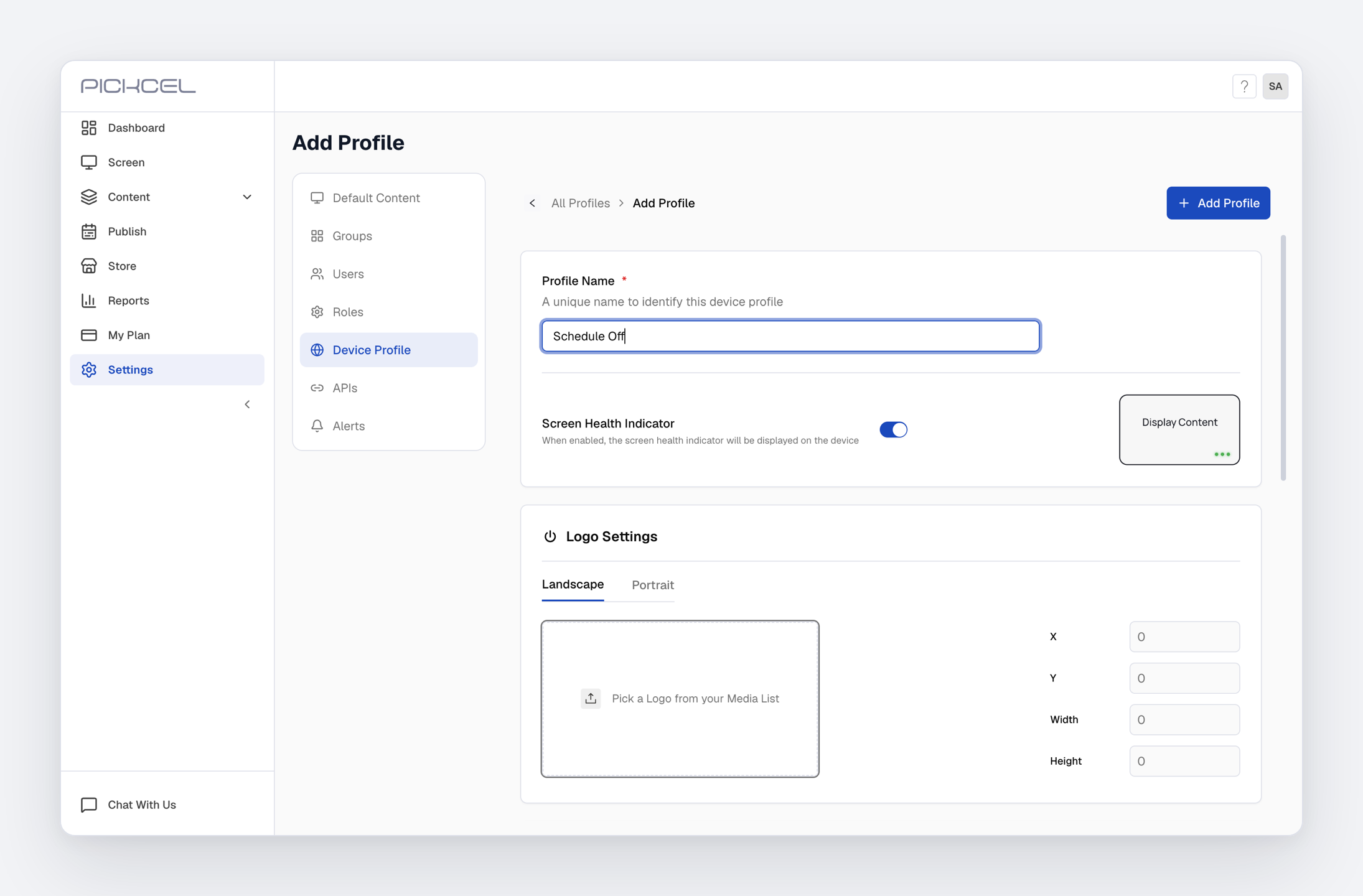
3
Turn on the sleep schedule and set the times
Scroll past Logo Settings to the Other Settings panel and switch Enable Screen Sleep Schedule on. Two time fields appear: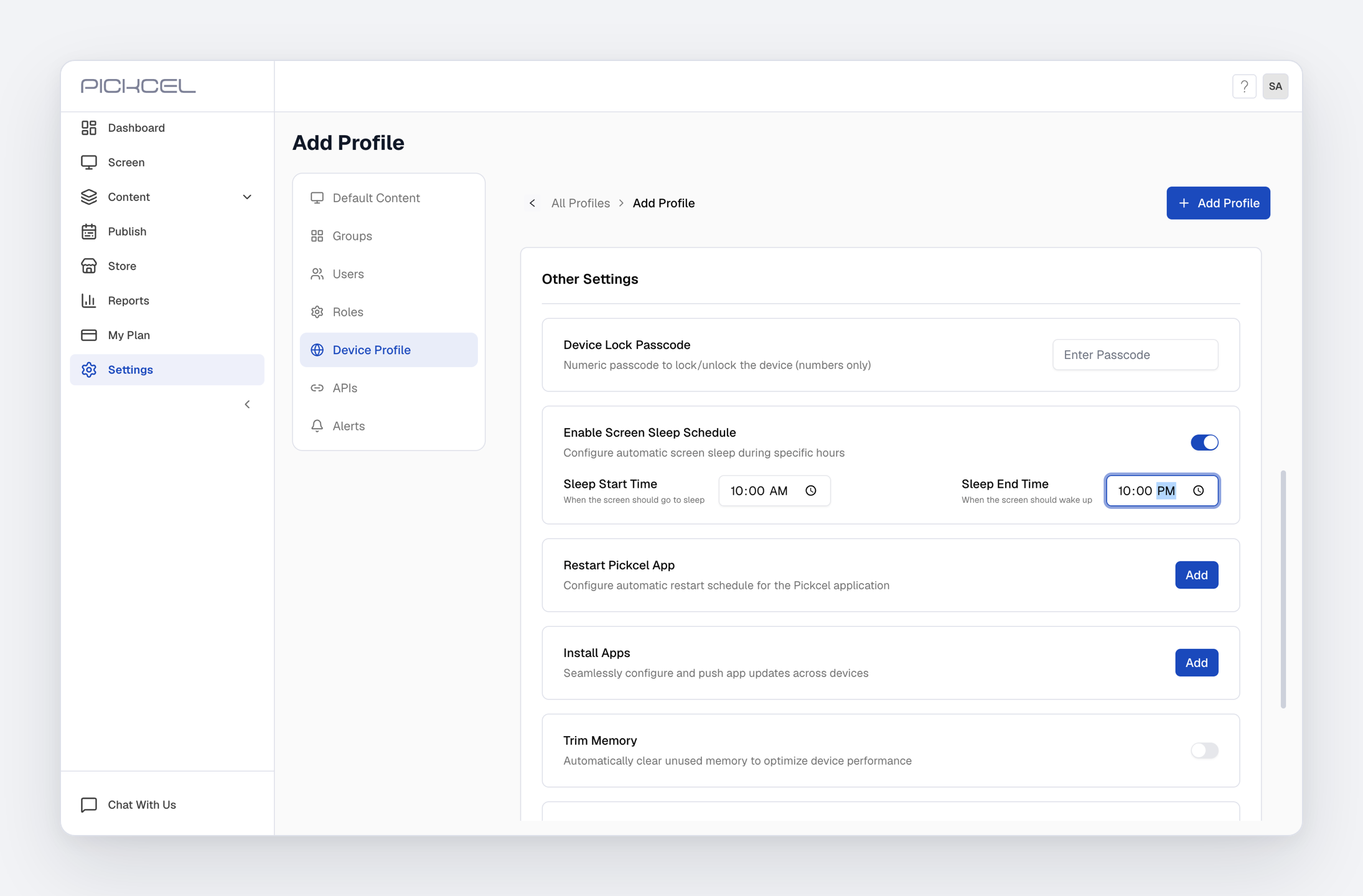
- Sleep Start Time: when the screen should go to sleep.
- Sleep End Time: when the screen should wake up.
4
Save the profile
Click Add Profile in the top-right corner to save.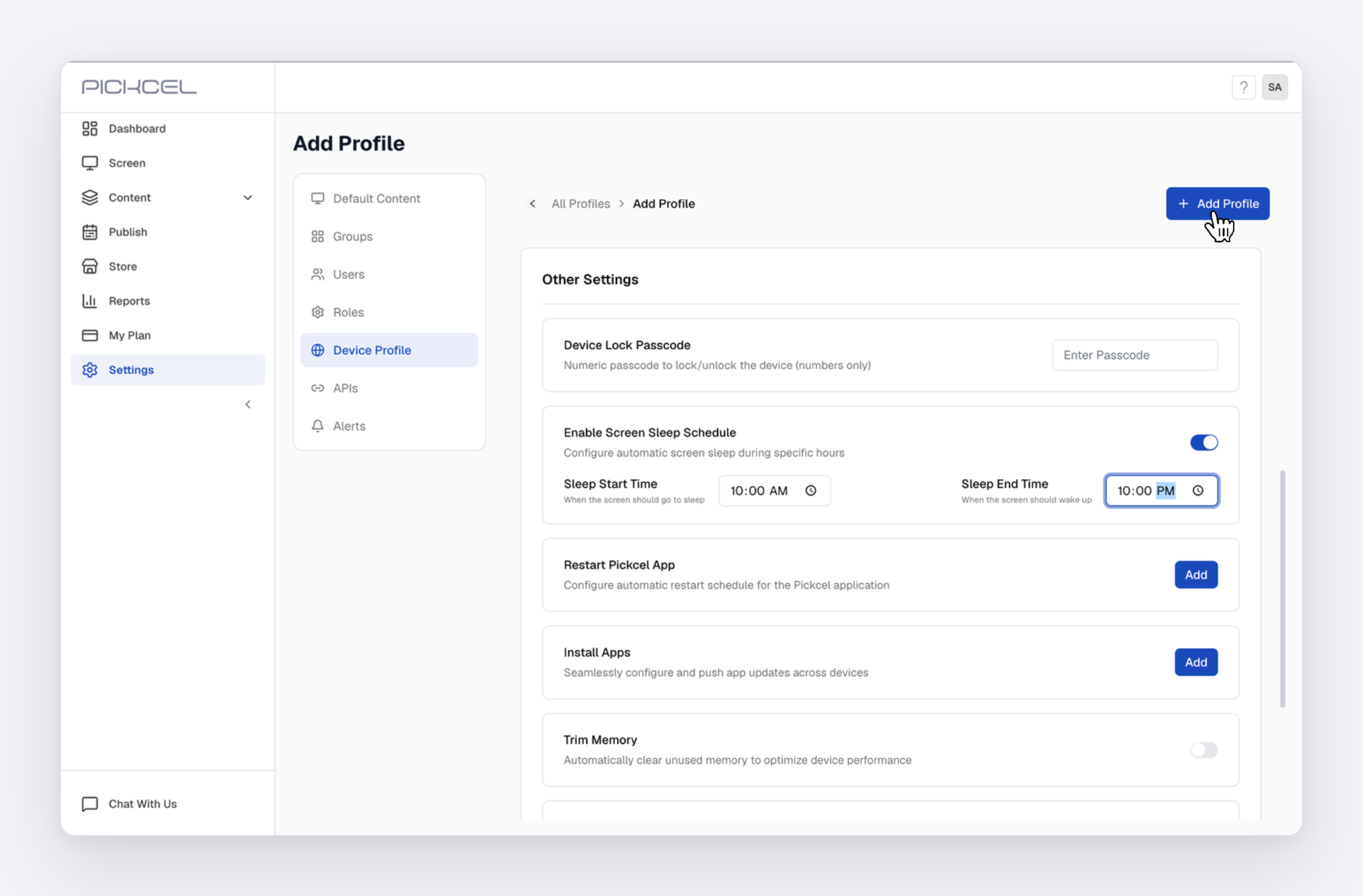
5
Confirm the profile was created
A Profile created successfully message appears and the new profile shows up in the Device Profile list with 0 associated screens for now.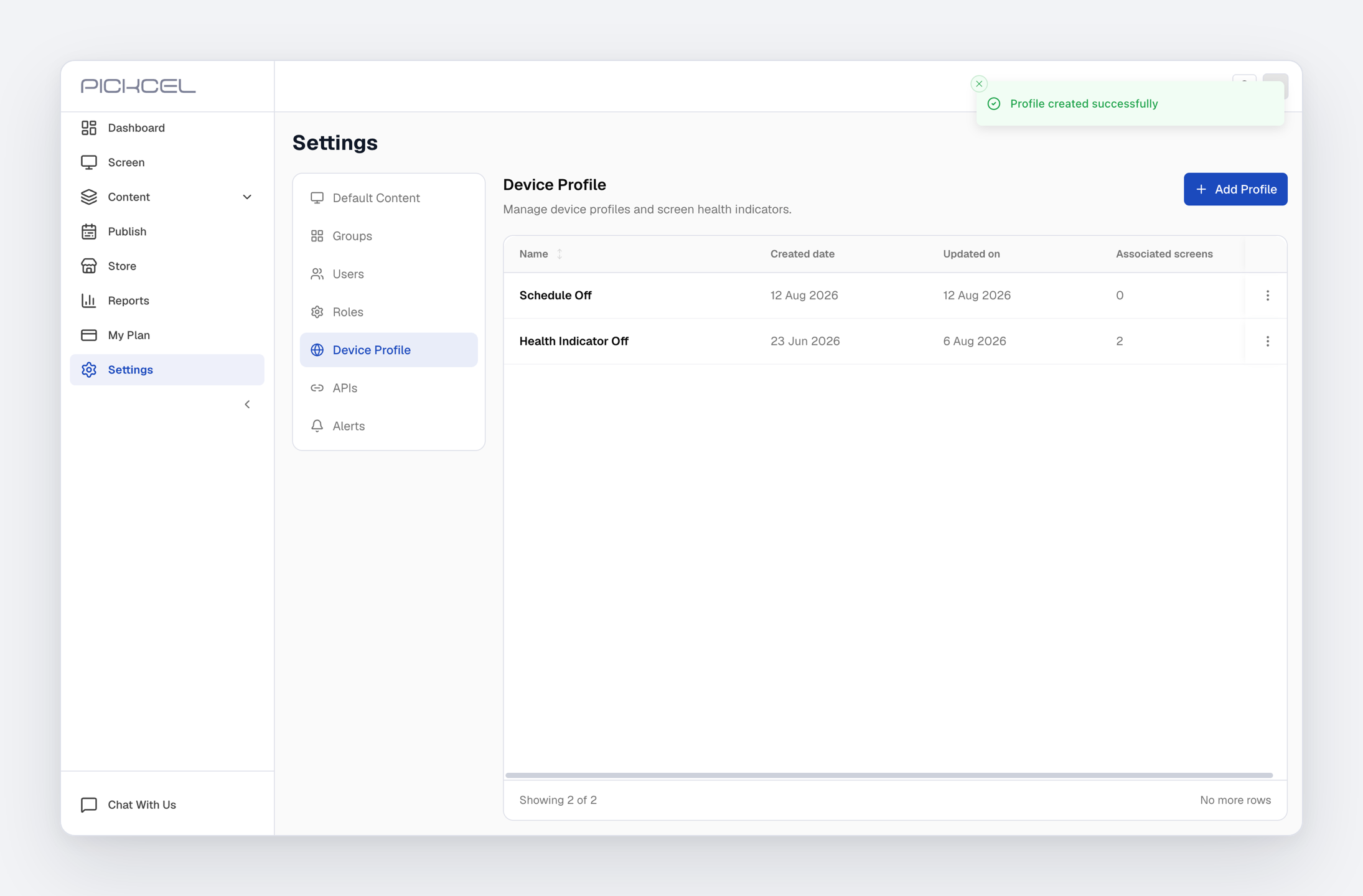
6
Open Assign Screens
The schedule only takes effect once the profile is applied to a screen. Click the three-dot (…) menu on the right of the profile row and choose Assign Screens.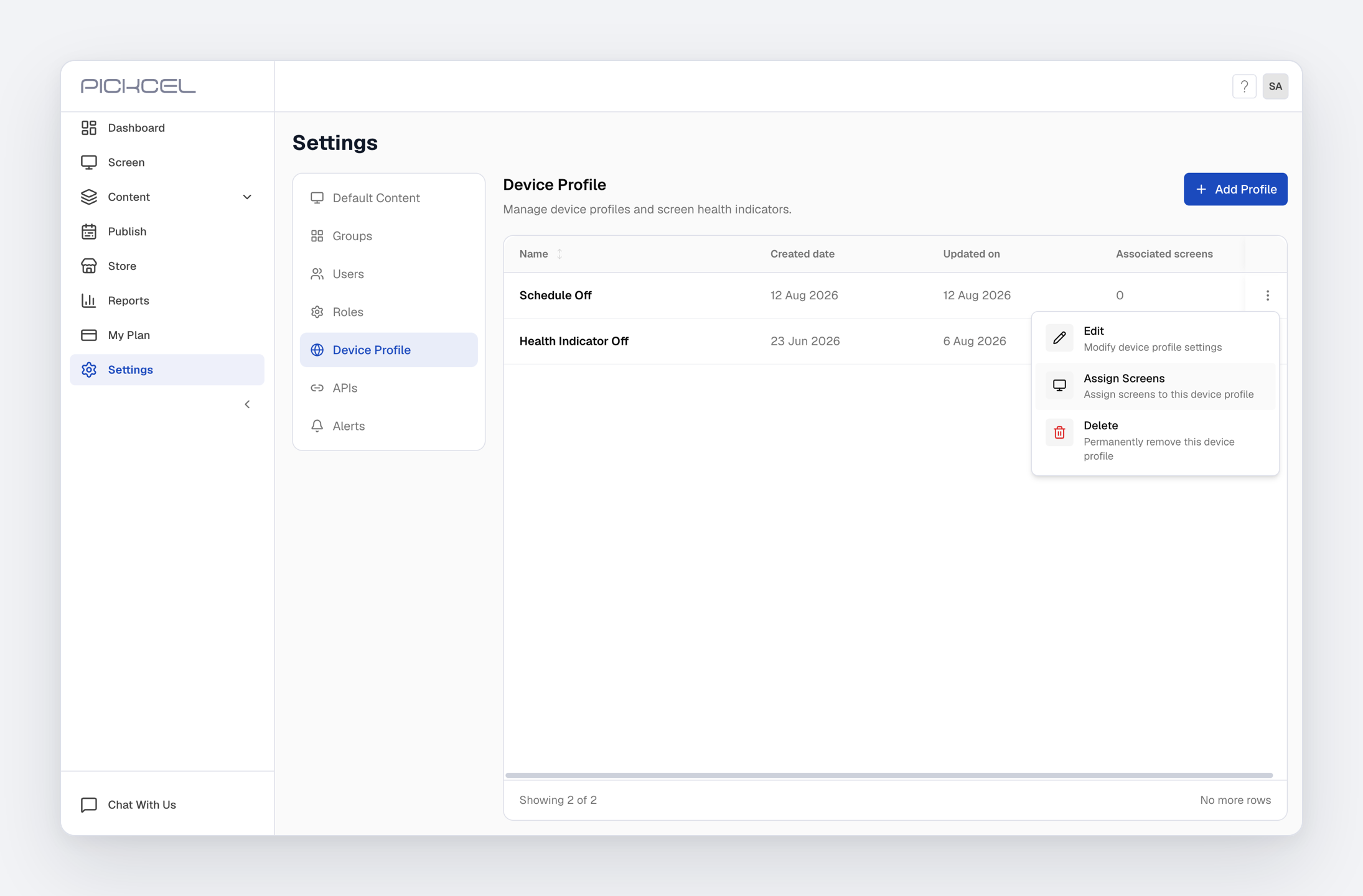
7
Select the screens and save
In the Assign Screens dialog, tick the Android screens that should follow this sleep schedule, then click Save. Use Search screens… to find specific screens, and the counter at the top left confirms how many are selected.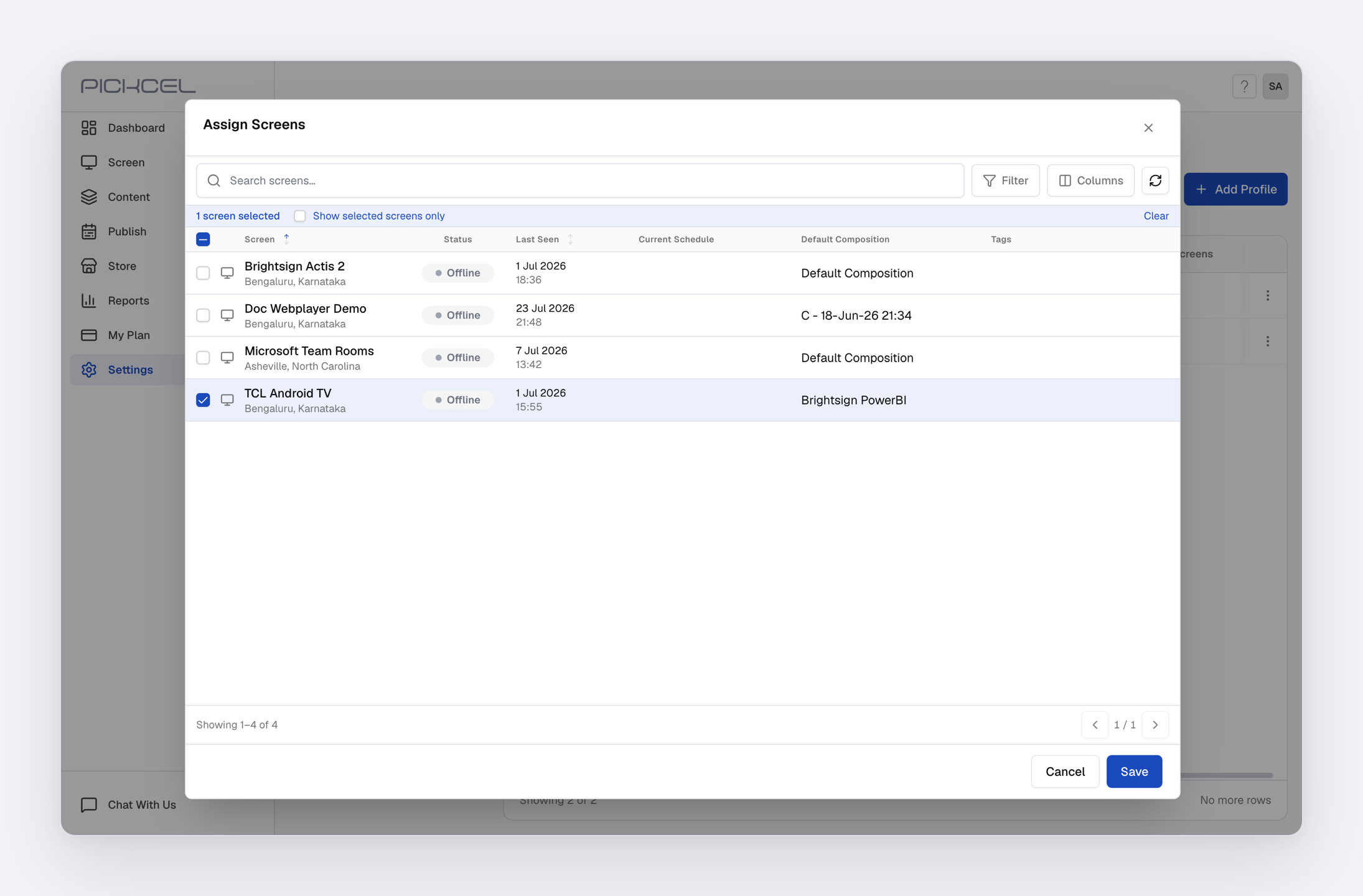
8
Confirm the screens are linked
You’ll see an Updated Successfully message, and the Associated screens count for the profile now reflects the screens you picked.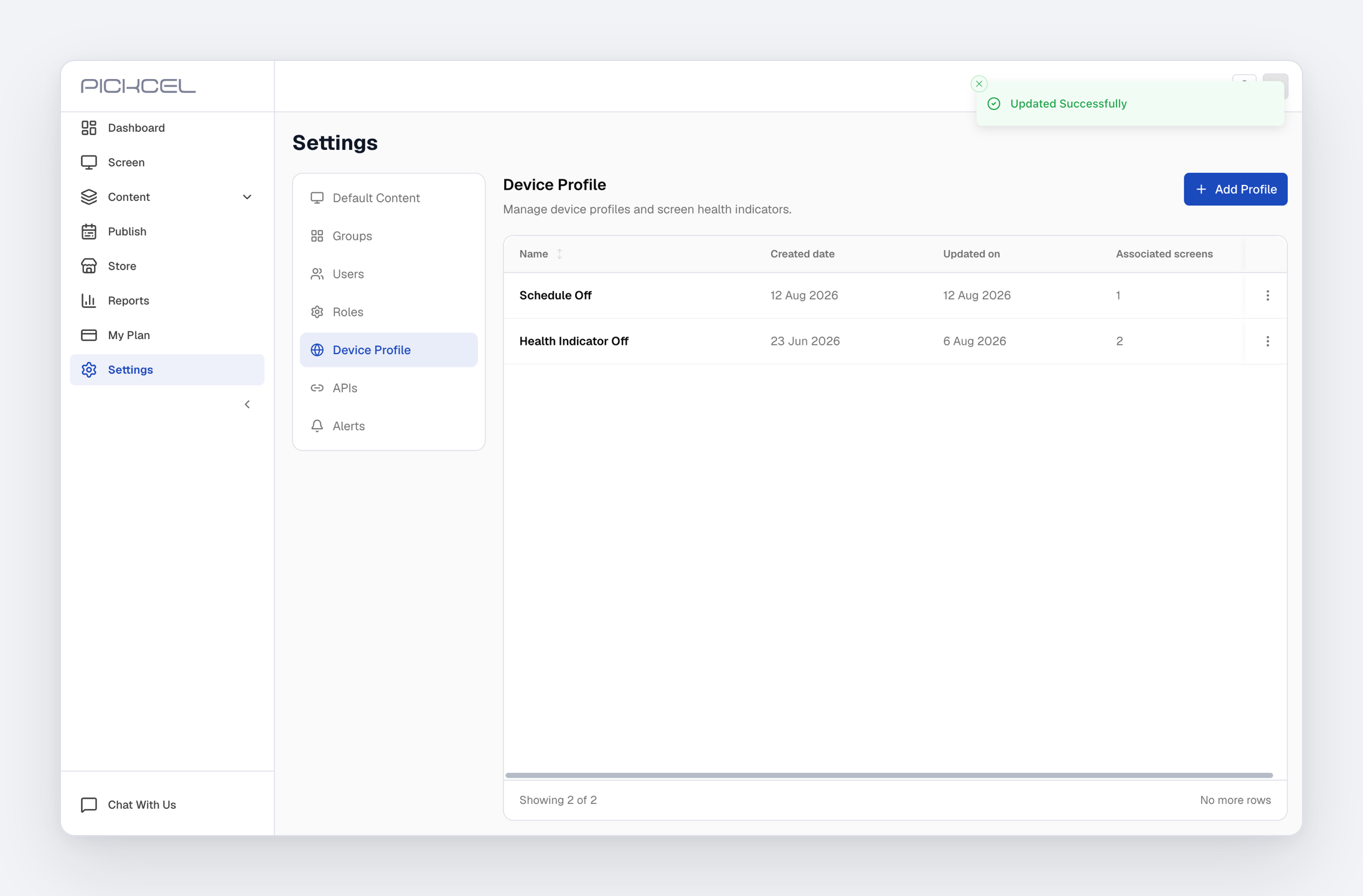
Good to know
I set the schedule but the screen never sleeps
I set the schedule but the screen never sleeps
Check these in order:
- The Pickcel launcher is installed on the TV. This is the most common cause. The console accepts and saves the schedule whether or not the launcher is present, so a correctly configured profile still does nothing on a device without it.
- The profile is actually assigned to that screen. The Device Profile list shows the associated screen count.
- The screen has picked up the new profile. If in doubt, force it to re-fetch, see the next question.
- The device’s date and time are correct. A device with a wrong clock sleeps at the wrong time. The third health indicator dot turns red when the device’s date/time is off.
- The player is online, so it can receive the updated profile.
The screen still hasn't picked up the schedule
The screen still hasn't picked up the schedule
If a screen is assigned to the profile but is not sleeping, make it re-fetch its settings: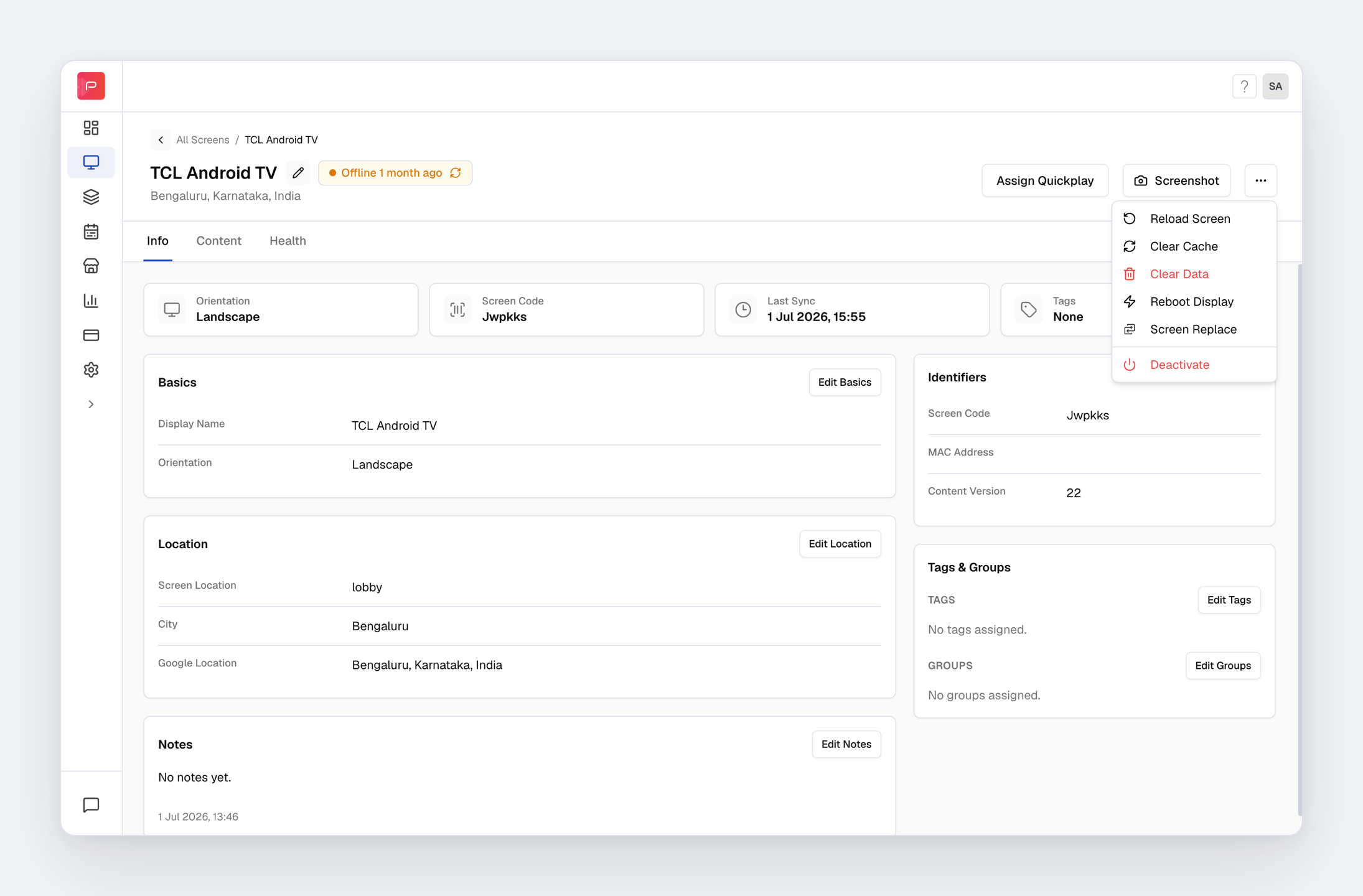
- Restart the screen: switch the display off and then on again.
- Clear the cache from the console: open the Screen module, click the screen to open its details, click the three-dot (…) menu at the top right, and choose Clear Cache. This re-fetches the latest settings and reloads the screen.
Where do I change or turn off the schedule later?
Where do I change or turn off the schedule later?
Go to Settings → Device Profile, click the profile’s three-dot (…) menu, and choose Edit. Adjust the times, or switch Enable Screen Sleep Schedule off to stop sleeping the screens entirely. Save, then refresh the screens (restart or clear cache) so the change reaches the device.
What is Hard Sleep, and do I need it?
What is Hard Sleep, and do I need it?
Hard Sleep is a separate toggle in the same Other Settings panel. Where the standard sleep schedule blanks the display, Hard Sleep forces a complete system sleep mode for maximum power savings. Leave it off unless you specifically need the deeper power saving, and test it on one screen first, since waking behavior varies by device.
Can I apply the same schedule to many screens at once?
Can I apply the same schedule to many screens at once?
Yes, that is the point of a device profile. Assign the one profile to every screen that shares the same sleep hours. If different locations need different hours, create one profile per schedule and assign each to its own set of screens.
Related Articles
Android Player Installation
Install the Pickcel player app on your Android device
Device Profiles
All the device-level settings you can configure in a profile
Screen Registration
Register and configure your Android display in the console
Back to FAQs
Browse more troubleshooting guides and FAQs