

What’s the difference between Groups, Tags, and Custom Attributes?
All three help you organize an account, but they solve different problems. Groups control who can see what, Tags help you find and filter your own items, and Custom Attributes control what content a screen pulls from a live dataset. Groups, who can access what A group is a collection of users with access to specific modules (Screens, Media, Compositions, and Schedules) and their details. Visibility is filtered by group, so users in one group can’t see another group’s screens, media, compositions, or schedules. This keeps each team’s data private and separate. Example: you run a company with branches in Mumbai and Bangalore, and you appoint a manager for each. Inside your main admin account, you create a sub-user group per branch and assign each manager (as manager, editor, or operator) to their branch’s group. Each manager then sees and works only with their own branch’s content, never the other’s. See Groups and User Roles. Tags, label and filter your items A tag is a keyword you attach to screens, media, compositions, or schedules so you can identify and group related items with the same label. It’s especially useful with long lists, where you need to act on just a subset. Example: you have 100 screens on one account, 50 in Bangalore and 50 in Chennai. Tag the first 50Bangalore and the rest Chennai. Now click the filter icon and choose a location to show only those screens, for instance to apply a Quick Play to just the Bangalore set. The filter stays active until you clear it, so you can work with one location’s screens at a time.
Custom Attributes, drive dynamic, screen-specific content
A custom attribute is a predefined, unique identifier that filters specific data from a large, continuously updated dataset, based on triggers such as time. It lets each screen automatically display only the slice of live data meant for it.
Example: at a bus station, every platform has its own screen and should show only the buses arriving at that platform. With hundreds of buses in the feed but only a few per platform, you assign each screen a Platform number custom attribute. Each screen then filters the live bus feed by its platform number and shows just the relevant arrivals, updating automatically as the data changes.
What are tags, and how do I add one?
A tag is a keyword you attach to a screen, media item, composition, or schedule so you can identify and filter a batch of items out of a long list. You can add a tag right from any module’s listing:- Open the Screens, Media, Compositions, or Publish module.
- Hover over the row you want to tag and find the + Add tag option in the Tags column.
- Click + Add tag and type the keyword.
- Click Save: the tag is added to that item.
What is a device profile, and how do I create one?
A device profile is a set of device-level parameters you define once and assign to one or many screens, things like the screen health indicator, an on-screen logo, sleep schedules, brightness, and app installs. Instead of configuring each device by hand, you build a profile and apply it everywhere.1
Open Device Profile
Go to the Settings module and open the Device Profile tab. Click Add Profile in the top-right corner.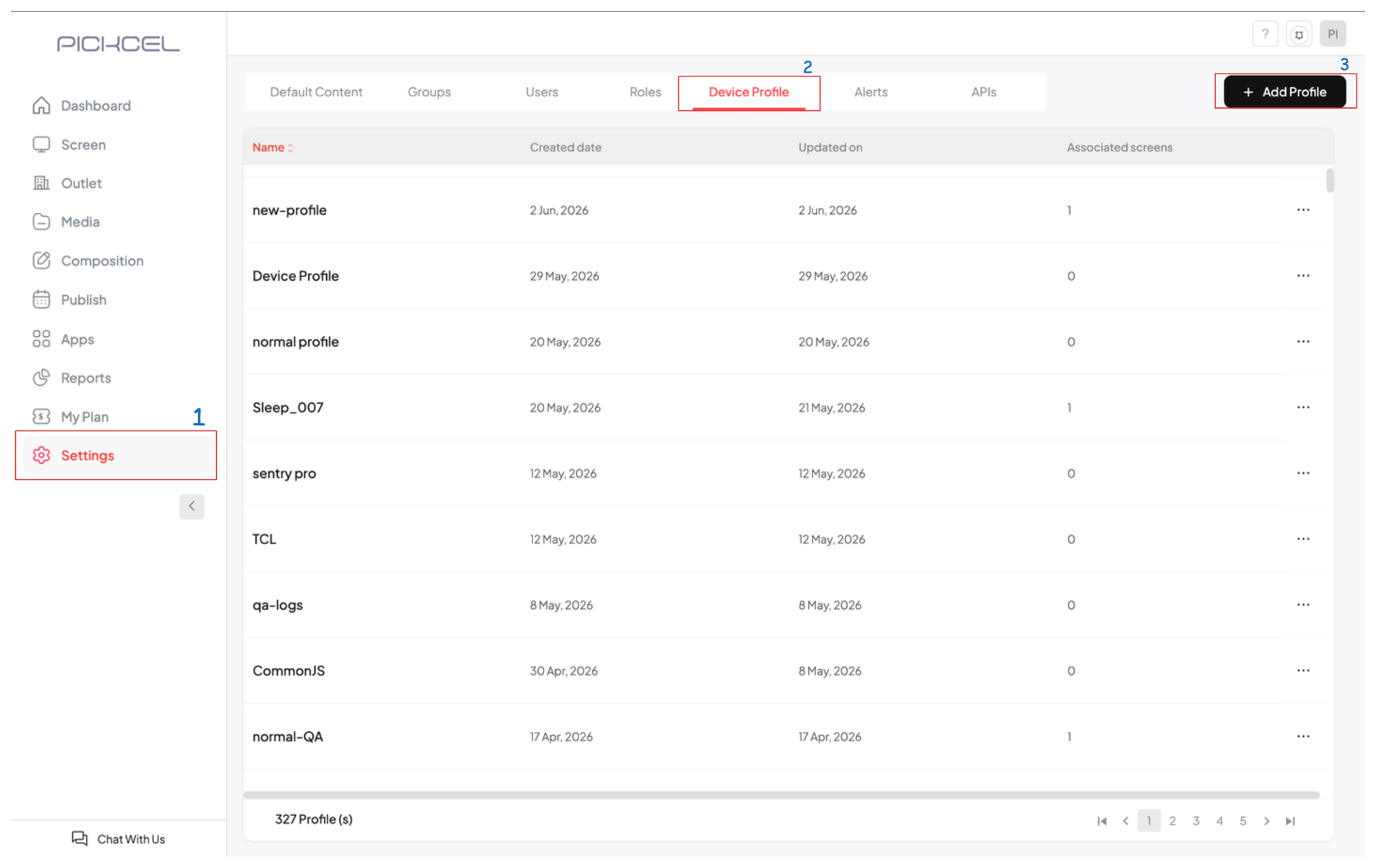
2
Name the profile and set the health indicator
Enter a unique Profile Name to identify the profile. Then toggle Screen Health Indicator on or off, when enabled, the three status dots appear on the device’s screen.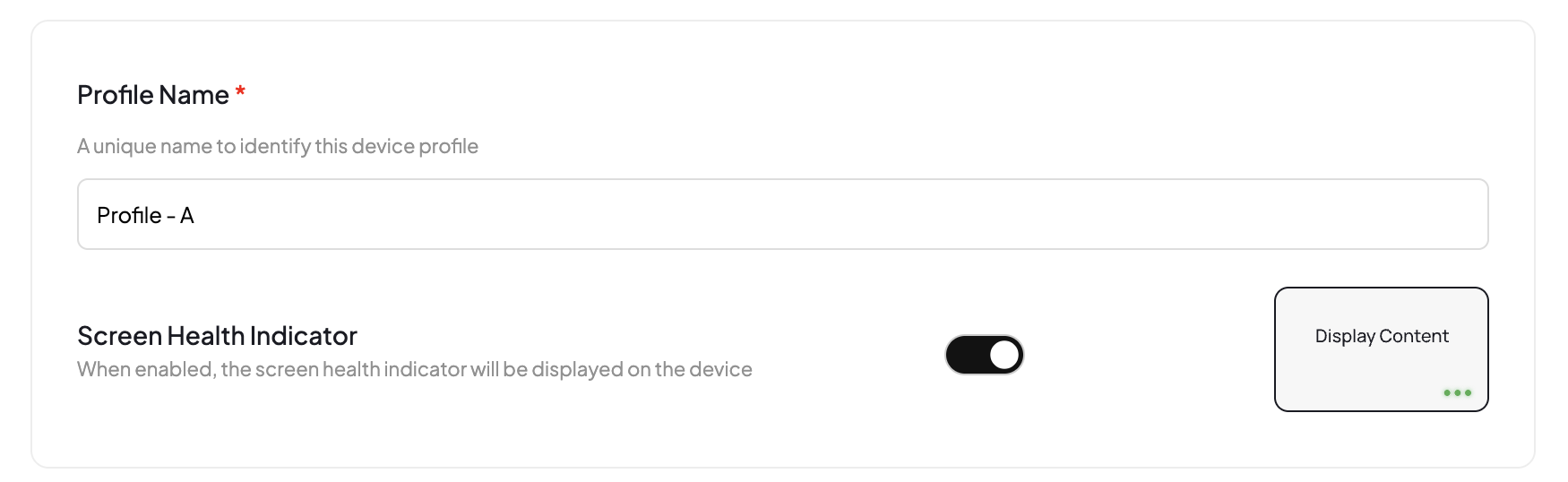
3
Configure the logo (Landscape and Portrait)
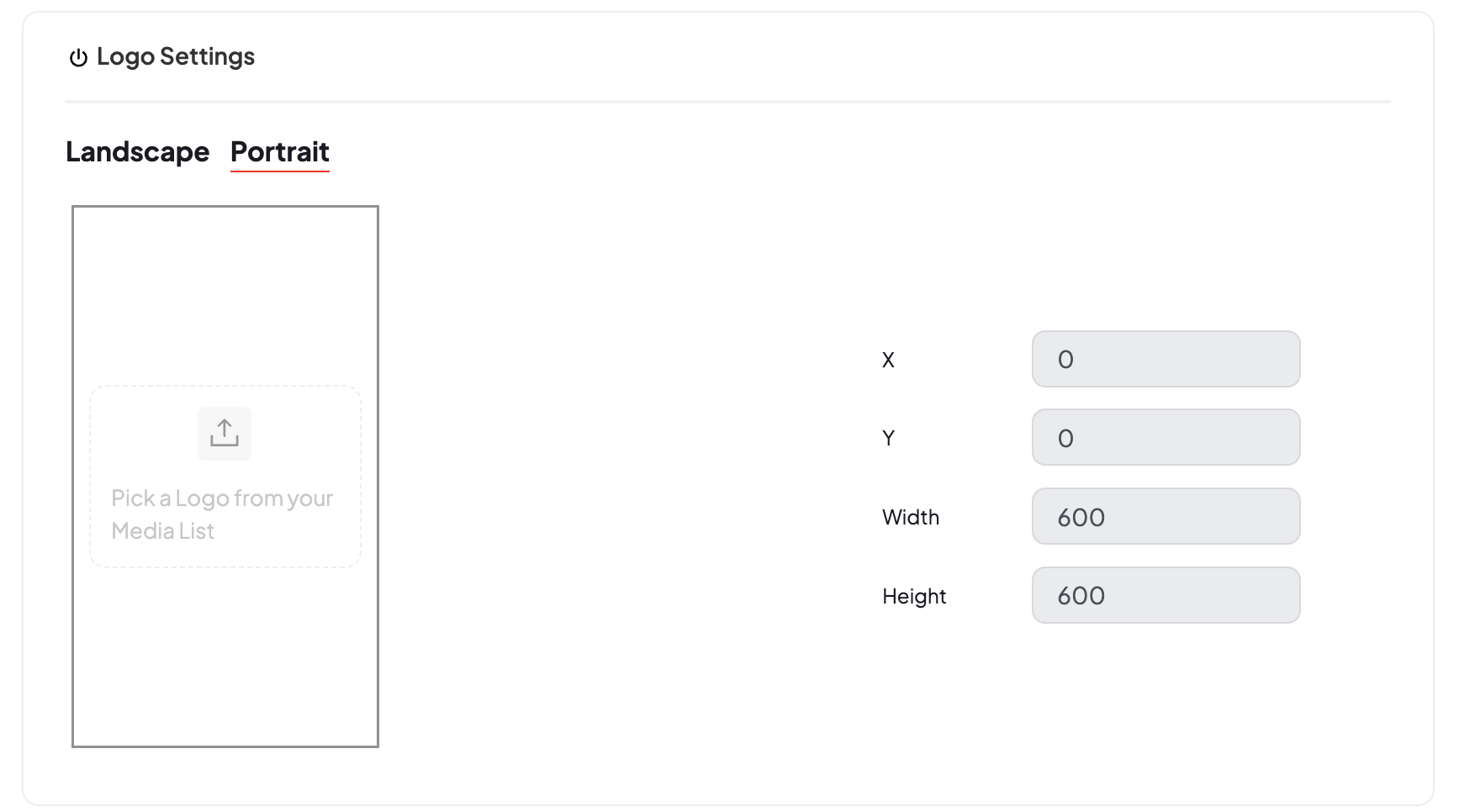
Under Logo Settings, pick a logo from your media list for the Landscape and Portrait orientations separately. For each, set the X and Y position and the Width and Height to place and size the logo on screen.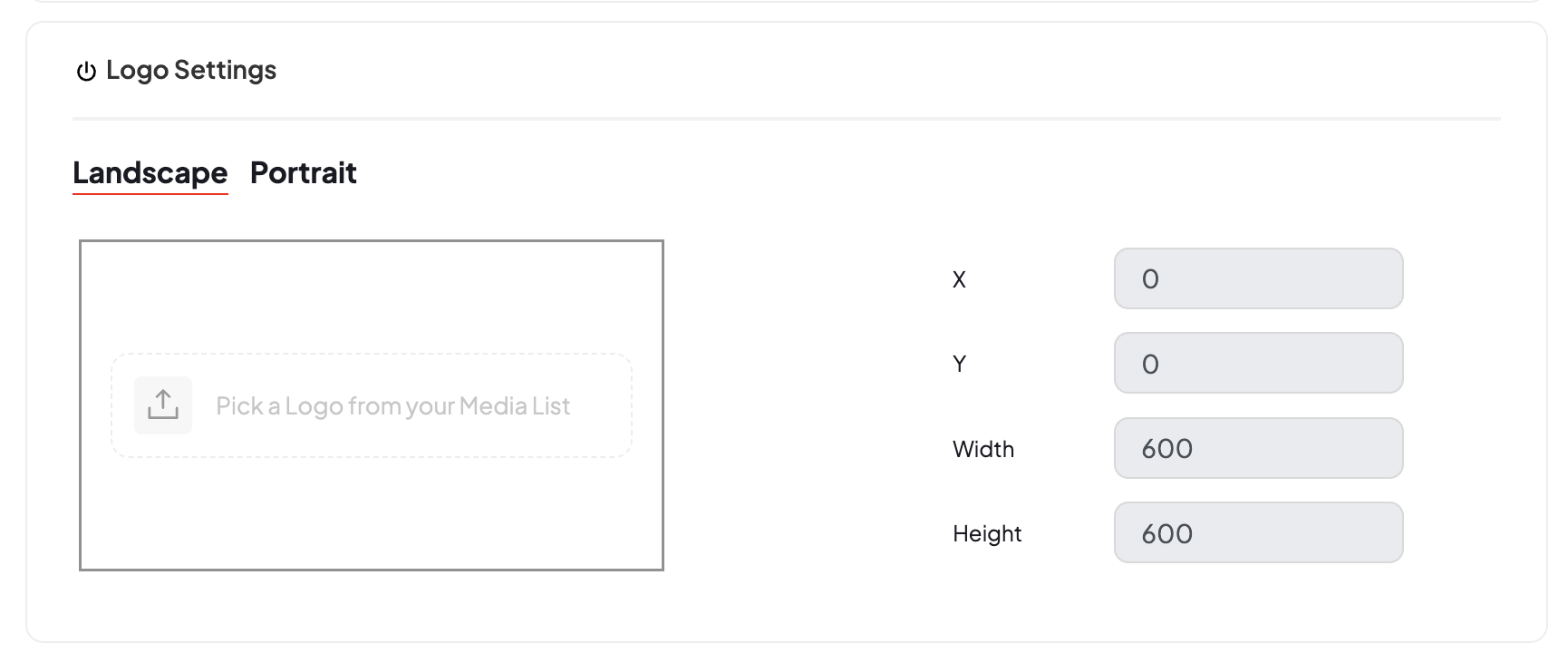
4
Adjust the other device settings (optional)
The Other Settings panel gives you fine-grained device control: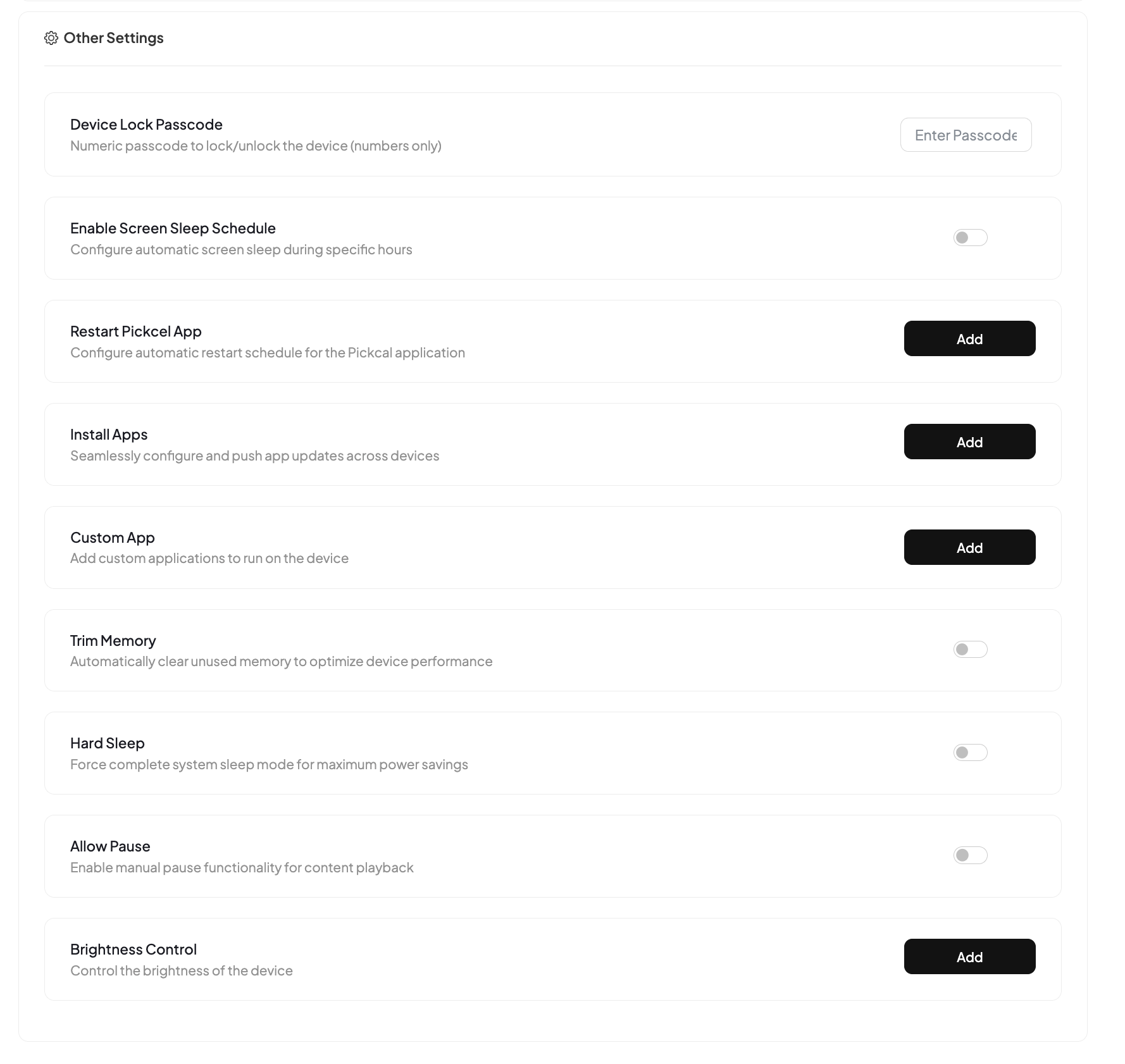
- Device Lock Passcode: a numeric passcode to lock/unlock the device.
- Enable Screen Sleep Schedule: put the screen to sleep during specific hours. See How to schedule screen sleep on Android devices.
- Restart Pickcel App: schedule automatic restarts of the player app.
- Install Apps: configure and push app updates across devices.
- Custom App: add custom applications to run on the device.
- Trim Memory: automatically clear unused memory to optimize performance.
- Hard Sleep: force full system sleep for maximum power savings.
- Allow Pause: enable manual pause of content playback.
- Brightness Control: set the device brightness.
5
Save the profile
Click Add Profile to save. The new profile appears in the Device Profile list.
6
Assign screens
Find the profile in the list, click its three dots, and choose Assign Screens. Select the screens you want, then click Assign. (The same menu has Edit and Delete.)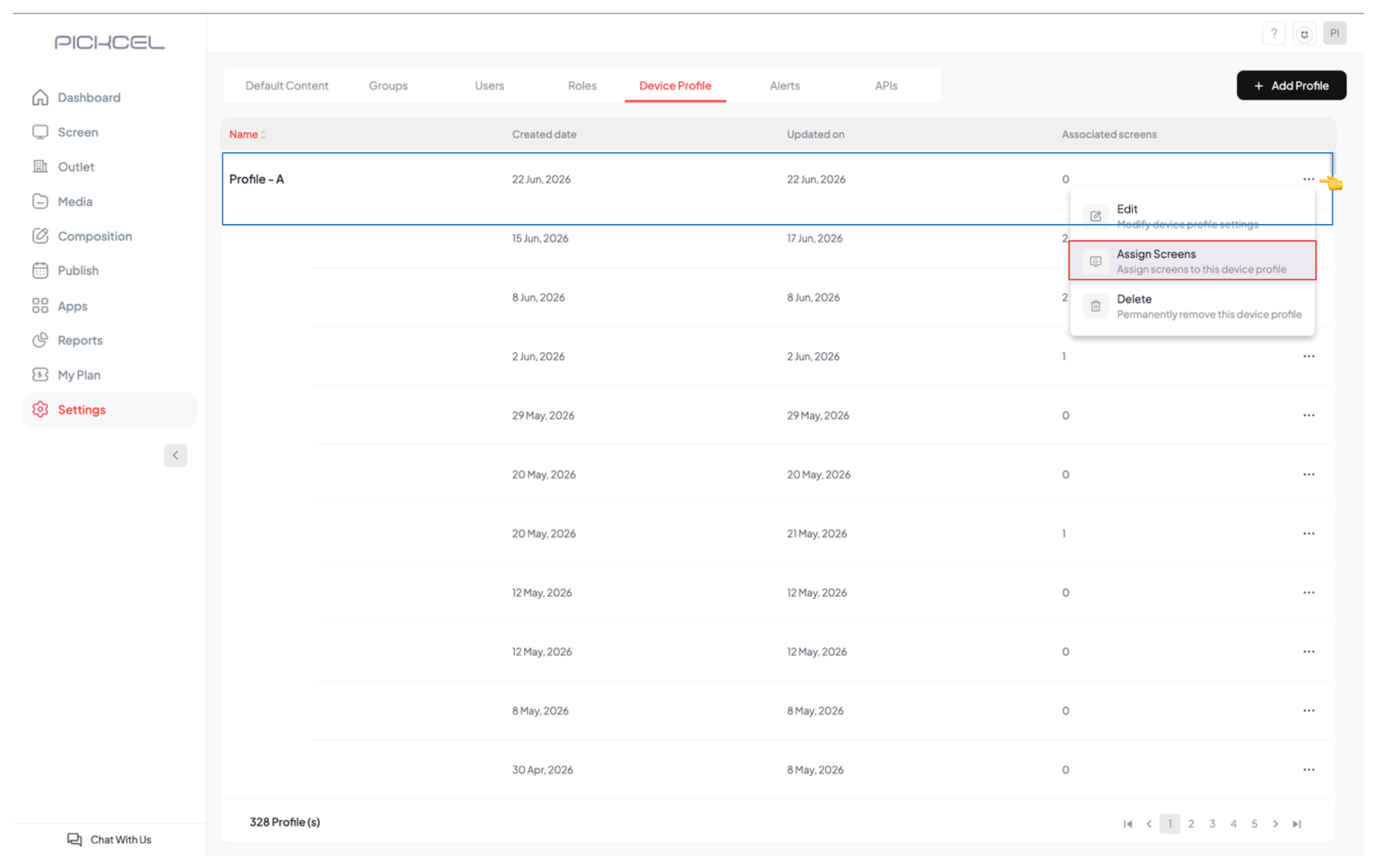
After assigning, restart or reload the screen and allow about 2–3 minutes for the profile to take effect. You can edit or delete a profile anytime from its three dots menu.
How many user logins do I get with one account?
The Trial and Professional plans currently include a single user login per account. Enterprise users can request the multi-user login feature for multiple accounts with varying permissions. Contact support to enable it.To learn how to set up additional users and what each can access, see User Roles.
Related guides
Groups
Set up groups to segment screens and content by team.
Sub-users
Add sub-users and assign them to groups.
User Roles
Control what each user can see and do.
Back to FAQs
Browse all Pickcel FAQ articles.