Learn how to submit a support ticket from the Pickcel Help Center so the support team can investigate your issue and share a resolution.
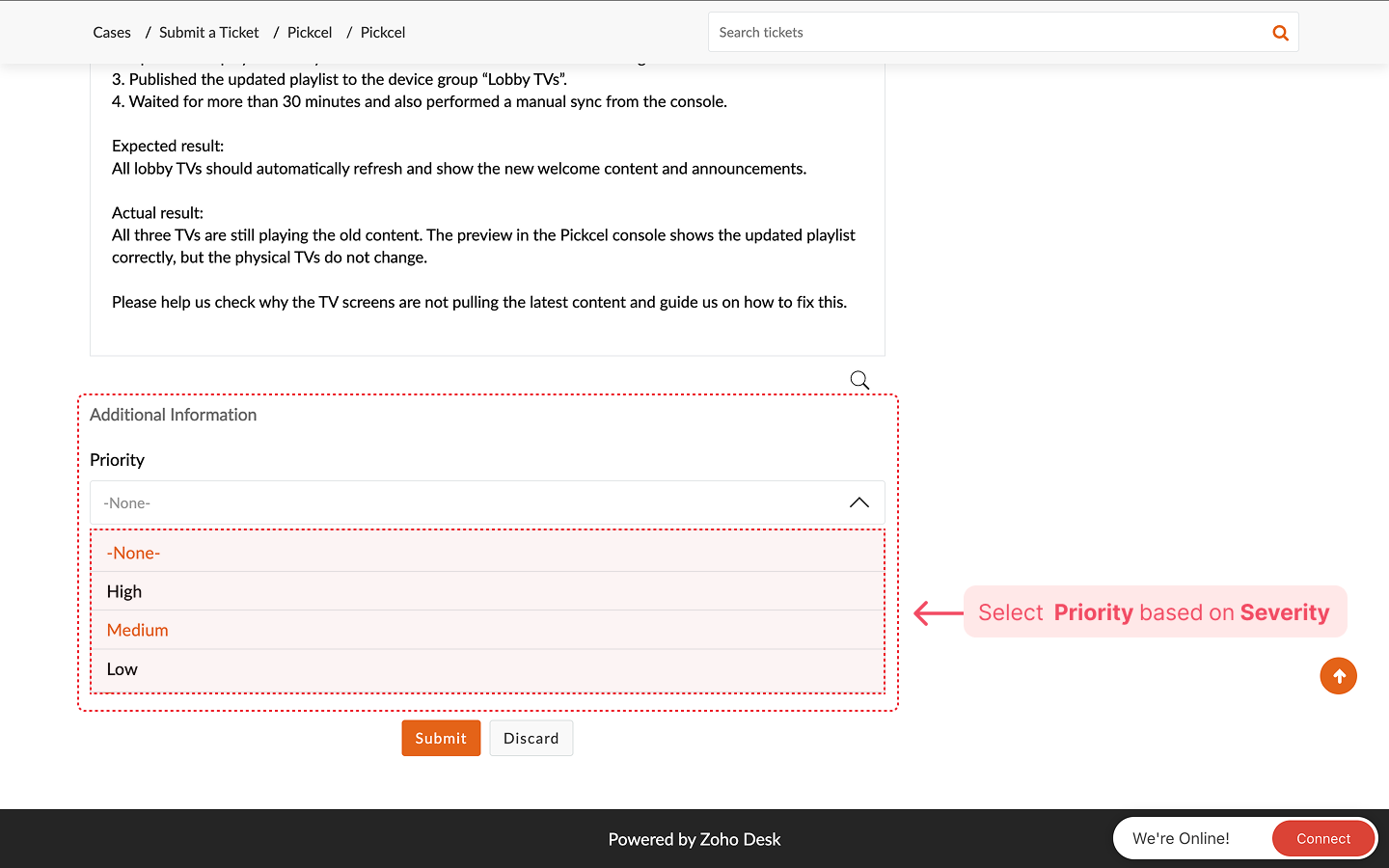
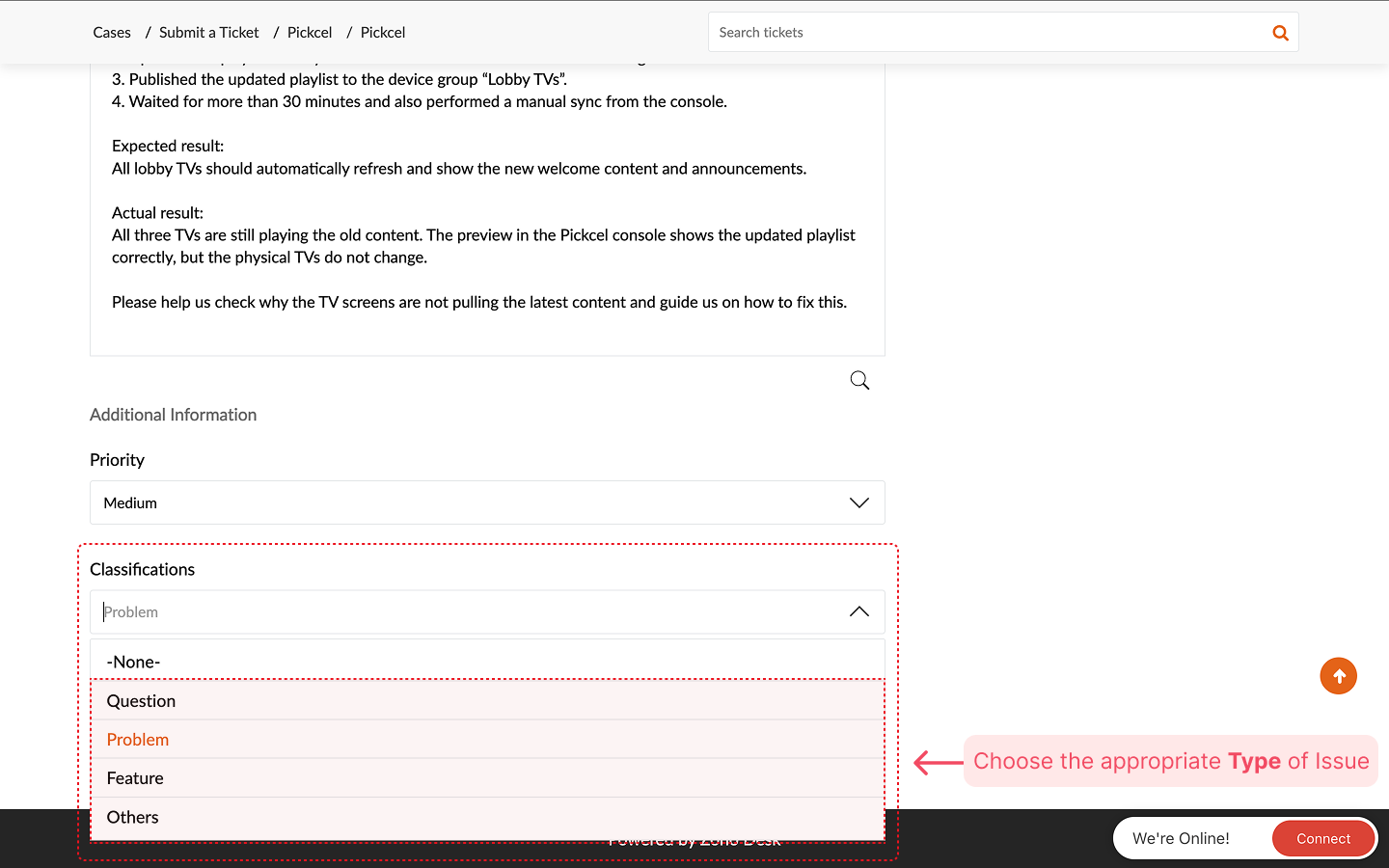
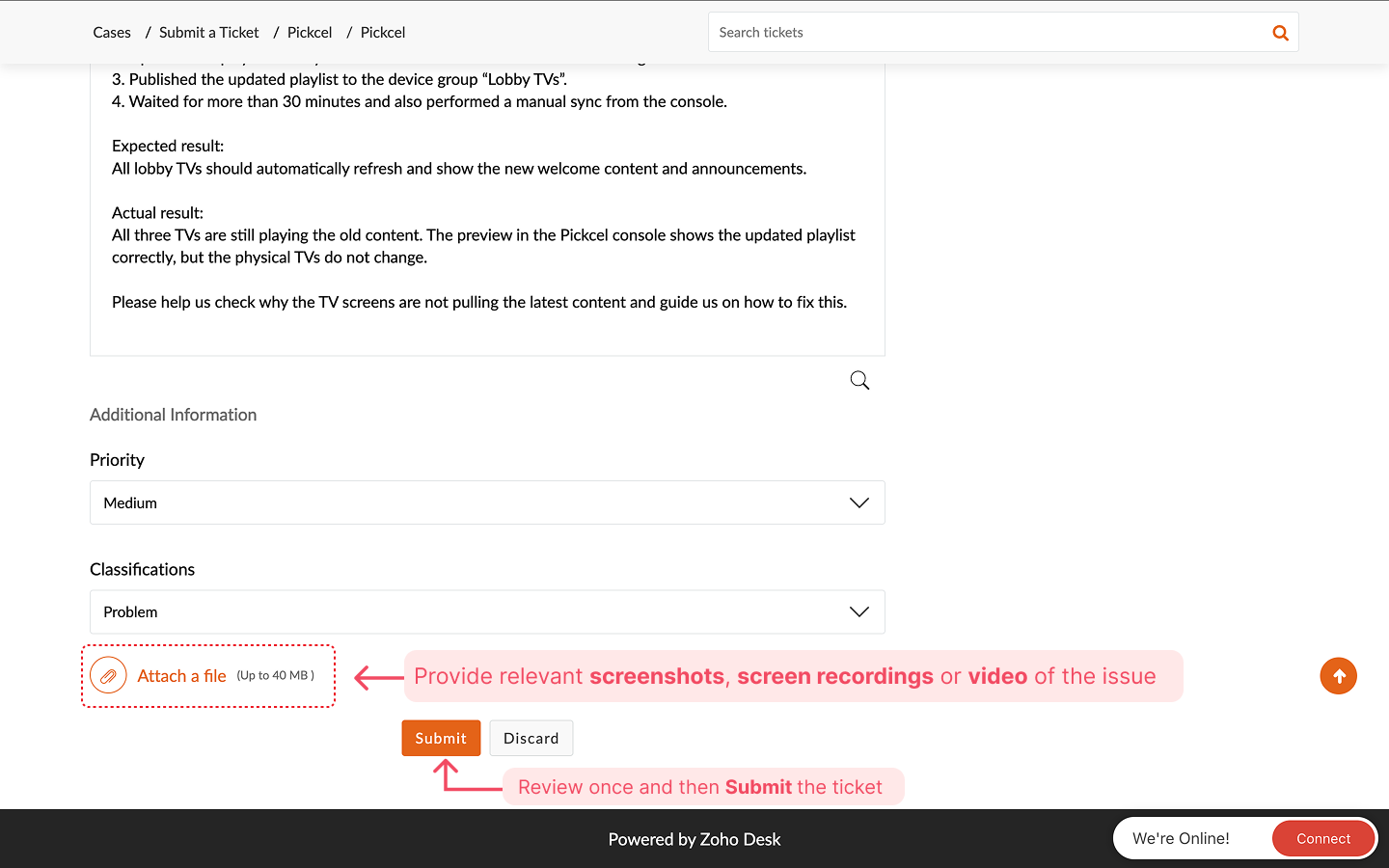
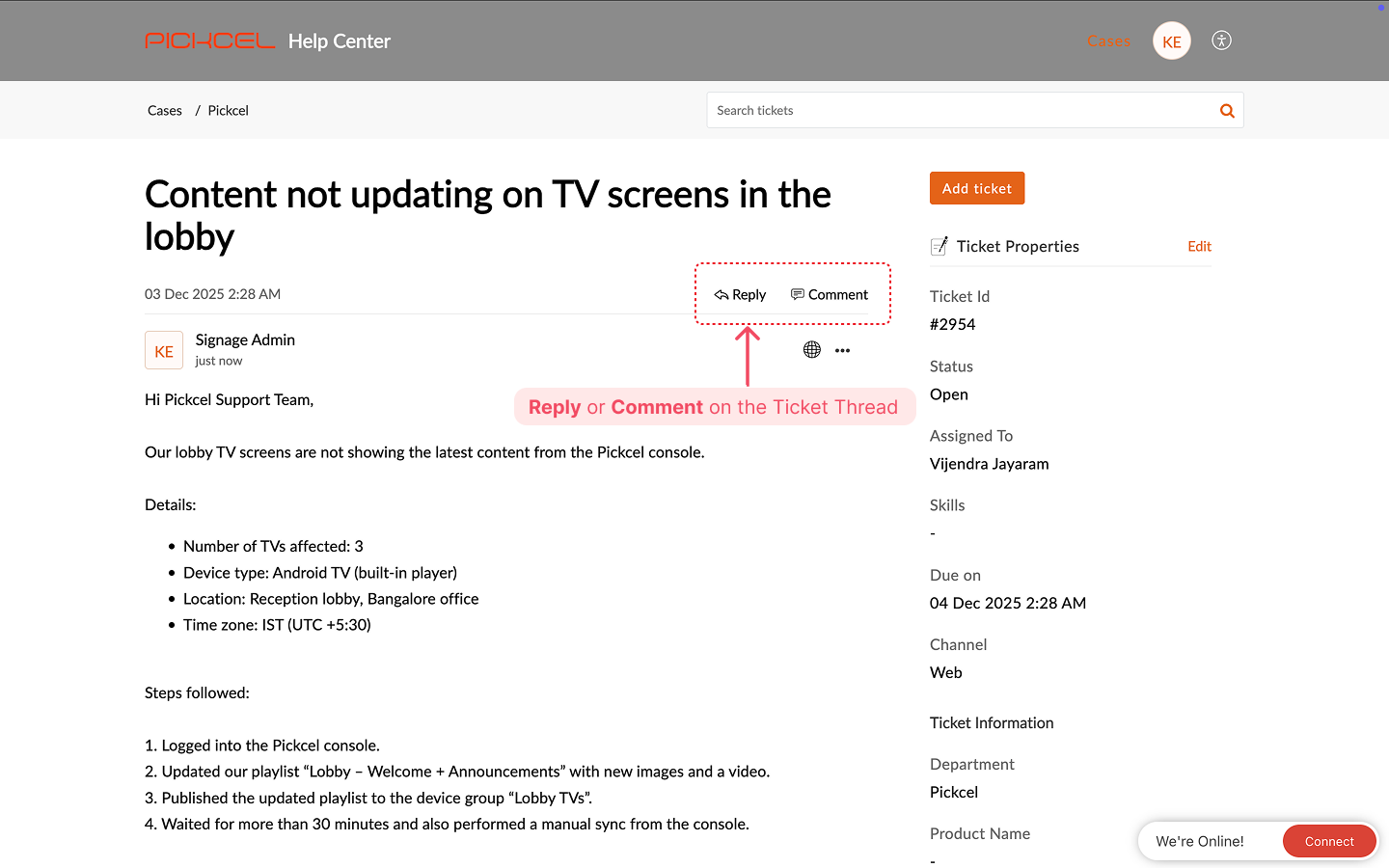
If you face an issue in Pickcel or need help from the support team, you can raise a support ticket from the Pickcel Help Center. This sends your request directly to our support engineers so they can investigate and respond.
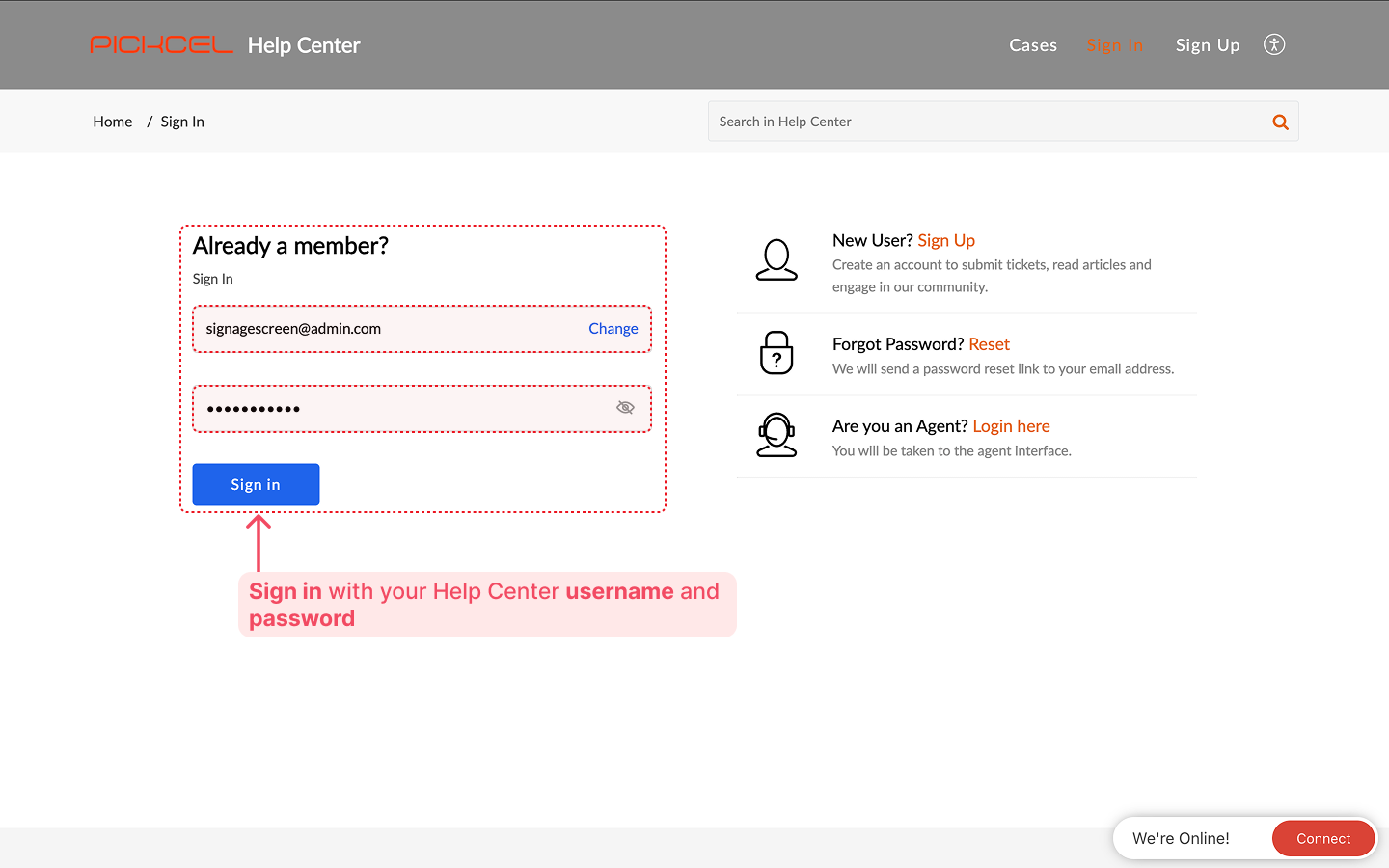
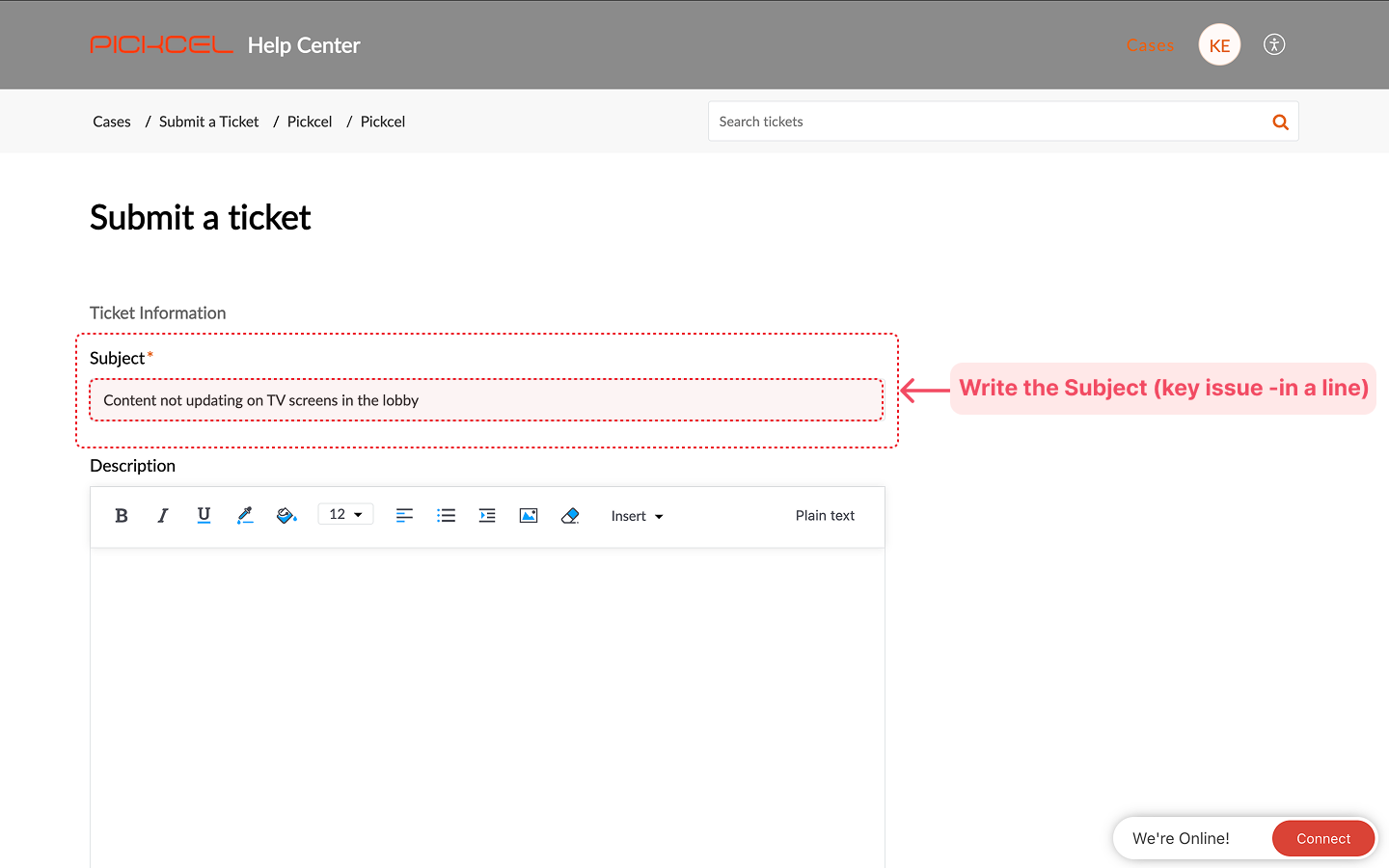
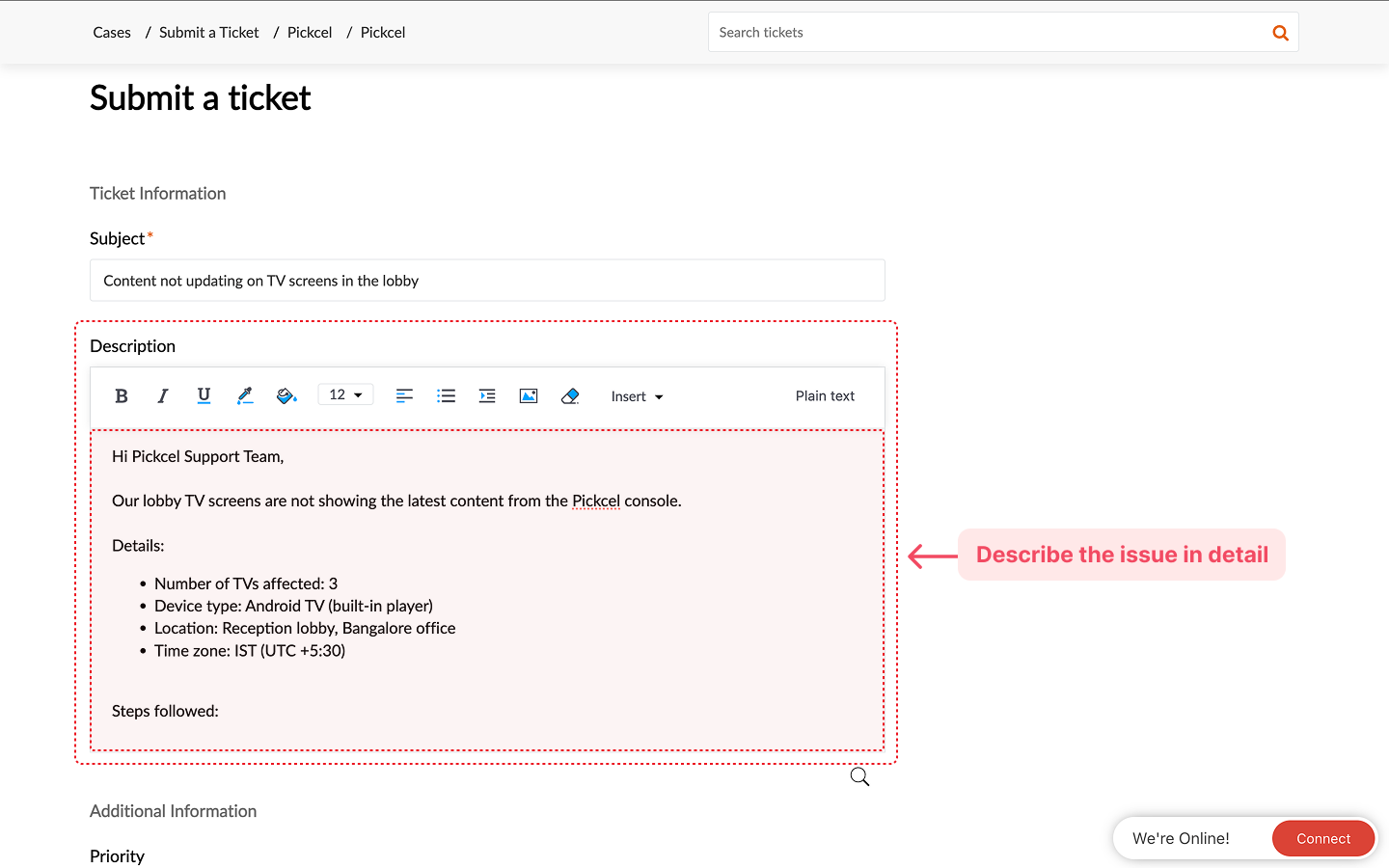
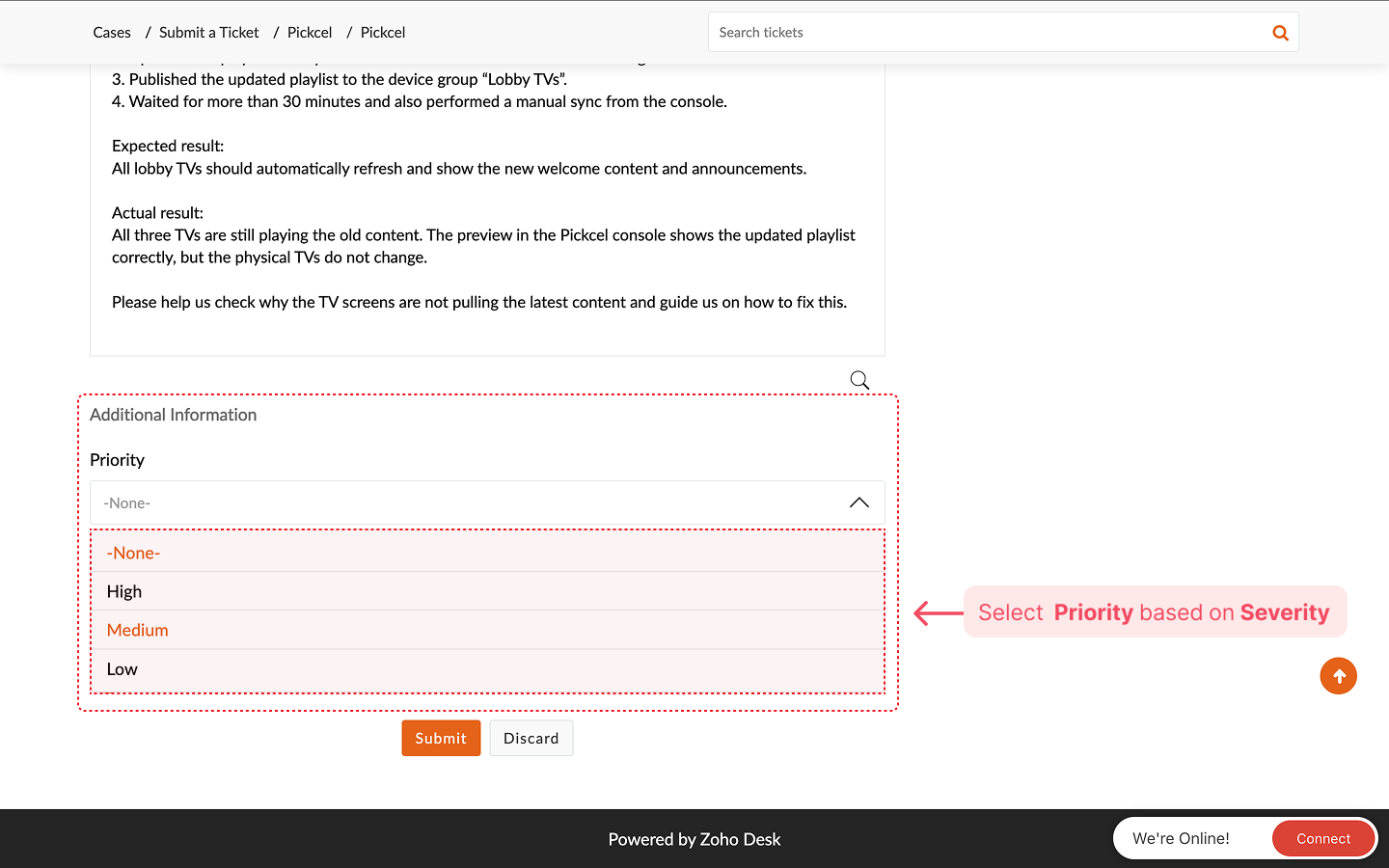
Open https://support.pickcel.com/portal/en/newticket in your browser and sign in using the Help Center username and password shared by the Pickcel team.After you sign in, the Submit a ticket form will open directly.
If you’d rather reach us directly while working in Pickcel, use the Chat With Us option in the bottom-left corner of the console. It lets you call the team or start a live chat without leaving the dashboard.
1
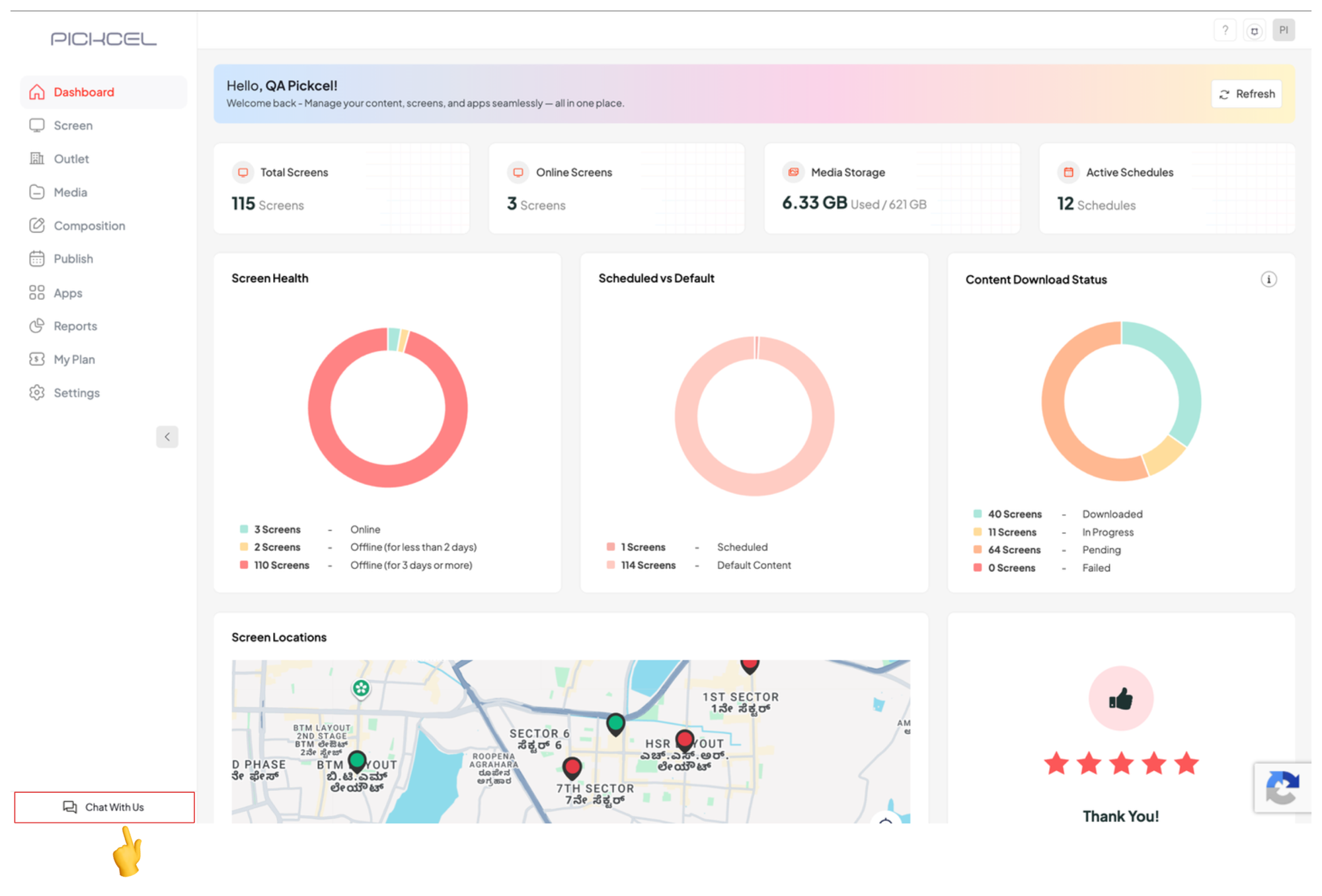
Open Chat With Us
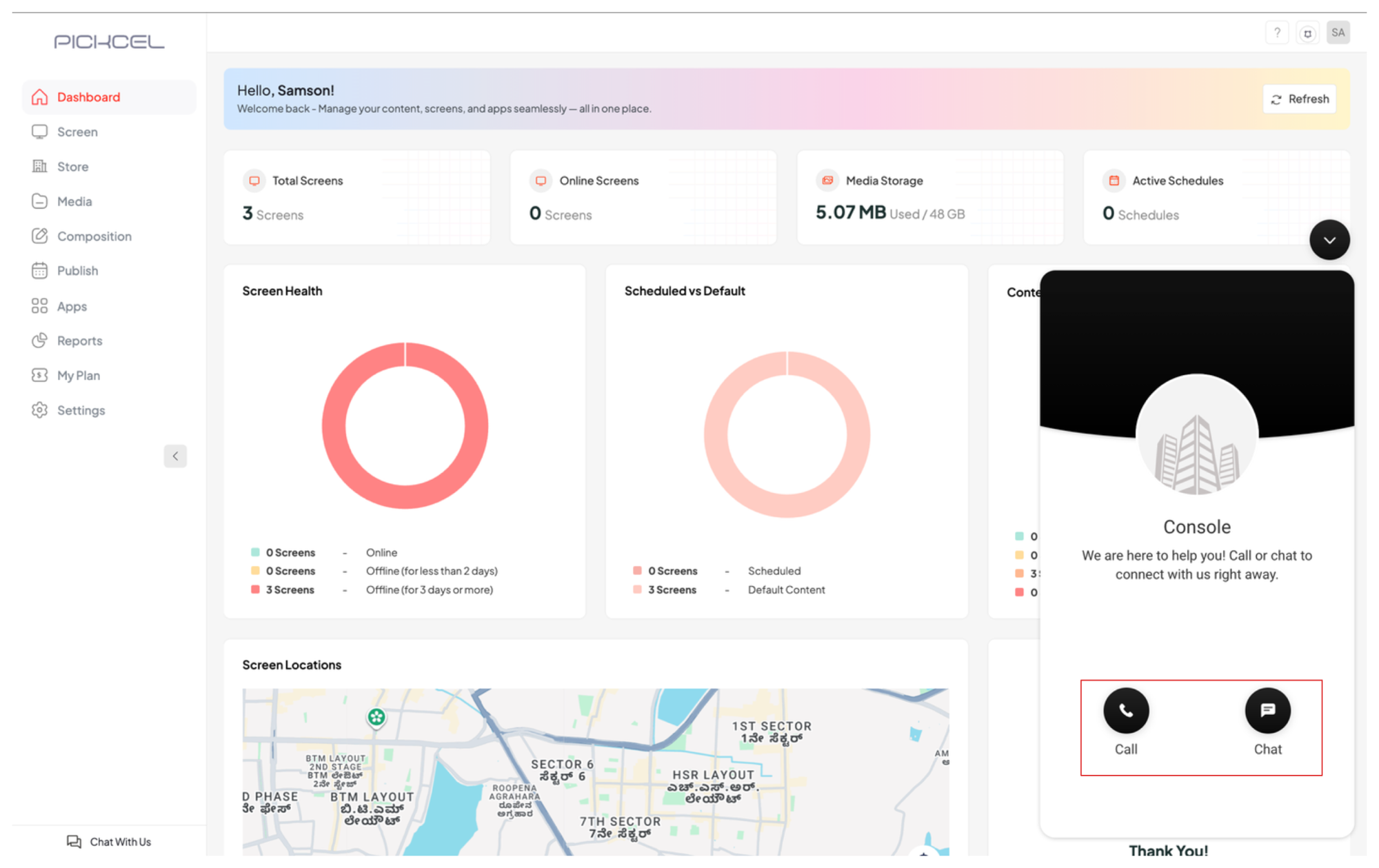
Click Chat With Us. A support panel opens with two options, Call and Chat.
2
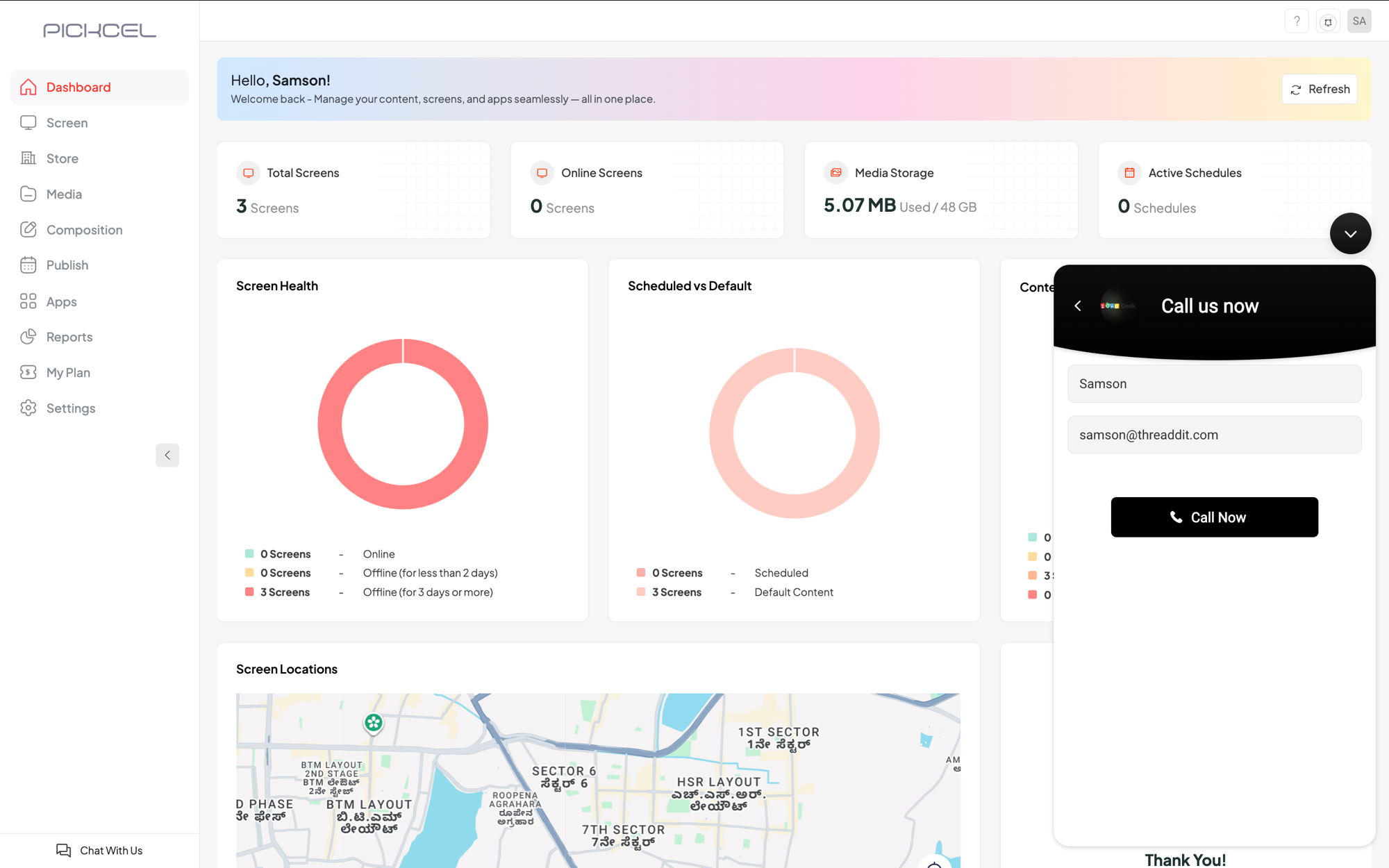
Call us
Choose Call to speak with the team. Confirm your name and email, then click Call Now to connect.
3
Chat with us
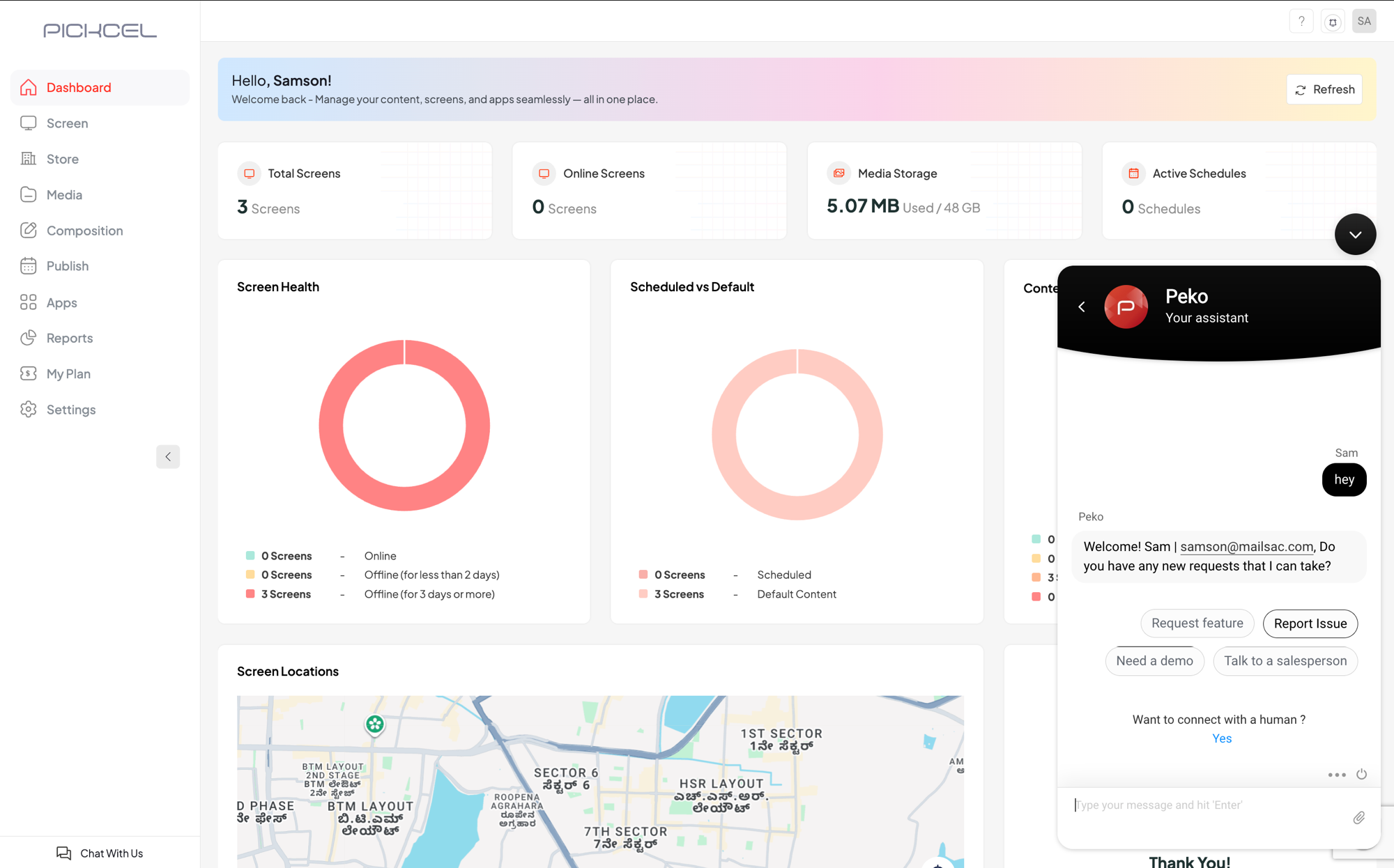
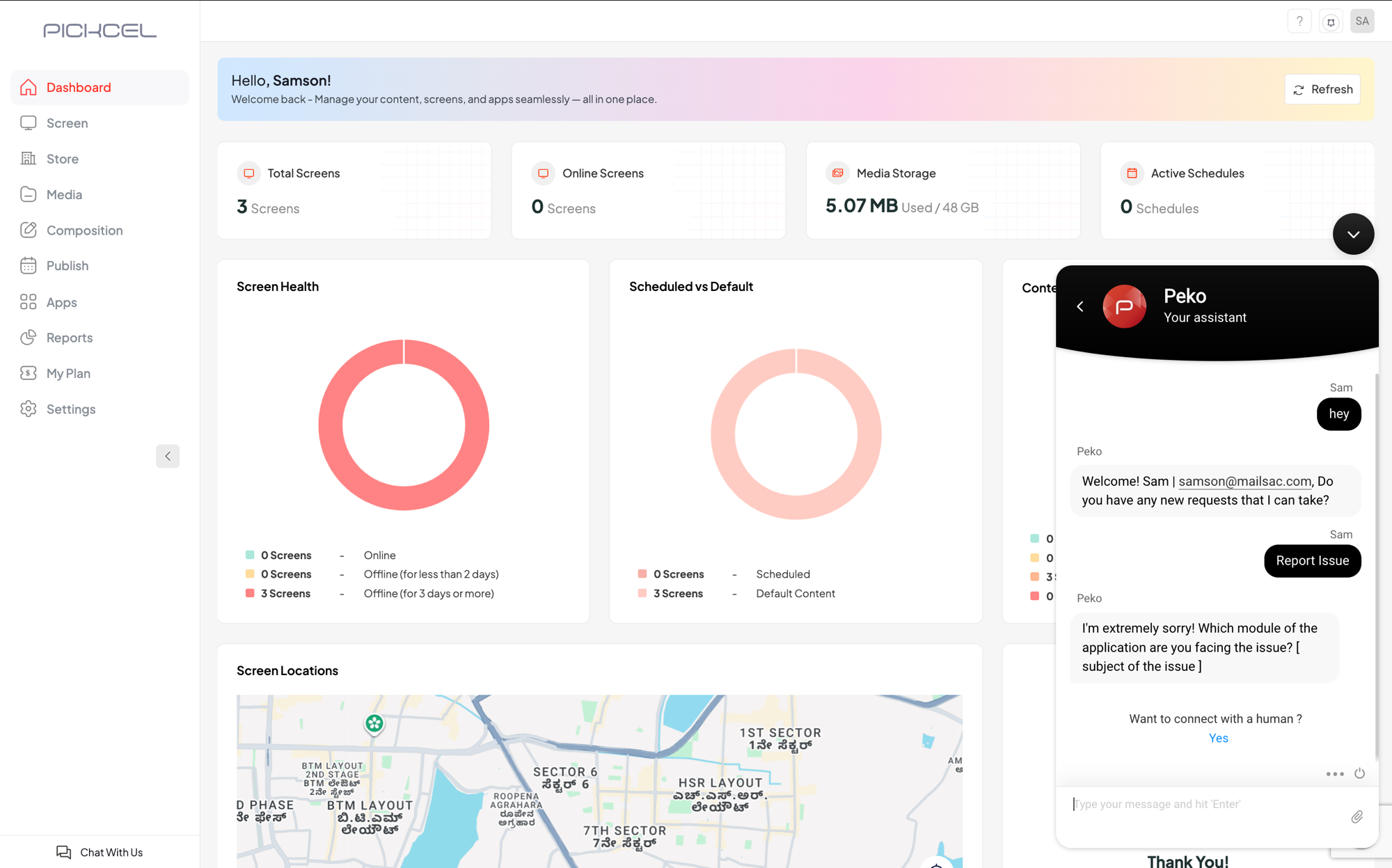
Choose Chat to message Peko, your assistant. Pick what you need, Request feature, Report Issue, Need a demo, or Talk to a salesperson, and follow the prompts.
For example, select Report Issue and Peko asks which module the issue is in so it can route your request. To reach a person, choose Yes under Want to connect with a human?
Based on your query, our support team will either pick up your chat and get back to you right away, or review the issue and reach out via email or phone. Either way, we’ll work with you to resolve it.


 For example, select Report Issue and Peko asks which module the issue is in so it can route your request. To reach a person, choose Yes under Want to connect with a human?
 Based on your query, our support team will either pick up your chat and get back to you right away, or review the issue and reach out via email or phone. Either way, we’ll work with you to resolve it.