

1
Access On/Off Timer
Press the Home button on your remote and select On/Off Timer from the menu.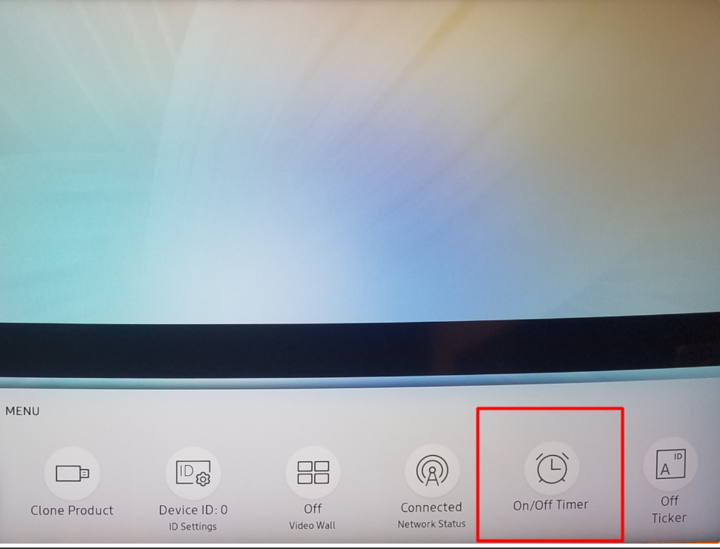
2
Select On Timer
Click on On Timer to configure when the TV should turn on.
3
Choose timer slot
Select On Timer 1 (or any other available timer from the list).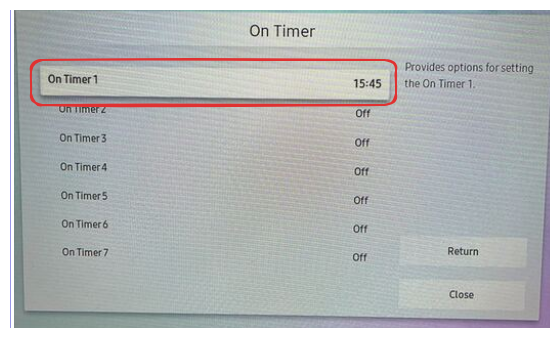
4
Configure On Timer settings
Click Setup. Choose the days you want the TV to turn on, navigate to Time, and set the desired time for the timer. Click Done when finished.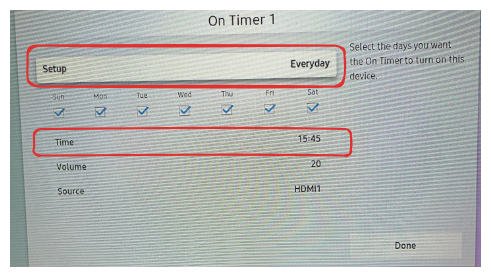
Time Format: The TV uses a 24-hour clock format (e.g., 14:30 for 2:30 PM).
5
Configure Off Timer
Click on Off Timer and select Off Timer 1 (or any other available timer from the list).
6
Set Off Timer schedule
Click Setup. Choose the days you want the TV to turn off, navigate to Time, and set the desired time for the timer. Click Done when finished. Return to the previous menu and click Close.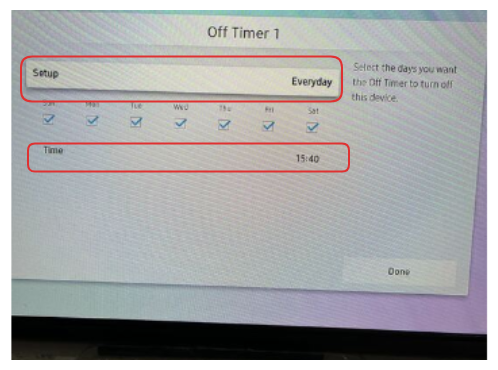
Related Articles
Samsung Tizen Installation - SSSP
Install Pickcel on Samsung Tizen using SSSP method
Samsung Tizen Installation - USB
Install Pickcel on Samsung Tizen using USB method
Screen Registration Guide
Learn how to register your Samsung TV with Pickcel
Back to FAQs
Browse more troubleshooting guides and FAQs