

Can I create multiple partitions on a display to run different content?
Yes. Pickcel lets you split a single display into multiple partitions, called zones, and each zone can show its own content. Within a zone you can display an image, a video, or an app such as YouTube, RSS feeds, tickers, text, clocks, weather, web URLs, slides, maps, and many others. This lets one screen run several pieces of content side by side.Can I have multiple zones in a single display? How many videos can I add?
You can create up to 8 zones on a single display, and add a separate video to each zone. All the videos play at the same time. By default, the audio from Zone 1 plays while the videos in the other zones run muted.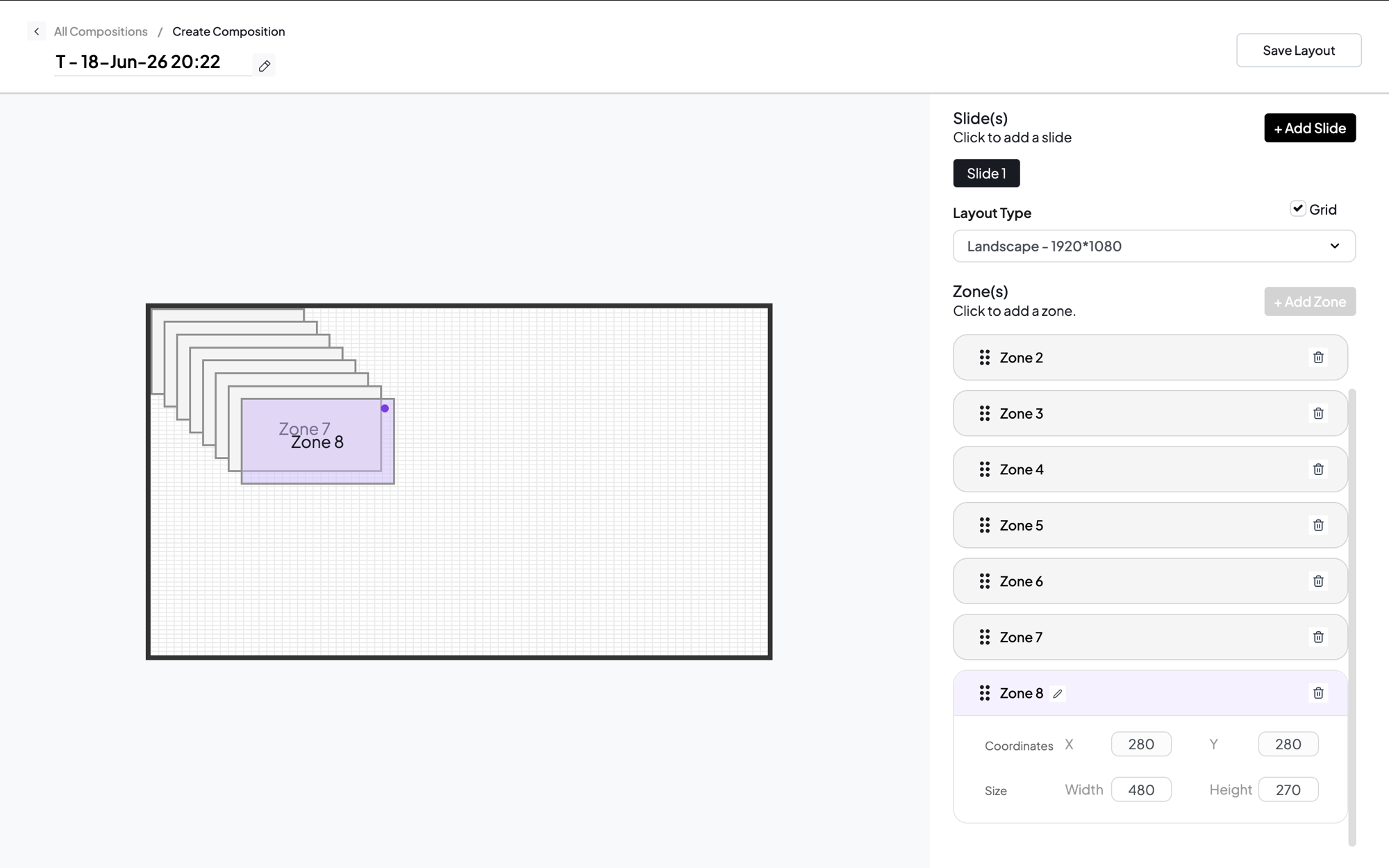
Can I add multiple videos in my composition?
We don’t recommend spreading multiple videos across different zones, as playback behavior can be unpredictable depending on the device you’re using. The recommended approach is to place all your videos in a single zone and play them in sequence. If you do need videos in more than one zone, they all play muted except the one that comes into focus first.Can I edit a layout I’ve created?
Yes, you can edit any custom layout you’ve created. Click the three dots next to the layout and choose Edit.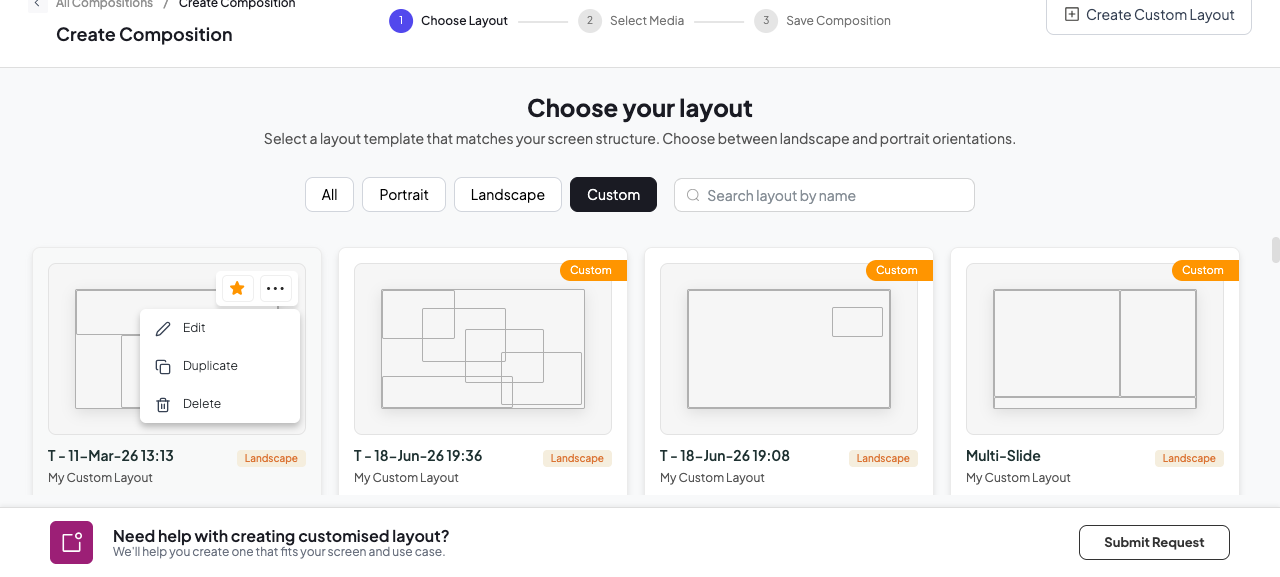
Why can’t I delete a composition?
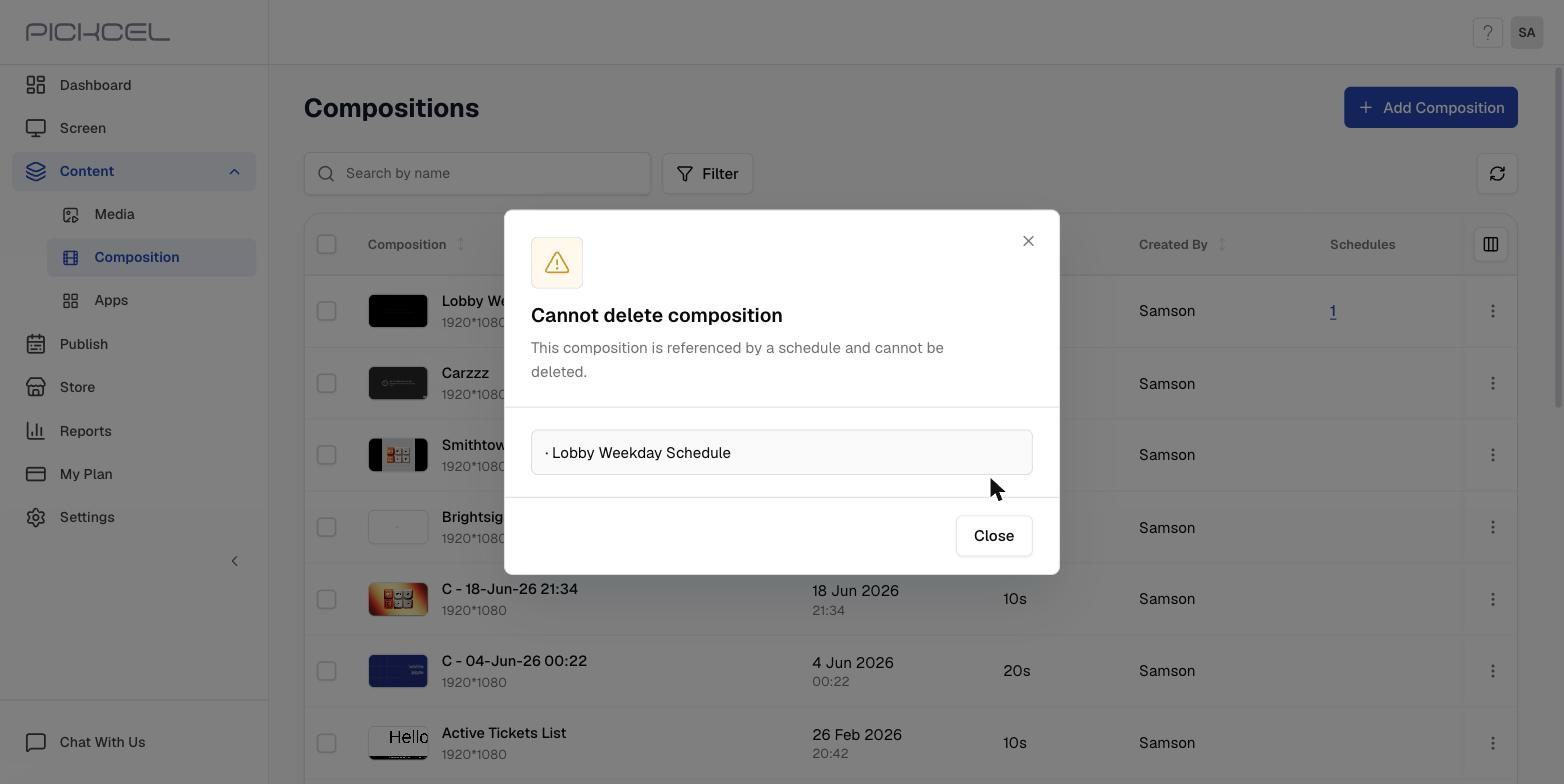
A composition can’t be deleted while it’s still in use. If you click ⋯ → Delete and see a Cannot delete composition message, something on your account still references it:- A schedule includes the composition, “This composition is referenced by a schedule and cannot be deleted.”
- A Quickplay is using it, “This composition has active quickplay references and cannot be deleted.”
- It’s set as a screen’s default composition, “This composition is set as default on one or more screens and cannot be deleted.”
Can I have multiple compositions for multiple displays?
Yes. You can create multiple compositions and assign different ones to different displays. You can start from the default layout templates in the Pickcel console, pick a ready-made Template based on your industry, or build your own custom layout. See Create a composition to get started.Can I crop an image or keep its aspect ratio inside a zone?
When you add an image to a zone, you can choose how it fits using three options:- Fit to zone: the image fills the entire zone.
- Maintain aspect ratio: the image keeps its original proportions.
- Crop: manually select the area of the image to display in the zone.
- Supported on Pickcel software v3.4 and above.
- Aspect ratio can’t be applied to the same image added more than once, for example, if you set Fit to zone on one copy of an image, you can’t set Maintain aspect ratio on another copy of the same image.
- Cropping doesn’t work well on low-resolution images and videos.
Related guides
Create a Composition
Build a multi-zone layout and add content to each zone.
Zones
Learn how zones split a screen into independent content areas.
Layouts
Use default templates or design your own custom layout.
Edit a Composition
Update an existing composition’s zones and content.
Delete a Composition
Remove a composition, and clear what’s blocking the delete.
Back to FAQs
Browse all Pickcel FAQ articles.