

What is Composition?
A composition is the final screen output you publish. It combines a layout, the media you add, and one or more , so you can decide exactly what plays and where on the display for your digital signage screens.Learn what a layout is and how to create a custom layout in Pickcel.
How to create a Composition in Pickcel console
1
Open Composition and click Add Composition
Log in to your Pickcel Console. In the left menu, expand Content and select Composition, then click Add Composition in the top-right corner.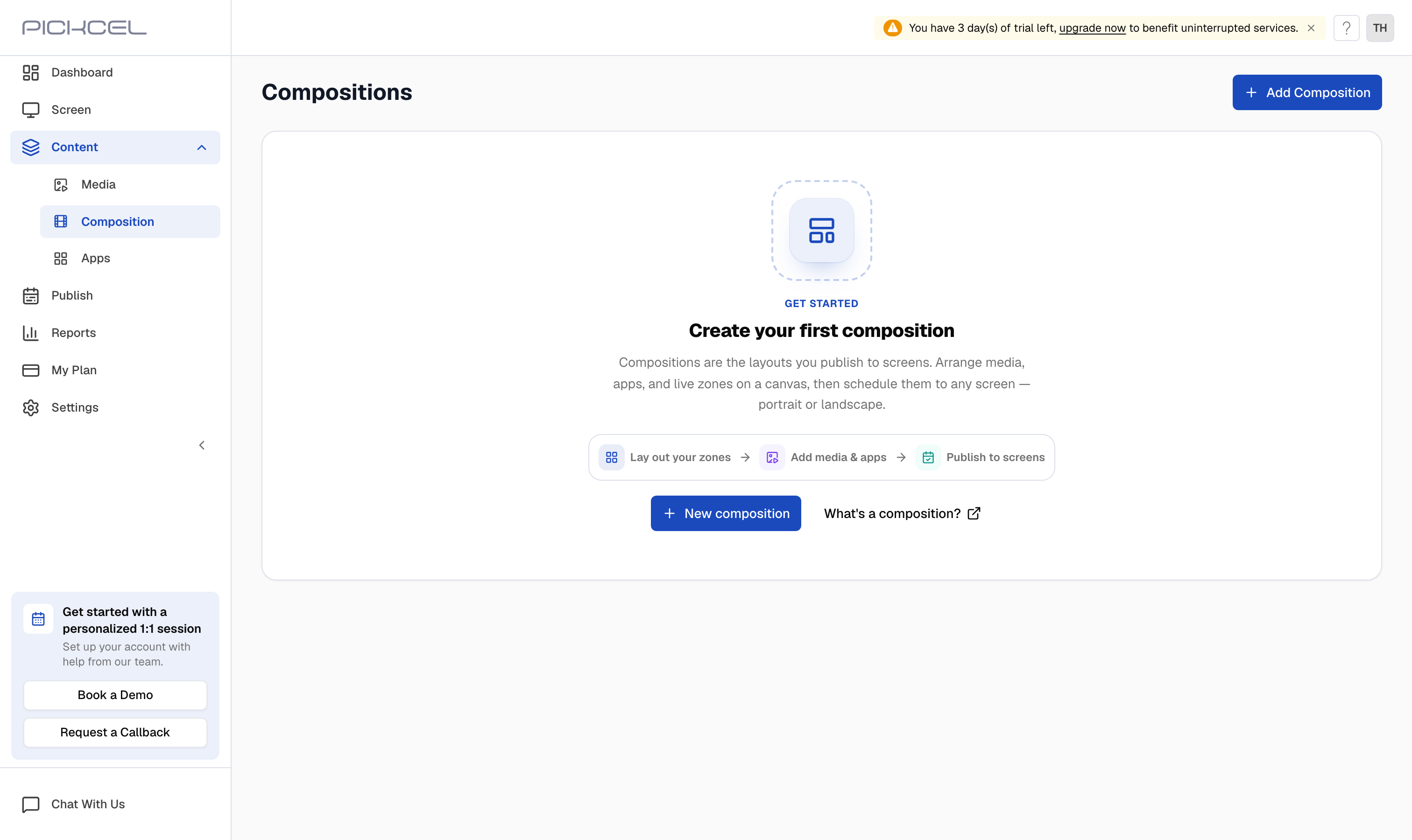
2
Choose a layout
On Choose Layout, pick the structure that matches your screen. Use the All, Portrait, Landscape, and Custom tabs, or Search layout by name, to find one, then click Use this layout.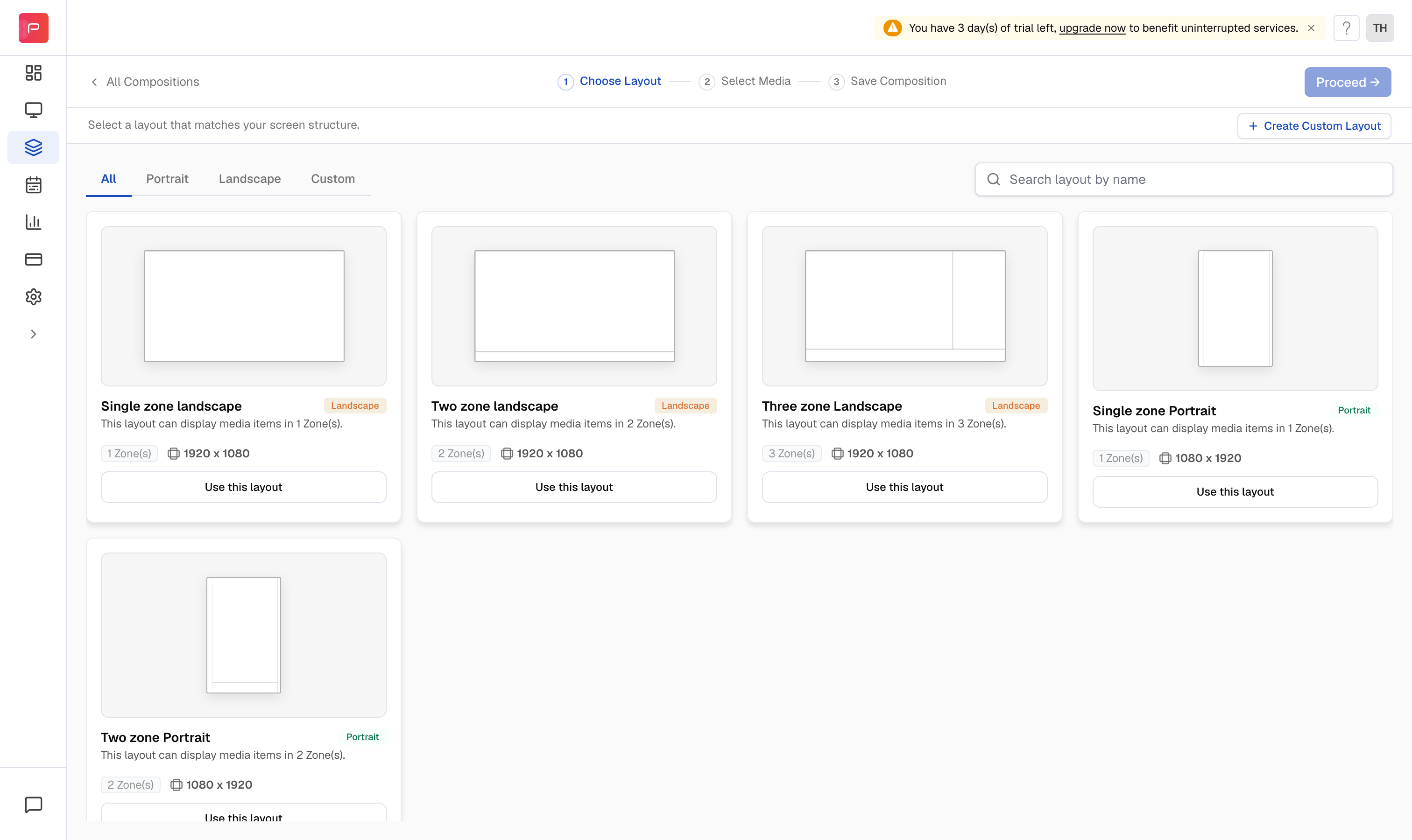
3
Get to know the composition editor
The editor opens on the Select Media step. Your media library sits on the left, and the zones for your chosen layout are on the right, each with its own Zone tab (Zone 1, Zone 2, and so on). The Total Duration for the selected zone is shown above the tabs.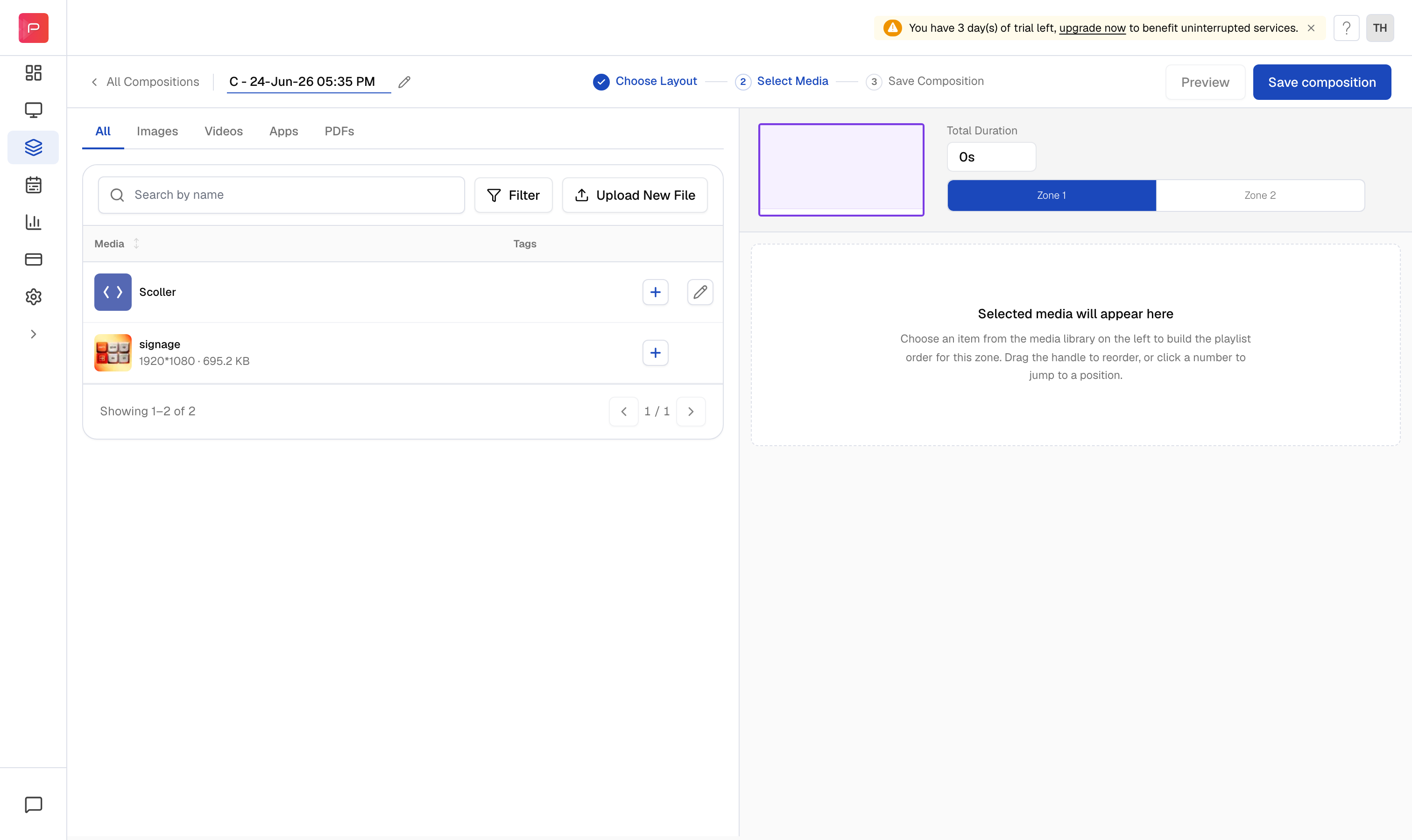
Filter the media library with the All, Images, Videos, Apps, and PDFs tabs, or click Upload New File to add something new without leaving the editor.
4
Add media to a zone and set its duration
Make sure the zone you want is selected, then click the + button on any media row to add it to that zone’s playlist. Each item shows inline −, duration, and + controls, so you can set how many seconds it plays. The zone’s Total Duration updates as you go.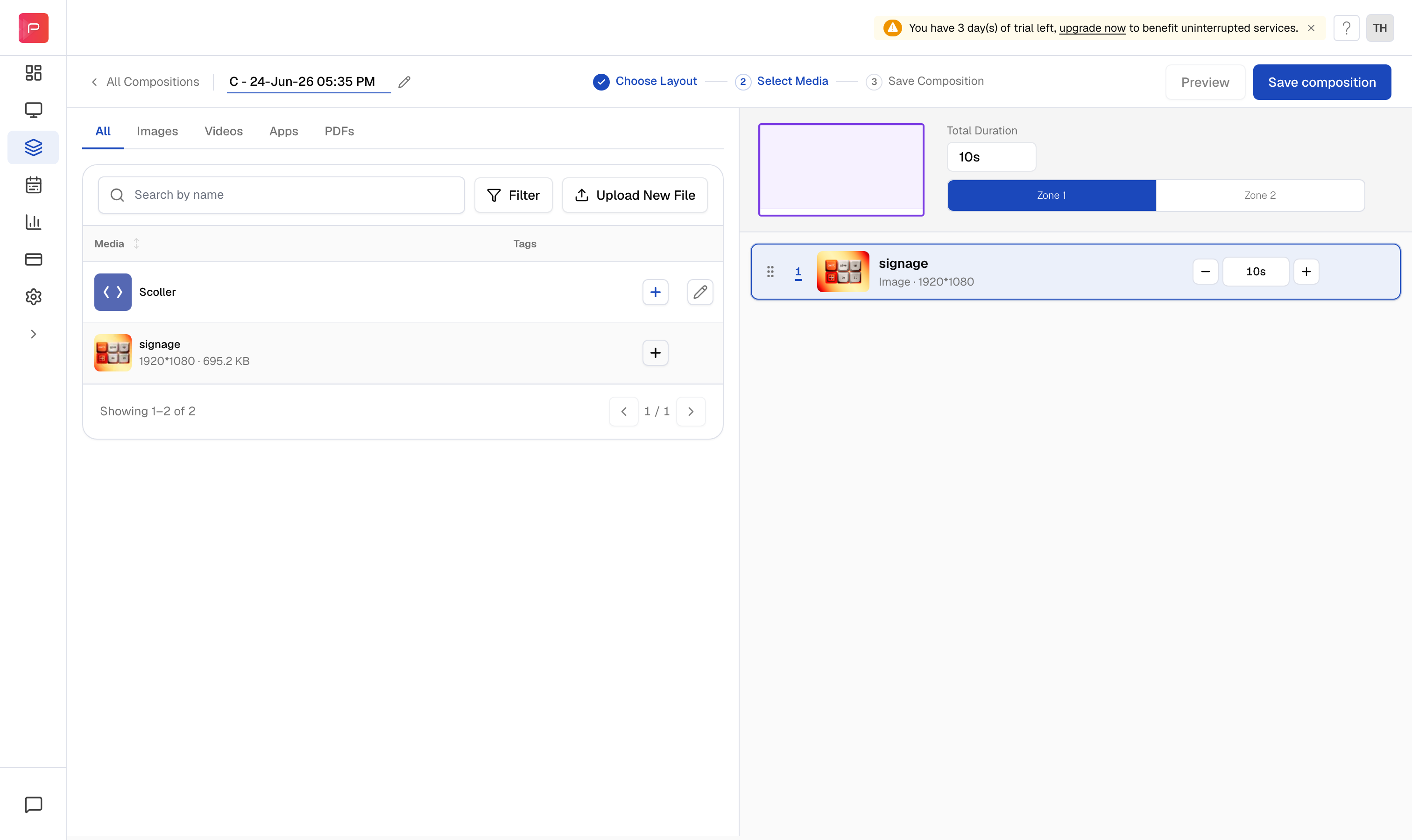
You can set the duration for images, but not for videos. A video always plays for its full length, so its playback isn’t cut off mid-stream.
5
Fill the remaining zones
Select the next Zone tab and repeat the previous step until every zone has the media you want.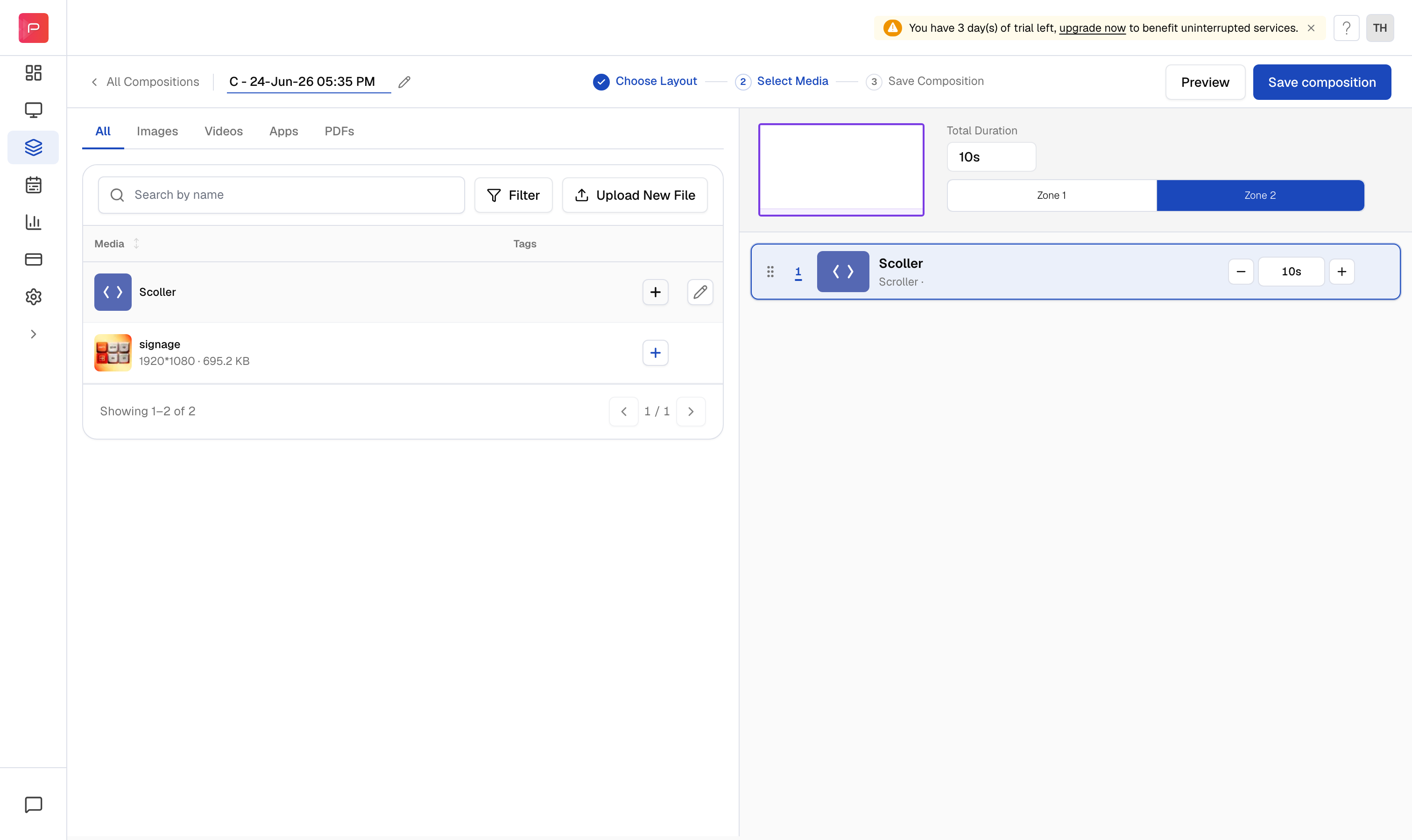
6
Preview your composition
Once your zones are filled, click Preview to see exactly how the composition will look on screen before you save it.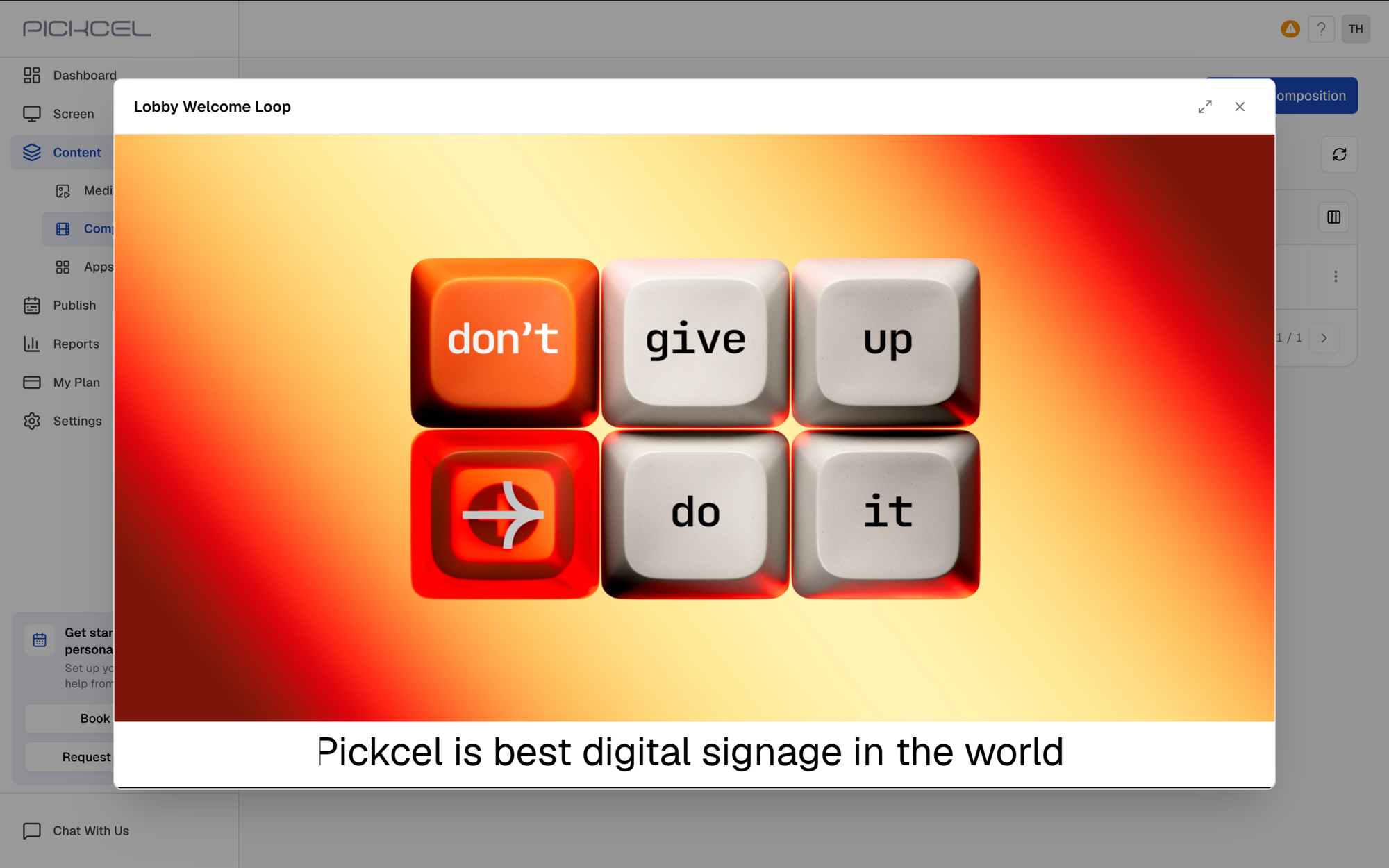
7
Name and save your composition
Rename the composition using the field (and pencil icon) at the top-left. When you’re ready, click Save composition. In the Save composition dialog, confirm the name and click Save & exit.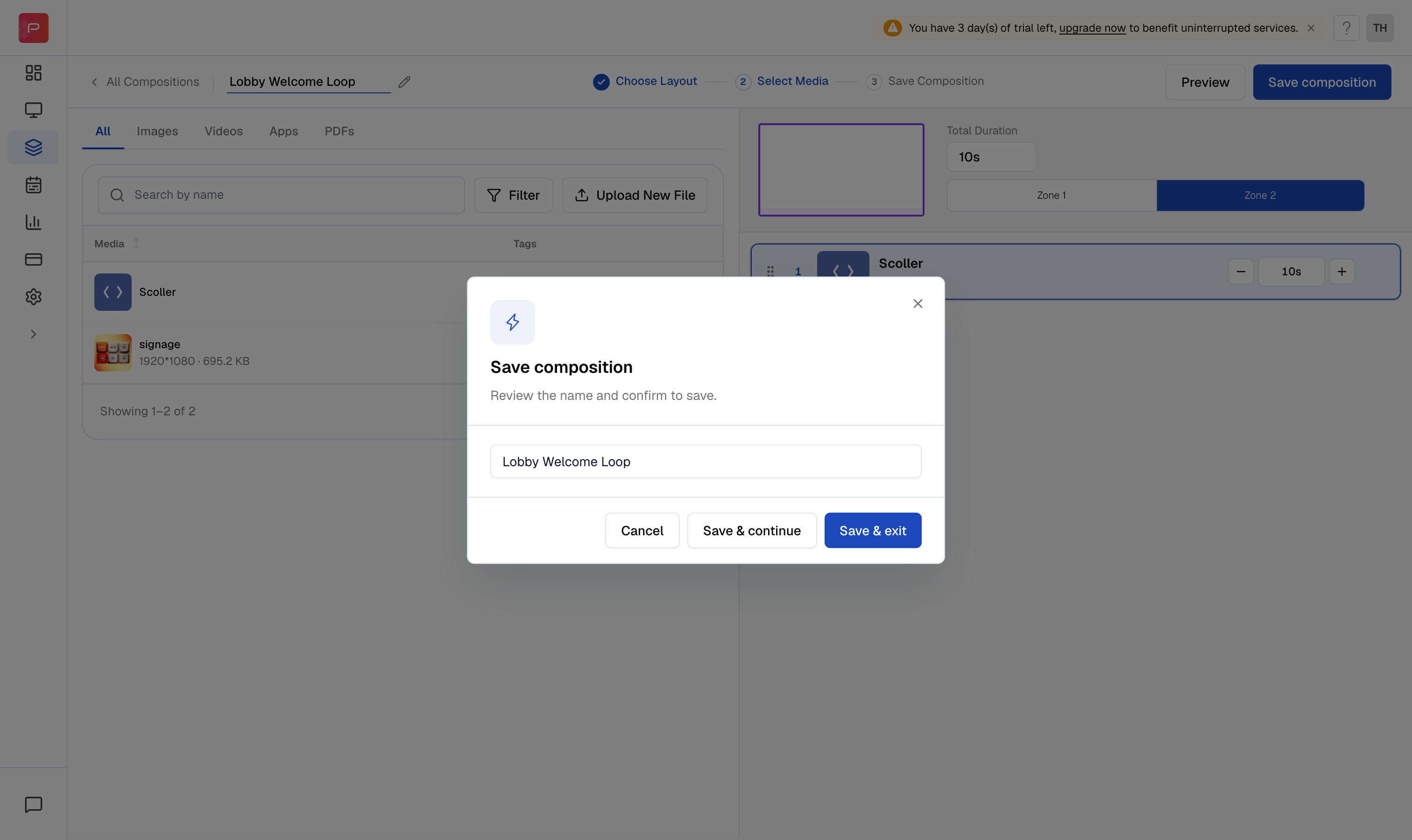
Choose Save & continue instead if you want to keep editing after saving.
8
Find your composition in the list
Your saved composition appears in the Compositions list, with its Date, Duration, Created By, and any linked Schedules.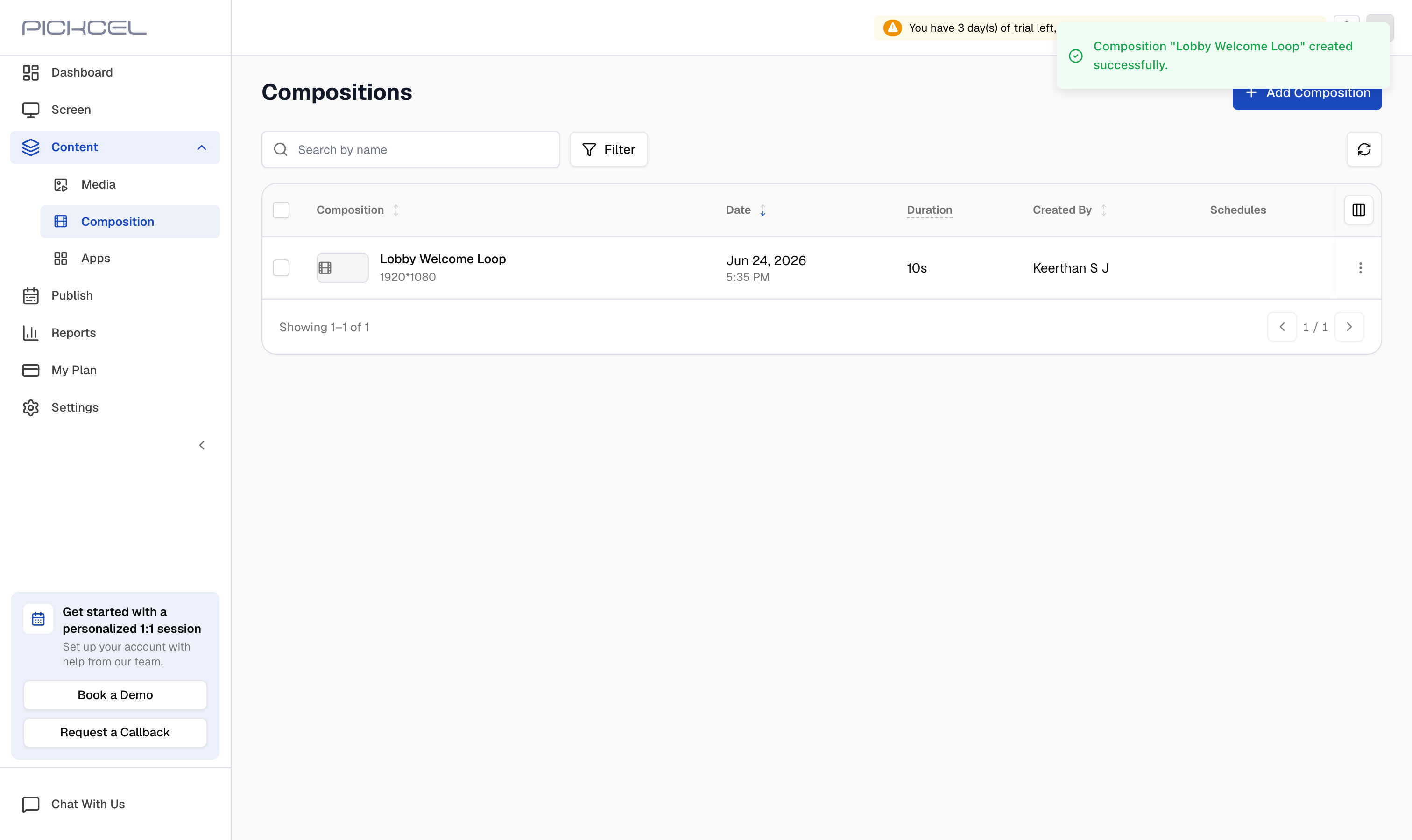
What’s Next?
- Build a custom layout for zone arrangements the standard templates don’t cover.
- Schedule and publish your composition to your screens.
- Set a default composition so screens always have something to play.