

Key Metrics
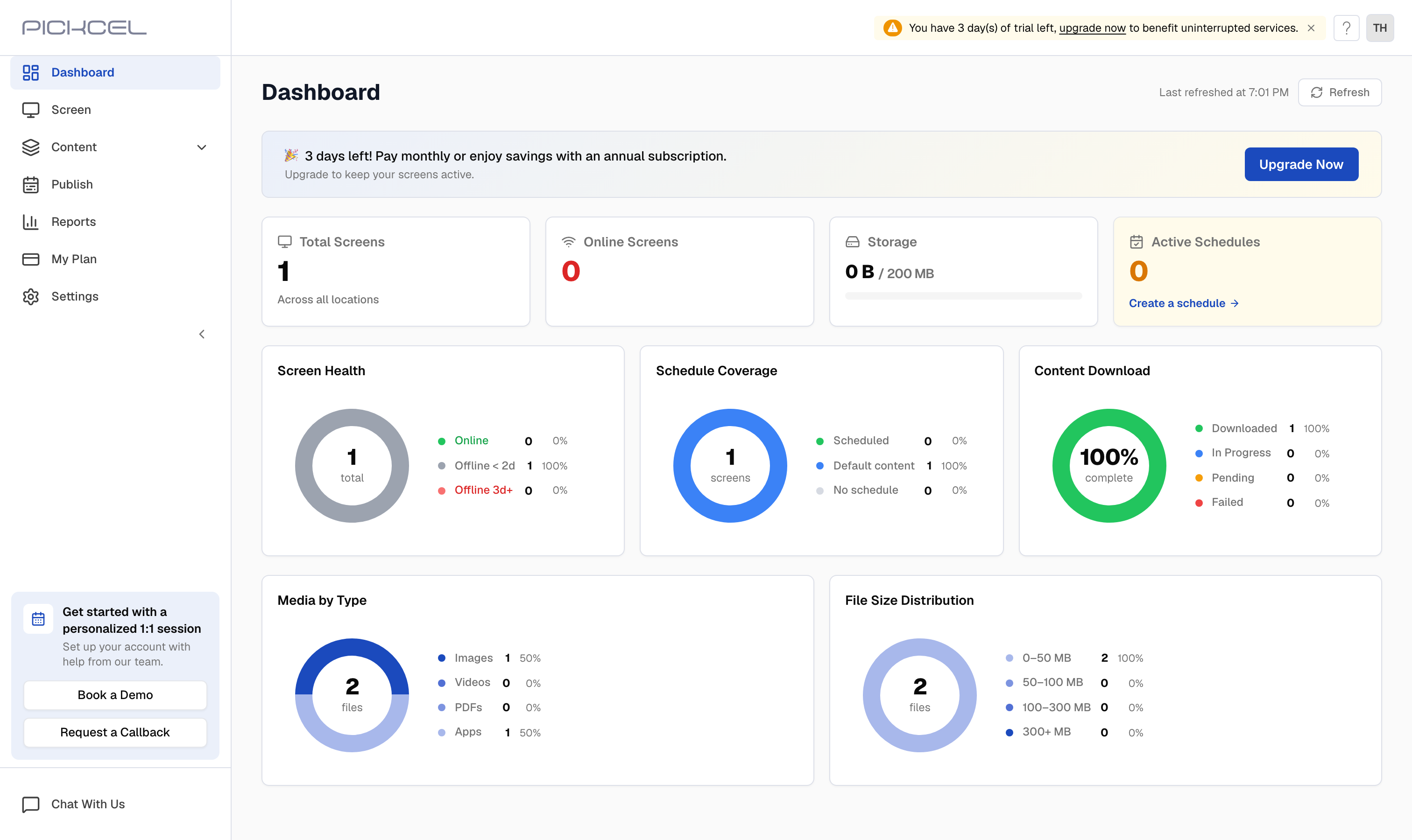
Four summary cards across the top give you an instant pulse on your account:Screen Health
A donut chart that breaks down the operational status of all your screens, each with a count and percentage:- Online: Screens connected and functioning normally
- Offline 2d: Screens that lost connection less than 2 days ago; these usually reconnect on their own
- Offline 3d+: Screens offline for 3 days or more; these need attention, so check power, network, and player status
Schedule Coverage
Shows how many screens are in each playback mode right now:- Scheduled: Playing content from an active schedule
- Default content: Playing the default composition because no schedule is active
- No schedule: Screens with no schedule and no default content assigned
Content Download
Tracks how well your screens have received the latest content:- Downloaded: Content fully received and ready to play
- In Progress: Content currently downloading to the screen
- Pending: Content queued but not yet started
- Failed: Content that could not be delivered; check network connectivity on affected screens
Media by Type
A breakdown of your media library by file type, with a count and percentage for each category: Images, Videos, PDFs, and Apps.File Size Distribution
Shows how your media library is distributed across file-size ranges, giving you a clear picture of your storage at a glance:- 0–50 MB
- 50–100 MB
- 100–300 MB
- 300+ MB
Related guides
Register a Screen
Pair a display with the Pickcel console using a registration code.
Default Composition
Set the fallback content that plays when no schedule is active.
Reports
Generate playback, uptime, and audit reports for your screens.
Publish Content
Schedule and publish compositions to your screens.