

This app uses the Google Maps JavaScript API. Traffic data accuracy and availability are subject to Google’s coverage for the selected region. Real-time updates are served as long as the player maintains a live internet connection.
Supported Players: Android, TCL, Tizen, Windows, Sony, and Raspberry Pi.
1
Open Apps and search for Google Traffic
In the Pickcel console, expand Content in the left menu and select Apps. Search for Google Traffic using the search field.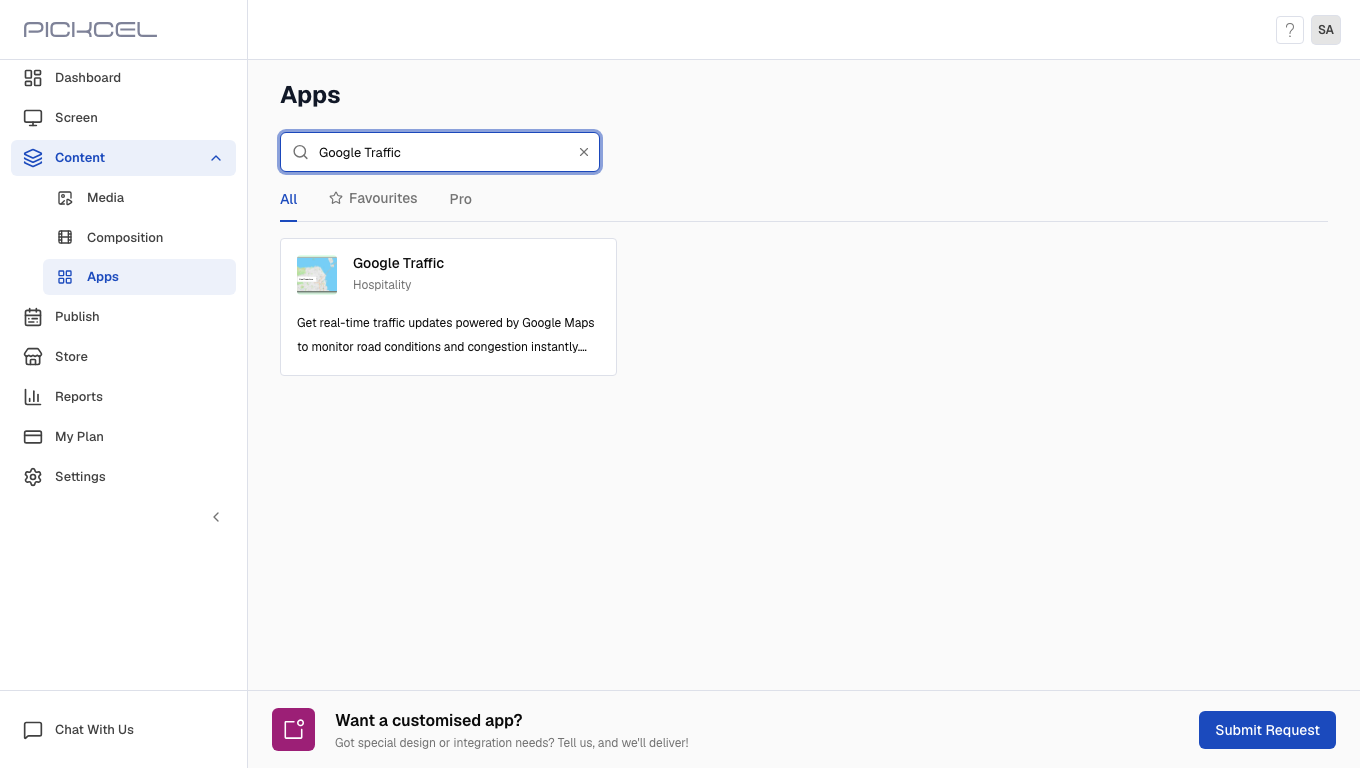
2
Create the app
Click the Google Traffic card. A details panel opens with a preview of the app. Click Create App to open the editor.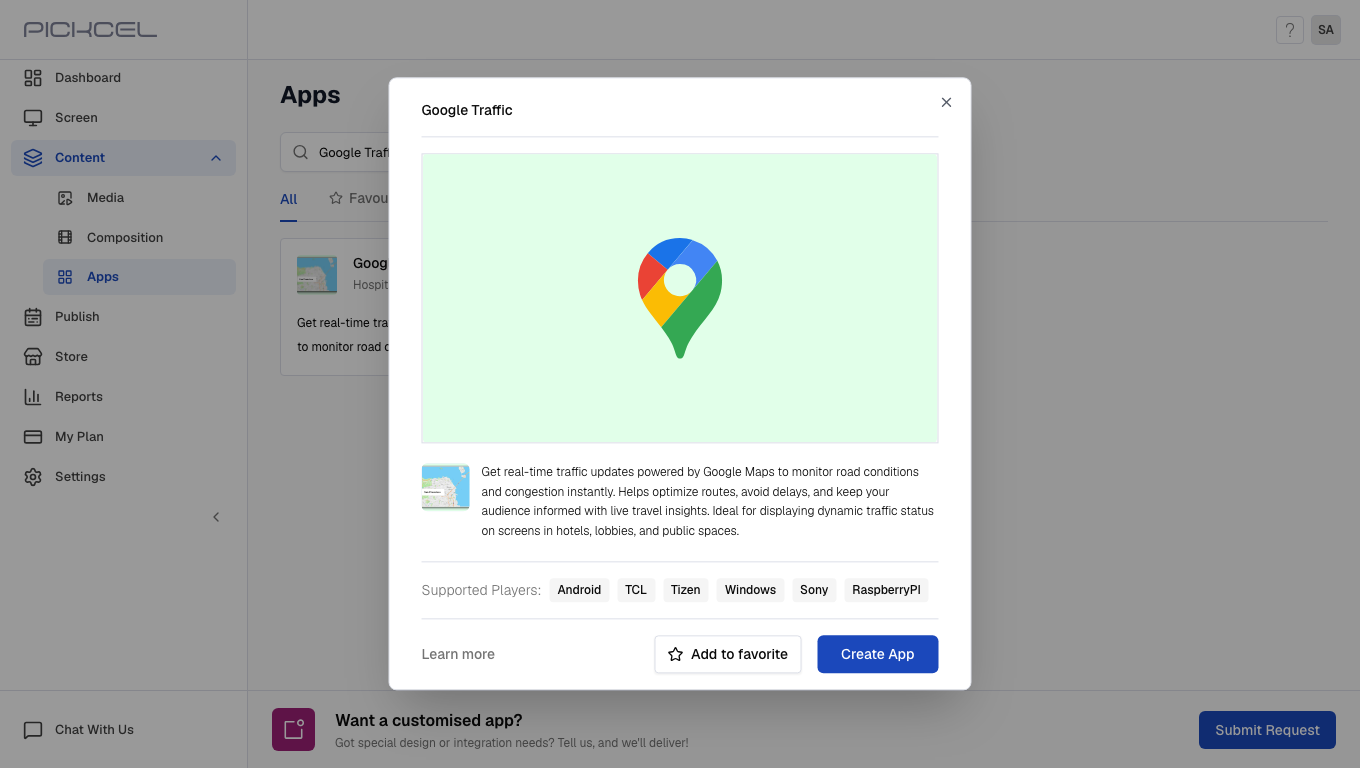
3
Enter a name and set the location
Enter a unique Name for the app instance; this is how it will appear in your Media library. Start typing in Location and pick the matching suggestion from the dropdown (e.g. “Manhattan, NY”, “HR Tech Park, Bangalore”).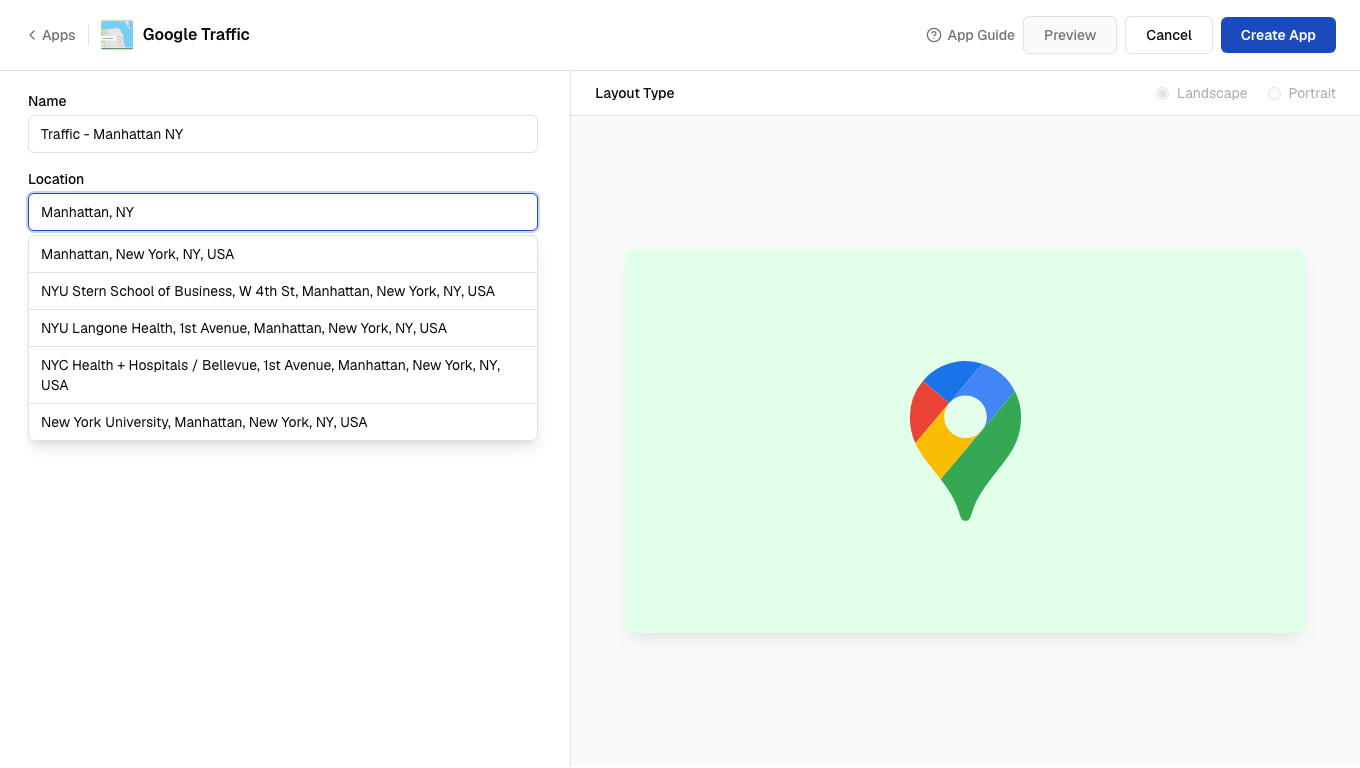
4
Choose a zoom level
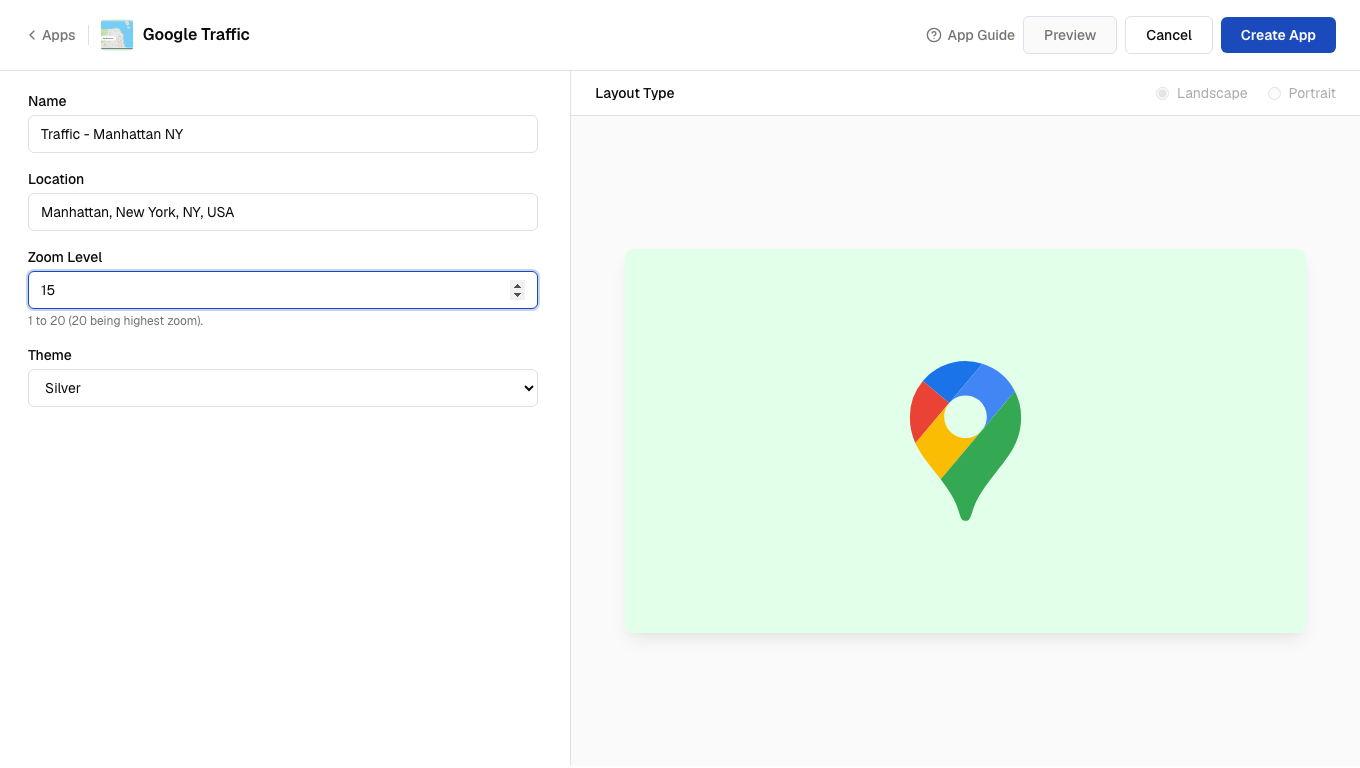
Set the Zoom Level (1–20) to control how closely the map is zoomed. We recommend 15–16 for showing traffic on specific roads near your venue, ideal for helping guests and visitors plan their route in real time.
Zoom level reference
Zoom level reference
5
Preview, pick a theme, and set orientation
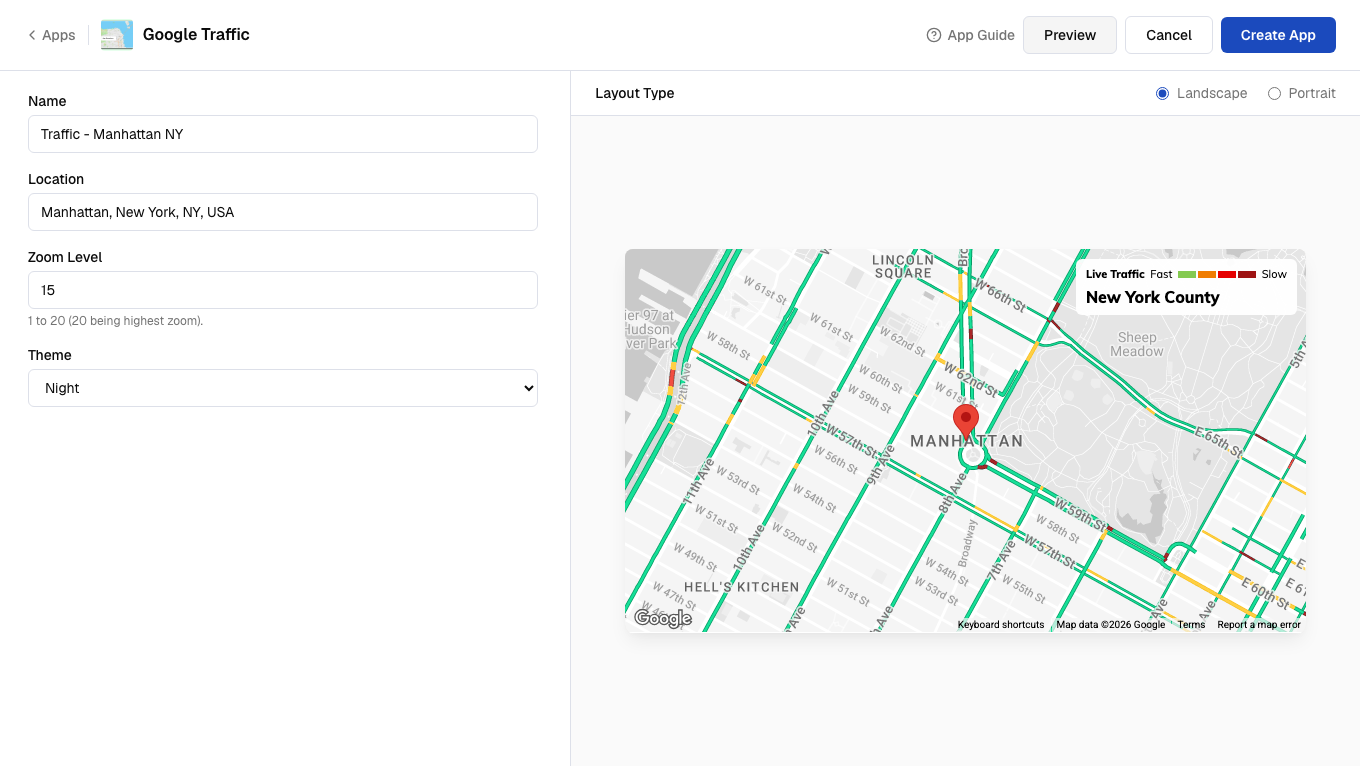
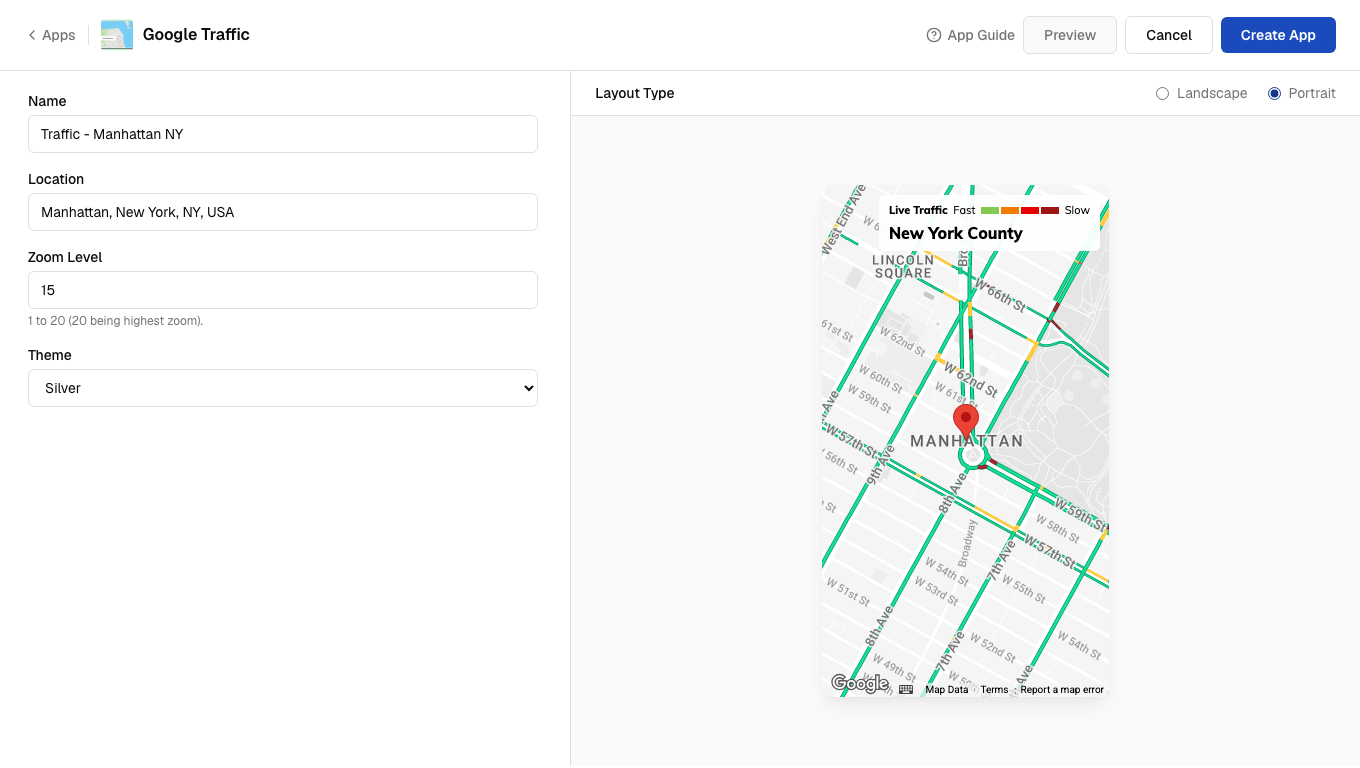
Click Preview to render the live map. Once it loads, switch Theme to compare styles, and Layout Type unlocks so you can pick Landscape or Portrait to match your screen’s physical mounting. The default theme is Silver.
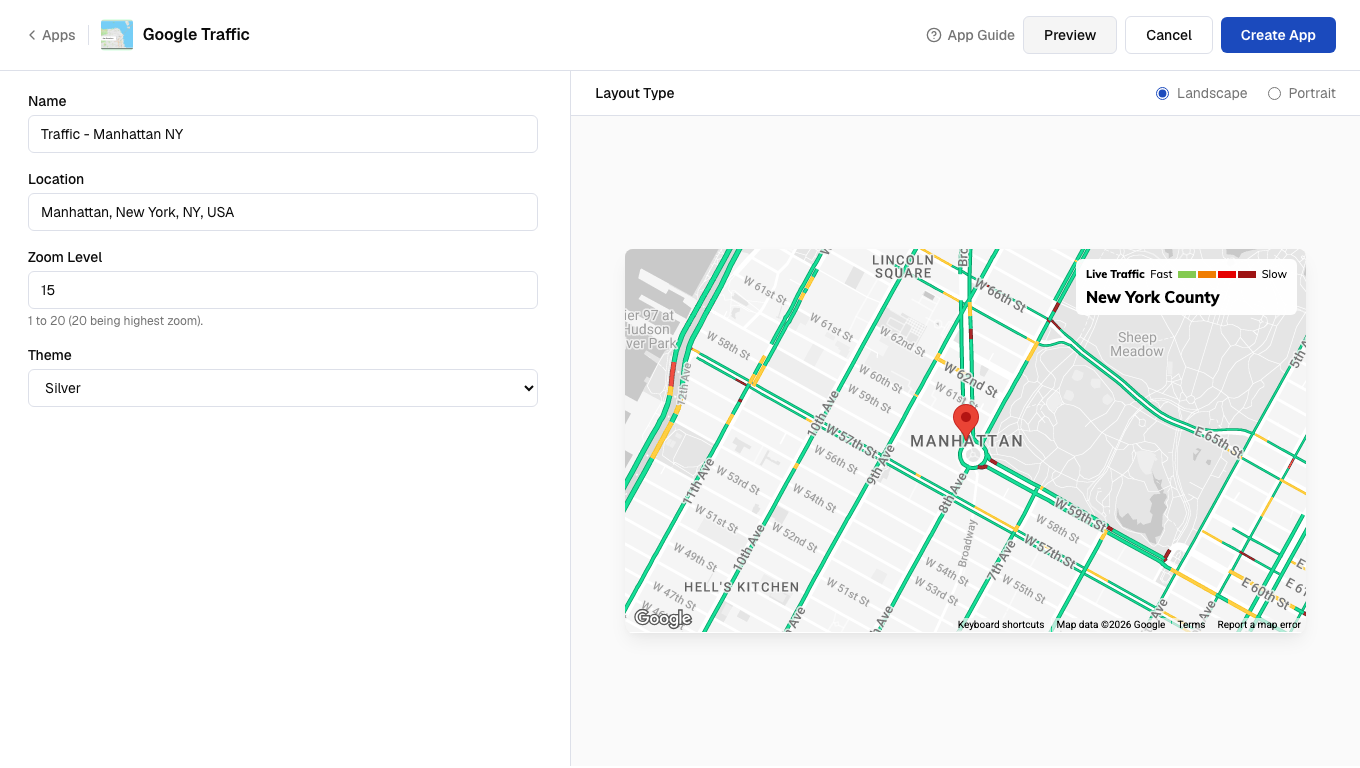
Theme reference
Theme reference
- Silver, Landscape
- Night, Landscape
- Silver, Portrait
6
Create the app
Once satisfied, click Create App. A success dialog confirms the app was created and offers to walk you through adding it to a composition.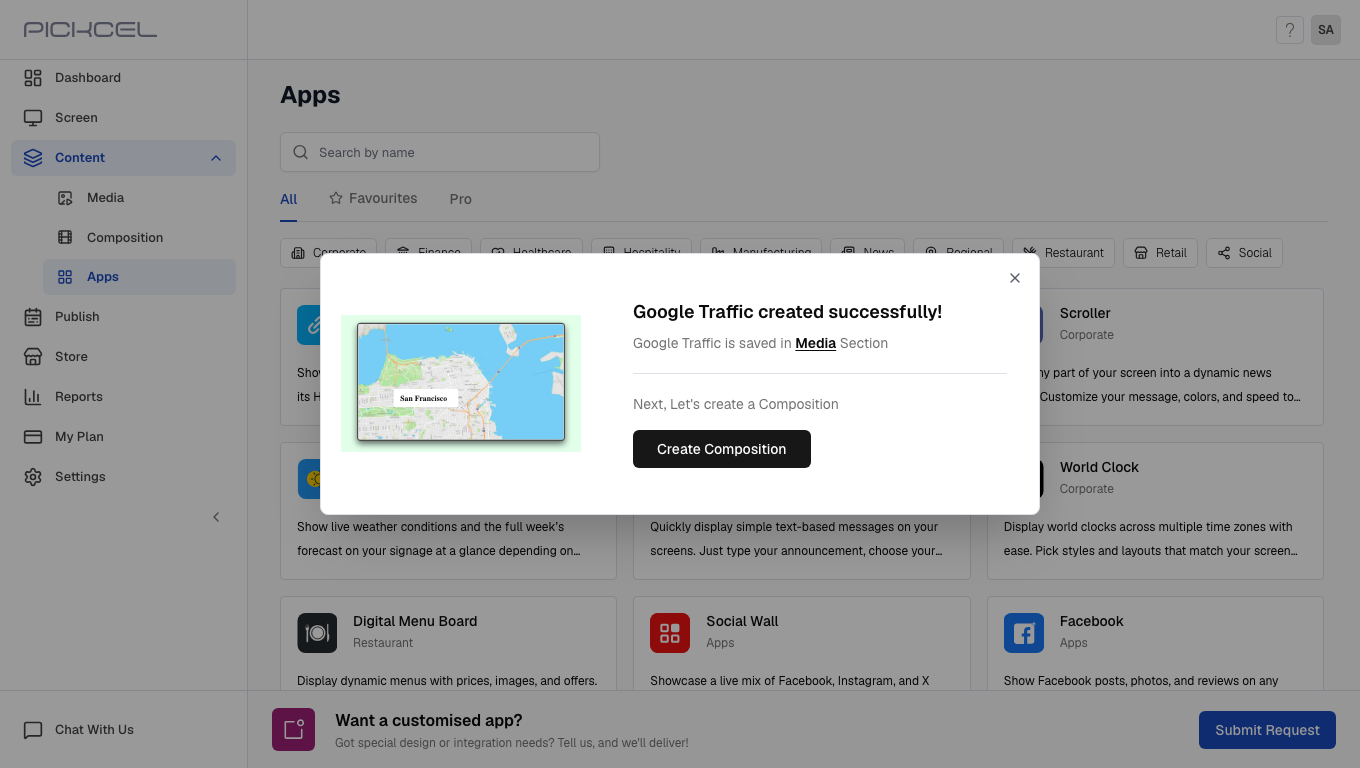 The app is stored in Content > Media under the name you gave it, with type App.
Best Practices
Troubleshooting
Map is not loading on screen
Map is not loading on screen
Ensure the player has an active internet connection. Google Maps requires outbound HTTPS access.
Location is incorrect or map is blank
Location is incorrect or map is blank
Use a full city name or recognised landmark rather than abbreviations.
Traffic overlay is not showing
Traffic overlay is not showing
Traffic data requires a minimum zoom level of approximately 7. Increase the zoom and republish.
App shows as 'Pending' on player
App shows as 'Pending' on player
This is normal during initial download. If it persists, restart the player and check its network connection.
Preview does not match screen output
Preview does not match screen output
Confirm the orientation setting matches the physical screen rotation. Republish after correcting.
Next StepsYour Google Traffic app is now saved in your media library. Here’s what you can do next:
Add to a Composition
Embed the app in a multi-zone layout alongside other content like weather, news, or announcements.
Publish to Screens
Assign the app directly to a screen or screen group, either full-screen or on a schedule (e.g. peak commute hours).