

1
Login and go to Apps module
Login to your Pickcel account. Go to the Apps module.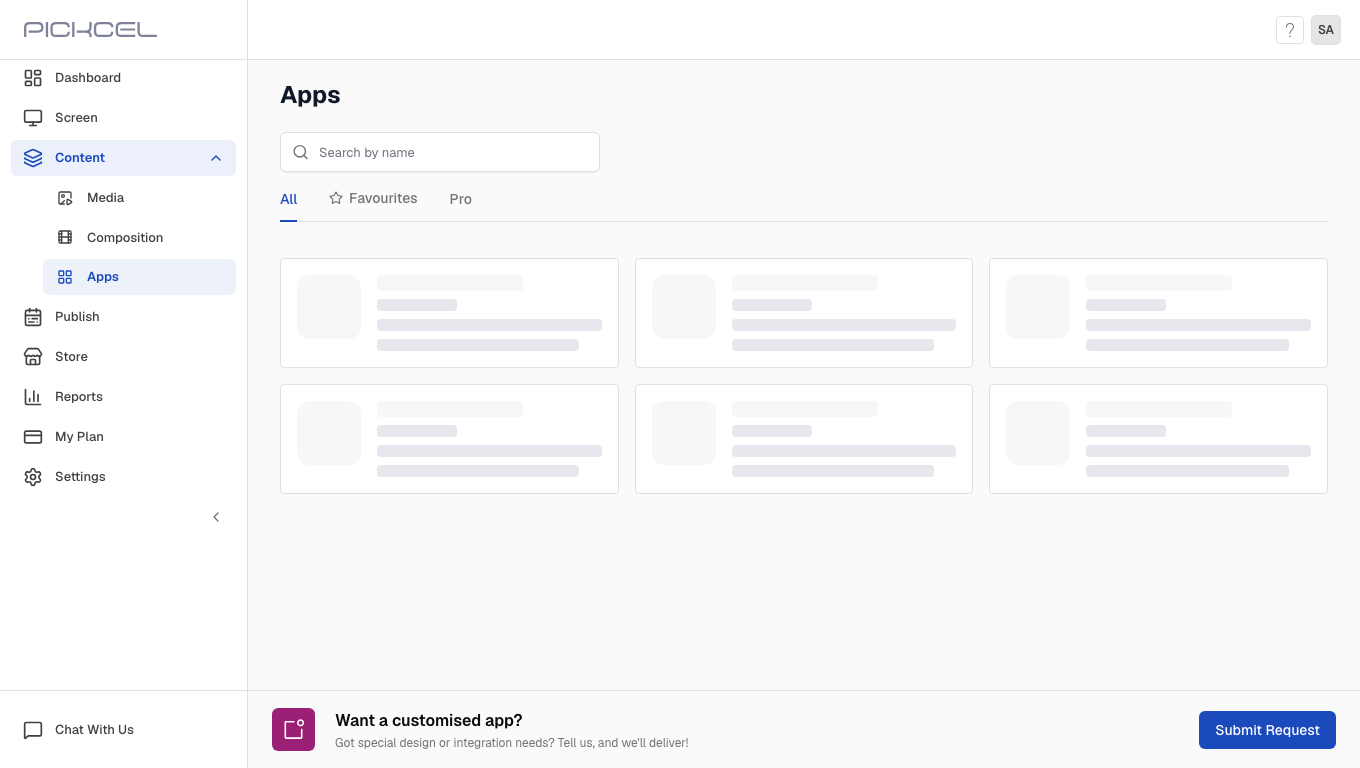
2
Search for World Clock app
Search for the World Clock app using the search field.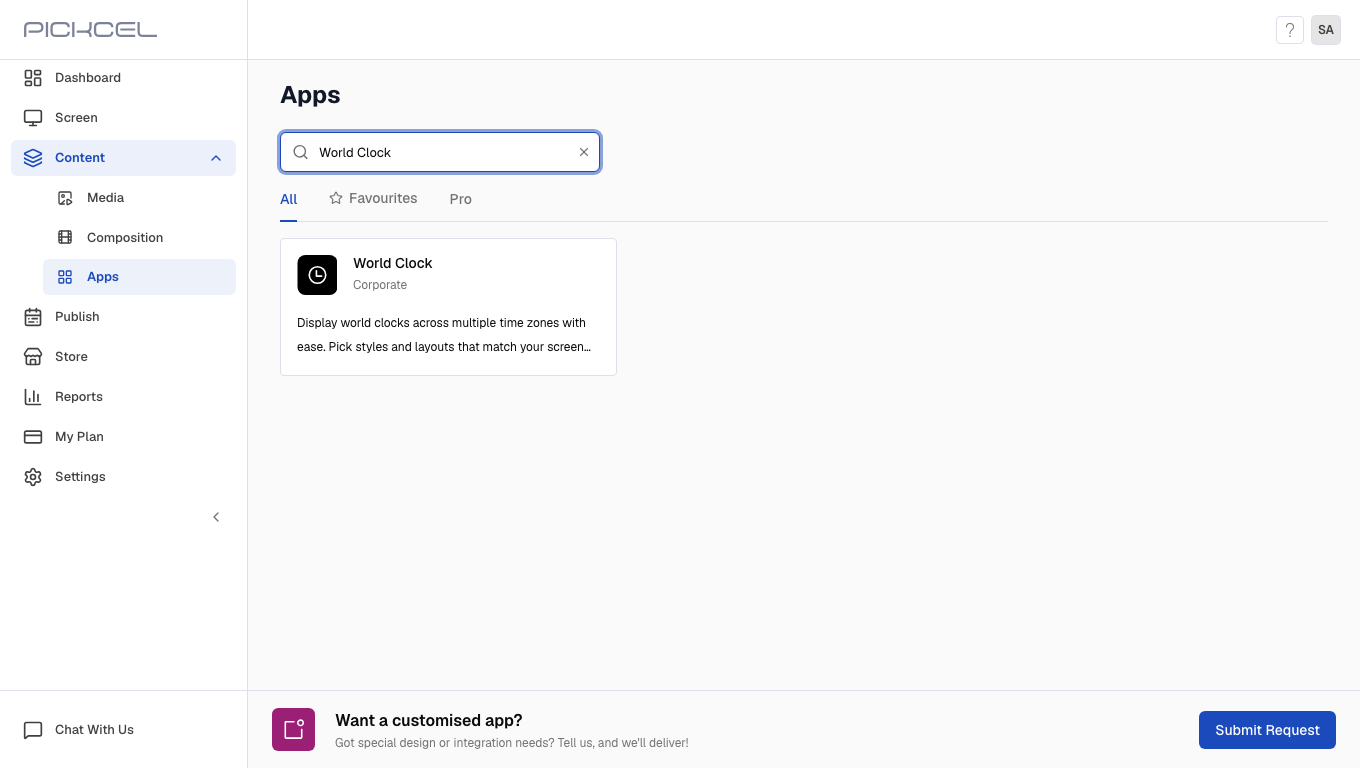
3
Click Create App
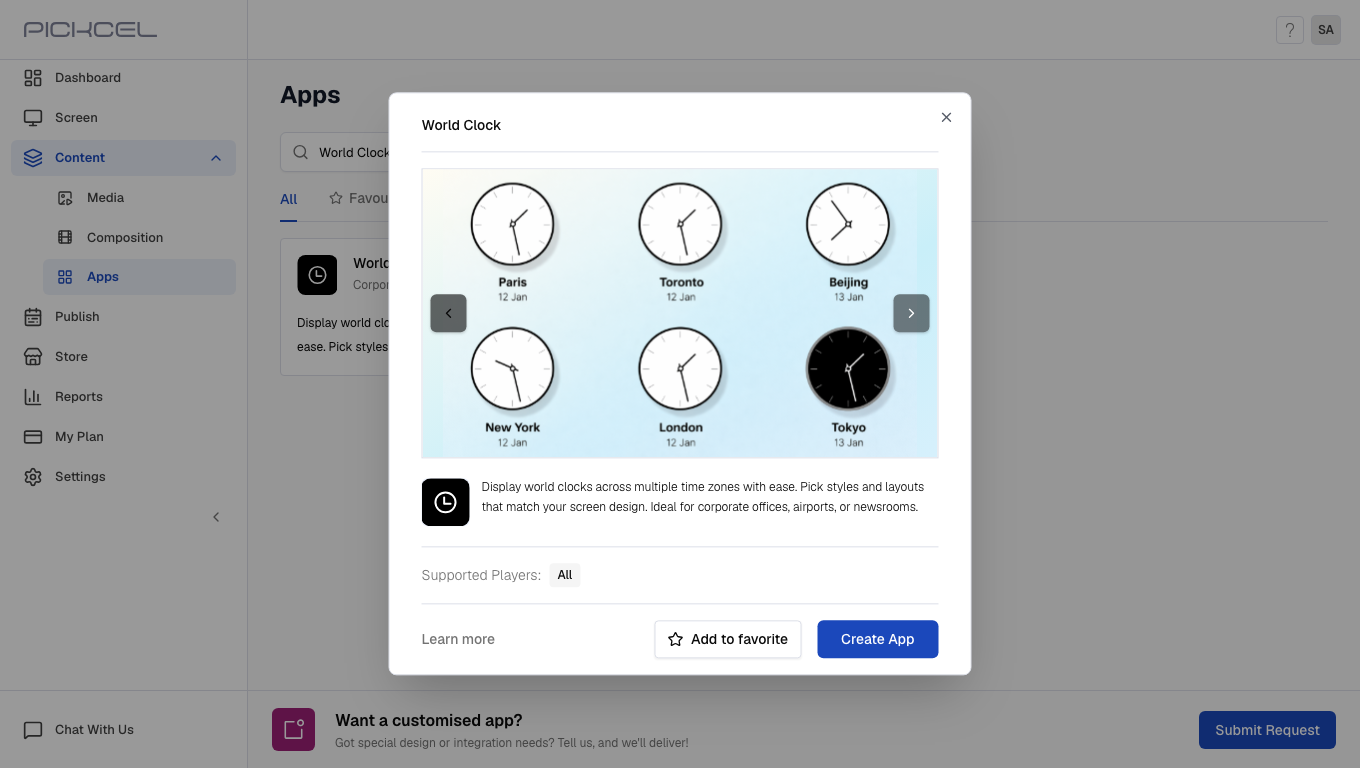
Click the World Clock app card, then click Create App in the app details panel.
4
Enter app name
Enter a Name for the app.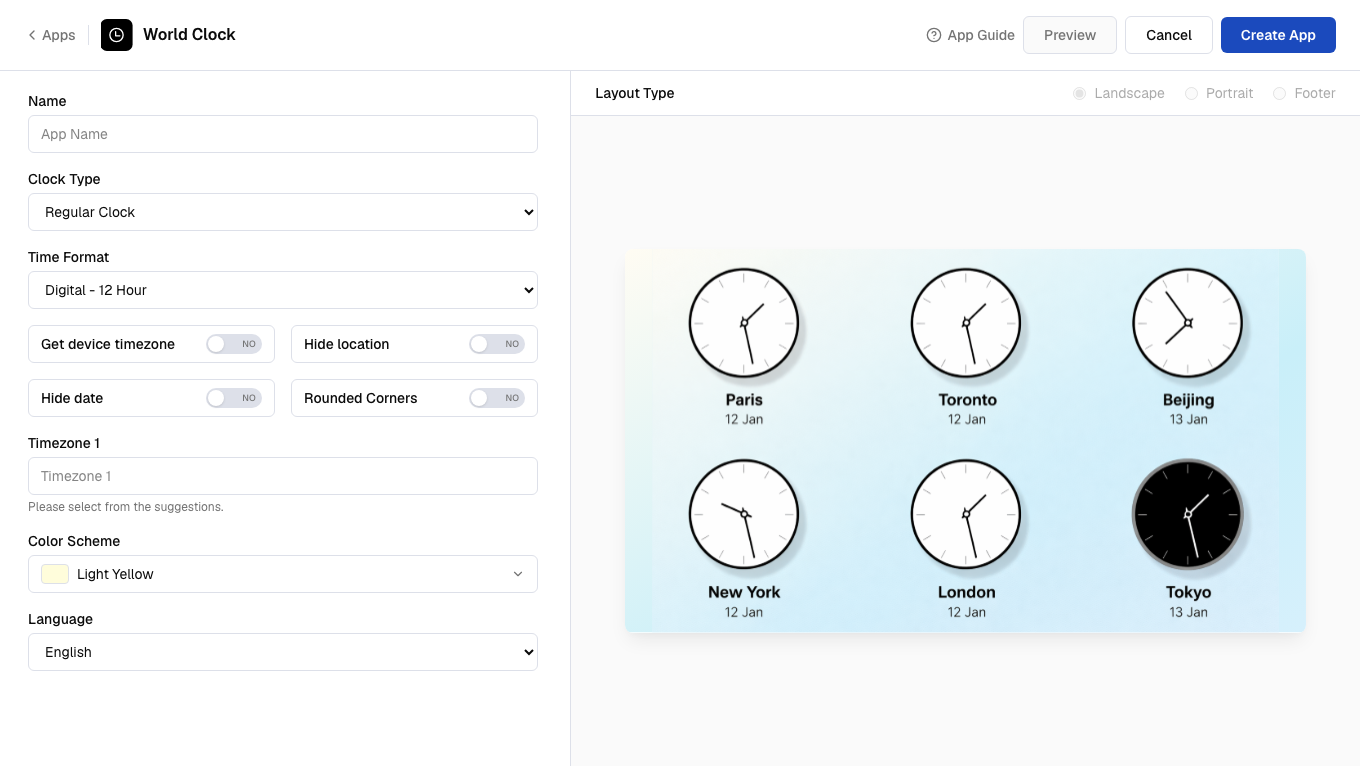
5
Select clock type
Select Regular Clock or World Clock from the Clock Type dropdown.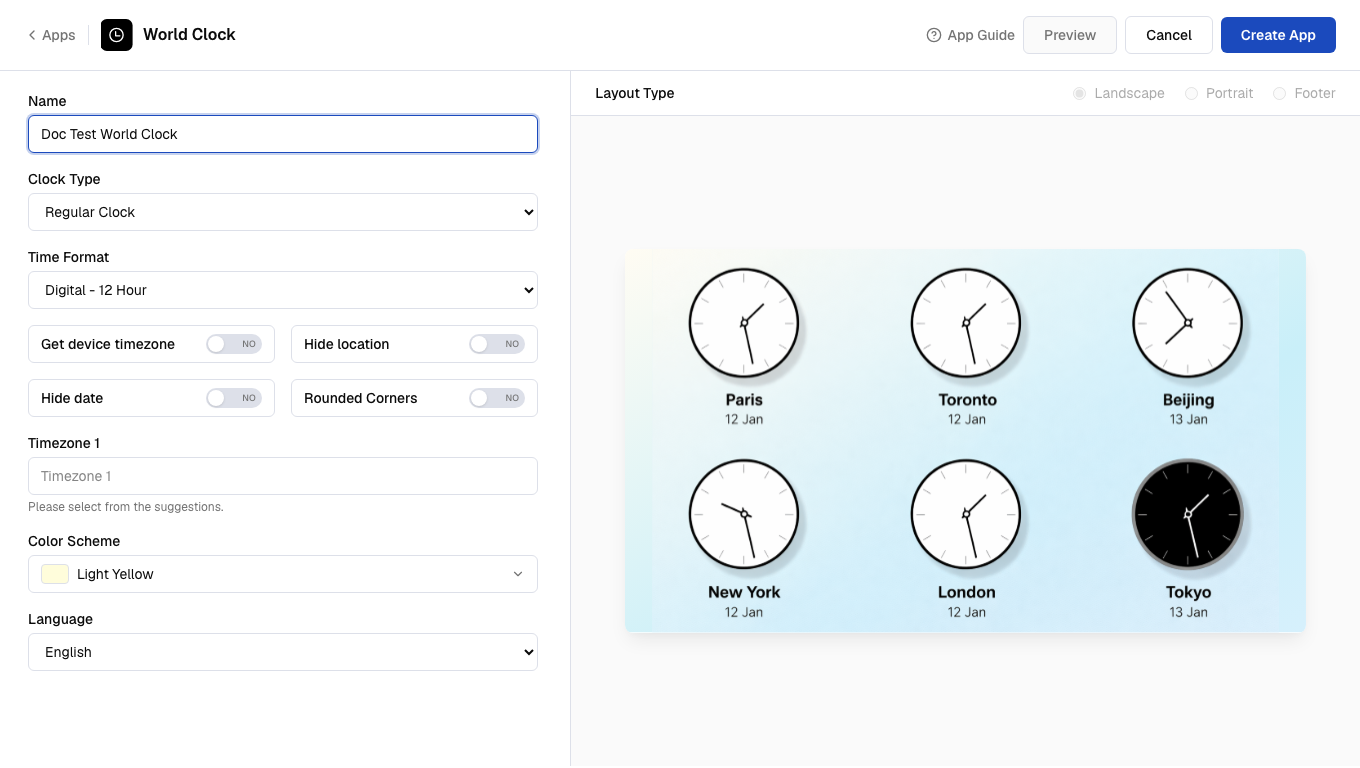
6
Select time format
Select the Time Format (Analogue or Digital, 12-hour or 24-hour).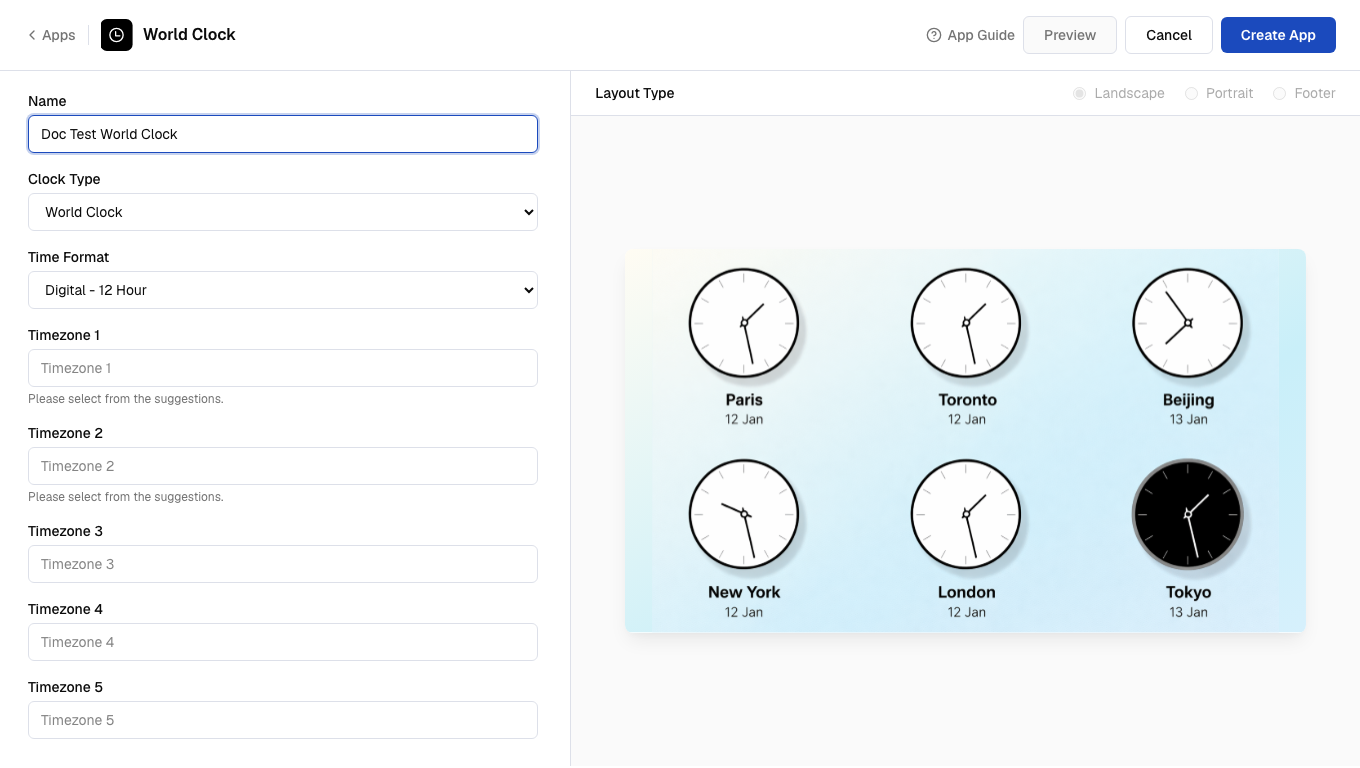
7
Enter timezone
Enter up to six Timezone values for the locations you want to display.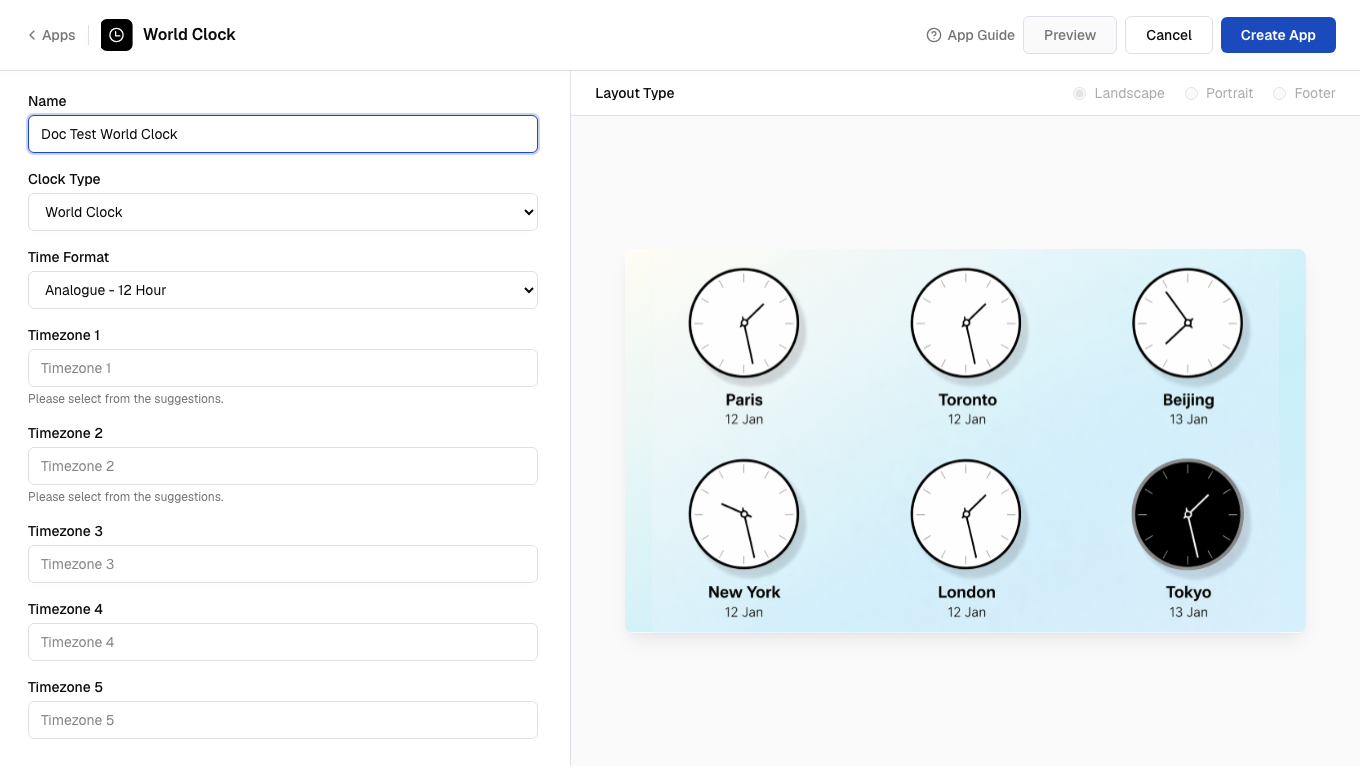
8
Select language
Select a Language from the dropdown list.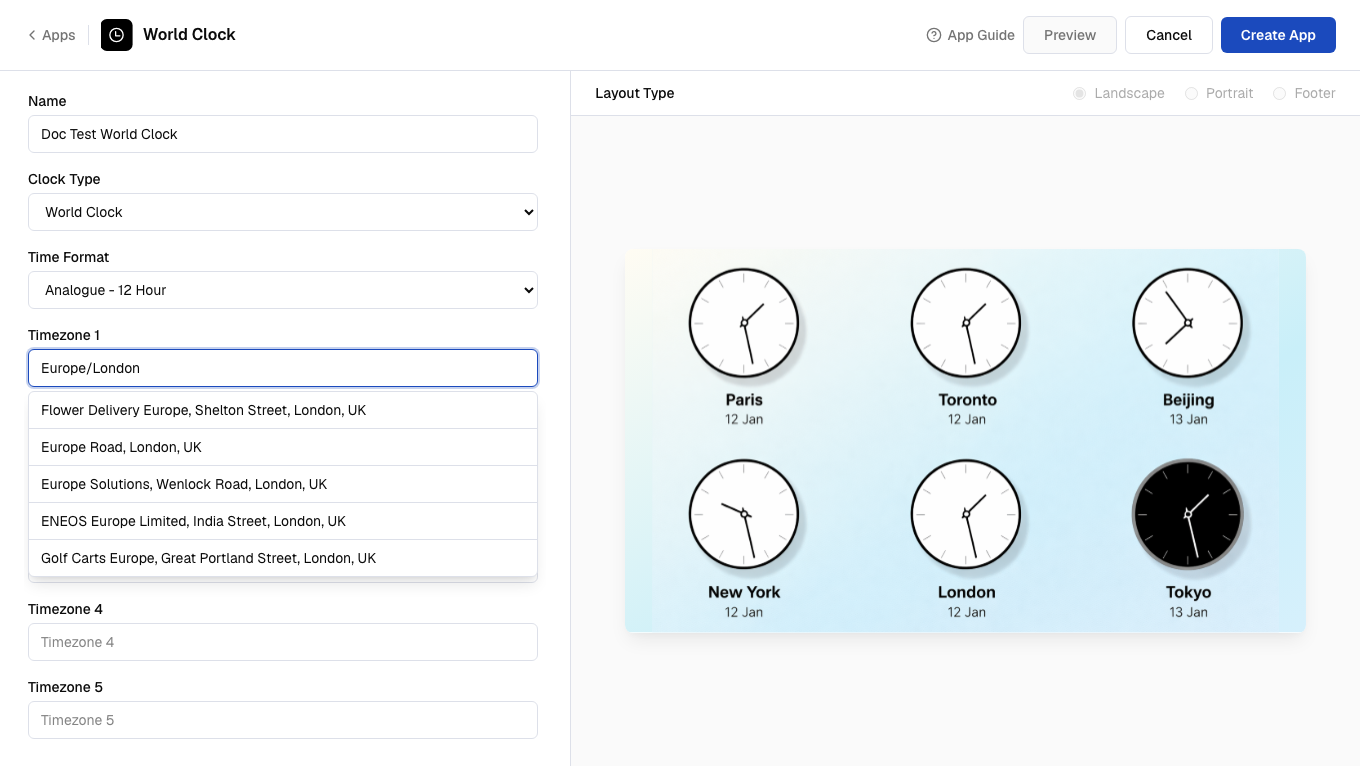
9
Select color scheme and preview
Select a Color Scheme and click Preview to see the app preview.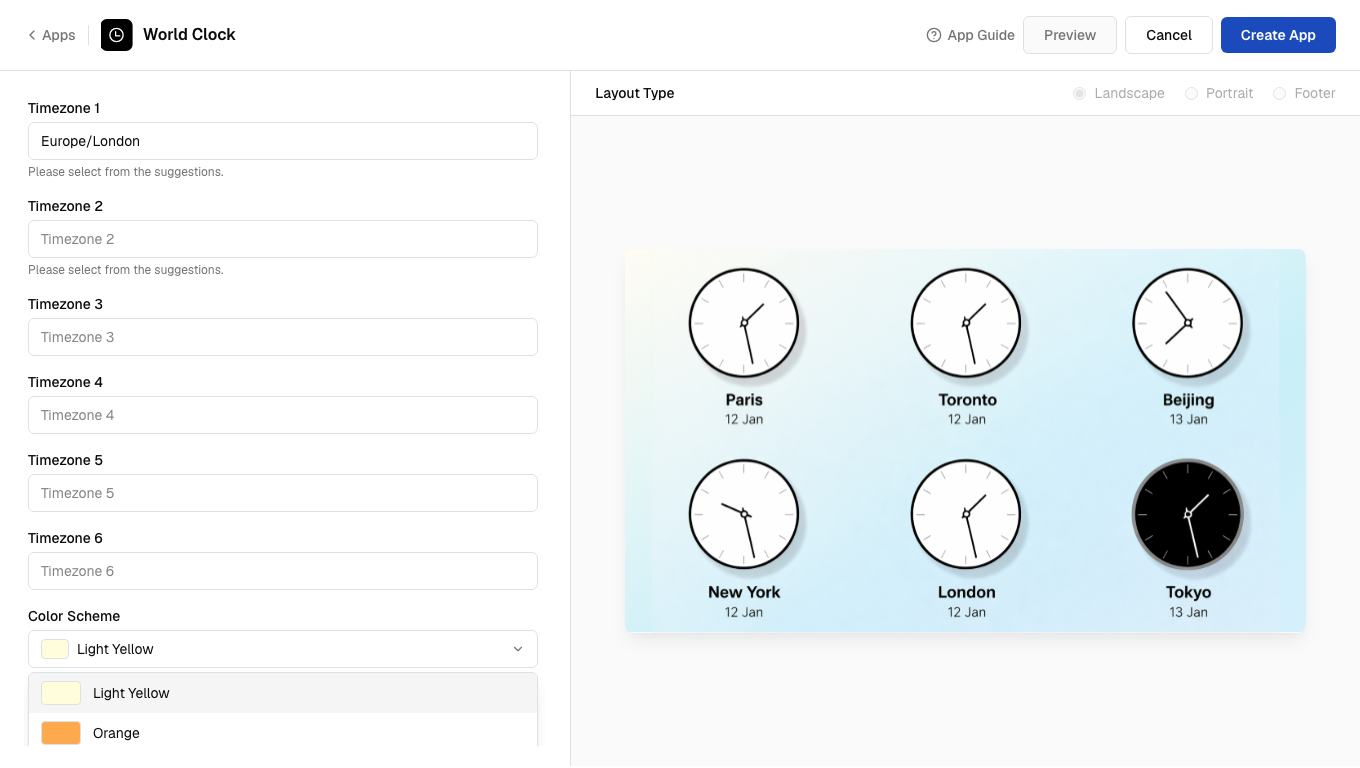
10
Create the app
Click Create App to save the app.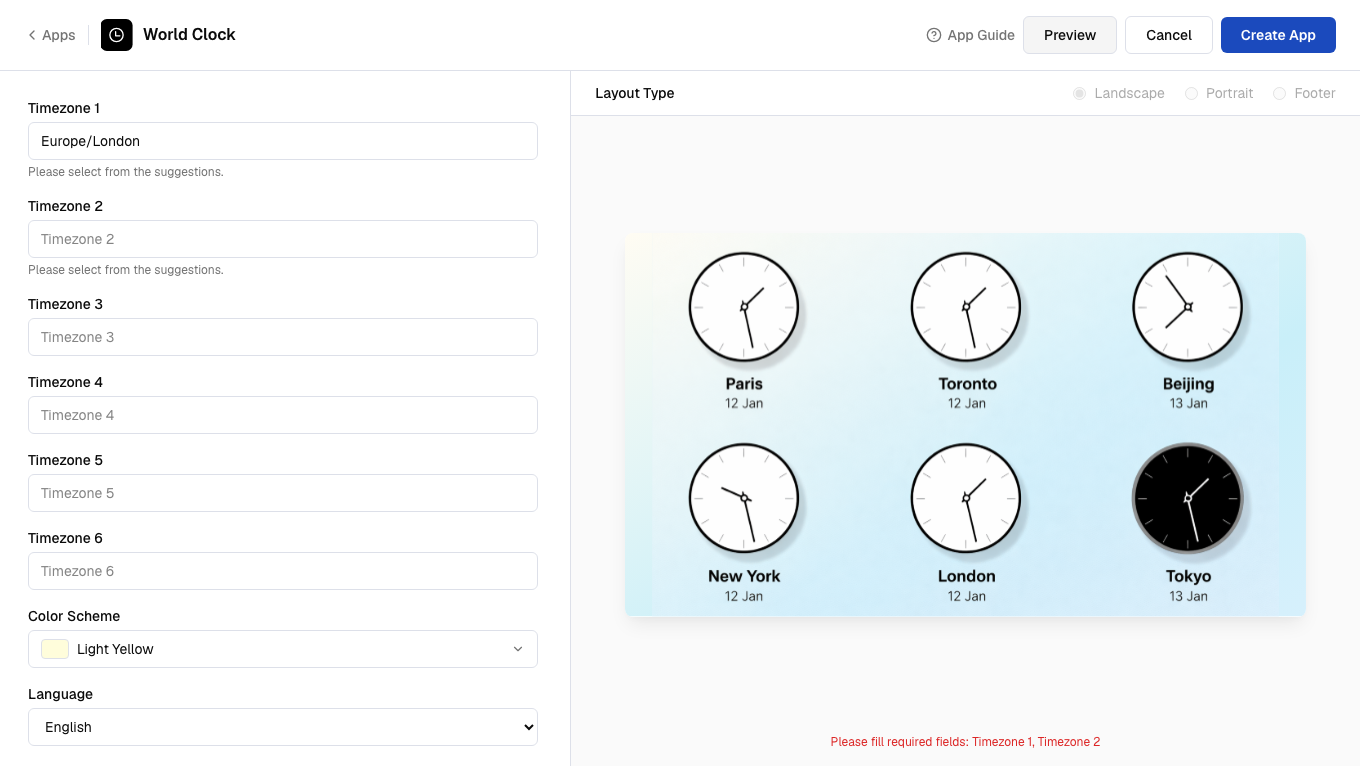
Minimum supported height/width for the clock app is 300. If the height or width is less than 300, the app may look distorted.