

What is Launch on Boot? Enabling any application for ‘launch on-boot’ allows the app to automatically start every time the device or screen is turned on.
Enable Launch on Boot (General Android TV)
1
Open Settings
On the top-right corner of your TV screen, locate and click the settings gear icon.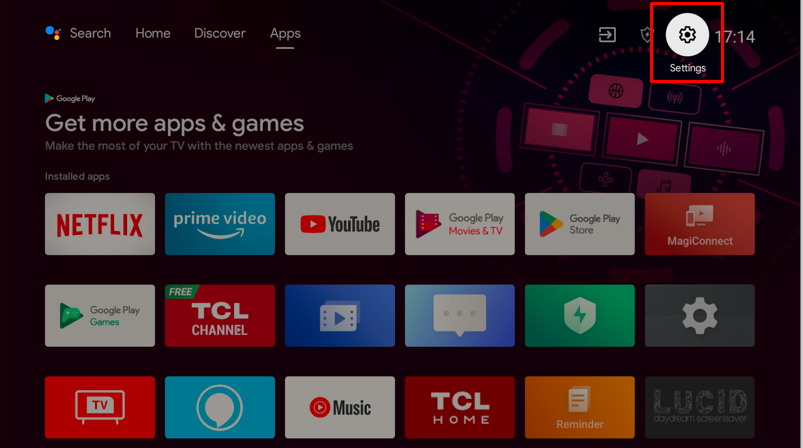
2
Go to Apps module
Navigate to the Apps module in the settings menu.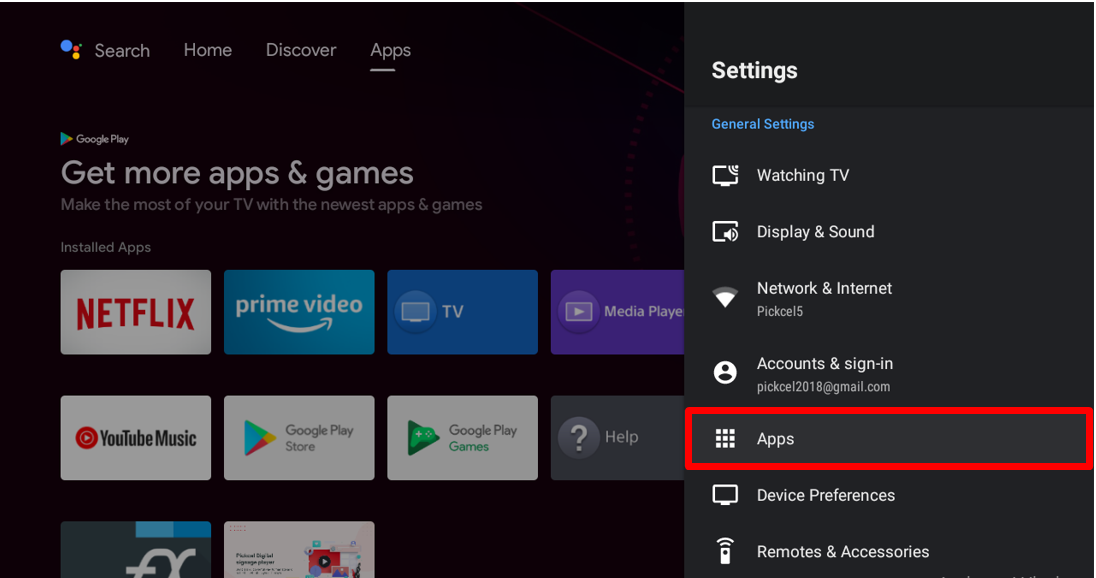
3
Access Special app access
Click on the Special app access option.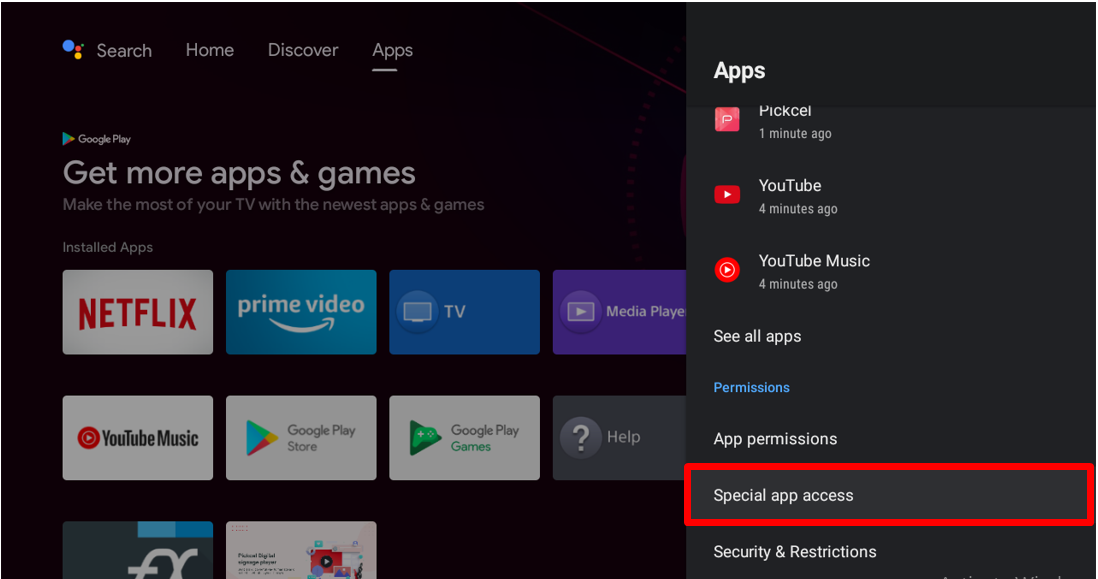
4
Select Display over other apps
Click on the Display over other apps option.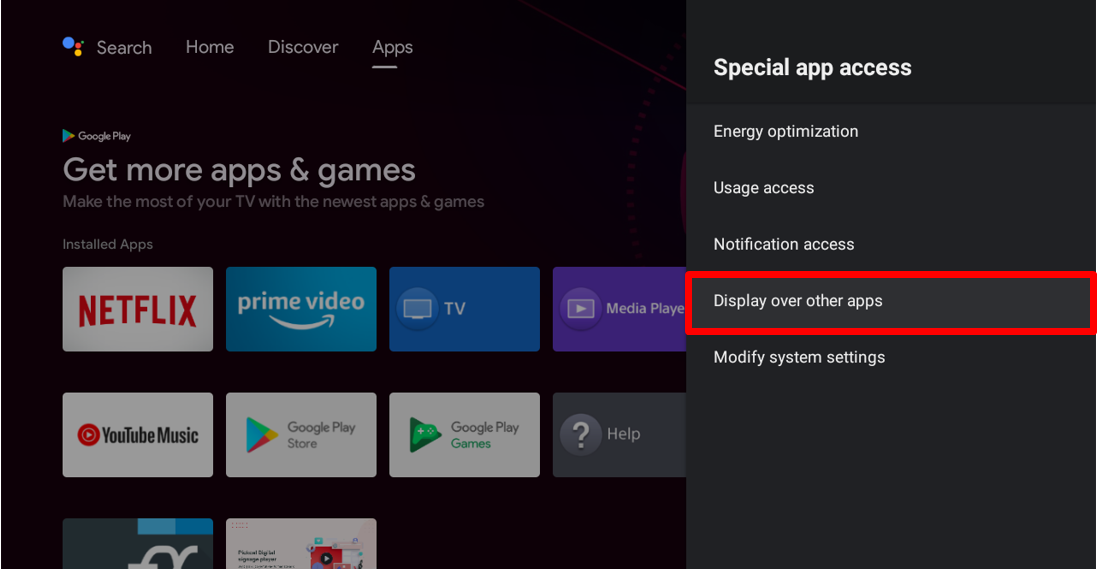
5
Enable Pickcel access
Find the Pickcel entry in the list and switch it on. This permission lets Pickcel draw its screen on top of the TV’s home launcher, which is what allows it to take over the display automatically at boot instead of getting stuck behind the home screen.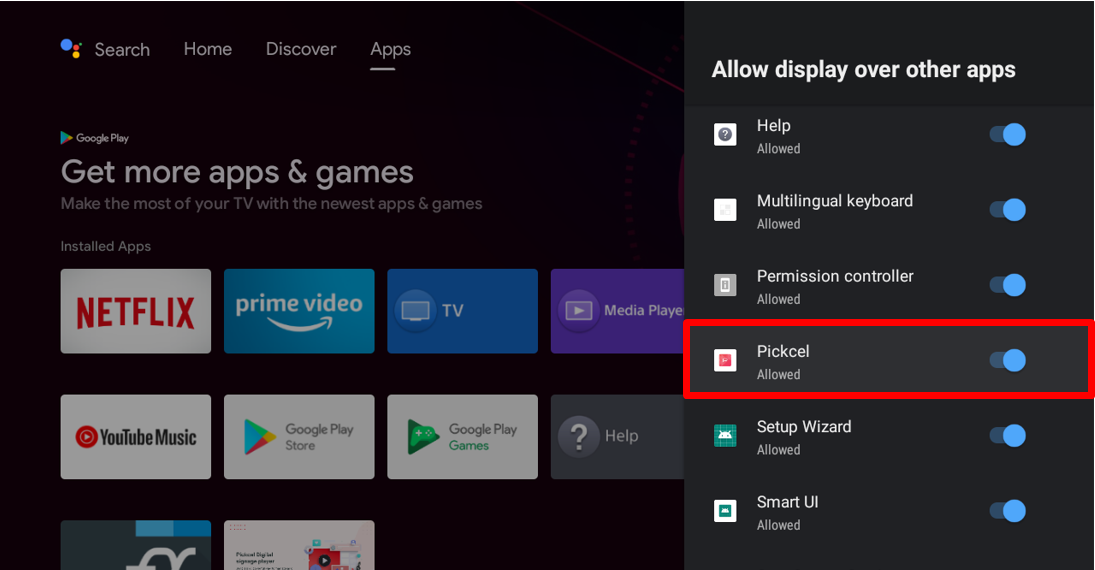
Enable Launch on Boot for TCL TV
If you are using a TCL TV, you need to follow the additional steps below to enable Auto Launch permission from the Safety Guard App.
1
Launch Safety Guard app
Open the Safety Guard app from the Apps Store.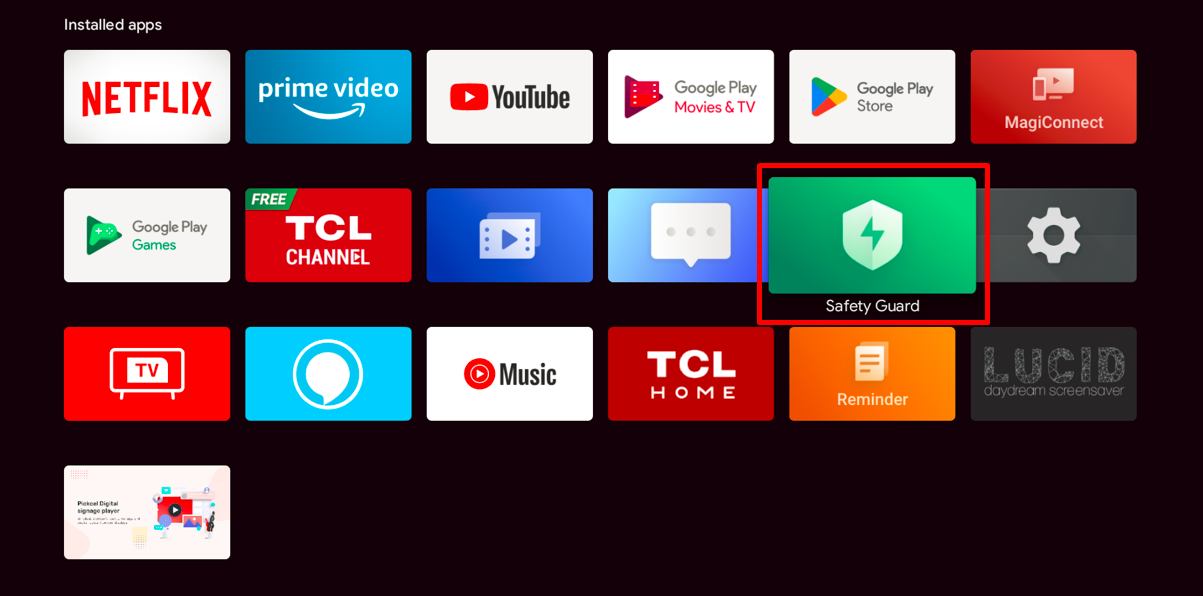
2
Open Permission Shield
Click on Permission Shield in the Safety Guard app.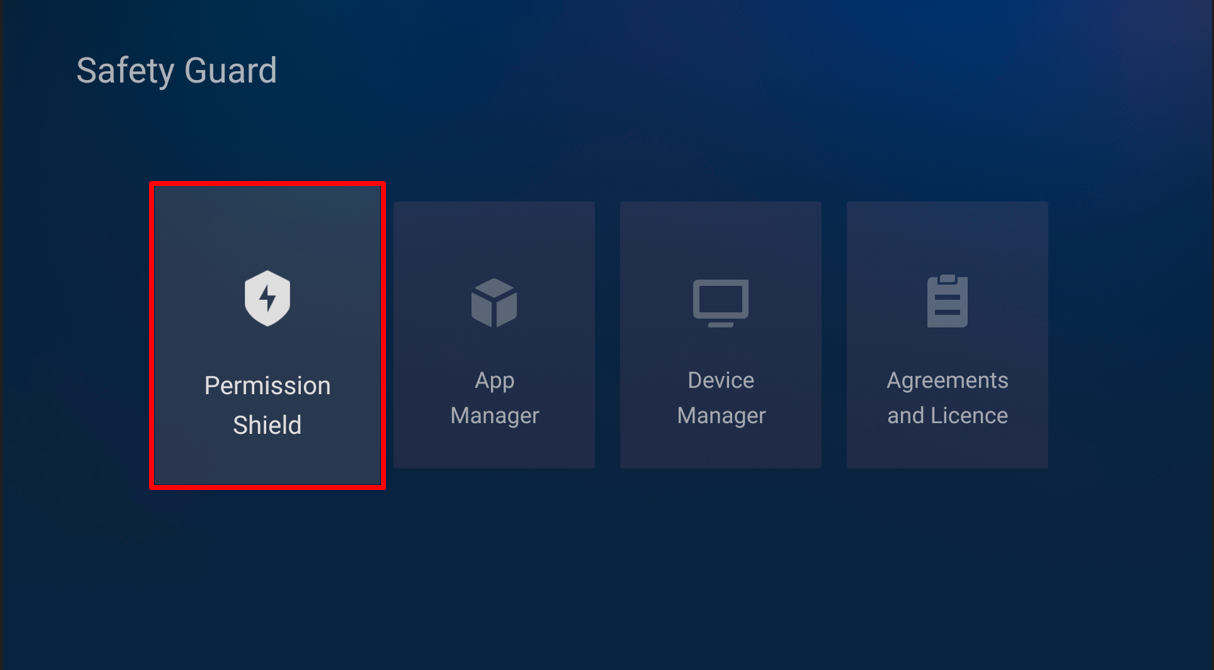
3
Access Auto Launch Permission
Select Auto Launch Permission from the menu.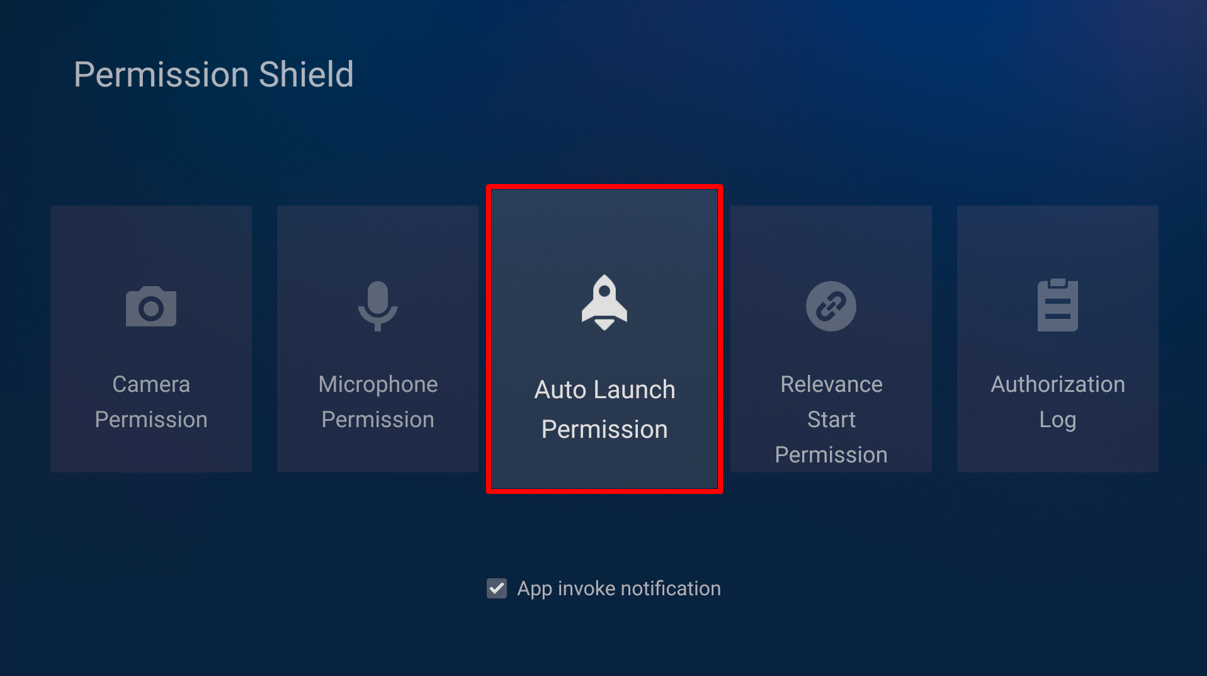
4
Configure Pickcel permissions
Set the Auto manager option to Closed and ensure the Pickcel app permission is set to Opened.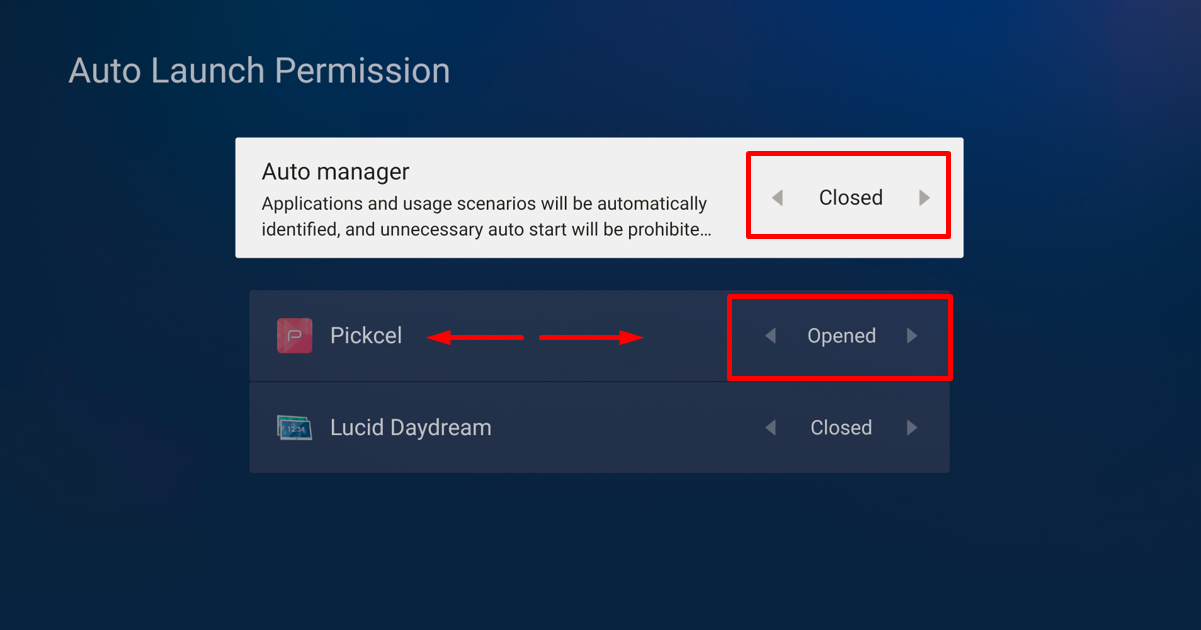
Configure Files and Media Permissions
Pickcel needs unrestricted access to files and media so it can download and cache content locally on the device. Without it, downloaded content may fail to play even though the app appears to be running.1
Access Settings
On the top-right corner of your TV screen, locate and click the settings gear icon.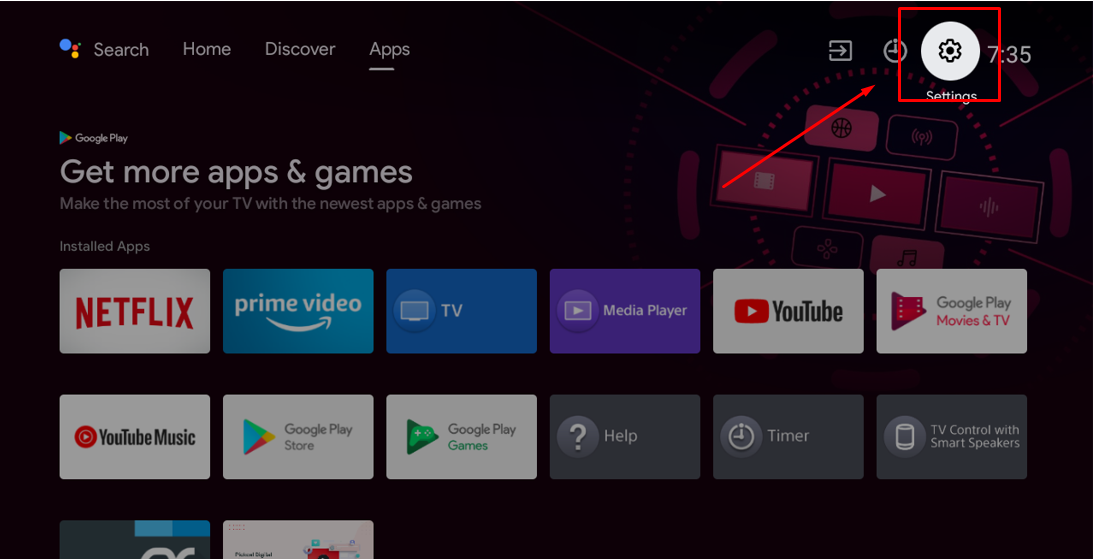
2
Open Apps module
Navigate to the Apps module in the settings menu.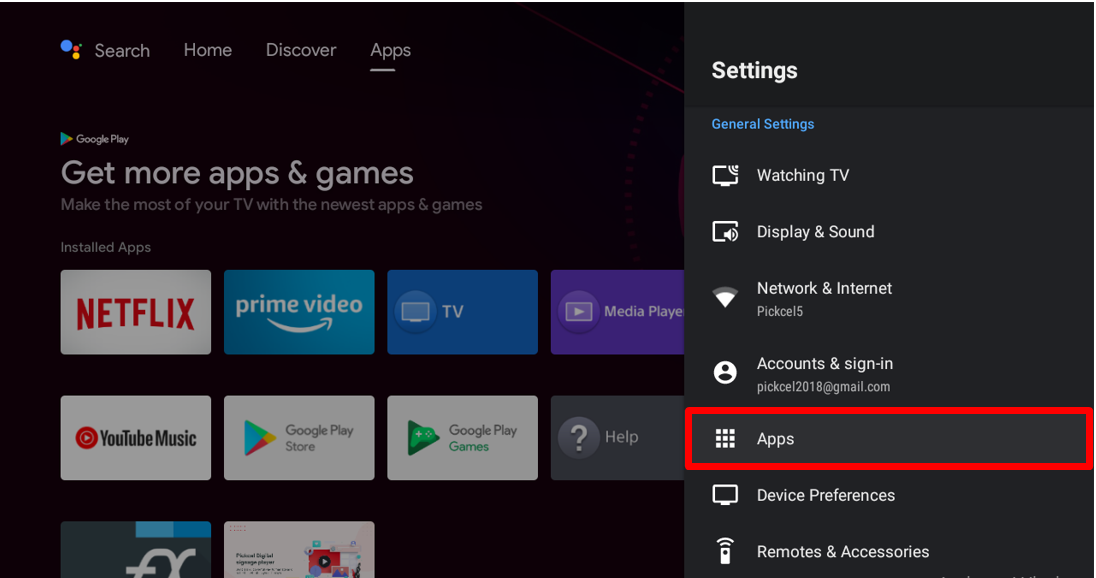
3
Find Pickcel app
Scroll through All apps and click on the Pickcel app.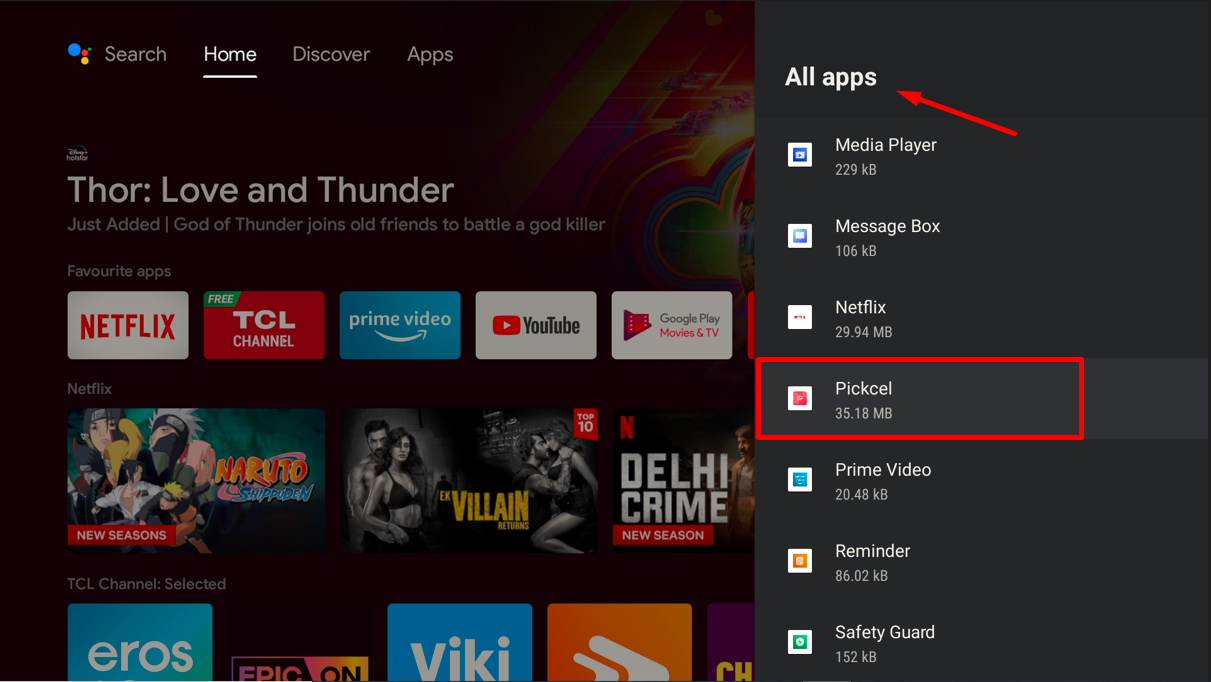
4
Open Permissions menu
Click on Permissions in the app settings.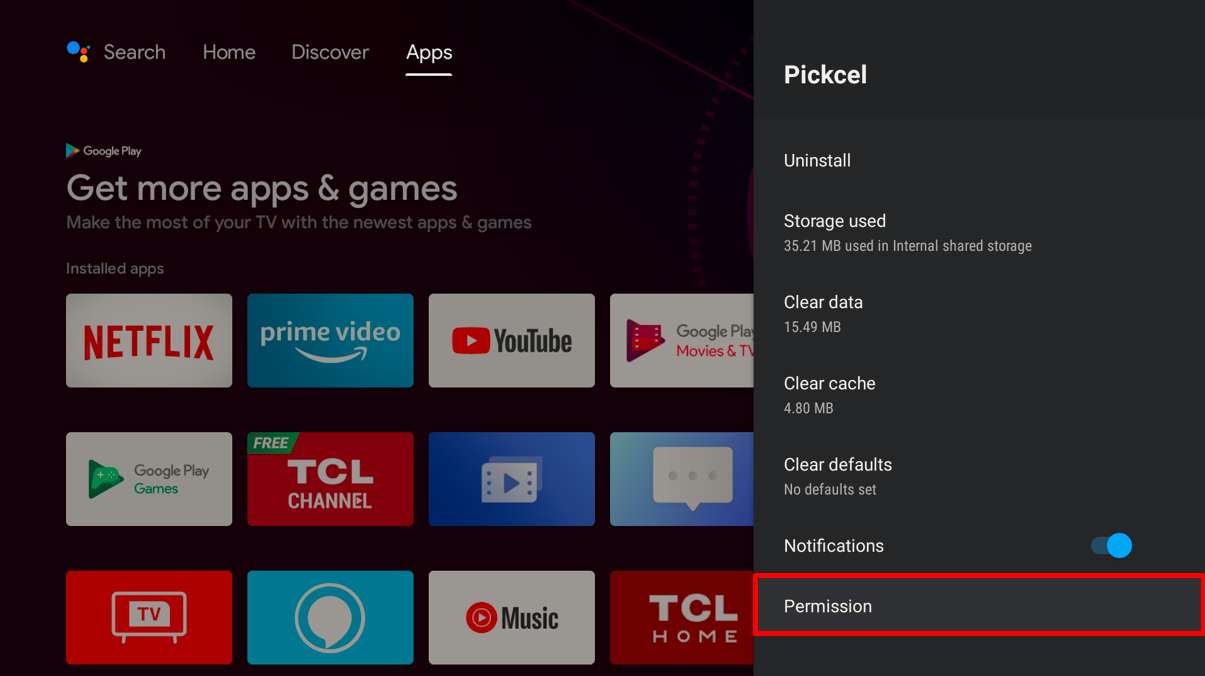
5
Select Files and Media
Under Additional permissions, click on Files and Media.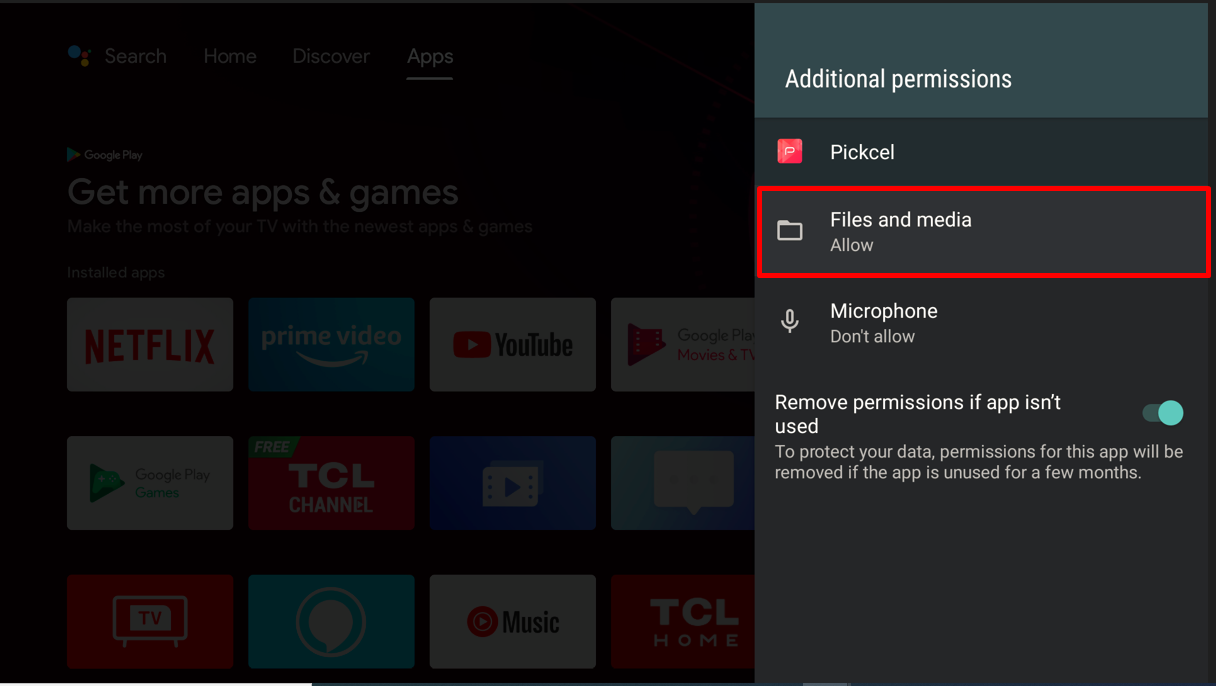
6
Grant permanent access
Select Allow all the time to grant permanent file access.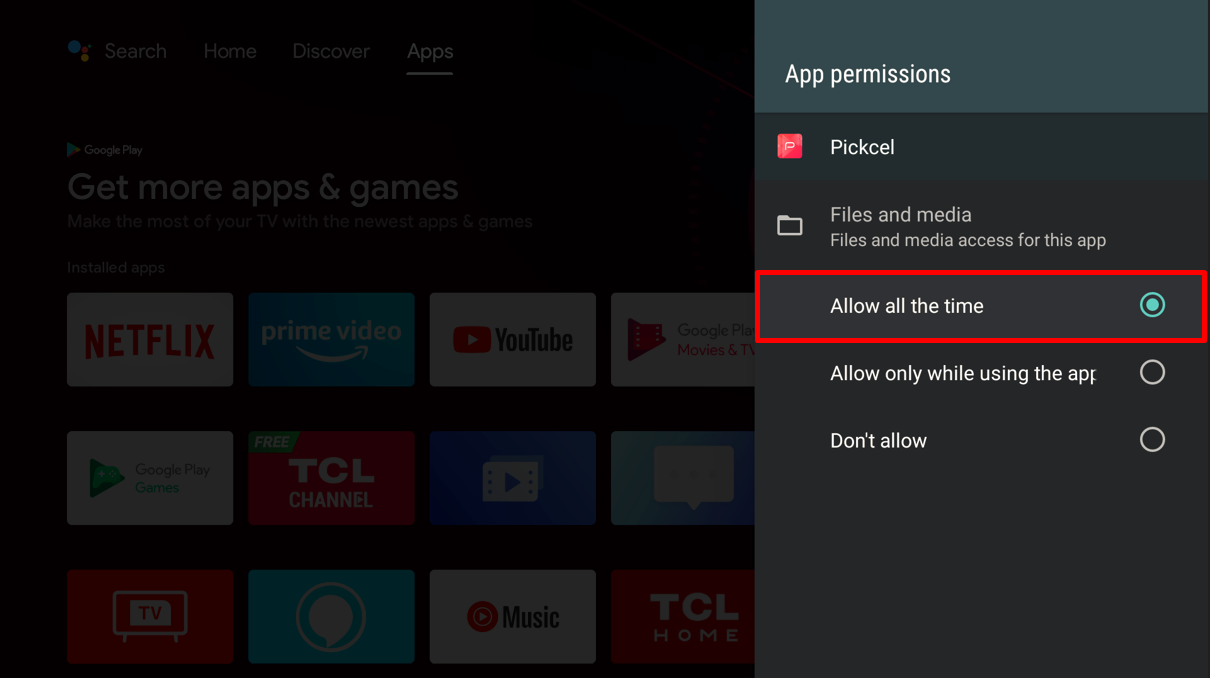
Related Articles
Android Installation - Play Store
Step-by-step guide to install Pickcel from Google Play Store
Android Installation - APK Download
Install Pickcel using the APK file from our website
Screen Registration Guide
Learn how to register your Android TV with Pickcel
Back to FAQs
Browse more troubleshooting guides and FAQs