

Quick Fix
If the pop-up is currently on screen: Press “Don’t show again” on the dialog. This will immediately disable the feature and save the setting automatically.Disable in System Settings
You can also disable the feature in the device’s system settings by following these steps:1
Access system preferences
From the Firestick home screen, press the menu button on your remote to open the system settings dashboard. Then select Preferences.
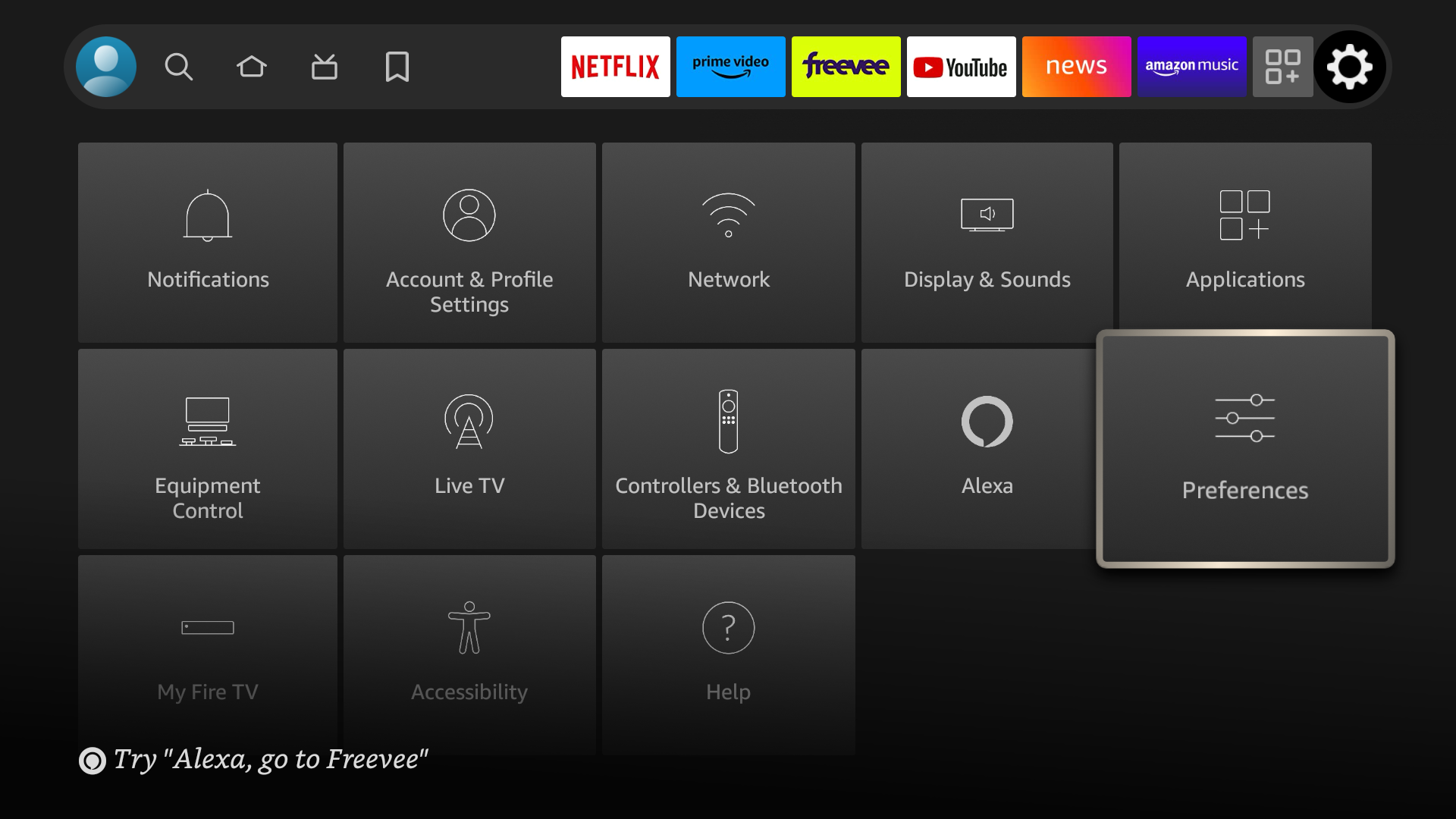
2
Open Data Usage Monitoring
Click on “Data Usage Monitoring” in the Preferences menu.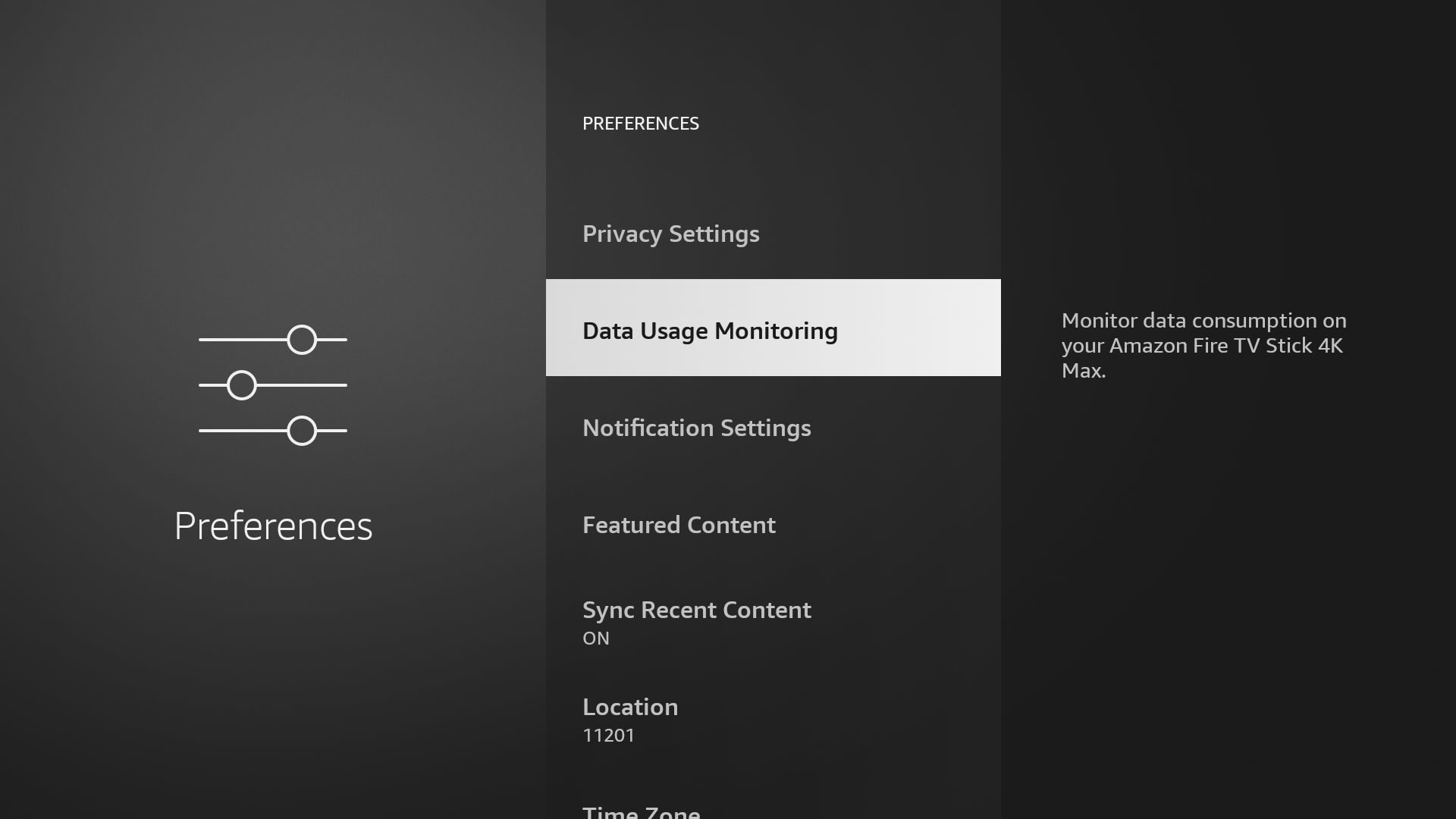
3
Disable Still Watching
Toggle the “Still Watching” feature to “Off” on the Data Usage Monitoring screen.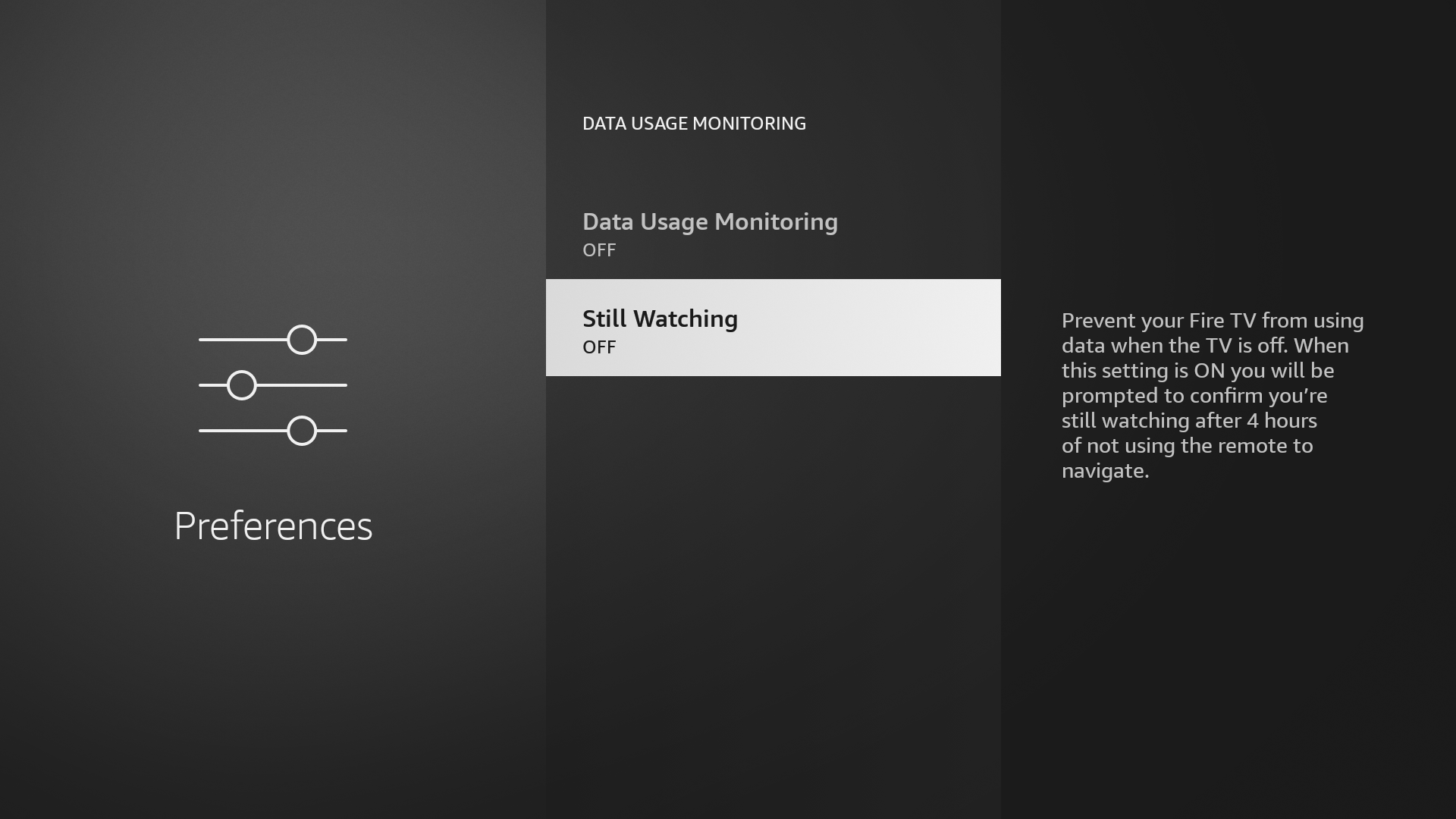
Related guides
Amazon Fire TV Stick Installation
Step-by-step guide to install Pickcel on Fire TV Stick.
Screen Registration Guide
Learn how to register your Fire TV Stick with Pickcel.
Back to FAQs
Browse more troubleshooting guides and FAQs.