

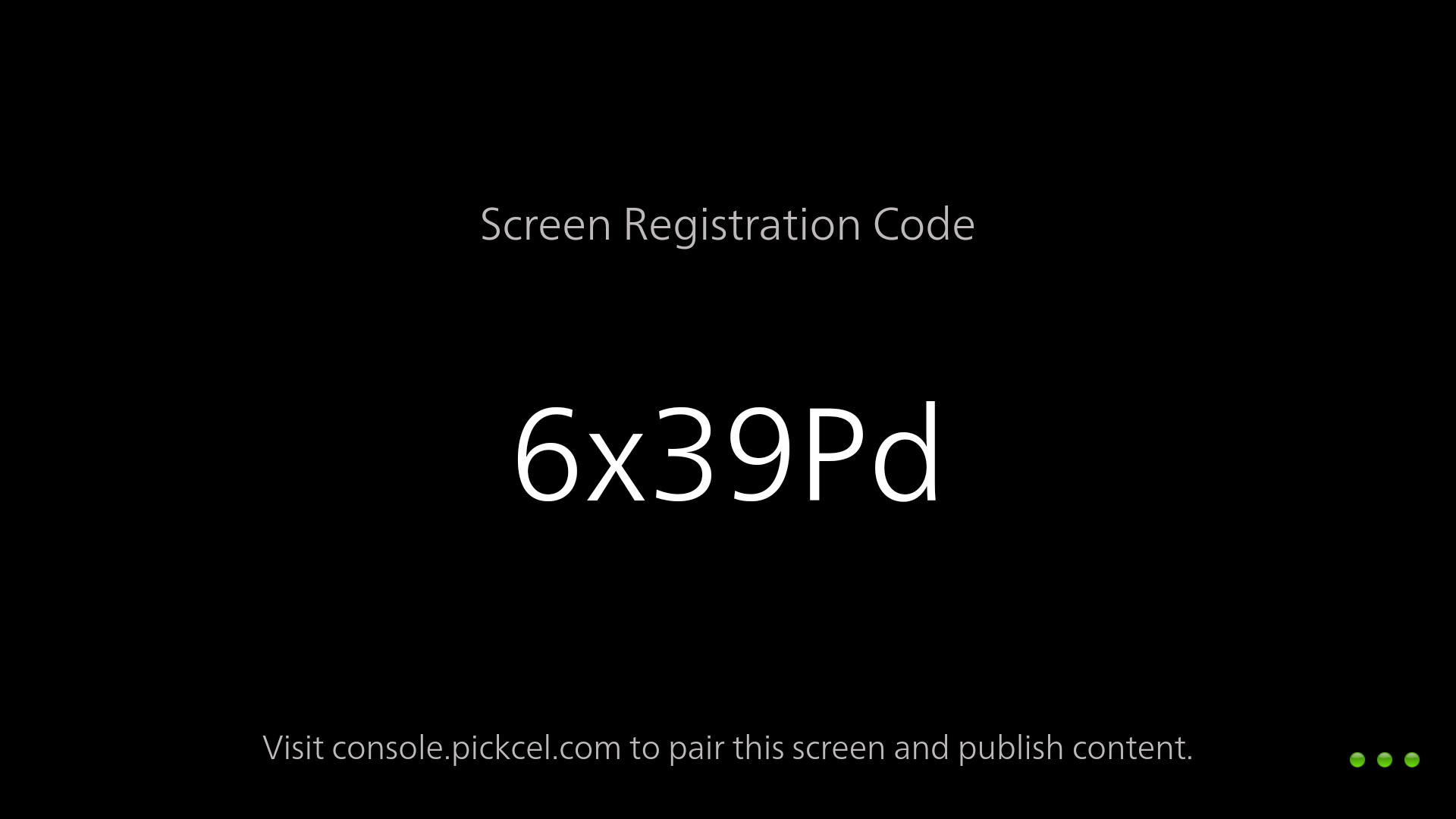
When does the code appear?
The registration code is shown when:- You install and launch the Pickcel player app on a device for the first time
- A player is factory reset and needs to be paired again
- You use the Webplayer to create a temporary browser-based screen
How do I use it?
- Note the code on your display (letter case matters).
- Log in to the Pickcel console and open the Screen module.
- Click Add Screen, enter the code, and complete the screen details.
Troubleshooting
Why is my display registration code not working?
If your code isn’t accepted when you add a screen in the Pickcel console, work through these checks:- Case-sensitive code: Enter the code exactly as shown on the player or Webplayer tab, including uppercase and lowercase letters.
- Matching server: The server name on the registration screen must match the console you’re logged into (for example,
console.pickcel.comor your on-premise domain). A code from one environment can’t be used in another. - One code, one screen: The same registration code can’t be used to register more than one screen in the same Pickcel account.
Why do I see “Invalid registration code!”?
If you get the Invalid registration code! error when adding a screen, it’s almost always one of two things. Work through both checks:- Letter case doesn’t match. The code is case-sensitive. Re-enter it exactly as shown on the player, matching every uppercase and lowercase letter.
- Wrong server. The server name on the registration screen must match the console you’re signing into (for example,
console.pickcel.comor your on-premise domain). A code generated on one server won’t work on another.
Still stuck after these checks? Contact support@pickcel.com and include the code and the server name shown on your display.
Related guides
Screen Registration
Step-by-step guide to pair a player with the Pickcel console.
Webplayer
Register a temporary browser-based screen without hardware.
Back to FAQs
Browse all Pickcel FAQ articles.