

Documentation Index
Fetch the complete documentation index at: https://docs.pickcel.com/llms.txt
Use this file to discover all available pages before exploring further.
Prerequisites:
- Digital signage player connected to a display
- Active internet connection
- Pickcel app installed on your device
Install Pickcel Player App
Before registering your screen, ensure you have installed the Pickcel digital signage application on your player device.
Launch the App and Get Registration Code
Once installed, launch the Pickcel app on your device. The app will display a unique 6-digit alphanumeric registration code.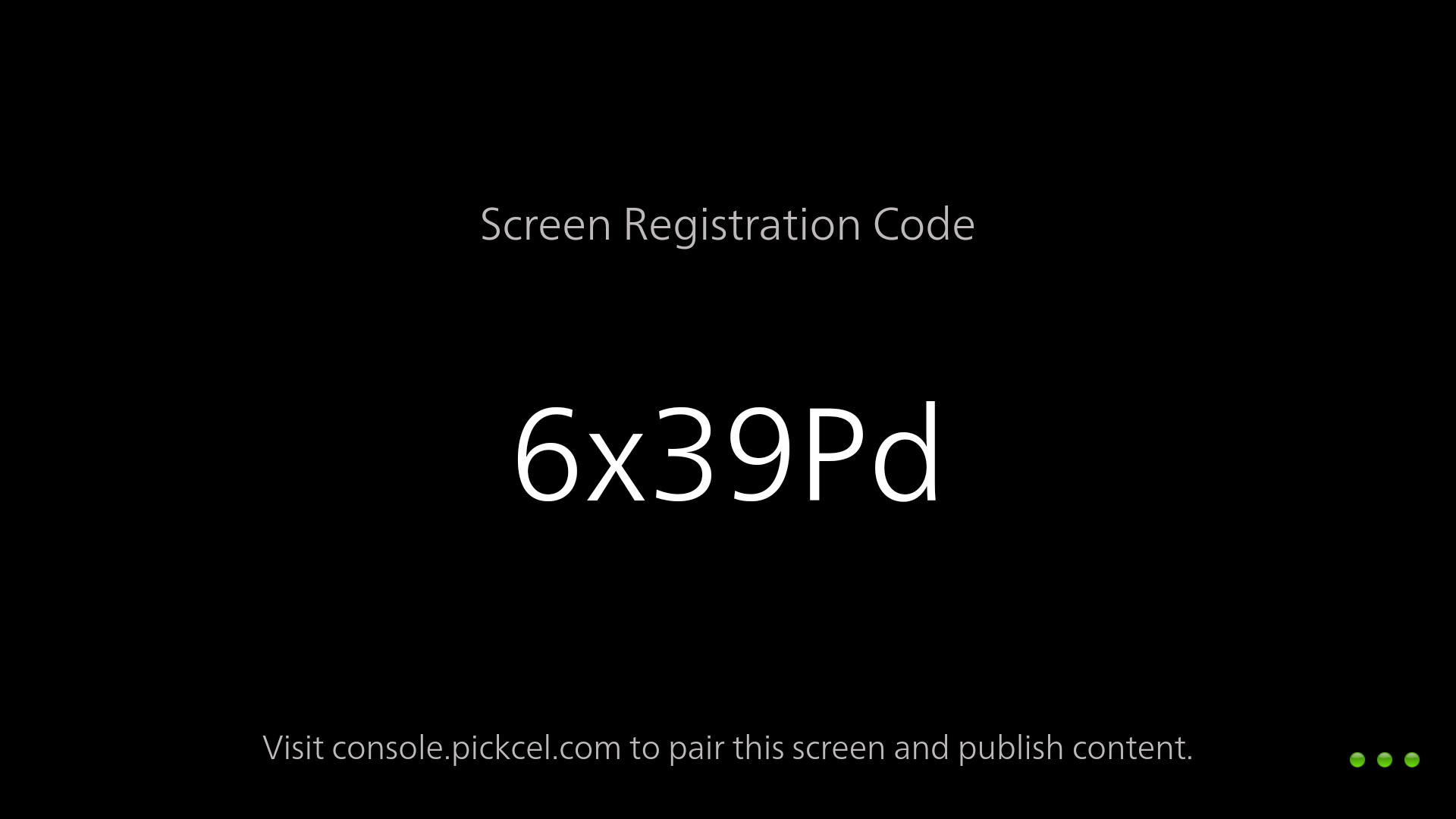
Keep this code handy - you’ll need it in the next step to pair your device with the Pickcel console.
Access Pickcel Console
Open a web browser and log in to your Pickcel Console. You’ll be directed to the Screens module.Click on the “Add Screen” button to begin the registration process.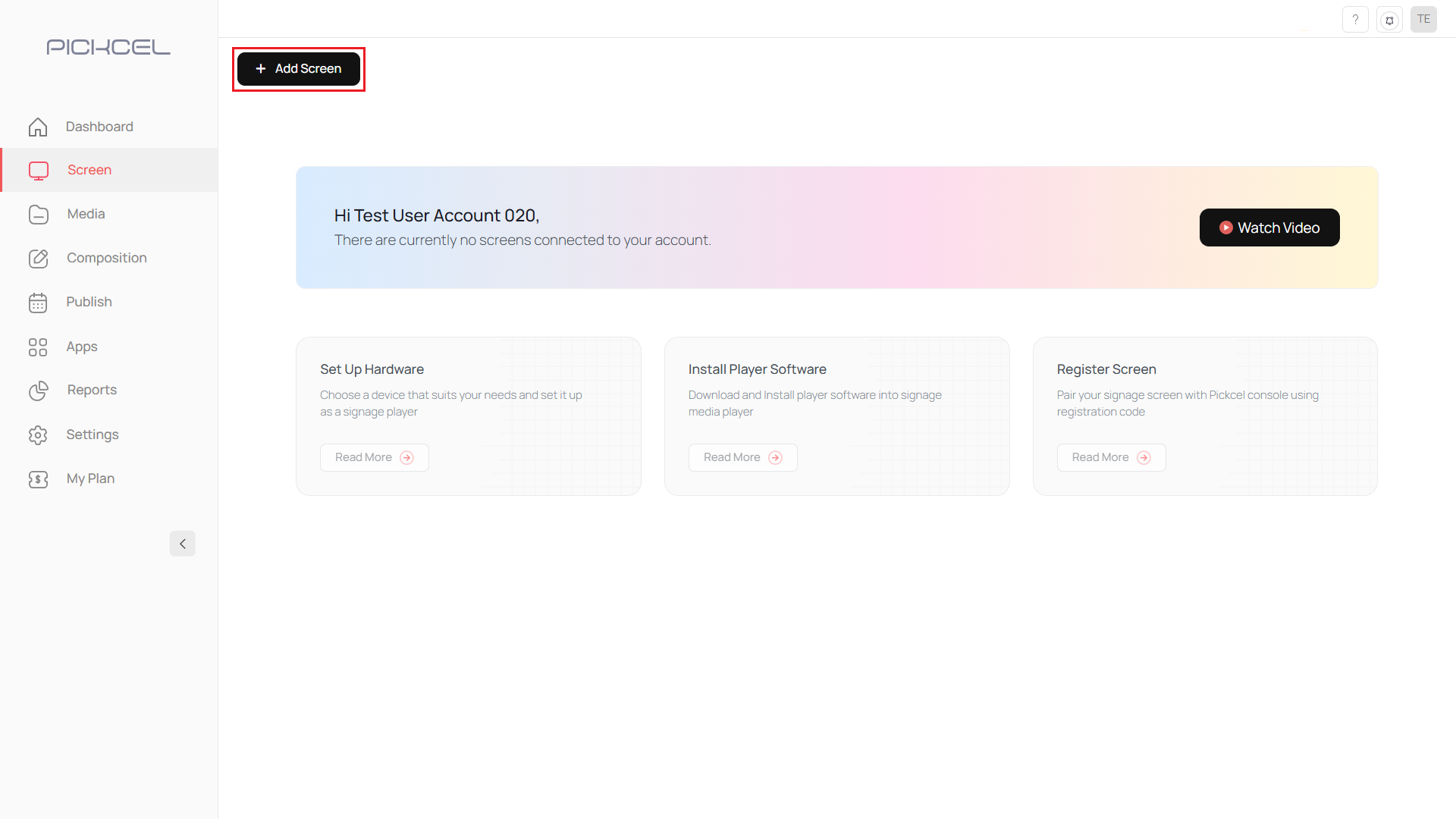
Enter Registration Code
Enter the 6-digit registration code displayed on your screen/device into the console, then click Next.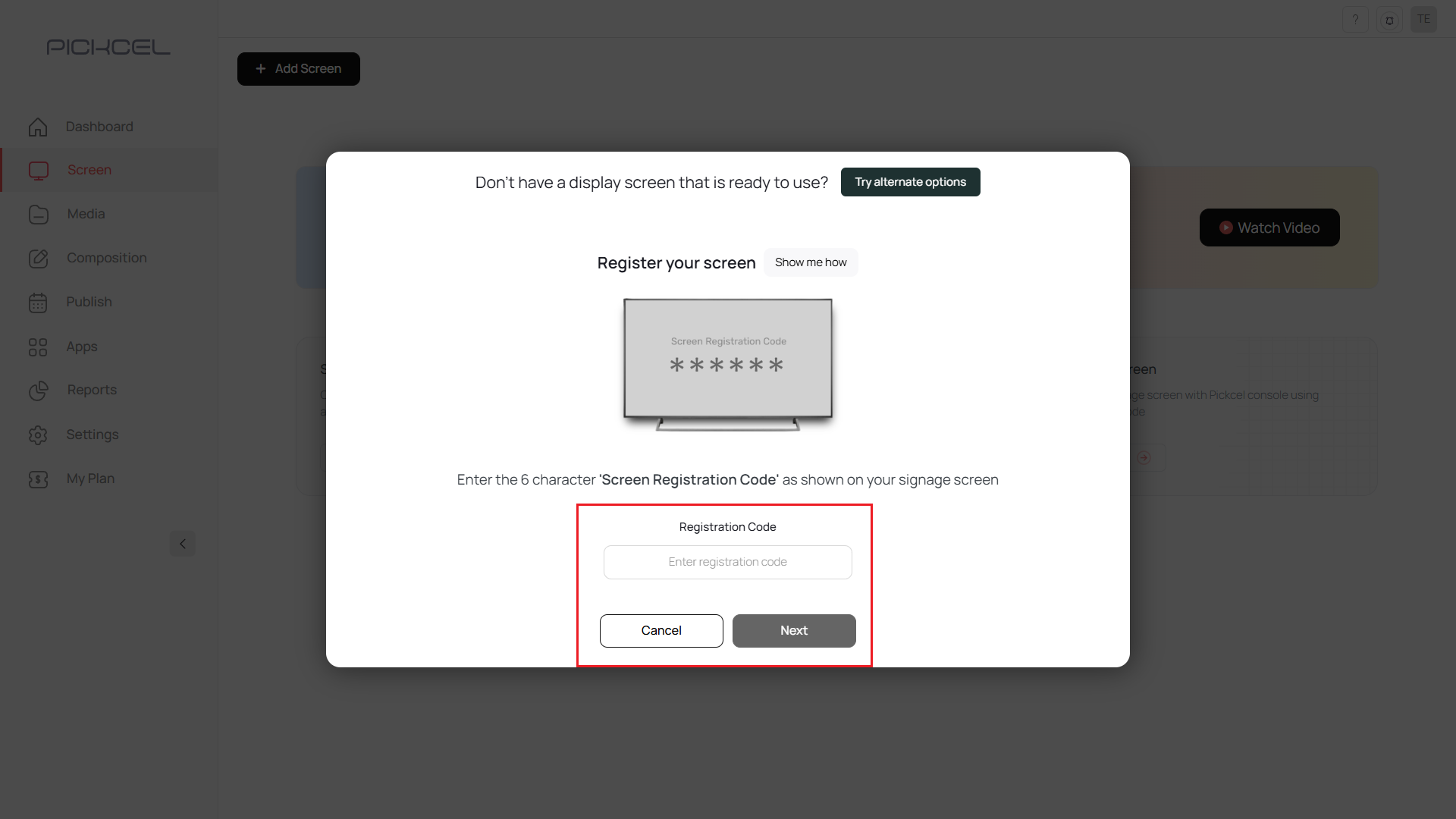
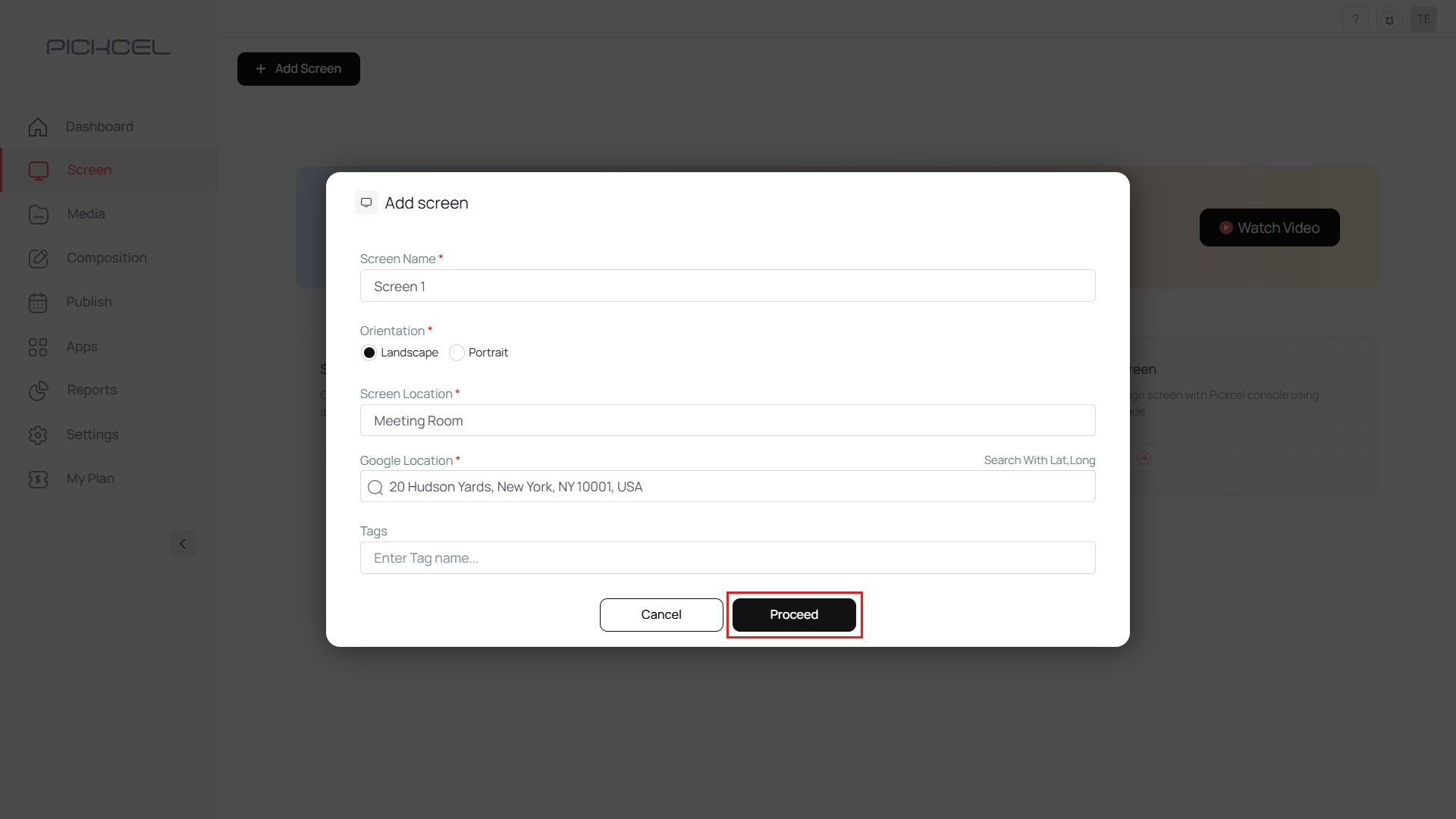
Configure Screen Details
Fill in the following details for your screen: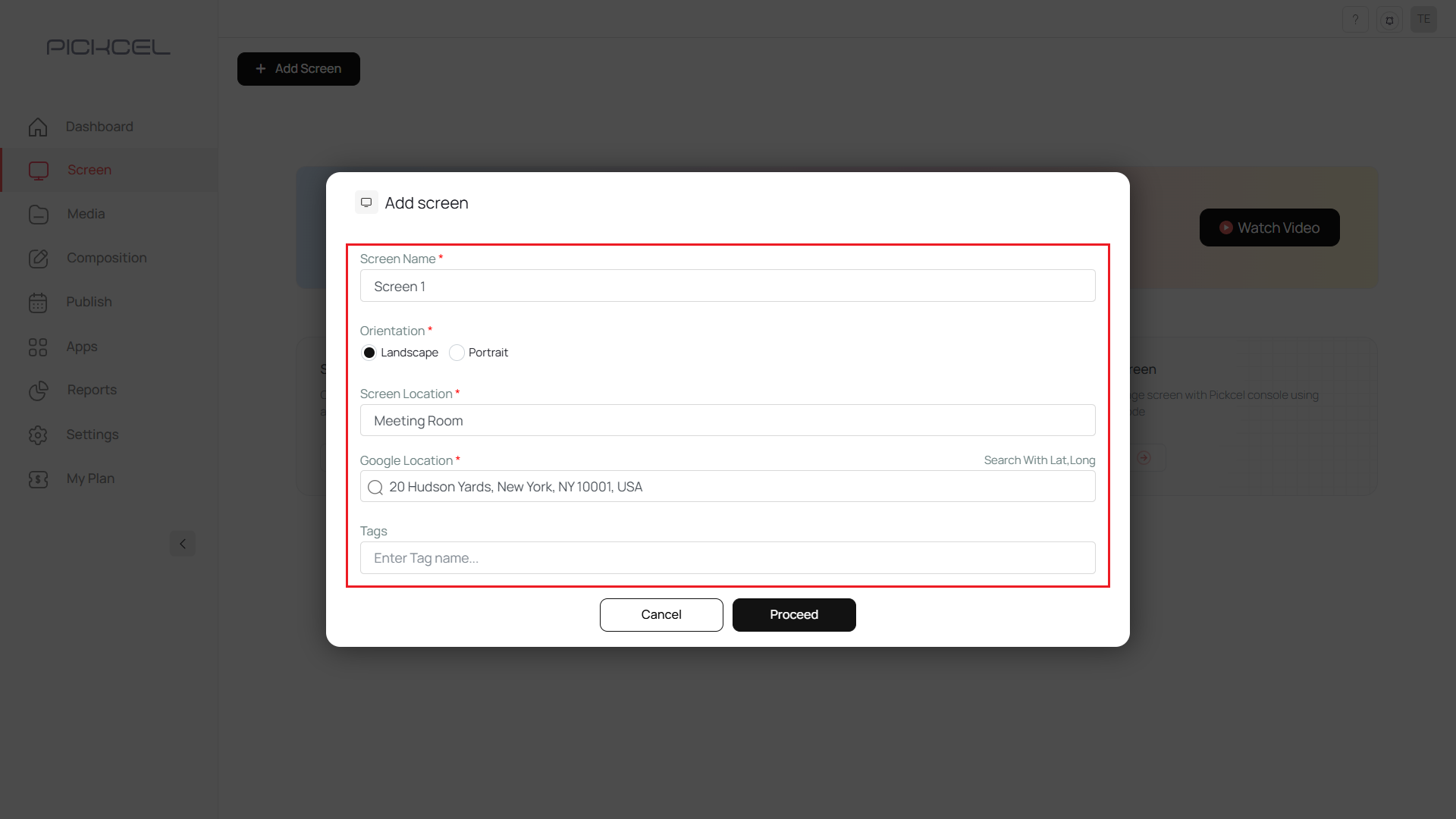
- Screen Name: Give your screen a descriptive name (e.g., “Lobby Display”, “Store Entrance”)
- Location: Specify where the screen is physically located
- Google Location: Add a map location for easy reference
- Tags (Optional): Add tags for better organization and filtering
Tags are useful for managing multiple screens. You can filter and publish content to specific screens based on tags.
What’s Next?Now that your screen is registered, start creating and publishing content:
- Learn how to Upload Media to your library
- Create your first Composition with zones and layouts
- Set up Schedules to automate content playback
If you encounter any issues during registration, please contact our support team for assistance.