

Supported on macOS 10.14 and above.
Considerations for Physical setup:
- Mac system (macOS 10.14 or above).
- Active internet connection.
1
Download DMG File
Download the latest DMG file: Download the macOS player
You can also visit the Pickcel Download Page directly and download the latest DMG file from the macOS section.
2
Open the Downloaded DMG File
Once the download is complete, locate the downloaded DMG file in your Downloads folder and double-click on it to open.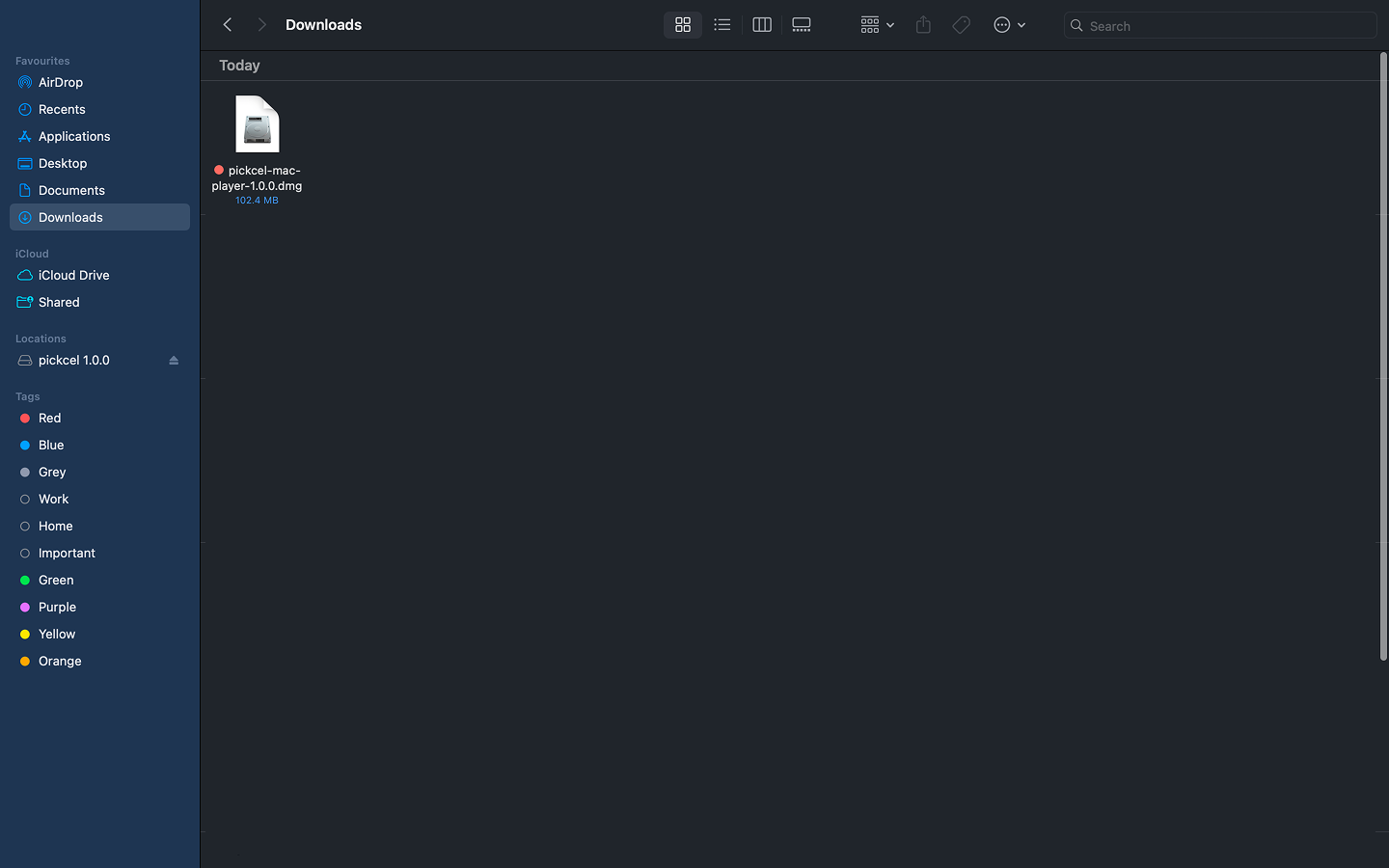
3
Install to Applications Folder
Drag the Pickcel app to the Applications folder.
4
Launch the Pickcel App
Go to the Applications folder and double-click on the Pickcel app to launch it.
If you encounter any issues during installation, please contact our support team for assistance.
5
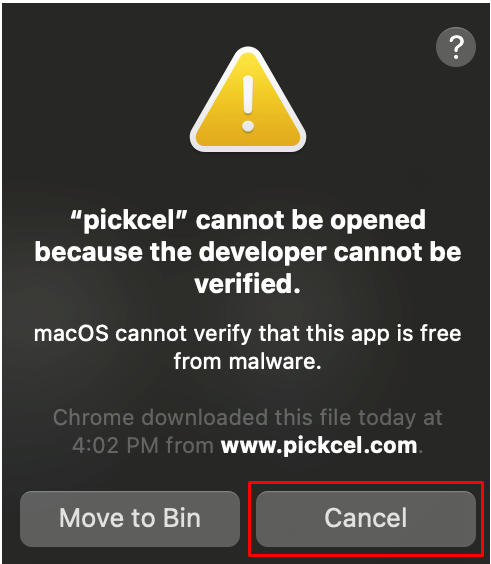
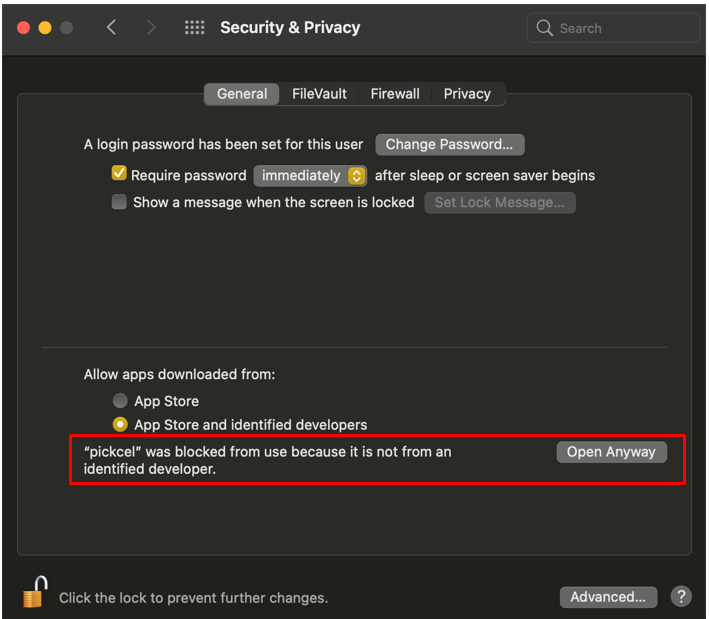
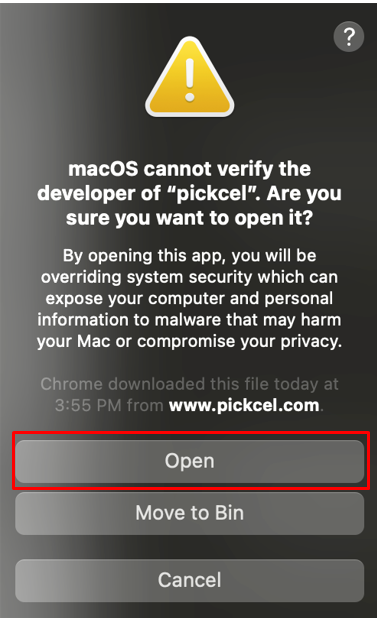
Handle Security Settings
If you get a security warning, you’ll need to adjust your system settings. Choose the method based on your macOS version:
- Method 1: Using 'Anywhere' Option
- Method 2: Using 'Open Anyway'
1. Open System Preferences: Go to System Preferences > Security & Privacy.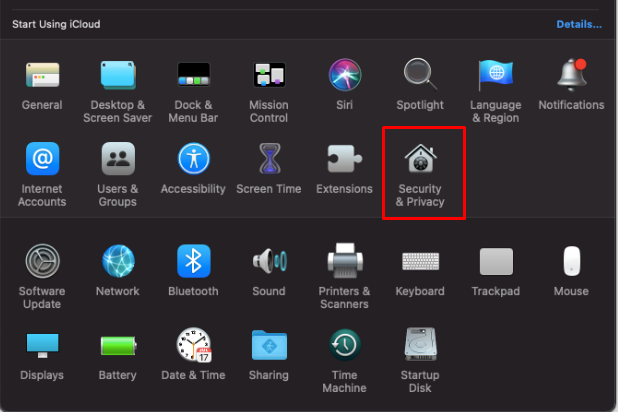 2. Unlock Settings: Go to the General tab and click the lock icon in the lower-left corner to allow changes.
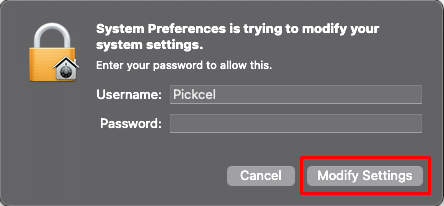
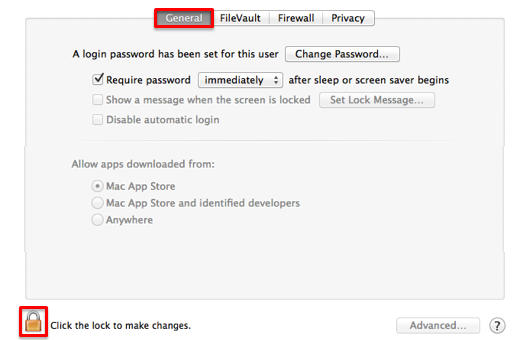 3. Authenticate: Enter your computer username and password, then click Modify Settings.
 4. Allow the App: Under the Allow apps downloaded from section, click on the radio button next to Anywhere.
If you don’t see the ‘Anywhere’ option in your macOS, use Method 2 instead.
6
View Registration Code
Once the Pickcel app launches, it will display a unique 6-digit alphanumeric registration code.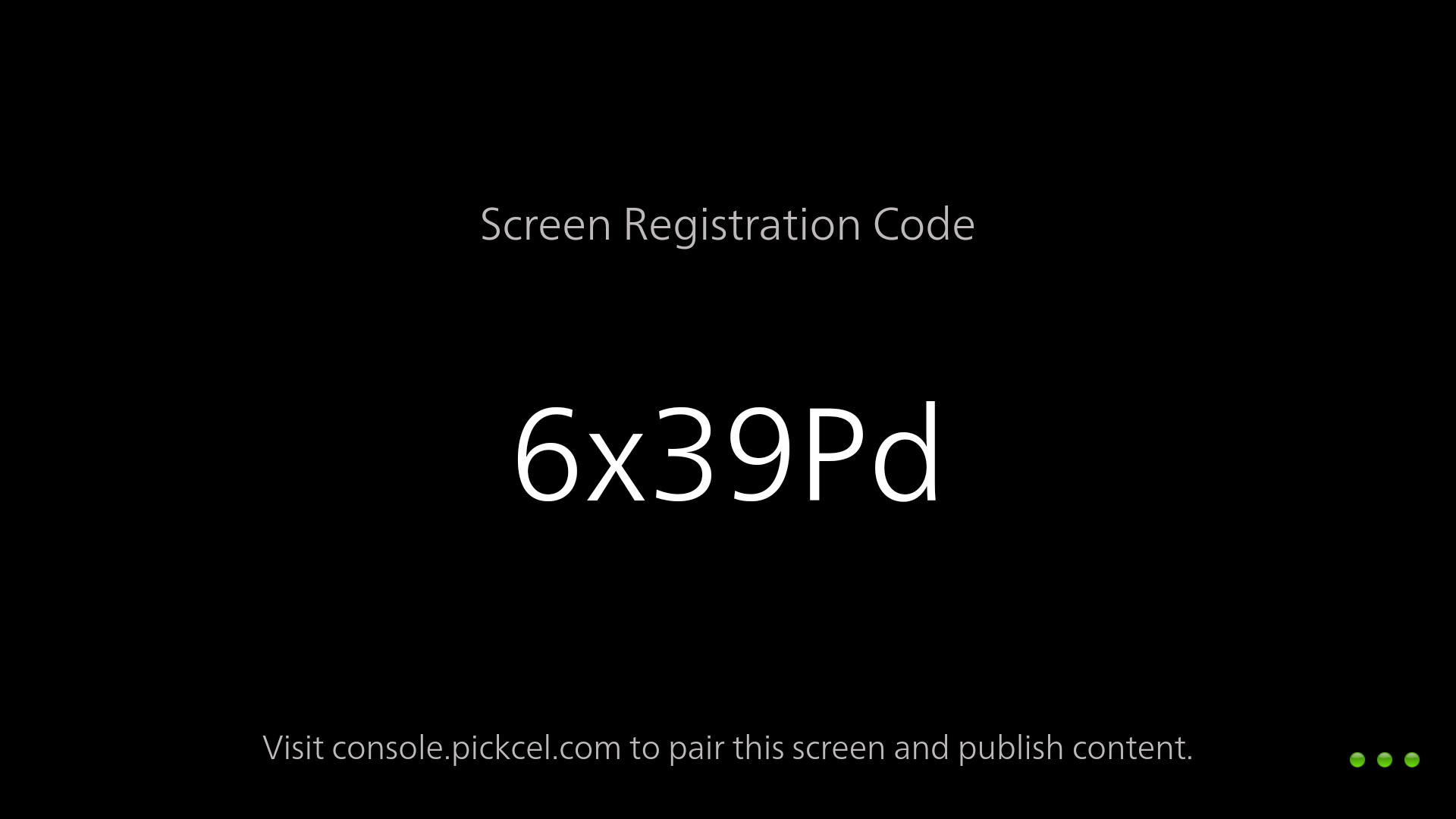
7
Pair with Pickcel Console
Pair your display with the Pickcel console using the registration code. You will have to enter this code on your Pickcel console to complete the pairing of your screen.
To learn how to pair your device with the Pickcel console, see the Screen Registration guide
What’s Next?Now that your macOS player is installed, complete your setup:
- Start Uploading Media to your library
- Create your first Composition and publish content