

Prerequisites
- Raspberry Pi 4 (or newer) with HDMI display, power adaptor, USB keyboard, and mouse
- MicroSD card (16 GB or higher) with card reader for flashing the Pickcel image
- Computer running Windows, macOS, or Ubuntu to install Raspberry Pi Imager
- Stable internet connection for both the setup computer and Raspberry Pi
1
Download the Pickcel Raspberry Pi image
Visit the Pickcel download page and download the Pickcel OS image for Raspberry Pi.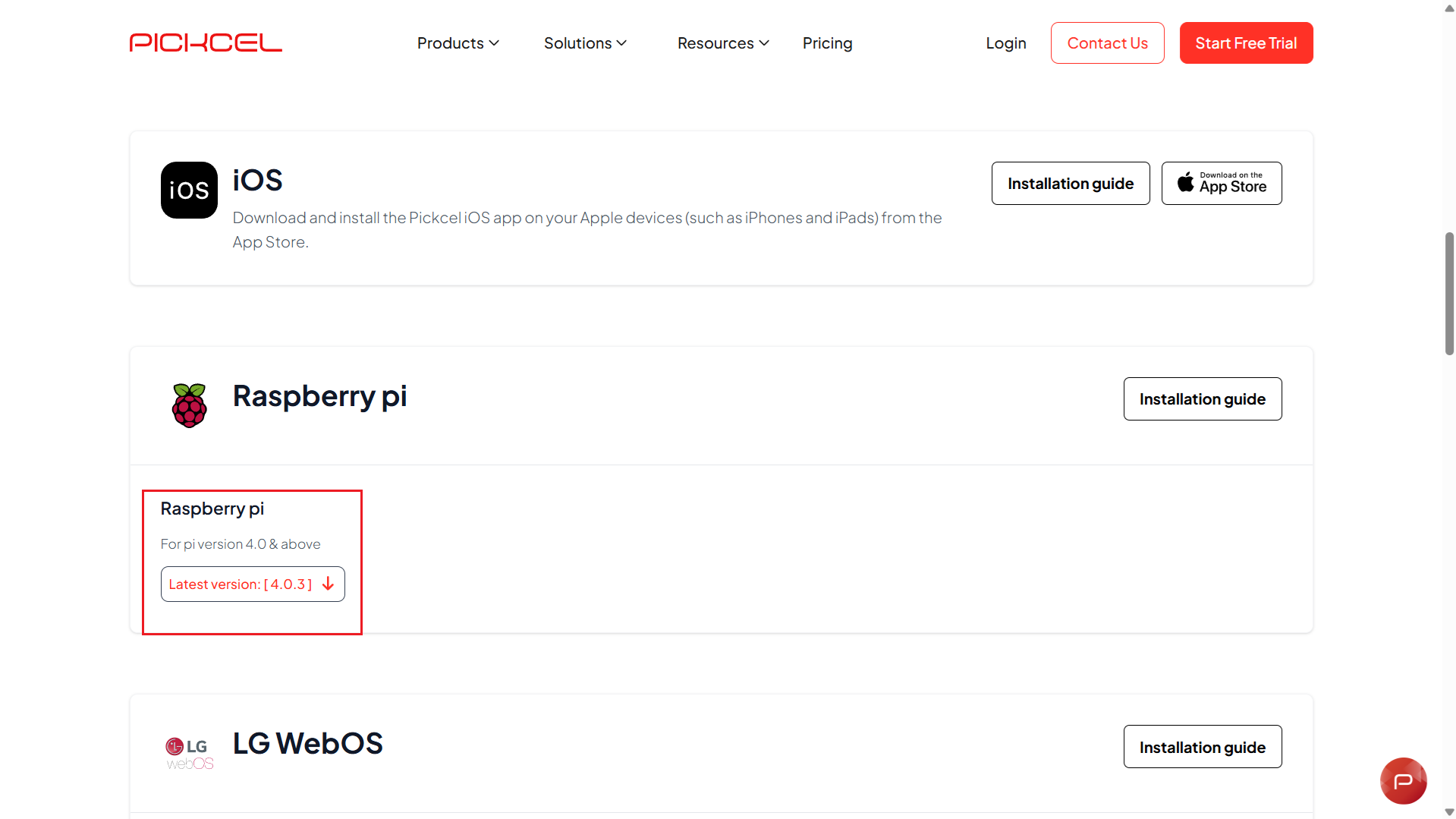
2
Install Raspberry Pi Imager
Download the Raspberry Pi Imager tool from https://www.raspberrypi.com/software/ and run the installer. Proceed through the setup wizard using the default options.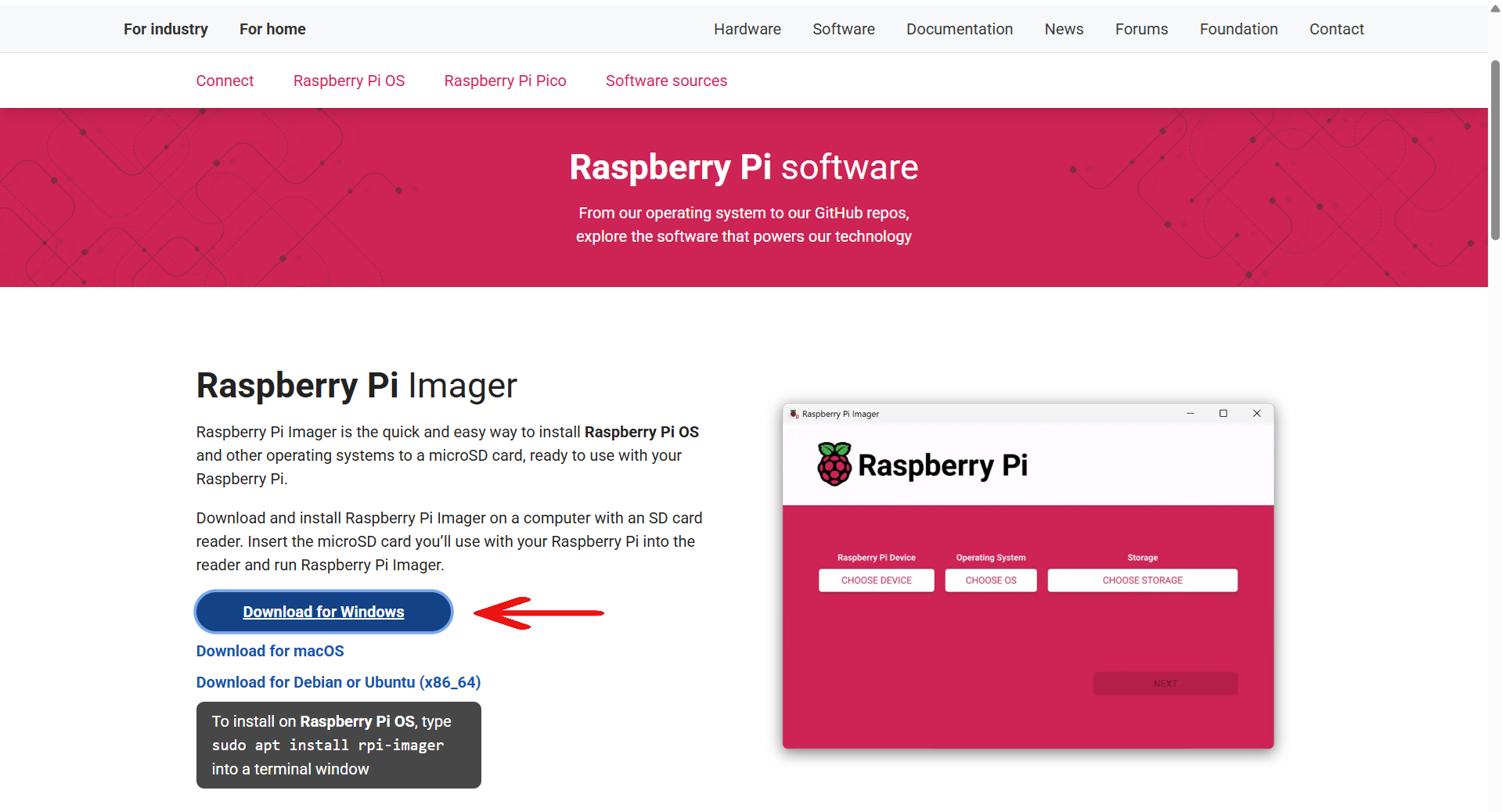
The Raspberry Pi Imager is available for Windows, macOS, and Ubuntu.
3
Launch Raspberry Pi Imager and select your device
Open Raspberry Pi Imager and click Choose Device.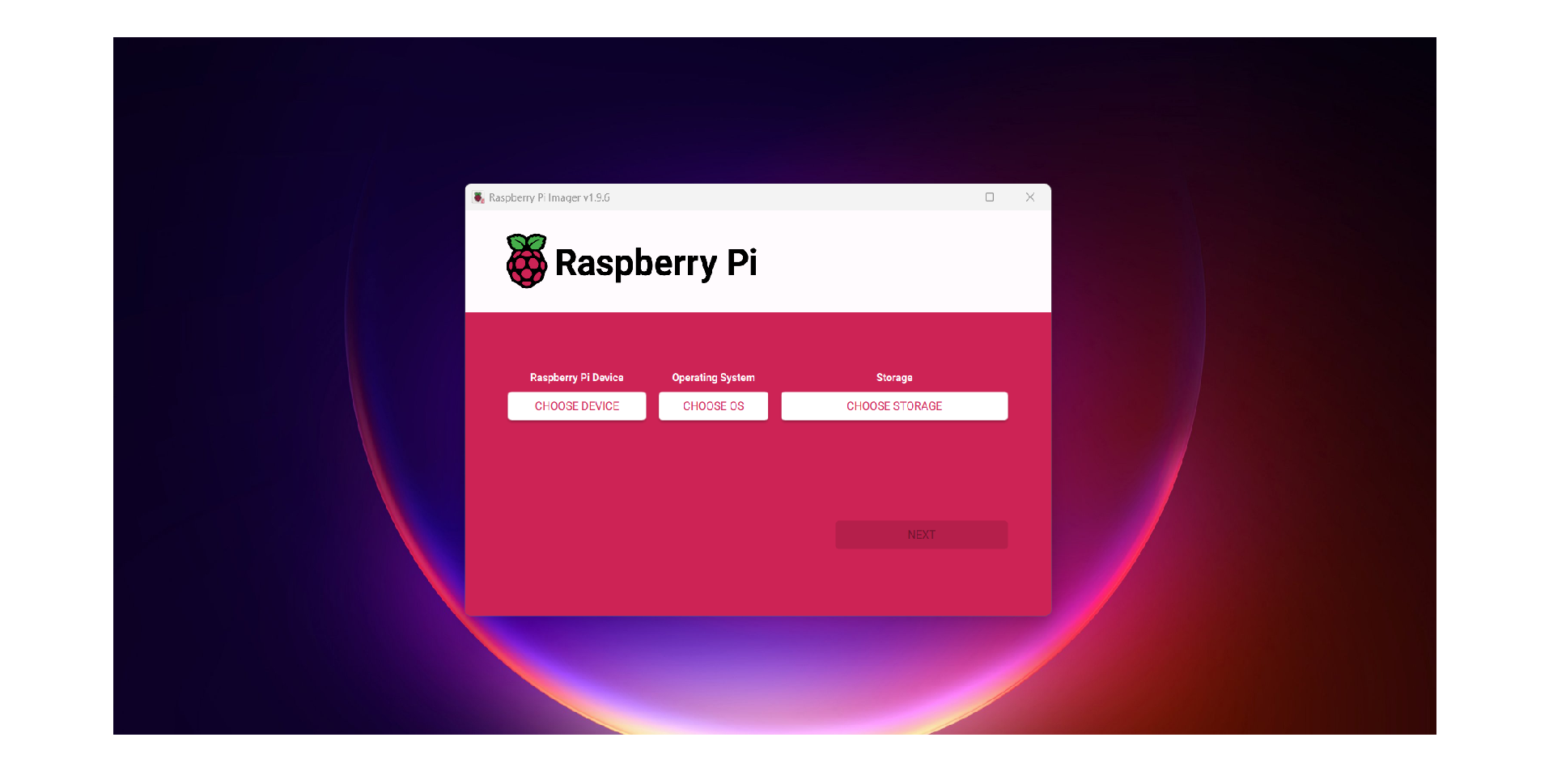 Pick the Raspberry Pi model you are configuring.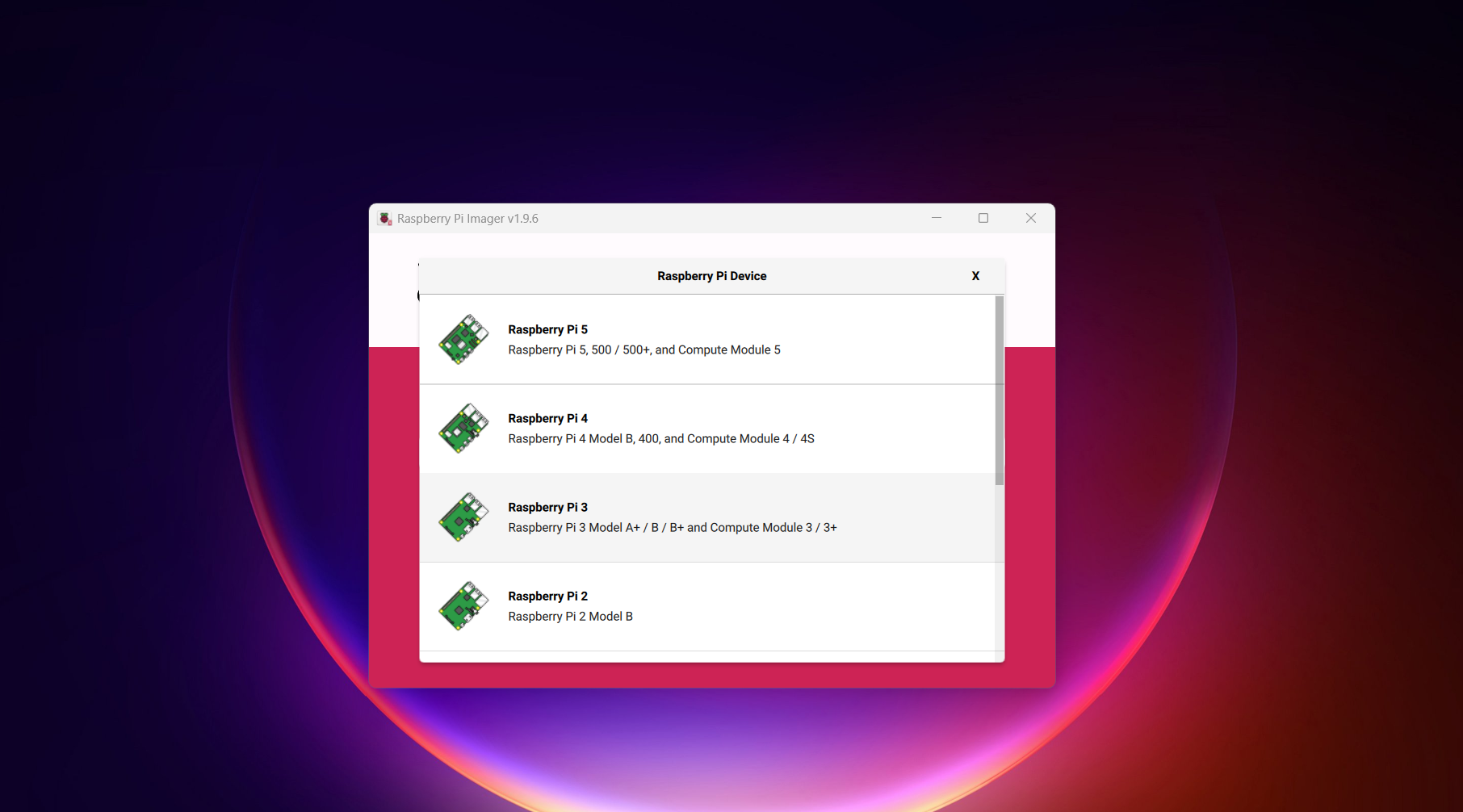
4
Select the Pickcel OS image
Click Choose OS, pick Custom, and locate the Pickcel OS image you downloaded earlier.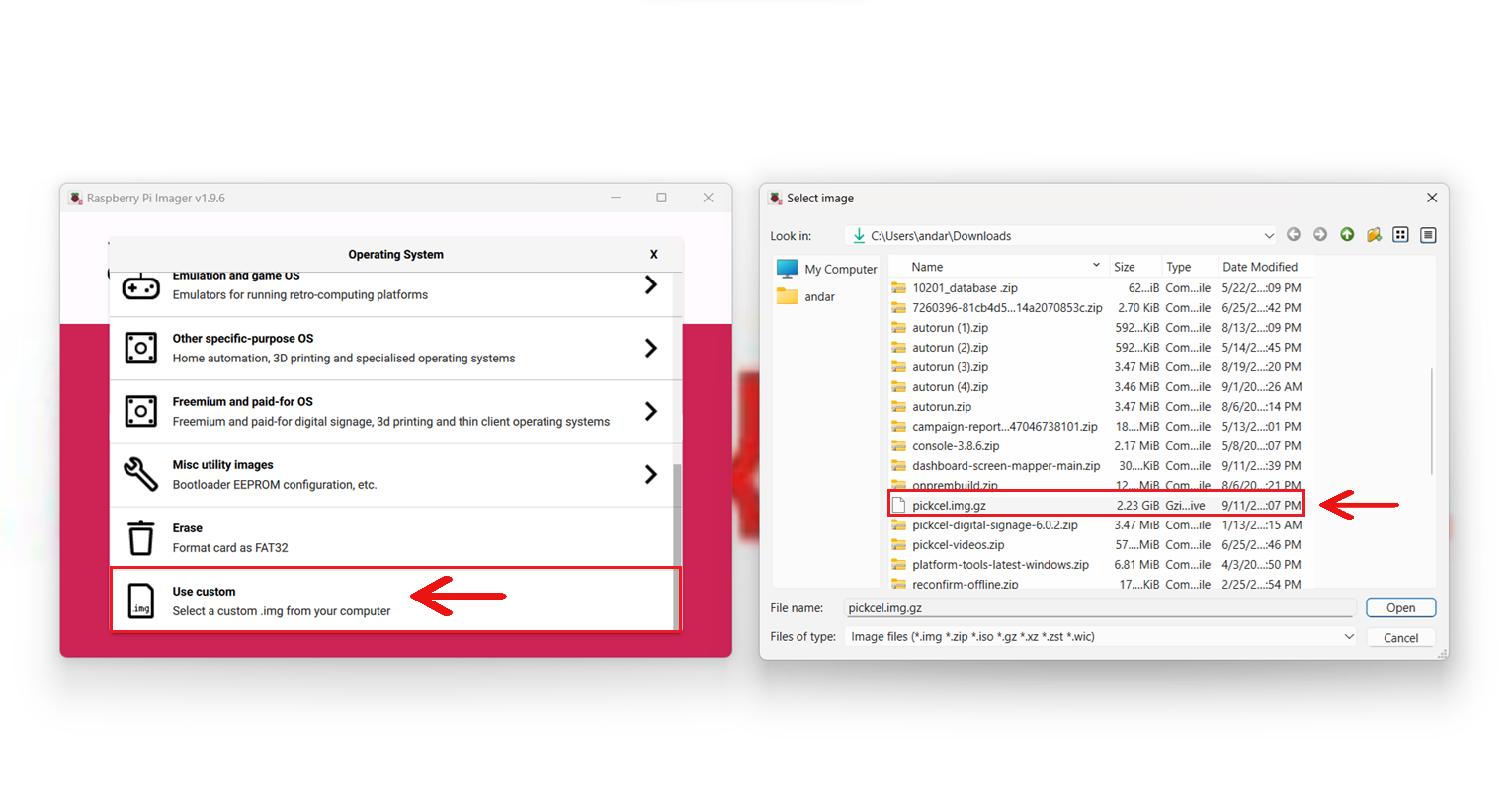
5
Choose storage and confirm the write options
Click Choose Storage and select your SD card (ensure the SD card is connected), then click Next.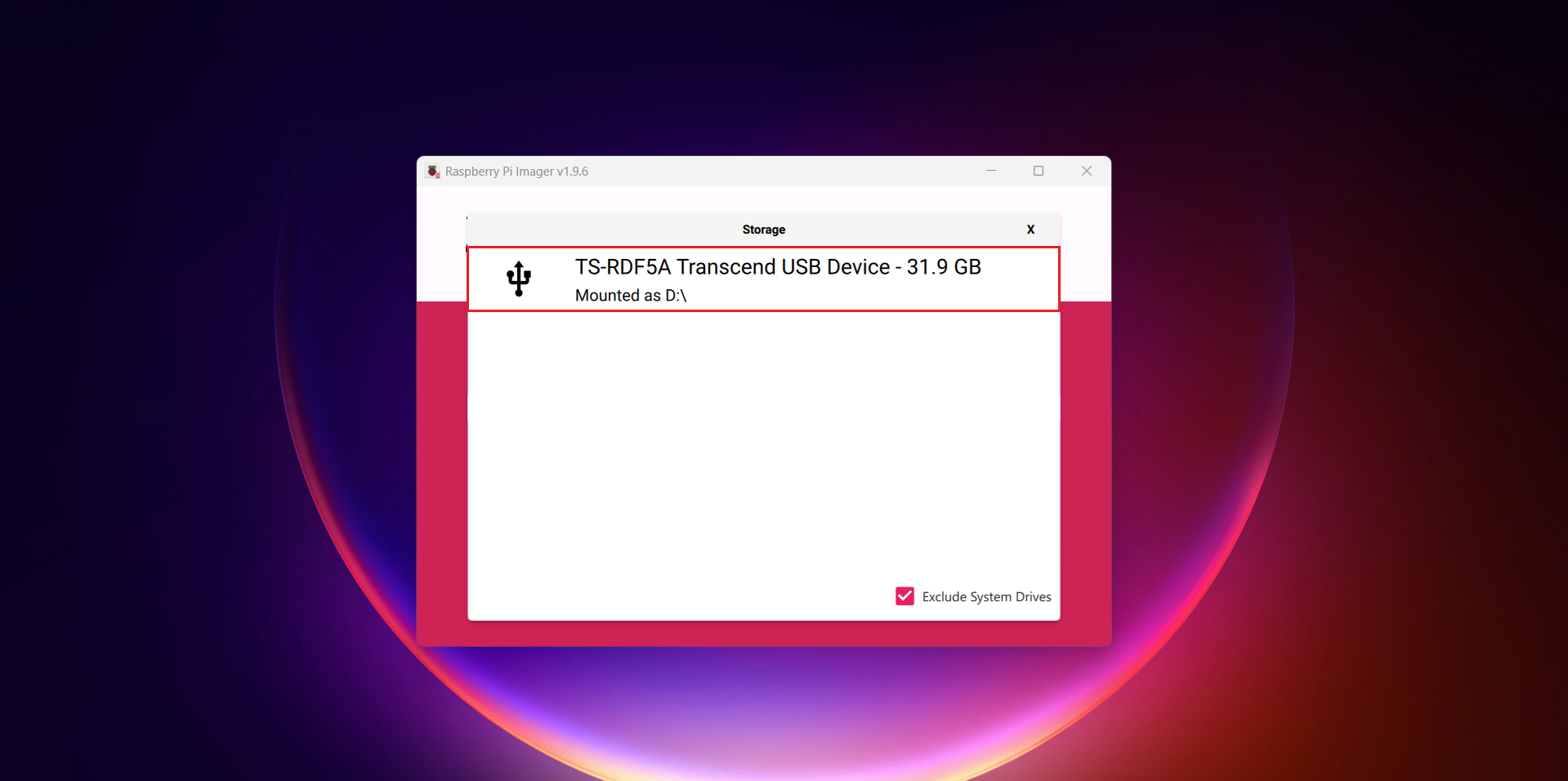
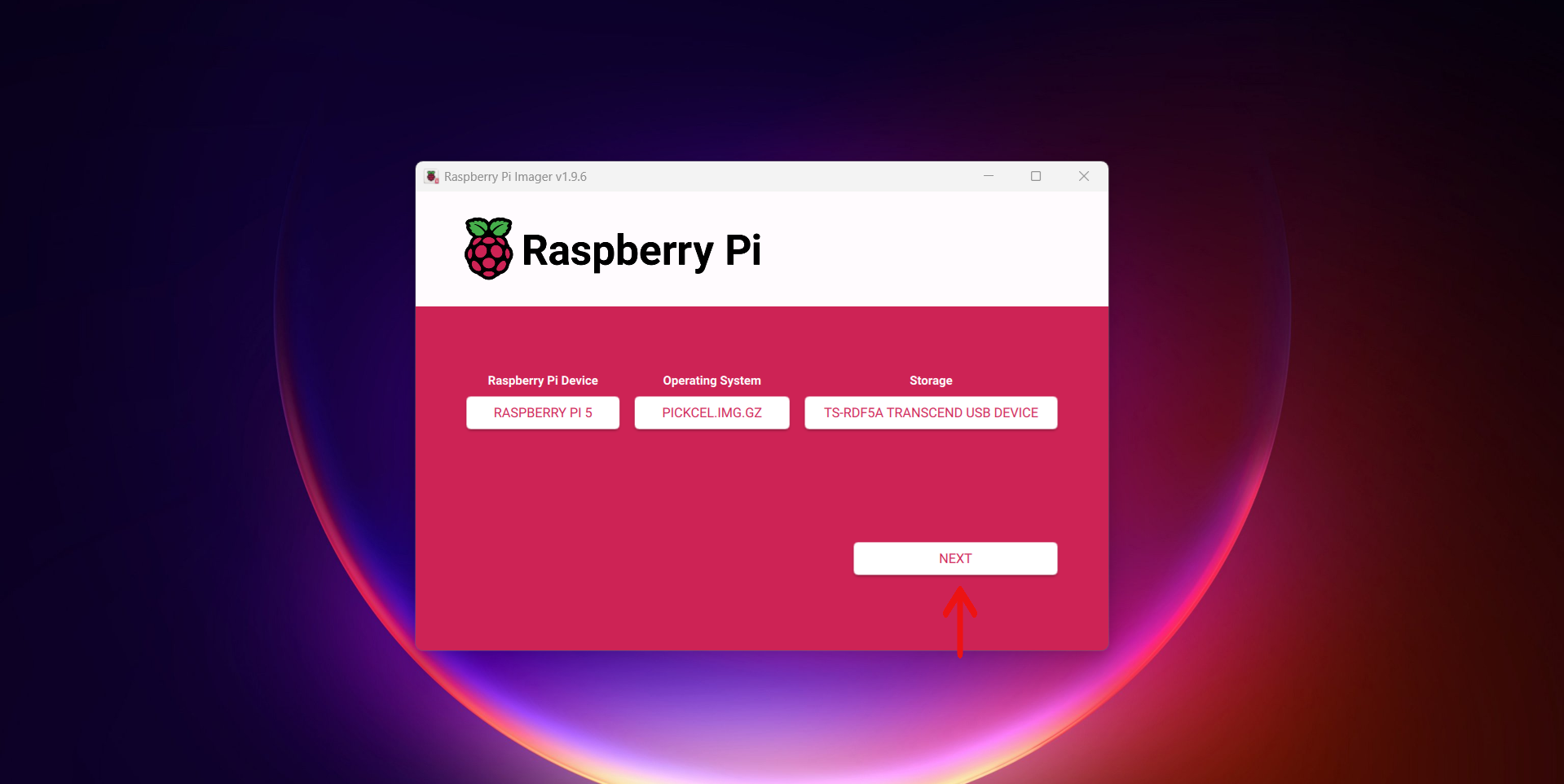 When prompted, choose No for custom settings.
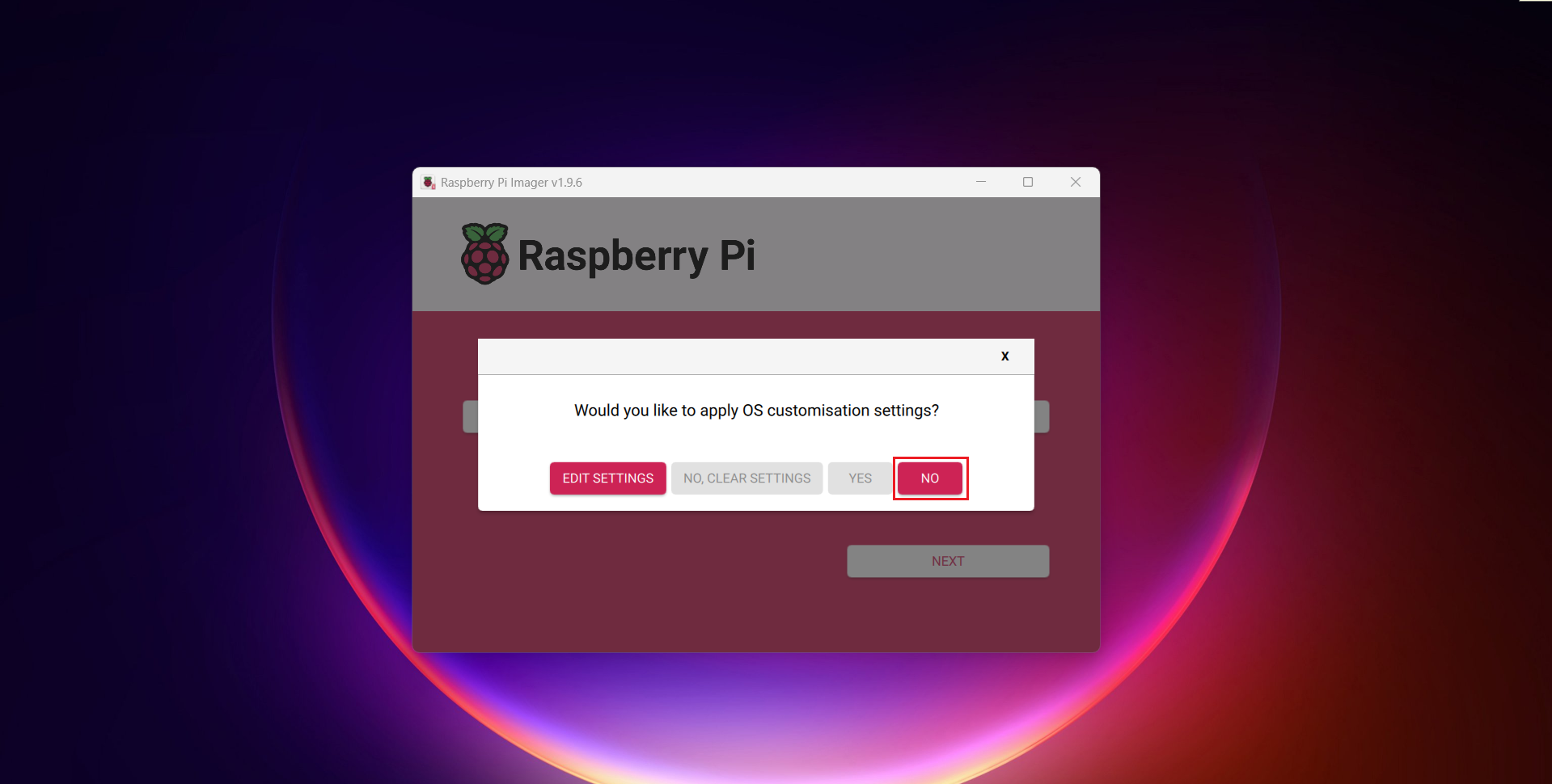 Then choose Yes to start writing the image.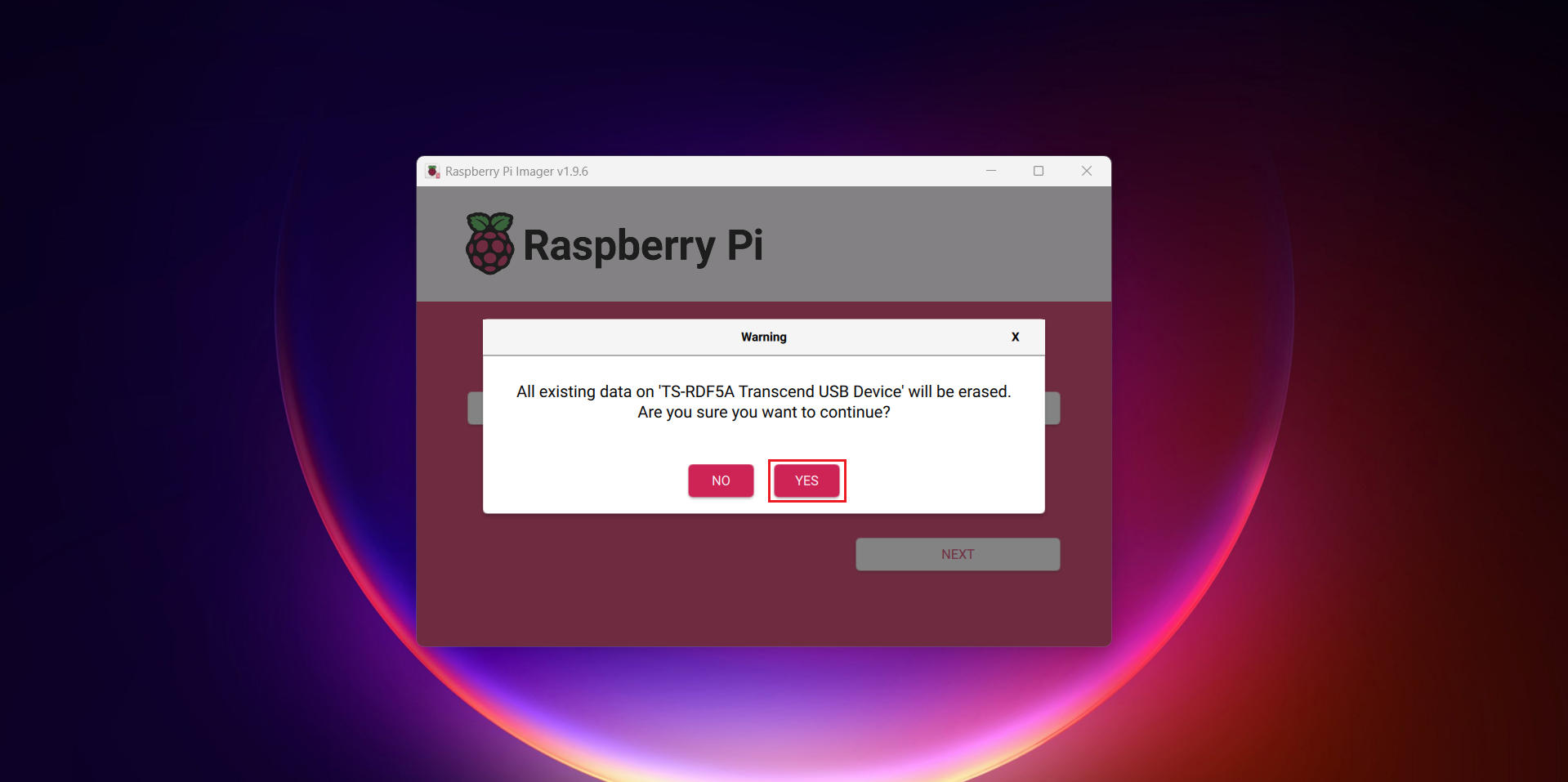
6
Finish imaging and prepare your Raspberry Pi
Wait until Raspberry Pi Imager completes writing and verifying the SD card. Once done, exit the Raspberry Pi Imager, eject the SD card safely, and insert it into your Raspberry Pi.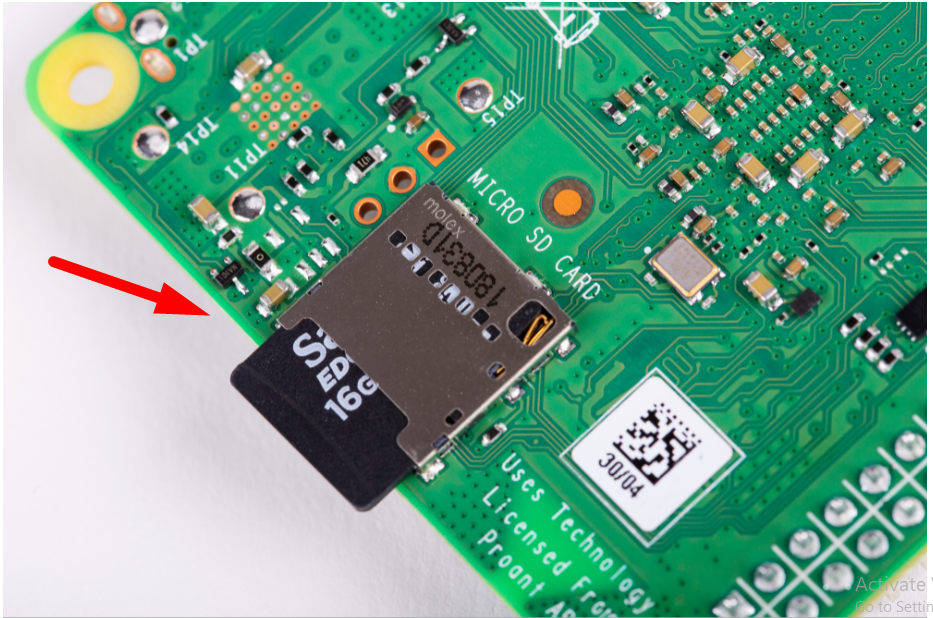 Connect the Raspberry Pi with the HDMI cable, Ethernet cable, and a power adaptor.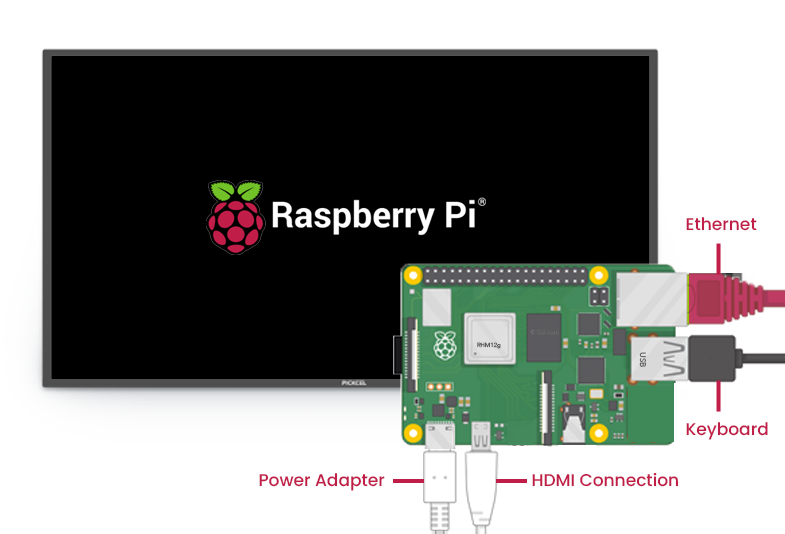
7
Power on Raspberry Pi and open settings
Power on the Raspberry Pi, the Pickcel boot logo should appear. Use a keyboard for the initial Wi-Fi configuration.Press Ctrl + M to minimize the Pickcel player. Connect a mouse, right-click, and open Settings.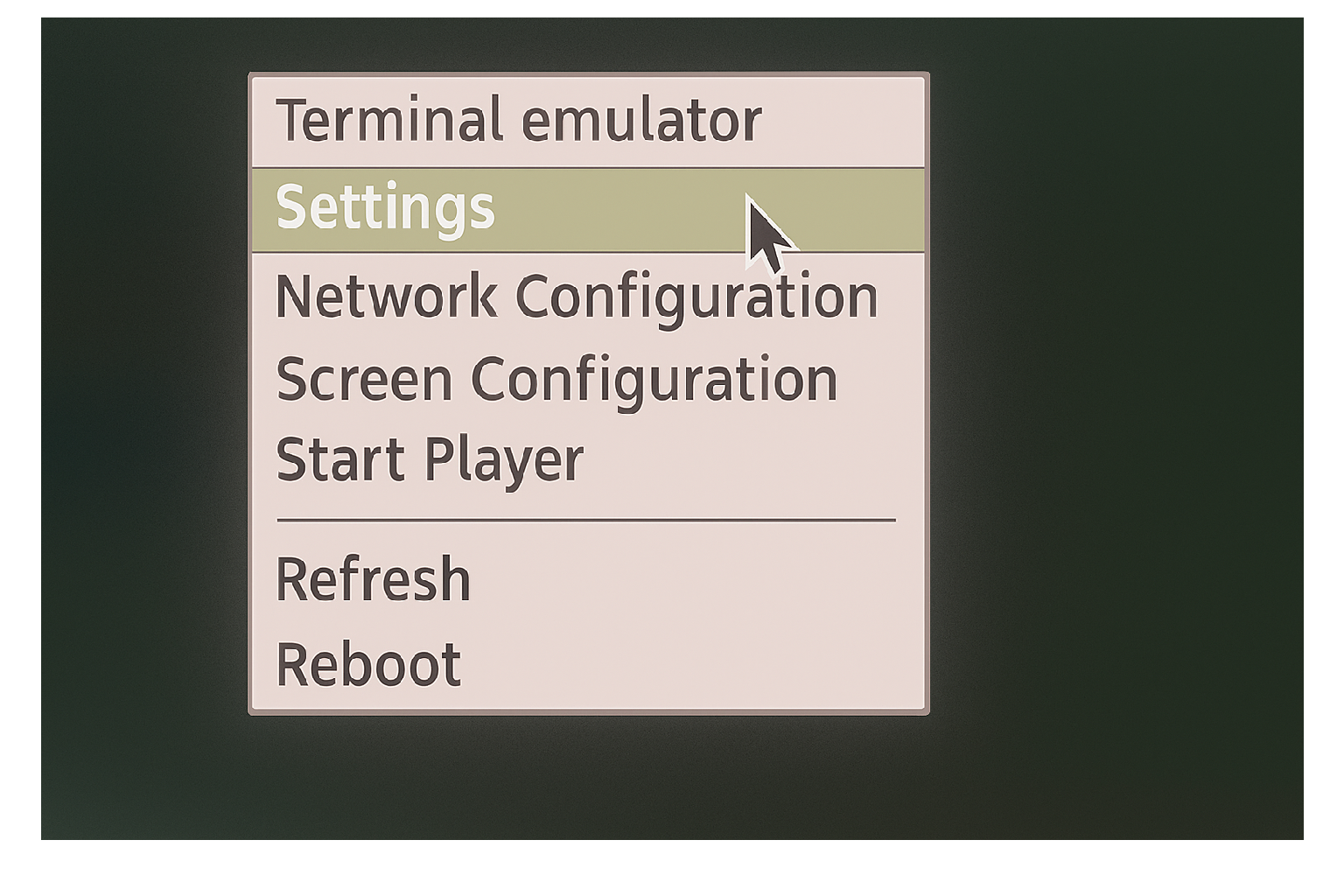
If the device is connected over Ethernet with a DHCP IP address and DNS setup, you may not require any configuration and hence may not need a USB keyboard.
8
Navigate localization options
After opening the settings menu, use the arrow keys to navigate, Enter to select, and Esc to go back. Choose Localization Options to begin configuration.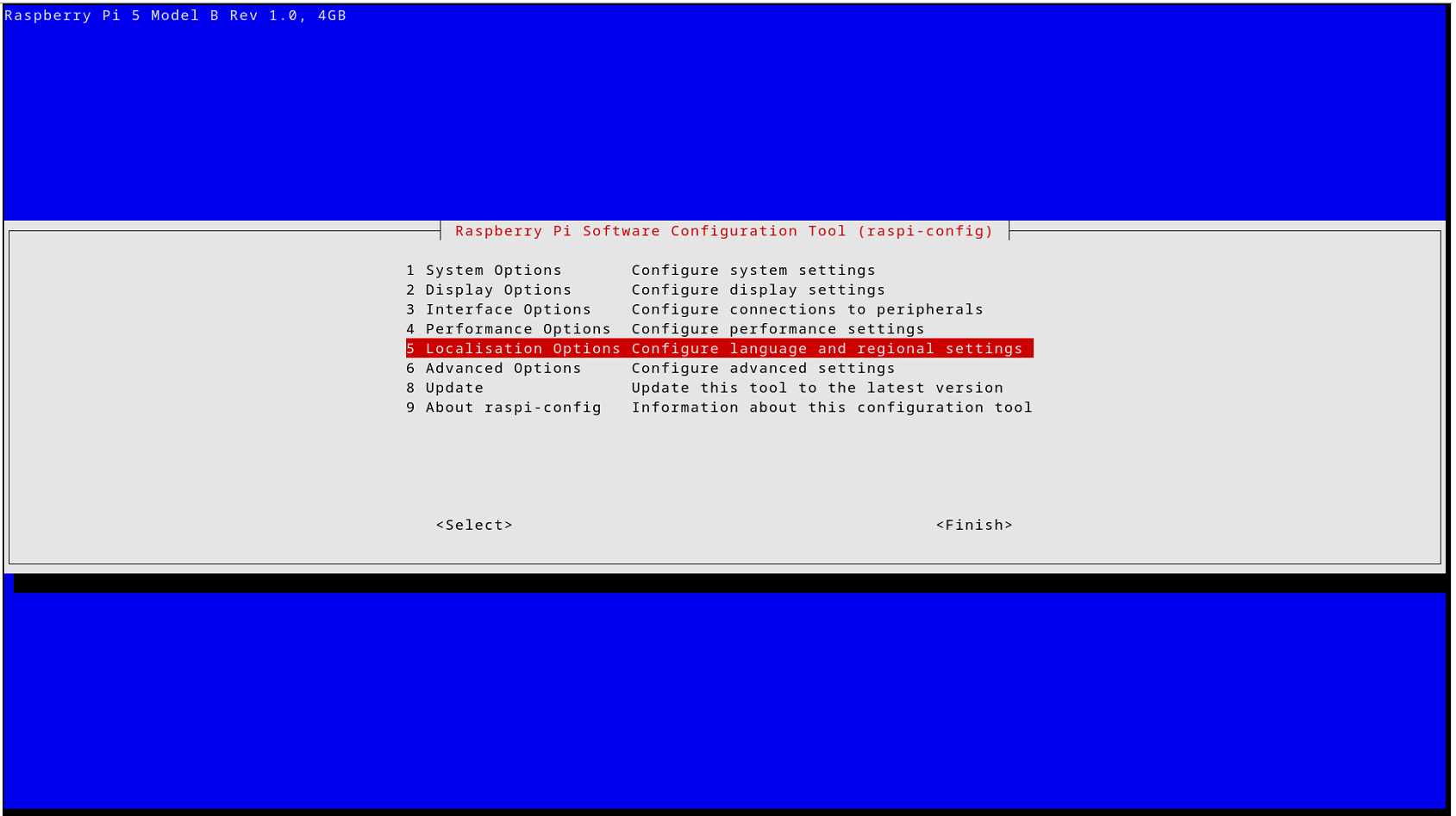
9
Set the timezone
Choose Timezone, select your geographic area, and pick your timezone city. Click OK to confirm and return to the configuration tool.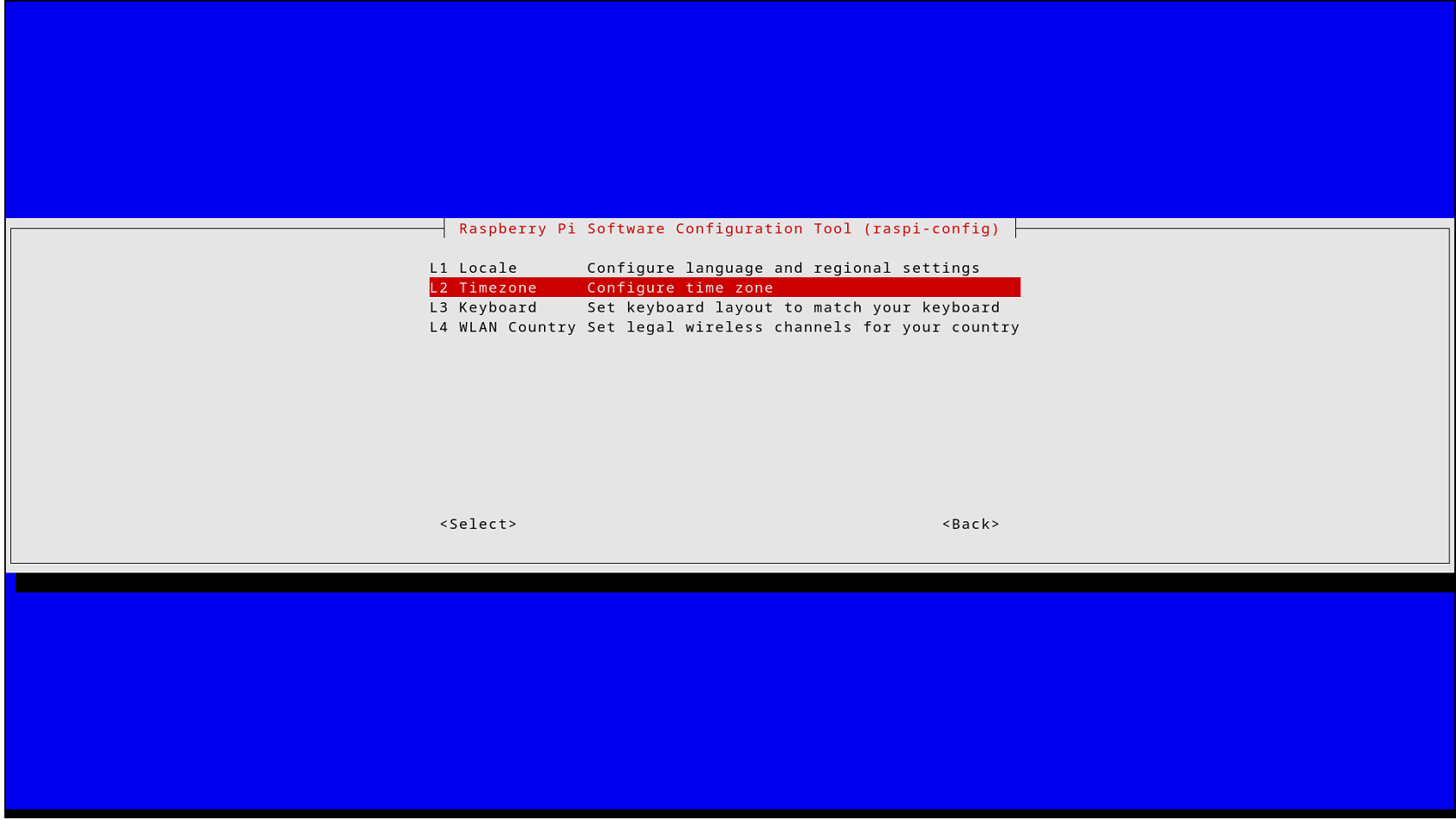
10
Configure keyboard layout and finish localization
Reopen Localization Options and select Keyboard.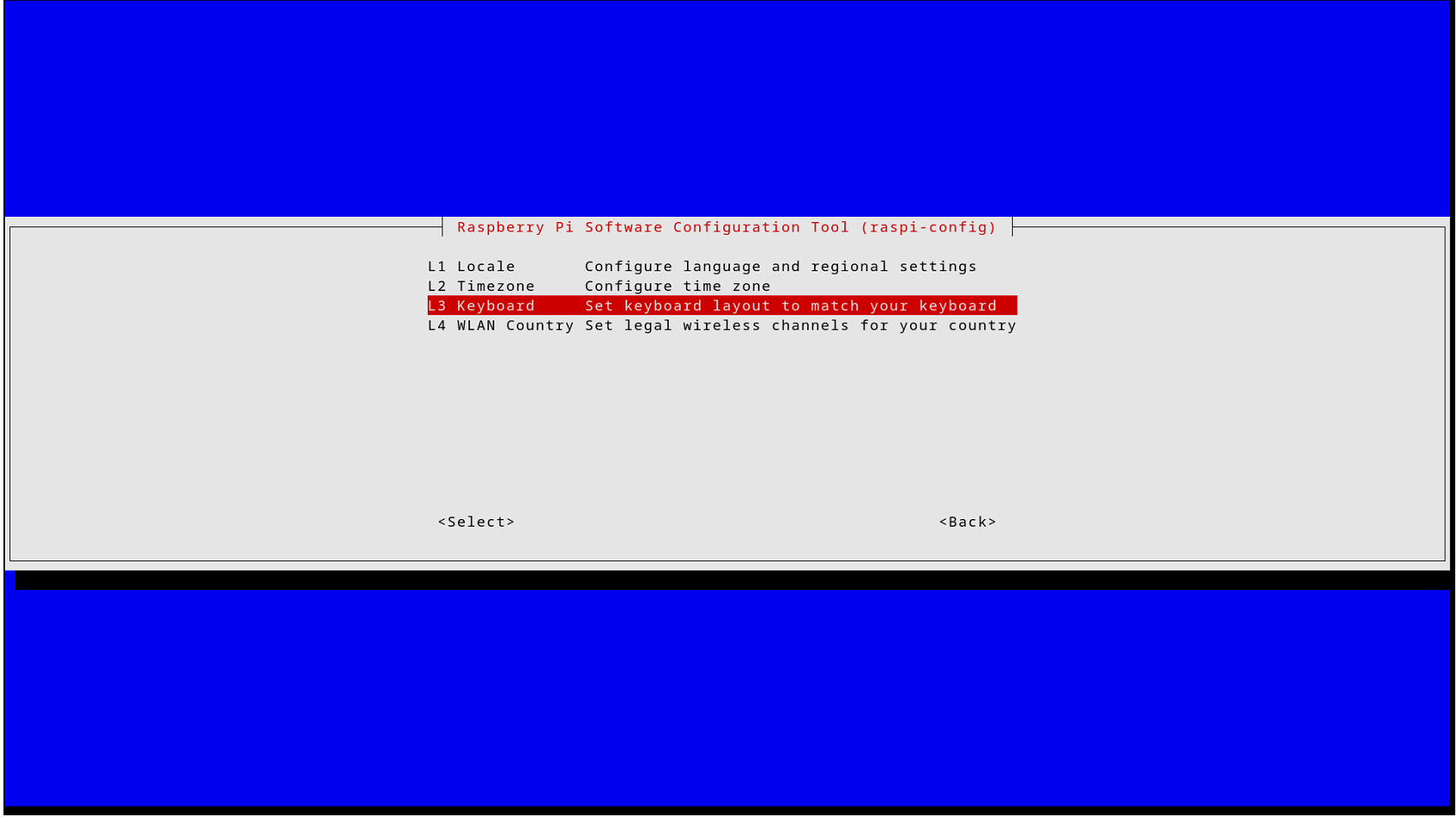 Choose your keyboard model and layout, then click Finish to apply the settings and let the device reboot automatically.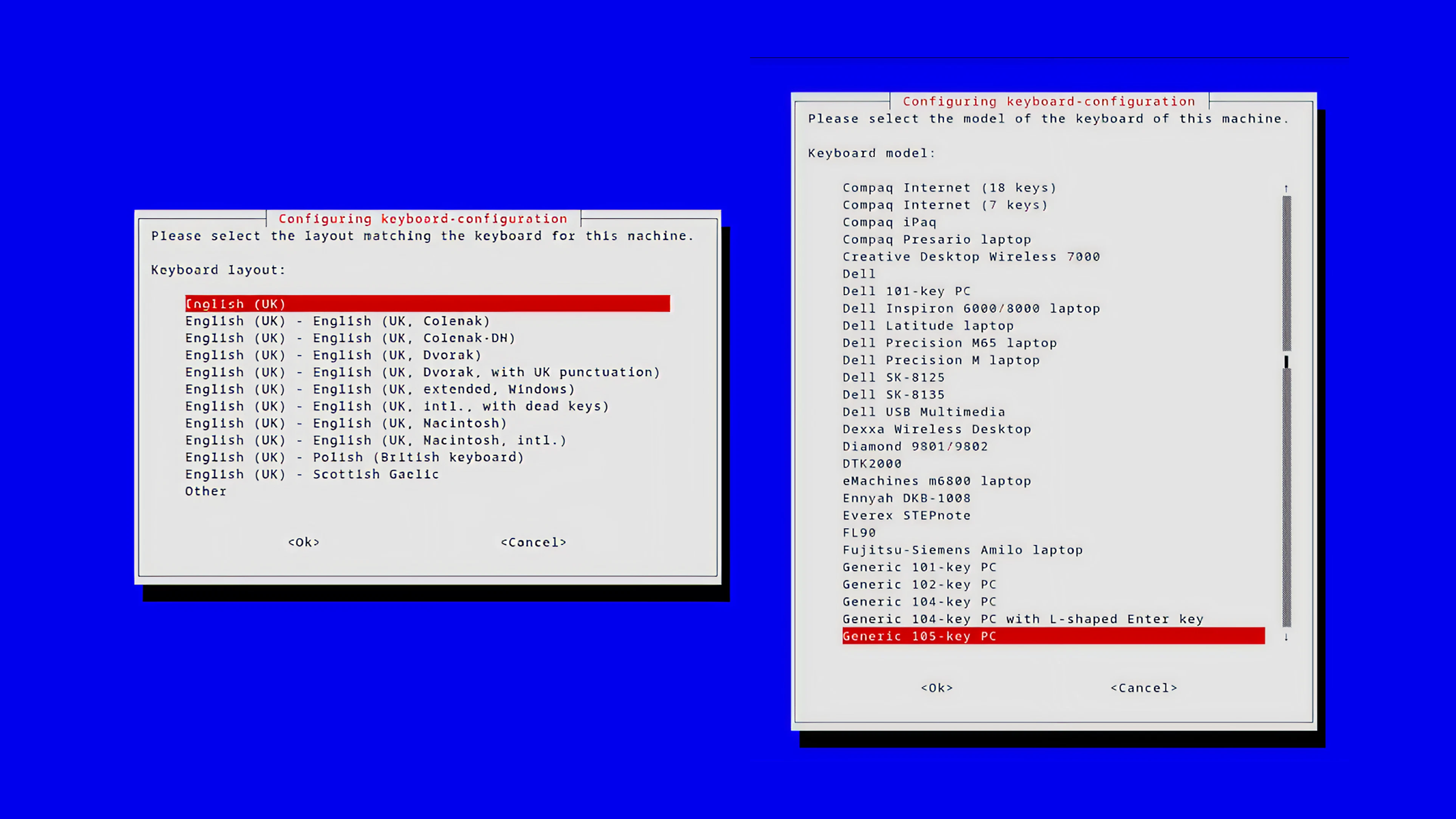
11
Open network configuration
After the reboot, press Ctrl + M to minimize the Pickcel player. Right-click and open Network Configuration.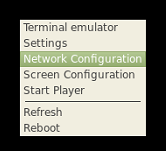
12
Activate a network connection
In the Network Configuration menu, select Activate a connection. Use the arrow keys to navigate, press Enter to choose an option, and Esc to go back.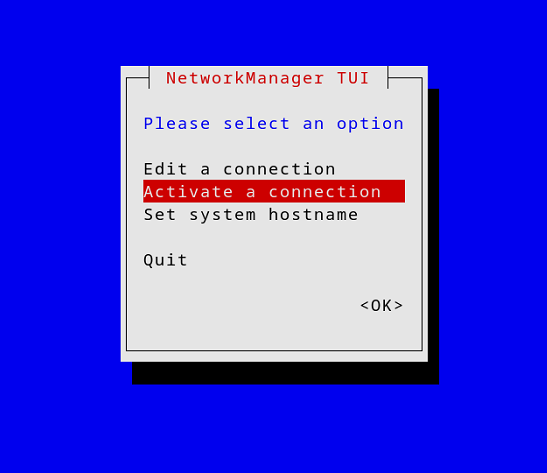
13
Connect to Wi-Fi
Choose your preferred Wi-Fi network from the list, enter the password, and connect. Once connected, click Quit to exit and let the device reboot automatically.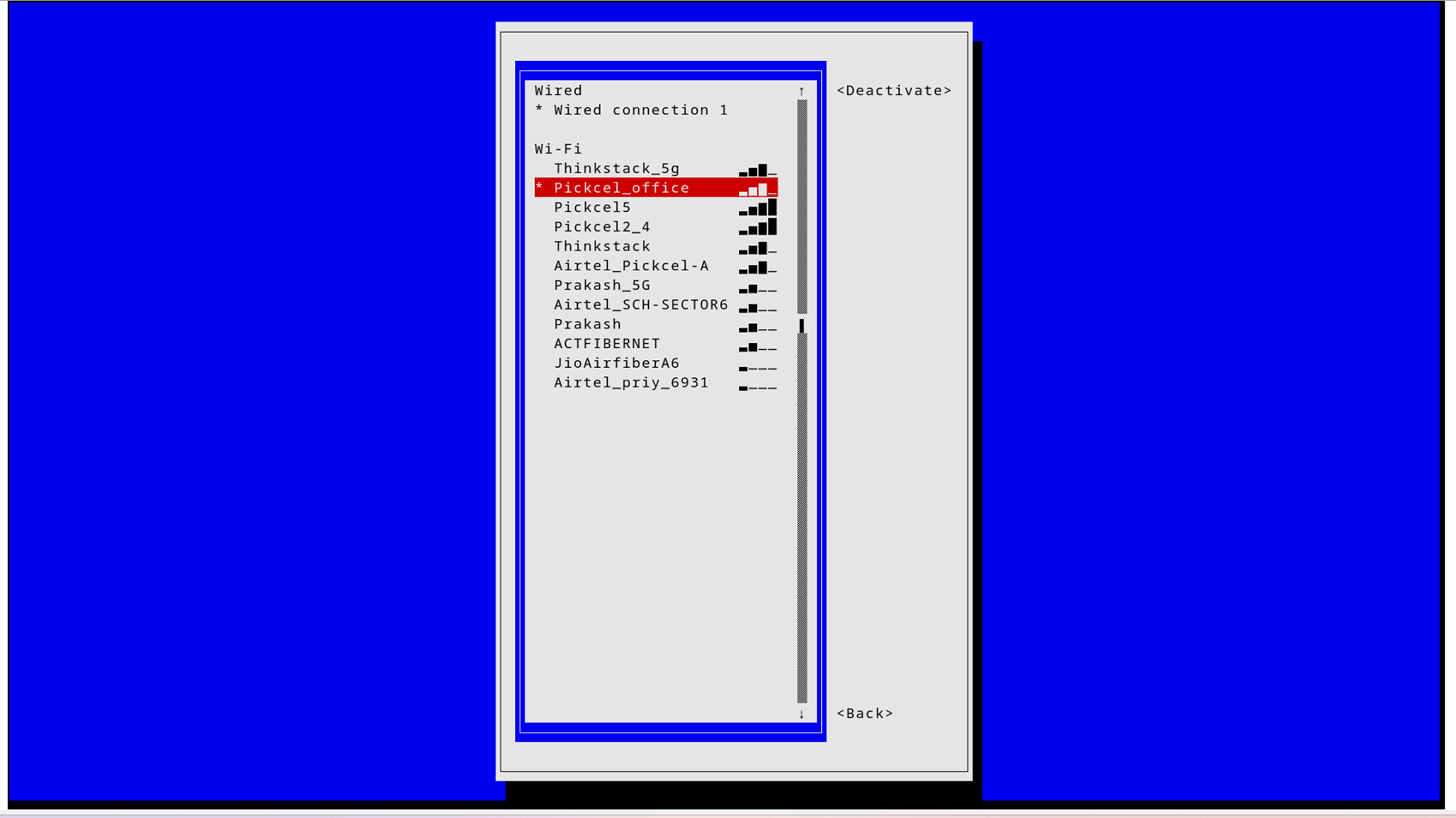
14
Register the Raspberry Pi with Pickcel
After the reboot, the Pickcel app launches automatically and displays a 6-digit Screen Registration Code. Enter this code in the Pickcel Console to pair the screen.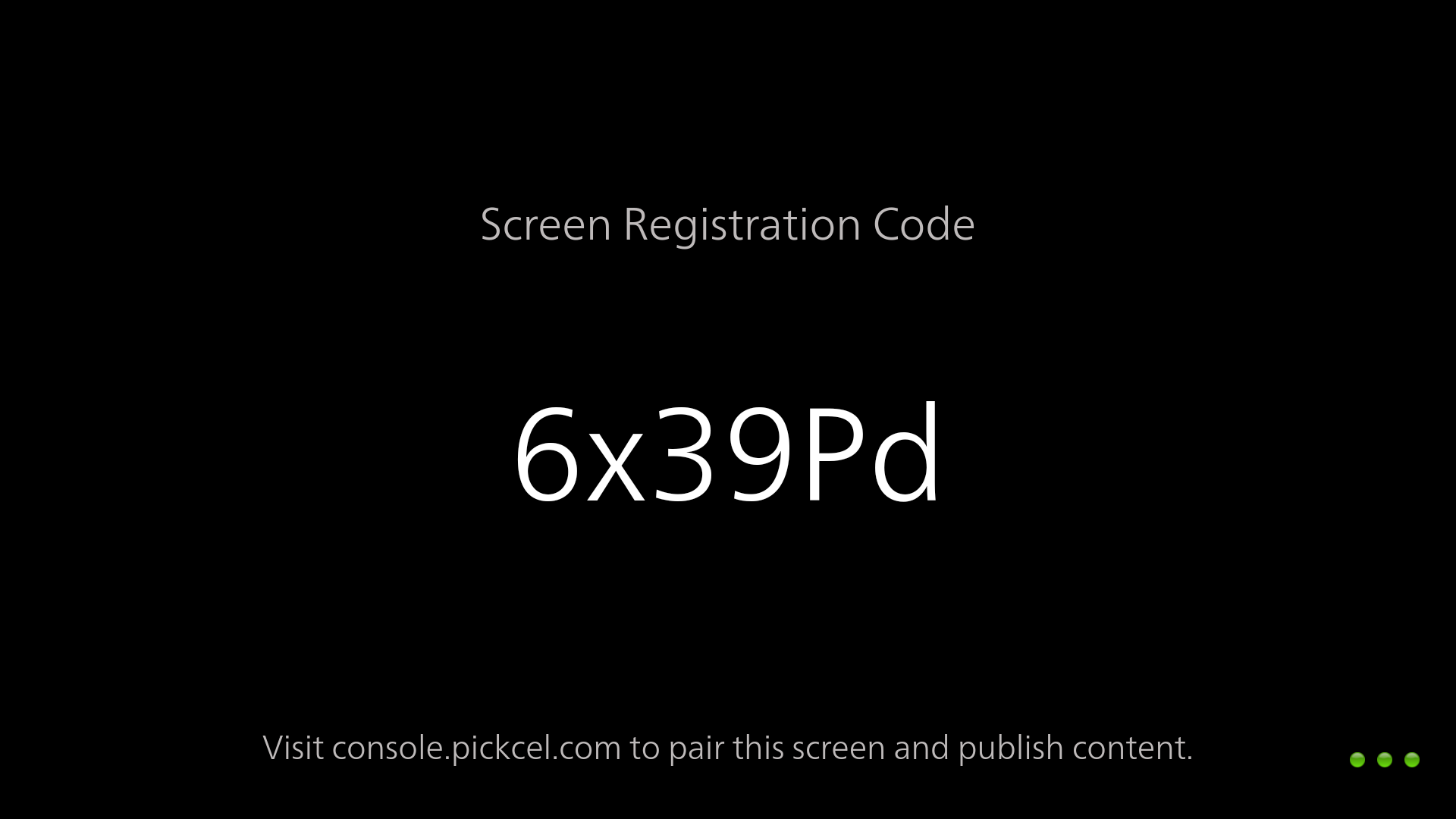
Need help registering your Raspberry Pi? Follow the Screen Registration guide.
What’s Next?
- Start Uploading Media to your library
- Create your first Composition and publish content
- Configure Schedules to automate playback