

The Web Player is for testing and preview only. Playback may differ slightly from real hardware depending on the device and player software you deploy to later.
Add a Web Player screen
1
Open Screen module and click Add Screen
Log in to the Pickcel console and go to the Screen module. Click Add Screen.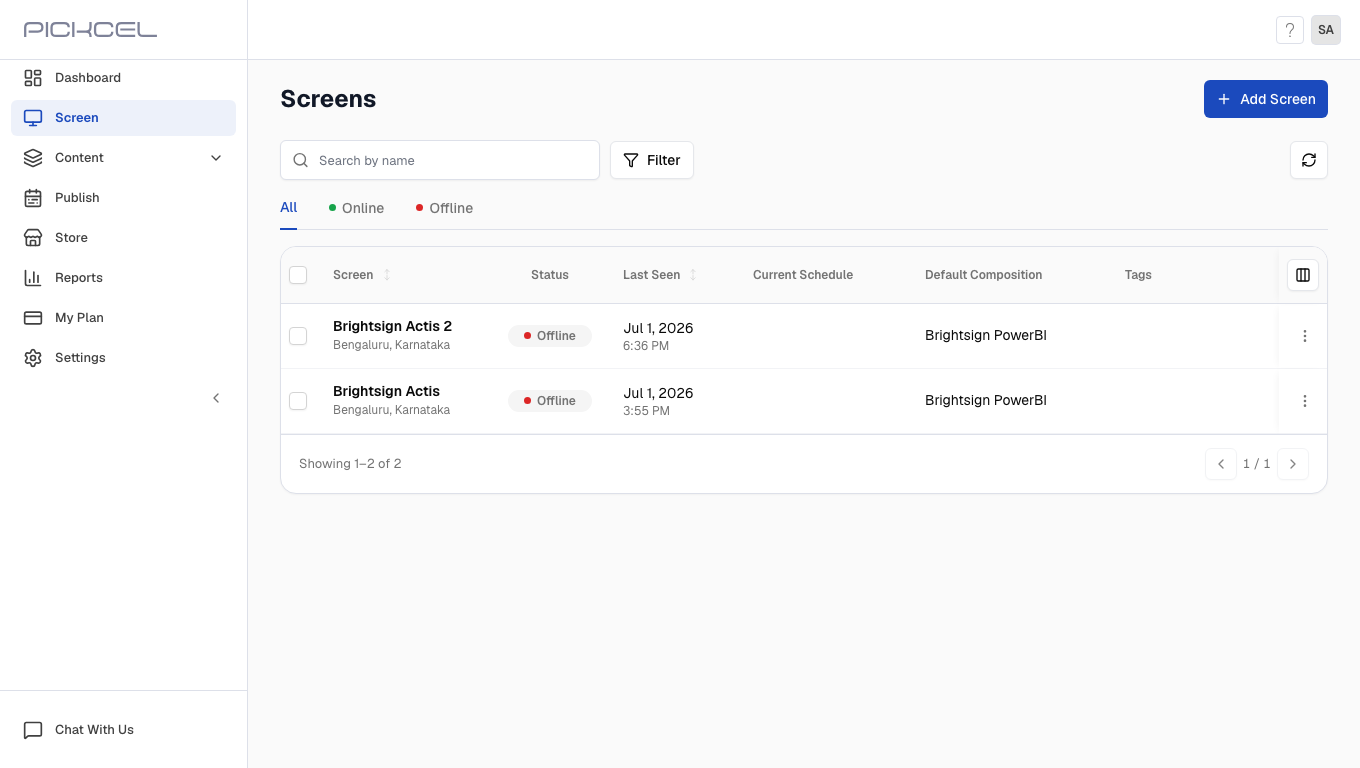
2
Click Try the Web Player
In the Add Screen dialog, under “Don’t have a code yet?”, click Try the Web Player. The Web Player opens in a new browser tab, no software installation required.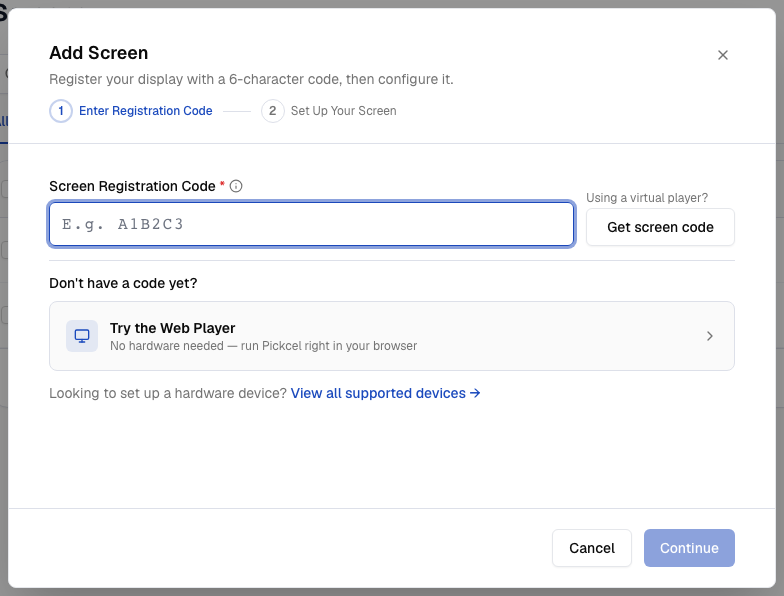
3
Copy the code from the Web Player tab
Switch to the new Web Player tab and note the 6-character Screen Registration Code shown on the display.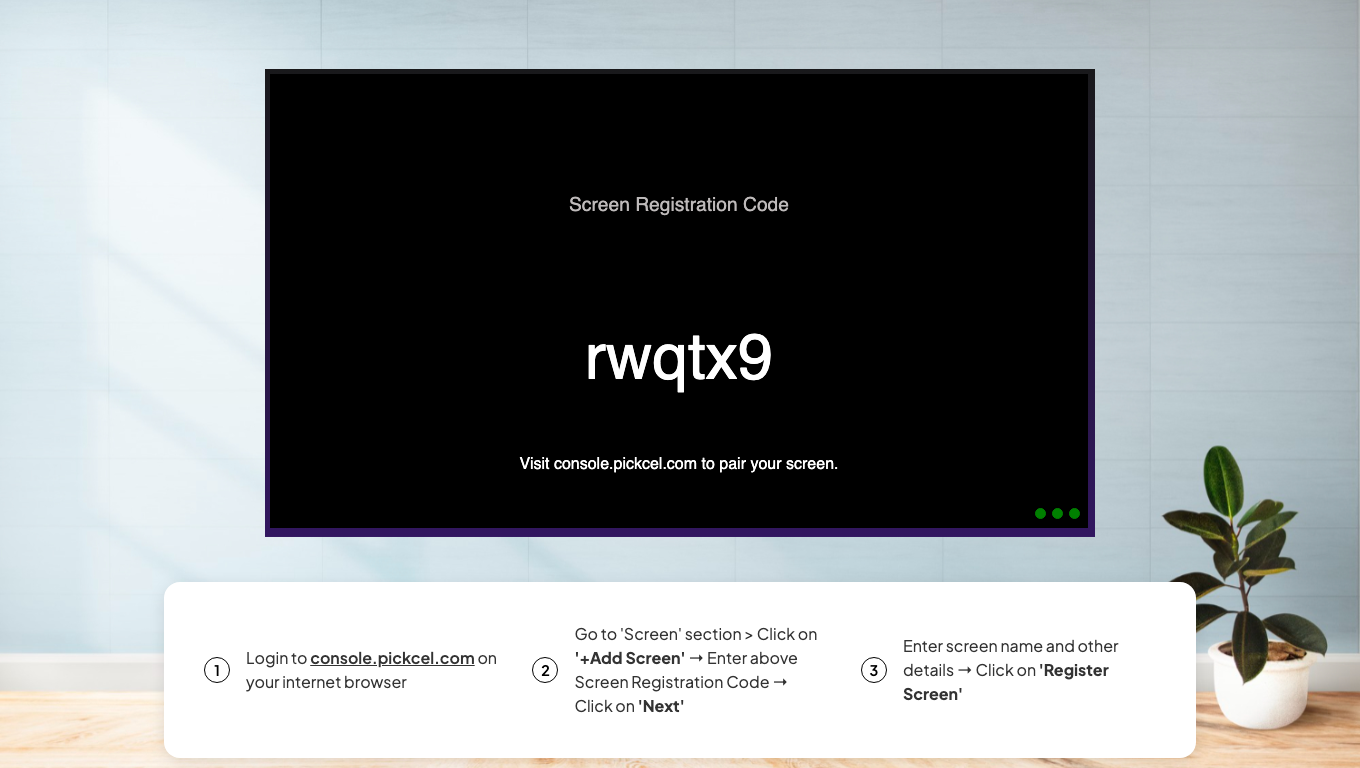
4
Enter the registration code
Return to the Pickcel console tab. Enter the code in the Screen Registration Code field and click Continue.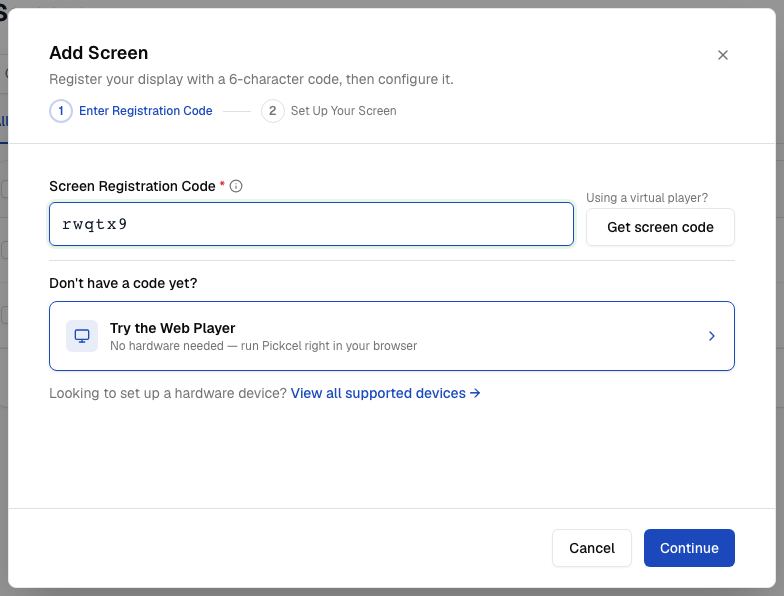
The code is case sensitive. Enter it exactly as shown on the Web Player tab.
5
Set up your screen
In the Set Up Your Screen step, enter a Screen Name, choose the Orientation, and fill in the Screen Location and Google Location fields. Click Register Screen.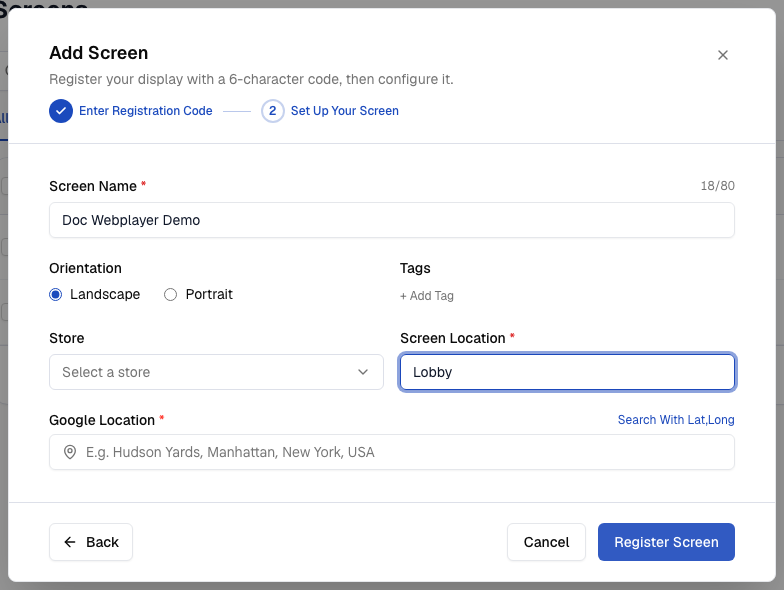
6
Screen registered successfully
Your virtual screen appears in the Screen list with an Online status, and your default composition is assigned to it automatically.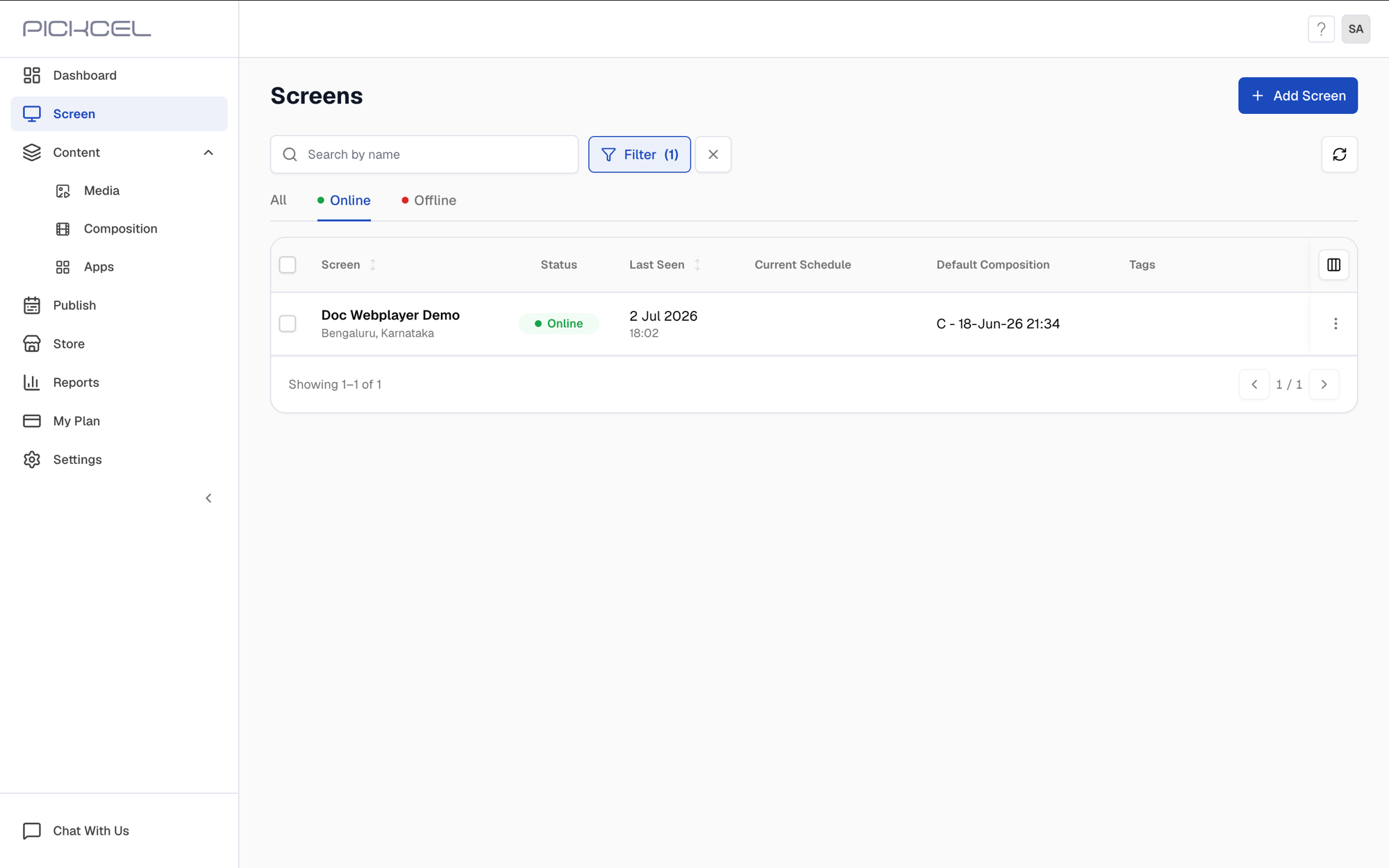
7
Content plays on the Web Player
Switch back to the Web Player tab. Within a few moments the registration code is replaced by your content.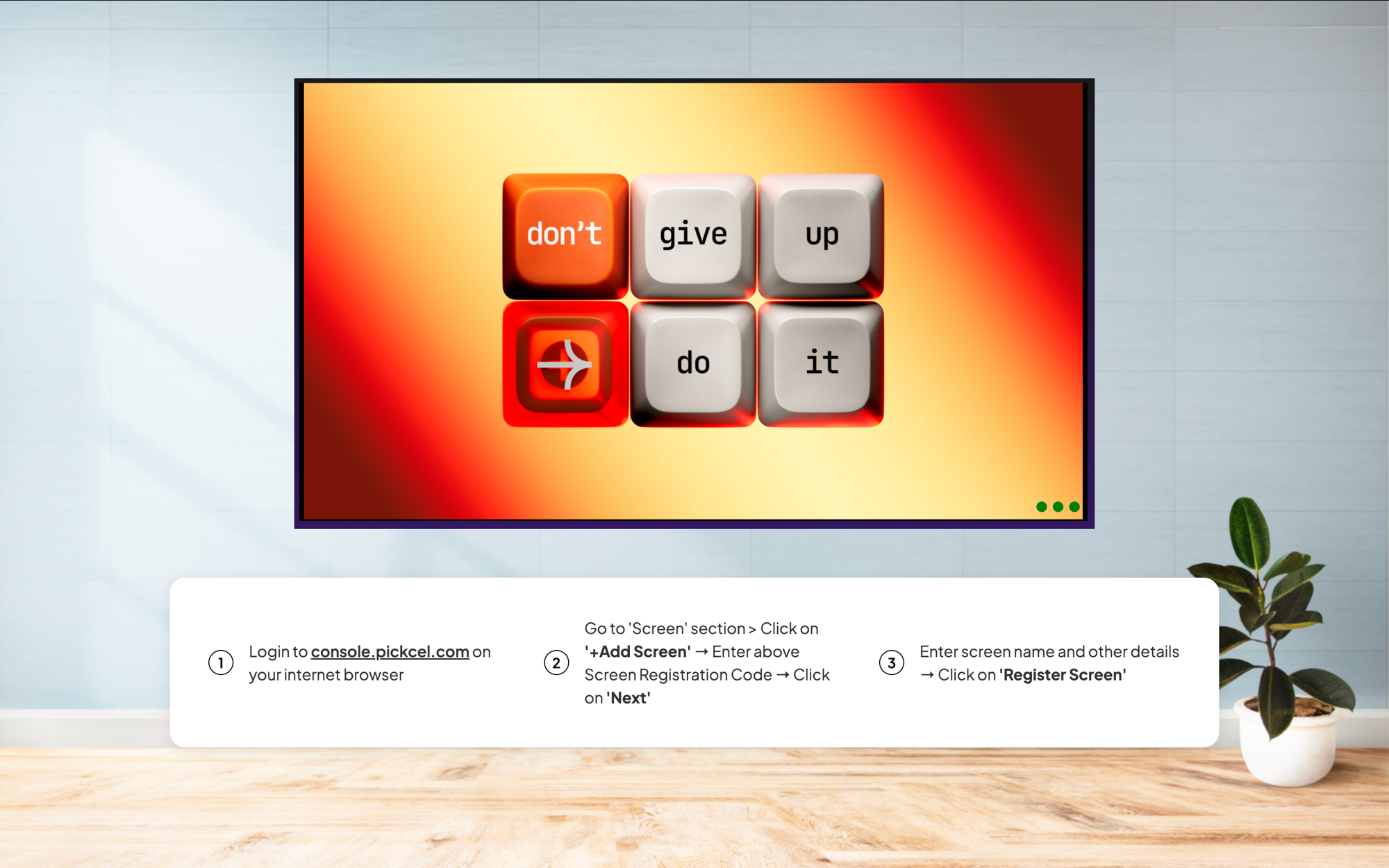
Related guides
Screen Registration
Register a physical player with a display registration code.
Default Composition
Set the content that plays on your Web Player when no schedule is active.
Publish Content
Schedule and publish compositions to your screens.
Create a Composition
Build the layout and content you want to preview on the Web Player.