

This feature is currently supported only for Android players. Support for other player platforms will be rolled out soon.
1
Open screen details
Open the Screen module in your Pickcel console and select the screen you want to configure.
2
Edit screen settings
Click the edit icon next to the screen name to open the Update Screen window.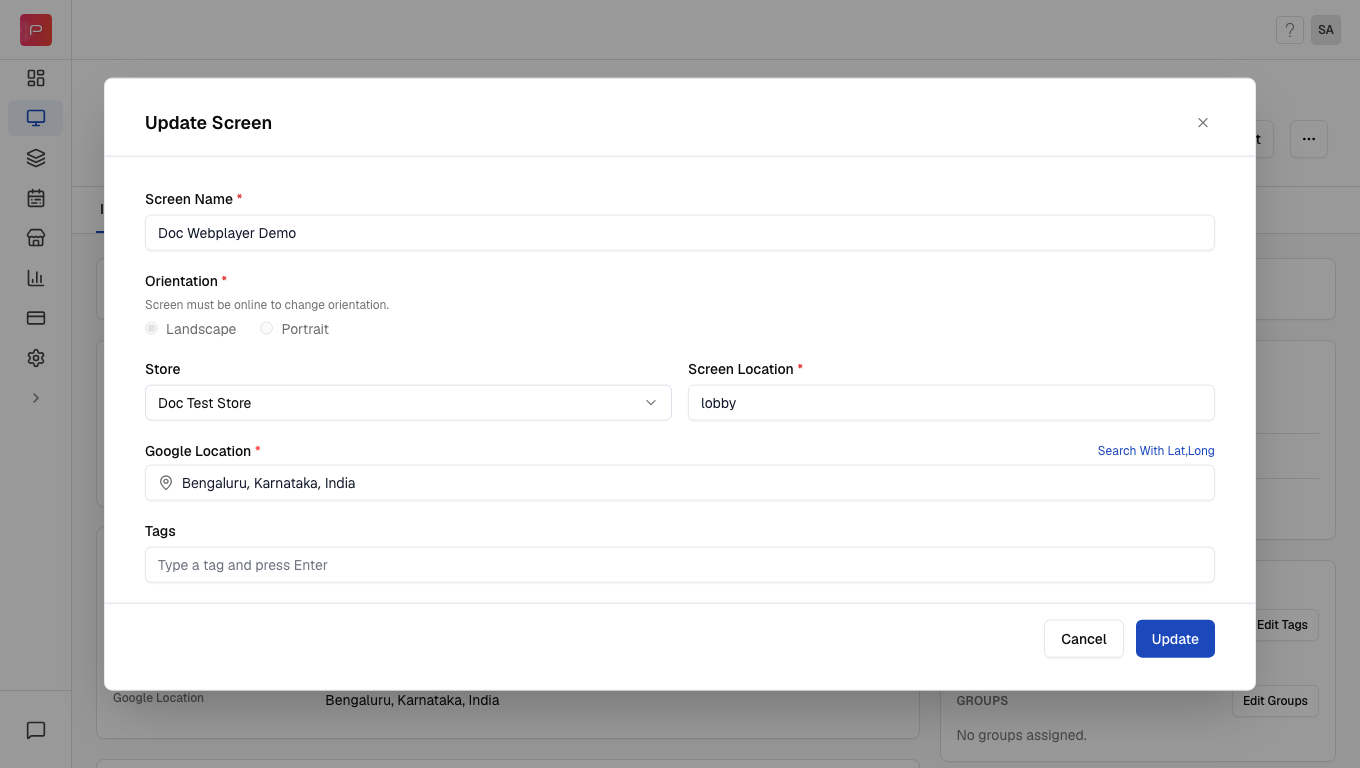
3
Select orientation
In the Update Screen window, choose one of the following options:
- Landscape: horizontal screen view
- Portrait: vertical screen view
- Advanced: manual rotation setting, use this when your mounting angle doesn’t match a standard orientation
4
Configure advanced rotation (optional)
If you selected Advanced, choose the rotation angle that matches how the screen is physically mounted:
5
Save changes
Click Update to save the new orientation settings. The player picks up the change remotely, without needing to touch the device.
Use Advanced when the screen looks sideways or upside down and the standard Landscape/Portrait options don’t display correctly.
Related guides
Player App Orientation
Change orientation directly on the player device.
Screen Registration
Learn how to register and configure your display.