

Using Google Workspace? See Meetings Calendar for Google Calendar.
What the screen shows
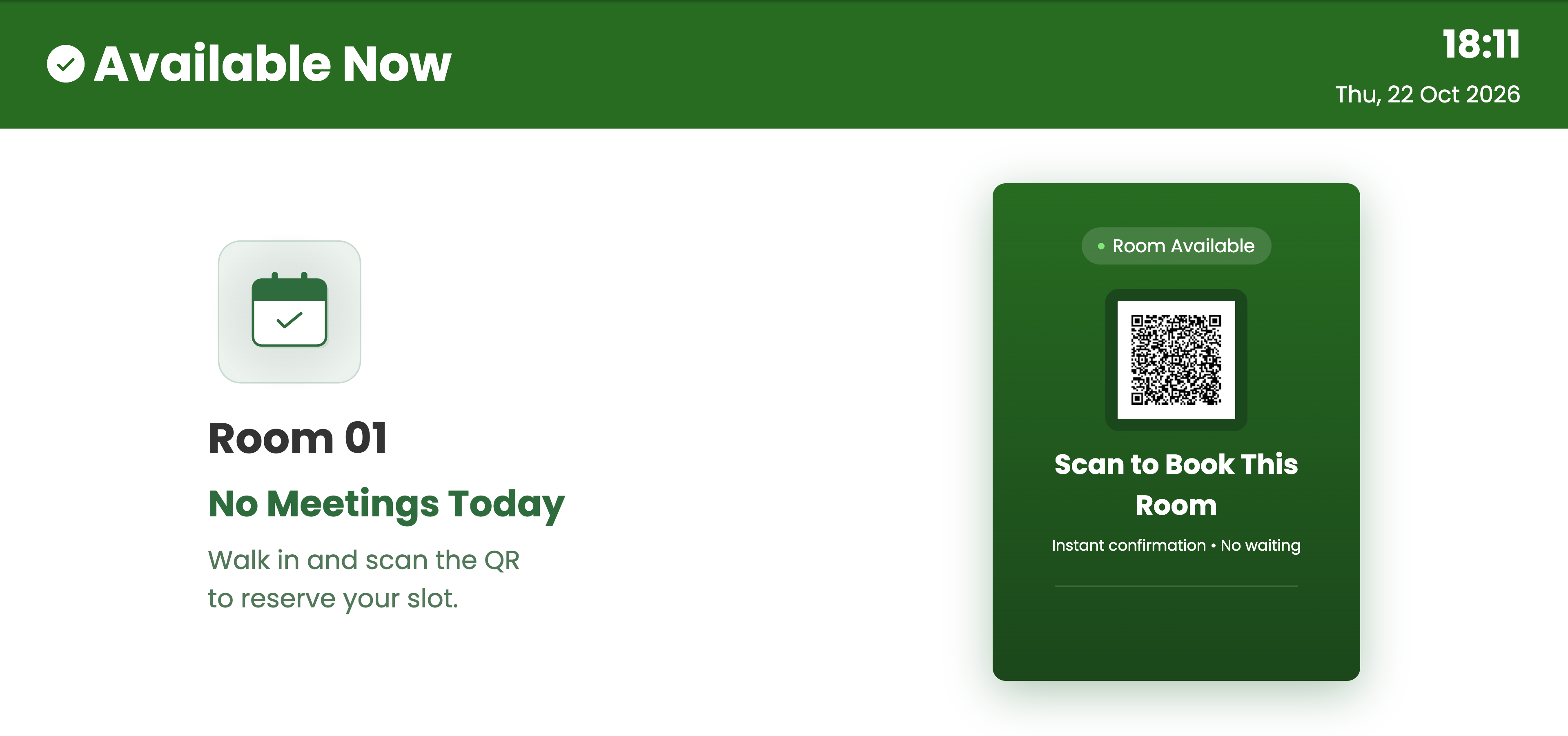
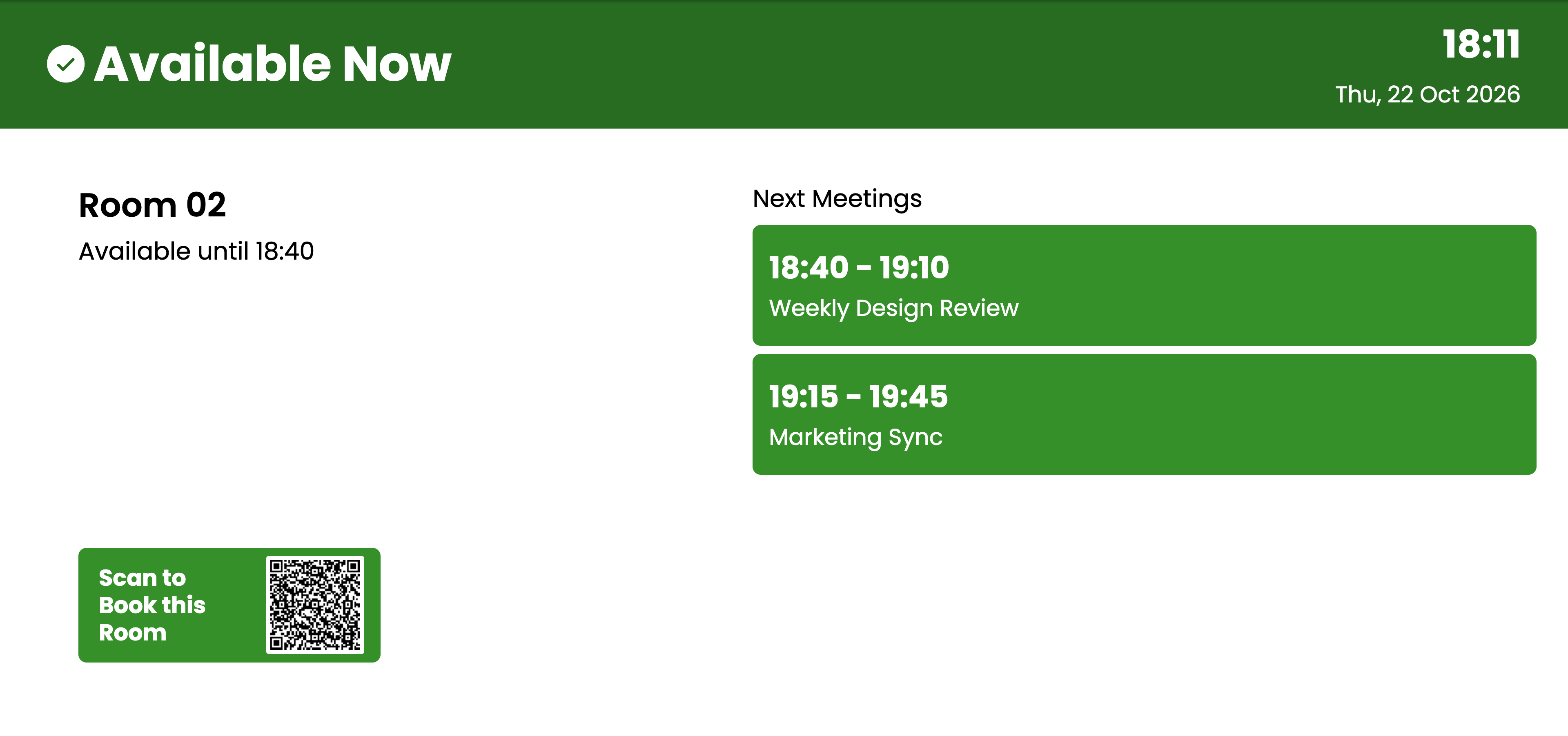
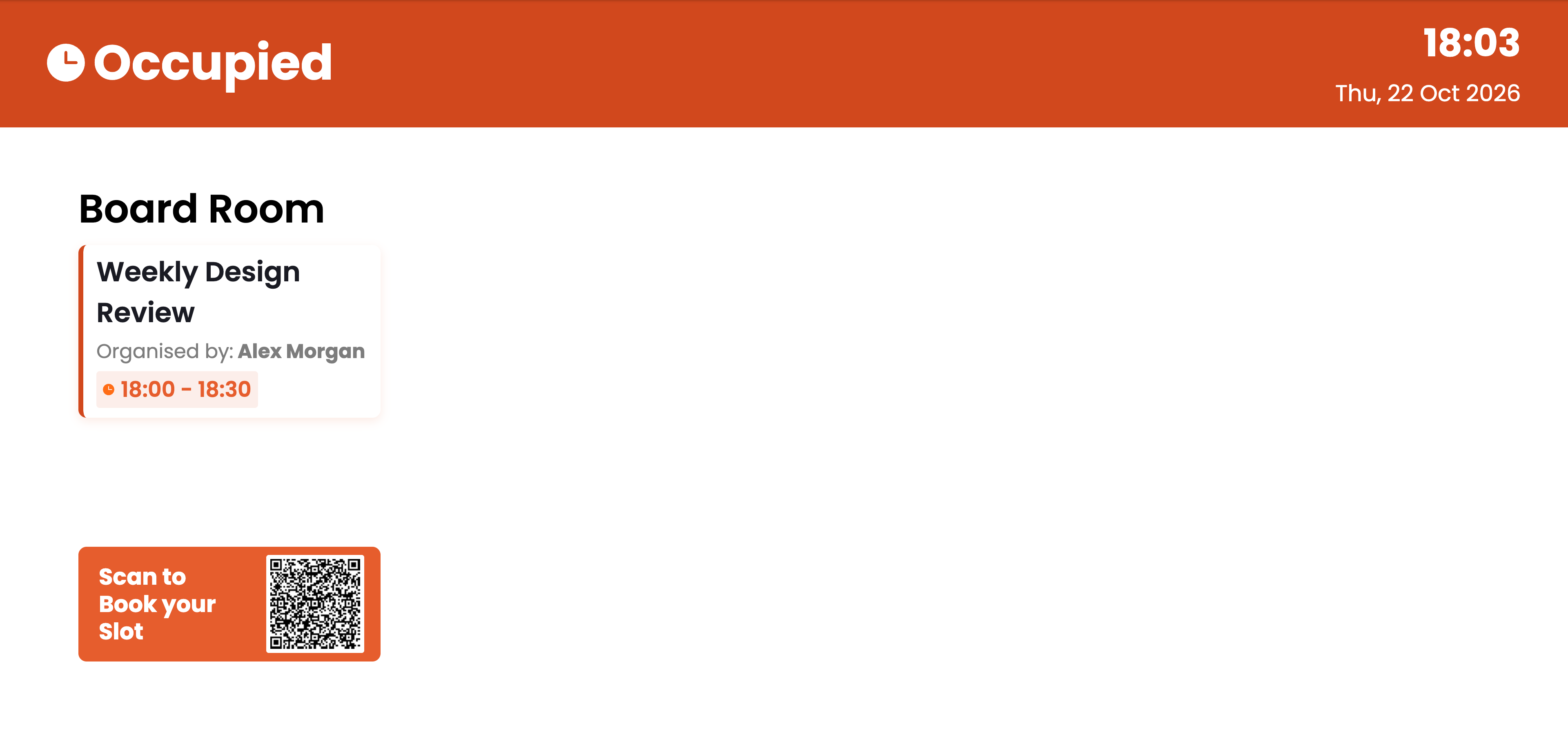
The screen switches between three states on its own, based on the room’s calendar.- Available, no meetings
- Available, meetings later
- Occupied
- Green Available Now banner with the current time and date
- No Meetings Today when nothing else is booked today
- Scan to Book This Room QR code (optional)
Before you begin
- A Microsoft 365 work or school account. Personal Outlook.com accounts can’t be connected.
- A Microsoft 365 admin. Connecting asks Microsoft to approve Pickcel for your whole organization, so an admin has to sign in and click Accept.
- Your meeting rooms set up in Microsoft 365. Each room must be a Room resource with its own email address. Only rooms listed there show up in Pickcel.
- Meetings booked with the room. A meeting appears on the screen only when the room was added to it (as an attendee or location) and the room accepted it.
Where are meeting rooms set up in Microsoft 365?
Where are meeting rooms set up in Microsoft 365?
Meeting rooms are managed in the Microsoft 365 admin center under Resources > Rooms & equipment. Every row with the Type set to Room is a room you can select in Pickcel.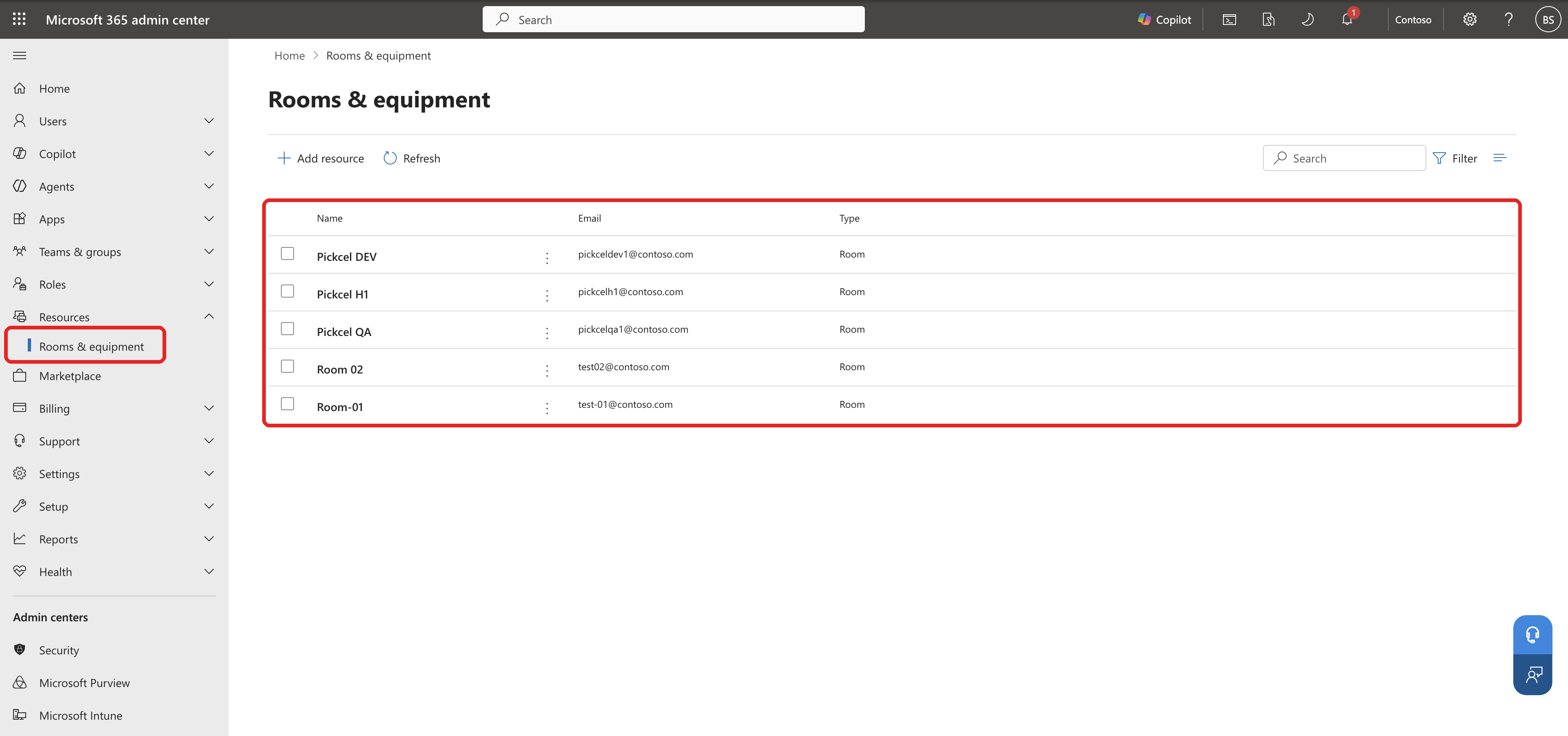 To add a room, click Add resource, choose Room, give it a name and an email address, and save. You need admin access to the Microsoft 365 admin center.
Create the Meetings Calendar app
1
Open Apps and search for Meetings Calendar
From the left sidebar of the Pickcel console, go to Content > Apps and type Meetings Calendar in the search box.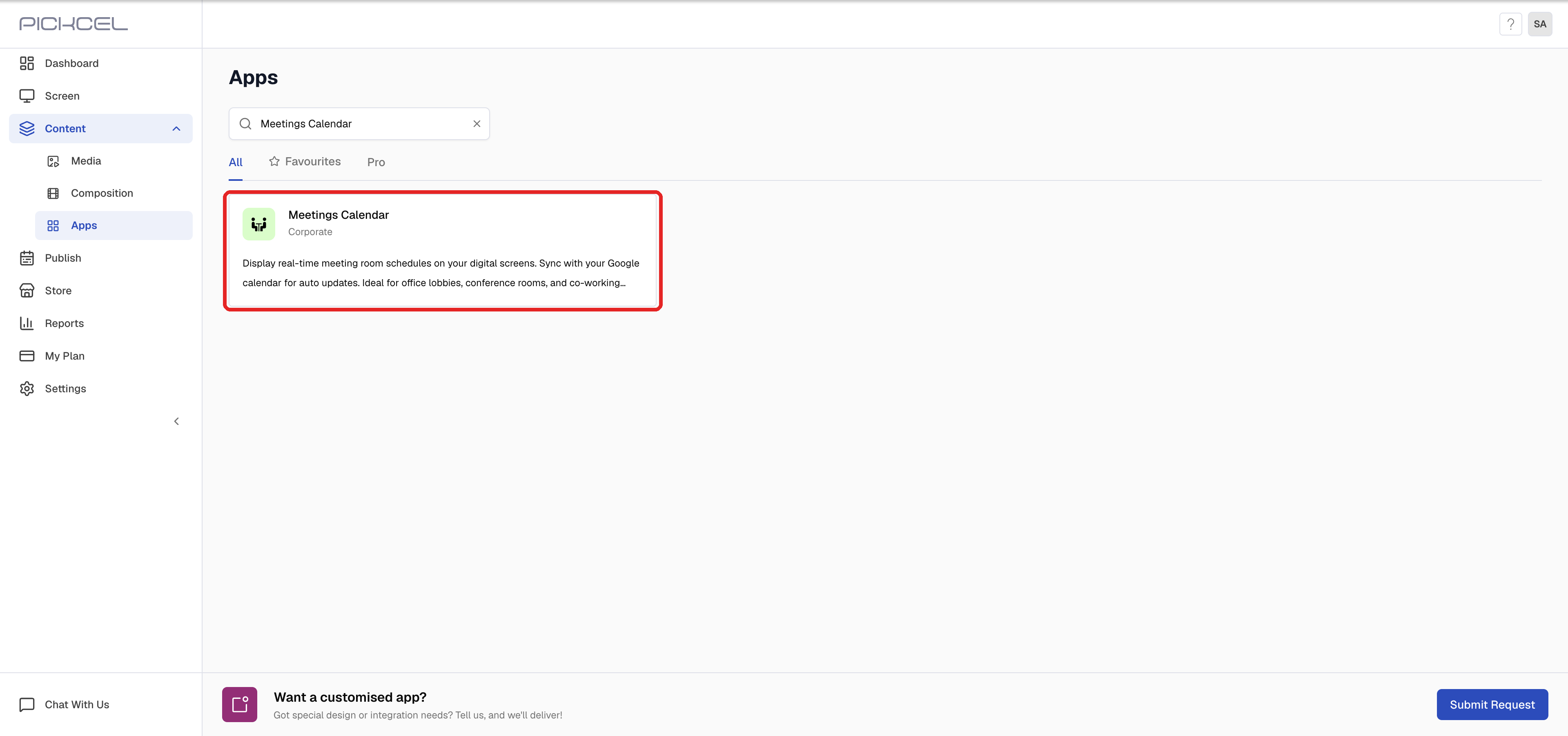
2
Open the app and click Create App
Click Meetings Calendar to open its details, then click Create App.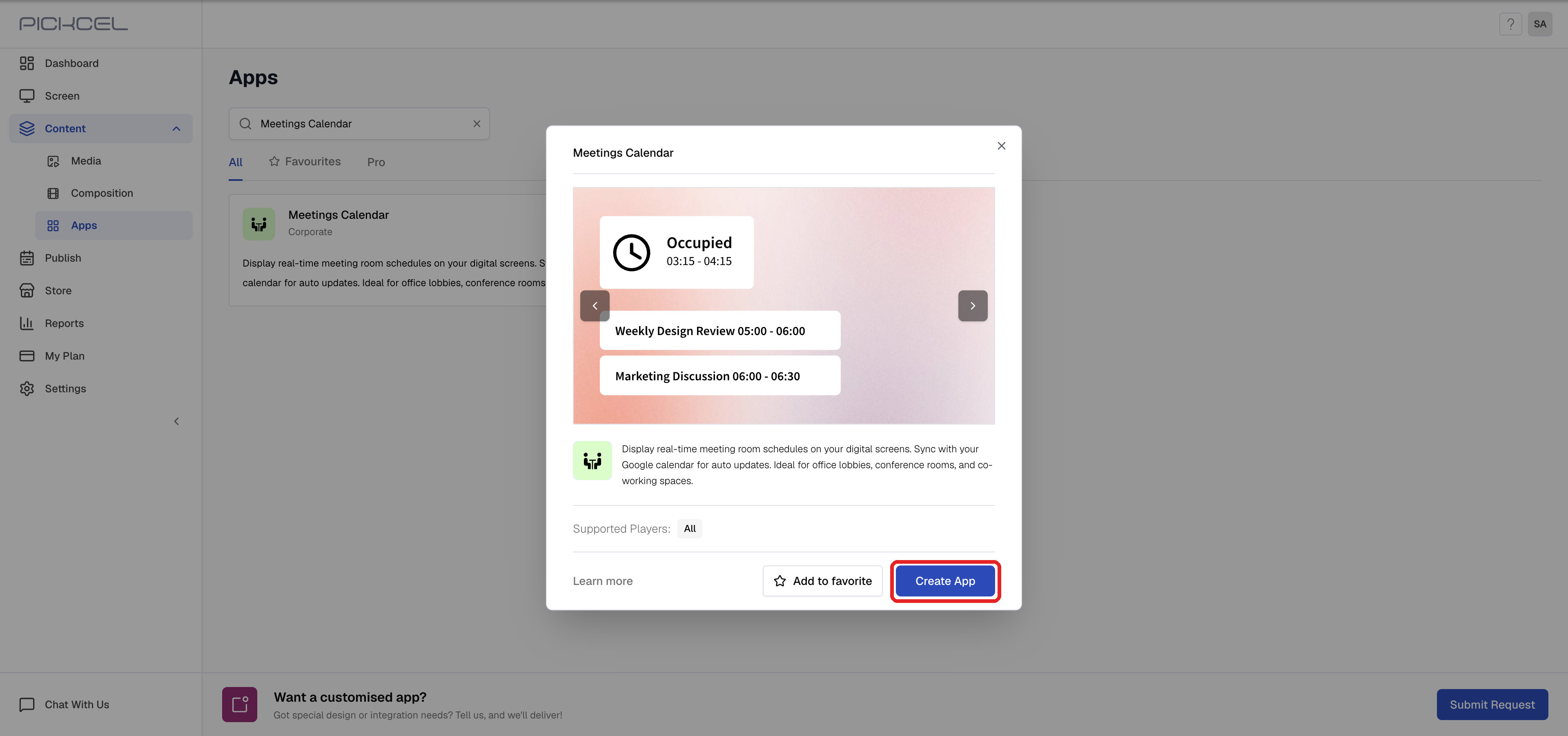
3
Connect with Microsoft Outlook
Click Connect with Microsoft Outlook.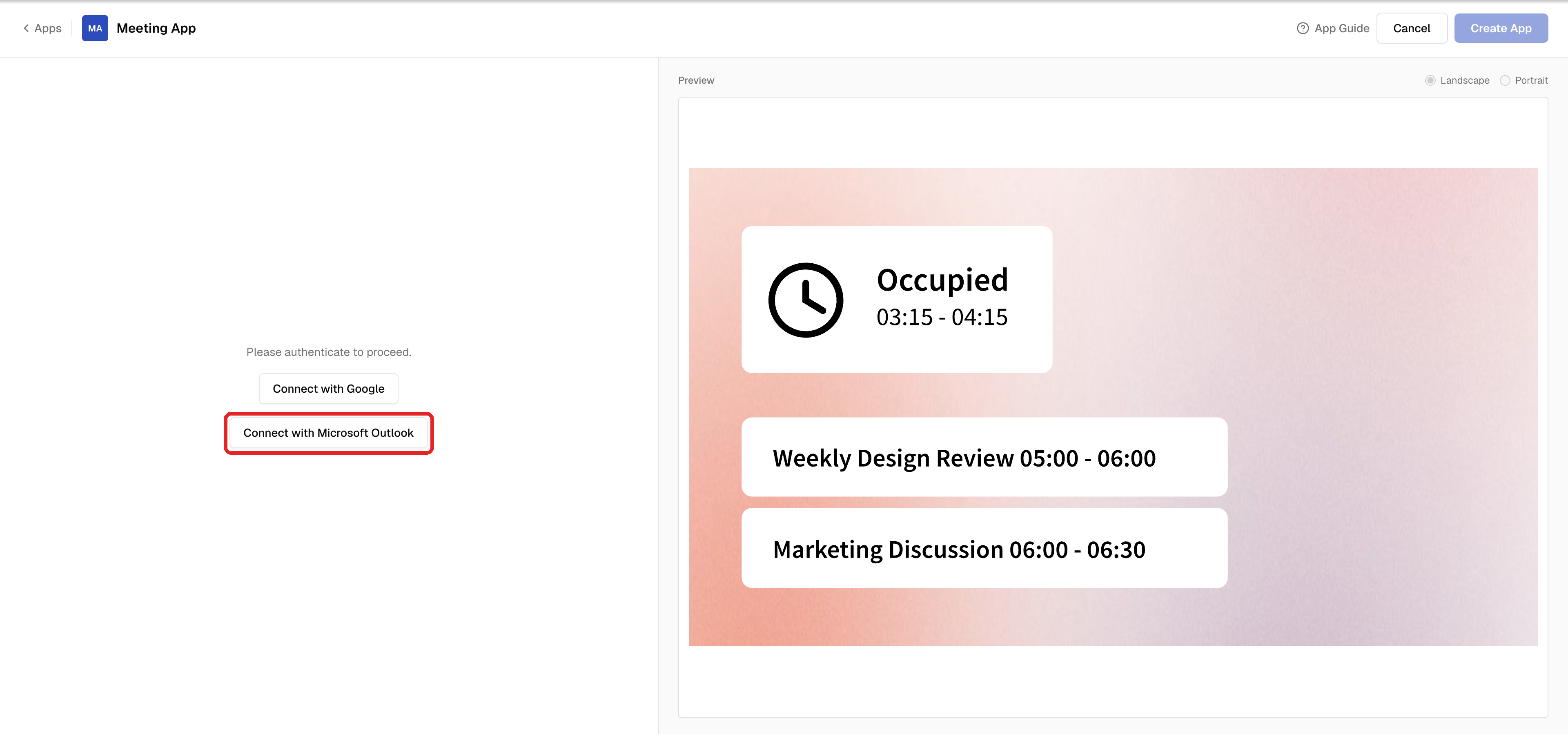
4
Sign in and accept the permissions
Pick or sign in with your Microsoft 365 admin account. On Permissions requested, review the access Pickcel needs and click Accept: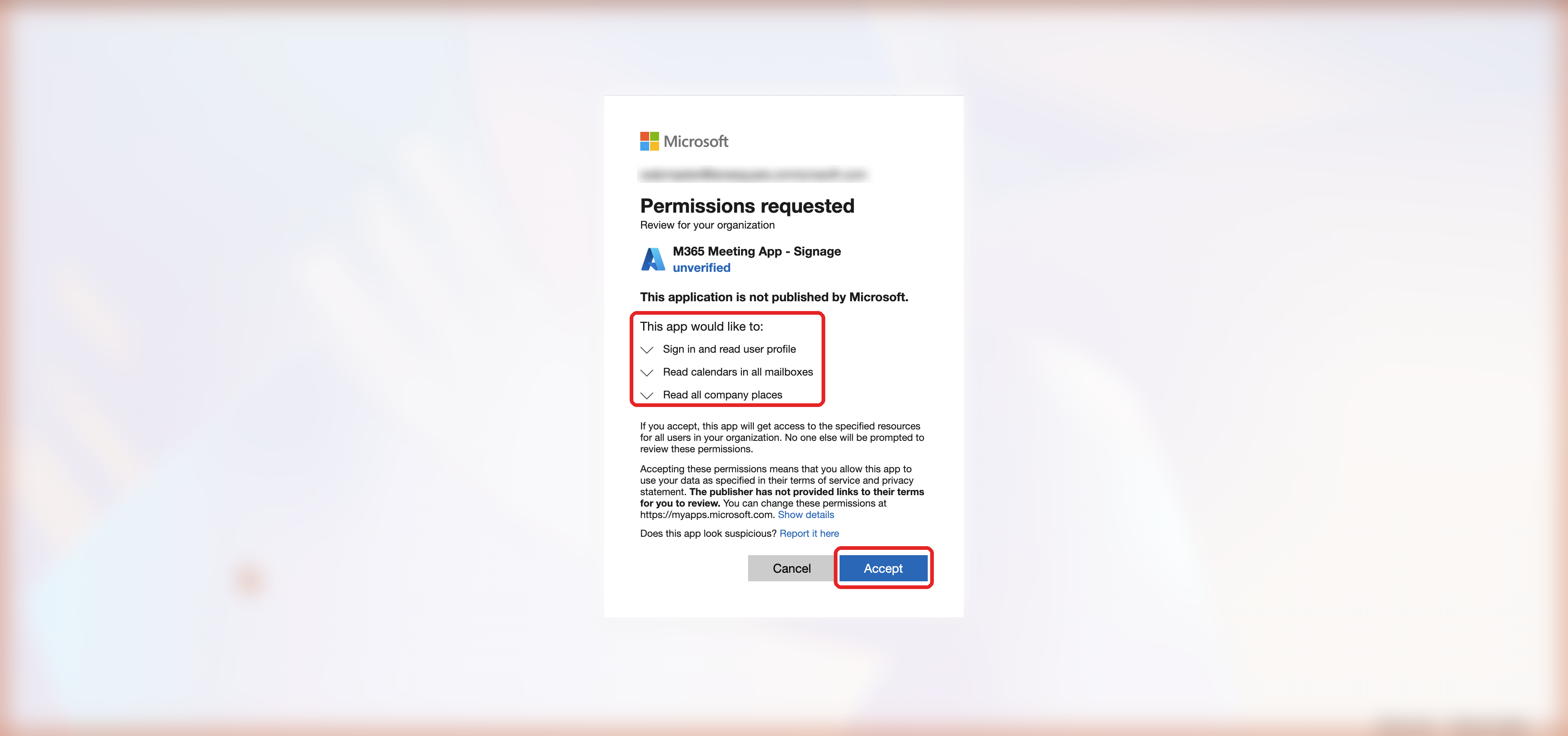 You’re returned to Pickcel once the connection succeeds.
- Sign in and read user profile
- Read calendars in all mailboxes: reads the rooms’ meetings
- Read all company places: lists your meeting rooms
5
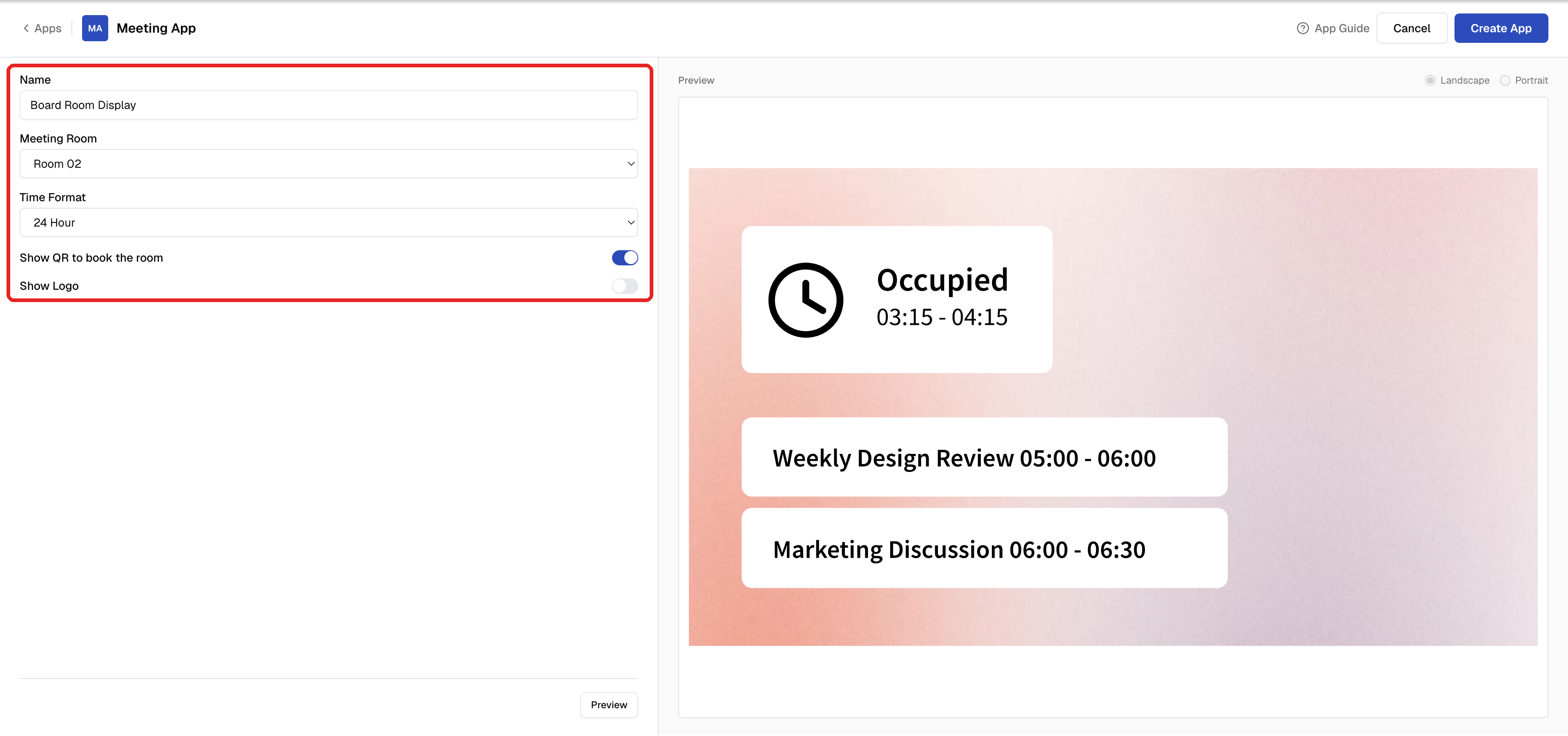
Choose the room and settings
- Name: how the app appears in your Media library, for example Board Room Display.
- Meeting Room: the room this screen is for.
- Time Format: 12 Hour or 24 Hour for meeting times.
- Show QR to book the room: adds the booking QR code to the screen.
- Show Logo: turn on, then click Choose image under Upload Your Logo to add your logo.
6
Preview the room
Click Preview at the bottom. The Live preview shows the room’s real calendar right now. Switch between Landscape and Portrait to match your screen.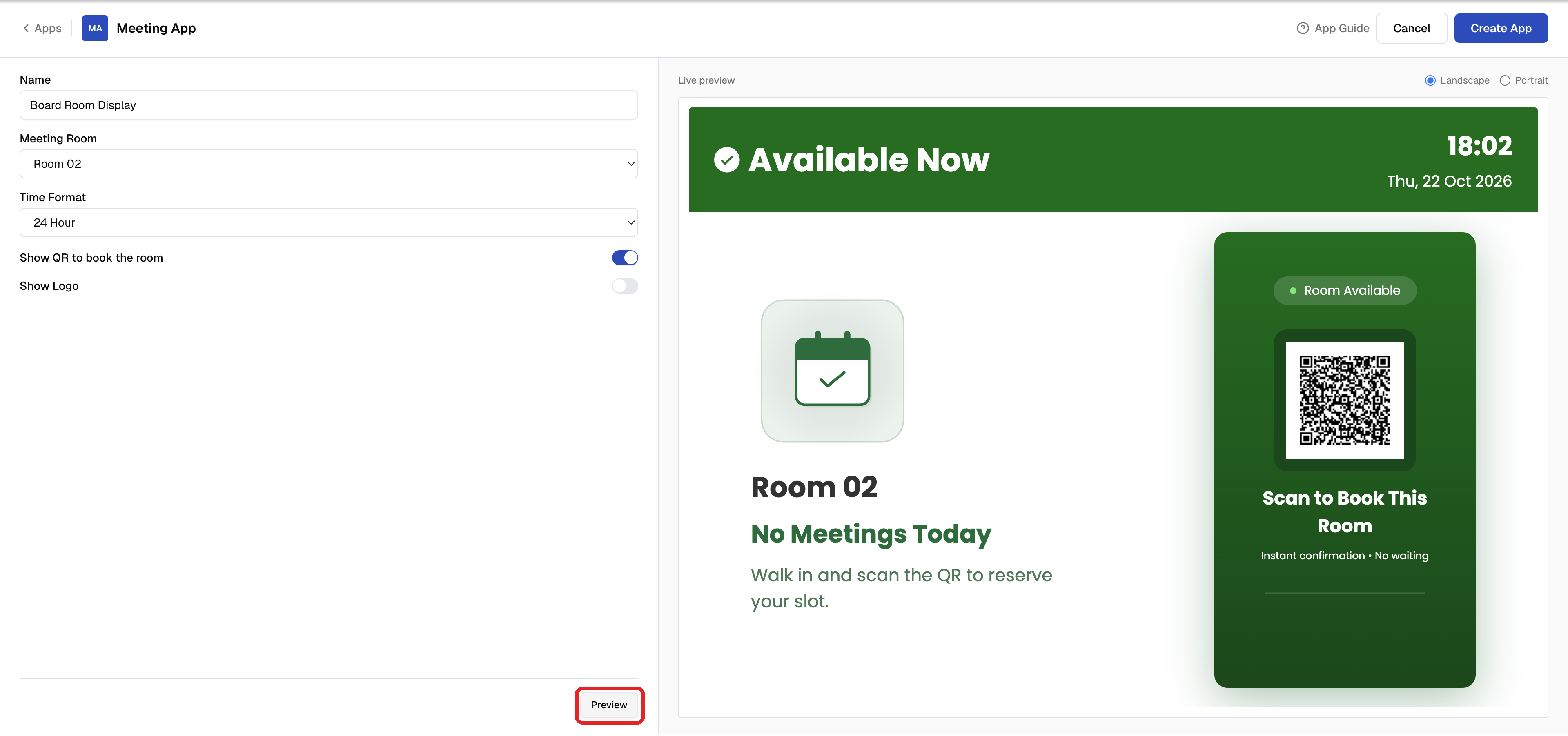
7
Create the app
Click Create App. Pickcel saves the app to your Media library.
How Scan to book works
- Scanning the QR code opens a new meeting in Outlook on the web.
- The room is already added, and the time is set to the room’s next free slot.
- The person signs in with their own work account and sends the invite. The screen updates once the room accepts.
Publish to your screen
Add the app from your Media library to a composition, then schedule and publish it to the screen outside the room. See Create a Composition and Publish Content.Troubleshooting
My room isn't in the Meeting Room list
My room isn't in the Meeting Room list
Check Resources > Rooms & equipment in the Microsoft 365 admin center. The room must be listed there with Type set to Room. Shared mailboxes and user calendars don’t appear.
A meeting isn't showing on the screen
A meeting isn't showing on the screen
Open the meeting in Outlook and check that the room was added to it, and that the room accepted the invite. Meetings in someone’s personal calendar without the room don’t appear.
Microsoft says I need admin approval
Microsoft says I need admin approval
Your account can’t approve apps for your organization. Ask your Microsoft 365 admin to create the app, or to sign in when you click Connect with Microsoft Outlook.