

Use cases:
- Sales and support teams can display live updates from a dedicated channel to keep the whole floor in sync.
- Offices and remote-first teams can surface announcements, reminders, and shoutouts on a shared screen without anyone having to check Slack.
1
Search for App for Slack
Log in to your Pickcel account. Go to the Apps module and search for Slack.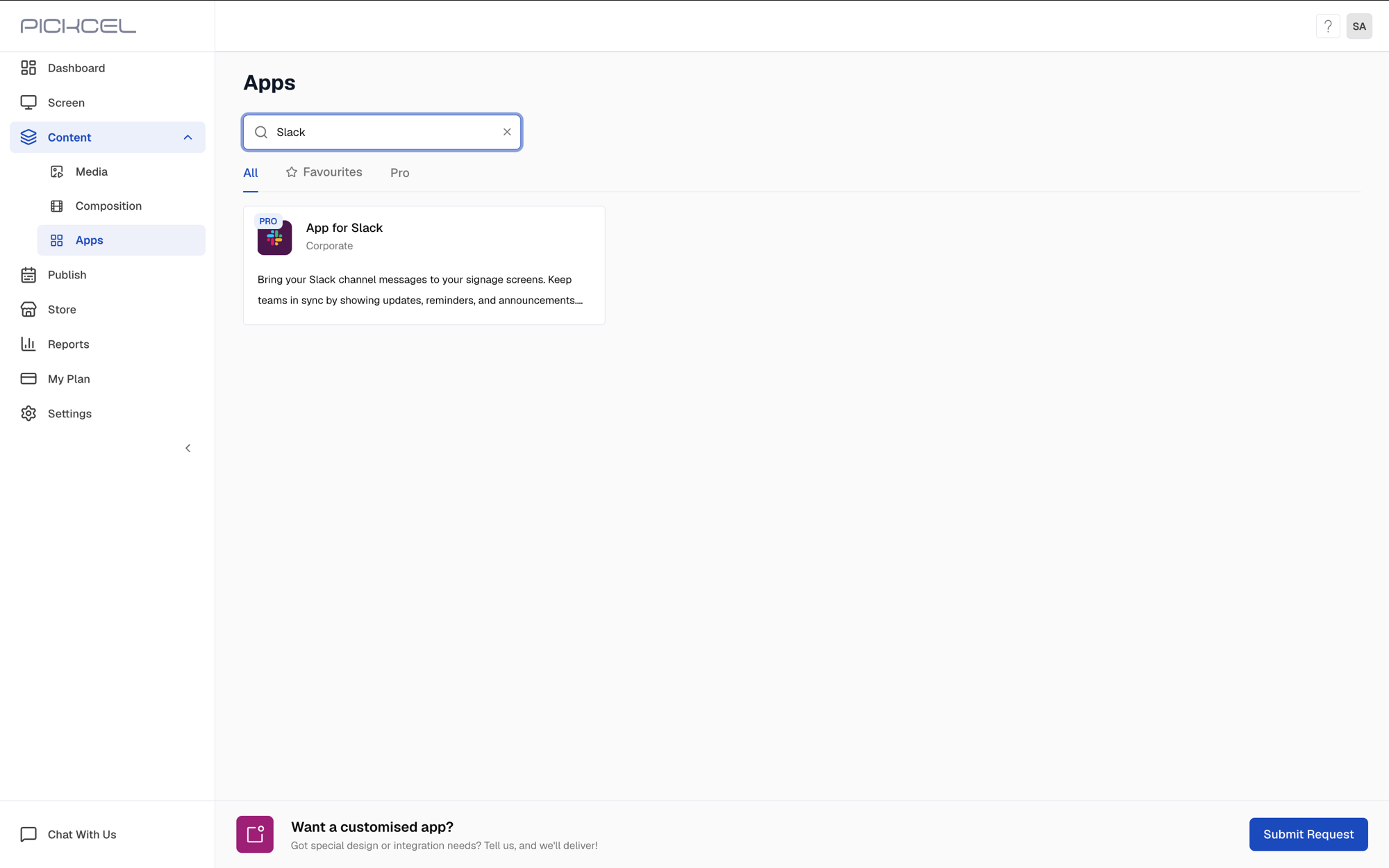 Click the App for Slack card, then click Create App in the app details panel.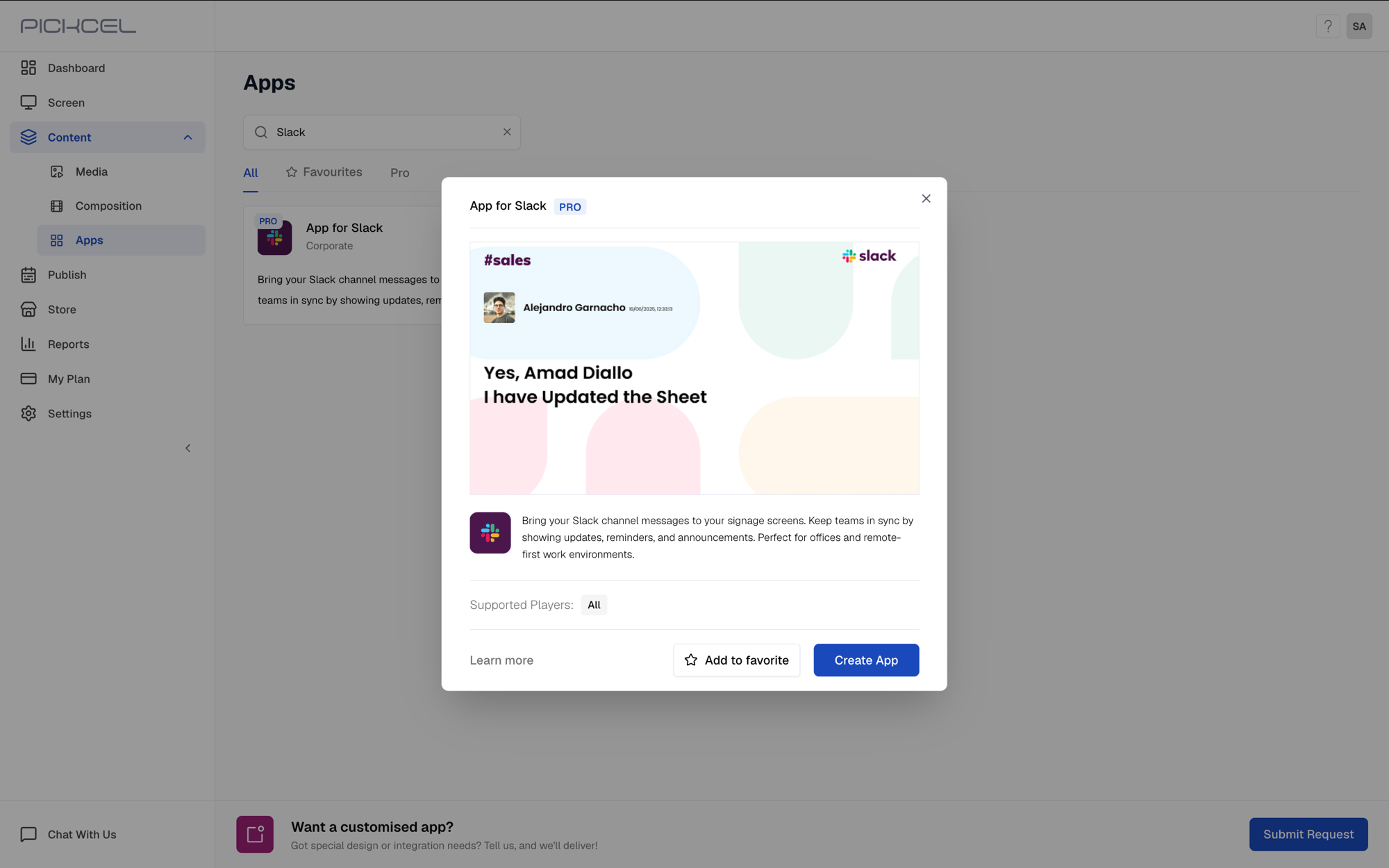
2
Authenticate with Slack
Click Add to Slack to authenticate.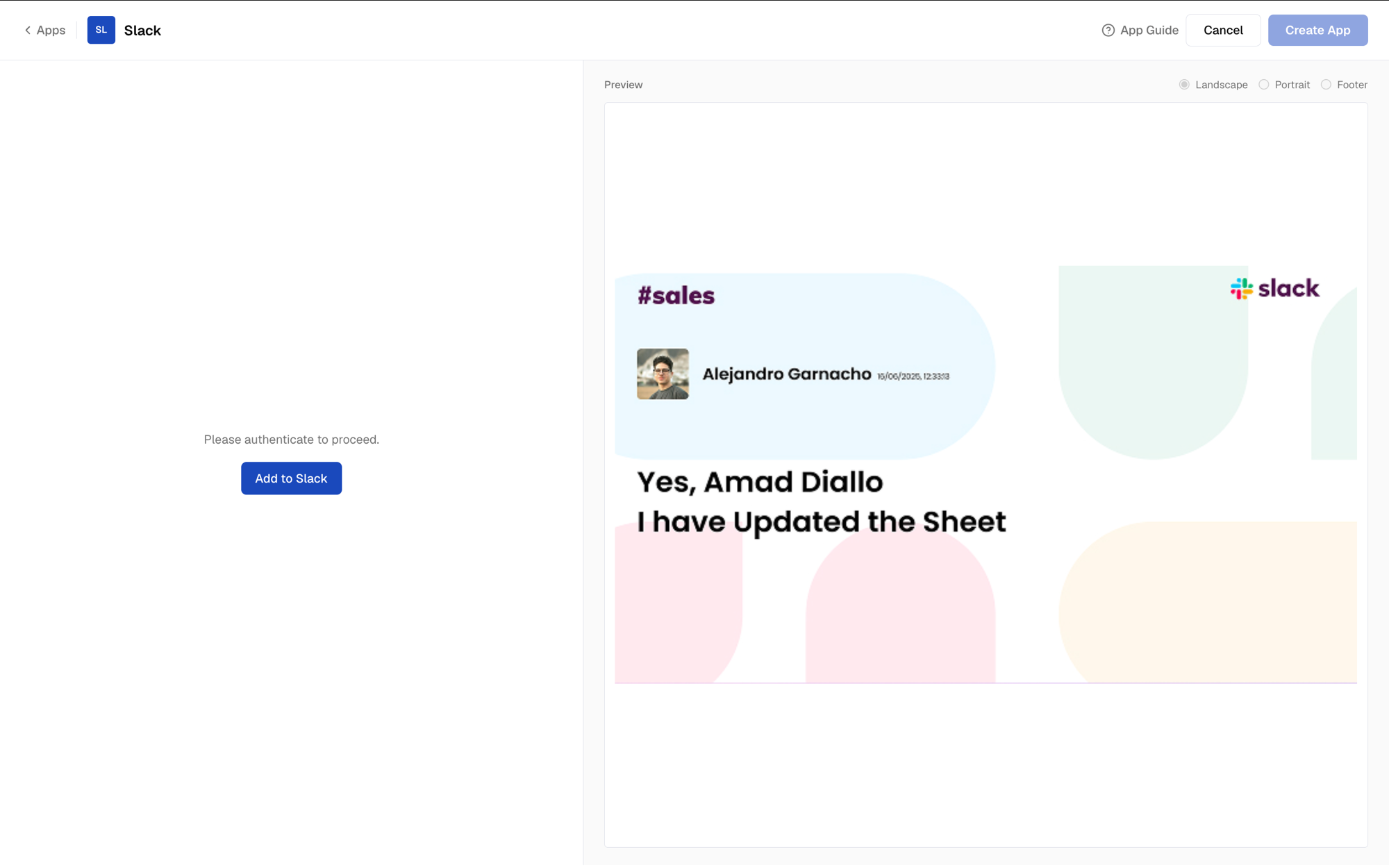
3
Enter workspace Slack URL
Enter your workspace’s Slack URL here.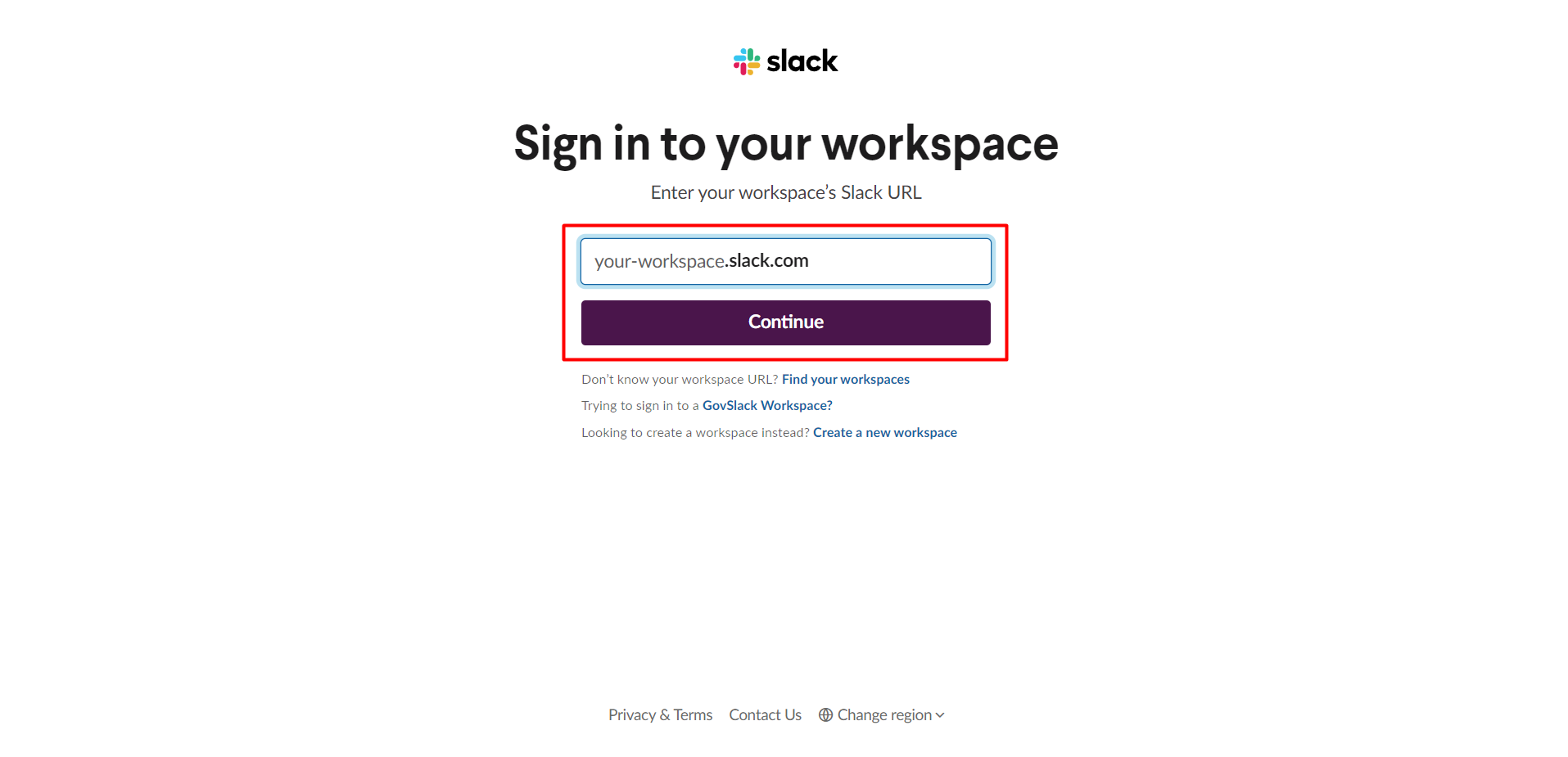
4
Sign in to Slack account
Sign in to your Slack account. You can use Google login or Apple login/ enter your email id and password directly and login.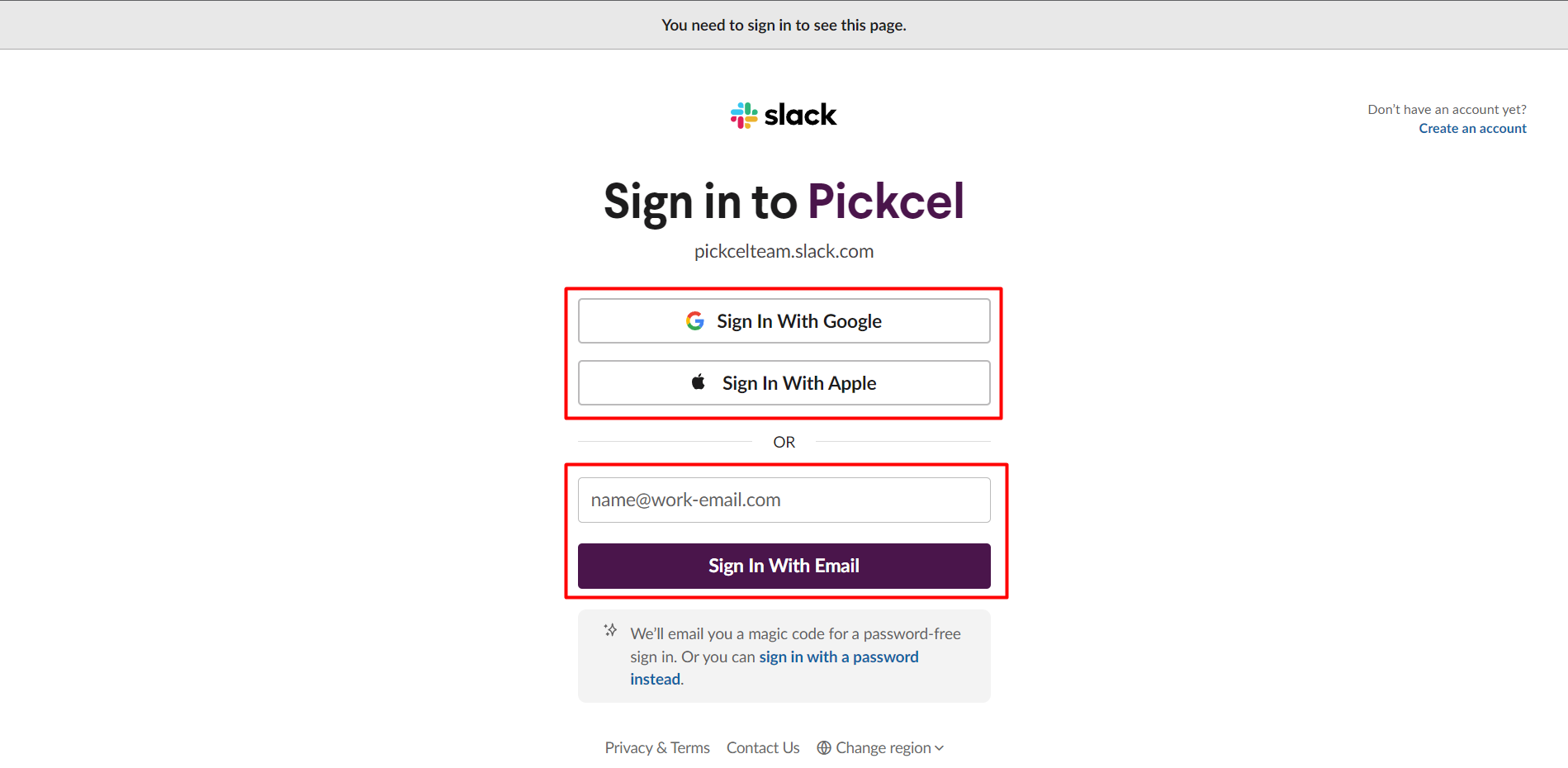
5
Click Allow to access workspace
Click on Allow to access your workspace.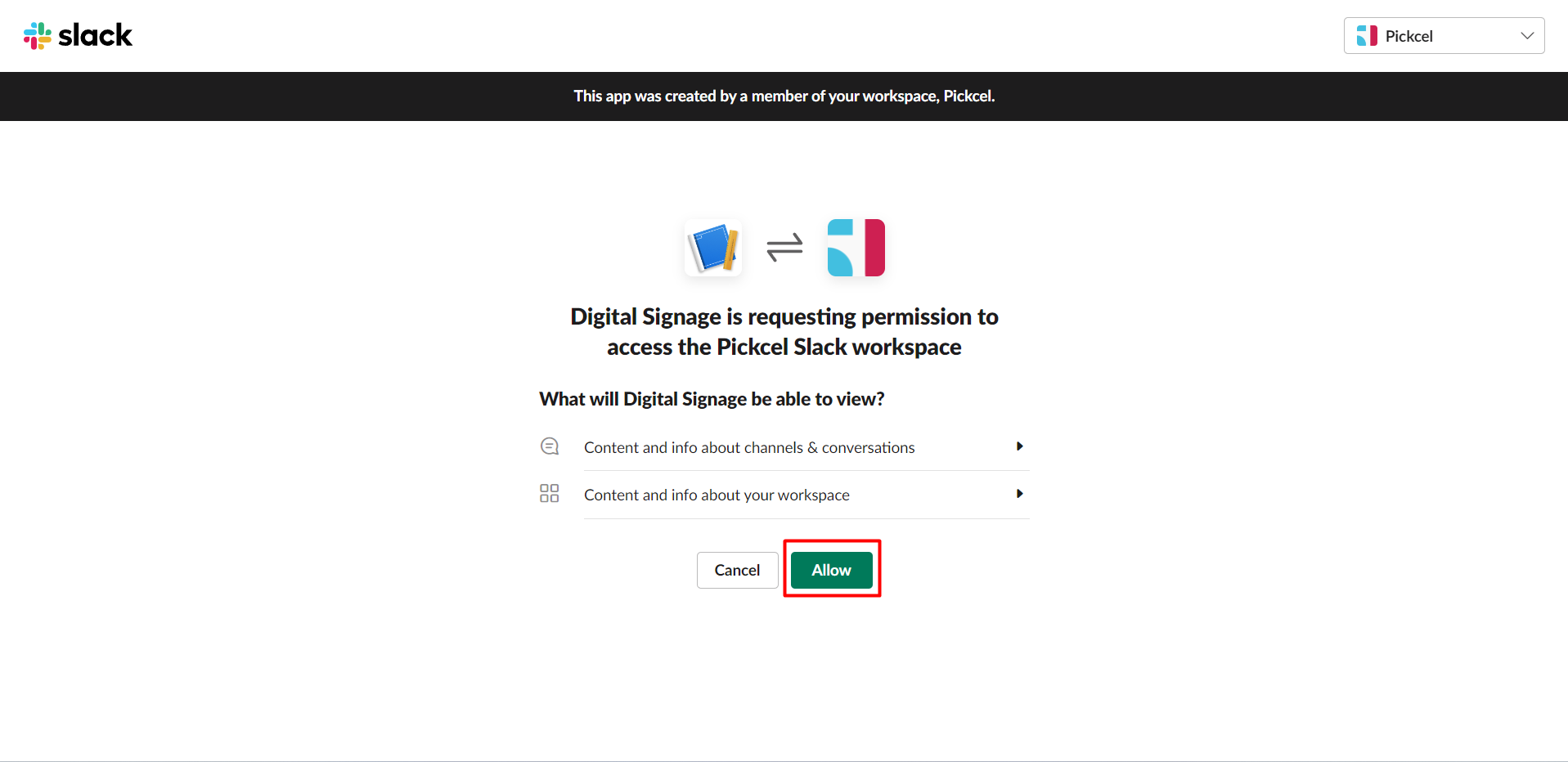
6
Configure app settings
Enter the App name, select the Slack channel and No. of Posts to be shown and enter the slide duration.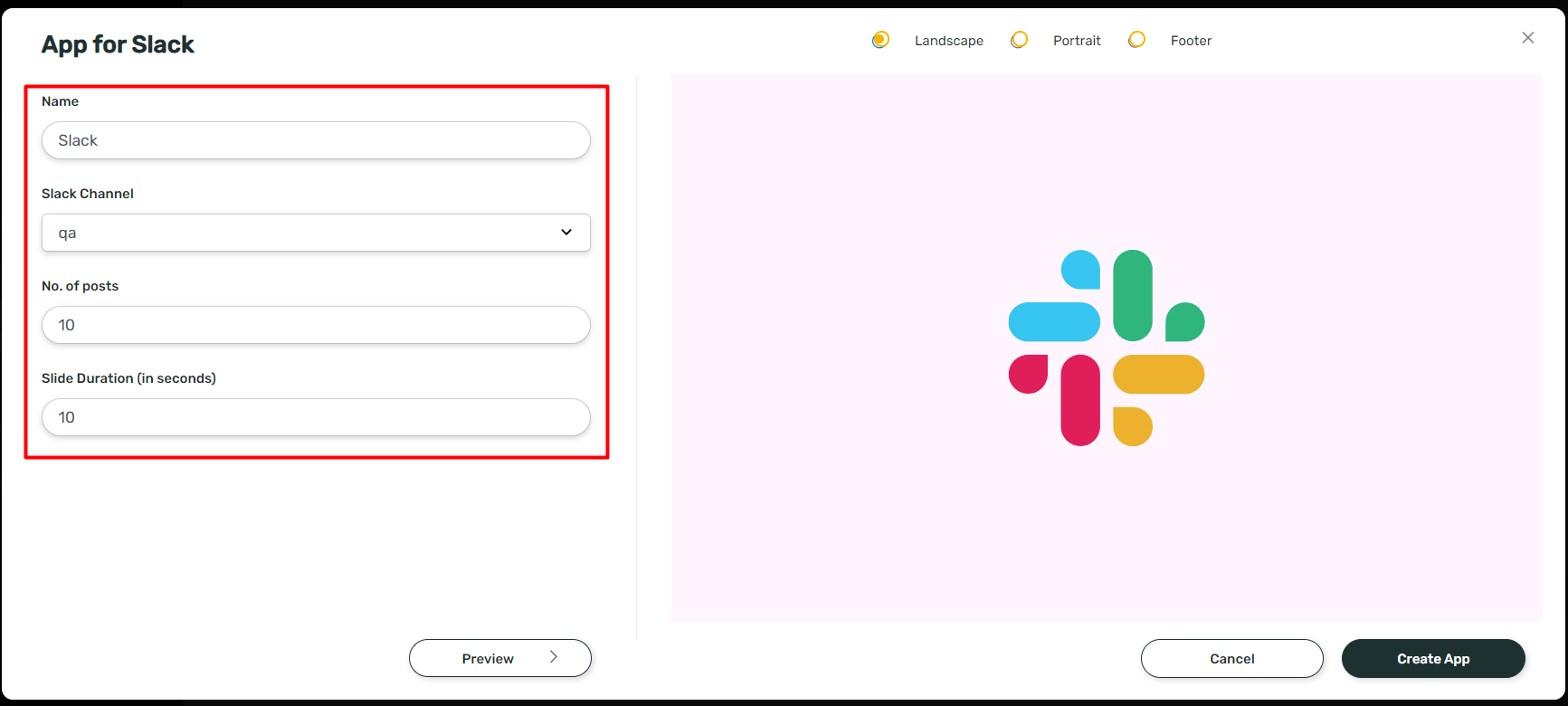
7
Add Digital Signage bot in Slack
Once we authenticate and select the channel from the drop down, we have to open Slack app and check if Digital Signage bot has been added. If not, we can add it by clicking on Apps and Search for Digital Signage. Click on Digital Signage.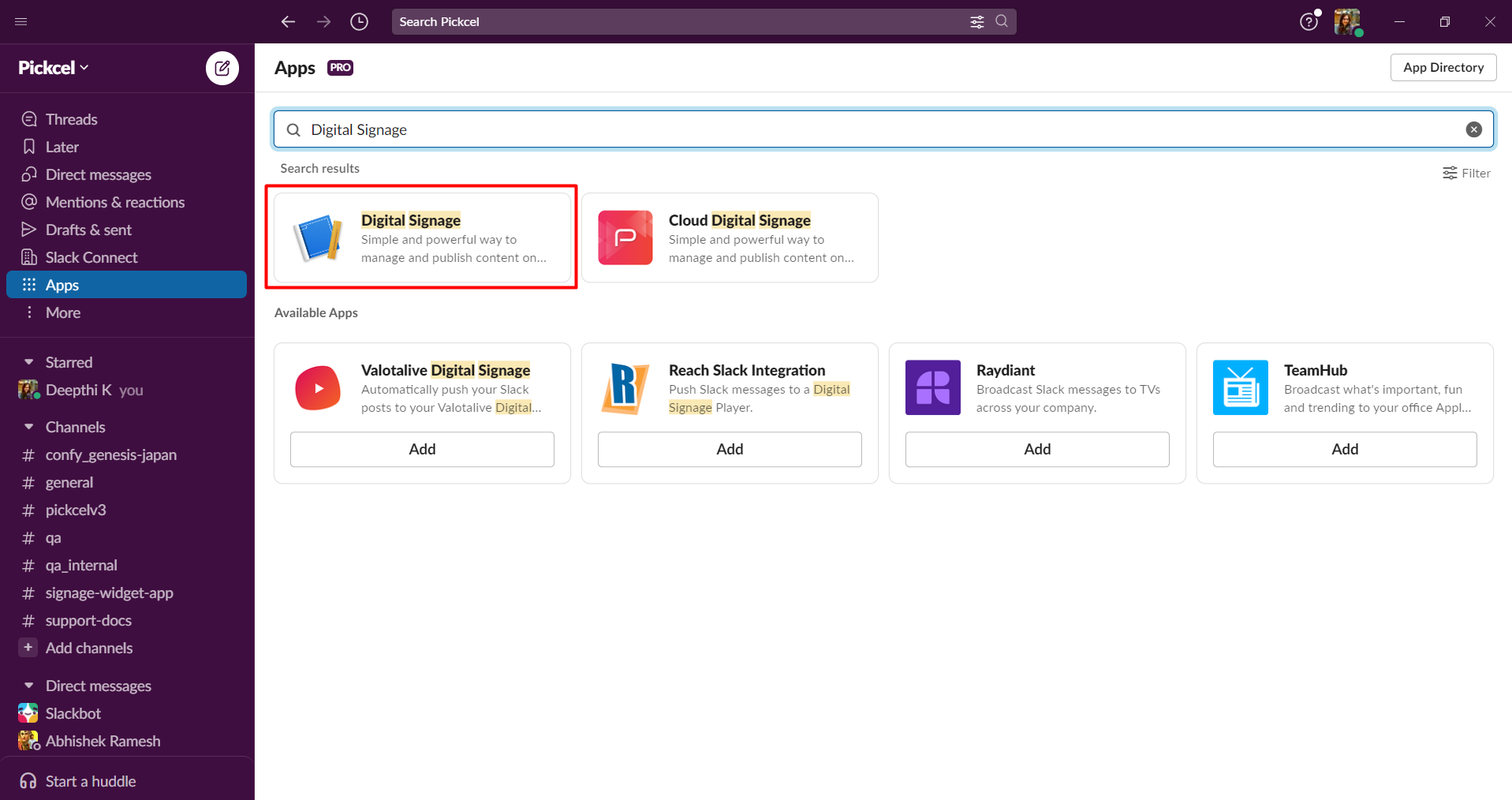
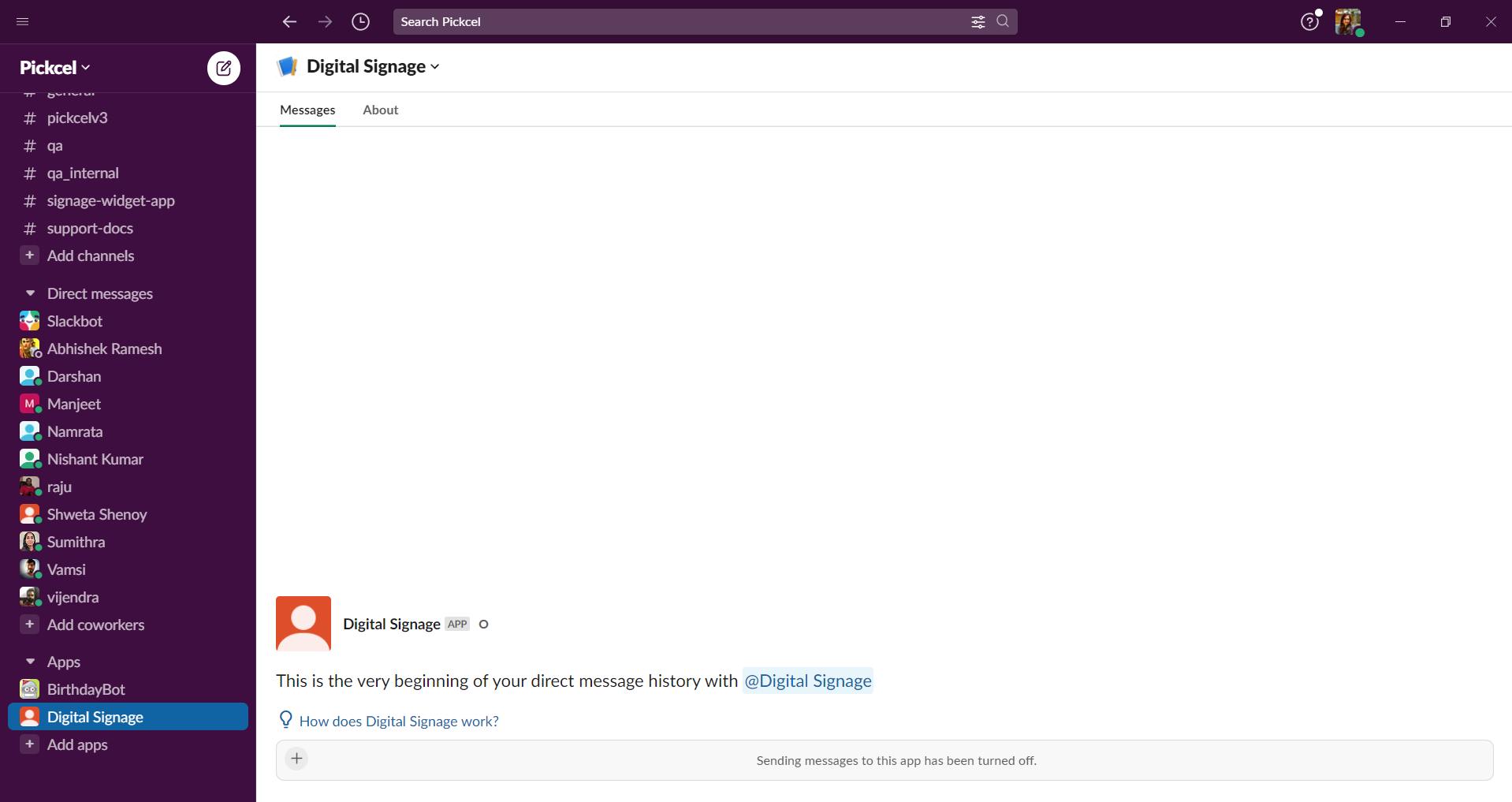
8
Invite bot to channel
We must invite this bot to the channel that we want to show in screen with a command: 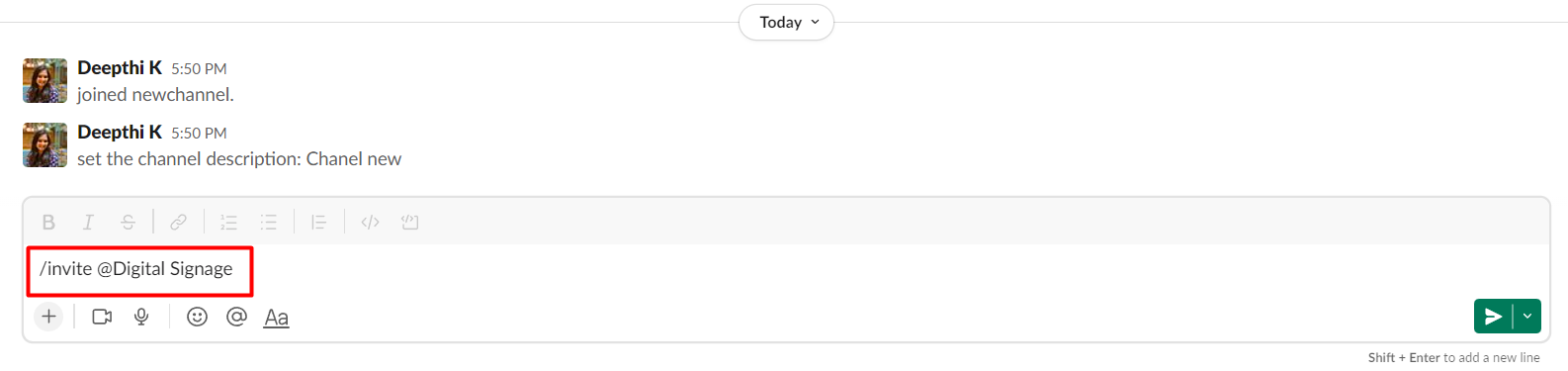
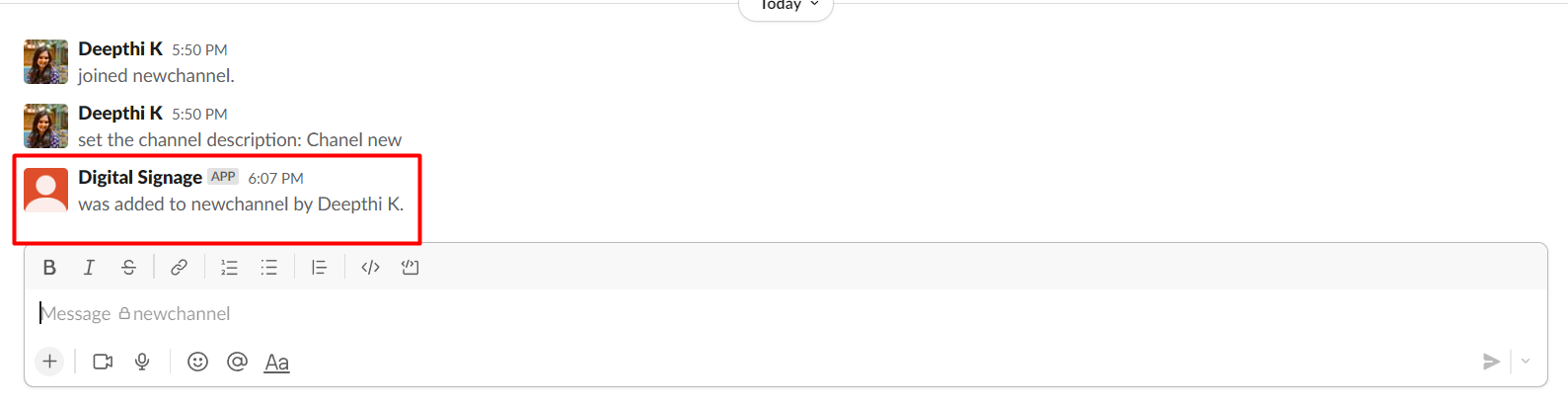
/invite @Digital Signage9
Create app in Pickcel
Now go back to the Slack app and click on Create app.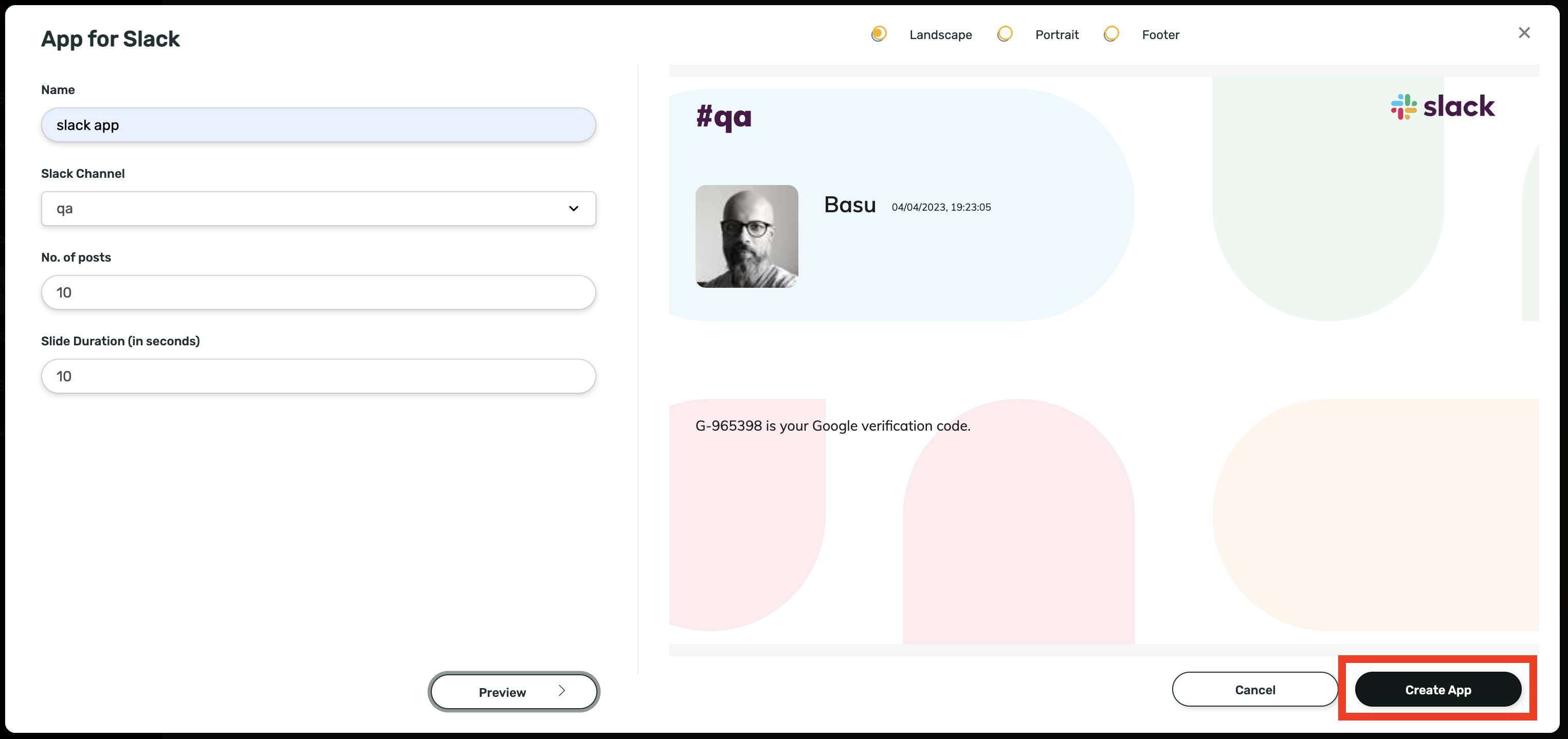

What’s Next?
The app is saved to your Media library under the name you gave it. Add it to a composition, then schedule and publish it to your screens like any other content.- Learn about Compositions
- Learn how to Publish or Schedule Content