

What you can use it for
Because the screen always reflects the latest contents of your OneDrive folder, the app fits almost any “keep this screen current” need:- Marketing and promotions: drop new posters, offers, or product photos into the folder and they go live across your screens.
- Team and event updates: share announcements, welcome slides, or event galleries that change often.
- Automated dashboards and snapshots: if a script or tool saves a fresh image of a dashboard, report, or KPI board to the folder on a schedule, the screen can always show the most recent snapshot (see Show only the latest file).
- Photo walls: curate a rolling gallery of images and short videos from one shared folder.
Before you begin
You’ll need a Microsoft account, with the images and videos you want to show organized into a folder in your OneDrive. You can only choose folders that belong to your own account.
Create the OneDrive app
1
Open Apps and search for OneDrive
From the left sidebar of the Pickcel console, open Apps and type OneDrive in the search box.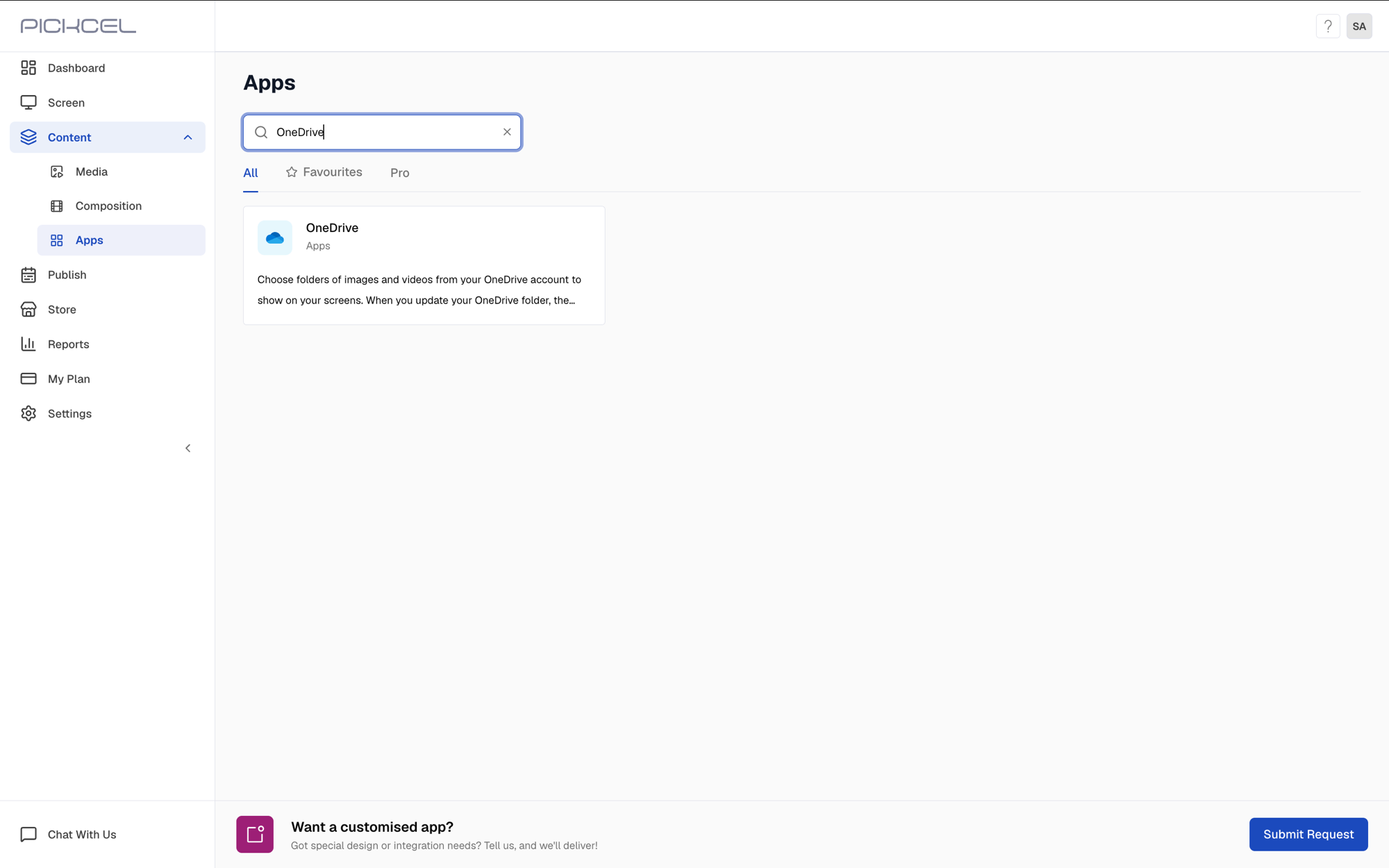
2
Open the app and click Create App
Click the OneDrive app to open its details, then click Create App.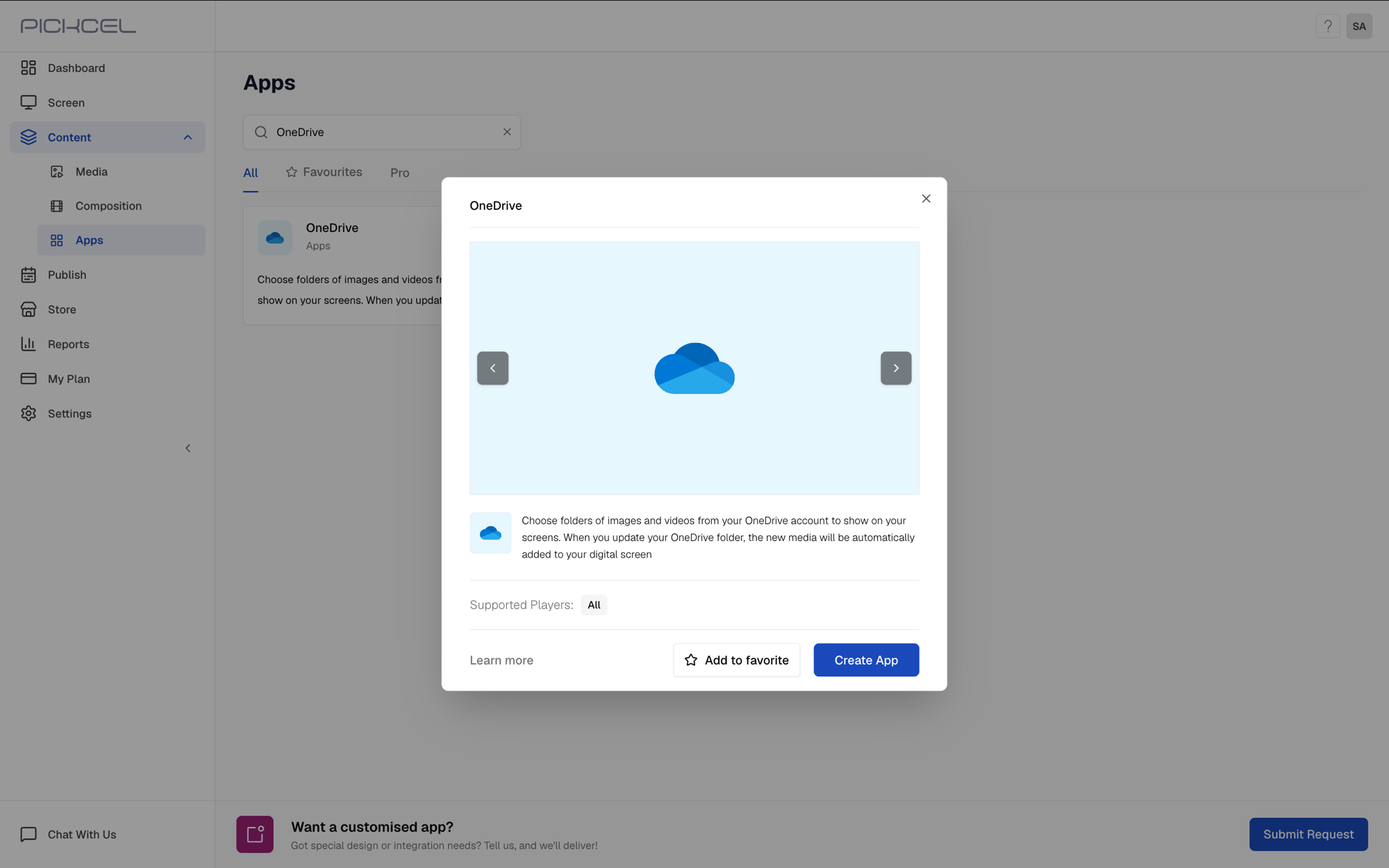
3
Sign in with Microsoft
Click Login with Microsoft and authorize Pickcel to access your OneDrive. You only need to do this once per account.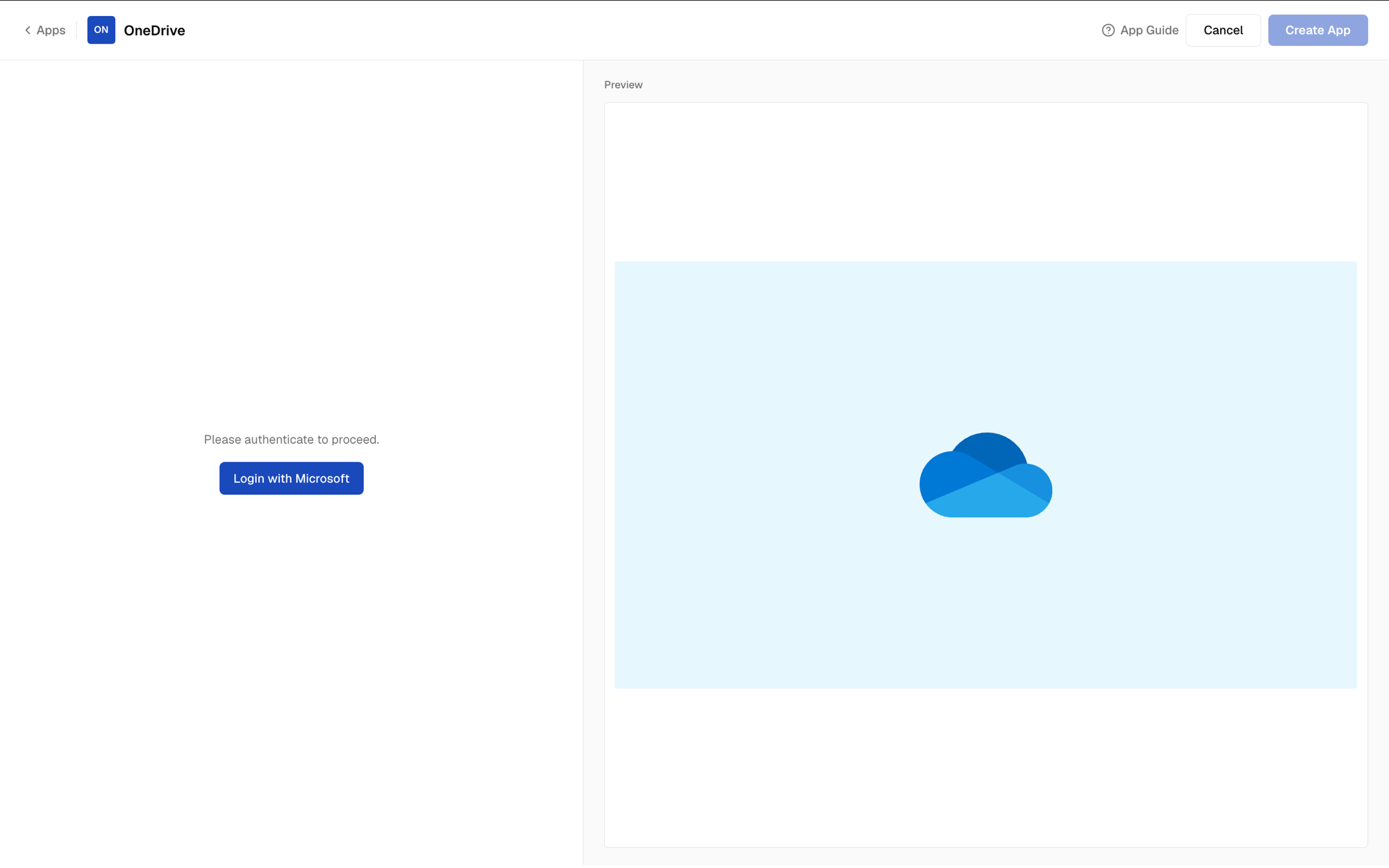
4
Name the app and choose a folder
Give this app instance a Name. This is how it appears later in your Media library, so use something you’ll recognize (for example, OneDrive Dashboard Images). Then open Select Folder and pick the OneDrive folder you want to play.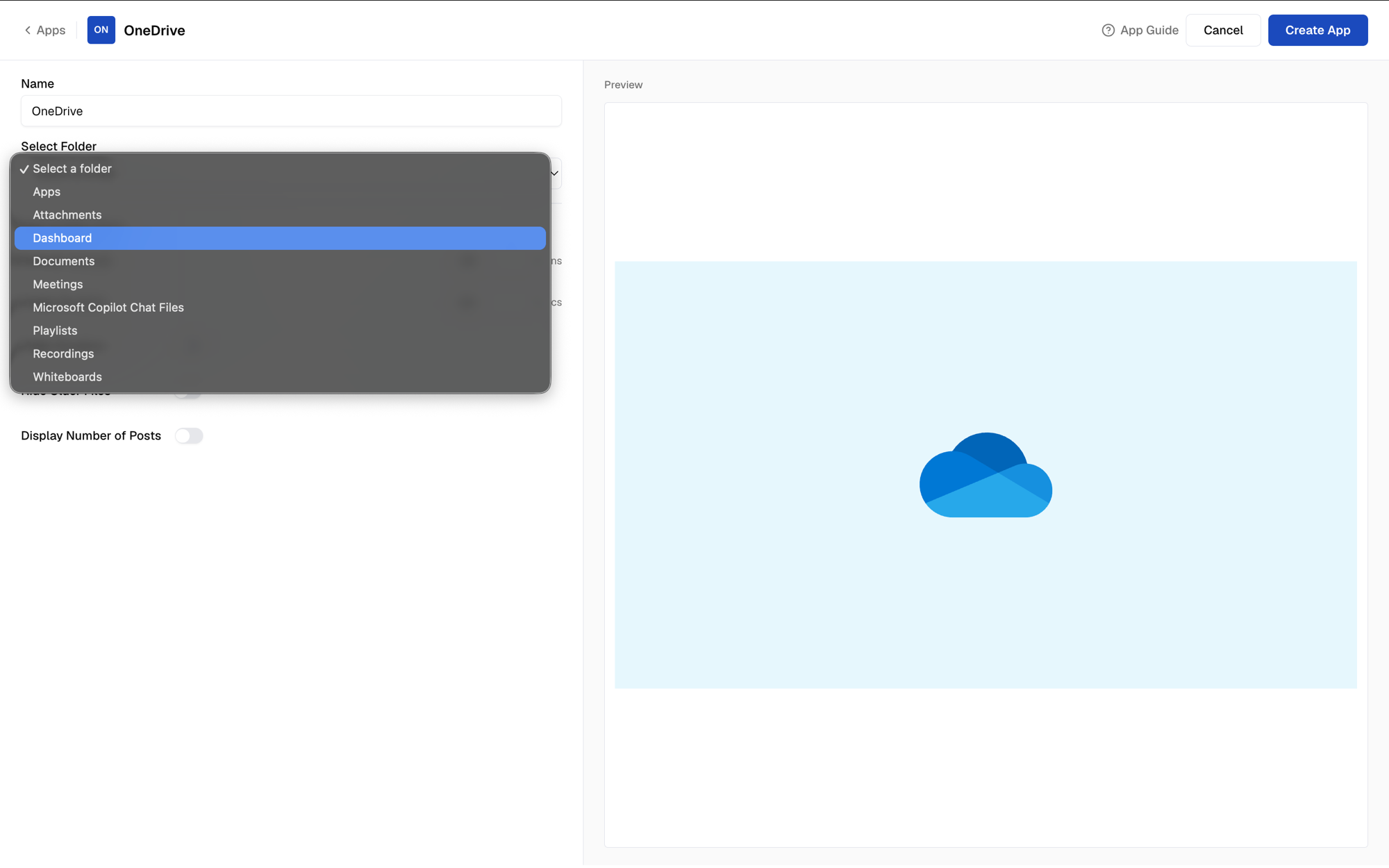
5
Set how your media plays
Under App Configuration, adjust the playback settings to suit your content. Each setting is explained in App configuration settings below.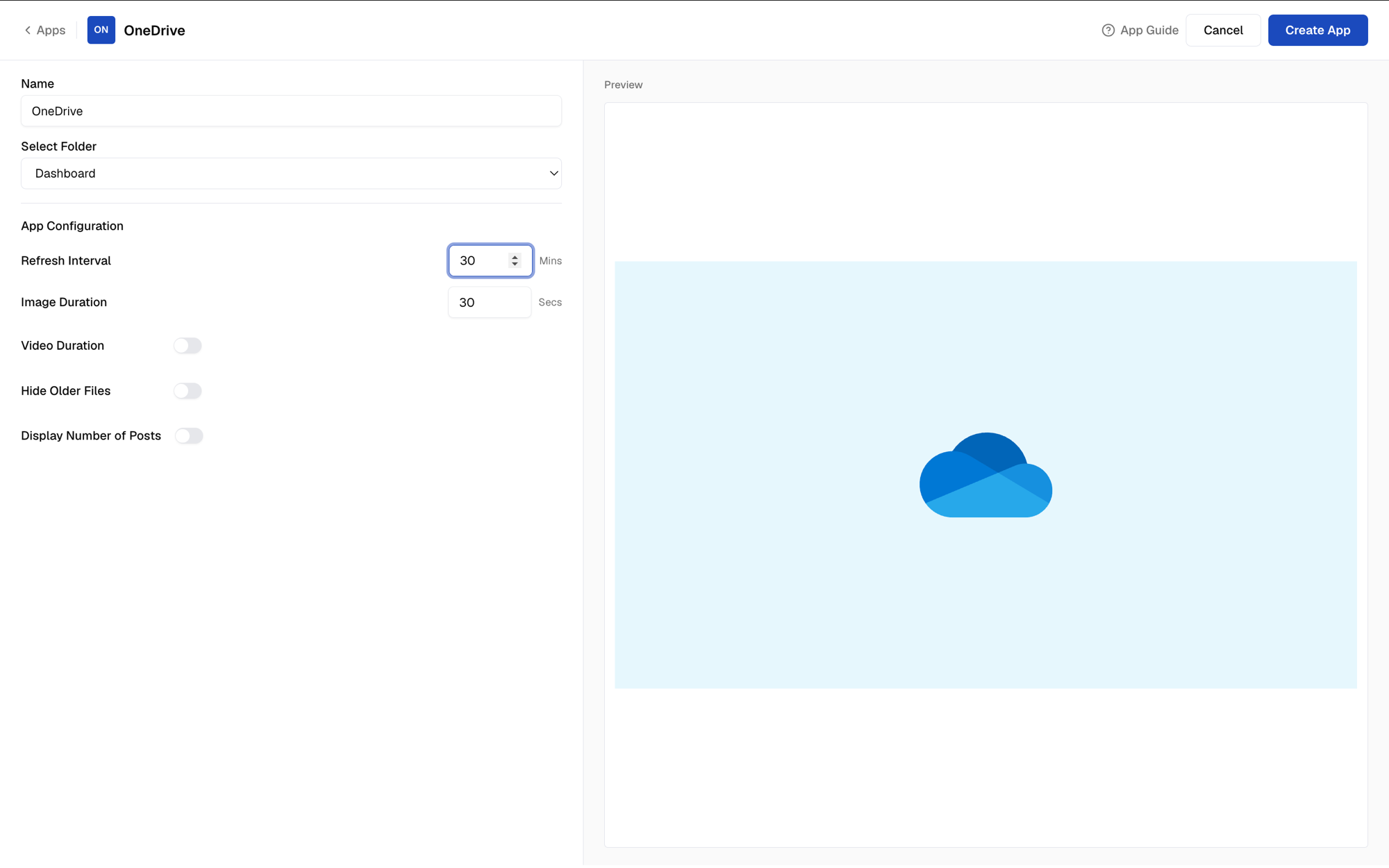
6
Create the app
Click Create App.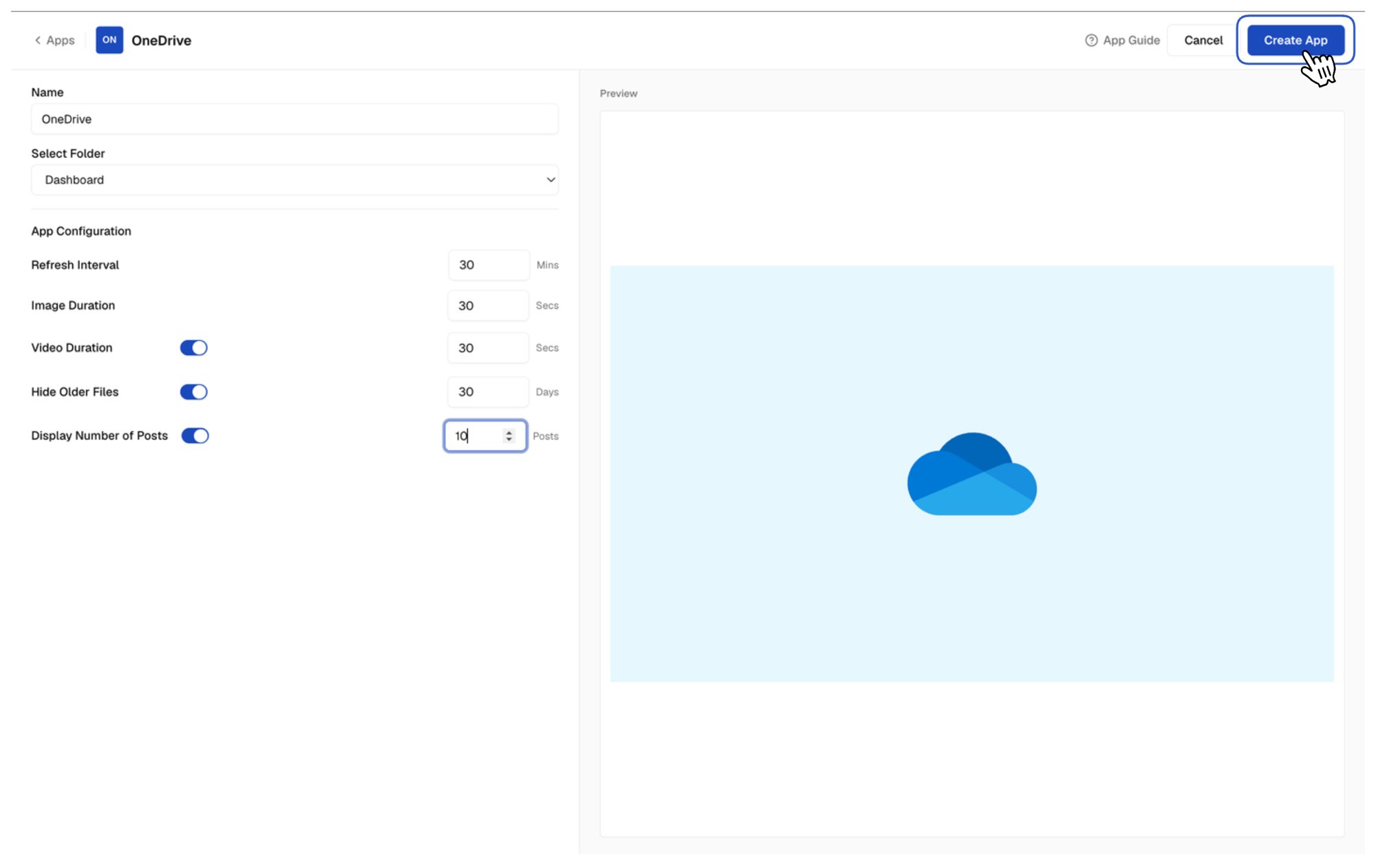 Pickcel saves the app to your Media library, ready to add to a composition and publish to your screens.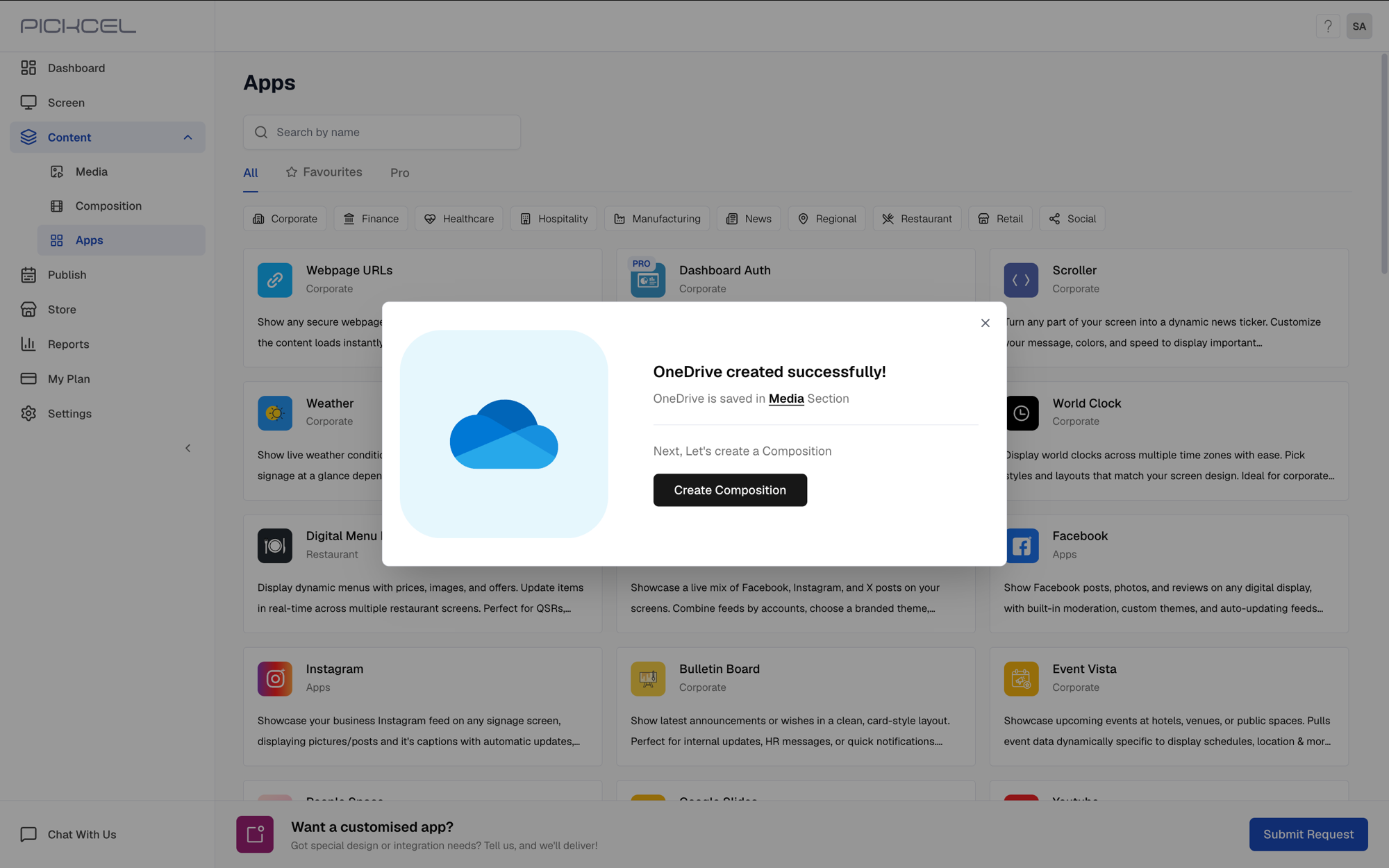
App configuration settings
Use these settings to control how often the folder is checked and how each file plays. You can change them any time by editing the app from your Media library.We recommend keeping the Refresh Interval at 5 minutes or higher. That keeps your screens current with your OneDrive folder while making efficient use of each device’s bandwidth.
Show only the latest file
Setting Display Number of Posts to 1 makes the screen show only the most recently added file in the folder. This is perfect for an always-current snapshot. If you have a dashboard, report, or any tool that automatically saves an updated image to your OneDrive folder on a schedule, point the OneDrive app at that folder and set Display Number of Posts = 1. Each time a new snapshot lands in the folder, the screen replaces the old one with the latest, so your display always shows the freshest version. For this single-image setup you can leave Video Duration and Hide Posts Older Than off, since you’re only ever showing one current file.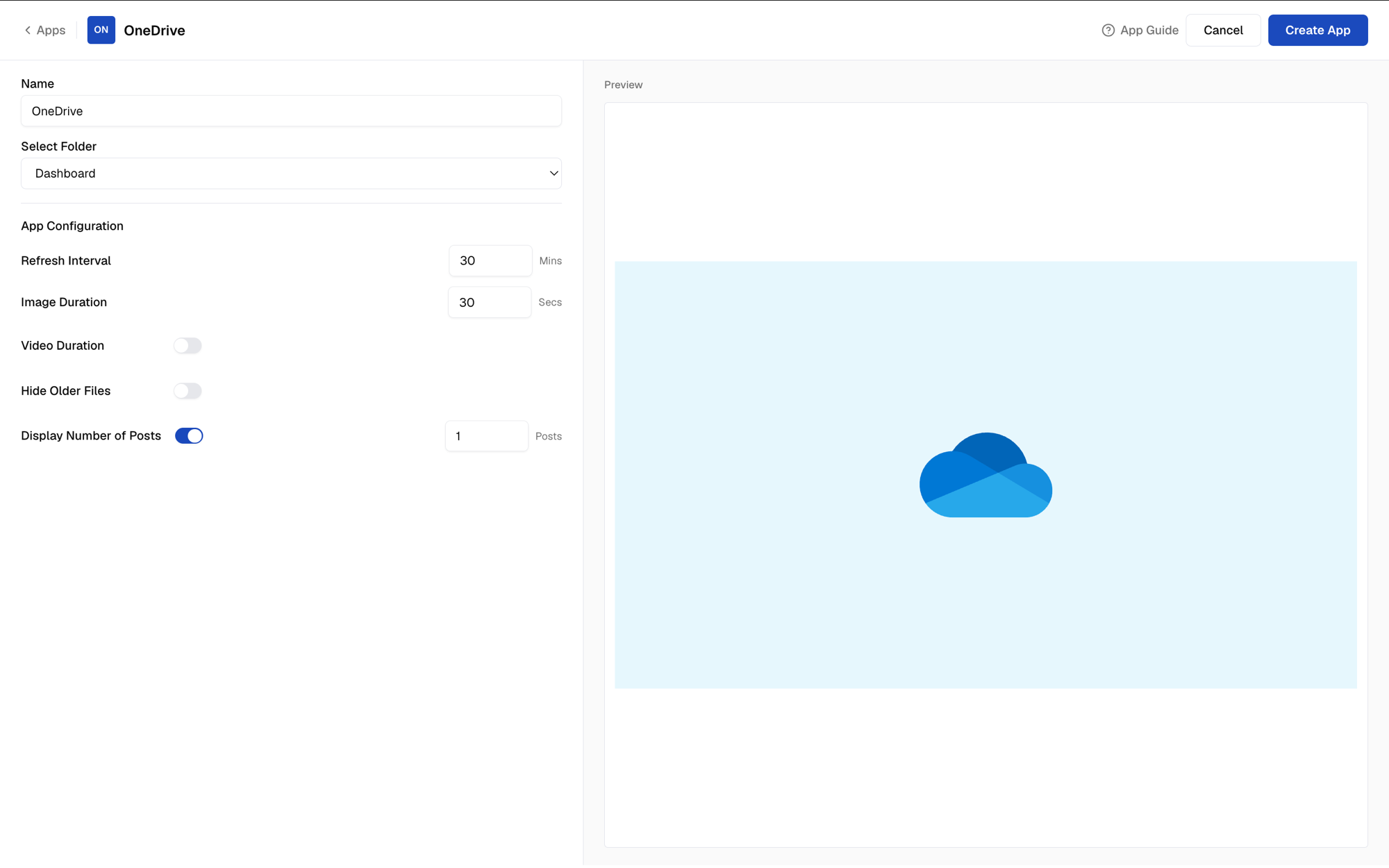
Preview and publish
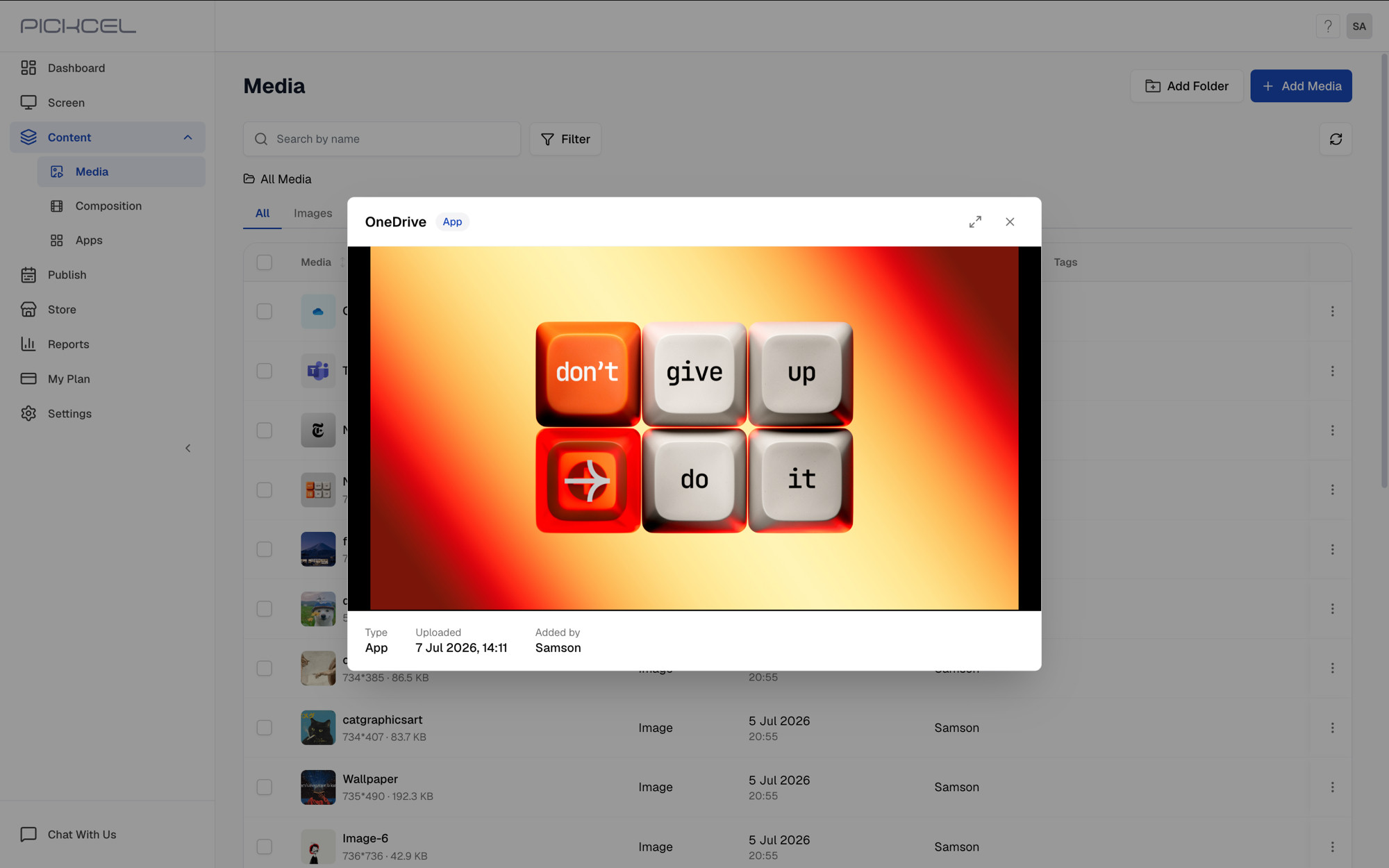
The app is saved to your Media library under the name you gave it.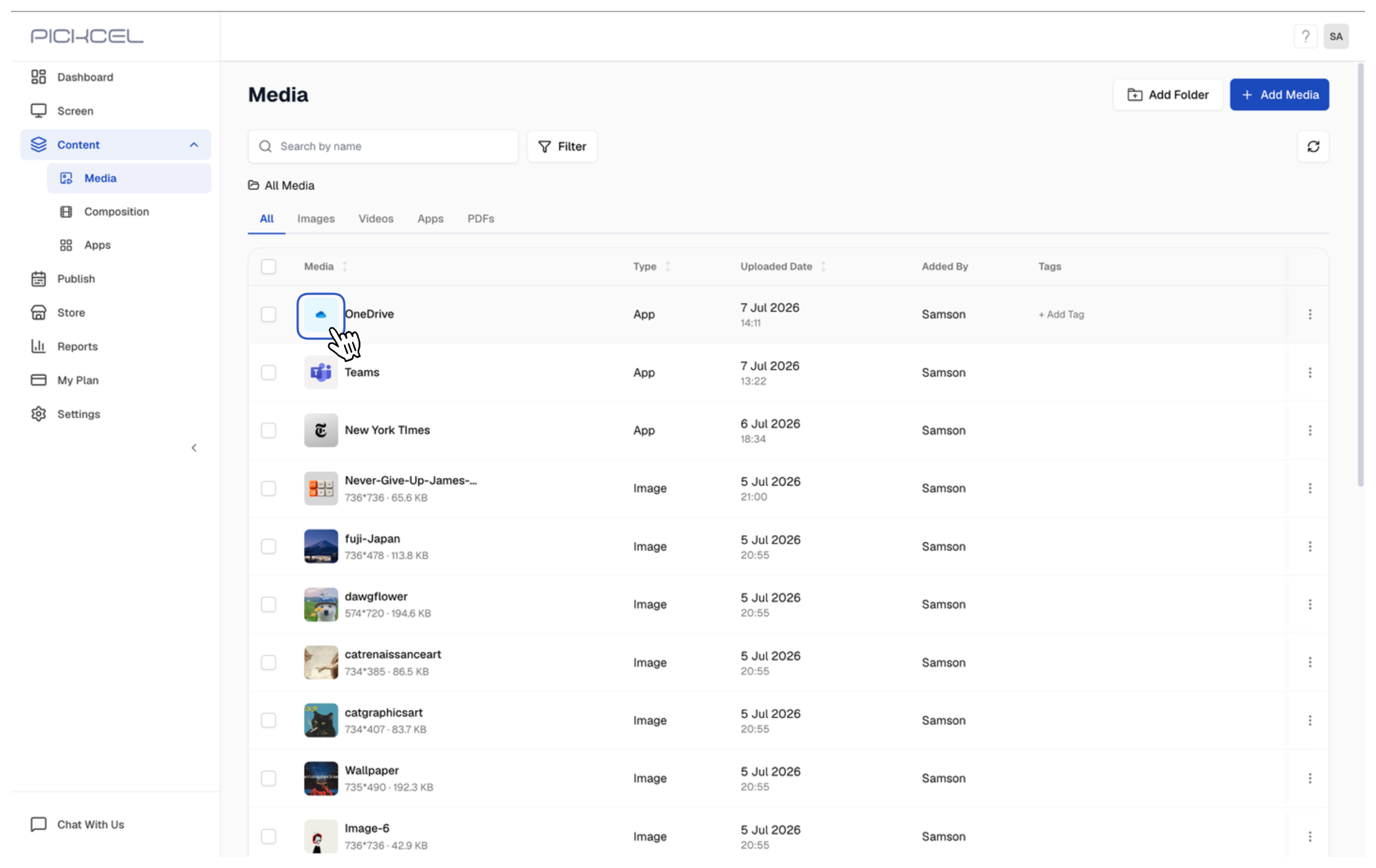
Frequently asked questions
How often does the screen update when I change my OneDrive folder?
How often does the screen update when I change my OneDrive folder?
Pickcel checks your folder on each Refresh Interval (set in minutes). When the next check runs, any files you’ve added, changed, or removed are reflected on the screen automatically. You don’t need to re-upload anything.
Can I show videos as well as images?
Can I show videos as well as images?
Yes. The app plays both images and videos from your folder. Use Image Duration to set how long each image shows, and turn on Video Duration to cap how long each video plays. Leave Video Duration off to play videos in full.
How do I show only my newest files?
How do I show only my newest files?
Use Hide Posts Older Than to hide anything older than a set number of days, or Display Number of Posts to show only a set number of the most recent files. To show just the single latest file, set Display Number of Posts = 1.
Can I display more than one folder?
Can I display more than one folder?
Each OneDrive app instance plays one folder. To show more folders, create additional OneDrive apps, one per folder, and add them all to your composition.
Where do I find the app after creating it?
Where do I find the app after creating it?
The app is saved to your Media library under the Name you gave it. From there you can add it to a composition, edit its settings, or publish it to your screens.
Related guides
Add Media
Upload and organize images, videos, and apps in your Media library.
Create a Composition
Combine your OneDrive app with other content in a layout.
Publish Content
Schedule and publish your composition to your screens.
Google Slides
Show Google Slides presentations on your screens.