

Prerequisites
Before you begin, make sure you have:- A Microsoft account with access to the Team and Channel you want to display
- Permission to allow Pickcel to read messages from that channel on your behalf
Pickcel only reads messages from the Team and Channel you select. It cannot post or modify messages.
1
Search for and create the app
Log in to your Pickcel account. Go to the Apps module and search for Teams.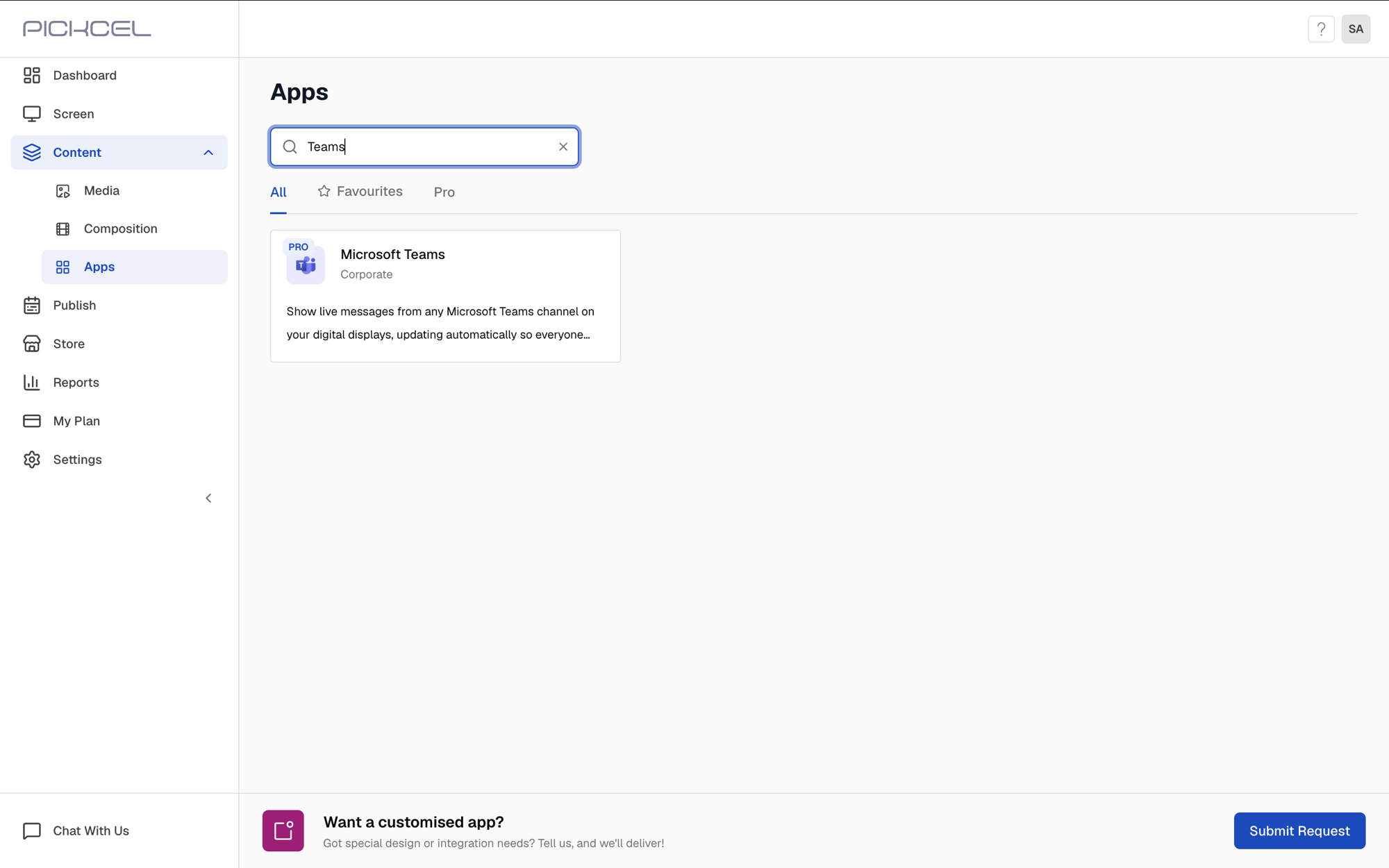 Click the Microsoft Teams app card, then click Create App in the app details panel.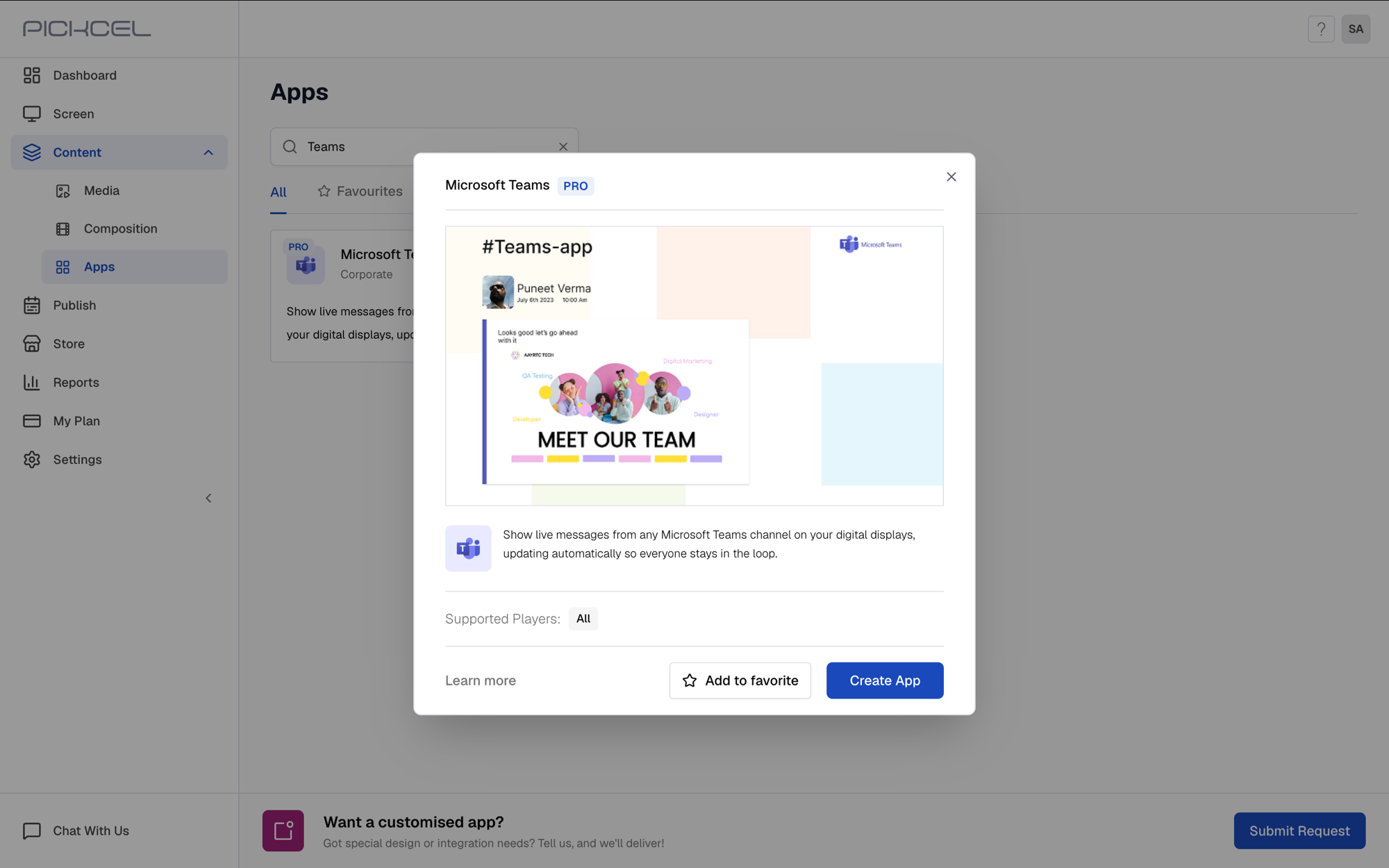
2
Log in with your Microsoft account
Click Login with Microsoft and sign in with an account that has access to the Team and Channel you want to display. Pickcel needs this connection to read messages on your behalf.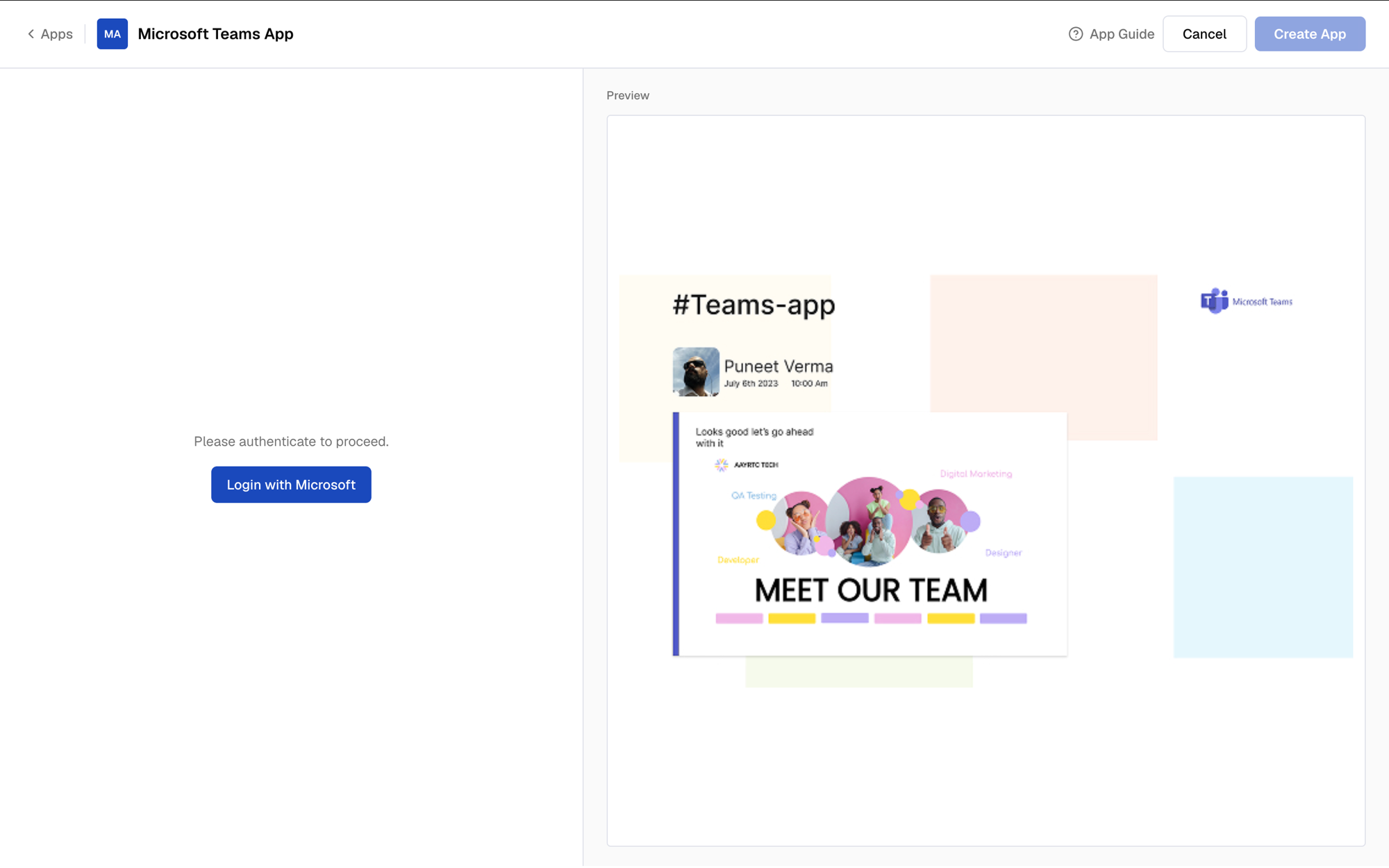 Once you’re signed in, a confirmation toast appears and the app configuration form loads.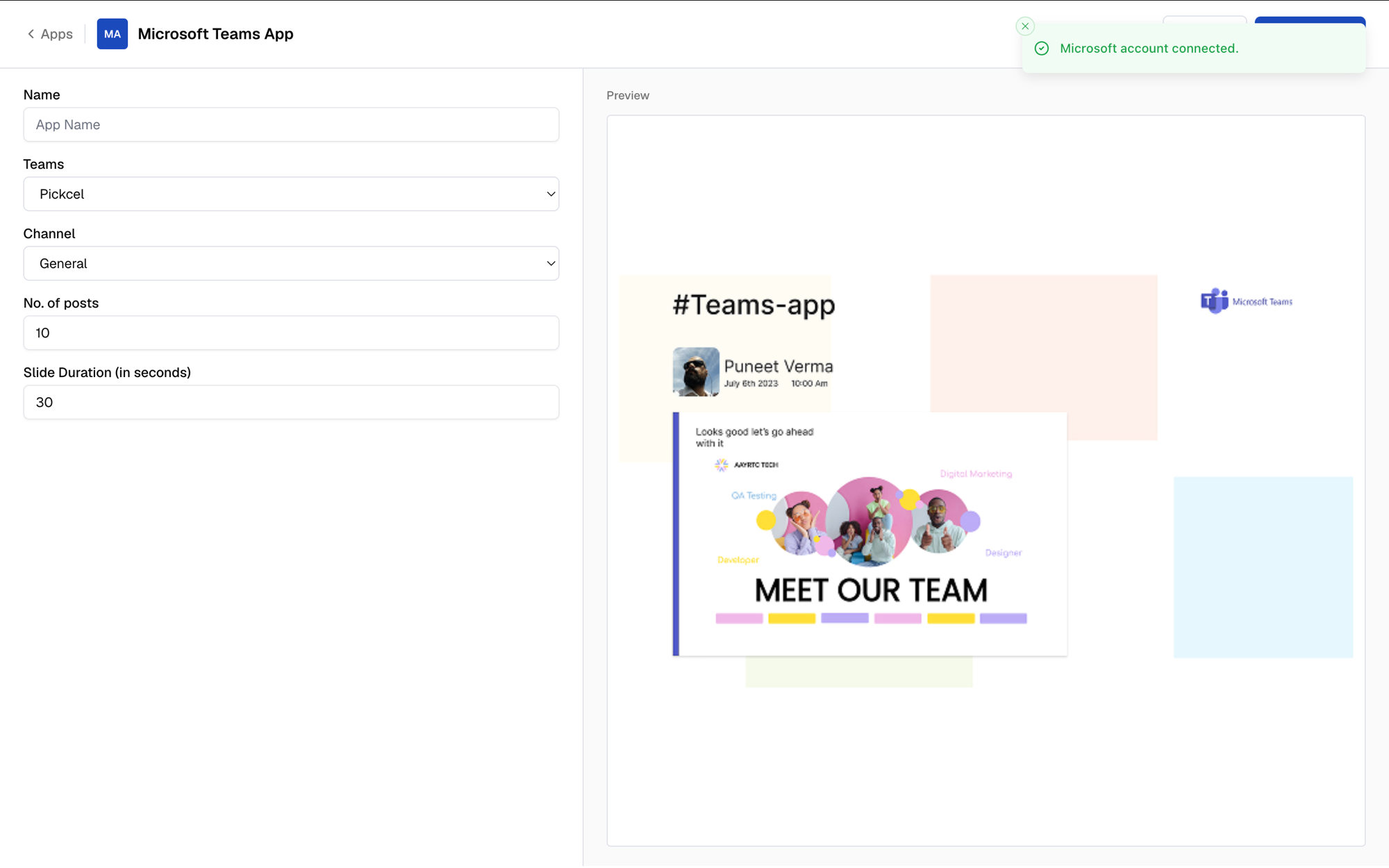
3
Enter a name and select your Team
Enter a Name for the app so you can identify it later in the Media section, then choose the Team whose messages you want to display.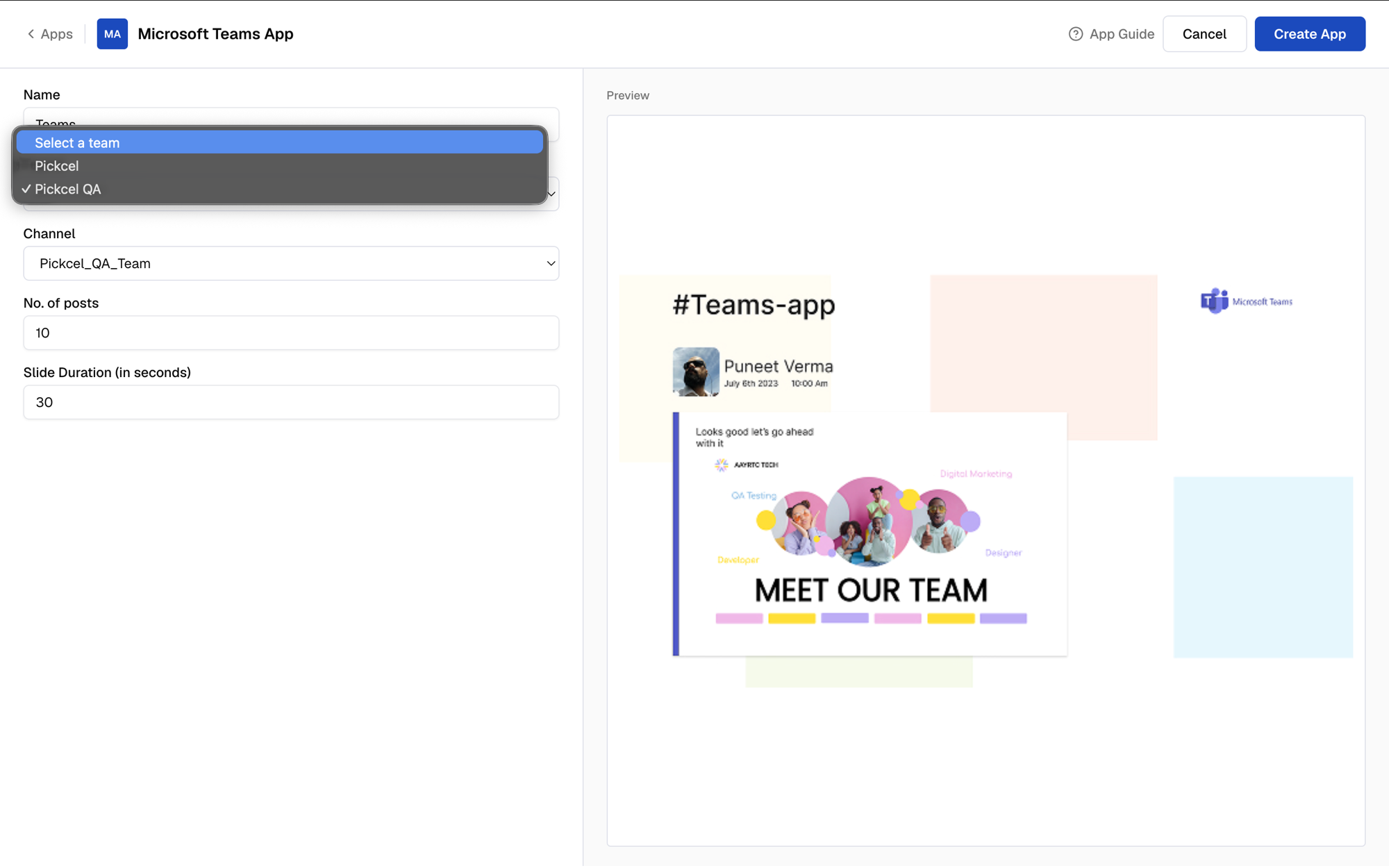
4
Select the Channel
Pick the Channel within that Team to pull messages from.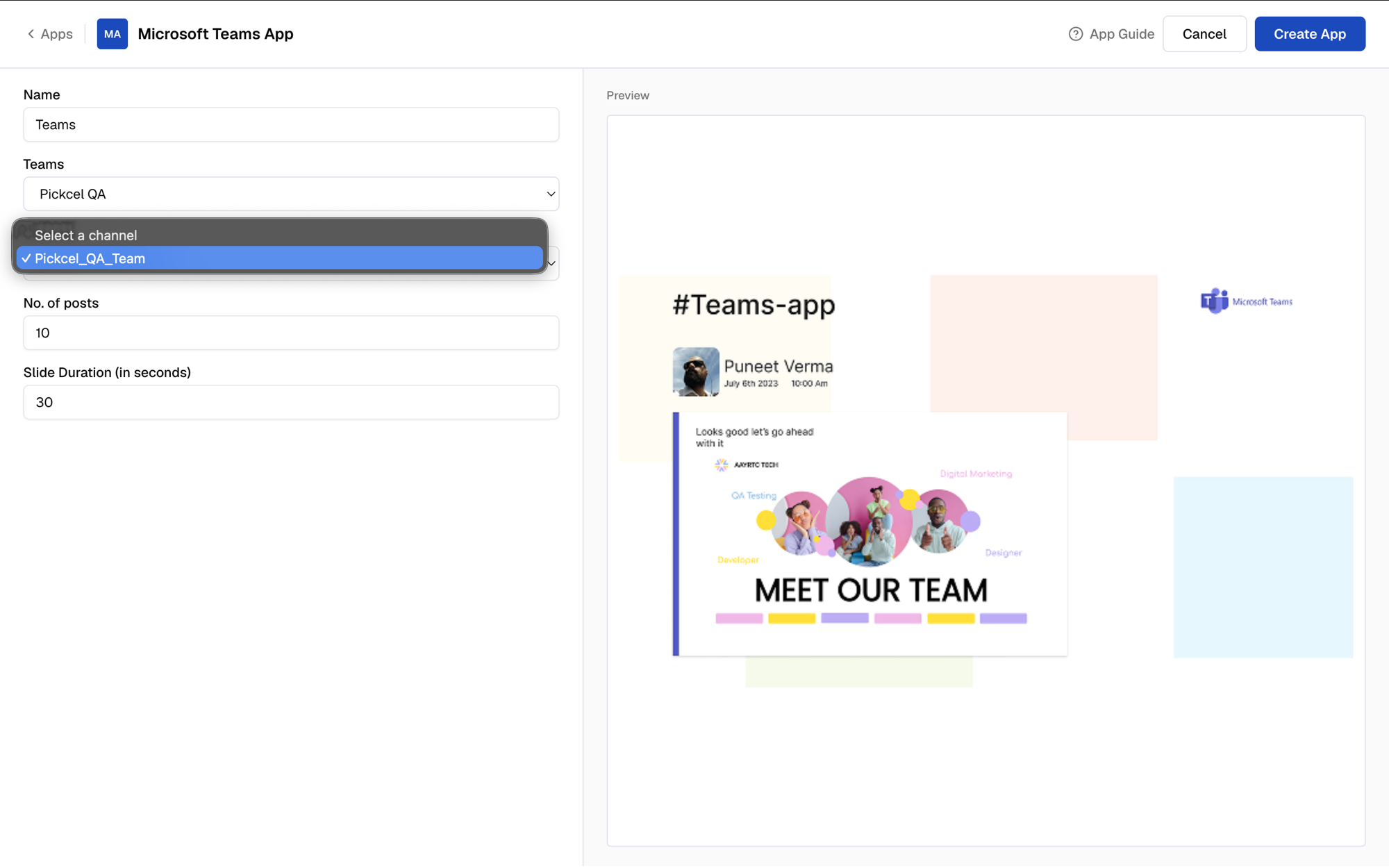
5
Set the number of posts
Choose how many recent posts from the channel to cycle through.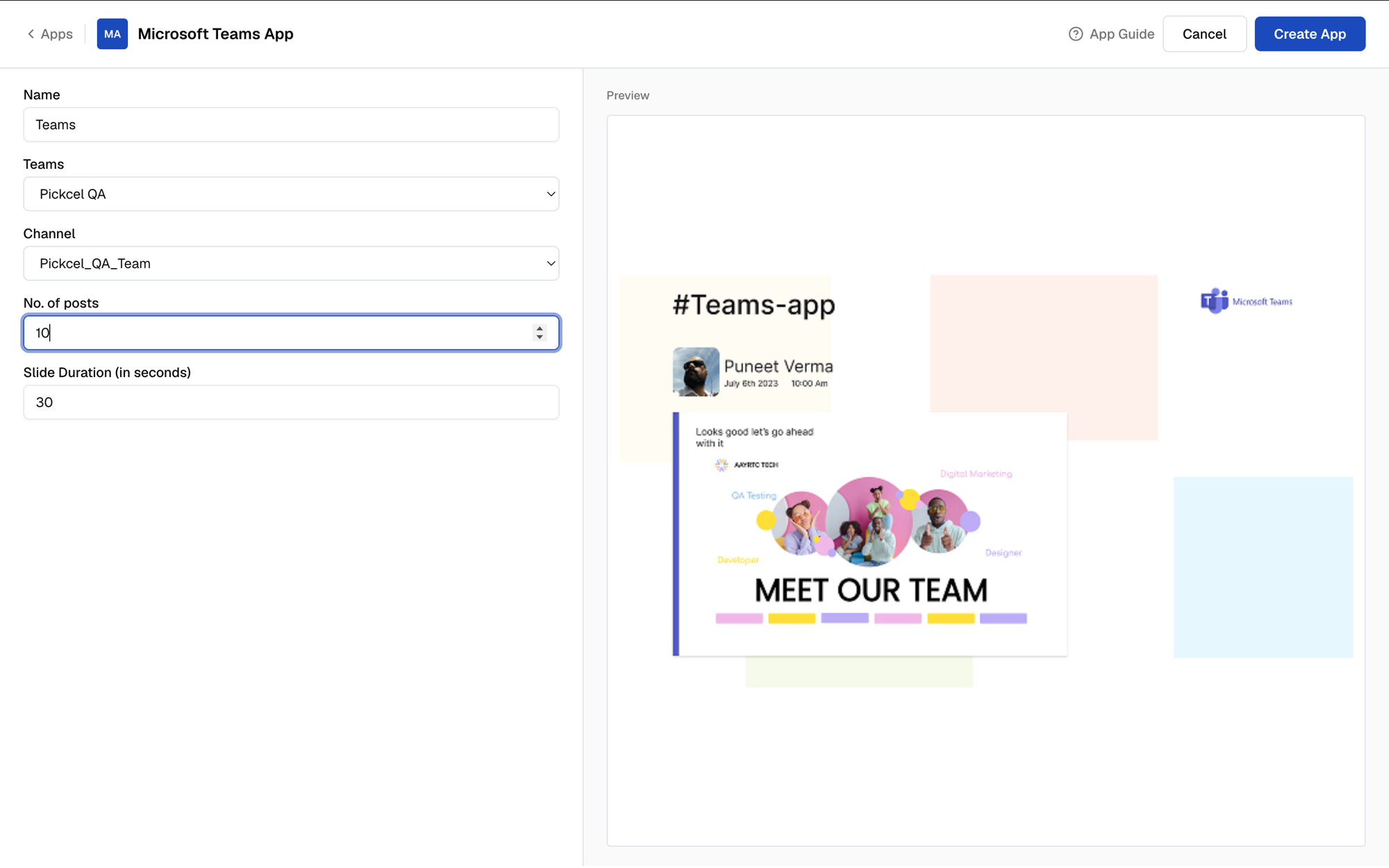
The number of posts must be 5 or more.
6
Set the slide duration
Decide how long each post stays on screen before moving to the next.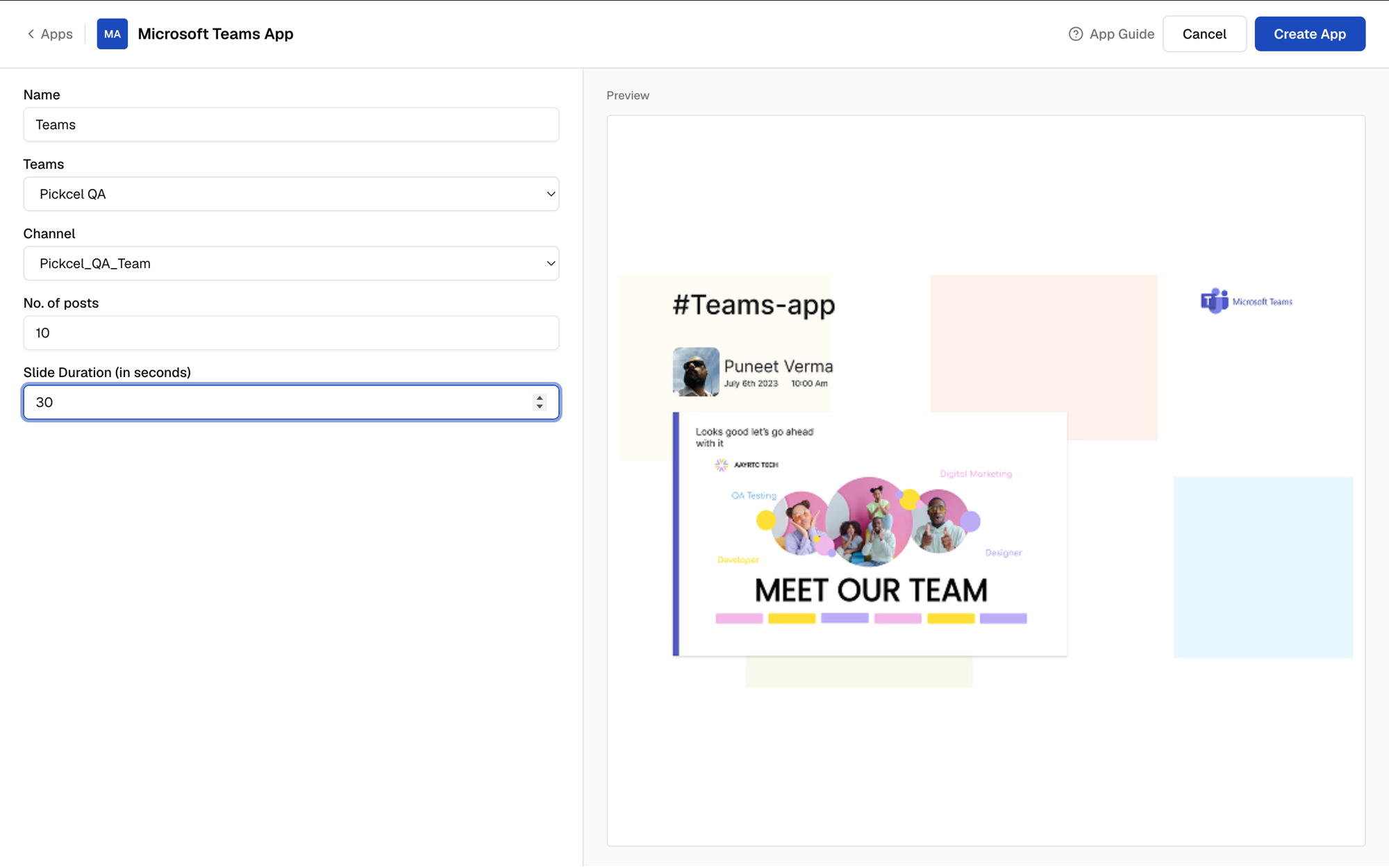
7
Create the app
Click Create App to finish.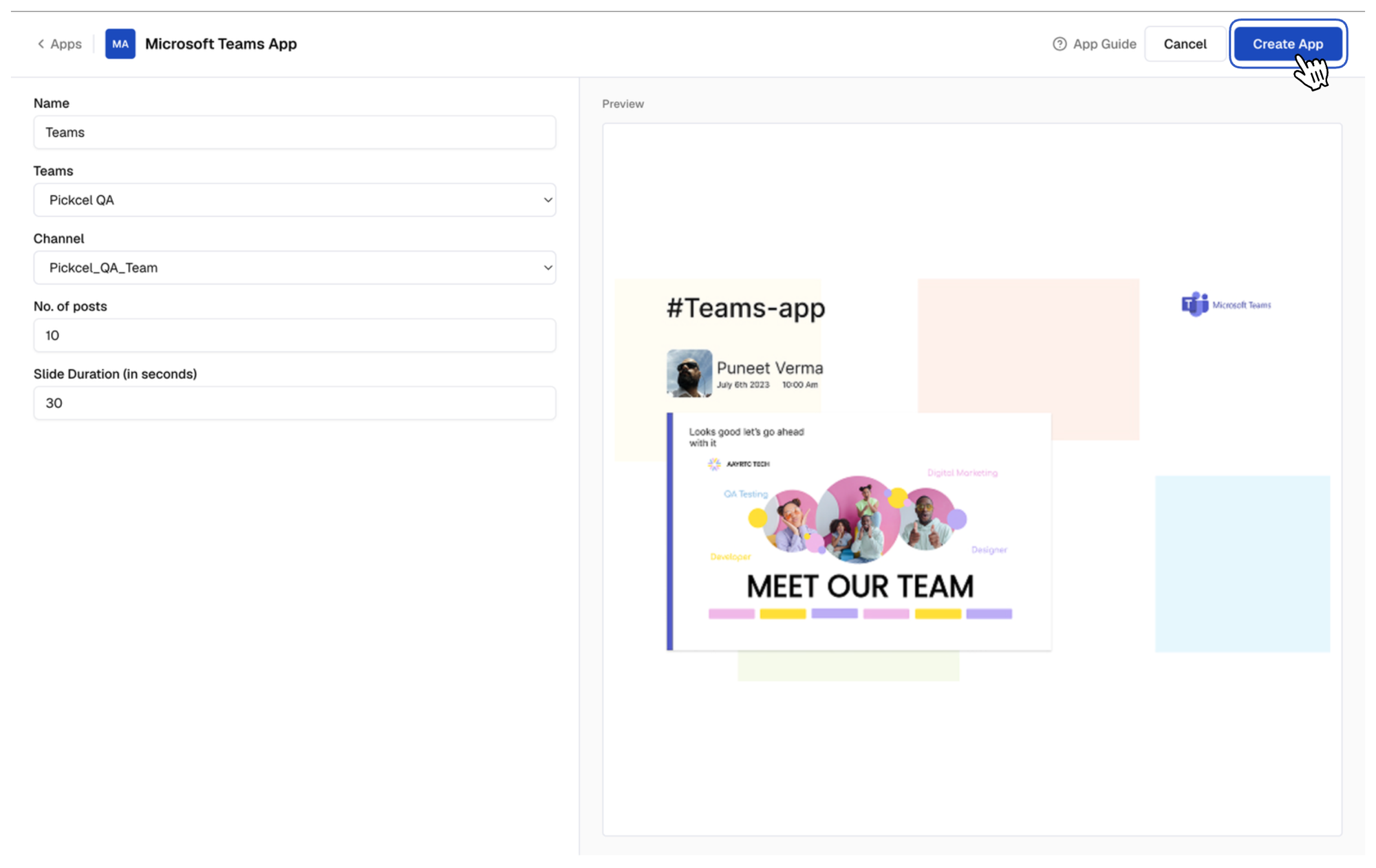 Your Microsoft Teams app is now ready to use.
What’s Next?
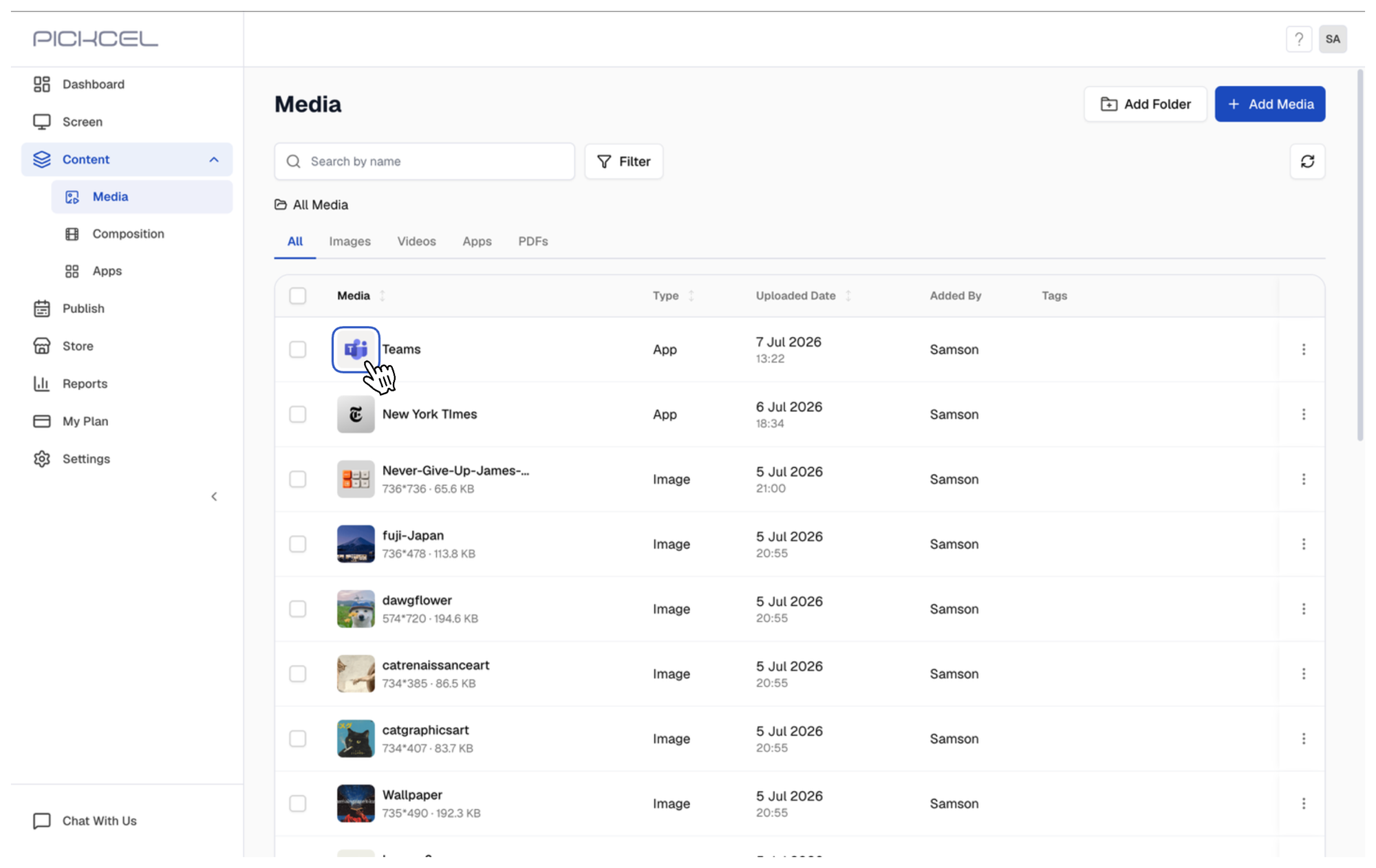
Use the app to create a composition, or preview it first. Click Create Composition right after creating the app to add it to a layout.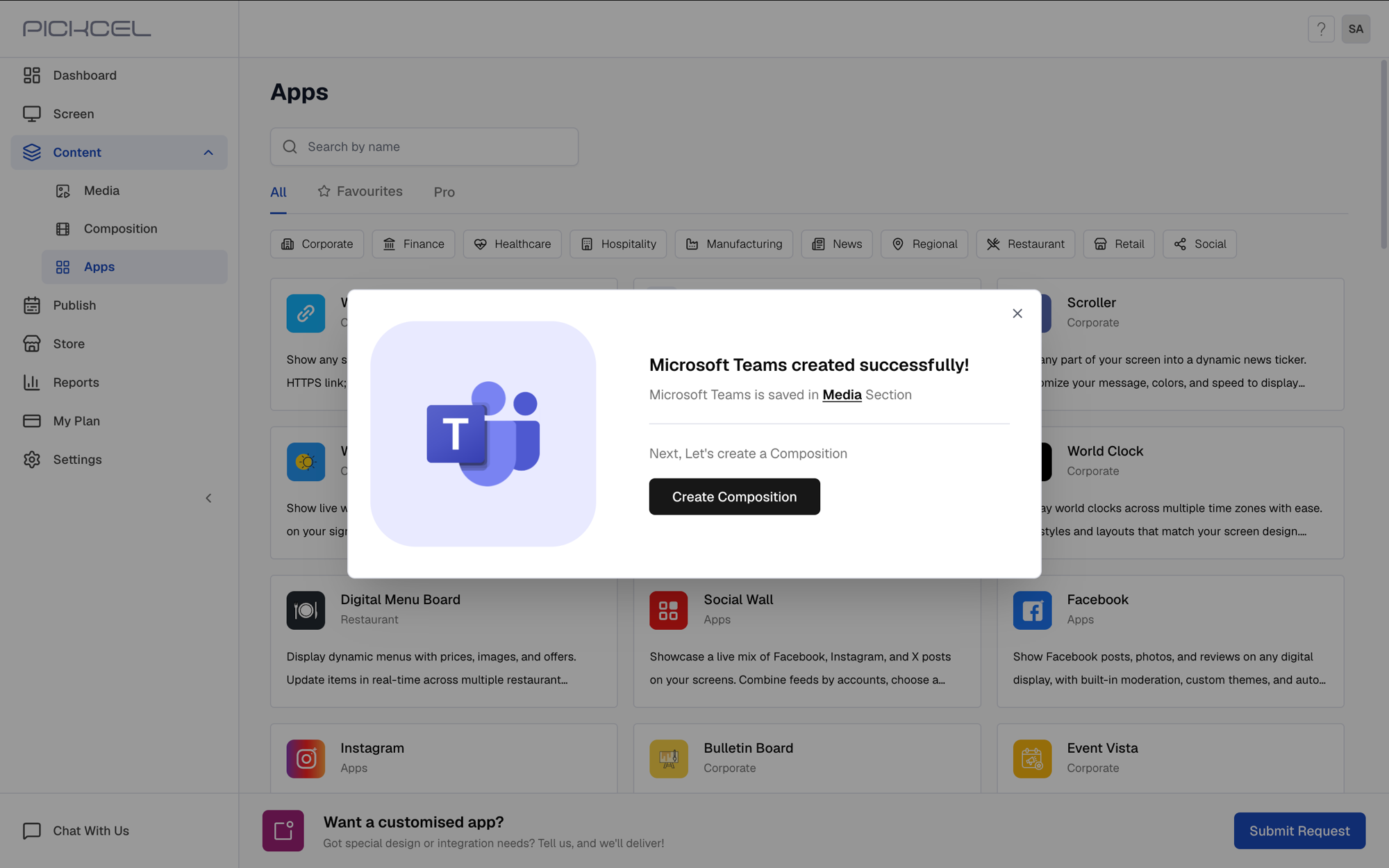
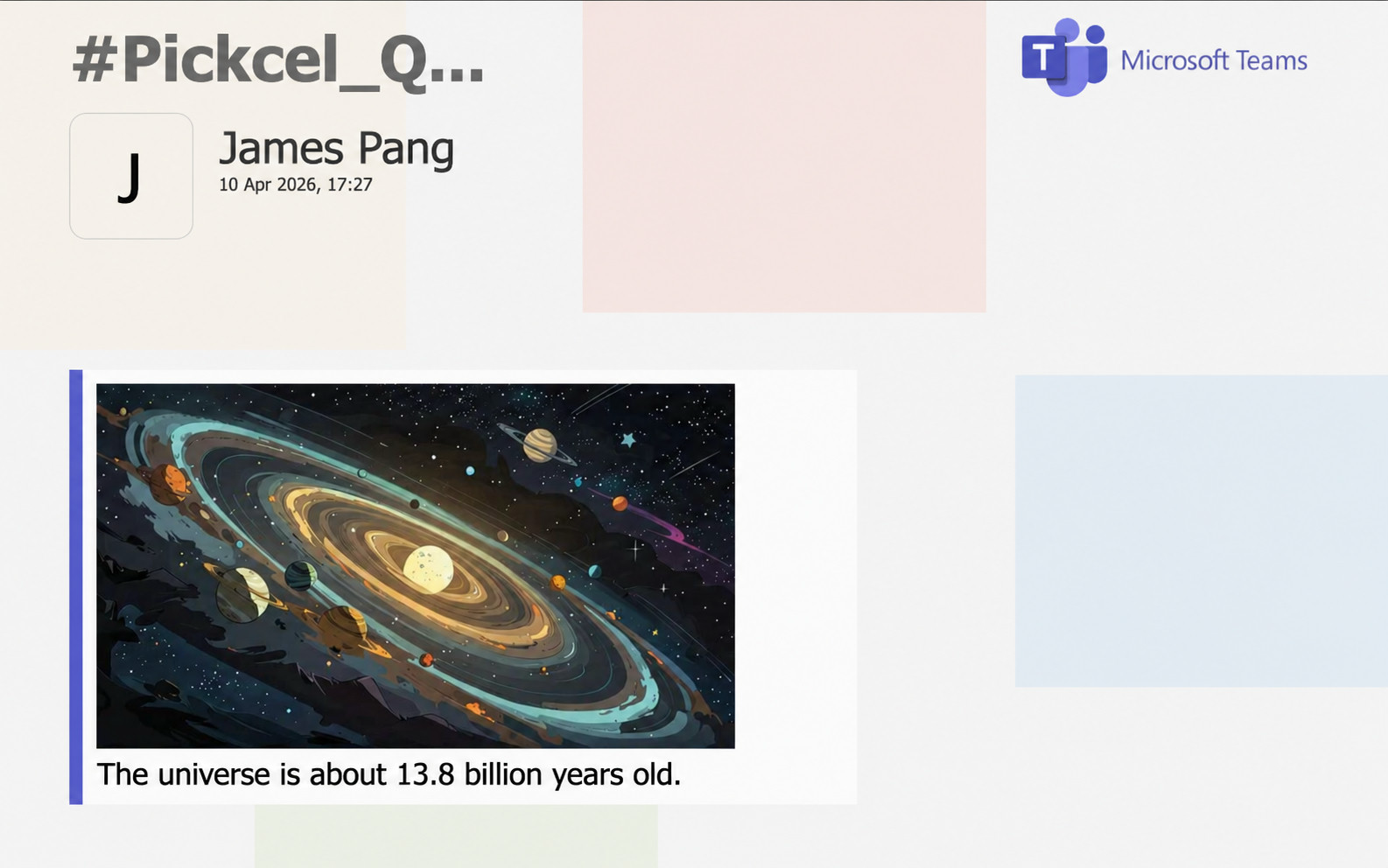
You can even show images alongside the message text.
- Show images and videos from a OneDrive folder with the OneDrive app
- Learn about Compositions
- Learn how to Publish or Schedule Content