

The Pickcel Office Essentials app brings your everyday business documents to life on your digital signage screens. Display your PowerPoint presentations, Word documents, and Excel spreadsheets directly from your local system. The app converts these files into a digital signage-friendly PDF format for consistent, clear display. Whether you prefer an automated presentation flow or interactive user navigation, Office Essentials provides the flexibility you need.
Accessing the Office Essentials App
1
Open the Apps section
Log in to the Pickcel Console and, from the left-hand navigation menu, click Apps.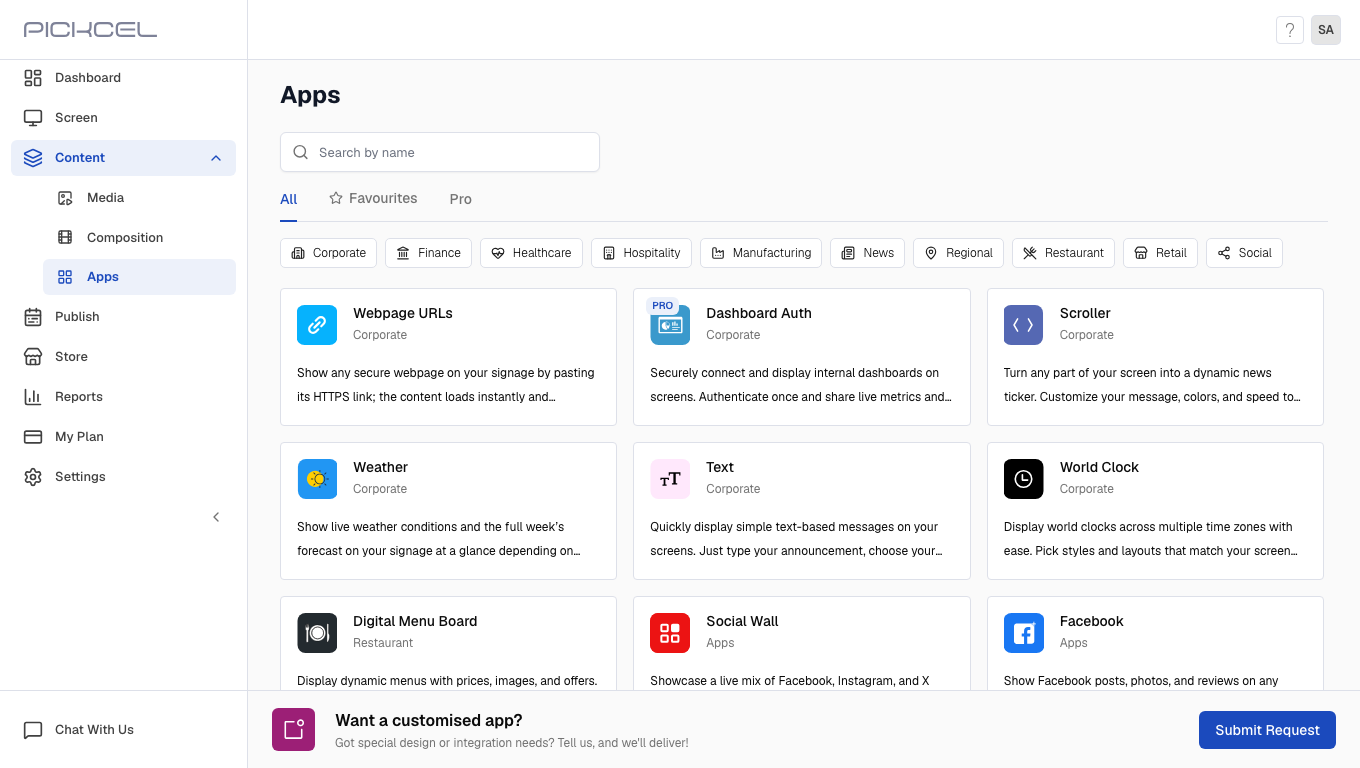
2
Search for Office Essentials
In the search bar, type “Office Essentials” (listed as MS Office, Word, PPTX in the App Store) and select the app from the results.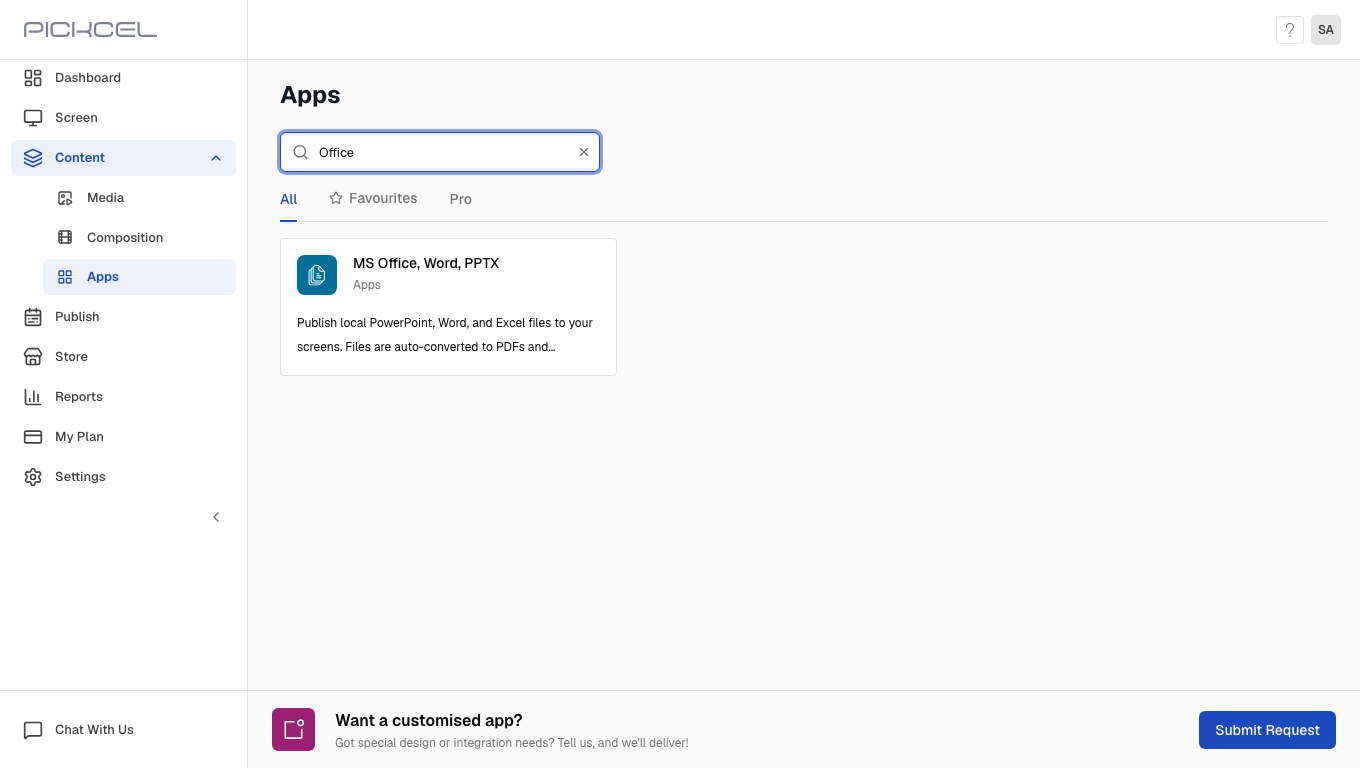
Steps to Create Your Office Essentials App Instance
1
Upload your document
Select the file you wish to display.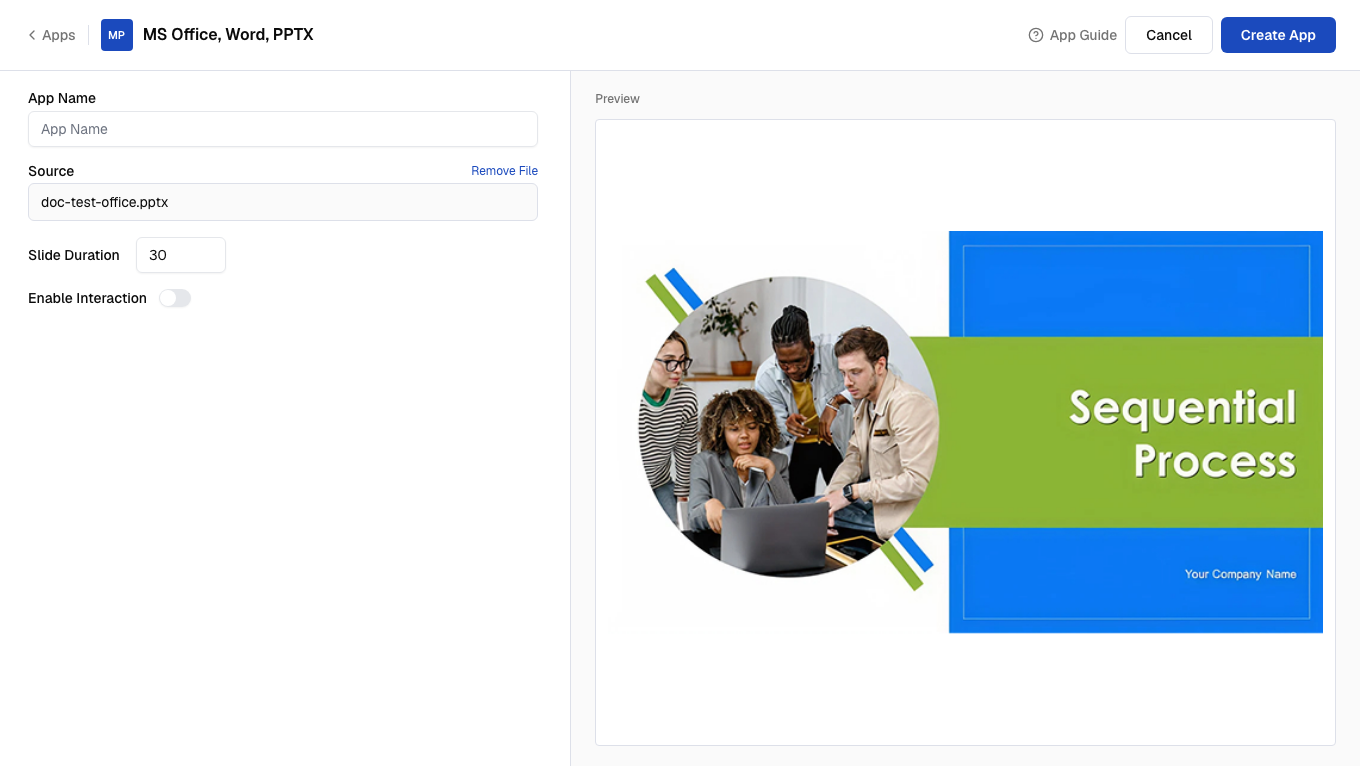
- Click the Choose File button, or drag and drop your file into the designated area.
Supported formats: Ensure your document is in
.pptx (PowerPoint), .docx (Word), or .xlsx (Excel) format.2
Configure app settings
Once your file is uploaded, set up how your content will appear and behave on screen.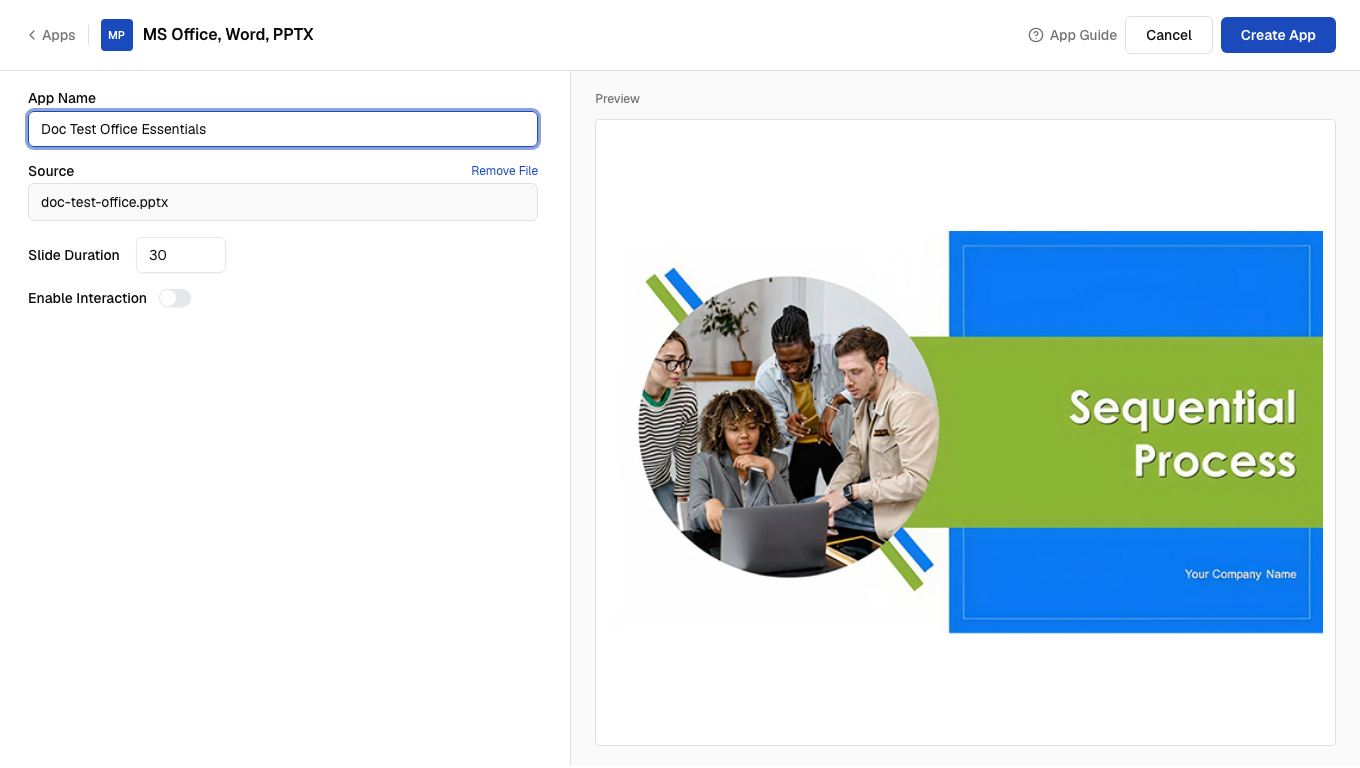
- App Name: Provide a clear, descriptive title for your app instance (e.g., “Monthly Sales Report”, “Company Presentation”, “Product Catalog”).
- Source: This field automatically displays the name of the file you uploaded.
- Slides Duration: To transition automatically, enter the duration (in seconds) for which each slide or page is displayed before moving to the next.
- Enable Interaction: Toggle this ON to let viewers manually navigate through the slides using on-screen arrows. If OFF, the app relies solely on Slides Duration for automatic transitions.
Understanding slide behavior (interaction options)
The Enable Interaction setting offers flexible control over your presentation:- If Interaction = No: Your document plays automatically, with each slide or page advancing after the time specified in Slides Duration. Ideal for continuous, unattended playback in public areas.
- If Interaction = Yes: Viewers can use on-screen arrows to navigate forward or backward through your document. To keep content flowing, an idle slide (no user interaction) auto-advances after the Slides Duration, so the presentation never gets stuck on a single slide. Perfect for interactive kiosks or touch-enabled screens.
3
Create the App
After configuring all your settings, click Create App to save your setup. Your Office Essentials app is now ready to be added to a playlist and scheduled on your screens.
We are working to enhance the Office Essentials app. Future updates will support the display of animations and transitions present in your original PowerPoint files.
What’s Next?
Your Office Essentials App is now ready. For further reading:
- To play images and videos from a OneDrive folder: Use the OneDrive app
- To create a multi-zone layout: Learn about Compositions
- To send it to your screens: Learn how to Publish or Schedule Content