

Using Microsoft 365? See Meetings Calendar for Outlook.
What the screen shows
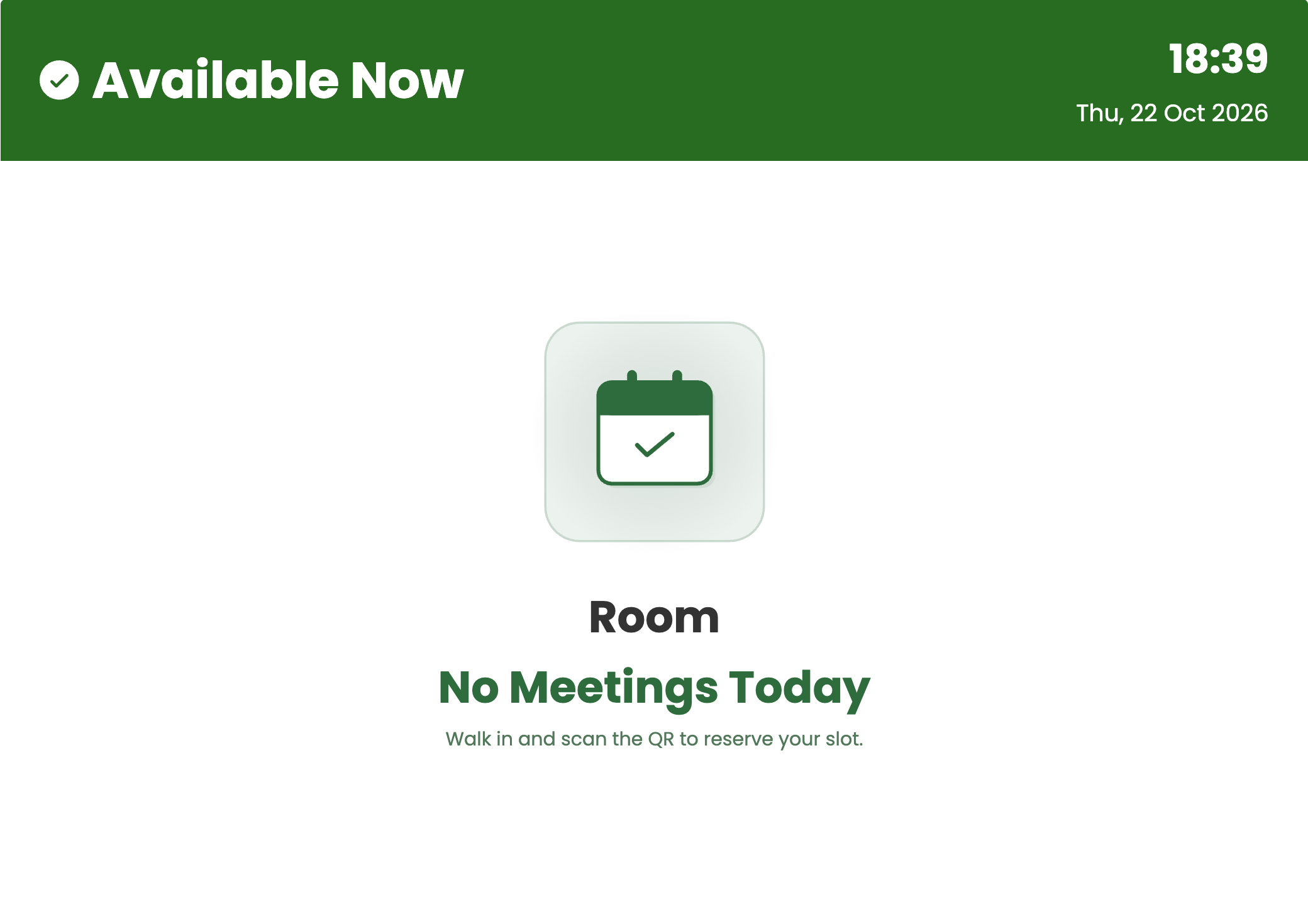
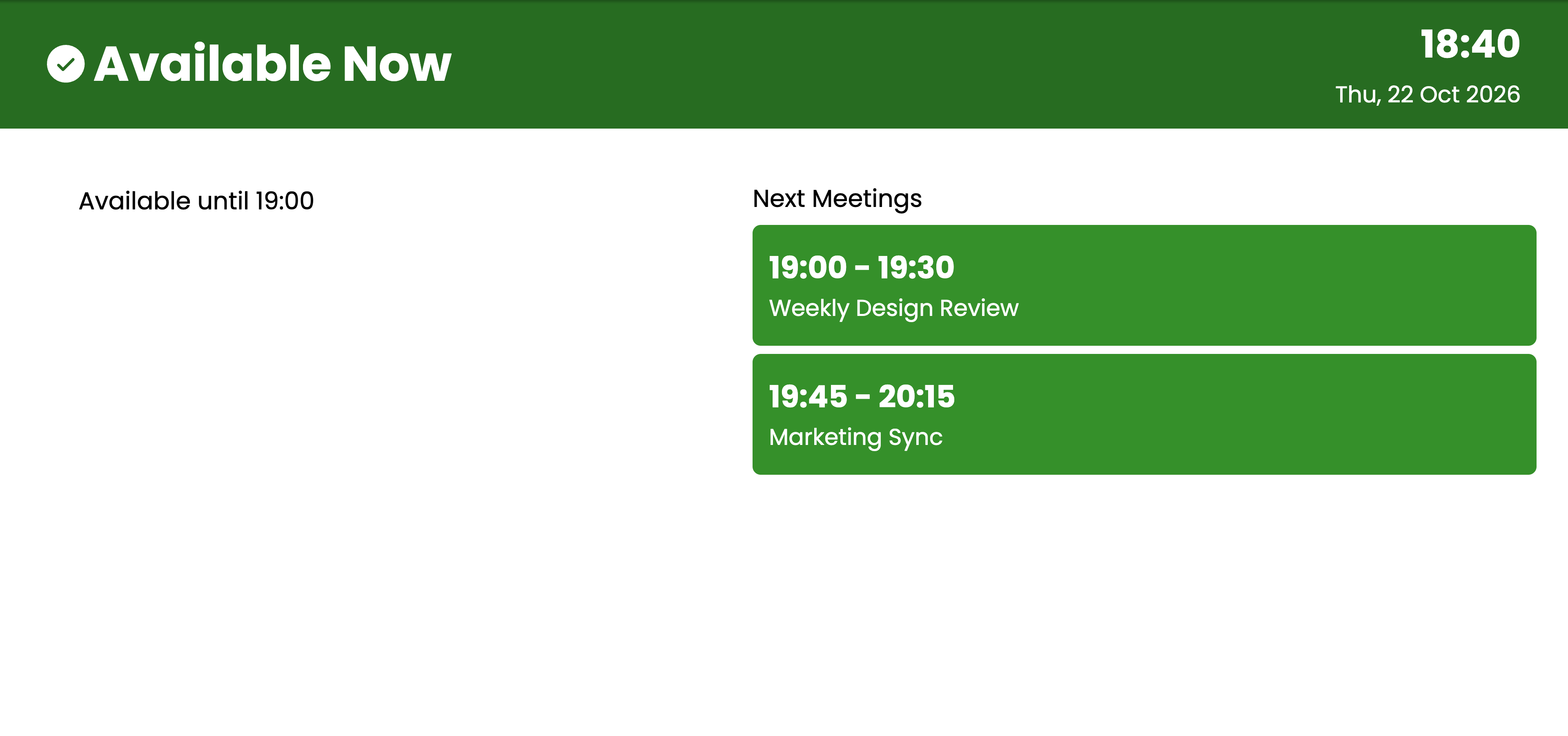
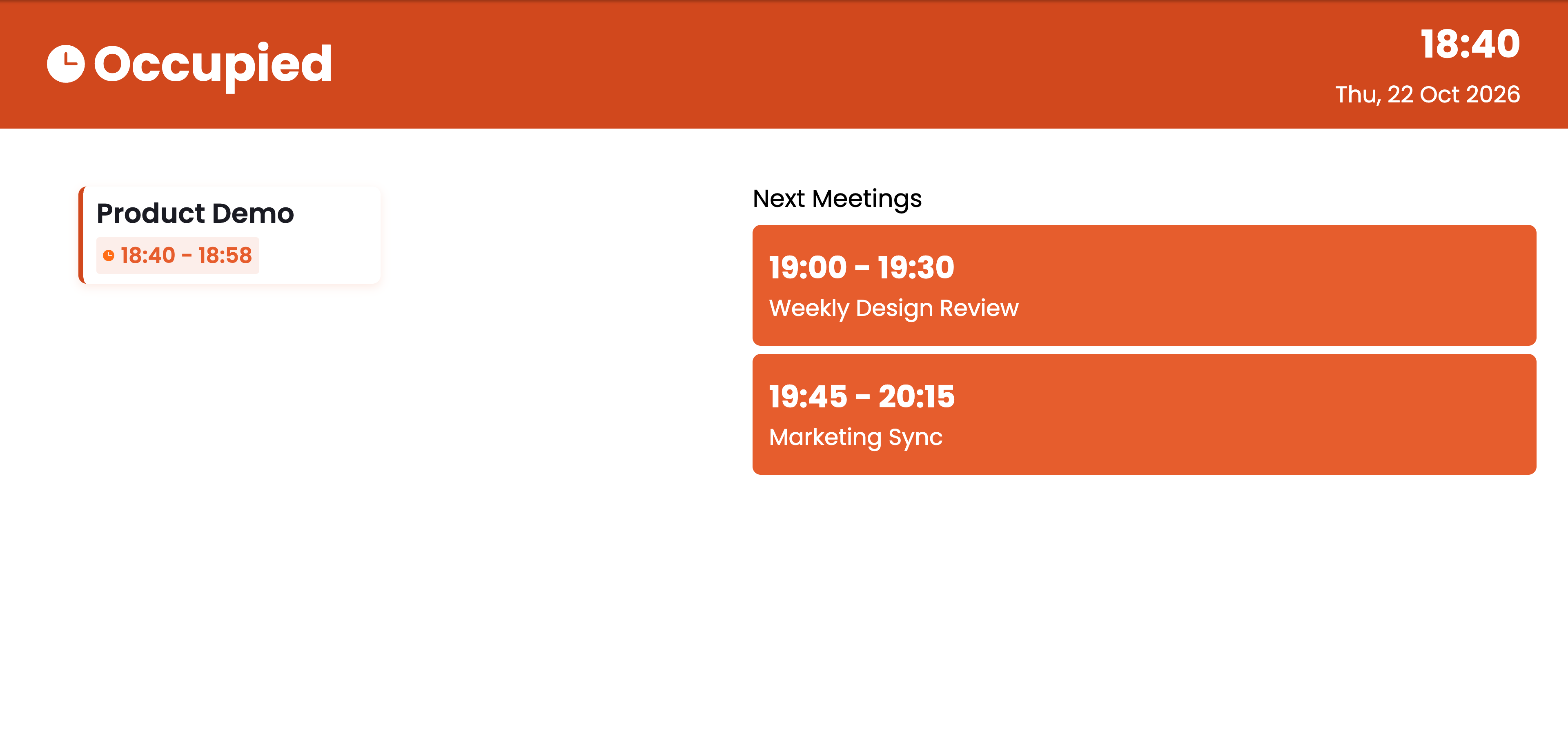
The screen switches between three states on its own, based on the room’s calendar.- Available, no meetings
- Available, meetings later
- Occupied
- Green Available Now banner with the current time and date
- No Meetings Today when nothing else is booked today
Before you begin
- A Google account that can see the room’s calendar, usually a Google Workspace account in your organization.
- The room’s calendar added to that account’s Google Calendar. Pickcel lists only the calendars in the connected account’s calendar list. See Add the room to your Google Calendar.
- Meetings booked with the room. A meeting appears on the screen only when the room was added to it and accepted it.
Add the room to your Google Calendar
Meeting rooms in Google Workspace are resources, created by your Workspace admin in the Google Admin console under Directory > Buildings and resources. To make a room selectable in Pickcel, add it to the Google Calendar of the account you’ll connect:1
Open Browse resources
In Google Calendar, click + next to Other calendars and choose Browse resources.
2
Select the room
Tick the room you want to show. It’s added under Other calendars right away.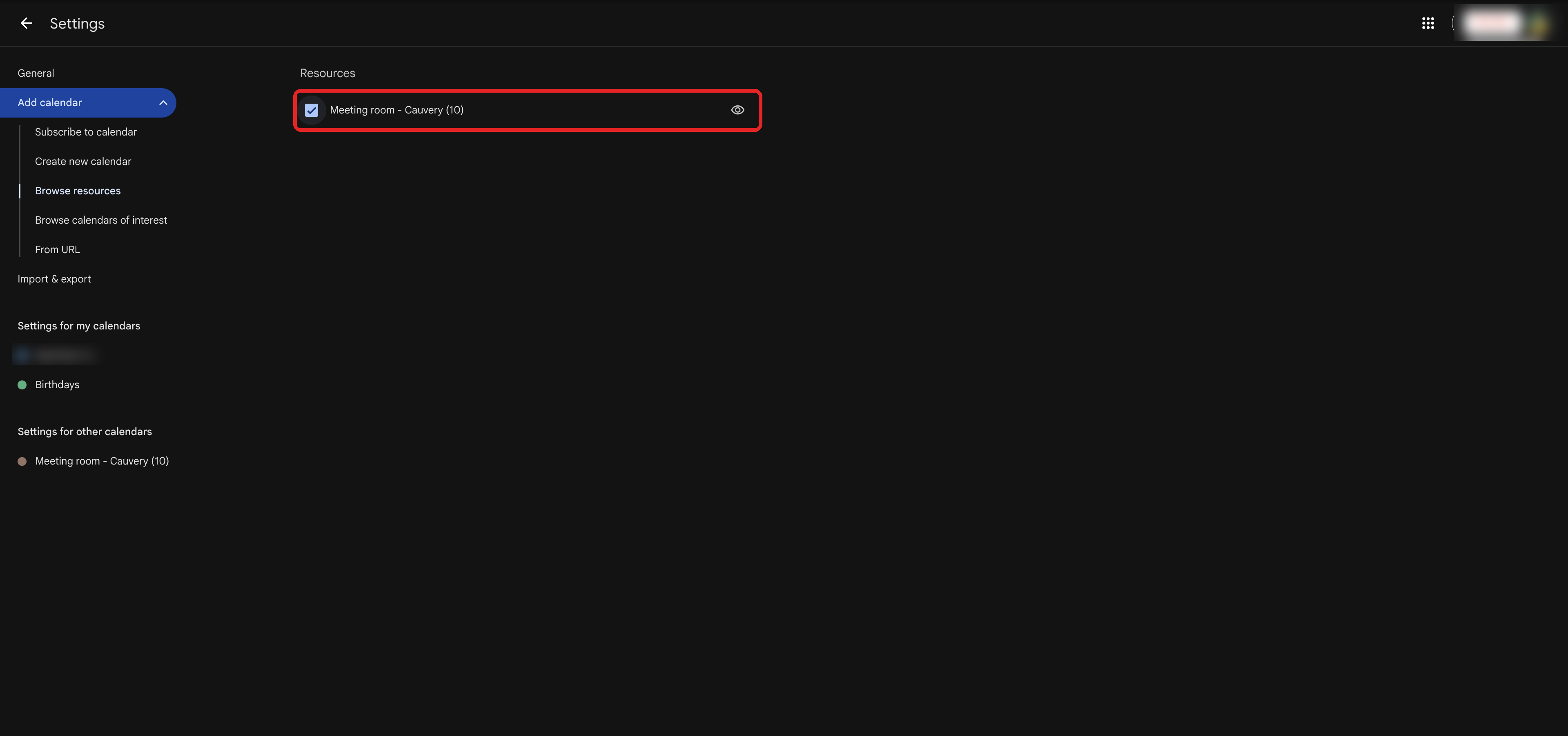
Create the Meetings Calendar app
1
Open Apps and search for Meetings Calendar
From the left sidebar of the Pickcel console, go to Content > Apps and type Meetings Calendar in the search box.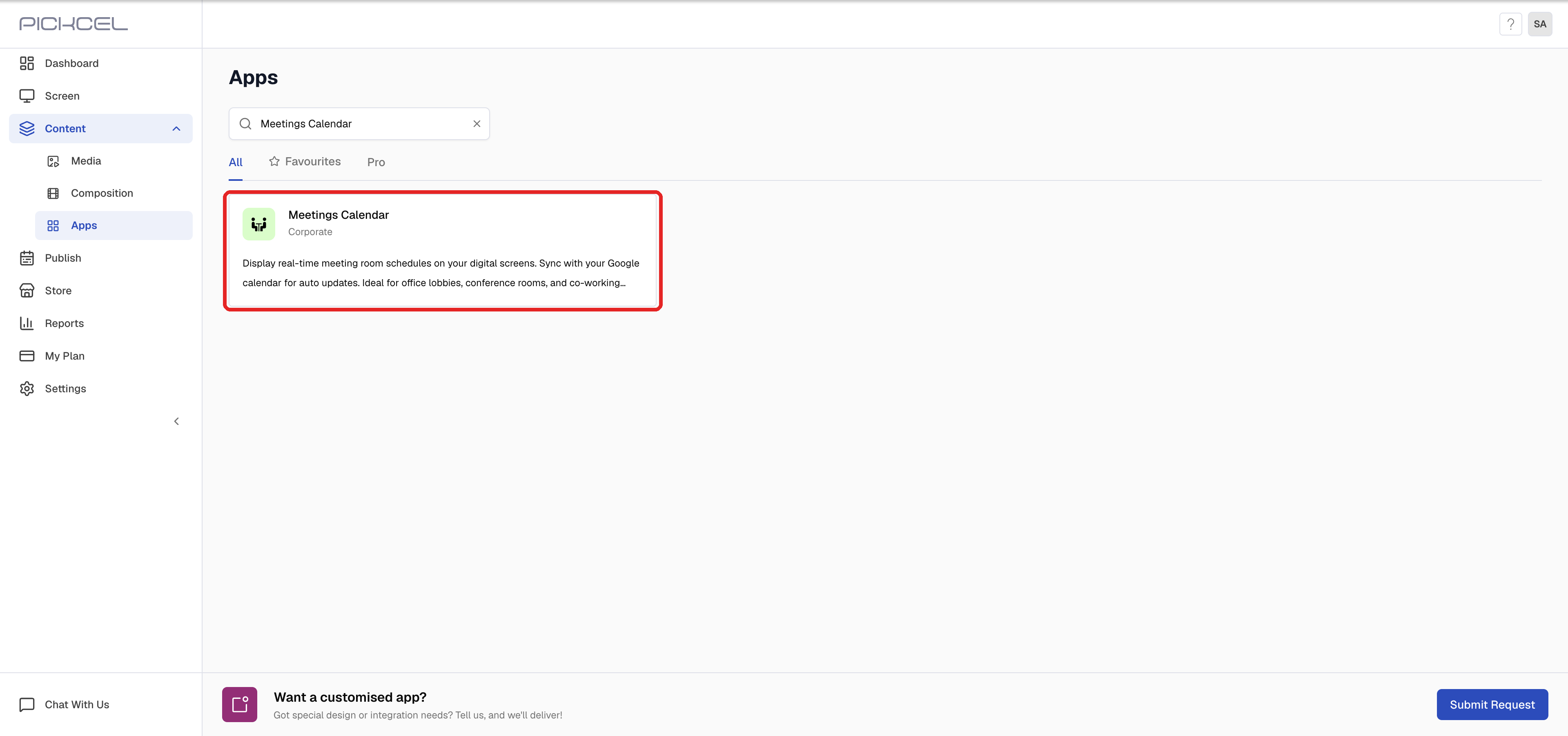
2
Open the app and click Create App
Click Meetings Calendar to open its details, then click Create App.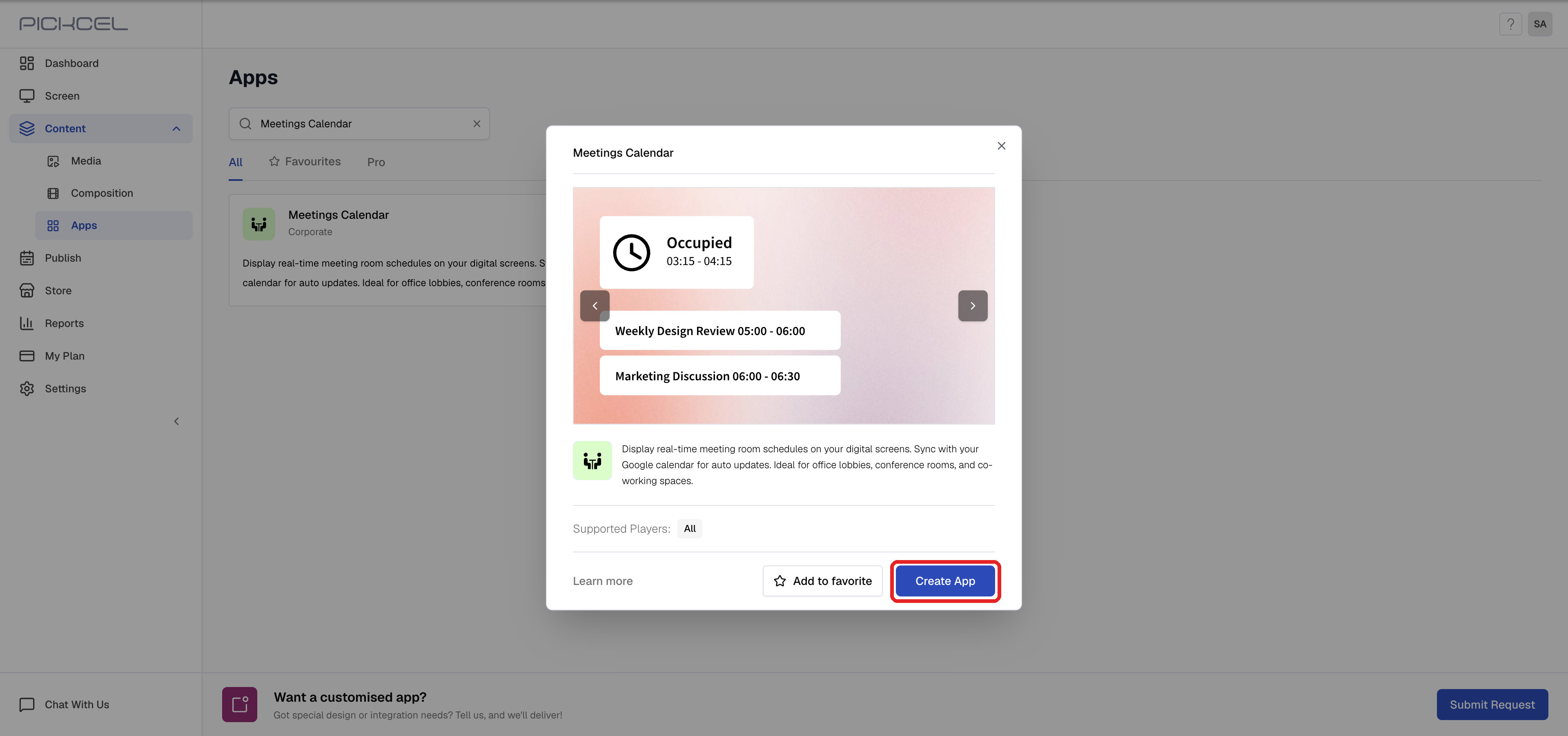
3
Connect with Google
Click Connect with Google, choose the Google account that has the room’s calendar, and allow Pickcel to view your calendars and events (read-only).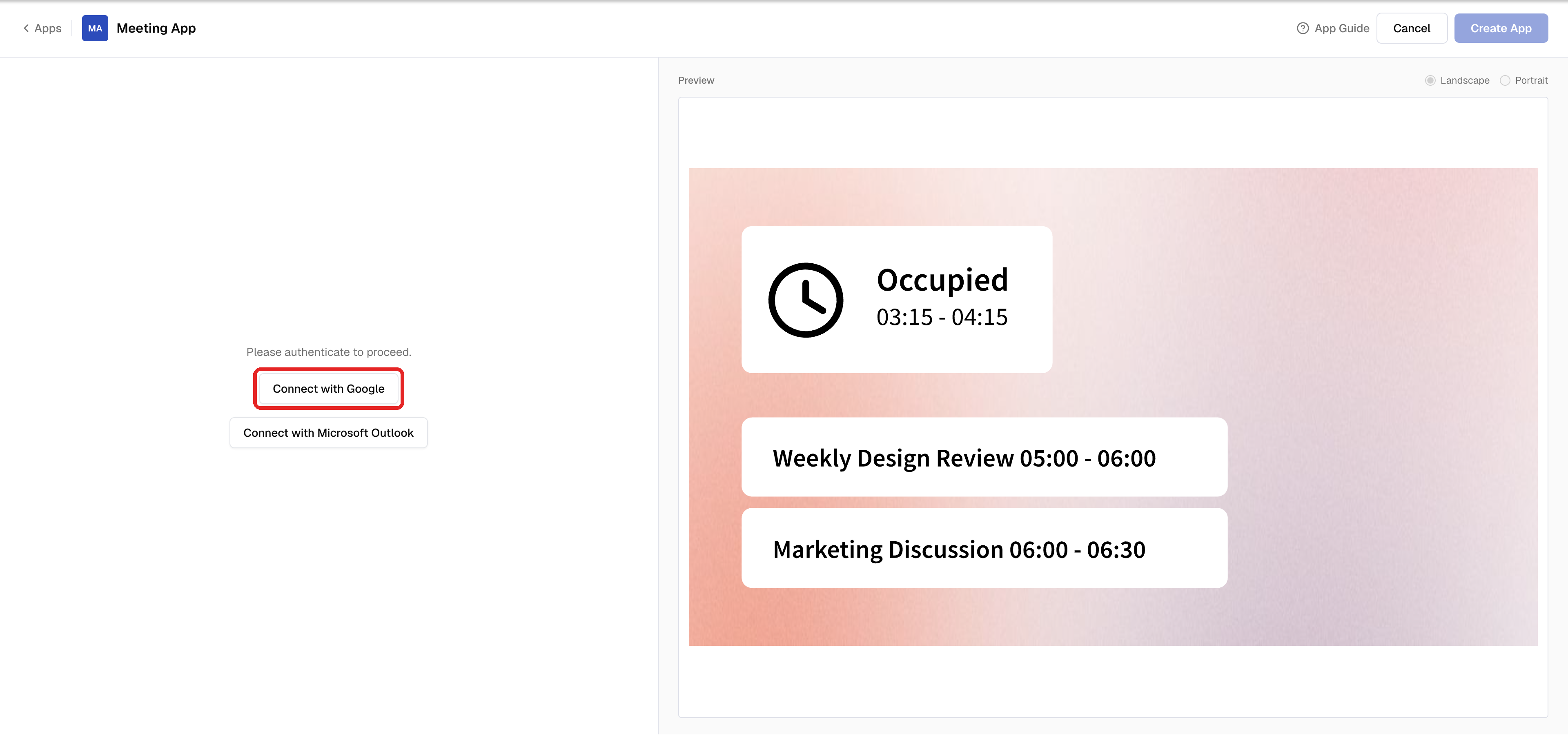
4
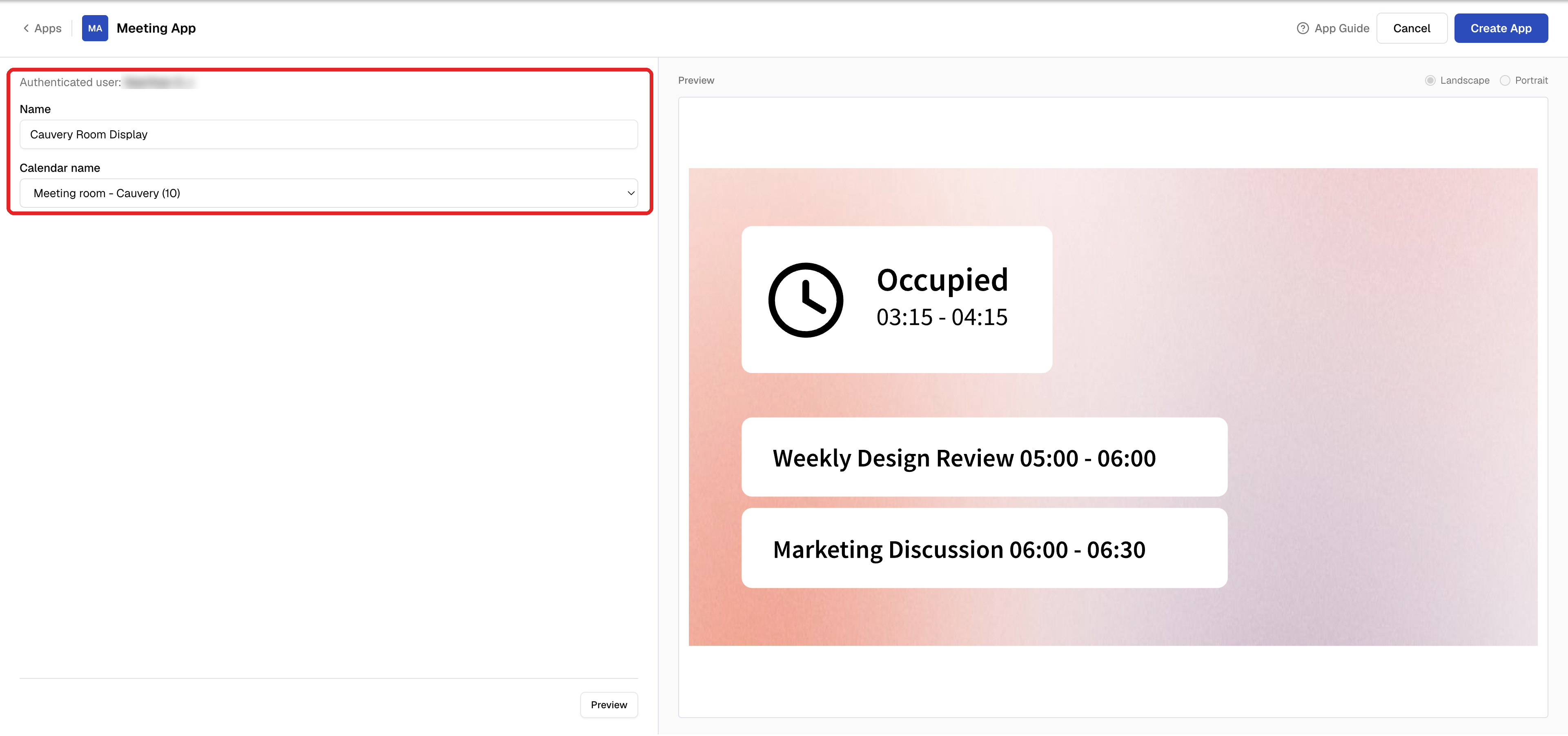
Name the app and choose the room
- Name: how the app appears in your Media library, for example Cauvery Room Display.
- Calendar name: the room’s calendar. Your own calendar is listed too.
5
Preview the room
Click Preview at the bottom. The Live preview shows the room’s calendar right now. Switch between Landscape and Portrait to match your screen.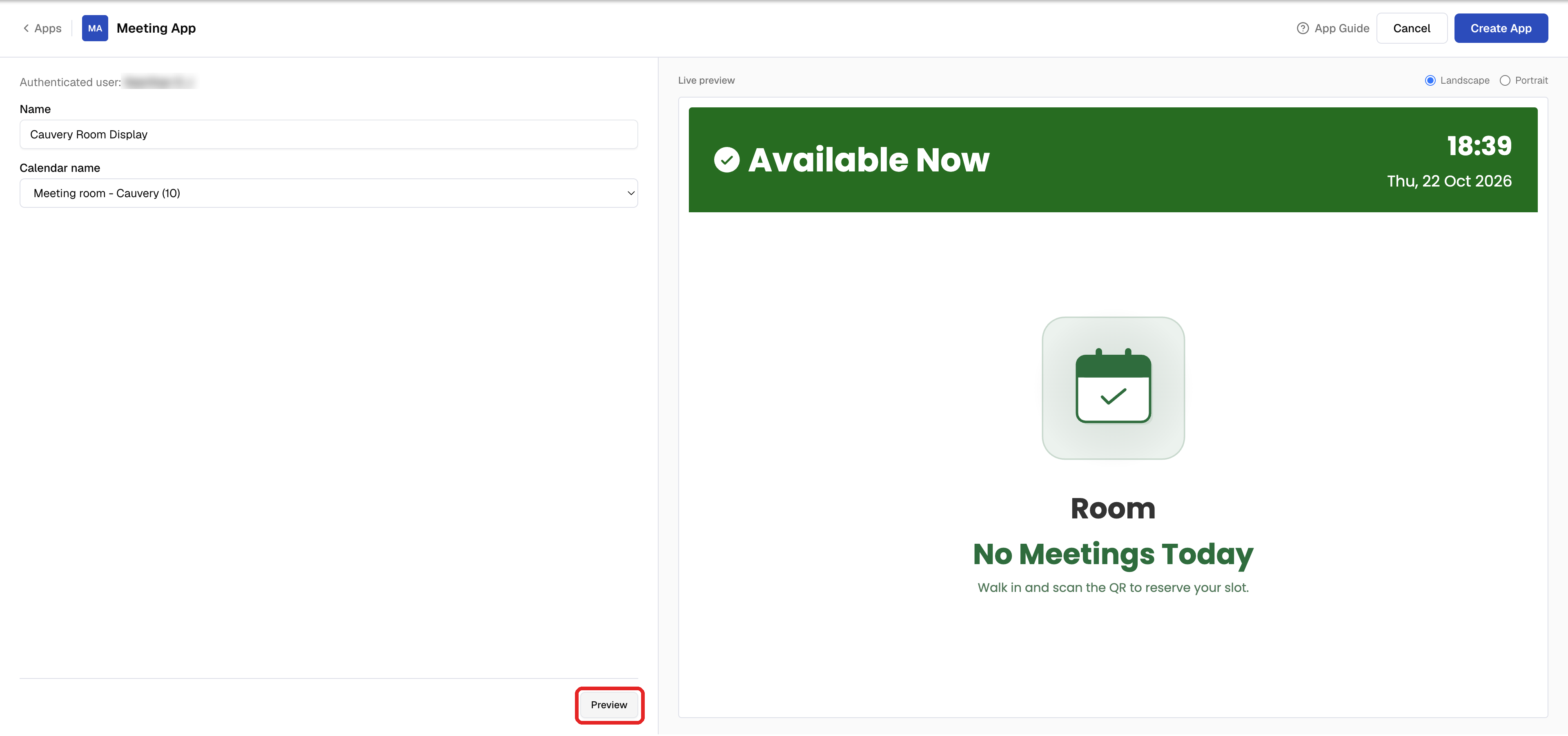
6
Create the app
Click Create App. Pickcel saves the app to your Media library.
Publish to your screen
Add the app from your Media library to a composition, then schedule and publish it to the screen outside the room. See Create a Composition and Publish Content.Troubleshooting
My room isn't in the Calendar name list
My room isn't in the Calendar name list
Add the room to the connected account’s Google Calendar with Browse resources (see Add the room to your Google Calendar), then click Connect with Google again. If the room isn’t under Browse resources, ask your Workspace admin to create it or share it with you.
A meeting isn't showing on the screen
A meeting isn't showing on the screen
Open the meeting in Google Calendar and check that the room was added and accepted it. Meetings that don’t include the room don’t appear.