

The Pickcel MCP server is available on the Business plan. If APIs doesn’t appear under Settings, your account isn’t on the Business plan yet.
What you can do
Once connected, an agent working on your behalf can:- Upload a new image or video straight into your media library from a local file
- Find your screens, media, layouts, compositions, templates, and schedules
- Create a layout, or reuse an existing one, and build a composition from your media
- Push an immediate Quickplay to one or more screens
- Create recurring daily schedules and assign them to screens
- Build advanced schedules that play only on specific dates
- Generate a signage design (a poster, greeting, or promo) and hand you an editor link to review it
It cannot delete anything yet. Deleting is planned for an upcoming release, so don’t rely on it for anything destructive today.
Set up the Pickcel MCP server
1
Generate the API key or token
In the Pickcel console, open Settings → APIs, then click Generate Token under Authentication Token.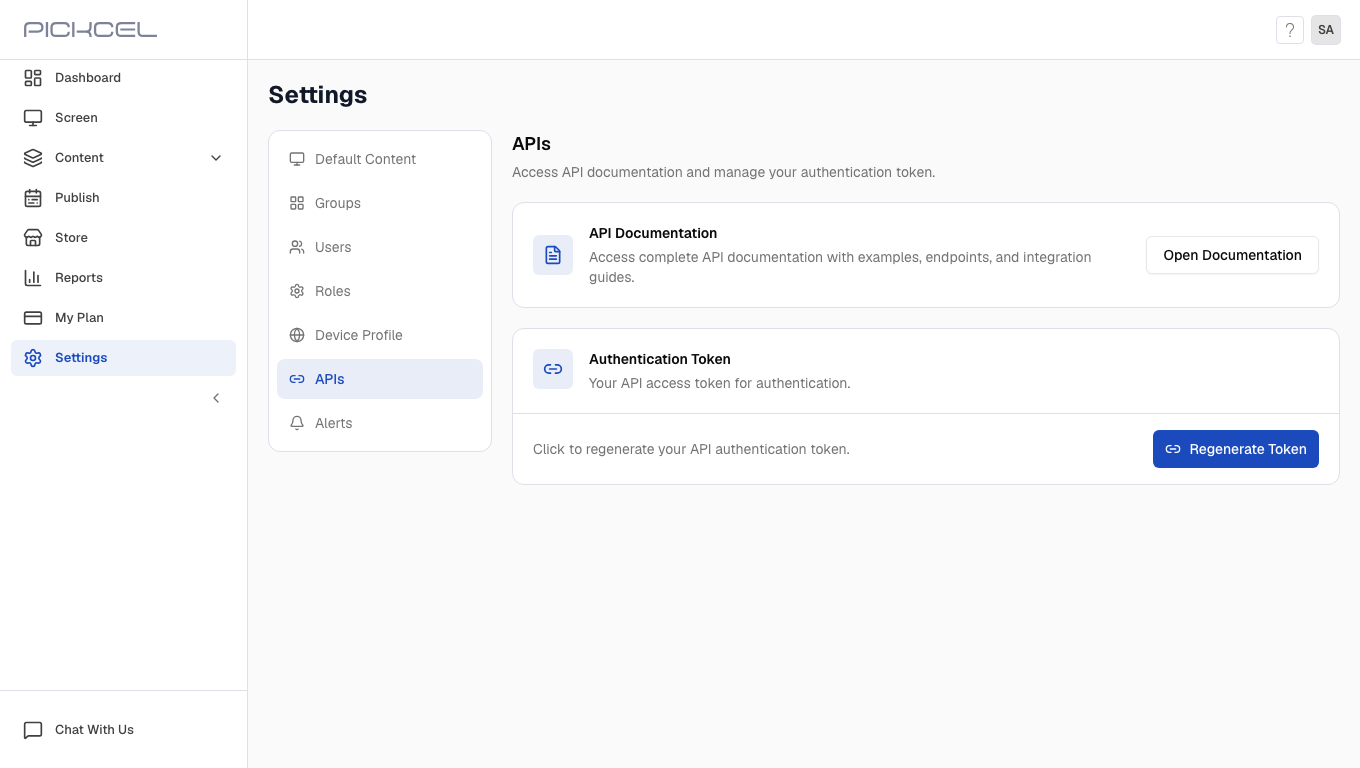 Copy it immediately. You’ll need it for the MCP connection command below, and once you close the page it’s shown only in masked form.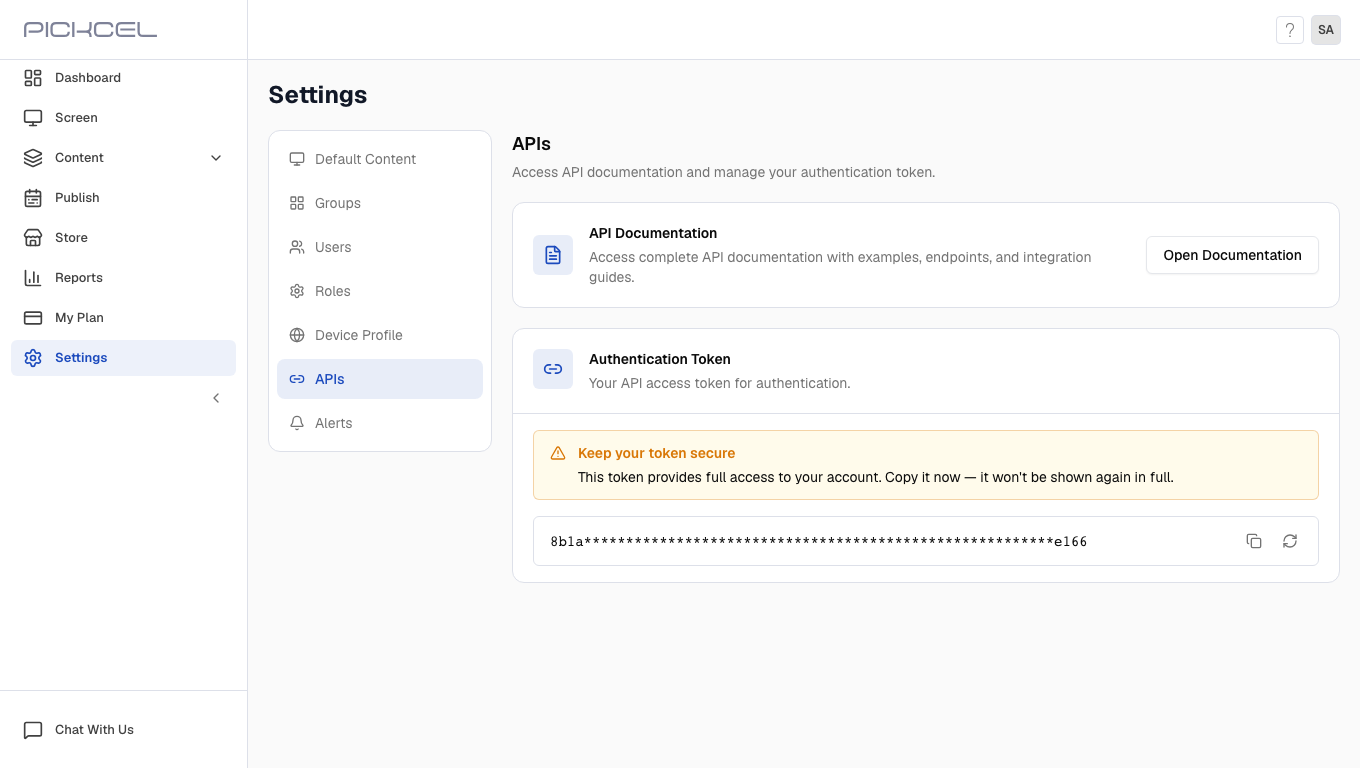
2
Add Pickcel to your AI app
- ChatGPT
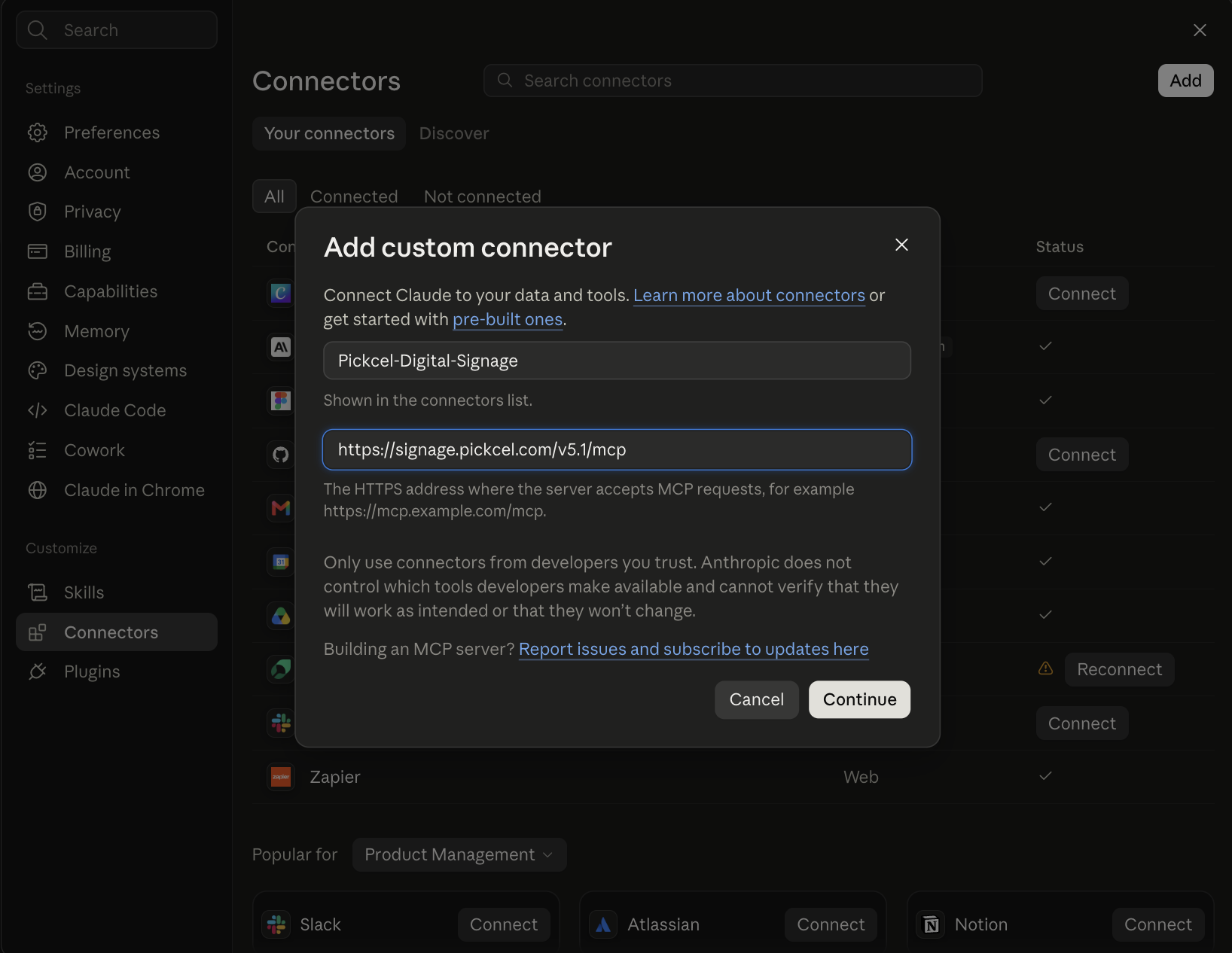
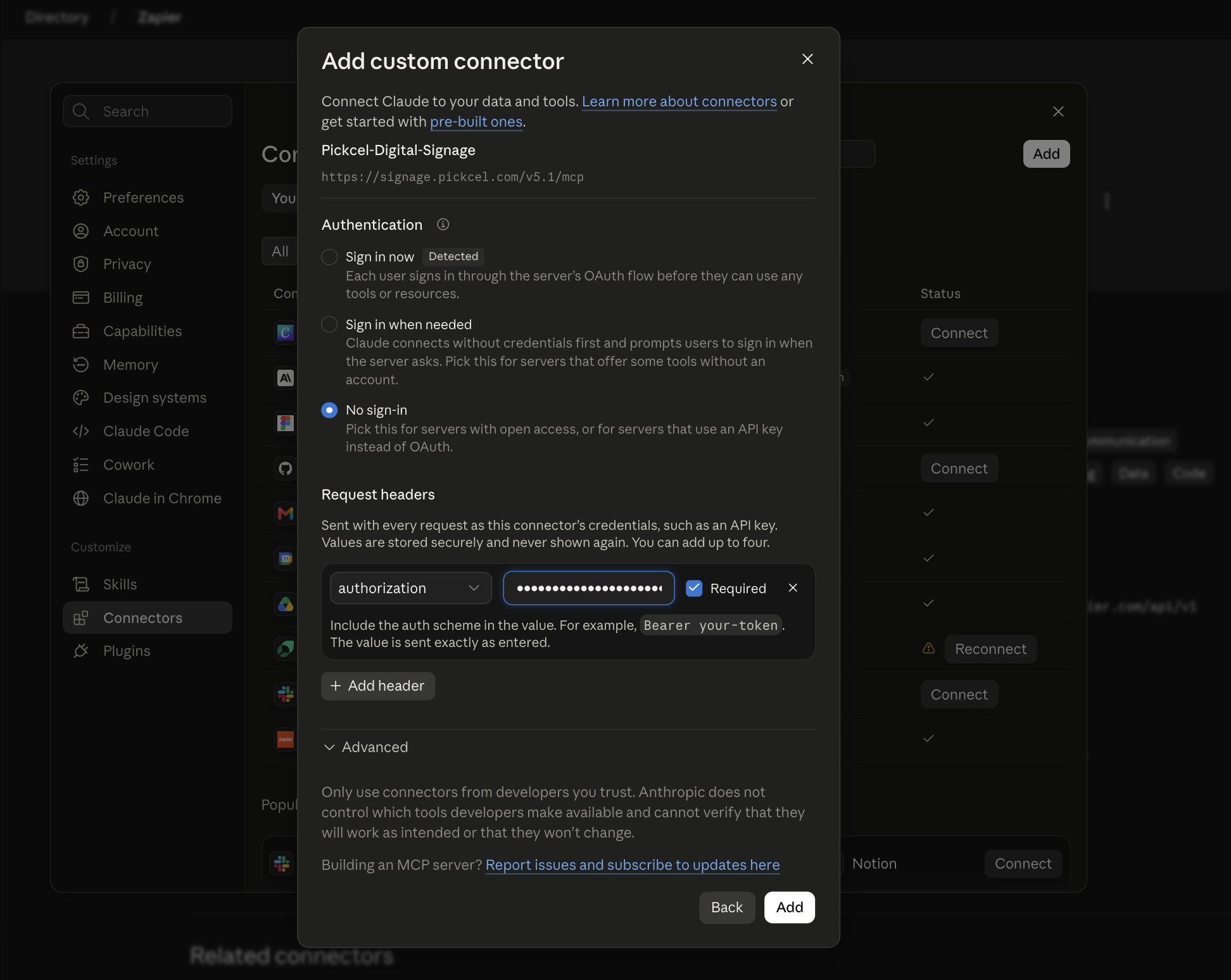
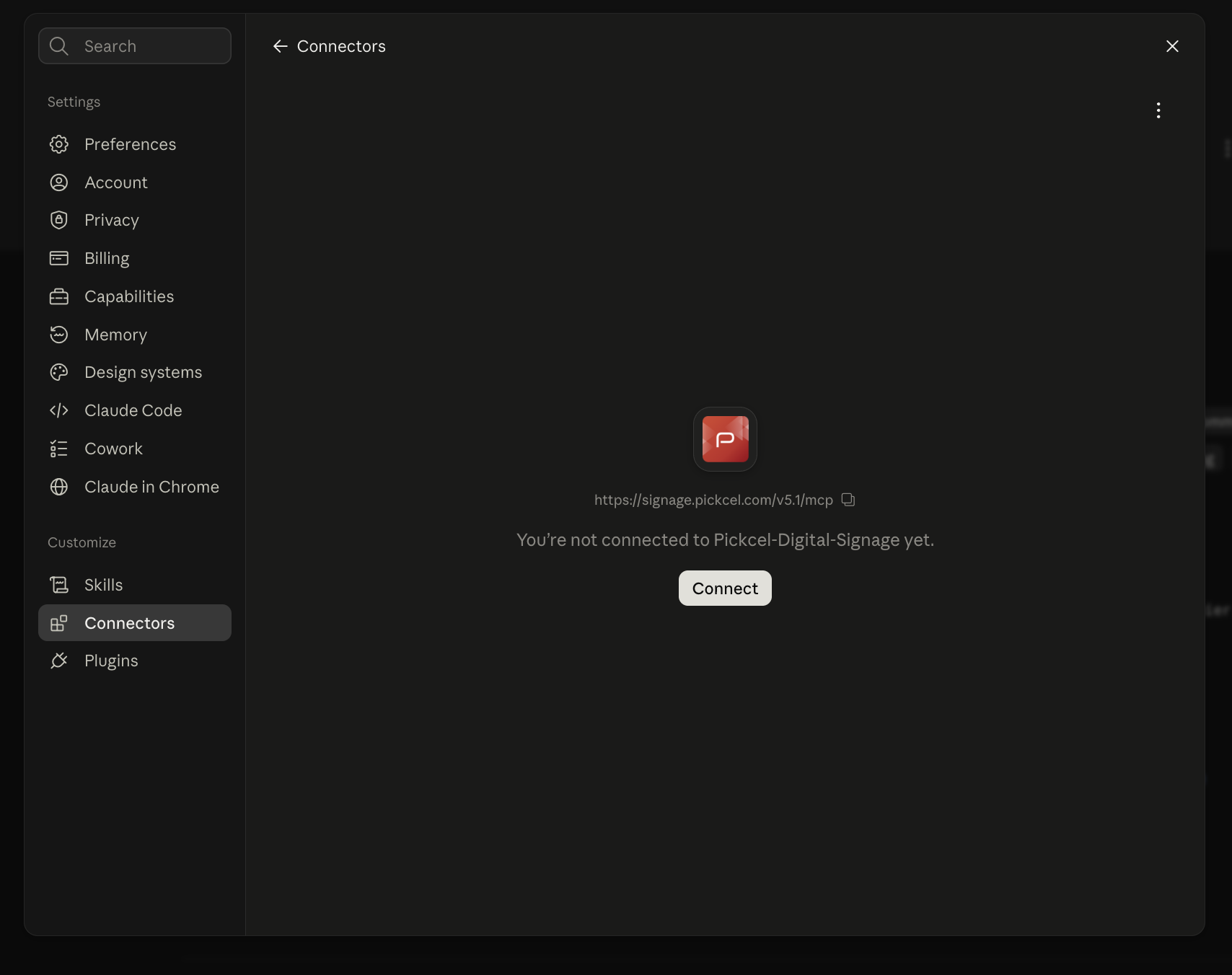
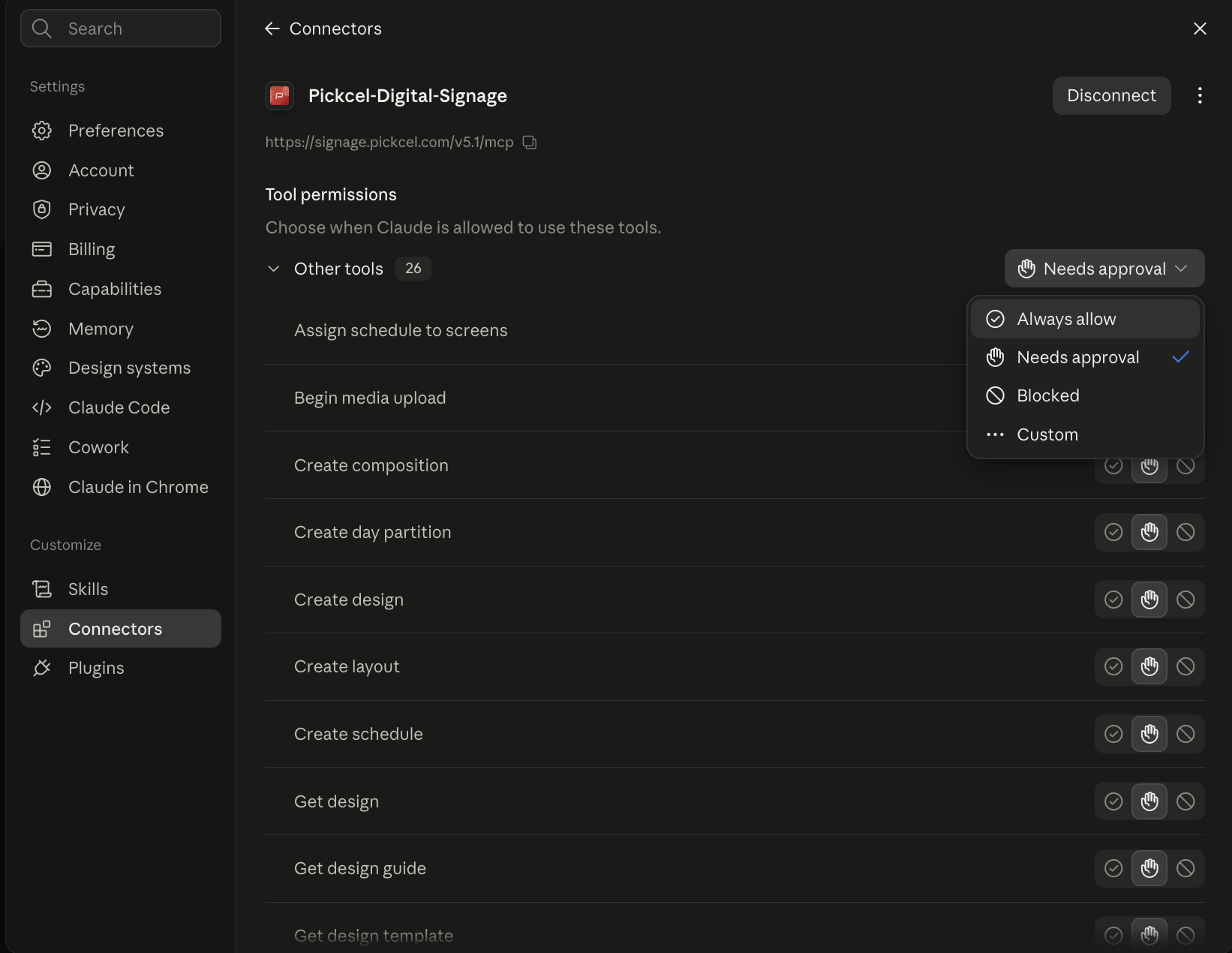
- Claude.ai app
- Claude Code (CLI)
- Codex CLI
In the ChatGPT app, open Settings → Plugins, select the MCPs tab, and click Add → Connect to a custom MCP.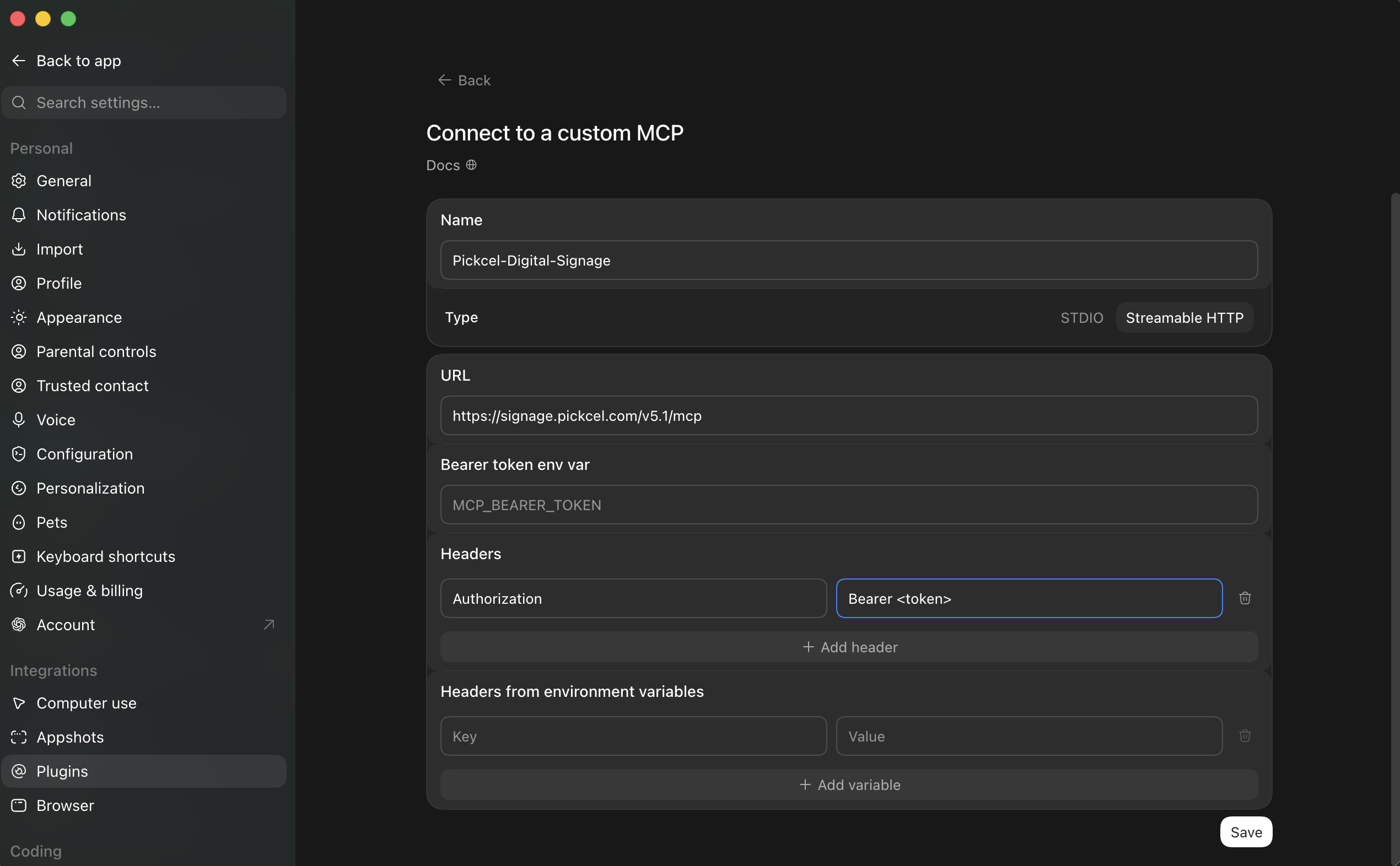
- Name:
Pickcel-Digital-Signage - Type: Streamable HTTP
- URL:
https://signage.pickcel.com/v5.1/mcp - Under Headers, add:
- Key:
Authorization - Value:
Bearer <token>
- Key:
- Click Save.
3
Verify the connection
- ChatGPT
- Claude.ai app
- Claude Code (CLI)
- Codex CLI
In Settings → Plugins → MCPs, 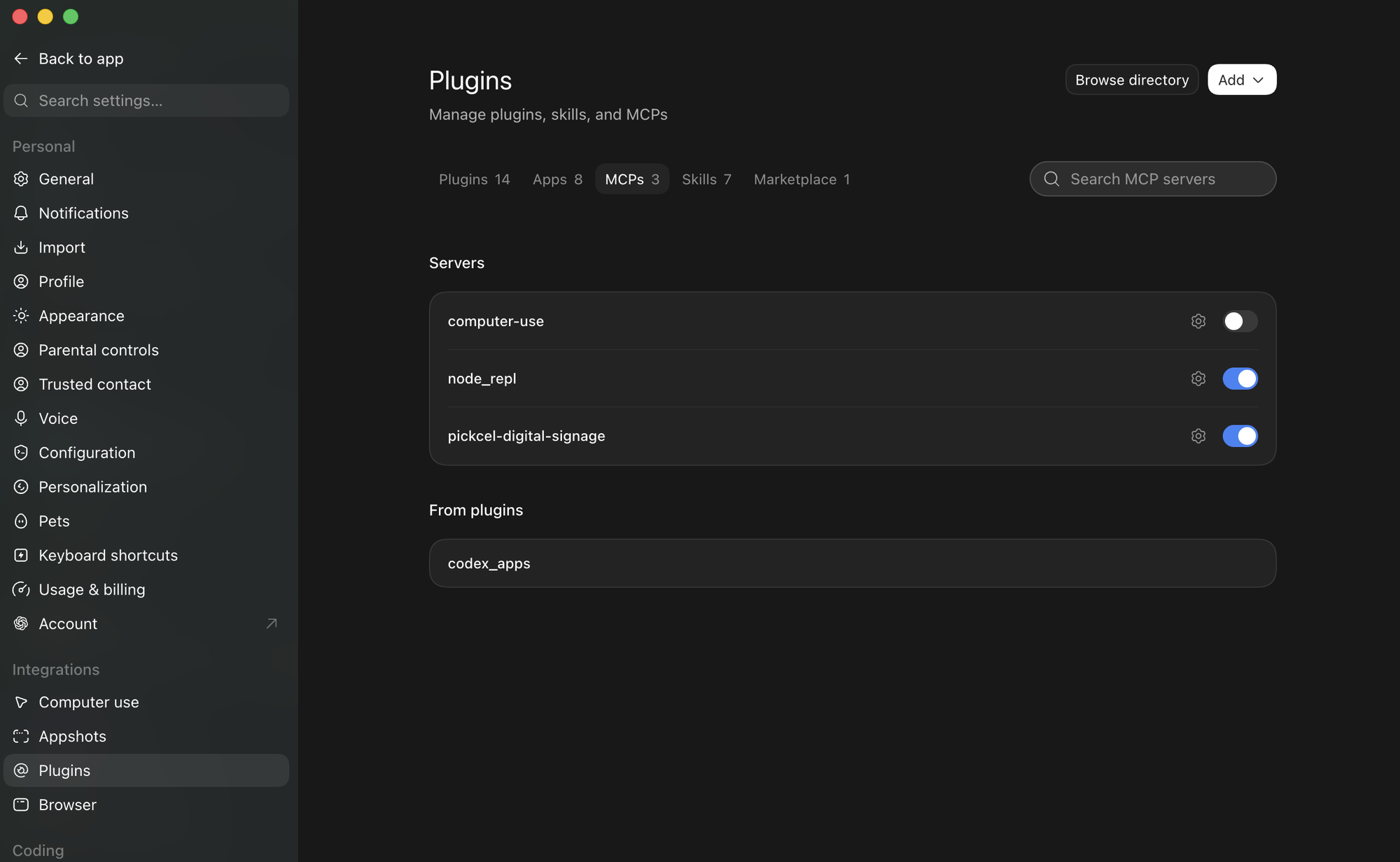
pickcel-digital-signage shows under Servers with its toggle on.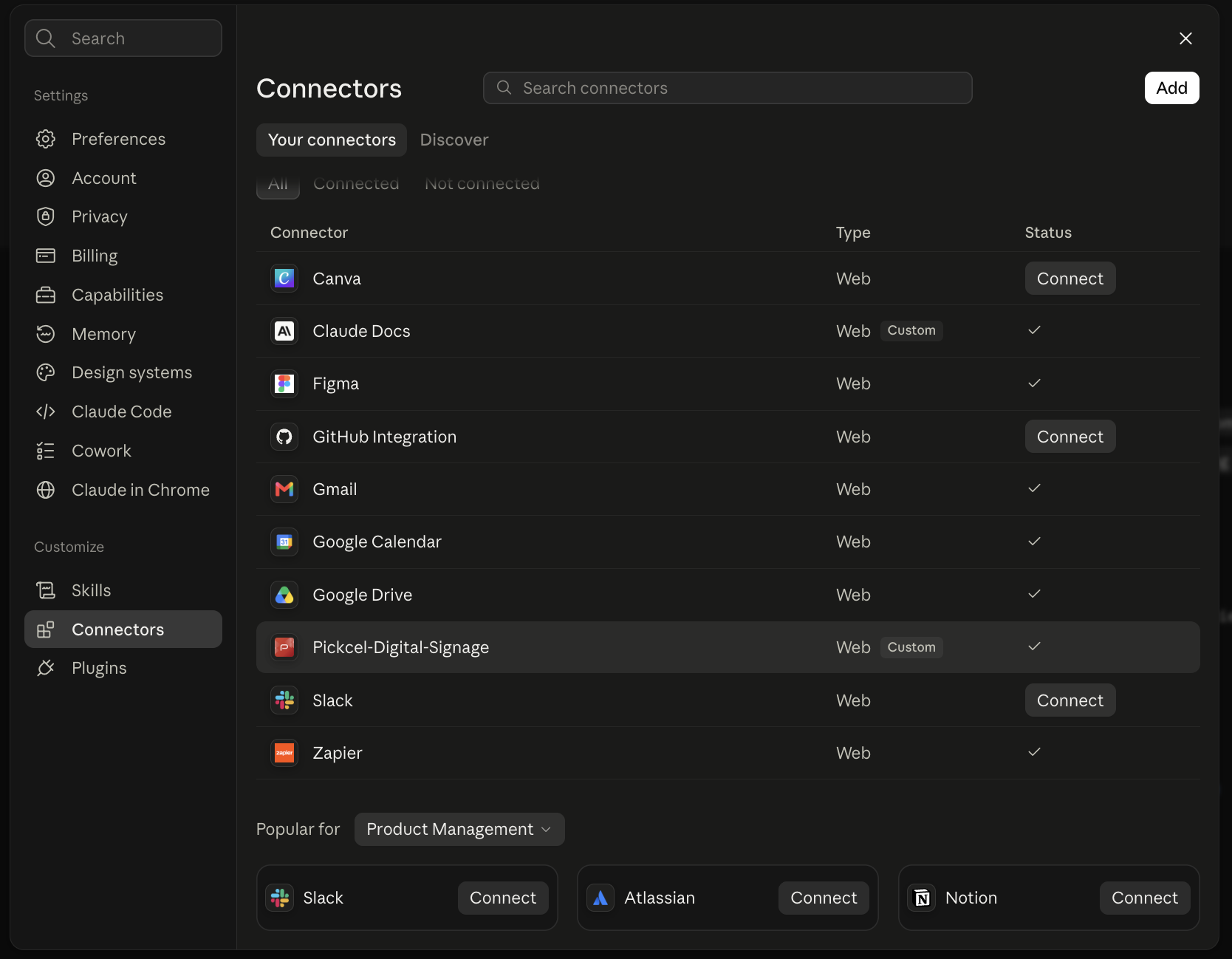
4
Start prompting
Ask in plain language, for example “List my screens” or “Build a composition from my recent media.” See Example prompts for more.For example, this prompt in Codex generated an image, built a composition from it, and scheduled it for weekends: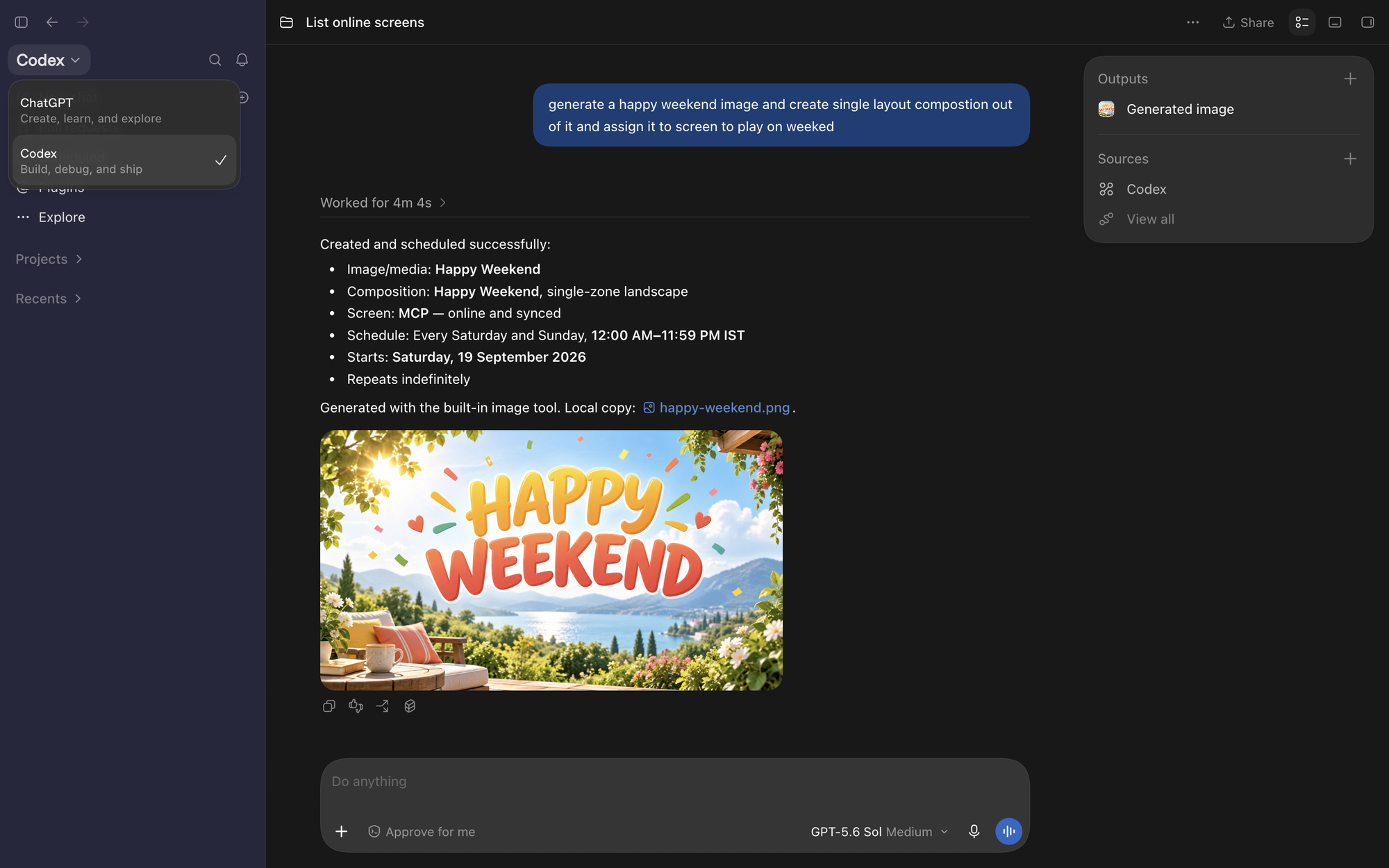 The new composition in the Pickcel console:
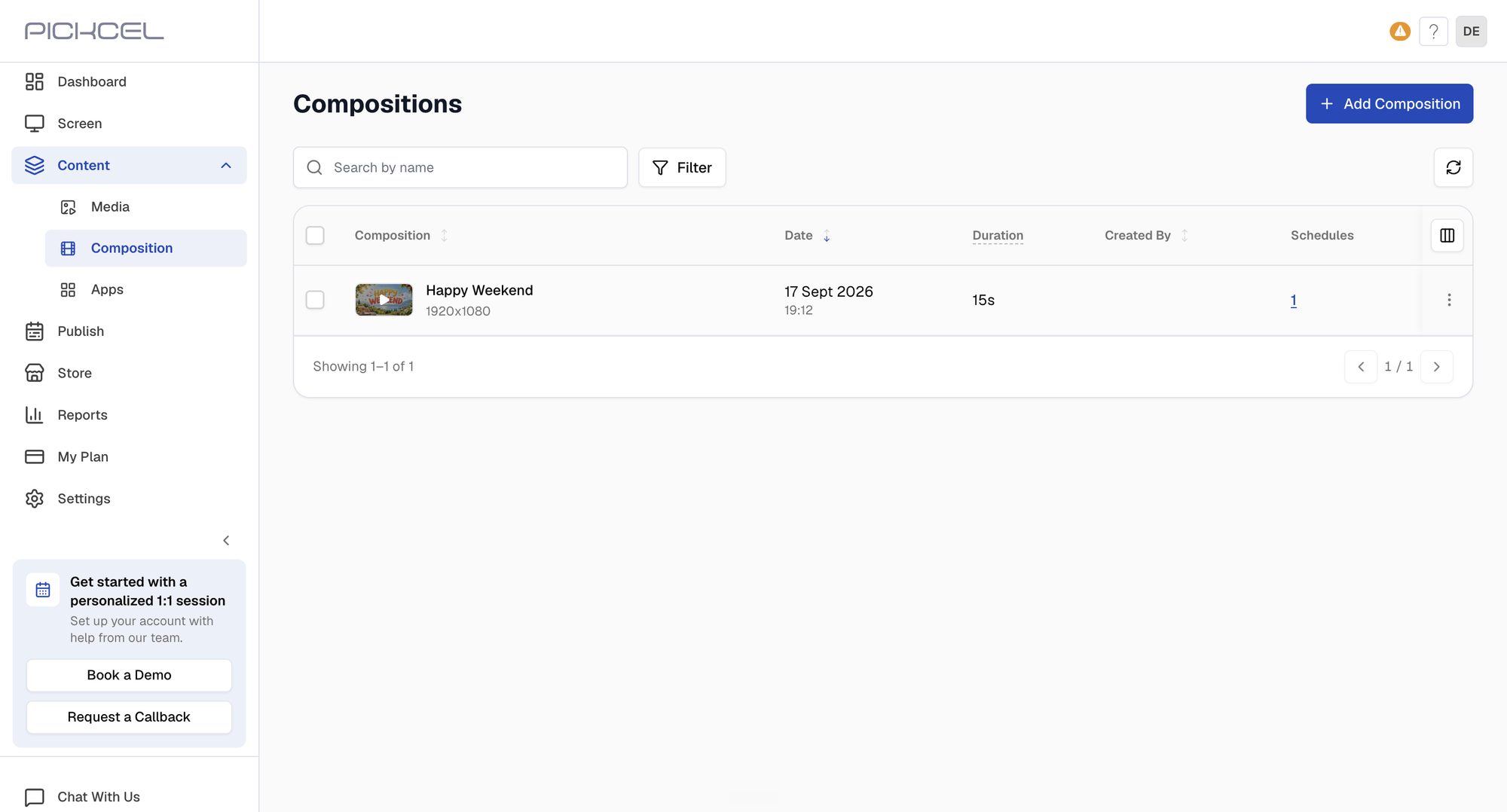 And its weekend schedule: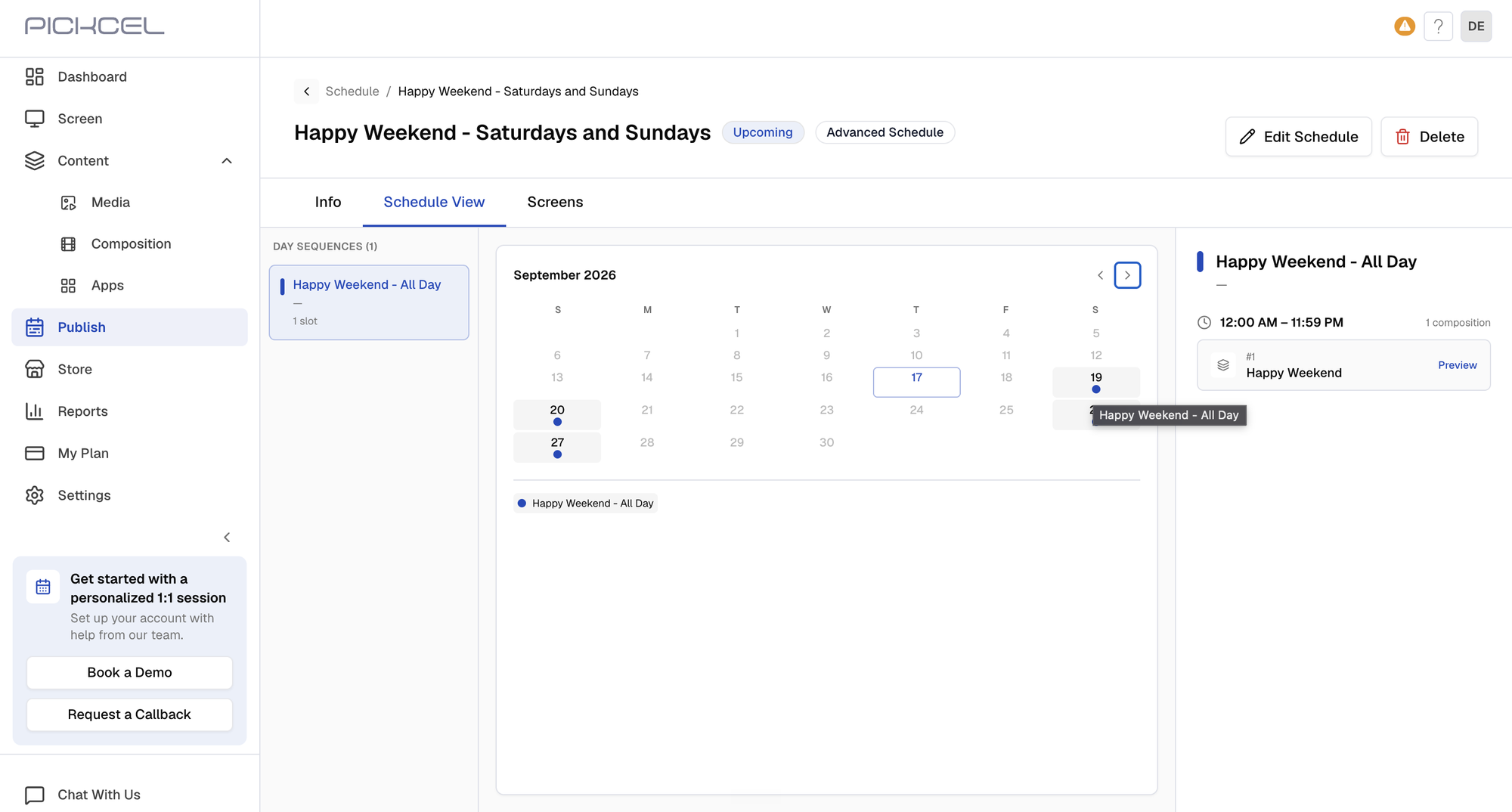
Example prompts
Fill in the bracketed values and paste the prompt into your agent.Generate an image and play it on a screen
Generate an image and play it on a screen
Build a composition
Build a composition
Play something right now
Play something right now
Daily rotation
Daily rotation
Play on specific dates
Play on specific dates
Move a screen to another schedule
Move a screen to another schedule
Generate a design
Generate a design
Upload media
Upload media
Available tools
Your agent picks the right tools on its own. You don’t need to name them in your prompts.Good to know
- Your account only. The agent can only see and change content in the account your token belongs to.
- One schedule per screen. Assigning a schedule to a screen replaces the schedule it was playing.
- Quickplay takes over. It interrupts whatever the selected screens are playing until its time window ends.
- Shared Day Sequences. Editing a Day Sequence changes every schedule that uses it.
- Uploads need file access. The agent must be able to read the file, whether it’s on your computer or an image it generated. Some hosted agents can’t.
- Designs are text, shapes, and colour. Generated designs don’t include photos. Add images in the editor using the link the agent returns.
Troubleshooting
The server doesn't connect or shows an auth error
The server doesn't connect or shows an auth error
- Check the token was copied in full, with no extra spaces.
- Confirm your account is on a Business plan.
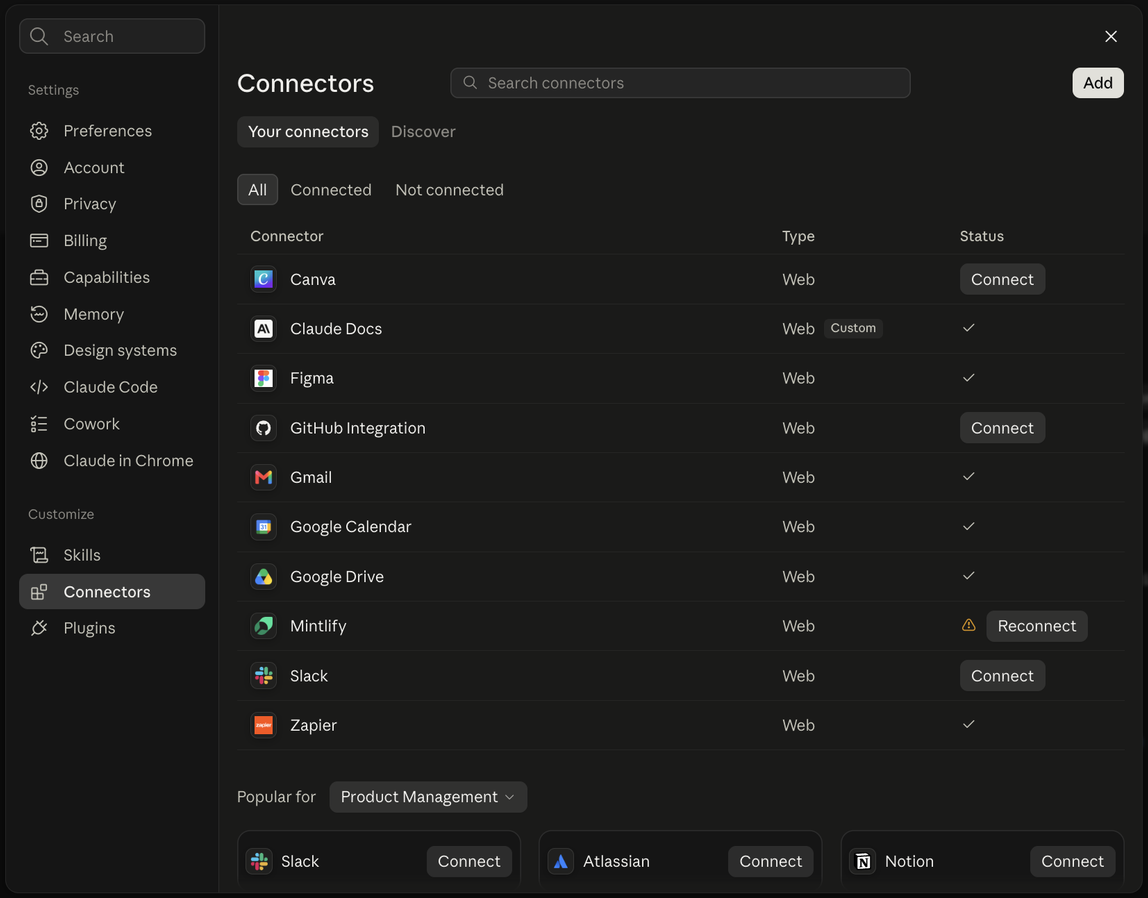
- In the Claude app, make sure Authentication is set to No sign-in.
- In ChatGPT, make sure Type is set to Streamable HTTP, and that you’re prompting from Codex, not ChatGPT.
- In the Codex CLI, if Codex reports
MCP startup failed:Environment variable PICKCEL_API_TOKEN ... is not set: set the variable in the terminal you startcodexfrom.Auth required: the token is wrong, or it includes theBearerprefix. SetPICKCEL_API_TOKENto the token only.
- Still failing? Generate a new token and reconnect with it. See the next entry.
I regenerated my token and the connection stopped working
I regenerated my token and the connection stopped working
A new token replaces the old one immediately, so any AI app still using the old token loses its connection. Update each one:Claude.ai app: a connector’s saved header can’t be edited. Delete the A Claude Code session that’s already open keeps the old connection. Run
Pickcel-Digital-Signage connector in Settings → Connectors, then add it again with the new token.Claude Code: claude mcp add doesn’t overwrite an existing server. Remove it, then add it again:/mcp in it, or start a new session.Codex CLI: update PICKCEL_API_TOKEN in your shell profile, then open a new terminal and start codex again.The agent says Templates aren't enabled
The agent says Templates aren't enabled
Templates is a paid module that isn’t enabled on your account. The agent can still create designs from scratch.
A schedule isn't playing on the dates I expected
A schedule isn't playing on the dates I expected
Open the schedule in the console’s Advanced Schedule calendar to see exactly which dates it covers. If they’re wrong, ask the agent to rebuild it as an advanced schedule for those dates.
A composition looks wrong on the screen
A composition looks wrong on the screen
If it plays black, blank, or at the wrong size, contact Pickcel support instead of asking the agent to recreate it.
A Quickplay won't stop
A Quickplay won't stop
The agent can’t stop a Quickplay. Delete it from the console under Publish → Quickplay, or wait for its time window to end. See Quickplay.
Related guides
API Integration
Manage the API token your agent connects with.
Compositions
Layouts, zones, and compositions in the console.
Quickplay
View or delete Quickplays, including ones your agent started.
Advanced Schedule
Review schedules your agent created in the calendar view.