

Note: MFA is exclusively available for Business Plan users. For other plans, please contact our support team to enable MFA.
1
Log In to Your Pickcel Account
Log in to your Pickcel account using your credentials at console.pickcel.com.
2
Access Settings
Click on the profile icon at the top right corner of the screen, then select Settings from the dropdown.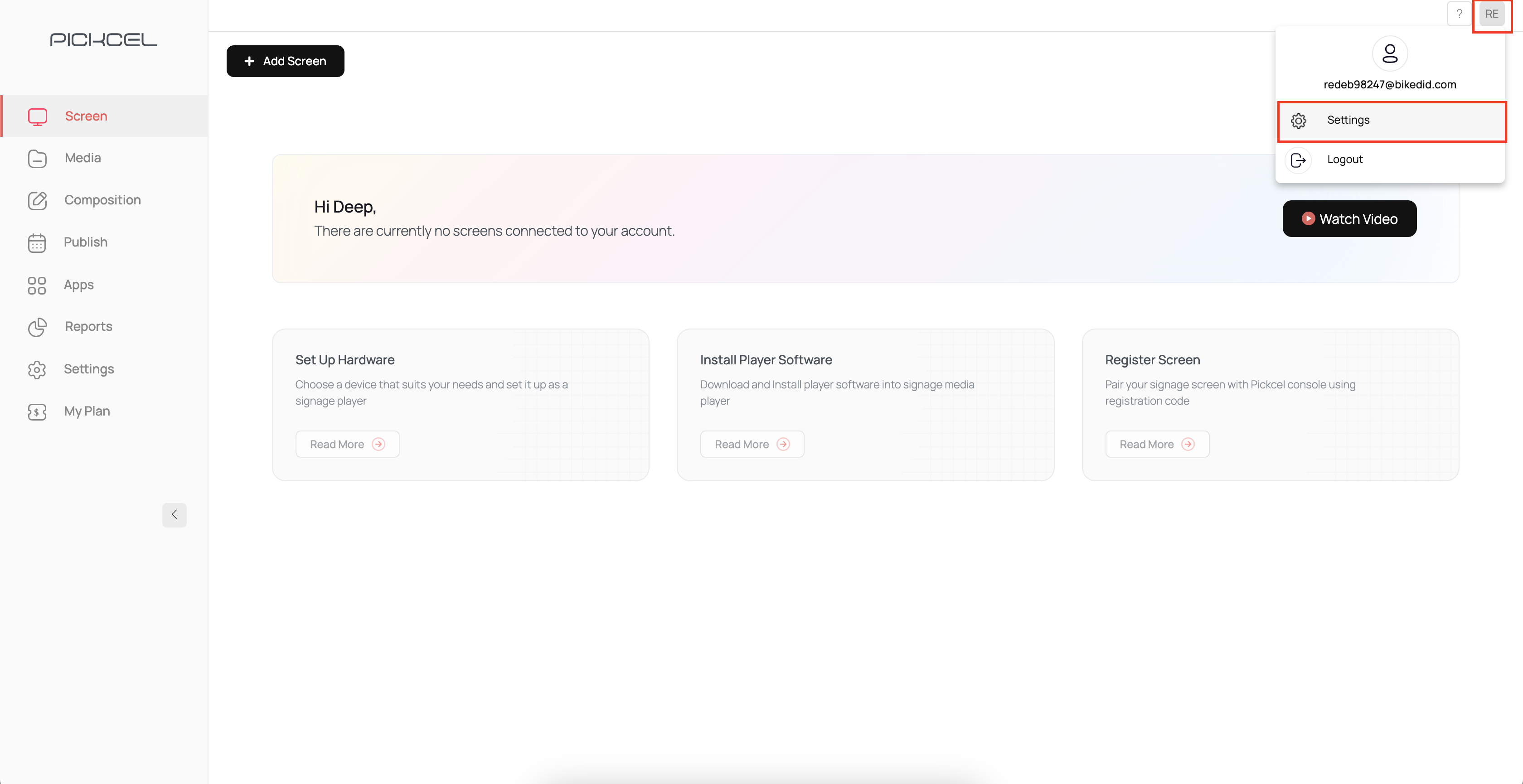
3
Select 'Setup MFA'
Inside Settings, click on Set Up MFA from the left sidebar.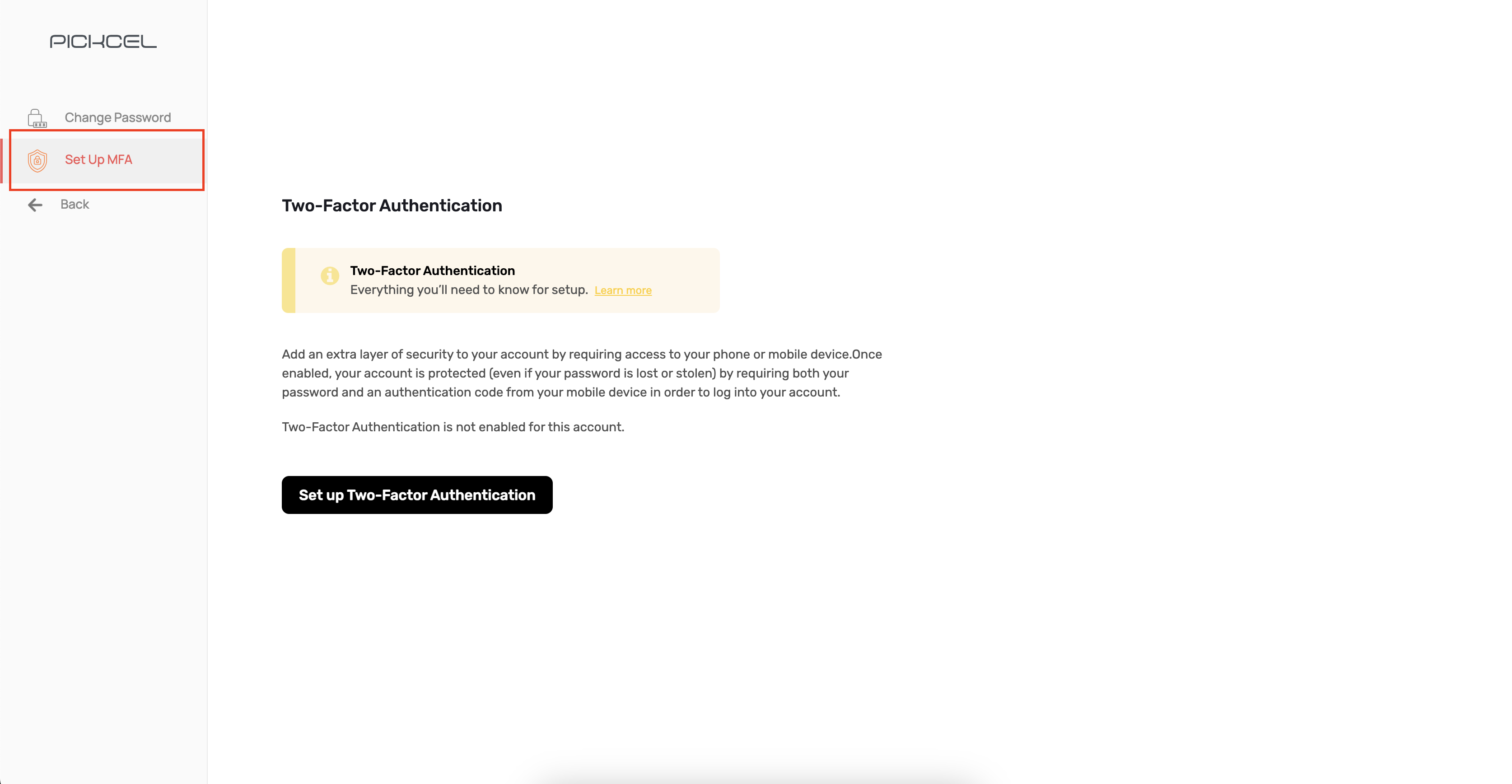
4
Initiate Two-Factor Authentication
Click the “Set up Two-Factor Authentication” button to begin the setup process.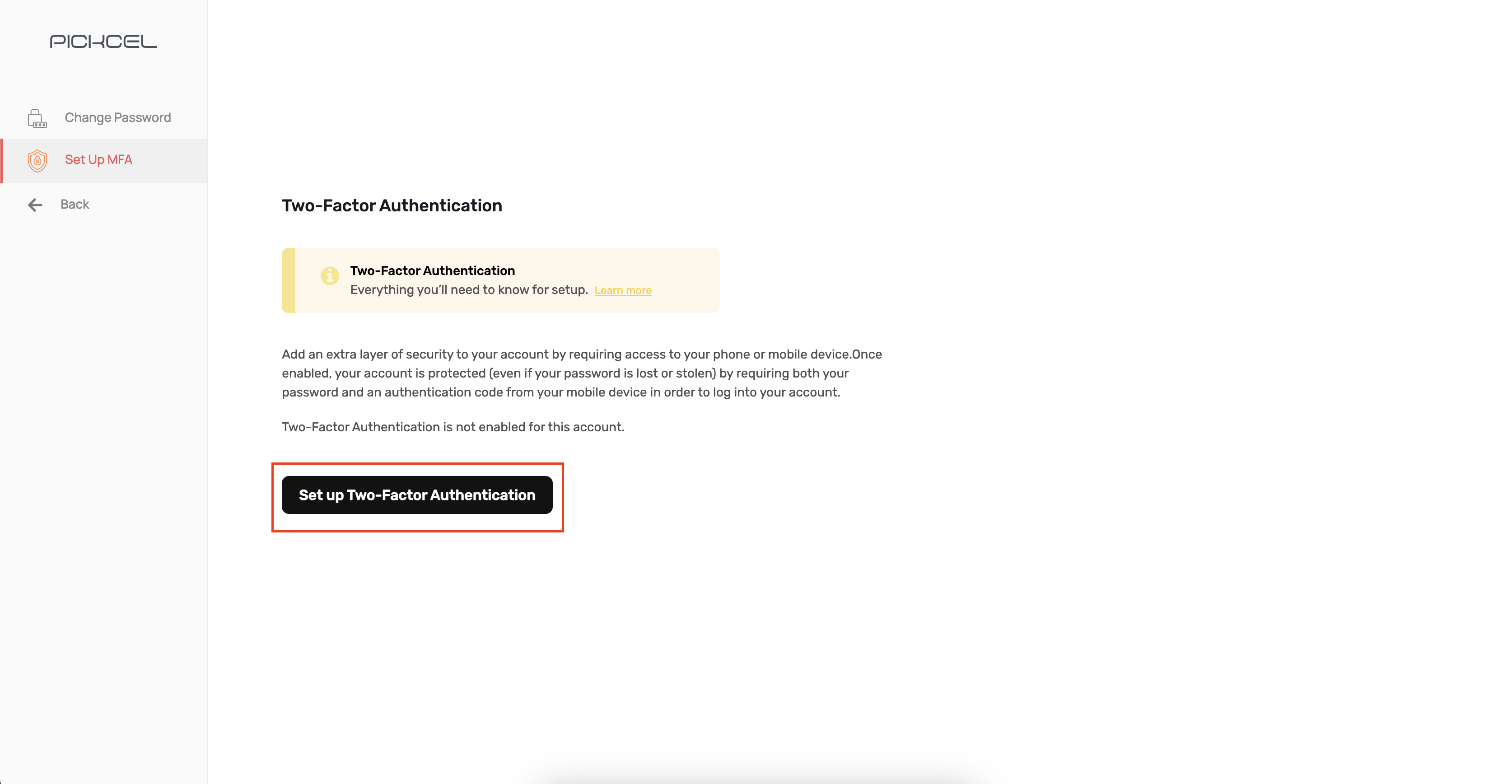
5
Install Google Authenticator
Download and install the Google Authenticator app on your mobile device: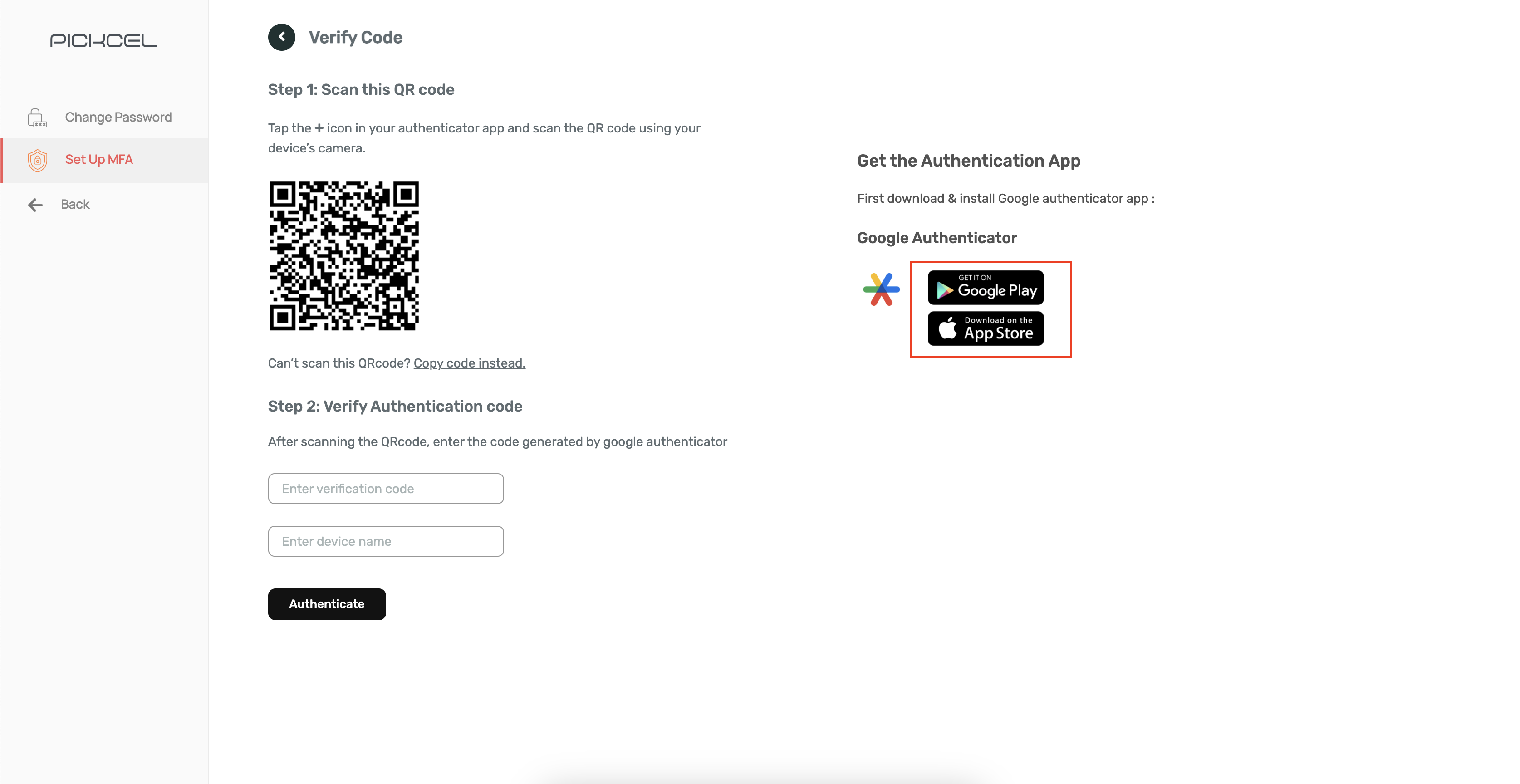
- Android: Google Play Store
- iOS: Apple App Store
6
Scan the QR Code
Open the Google Authenticator app and scan the QR code displayed on the Pickcel MFA setup screen.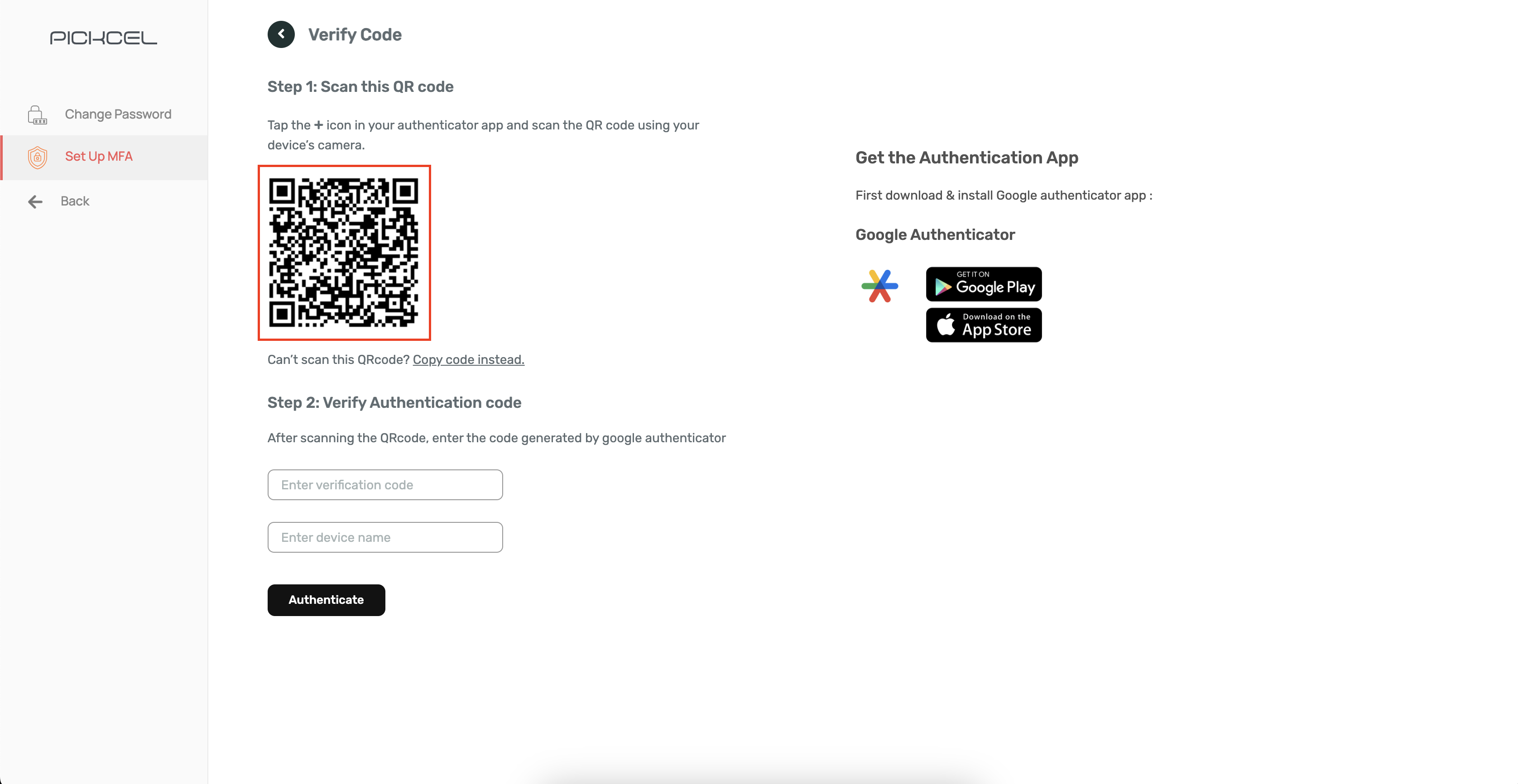
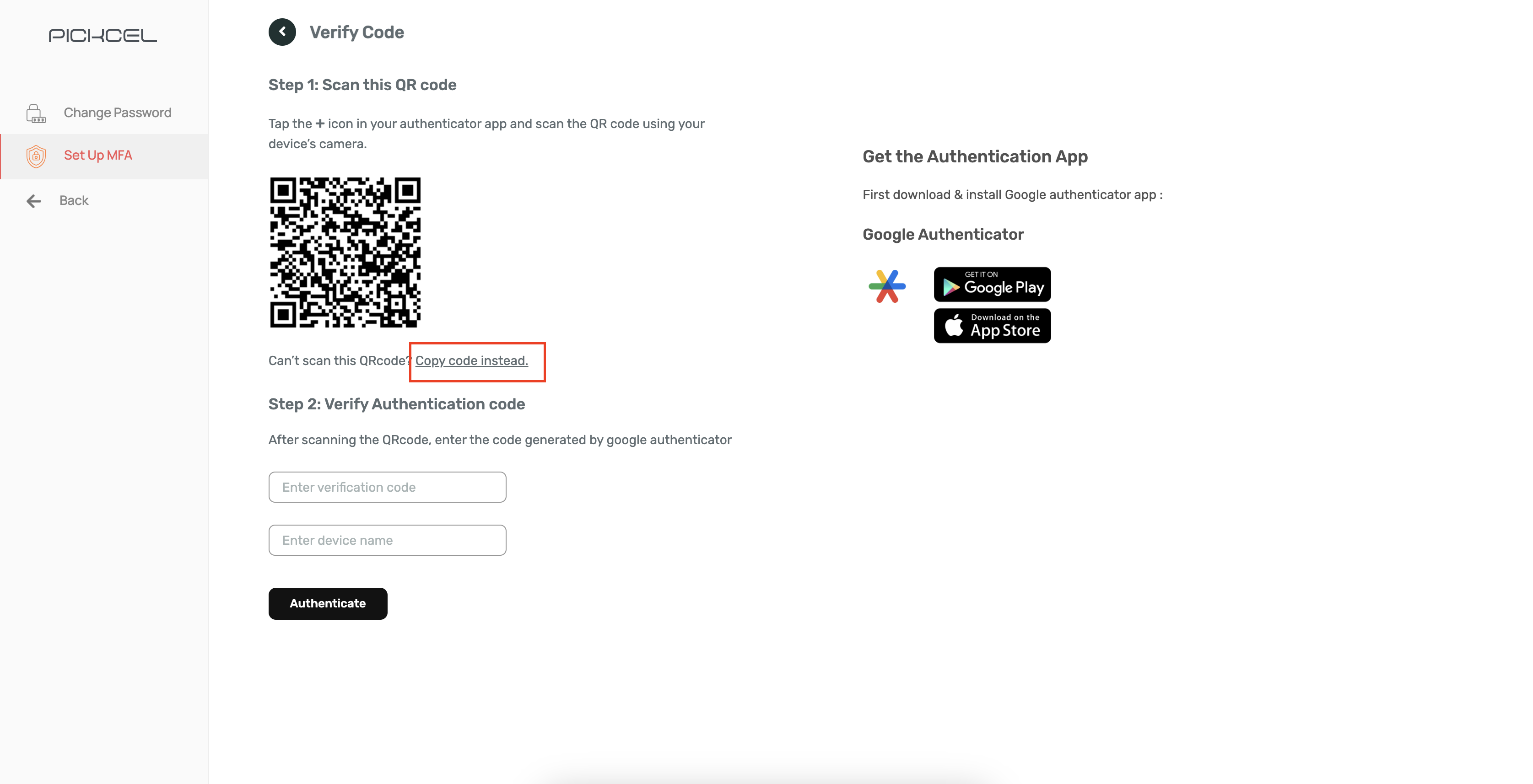
7
Save Your Backup Code
8
Enter the Verification Code
Once your account is linked in the app, Google Authenticator will generate a time-sensitive 6-digit code.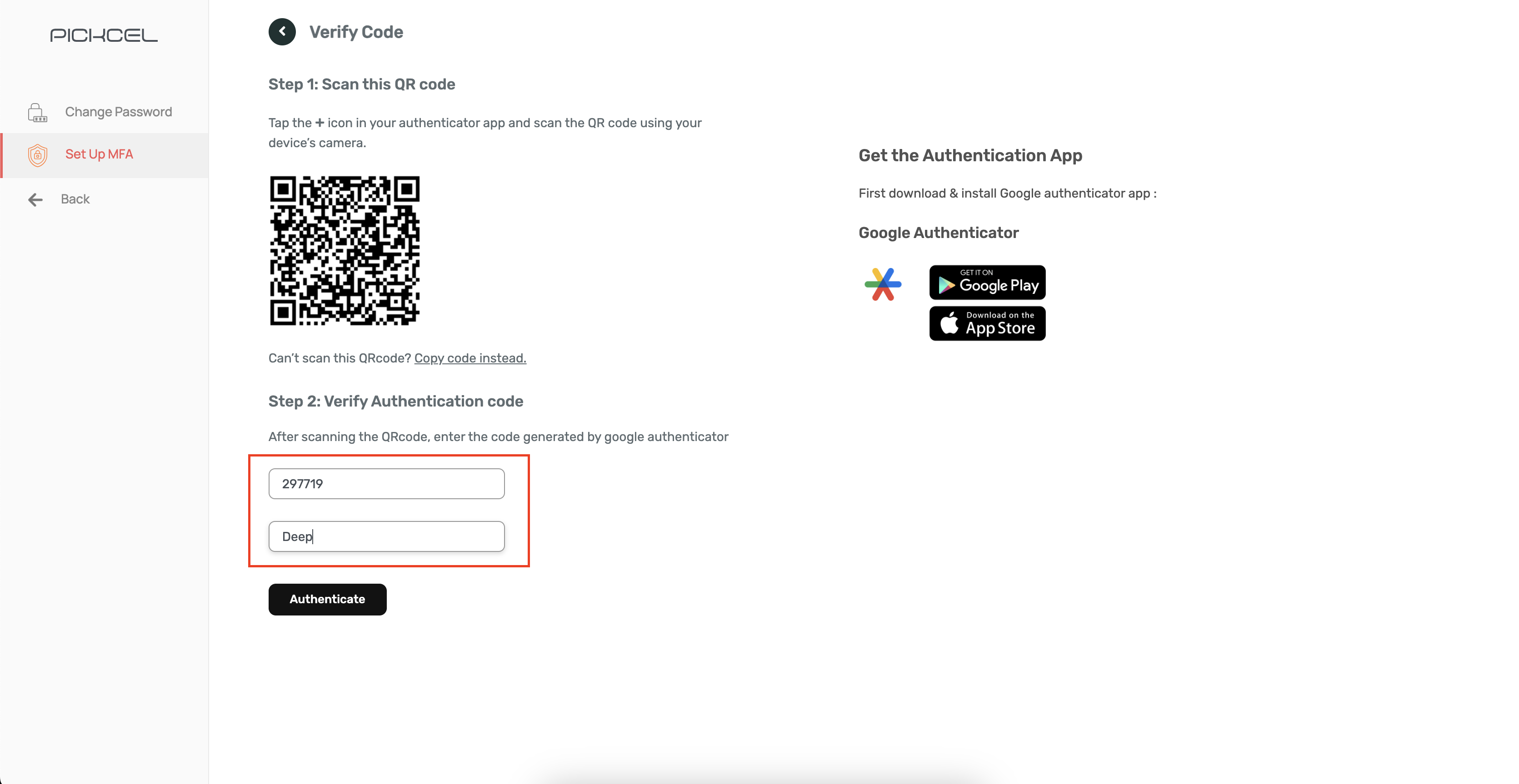
- Enter the code in the “Enter verification code” field.
- Provide a name for your device in the “Enter device name” field.
9
Authenticate
Click “Authenticate” before the TOTP code expires to complete verification.
10
Complete Setup
On successful verification, a confirmation pop-up will appear. Click “Continue” to finish.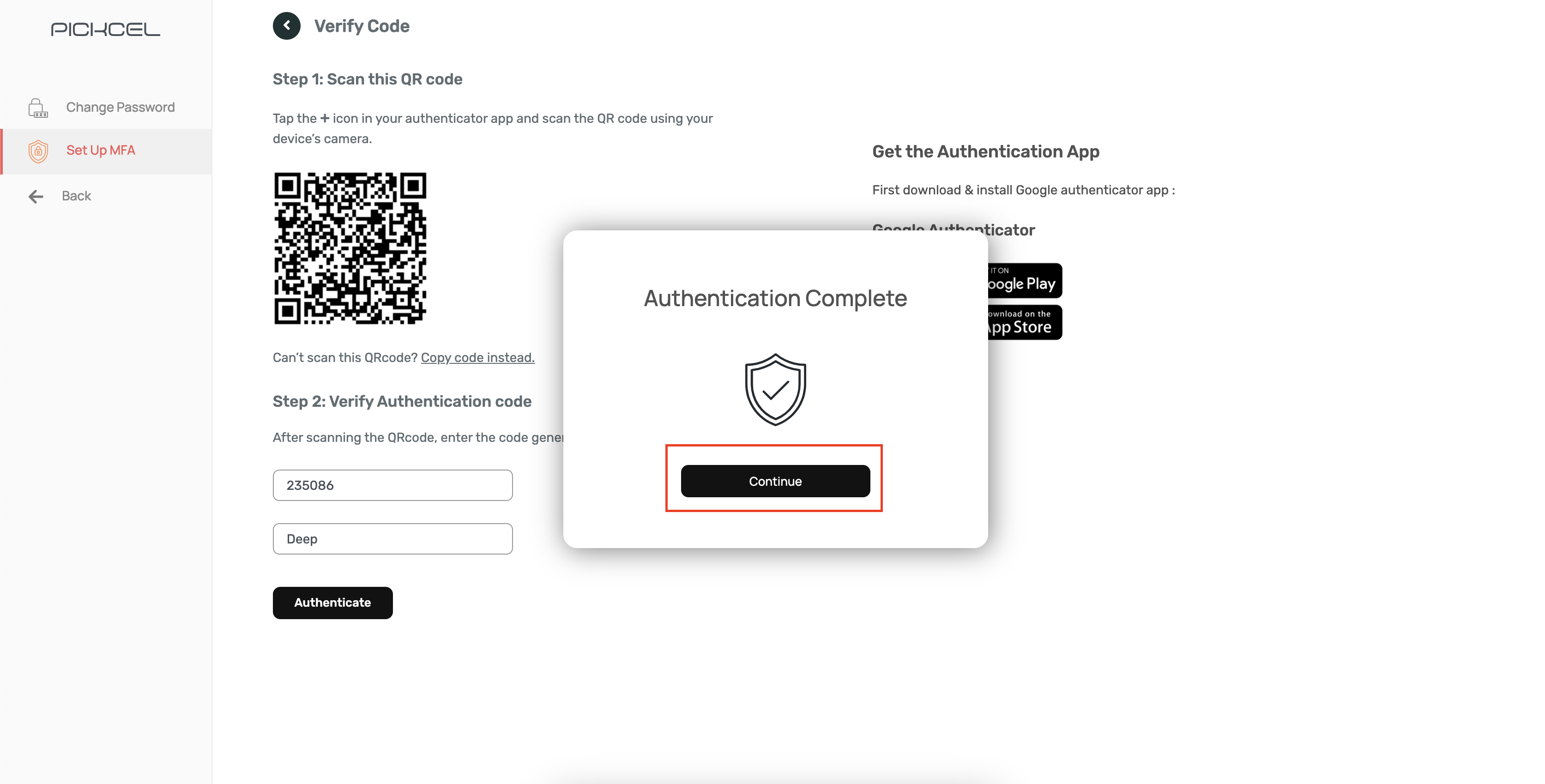 Your account will now display “Your account is Secure”, confirming MFA is active.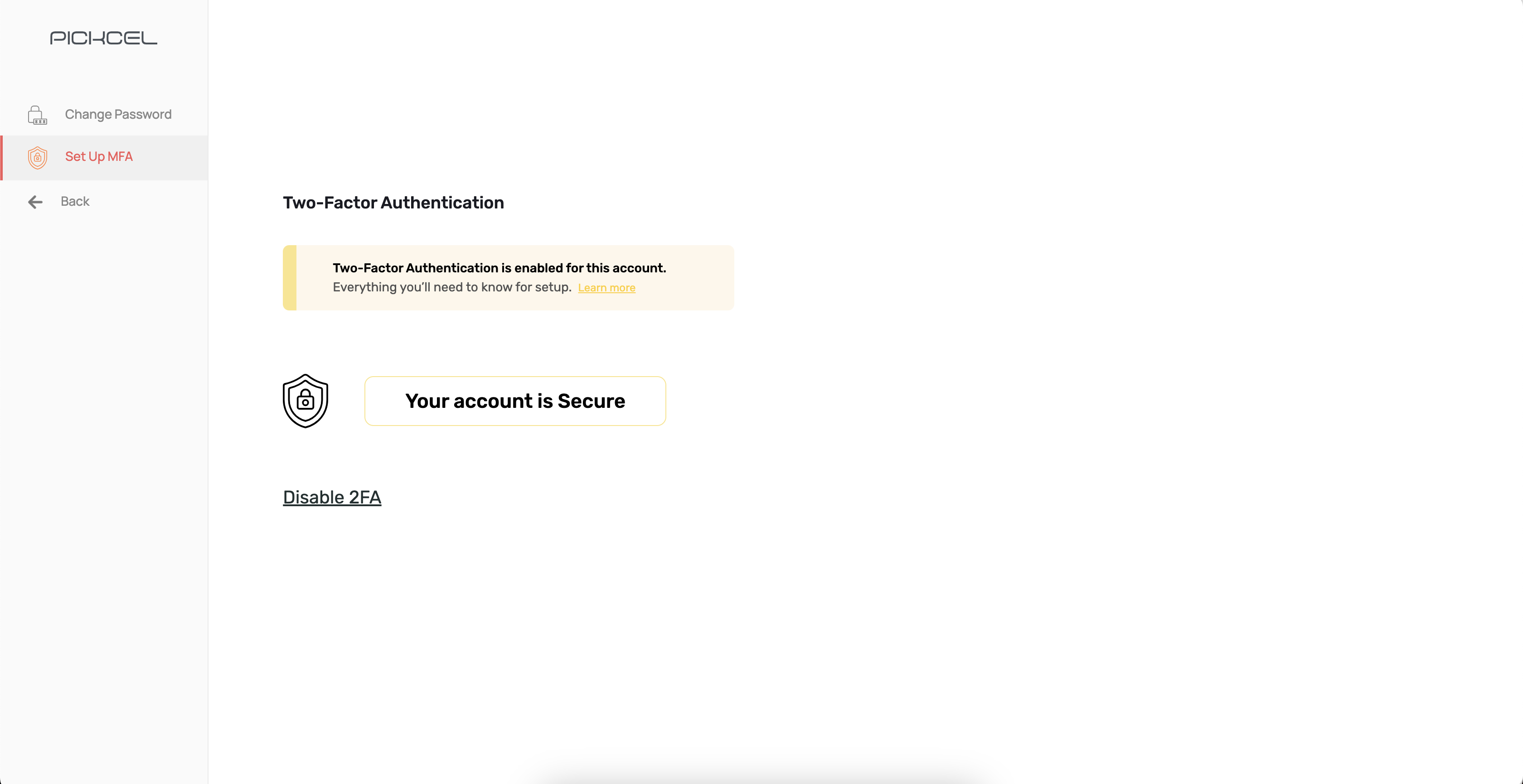
Verifying MFA Works
To confirm MFA is functioning correctly:1
Log Out
Log out of your Pickcel account and re-enter your credentials on the login page. Click “Login.”
2
Enter the Authenticator Code
You’ll be prompted to enter a 6-digit code. Open your Google Authenticator app and enter the current code before it expires.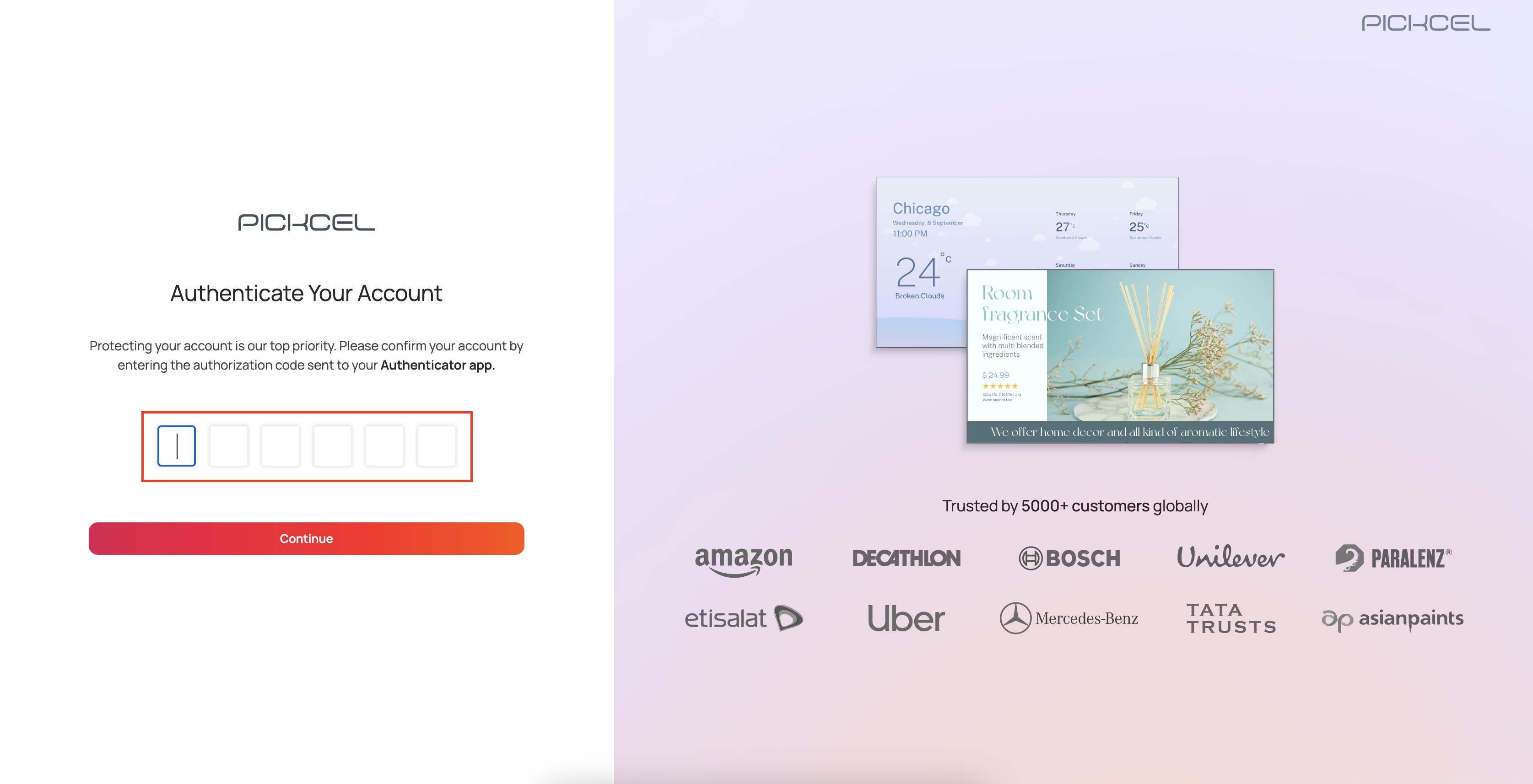
3
Continue
Click “Continue.” On successful verification, you’ll be securely logged into your account with MFA active.
Keep in mind:
- Store your backup code securely, you’ll need it if you lose access to the Google Authenticator app.
- If you switch devices or reinstall the app, use the backup code to reconfigure MFA.
- For any assistance, contact our support team.
If your organization uses an identity provider like Okta or Amazon Cognito, Single Sign-On may be a better fit than MFA. Note that enabling SSO hides the MFA option, since authentication is then managed entirely by your identity provider.