

Public sharing isn’t on by default. To enable it for your account, email support@pickcel.com. Once it’s on, you’ll see the Public options below.
Share media
- While uploading
- Already uploaded
1
Open the upload window
- Go to Content > Media and click Add Media.
- Select Upload Files, click Upload From Computer, and choose your file.
2
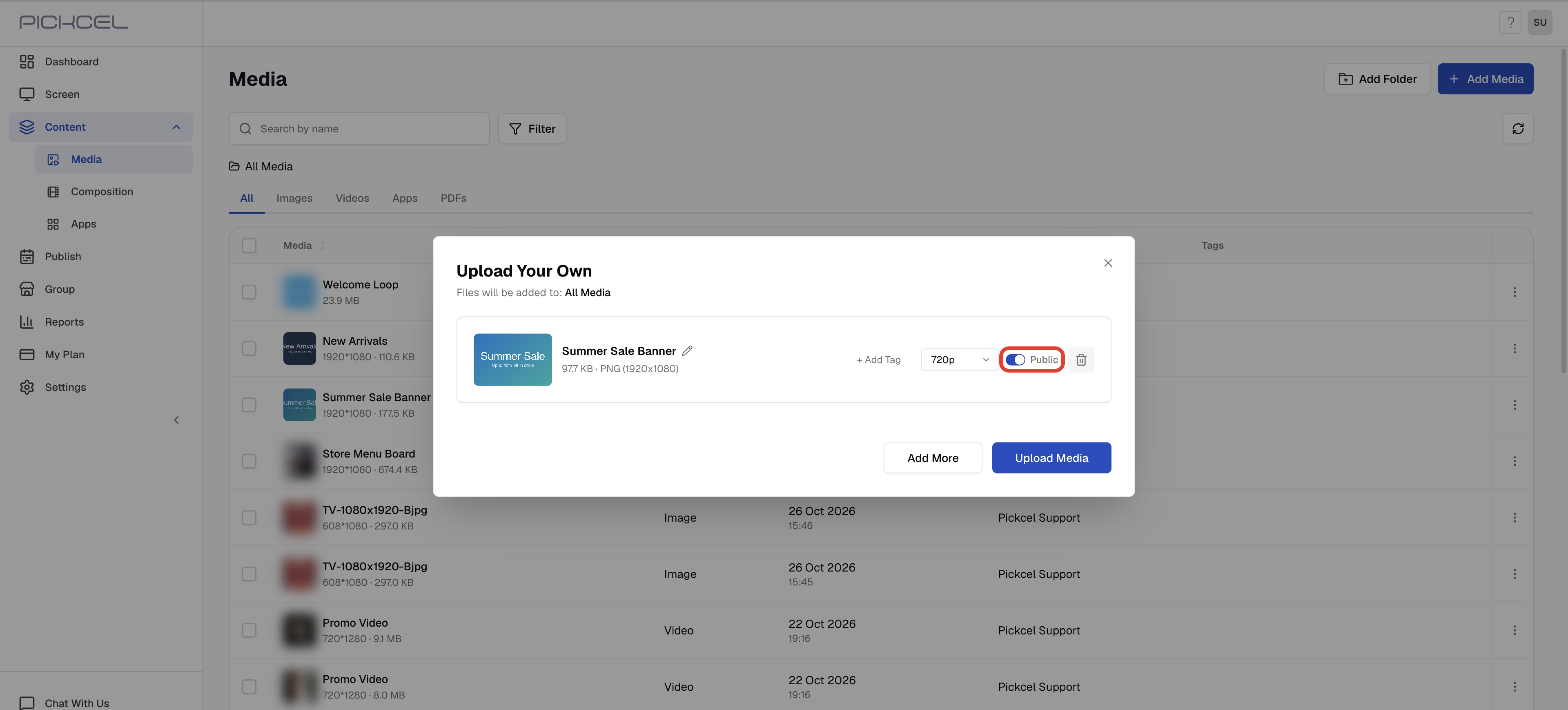
Switch the toggle to Public
- Next to the resolution dropdown, switch the toggle from Private to Public.
- Each file has its own toggle.
3
Click Upload Media
Sub-users now see the file in their Media list.
Share compositions
- New composition
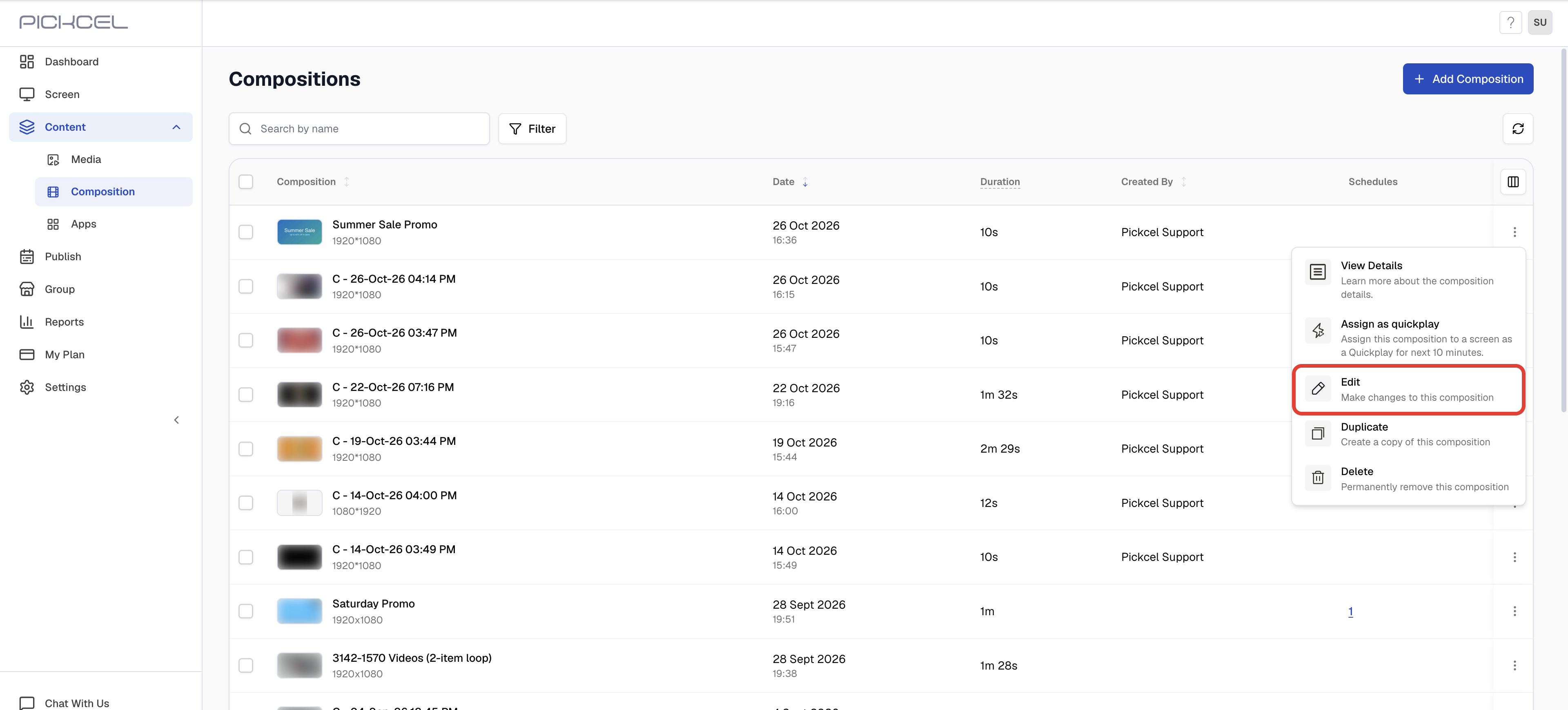
- Existing composition
1
Build the composition
Create it as usual. See Create a composition.
2
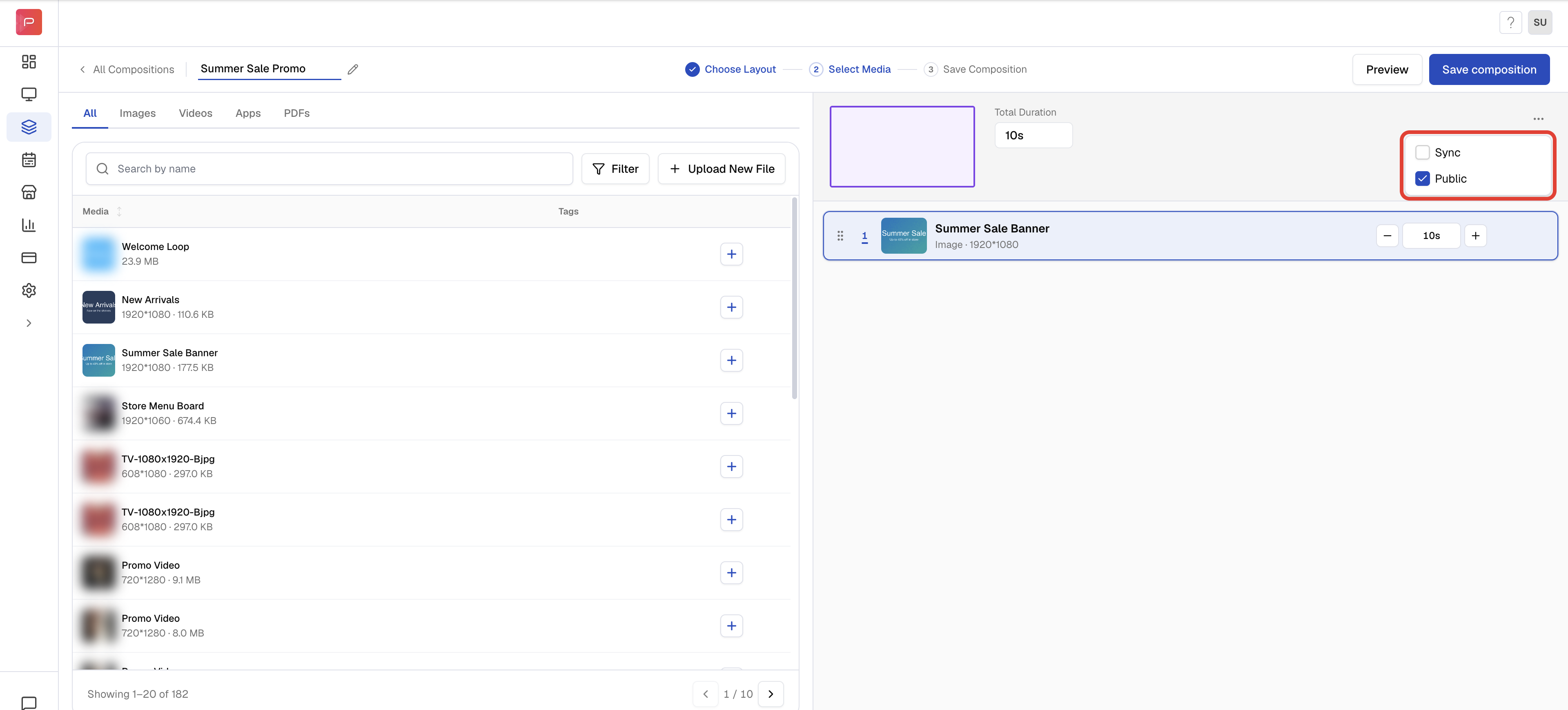
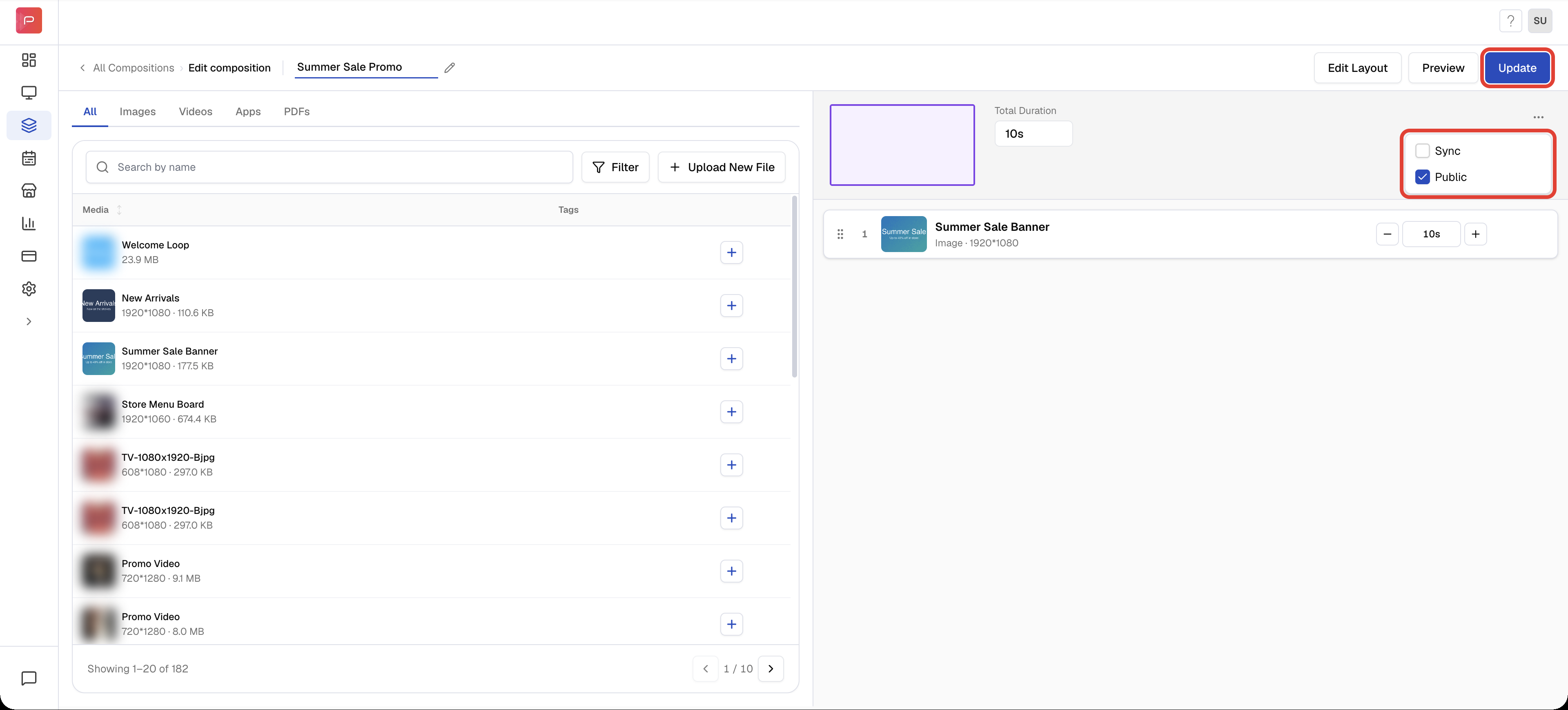
Tick Public
- Before saving, click the ⋯ menu at the top right of the editor.
- Tick Public.
3
Save
Click Save composition, then Save & exit. Sub-users now see it in their Composition list.
Good to know
- Only items marked Public are shared. Everything else stays private to the Admin.
- A public item is visible to all users in your organisation.
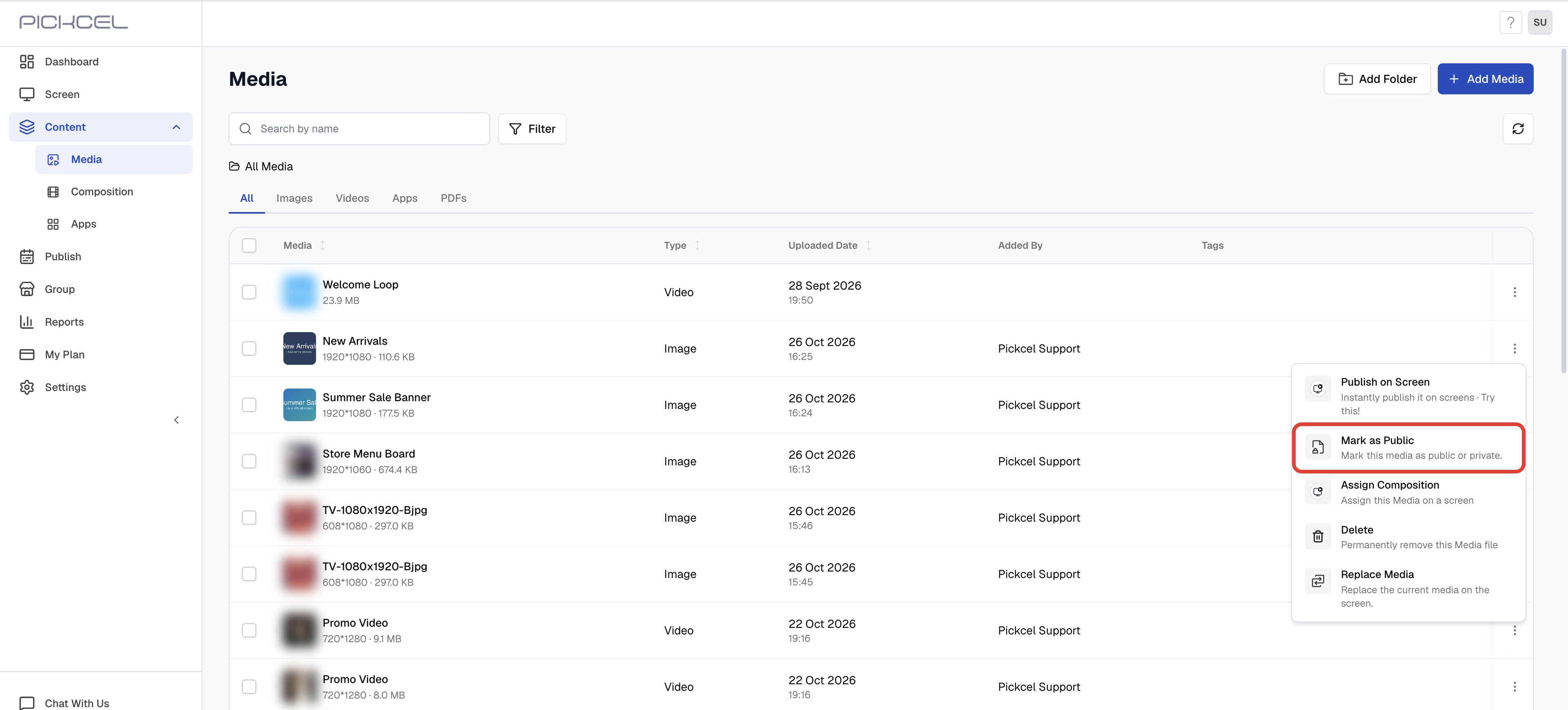
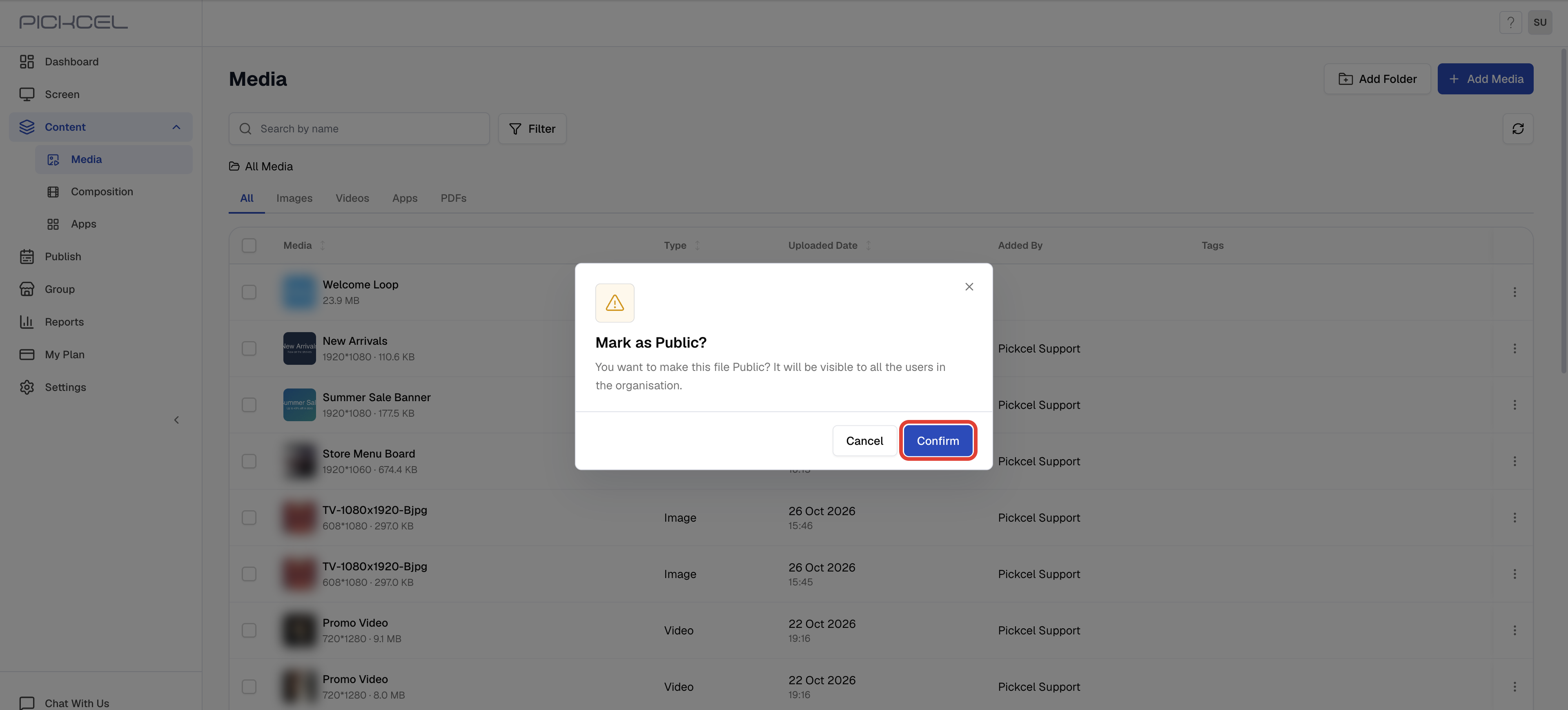
- To make a public file private again, open its ⋮ menu and select Mark as Private.
- What a sub-user can do with a shared item depends on their role. See User Roles.
Troubleshooting
I don't see the Public toggle, Mark as Public, or Public option
I don't see the Public toggle, Mark as Public, or Public option
- Public sharing isn’t enabled for your account yet.
- Email support@pickcel.com to turn it on.
The sub-user still can't see the item
The sub-user still can't see the item
- Check that the sub-user’s role allows viewing Media and Composition. See User Roles.
- Ask the sub-user to refresh the page, or sign out and sign back in.
What’s Next?
- Add sub-users and choose their role in Sub Users
- Control which screens a sub-user sees in Sub-User Screen Access