

Example: Your office has 10 screens: one at reception, the rest in the cafeteria and meeting rooms. Priya runs the front desk and should only manage the reception screen. Create a group called Lobby, add Priya to it, and add the reception screen to the same group. Priya signs in and sees only the reception screen. The other nine stay hidden.
1
Create a group
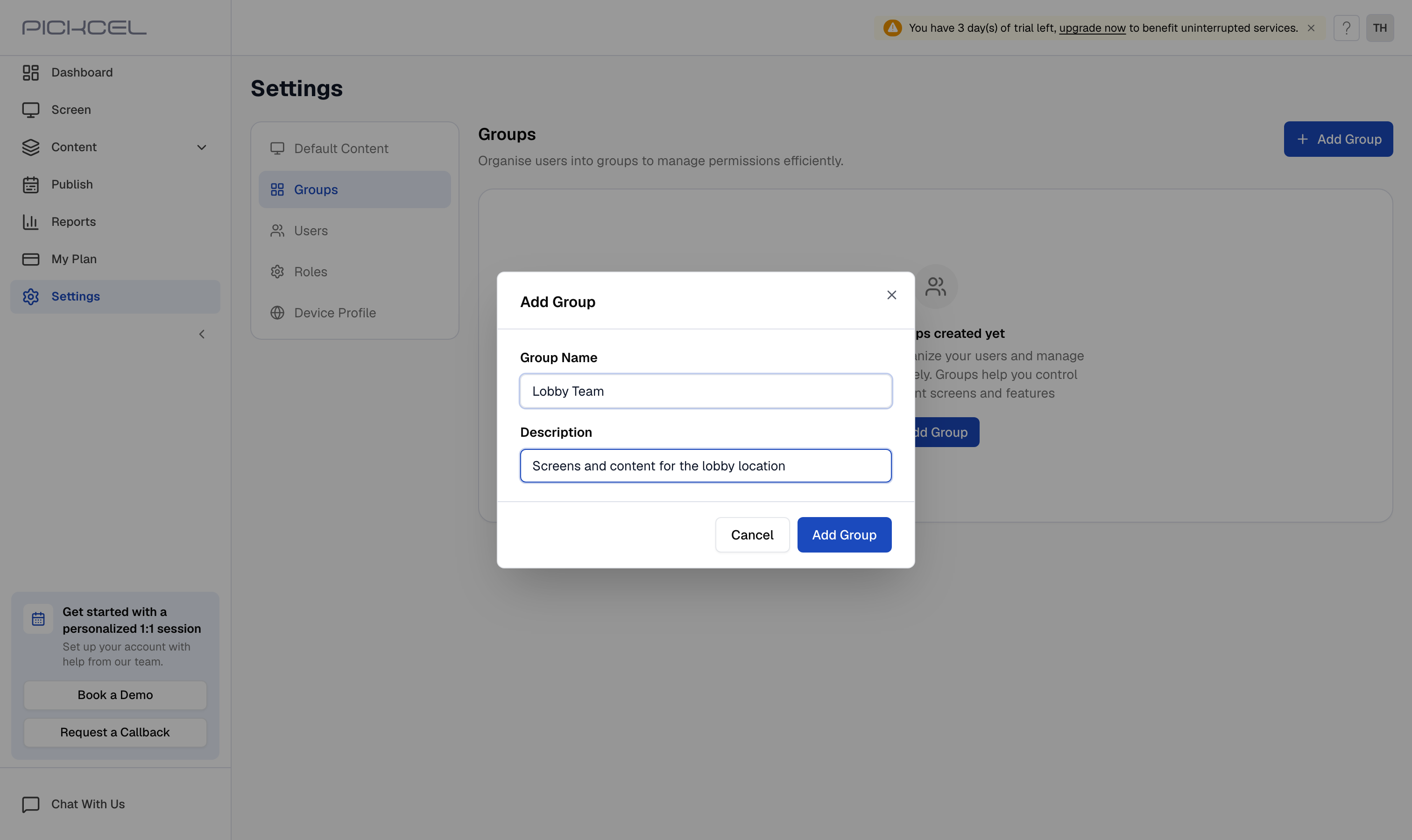
- Go to Settings > Groups and click Add Group.
- Enter a Group Name (for example, the screen’s location) and a Description, then click Add Group.
- Skip this step if a suitable group already exists.
2
Add the sub-user to the group
- Go to Settings > Users.
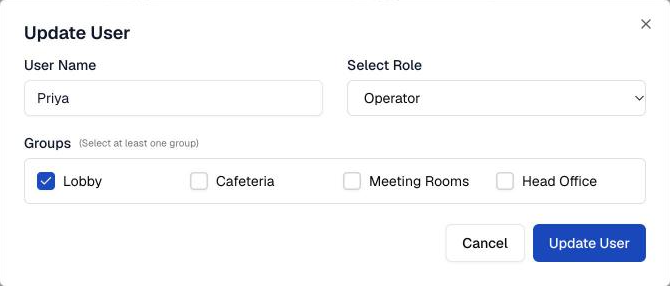
- Click the ⋮ menu next to the sub-user and select Edit User.
- Under Groups, tick the group, then click Update User.
- Creating a new sub-user instead? Tick the group in the Add User dialog. See Sub Users.
3
Open the screen and click Edit Groups
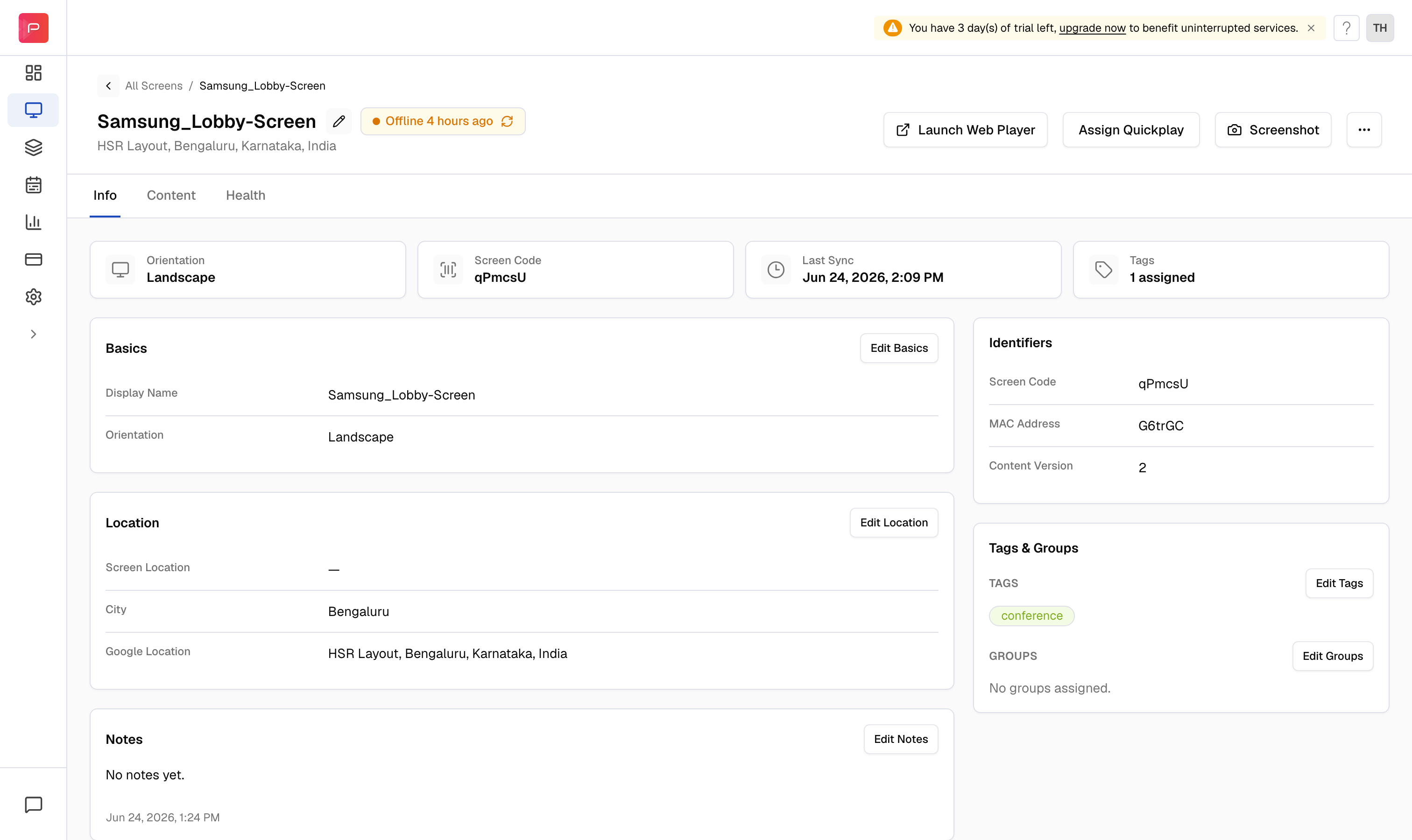
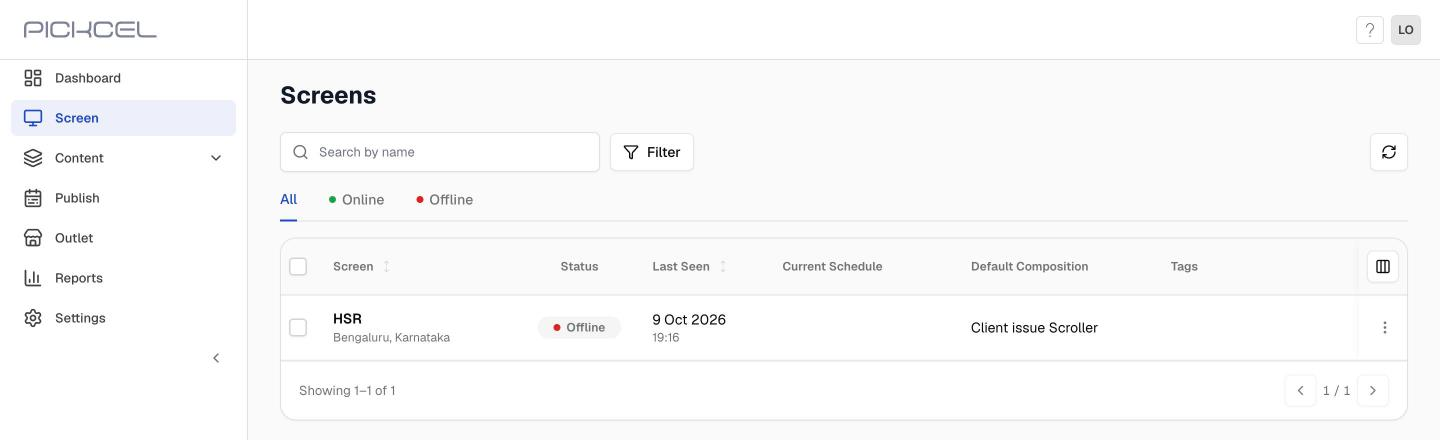
- Go to Screen and click the screen you want the sub-user to see.
- On the Info tab, find Tags & Groups and click Edit Groups under GROUPS.
4
Select the same group and save
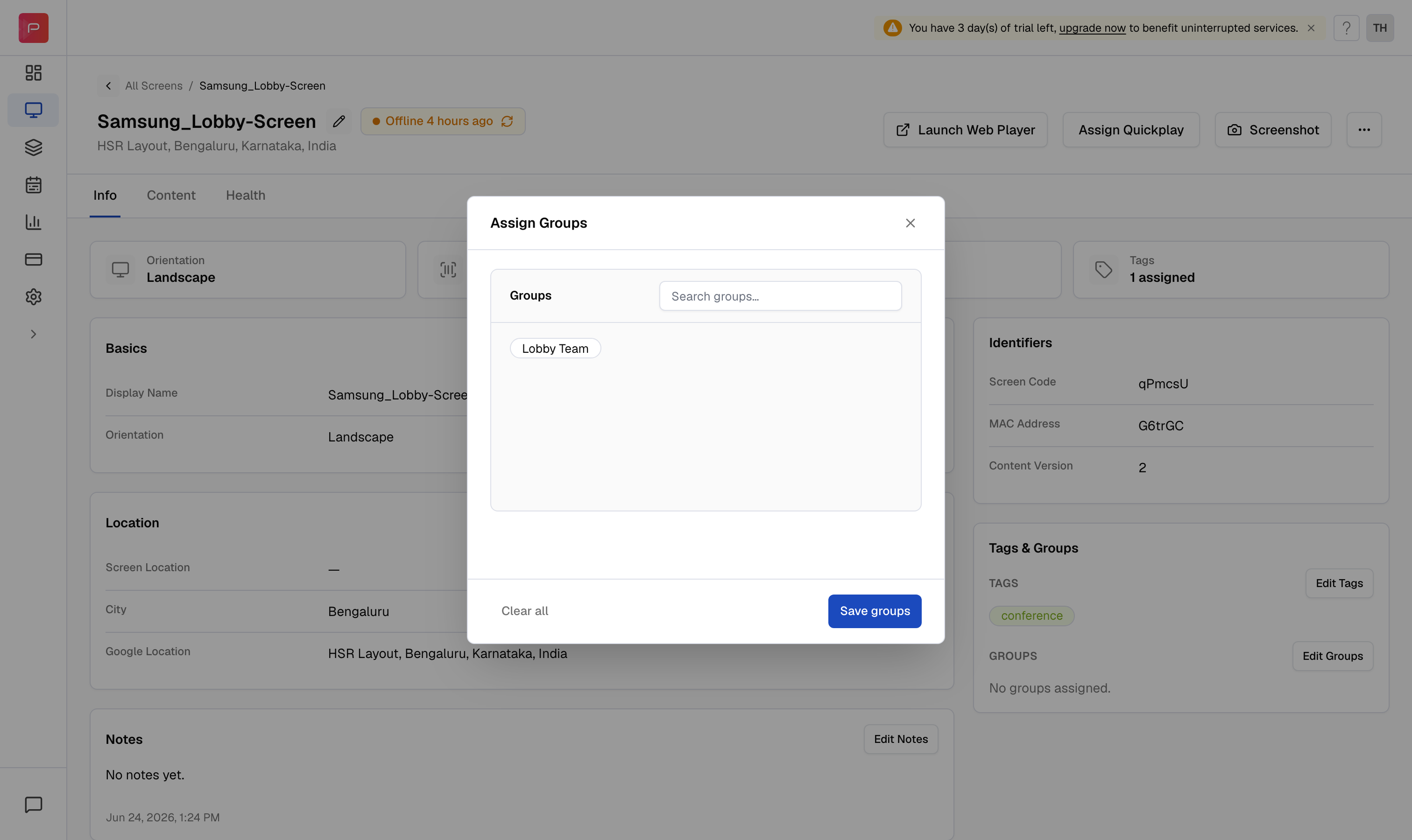
- In Assign Groups, select the group you added the sub-user to.
- Click Save groups. The group now shows under GROUPS for that screen.
- Repeat steps 3 and 4 for every screen the sub-user should see.
Good to know
- A user can belong to several groups, and a screen can belong to several groups. One shared group is enough for access.
- Groups are assigned one screen at a time, from the screen’s Info tab. The screen list has no bulk option for groups.
- To take access away, remove the group from the screen (Edit Groups) or from the user (Edit User).
- What the sub-user can do with a visible screen depends on their role. See User Roles.
Troubleshooting
The sub-user still can't see the screen
The sub-user still can't see the screen
- Open the screen’s Info tab and confirm the group is listed under GROUPS.
- Open Settings > Users > Edit User and confirm the same group is ticked.
- Ask the sub-user to sign out and sign back in.
The sub-user sees screens they shouldn't
The sub-user sees screens they shouldn't
- The sub-user is in another group that those screens also belong to. Check every group ticked for the user in Edit User.