

Step-by-Step Configuration
1
Navigate to Alert Settings
Log in to the Pickcel console. Open Settings from the left navigation, then select the Alerts tab.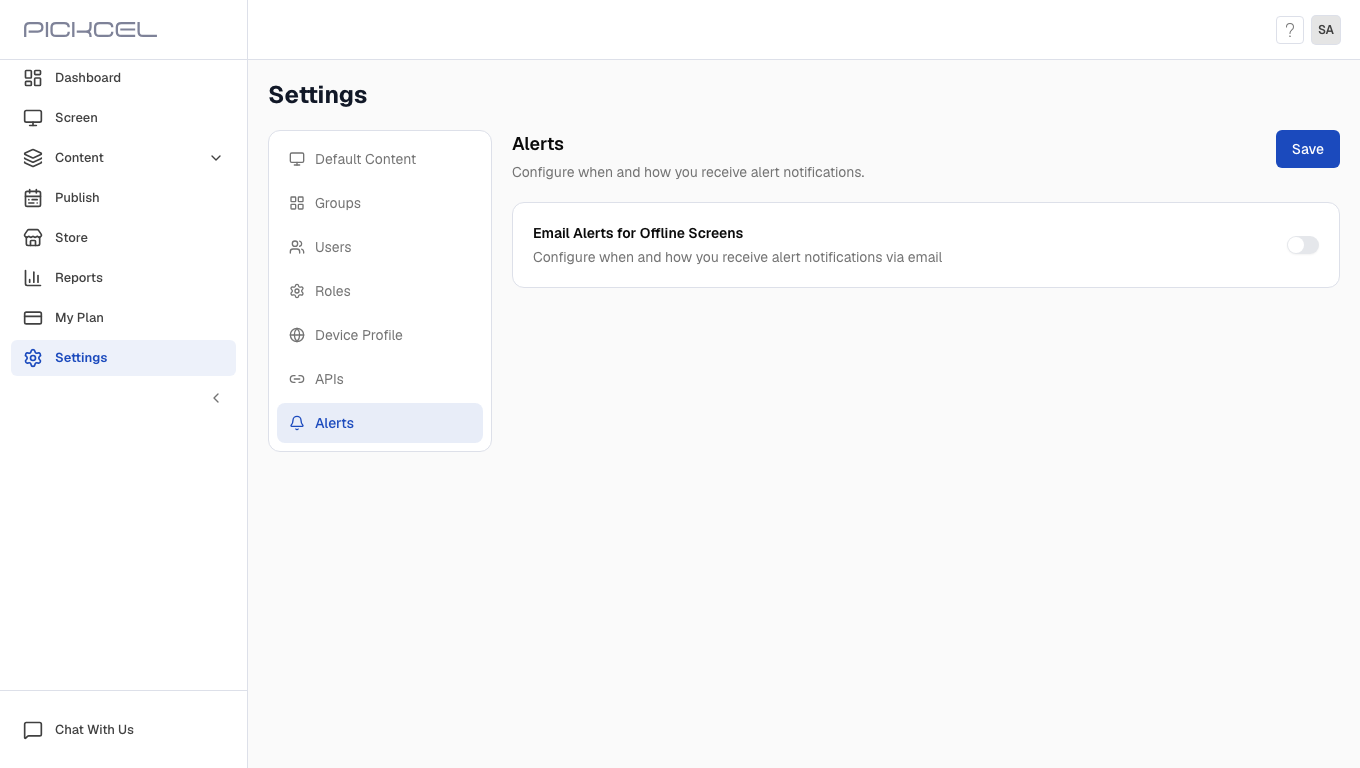
If you do not see the Alerts tab in Settings, this feature is not available on your account. Contact support@pickcel.com to request access.
2
Enable offline screen alerts
Under Email Alerts for Offline Screens, switch the toggle to ON to reveal the alert configuration options.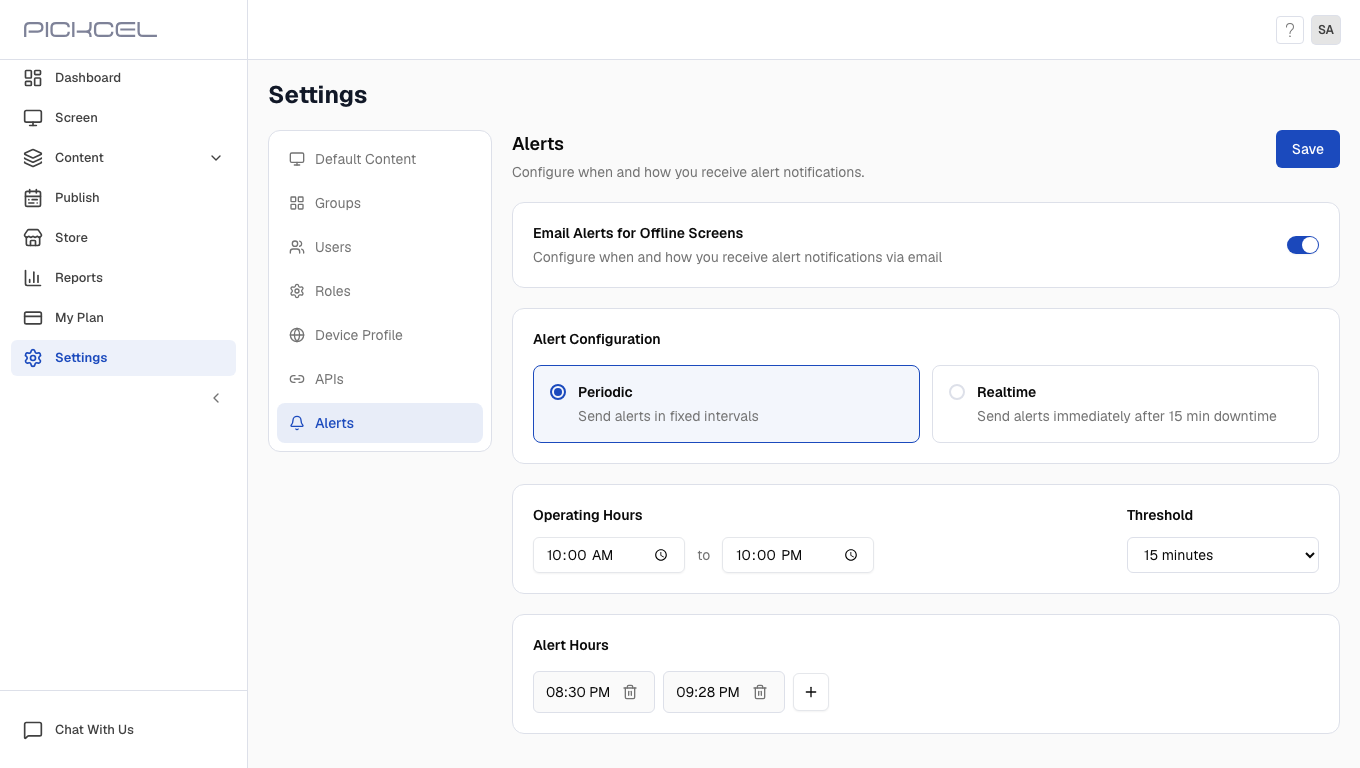
3
Configure periodic alerts
In Alert Configuration, select Periodic to send alerts at fixed intervals throughout the day.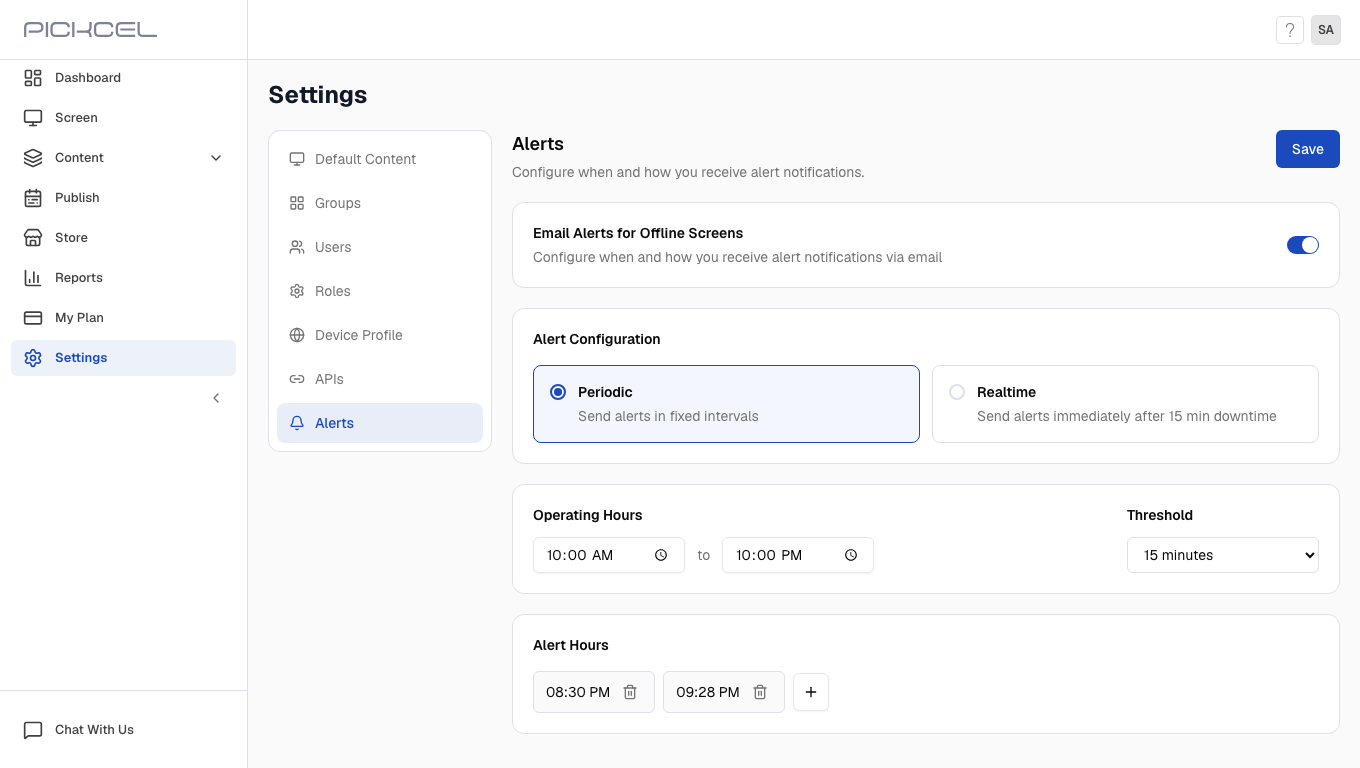
- Operating Hours: Set the start and end time when alerts should be sent (for example,
10:00 AMto10:00 PM). - Threshold: Choose how long a screen must be offline before it counts toward an alert (for example,
15 minutes). - Alert Hours: Add one or more times when the system checks for offline screens and sends a summary email. Click + to add more times.
Threshold is a grace period that prevents alerts from brief network interruptions. A screen must stay offline longer than the threshold before it appears in a report.
4
Configure realtime alerts
Select Realtime to receive alerts soon after a screen exceeds the downtime threshold. The system monitors continuously and sends follow-up alerts every 15 minutes until the screen is back online.Set Operating Hours and Threshold the same way as periodic alerts. Realtime mode does not use Alert Hours.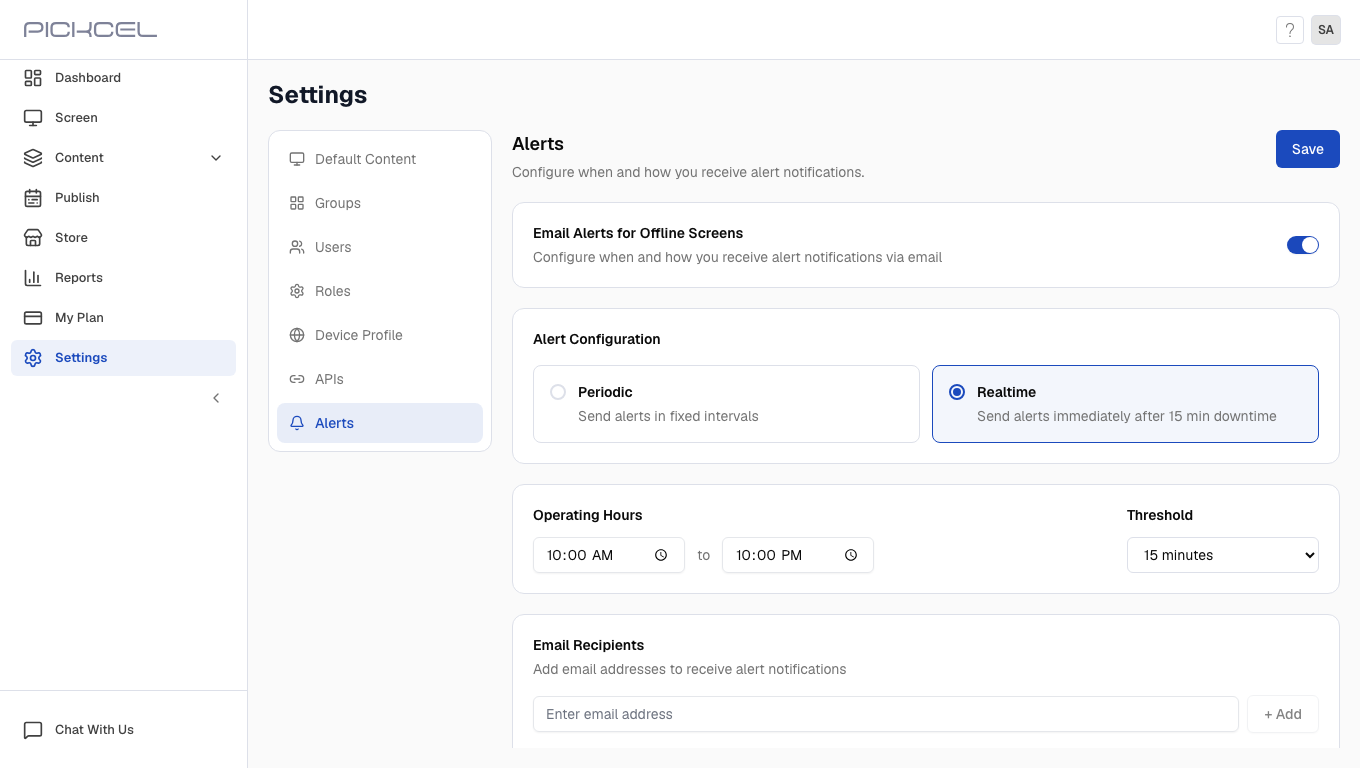
5
Add email recipients
Scroll to Email Recipients. Enter a valid email address and click + Add. Repeat for each person who should receive offline screen alerts. Click Remove next to an address to delete it from the list.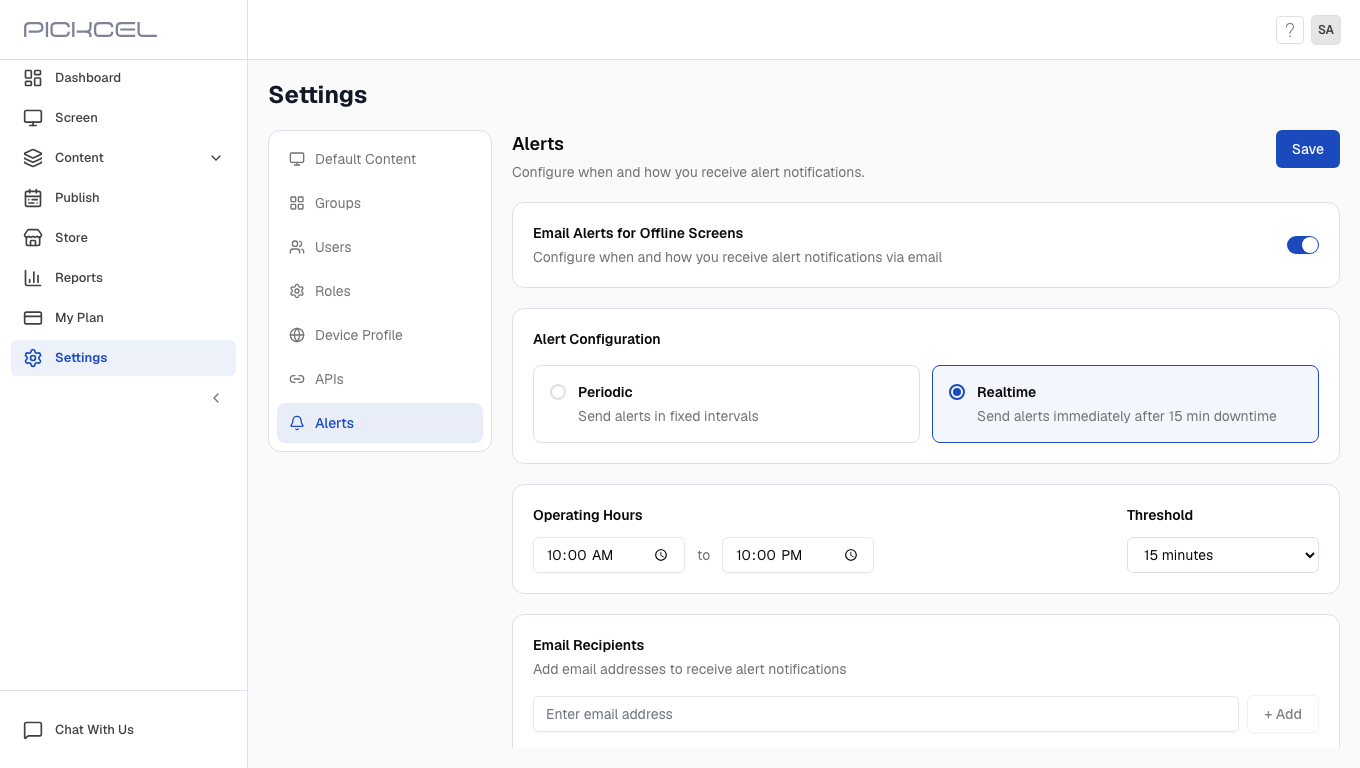
6
Save your settings
When you finish configuring alerts, click Save in the top-right corner of the page.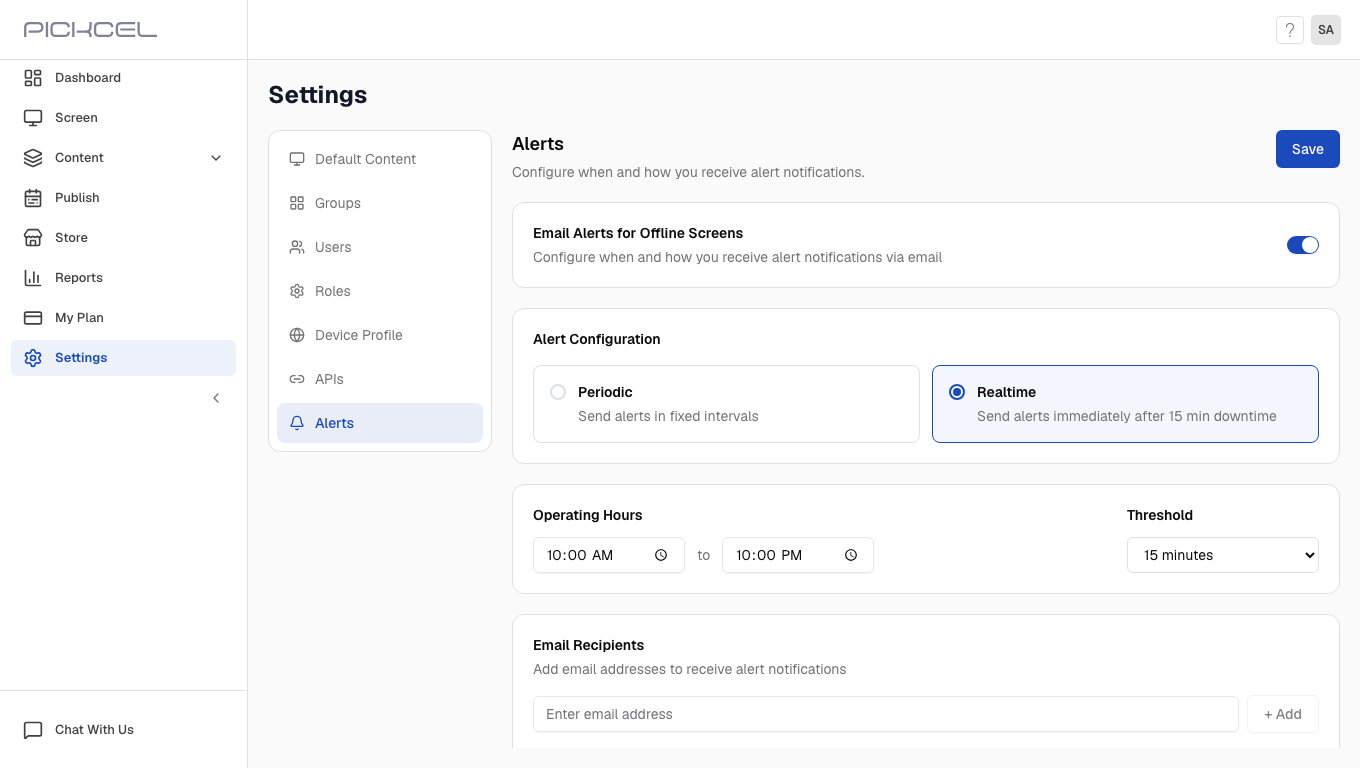
Understanding Your Alerts
What does the alert email look like?When an alert is triggered, you receive an email with:Subject:
[Pickcel Alert] Screen Down NotificationEmail body:- Offline duration threshold that triggered the alert
- Timestamp of when the alert was generated
- Summary of affected screens
screen-down-report.csv) including Screen Name, Screen ID, Last Sync Time, Offline Duration, Group Name, Tags, and Custom Attributes.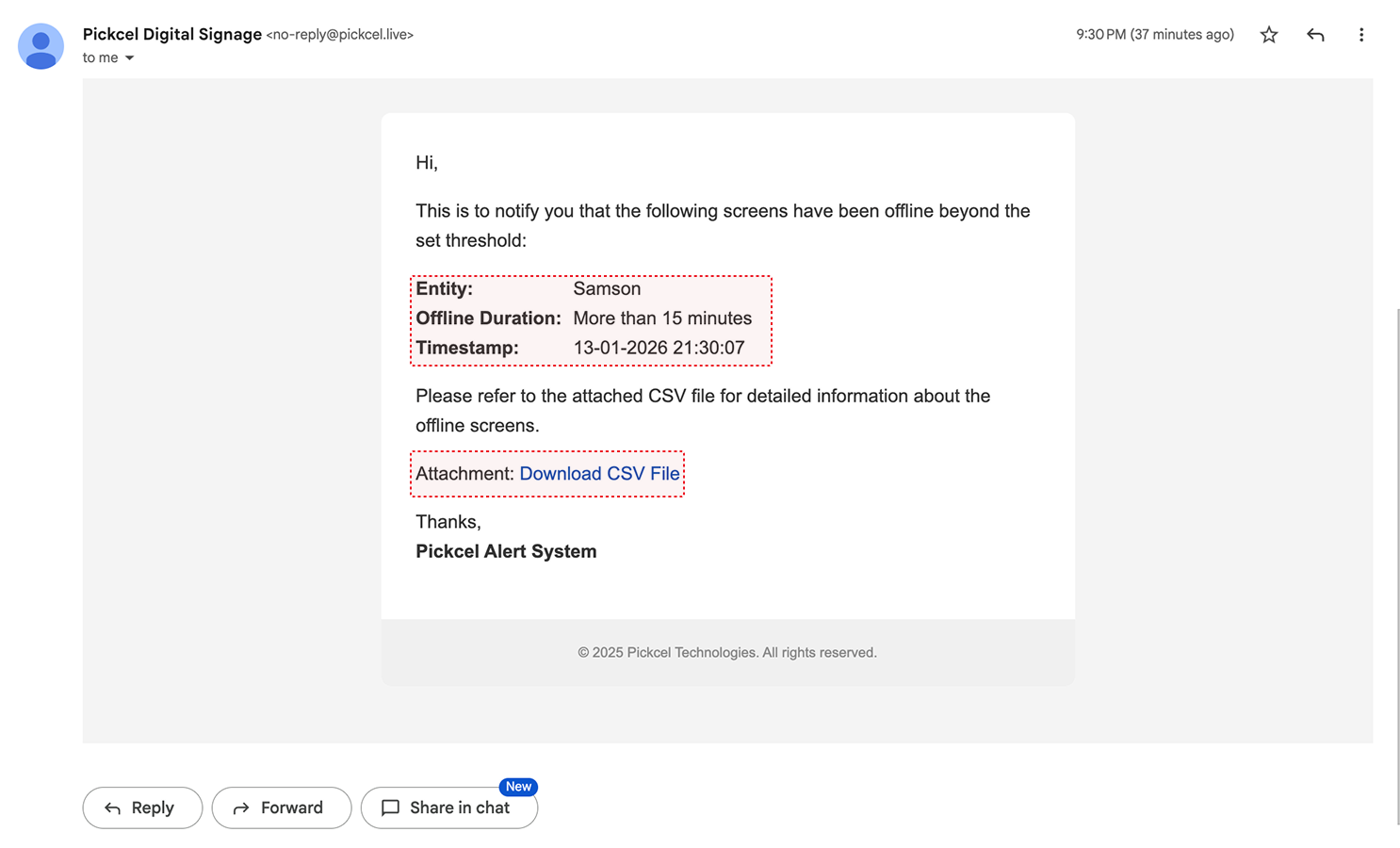
Sample email alert showing screen offline notification with timestamp and CSV report attachment
Important Alert Behavior
Same-day detection: Alerts focus on screens that went offline on the current day. The system resets daily and tracks new offline instances within today’s operating window.
Not sure what “offline” means for a screen? See Health Indicators for how Pickcel determines online, offline, and other screen states.
Need assistance? Reach out to our support team.