Use the standalone Power BI app to display interactive reports and dashboards on your digital signage screens with automatic page refresh
The standalone Power BI app is a dedicated Pickcel app for displaying Power BI reports. It connects directly to your Power BI workspace and supports automatic page rotation, making it ideal for real-time dashboards and reports.
Looking for another way? If you need more control over authentication methods or your device is an LG player, use the Dashboard app (Power BI method) instead, which supports server-side login and works across all device types.
A Microsoft account with access to Power BI and the reports you want to display.
Your reports published in a custom or shared workspace — Pickcel cannot access reports from My workspace. If you don’t have one, create a workspace and copy your reports into it.
A Pickcel account — the Power BI app is a Pro app, so make sure your plan includes Pro apps.
1
Search for the app
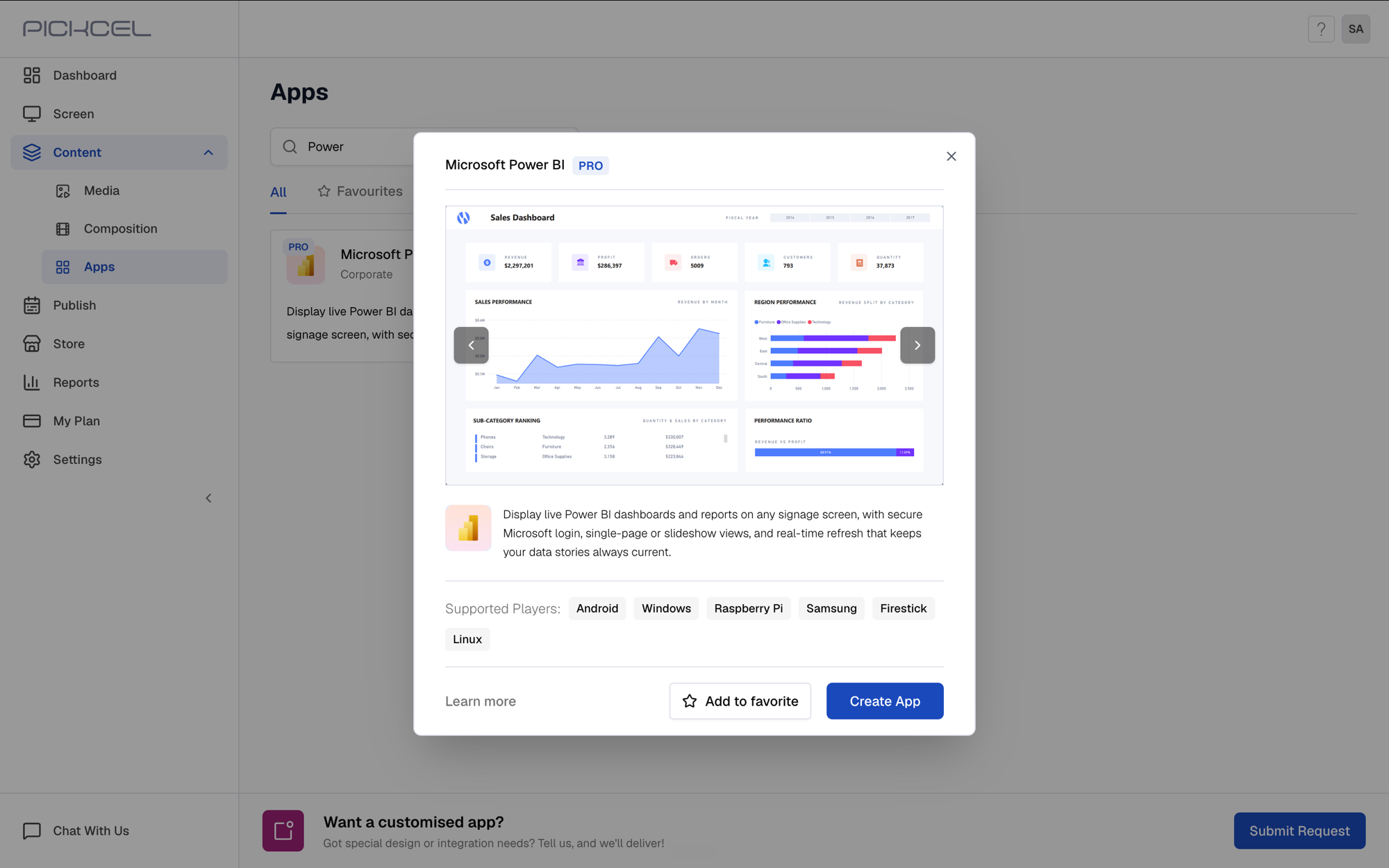
Log in to your Pickcel account. Go to Content → Apps and search for Power BI.
Click the Microsoft Power BI app card, then click Create App in the app details panel.
2
Sign in with Microsoft
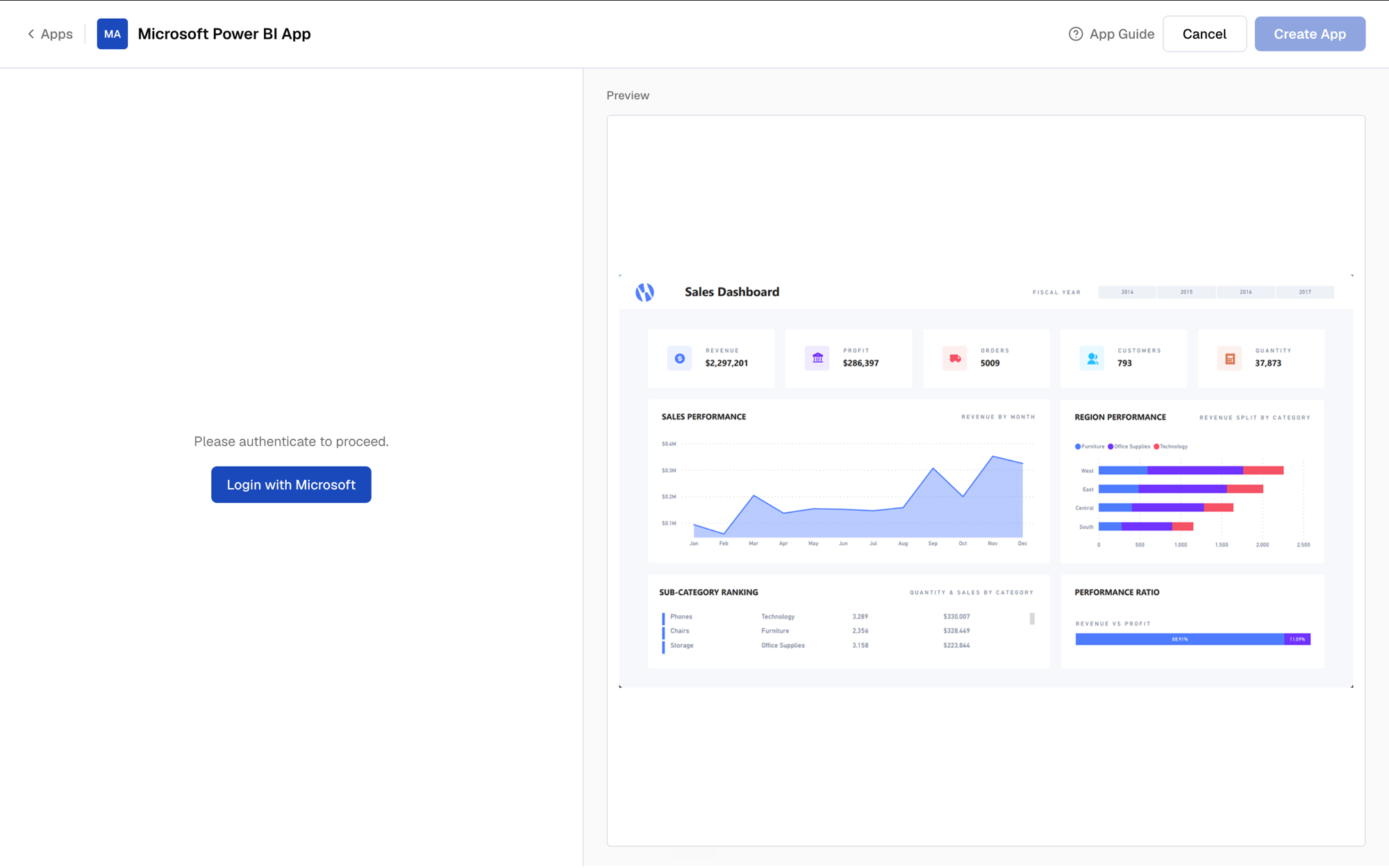
Click Login with Microsoft and sign in with the Microsoft account that has access to your Power BI workspace.
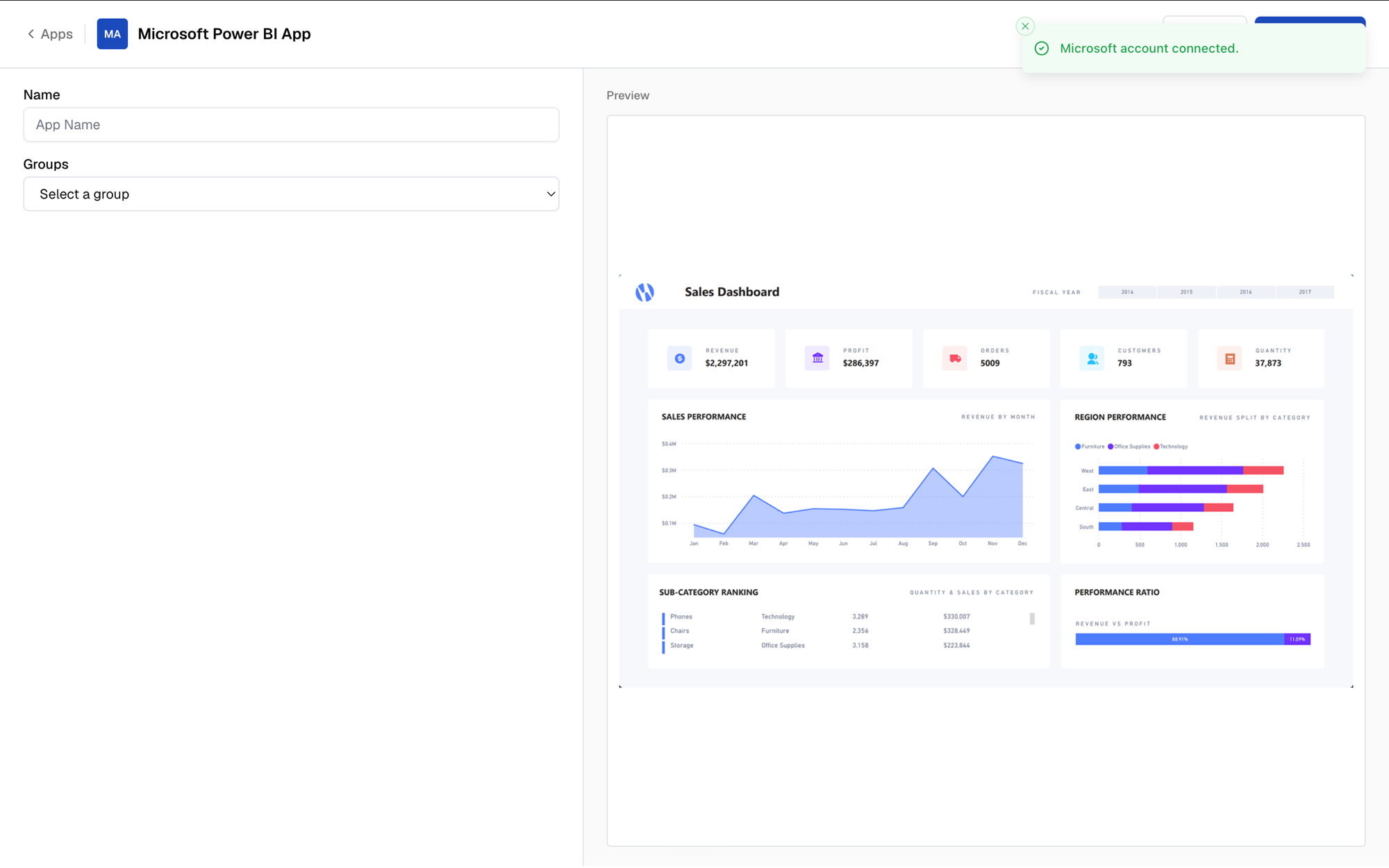
Once authentication succeeds, you’ll see a Microsoft account connected confirmation and the app configuration form.
3
Enter app name
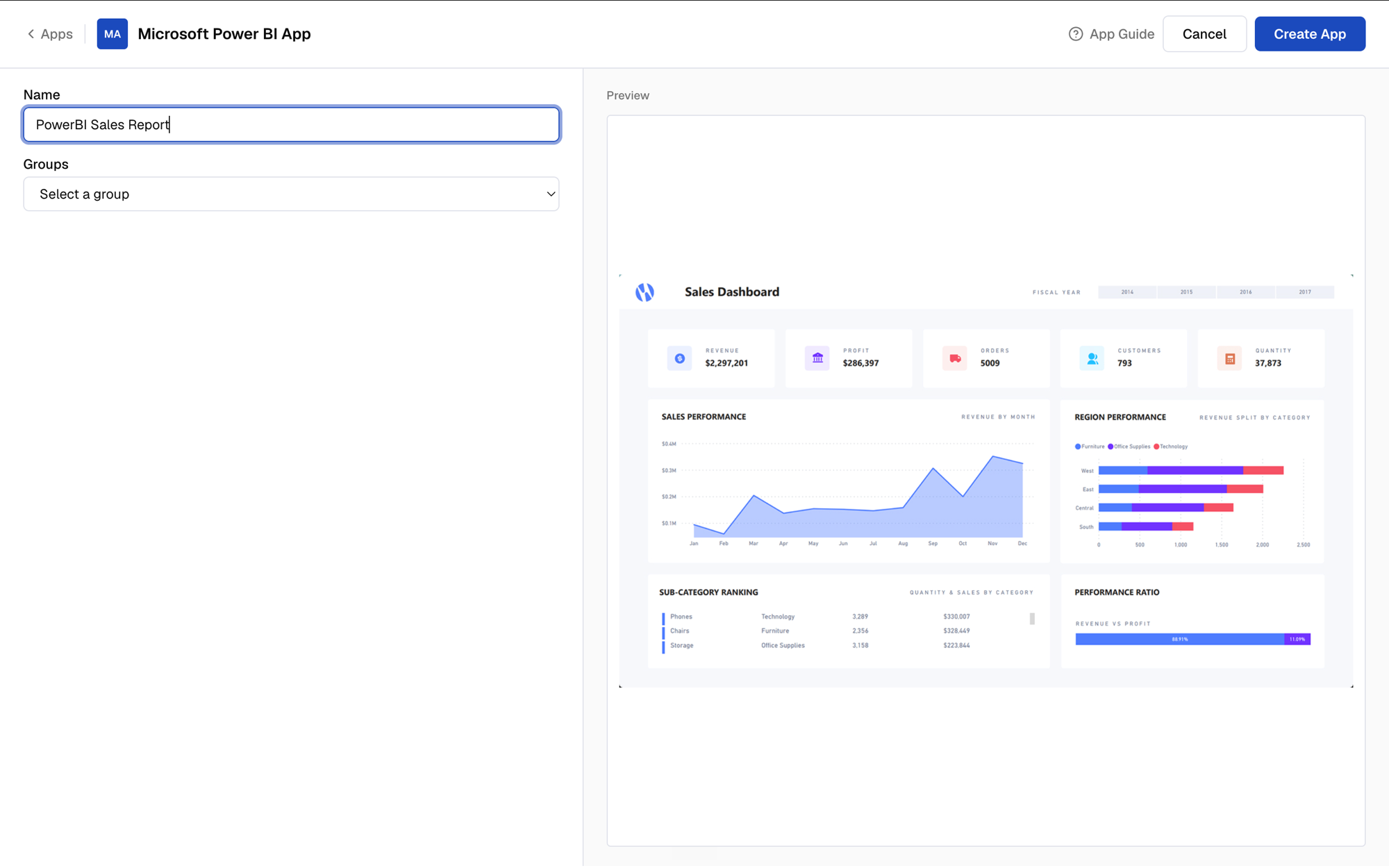
Give a suitable name to your app, e.g. PowerBI Sales Report.
4
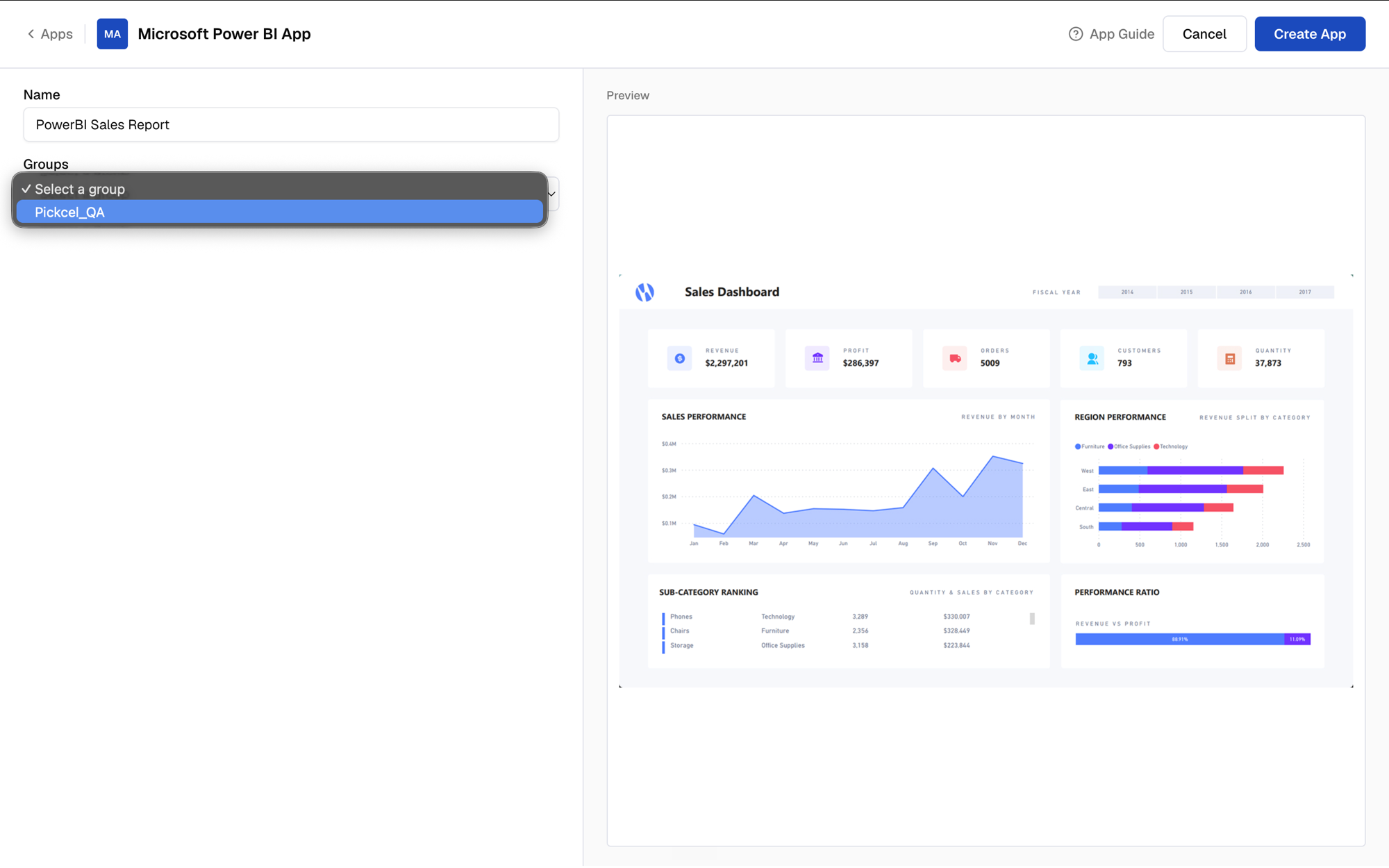
Select a group
The Groups dropdown lists the workspaces from your Power BI account. Select the workspace that contains your report.
A group in Pickcel corresponds to a workspace in Power BI. Make sure your reports are in a custom or shared workspace — Pickcel cannot access reports from My workspace.
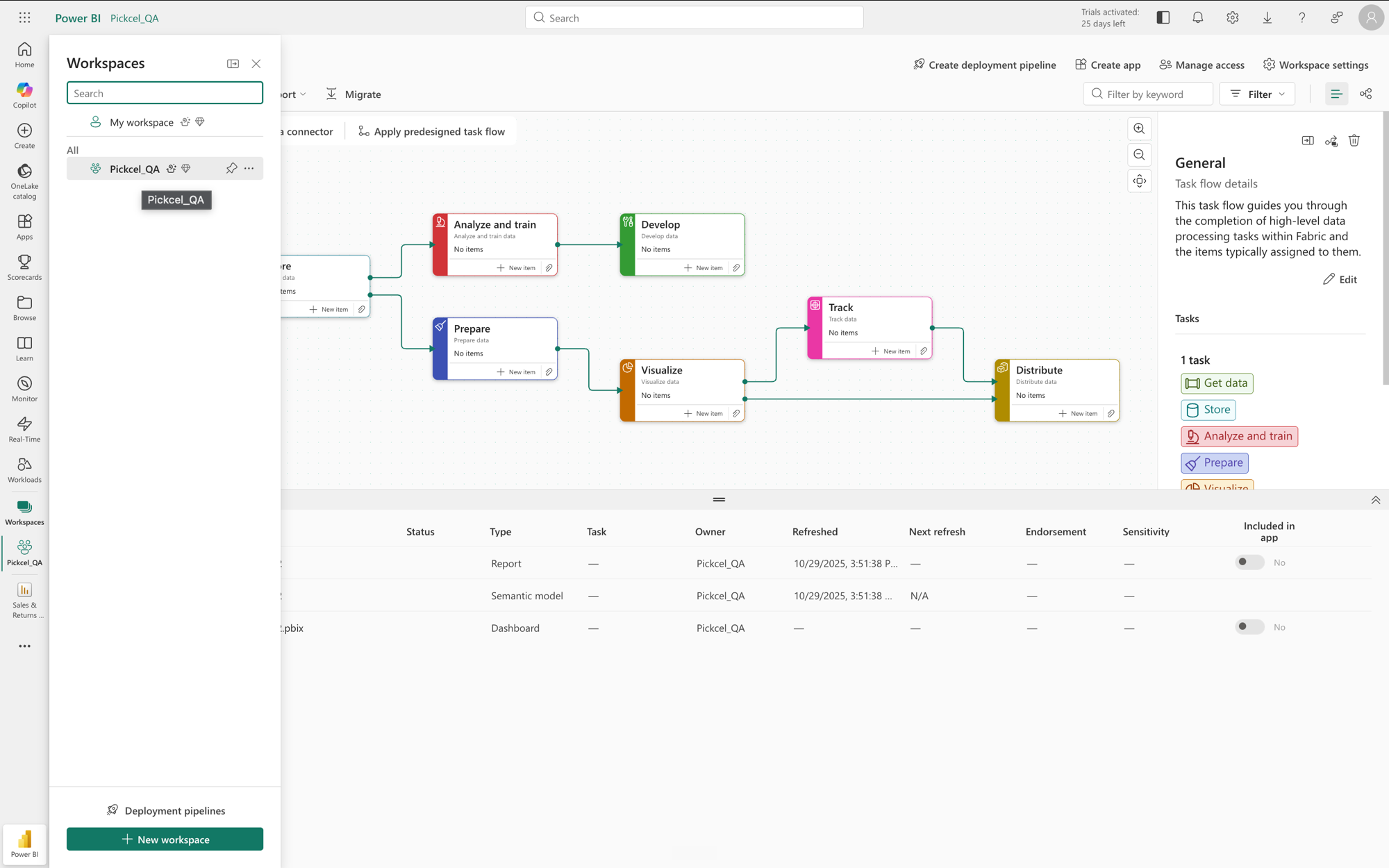
Where do groups come from in Power BI?
In Power BI, open Workspaces from the left navigation. Every workspace listed there (other than My workspace) appears as a group in Pickcel.
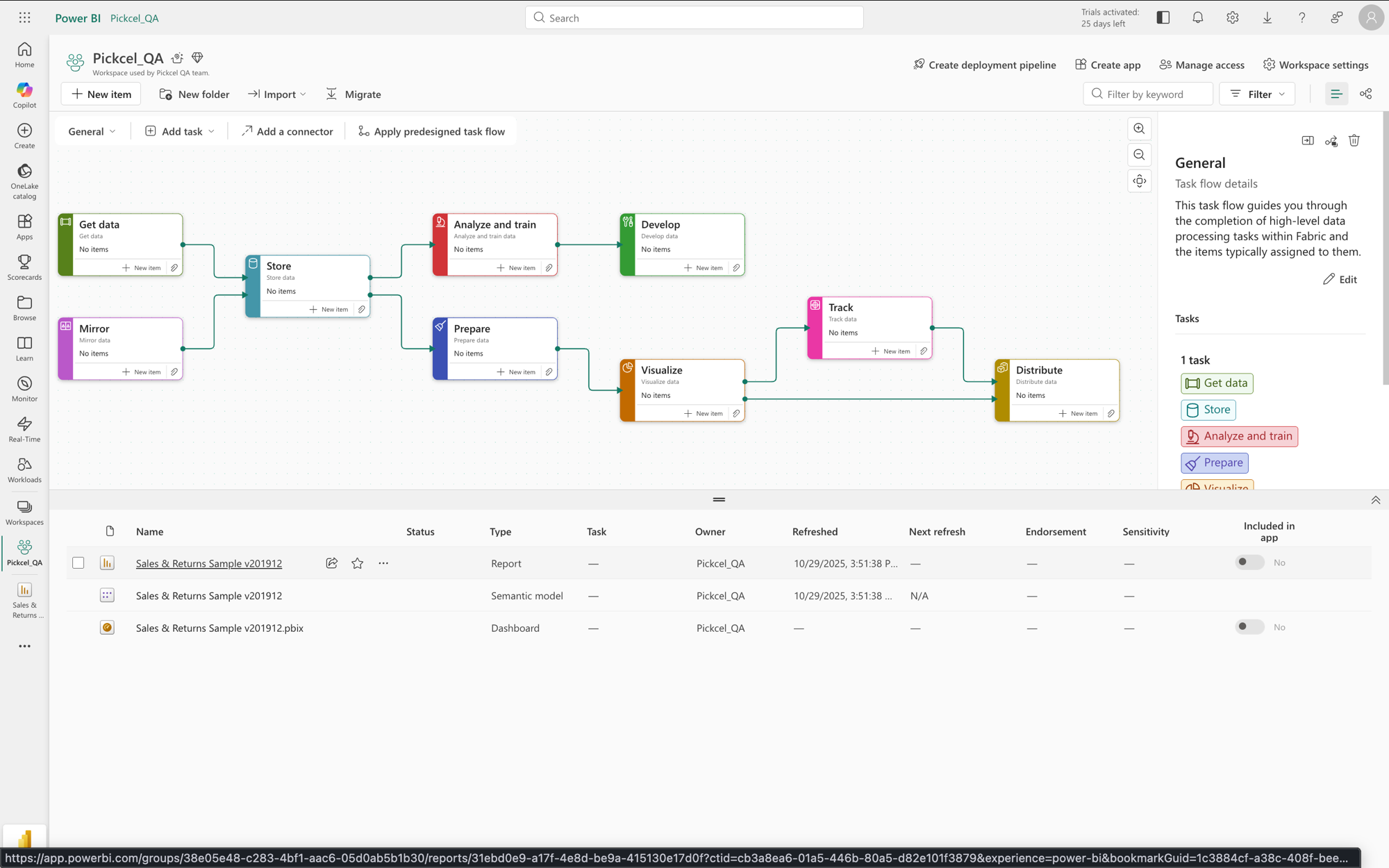
Inside the workspace you can see the reports, semantic models, and dashboards it contains — the reports are what Pickcel can display.
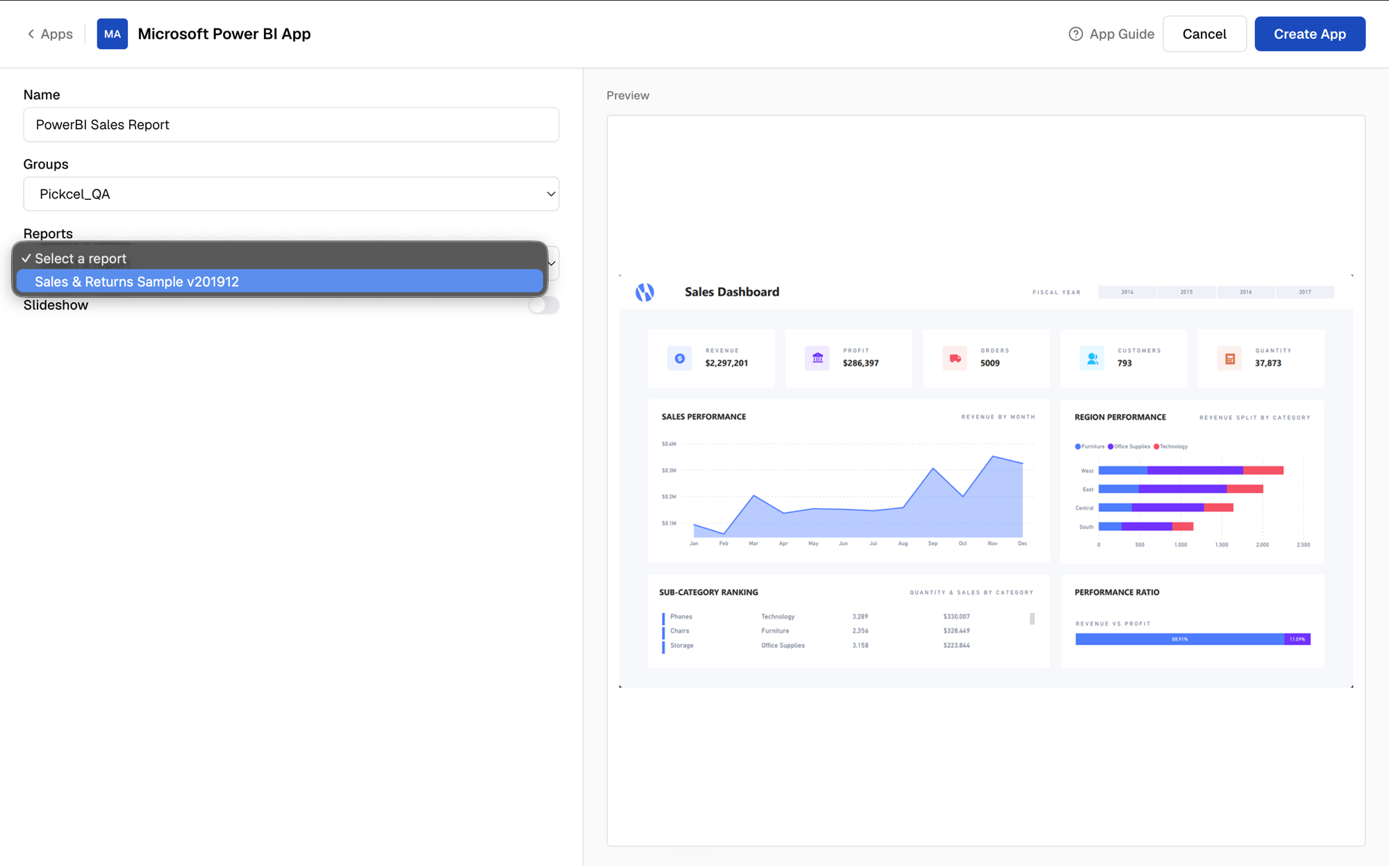
The Reports dropdown lists all reports in the selected workspace. Choose the one you want to display.
6
Choose the page display mode
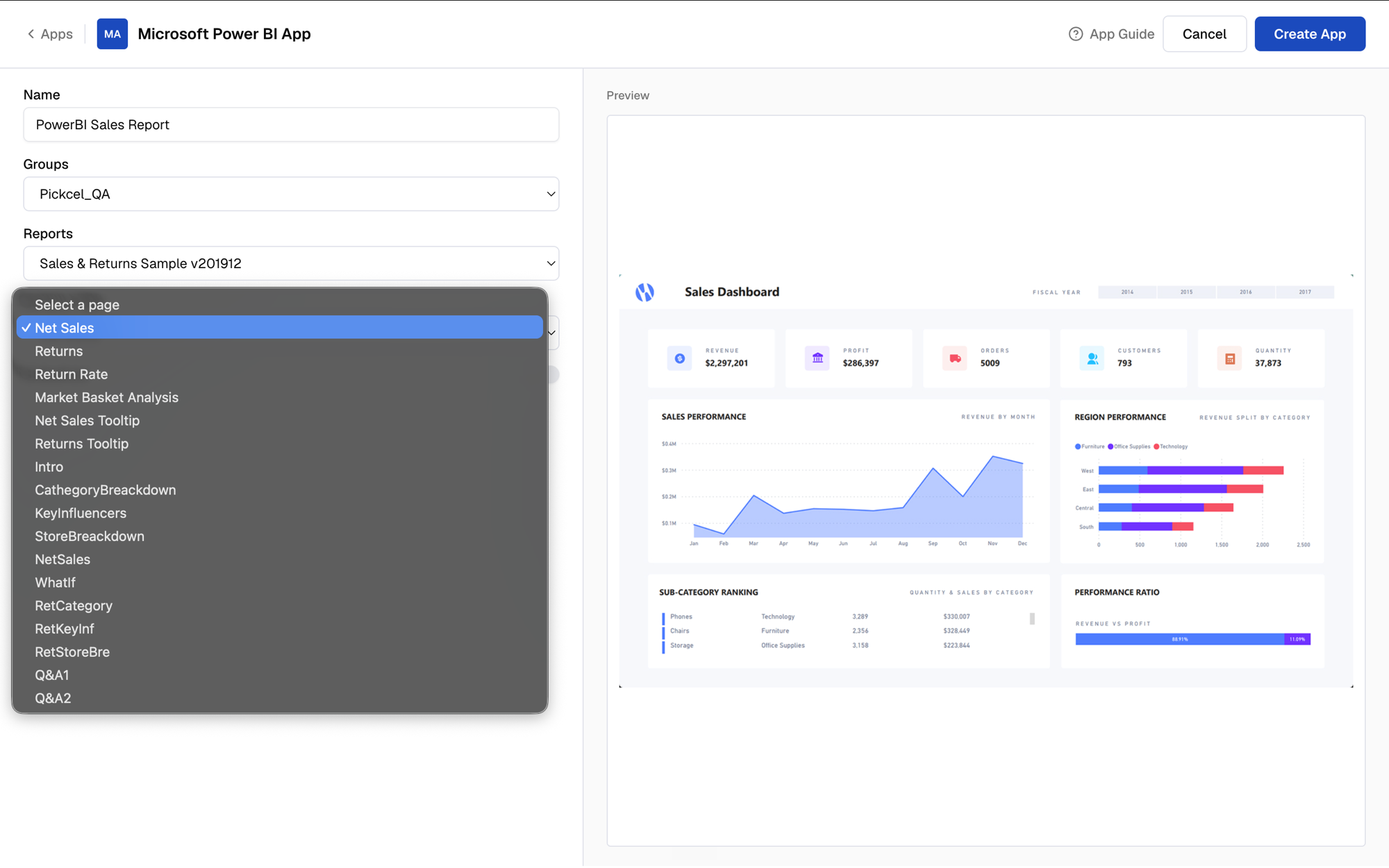
Single page (Default Page): choose a specific report page to display.
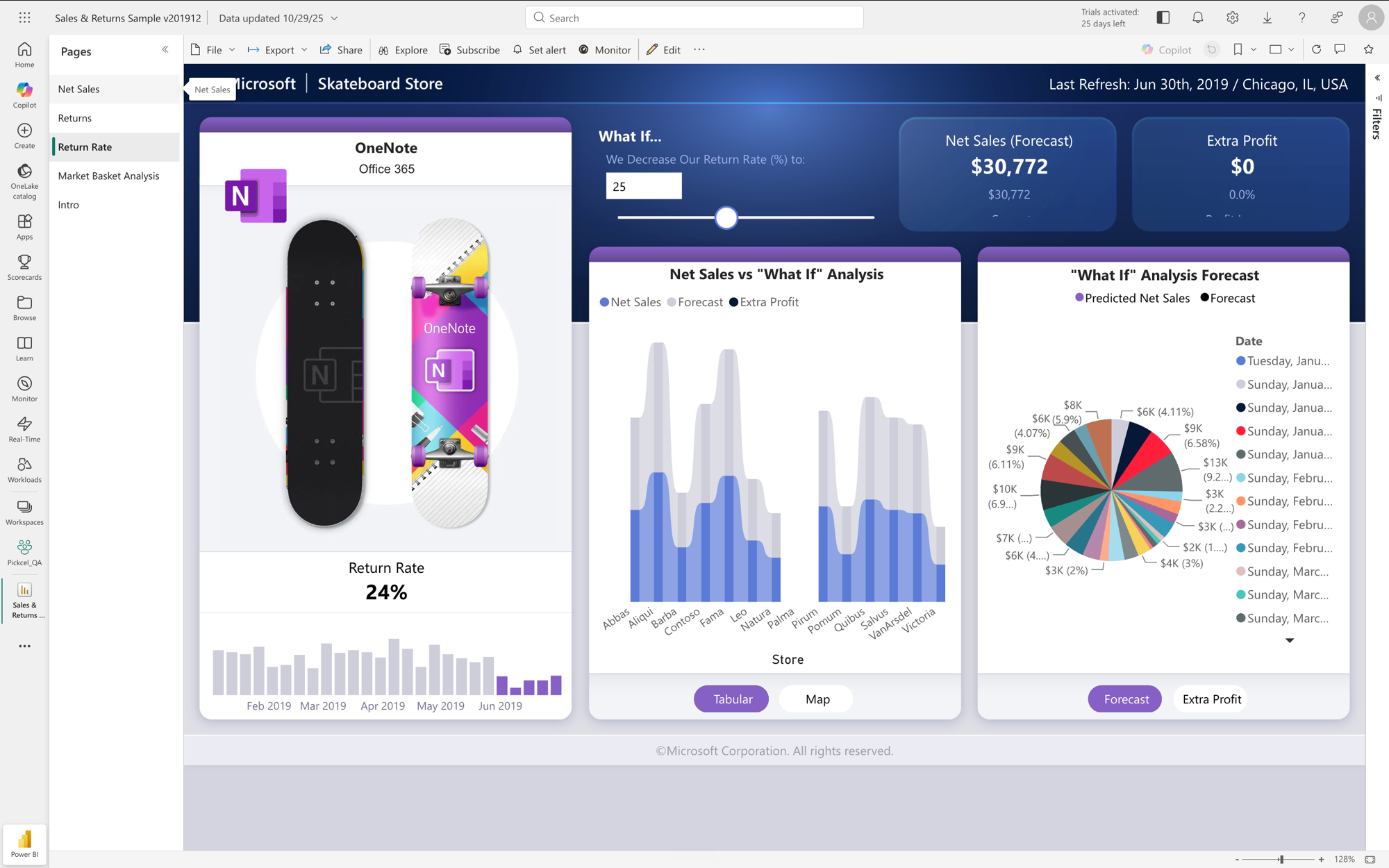
The pages listed here are the same pages you see in the report in Power BI. Viewers can still switch pages manually using the page tabs at the bottom of the report.
The same report pages in Power BI
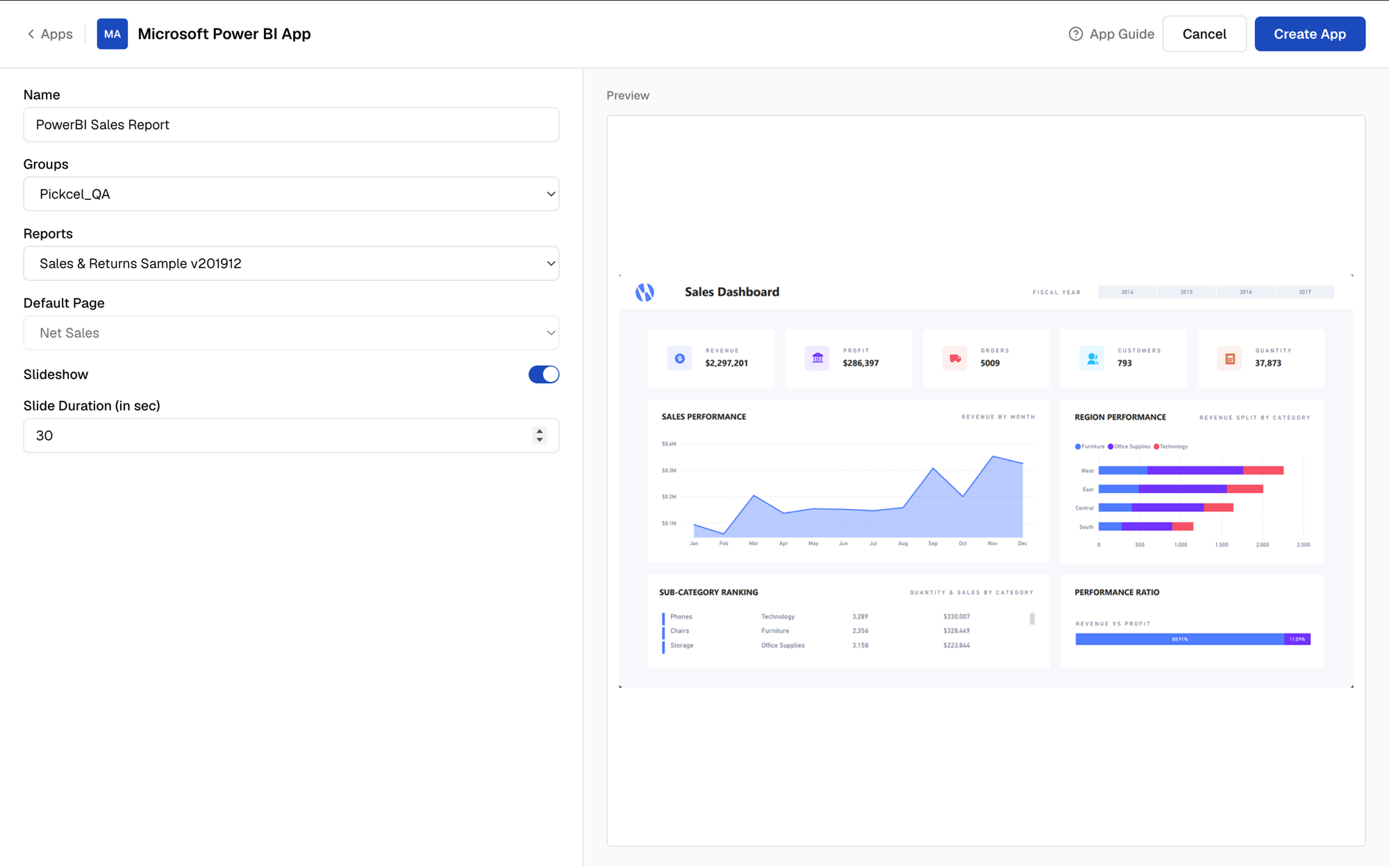
ORMultiple pages (Slideshow): enable the Slideshow toggle to automatically cycle through all pages in the report, and set the Slide Duration for how long each page is displayed.
7
Create the app
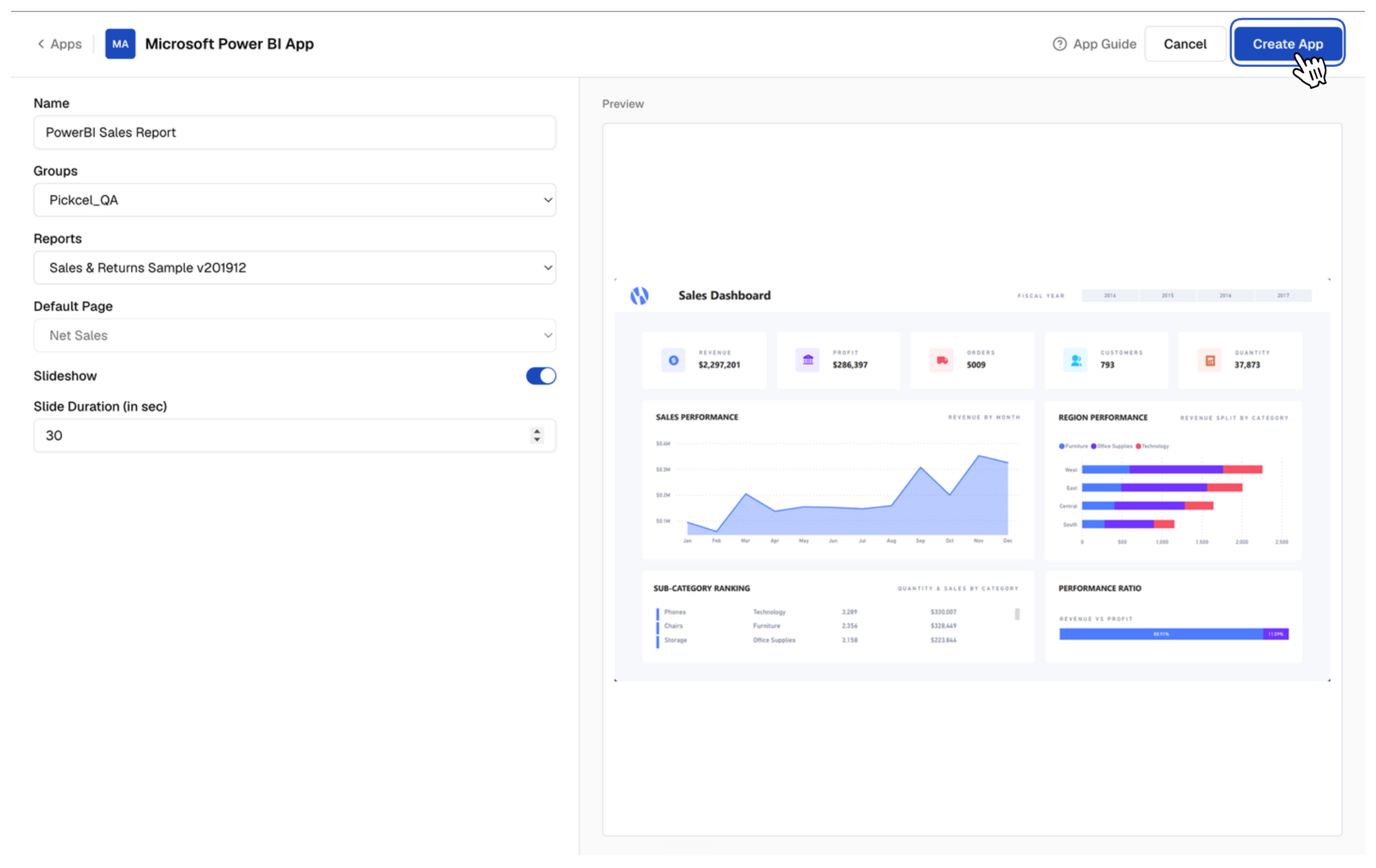
Click Create App to save your configuration.
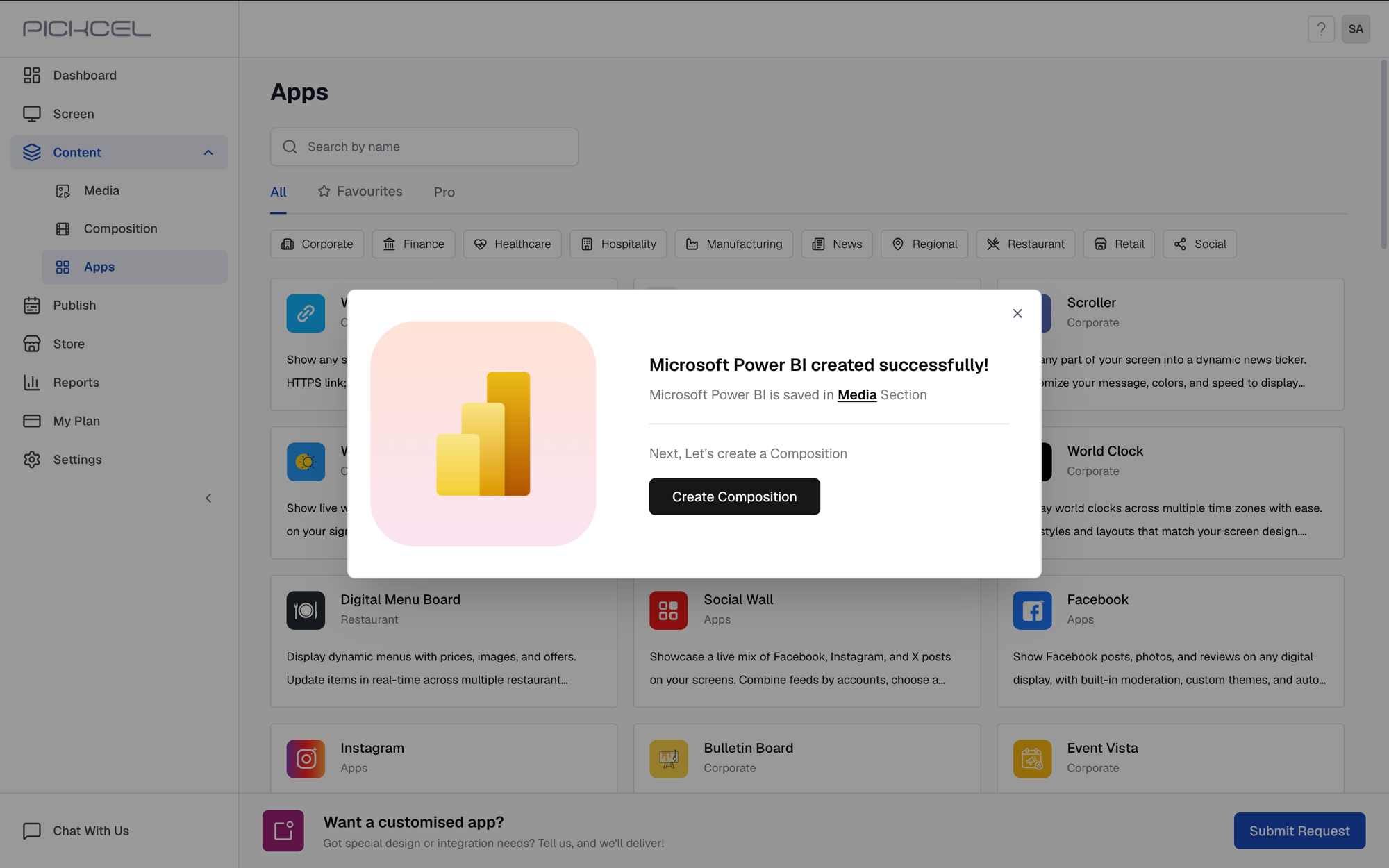
A confirmation appears once the app is created — it is saved to your Media library.
8
Preview the app
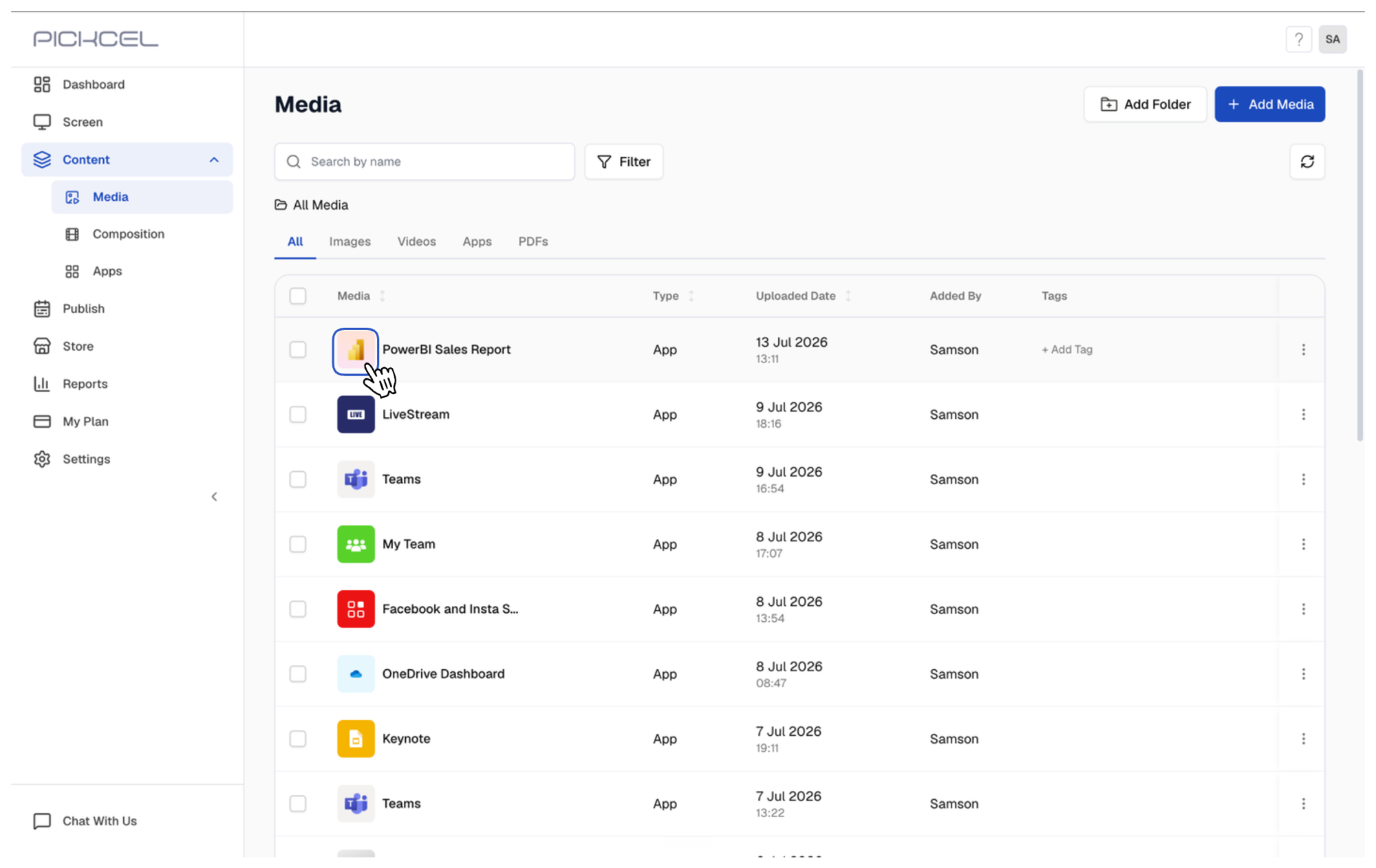
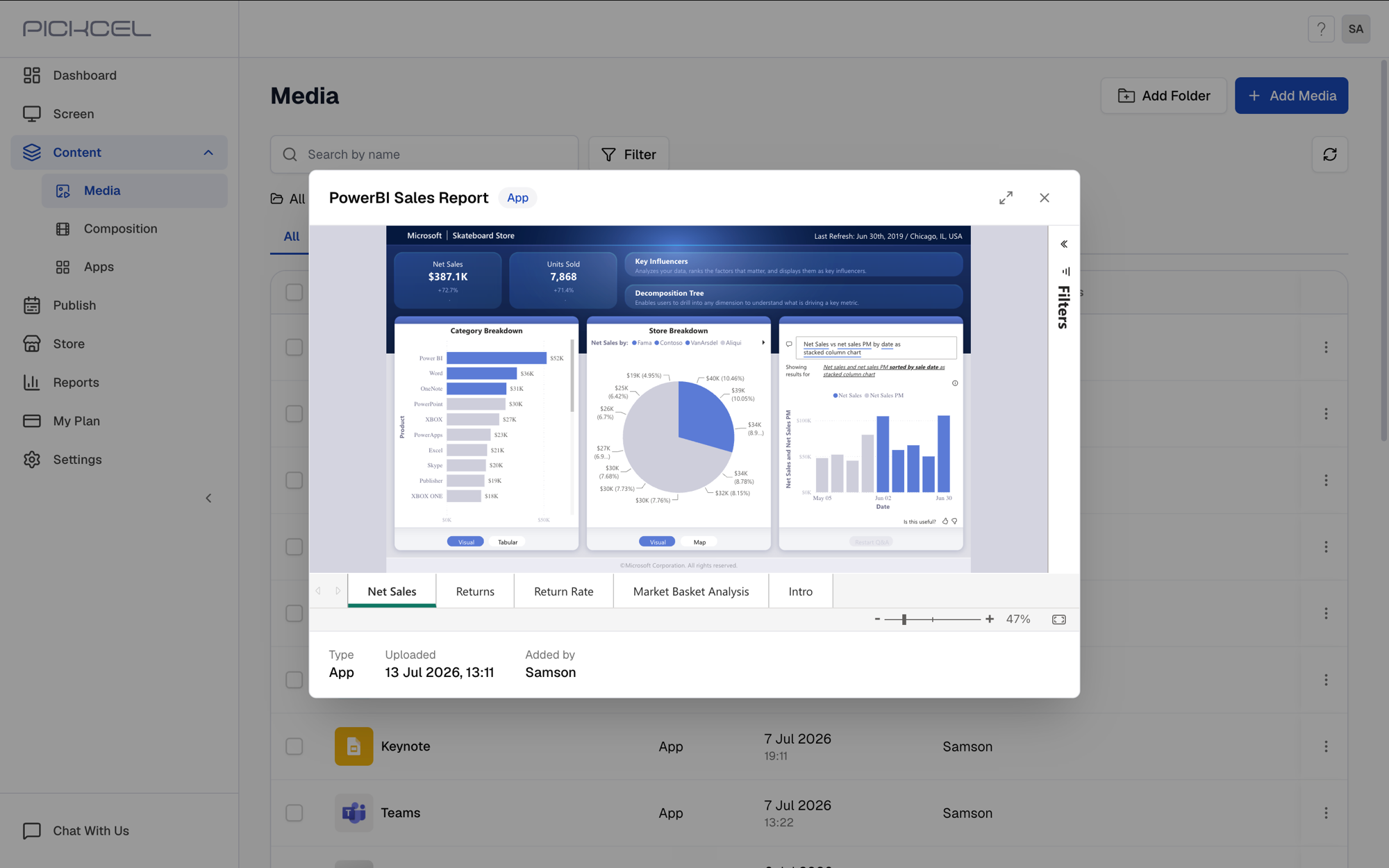
Go to Content → Media and click the app’s thumbnail to preview it.
Preview of the Power BI report
This dedicated Power BI app is not supported on LG devices. If you are using an LG player, please use the Dashboard app configured for Power BI instead.
{"docsConfig":{"theme":"maple","$schema":"https://mintlify.com/docs.json","name":"Pickcel","colors":{"primary":"#2563EB","light":"#60A5FA","dark":"#1E40AF"},"logo":{"light":"https://mintcdn.com/pickcel-92c6a68f/iLuZqYGiBYMjQFWY/logo/light.svg?fit=max\u0026auto=format\u0026n=iLuZqYGiBYMjQFWY\u0026q=85\u0026s=7d80373c02c70b1489509d903da91e4c","dark":"https://mintcdn.com/pickcel-92c6a68f/iLuZqYGiBYMjQFWY/logo/dark.svg?fit=max\u0026auto=format\u0026n=iLuZqYGiBYMjQFWY\u0026q=85\u0026s=13b5e2a3d53386104101341476f55a80"},"favicon":"https://mintcdn.com/pickcel-92c6a68f/vshLuV1NNbPO9tv5/favicon.png?fit=max\u0026auto=format\u0026n=vshLuV1NNbPO9tv5\u0026q=85\u0026s=e84b047600d45ac6412dd04bb683e253","navbar":{"links":[{"icon":"headset","href":"mailto:support@pickcel.com","label":"Support"},{"icon":"tv","href":"https://console.pickcel.com","label":"Console"}]},"footer":{"socials":{"website":"https://www.pickcel.com","linkedin":"https://www.linkedin.com/company/pickcel","x":"https://x.com/PickcelSignage","facebook":"https://www.facebook.com/pickcel","instagram":"https://www.instagram.com/pickceldigitalsignage","youtube":"https://www.youtube.com/@PickcelDigitalSignage"}},"seo":{"metatags":{"google-site-verification":"tOKzM1P_SRJoJYDZI053ga0R4bg6OBOv10nuEXIksq8"},"organization":{"id":"https://www.pickcel.com/#organization","name":"Pickcel","url":"https://www.pickcel.com","logo":"https://www.pickcel.com/assets/img/pickcel-logo.png","sameAs":["https://www.g2.com/products/pickcel/reviews","https://www.capterra.com/p/174853/Pickcel/","https://www.linkedin.com/company/pickcel","https://www.crunchbase.com/organization/pickcel","https://x.com/PickcelSignage","https://www.facebook.com/PickcelDigitalSignage","https://www.youtube.com/channel/UCymlUh_ErgjloeyCnzH711g","https://www.instagram.com/pickceldigitalsignage/"]}},"integrations":{"ga4":{"measurementId":"G-LD510NX3LH"}},"styling":{"latex":false},"navigation":{"pages":[]}},"deployment":{"deploymentMetadataValue":{"subdomain":"pickcel-92c6a68f","hasAudioNarration":false,"actualSubdomain":"pickcel-92c6a68f","customDomains":["docs.pickcel.com"],"gitSource":{"type":"github","owner":"pickcel-lq","repo":"signage-support-docs-mintlify","deployBranch":"main","contentDirectory":"","isPrivate":true,"mountPath":"","label":""},"chroma":{"liveDeploymentHistoryId":"6ae494b7fb630df5bd51095b","collectionId":"f7bc7920-1faa-408e-bc69-a587b54bbd42","schemaVersion":"v3","latestBuiltDeploymentHistoryId":"6ae494b7fb630df5bd51095b"},"feedback":{"thumbs":true},"entitlements":{},"buildId":"6ae494b7fb630df5bd51095b","clientVersion":"0.0.4054","searchFilterCounts":[{"language":"default","tag":"Documentation","count":142},{"language":"default","tag":"Guides","count":139},{"language":"default","tag":"Apps","count":75},{"language":"default","tag":"FAQs","count":31},{"language":"default","tag":"Frequently Asked Questions","count":31},{"language":"default","tag":"Player Installation","count":21},{"language":"default","tag":"Comms Docs","count":17},{"language":"default","tag":"Dashboard Apps","count":14},{"language":"default","tag":"Business \u0026 Productivity","count":13},{"language":"default","tag":"Digital Signage","count":12}]},"assistantConfig":{},"basePath":"","hasChatPermissions":false,"hasWebMcpPermissions":false,"toggles":[{"name":"kill-isr","enabled":true,"variant":{"name":"disabled","enabled":false,"feature_enabled":true},"impressionData":false},{"name":"agent-mintlify-slack","enabled":true,"variant":{"name":"disabled","enabled":false,"feature_enabled":true},"impressionData":false},{"name":"agent-integrations-settings","enabled":true,"variant":{"name":"disabled","enabled":false,"feature_enabled":true},"impressionData":false},{"name":"automations-pr-grouping","enabled":true,"variant":{"name":"disabled","enabled":false,"feature_enabled":true},"impressionData":false},{"name":"custom-prefix","enabled":true,"variant":{"name":"disabled","enabled":false,"feature_enabled":true},"impressionData":false},{"name":"analytics-v7","enabled":true,"variant":{"name":"disabled","enabled":false,"feature_enabled":true},"impressionData":false},{"name":"user-flows-analytics","enabled":true,"variant":{"name":"disabled","enabled":false,"feature_enabled":true},"impressionData":false},{"name":"no-publish-flow","enabled":true,"variant":{"name":"disabled","enabled":false,"feature_enabled":true},"impressionData":false},{"name":"workos-onboarding","enabled":true,"variant":{"name":"disabled","enabled":false,"feature_enabled":true},"impressionData":false},{"name":"llms-txt-v2","enabled":true,"variant":{"name":"disabled","enabled":false,"feature_enabled":true},"impressionData":false},{"name":"snapshot-serving-live","enabled":true,"variant":{"name":"disabled","enabled":false,"feature_enabled":true},"impressionData":false},{"name":"stripTemperatureMiddleware","enabled":true,"variant":{"name":"disabled","enabled":false,"feature_enabled":true},"impressionData":false},{"name":"support-platform-pylon-zendesk","enabled":true,"variant":{"name":"disabled","enabled":false,"feature_enabled":true},"impressionData":false},{"name":"snapshot-serving","enabled":true,"variant":{"name":"disabled","enabled":false,"feature_enabled":true},"impressionData":false},{"name":"instant-rollback","enabled":true,"variant":{"name":"disabled","enabled":false,"feature_enabled":true},"impressionData":false},{"name":"granular-notifications-server","enabled":true,"variant":{"name":"disabled","enabled":false,"feature_enabled":true},"impressionData":false},{"name":"granular-notifications","enabled":true,"variant":{"name":"disabled","enabled":false,"feature_enabled":true},"impressionData":false},{"name":"automations-fable","enabled":true,"variant":{"name":"disabled","enabled":false,"feature_enabled":true},"impressionData":false},{"name":"fixed-ai-action-pricing","enabled":true,"variant":{"name":"disabled","enabled":false,"feature_enabled":true},"impressionData":false},{"name":"automation-resolve-merge-conflict","enabled":true,"variant":{"name":"disabled","enabled":false,"feature_enabled":true},"impressionData":false},{"name":"scoped-publishing","enabled":true,"variant":{"name":"disabled","enabled":false,"feature_enabled":true},"impressionData":false},{"name":"mintql","enabled":true,"variant":{"name":"disabled","enabled":false,"feature_enabled":true},"impressionData":false},{"name":"page-level-analytics","enabled":true,"variant":{"name":"disabled","enabled":false,"feature_enabled":true},"impressionData":false},{"name":"editor-version-history-v2","enabled":true,"variant":{"name":"disabled","enabled":false,"feature_enabled":true},"impressionData":false},{"name":"billing-page-v2","enabled":true,"variant":{"name":"disabled","enabled":false,"feature_enabled":true},"impressionData":false},{"name":"full-page-search","enabled":true,"variant":{"name":"disabled","enabled":false,"feature_enabled":true},"impressionData":false},{"name":"workspace-projects","enabled":true,"variant":{"name":"disabled","enabled":false,"feature_enabled":true},"impressionData":false},{"name":"assistant-v5","enabled":true,"variant":{"name":"disabled","enabled":false,"feature_enabled":true},"impressionData":false},{"name":"byok-sep-25","enabled":true,"variant":{"name":"disabled","enabled":false,"feature_enabled":true},"impressionData":false},{"name":"fork-pr-previews","enabled":true,"variant":{"name":"disabled","enabled":false,"feature_enabled":true},"impressionData":false},{"name":"revalidation-jwt","enabled":true,"variant":{"name":"disabled","enabled":false,"feature_enabled":true},"impressionData":false},{"name":"vite-origin","enabled":true,"variant":{"name":"disabled","enabled":false,"feature_enabled":true},"impressionData":false},{"name":"billing-updated-9-15","enabled":true,"variant":{"name":"disabled","enabled":false,"feature_enabled":true},"impressionData":false},{"name":"workos-sso-scim","enabled":true,"variant":{"name":"disabled","enabled":false,"feature_enabled":true},"impressionData":false},{"name":"hobby-abuse-scan","enabled":true,"variant":{"name":"disabled","enabled":false,"feature_enabled":true},"impressionData":false},{"name":"dashboard-inbox","enabled":true,"variant":{"name":"disabled","enabled":false,"feature_enabled":true},"impressionData":false},{"name":"workos-signup","enabled":true,"variant":{"name":"disabled","enabled":false,"feature_enabled":true},"impressionData":false},{"name":"turbopuffer-dual-write","enabled":true,"variant":{"name":"disabled","enabled":false,"feature_enabled":true},"impressionData":false},{"name":"workos-enabled","enabled":true,"variant":{"name":"disabled","enabled":false,"feature_enabled":true},"impressionData":false},{"name":"approve-review-flow","enabled":true,"variant":{"name":"disabled","enabled":false,"feature_enabled":true},"impressionData":false},{"name":"sso-setup-deadline-banner","enabled":true,"variant":{"name":"disabled","enabled":false,"feature_enabled":true},"impressionData":false},{"name":"rbac-expansion","enabled":true,"variant":{"name":"disabled","enabled":false,"feature_enabled":true},"impressionData":false}],"googleFontsInlined":false},"customCss":[{"filePath":"custom.css","content":".welcome-page .card-group{margin:3rem auto 8rem;max-width:70rem;padding-left:1.25rem;padding-right:1.25rem}.welcome-page .card-group .card{padding:1rem}.welcome-hero{display:flex;flex-direction:column;align-items:center;justify-content:center;min-height:20vh;text-align:center;margin-top:3rem;margin-bottom:2.5rem}.welcome-hero h1{font-size:2.5rem;font-weight:700;margin-bottom:1rem;line-height:1.2;color:#fff;color:rgb(41 42 37/1)}.welcome-hero p{font-size:1.25rem;max-width:600px;margin:0 auto;color:rgb(83 85 79/1)}.dark .welcome-hero h1{color:rgb(255 255 255/1)}.dark .welcome-hero p{color:rgb(162 164 158/1)}.flex.items-center.lg\\:px-12,nav.flex.items-center{height:5rem!important;padding-top:.5rem!important;padding-bottom:.5rem!important}#sidebar .nav-logo,.nav-logo,nav .nav-logo{height:1.25rem!important;max-height:1.25rem!important;width:auto!important}#sidebar a[href=\"/\"],header a[href=\"/\"],nav a[href=\"/\"]{display:flex!important;align-items:center!important;height:1.25rem!important}@media (max-width:1024px){.nav-logo,header .nav-logo,nav .nav-logo{height:1.25rem!important;max-height:1.25rem!important;width:auto!important}header a[href=\"/\"],nav a[href=\"/\"]{height:1.25rem!important}}kbd{background-color:#f4f4f5;border:1px solid #d4d4d8;border-radius:.375rem;box-shadow:0 1px 2px 0 rgba(0,0,0,.05);color:#27272a;display:inline-block;font-family:ui-monospace,SFMono-Regular,\"SF Mono\",Menlo,Consolas,\"Liberation Mono\",monospace;font-size:.875em;font-weight:600;line-height:1;padding:.25rem .5rem;white-space:nowrap}.dark kbd{background-color:#27272a;border-color:#52525b;color:#fafafa}::selection{background-color:rgba(0,0,0,.9);color:#fff}::-moz-selection{background-color:rgba(0,0,0,.9);color:#fff}.dark ::selection{background-color:rgba(255,255,255,.9);color:#000}.dark ::-moz-selection{background-color:rgba(255,255,255,.9);color:#000}img::selection{background-color:rgba(0,120,215,.3)}img::-moz-selection{background-color:rgba(0,120,215,.3)}.dark img::selection{background-color:rgba(100,180,255,.3)}.dark img::-moz-selection{background-color:rgba(100,180,255,.3)}.publish-comparison-table table{table-layout:fixed;width:100%}.publish-comparison-table td,.publish-comparison-table th{overflow-wrap:break-word;vertical-align:middle}.publish-comparison-table td:first-child,.publish-comparison-table th:first-child{width:34%;text-align:left}.publish-comparison-table td:not(:first-child),.publish-comparison-table th:not(:first-child){width:22%;text-align:center}.publish-comparison-table td:first-child *{text-align:left}.doc-video{margin:1.5rem 0;border:1px solid #e3e6ec;border-radius:10px;overflow:hidden;background:#fff}.doc-video video{display:block;width:100%;margin:0;cursor:pointer;background:#0d1015}.doc-video__bar{display:flex;align-items:center;gap:12px;height:38px;padding:0 14px;border-top:1px solid #eceef2;background:#fafbfc}.doc-video__btn{display:grid;place-items:center;width:18px;height:18px;padding:0;border:0;background:0 0;color:#737b8a;cursor:pointer;transition:color .15s ease}.doc-video__btn:hover{color:#2563eb}.doc-video__seek{flex:1;padding:11px 0;cursor:pointer;touch-action:none;outline:0}.doc-video__seek:focus-visible .doc-video__track{box-shadow:0 0 0 2px rgba(37,99,235,.35)}.doc-video__track{position:relative;height:3px;background:#dfe3ea;border-radius:3px}.doc-video__fill,.doc-video__knob{position:absolute;background:#2563eb}.doc-video__fill{inset:0 auto 0 0;border-radius:3px}.doc-video__knob{top:50%;width:11px;height:11px;margin-left:-5.5px;border-radius:50%;transform:translateY(-50%) scale(0);transition:transform .12s ease;pointer-events:none}.doc-video__seek.is-dragging .doc-video__knob,.doc-video__seek:focus-visible .doc-video__knob,.doc-video__seek:hover .doc-video__knob{transform:translateY(-50%) scale(1)}.doc-video__seek.is-dragging{cursor:grabbing}.doc-video__time{font-size:11px;font-variant-numeric:tabular-nums;color:#8a92a0;white-space:nowrap}.doc-video:-webkit-full-screen,.doc-video:fullscreen{border:0;border-radius:0;background:#0d1015;display:flex;flex-direction:column}.doc-video:-webkit-full-screen video,.doc-video:fullscreen video{flex:1;min-height:0;object-fit:contain}.dark .doc-video{border-color:#2a2f3a;background:#12151b}.dark .doc-video__bar{border-top-color:#232833;background:#171b23}.dark .doc-video__track{background:#2c323d}.dark .doc-video__fill,.dark .doc-video__knob{background:#7ea3ff}.dark .doc-video__time{color:#7d8494}.dark .doc-video__btn{color:#8b93a1}.dark .doc-video__btn:hover{color:#7ea3ff}"}],"page":{"pagePath":"apps/power-bi","slug":"/apps/power-bi","pageMetadata":{"title":"How to use Power BI app with Pickcel?","sidebarTitle":"Power BI","description":"Use the standalone Power BI app to display interactive reports and dashboards on your digital signage screens with automatic page refresh","href":"/apps/power-bi"},"description":{"compiledSource":"\"use strict\";\nconst {jsx: _jsx} = arguments[0];\nconst {useMDXComponents: _provideComponents} = arguments[0];\nfunction _createMdxContent(props) {\n const _components = {\n p: \"p\",\n ..._provideComponents(),\n ...props.components\n };\n return _jsx(_components.p, {\n children: \"Use the standalone Power BI app to display interactive reports and dashboards on your digital signage screens with automatic page refresh\"\n });\n}\nfunction MDXContent(props = {}) {\n const {wrapper: MDXLayout} = {\n ..._provideComponents(),\n ...props.components\n };\n return MDXLayout ? _jsx(MDXLayout, {\n ...props,\n children: _jsx(_createMdxContent, {\n ...props\n })\n }) : _createMdxContent(props);\n}\nreturn {\n default: MDXContent\n};\n","frontmatter":{},"scope":{}},"pageType":"default","mdx":{"mdxSource":{"compiledSource":"\"use strict\";const{Fragment:_Fragment,jsx:_jsx,jsxs:_jsxs}=arguments[0];const{useMDXComponents:_provideComponents}=arguments[0];function _createMdxContent(props){const _components={a:`a`,li:`li`,p:`p`,strong:`strong`,ul:`ul`,..._provideComponents(),...props.components},{Accordion,Frame,Heading,Info,Note,OptimizedImage,Step,Steps,Warning}=_components;if(!Accordion)_missingMdxReference(`Accordion`,true);if(!Frame)_missingMdxReference(`Frame`,true);if(!Heading)_missingMdxReference(`Heading`,true);if(!Info)_missingMdxReference(`Info`,true);if(!Note)_missingMdxReference(`Note`,true);if(!OptimizedImage)_missingMdxReference(`OptimizedImage`,true);if(!Step)_missingMdxReference(`Step`,true);if(!Steps)_missingMdxReference(`Steps`,true);if(!Warning)_missingMdxReference(`Warning`,true);return _jsxs(_Fragment,{children:[_jsxs(_components.p,{children:[`The `,_jsx(_components.strong,{children:`standalone Power BI app`}),` is a dedicated Pickcel app for displaying Power BI reports. It connects directly to your Power BI workspace and supports automatic page rotation, making it ideal for real-time dashboards and reports.`]}),`\n`,_jsx(Info,{children:_jsxs(_components.p,{children:[_jsx(_components.strong,{children:`Looking for another way?`}),` If you need more control over authentication methods or your device is an LG player, use the `,_jsx(_components.a,{href:`/apps/dashboard-apps/power-bi`,children:`Dashboard app (Power BI method)`}),` instead, which supports server-side login and works across all device types.`]})}),`\n`,_jsx(Heading,{level:`2`,id:`before-you-start`,children:`Before you start`}),`\n`,_jsx(_components.p,{children:`Keep the following ready:`}),`\n`,_jsxs(_components.ul,{children:[`\n`,_jsxs(_components.li,{children:[`A `,_jsx(_components.strong,{children:`Microsoft account`}),` with access to Power BI and the reports you want to display.`]}),`\n`,_jsxs(_components.li,{children:[`Your reports published in a `,_jsx(_components.strong,{children:`custom or shared workspace`}),` — Pickcel cannot access reports from `,_jsx(_components.strong,{children:`My workspace`}),`. If you don’t have one, `,_jsx(_components.a,{href:`https://learn.microsoft.com/en-us/power-bi/collaborate-share/service-create-the-new-workspaces`,children:`create a workspace`}),` and `,_jsx(_components.a,{href:`https://learn.microsoft.com/en-us/power-bi/connect-data/service-datasets-copy-reports`,children:`copy your reports into it`}),`.`]}),`\n`,_jsxs(_components.li,{children:[`A `,_jsx(_components.a,{href:`https://console.pickcel.com/`,children:`Pickcel account`}),` — the Power BI app is a `,_jsx(_components.strong,{children:`Pro`}),` app, so make sure your plan includes Pro apps.`]}),`\n`]}),`\n`,_jsxs(Steps,{children:[_jsxs(Step,{title:`Search for the app`,children:[_jsxs(_components.p,{children:[`Log in to your `,_jsx(_components.a,{href:`https://console.pickcel.com/`,children:`Pickcel account`}),`. Go to `,_jsx(_components.strong,{children:`Content → Apps`}),` and search for `,_jsx(_components.strong,{children:`Power BI`}),`.`]}),_jsx(Frame,{children:_jsx(OptimizedImage,{src:`https://cdn.pickcel.com/images/pickcel-docs/power-bi/power-bi-01-search-app.dVtg1yl5B8q3.png`,alt:`Searching for Power BI in the Pickcel Apps module`})}),_jsxs(_components.p,{children:[`Click the `,_jsx(_components.strong,{children:`Microsoft Power BI`}),` app card, then click `,_jsx(_components.strong,{children:`Create App`}),` in the app details panel.`]}),_jsx(Frame,{children:_jsx(OptimizedImage,{src:`https://cdn.pickcel.com/images/pickcel-docs/power-bi/power-bi-02-app-details.f56Ymhff5-AU.png`,alt:`Microsoft Power BI app details with supported players and the Create App button`})})]}),_jsxs(Step,{title:`Sign in with Microsoft`,children:[_jsxs(_components.p,{children:[`Click `,_jsx(_components.strong,{children:`Login with Microsoft`}),` and sign in with the Microsoft account that has access to your Power BI workspace.`]}),_jsx(Frame,{children:_jsx(OptimizedImage,{src:`https://cdn.pickcel.com/images/pickcel-docs/power-bi/power-bi-03-login-microsoft.xB9MJ9gE1qP9.png`,alt:`Login with Microsoft button on the Power BI app authentication screen`})}),_jsxs(_components.p,{children:[`Once authentication succeeds, you’ll see a `,_jsx(_components.strong,{children:`Microsoft account connected`}),` confirmation and the app configuration form.`]}),_jsx(Frame,{children:_jsx(OptimizedImage,{src:`https://cdn.pickcel.com/images/pickcel-docs/power-bi/power-bi-04-microsoft-connected.UEXflqaXP-jM.png`,alt:`Power BI app configuration form showing the Microsoft account connected confirmation`})})]}),_jsxs(Step,{title:`Enter app name`,children:[_jsx(_components.p,{children:`Give a suitable name to your app, e.g. PowerBI Sales Report.`}),_jsx(Frame,{children:_jsx(OptimizedImage,{src:`https://cdn.pickcel.com/images/pickcel-docs/power-bi/power-bi-05-app-name.JB5asY5uhVdM.png`,alt:`Power BI app form with the name PowerBI Sales Report entered`})})]}),_jsxs(Step,{title:`Select a group`,children:[_jsxs(_components.p,{children:[`The `,_jsx(_components.strong,{children:`Groups`}),` dropdown lists the workspaces from your Power BI account. Select the workspace that contains your report.`]}),_jsx(Frame,{children:_jsx(OptimizedImage,{src:`https://cdn.pickcel.com/images/pickcel-docs/power-bi/power-bi-06-select-group.nkrfDnvsRuyv.png`,alt:`Groups dropdown open showing the Pickcel_QA workspace`})}),_jsx(Note,{children:_jsxs(_components.p,{children:[`A group in Pickcel corresponds to a `,_jsx(_components.strong,{children:`workspace`}),` in Power BI. Make sure your reports are in a custom or shared workspace — Pickcel cannot access reports from `,_jsx(_components.strong,{children:`My workspace`}),`.`]})}),_jsxs(Accordion,{title:`Where do groups come from in Power BI?`,id:`where-do-groups-come-from-in-power-bi`,children:[_jsxs(_components.p,{children:[`In `,_jsx(_components.a,{href:`https://app.powerbi.com/`,children:`Power BI`}),`, open `,_jsx(_components.strong,{children:`Workspaces`}),` from the left navigation. Every workspace listed there (other than My workspace) appears as a group in Pickcel.`]}),_jsx(Frame,{children:_jsx(OptimizedImage,{src:`https://cdn.pickcel.com/images/pickcel-docs/power-bi/power-bi-07-powerbi-workspaces.Y1WY7e0d38ug.png`,alt:`Power BI Workspaces panel showing the Pickcel_QA workspace`})}),_jsx(_components.p,{children:`Inside the workspace you can see the reports, semantic models, and dashboards it contains — the reports are what Pickcel can display.`}),_jsx(Frame,{children:_jsx(OptimizedImage,{src:`https://cdn.pickcel.com/images/pickcel-docs/power-bi/power-bi-08-powerbi-workspace-items.yABFu4ZAzWK6.png`,alt:`Pickcel_QA workspace in Power BI listing a report, semantic model, and dashboard`})}),_jsxs(_components.p,{children:[`If you don’t have a workspace yet, `,_jsx(_components.a,{href:`https://learn.microsoft.com/en-us/power-bi/collaborate-share/service-create-the-new-workspaces`,children:`create one in Power BI`}),` and `,_jsx(_components.a,{href:`https://learn.microsoft.com/en-us/power-bi/connect-data/service-datasets-copy-reports`,children:`move the reports you want to display into it`}),`. The workspace will then be available as a group in the Pickcel Power BI app, so you can pick its reports and show them on your digital signage screens.`]})]})]}),_jsxs(Step,{title:`Select a report`,children:[_jsxs(_components.p,{children:[`The `,_jsx(_components.strong,{children:`Reports`}),` dropdown lists all reports in the selected workspace. Choose the one you want to display.`]}),_jsx(Frame,{children:_jsx(OptimizedImage,{src:`https://cdn.pickcel.com/images/pickcel-docs/power-bi/power-bi-09-select-report.Ak-b_qN82rXg.png`,alt:`Reports dropdown open showing the Sales and Returns Sample report`})})]}),_jsxs(Step,{title:`Choose the page display mode`,children:[_jsxs(_components.p,{children:[_jsx(_components.strong,{children:`Single page (Default Page):`}),` choose a specific report page to display.`]}),_jsx(Frame,{children:_jsx(OptimizedImage,{src:`https://cdn.pickcel.com/images/pickcel-docs/power-bi/power-bi-10-default-page.ia9od8ulqsKN.png`,alt:`Default Page dropdown open listing the pages of the selected report`})}),_jsx(Note,{children:_jsx(_components.p,{children:`The pages listed here are the same pages you see in the report in Power BI. Viewers can still switch pages manually using the page tabs at the bottom of the report.`})}),_jsx(Frame,{caption:`The same report pages in Power BI`,children:_jsx(OptimizedImage,{src:`https://cdn.pickcel.com/images/pickcel-docs/power-bi/power-bi-11-powerbi-report-pages.JL6jO86GLyzt.png`,alt:`The report open in Power BI showing its pages in the left panel`})}),_jsx(_components.p,{children:_jsx(_components.strong,{children:`OR`})}),_jsxs(_components.p,{children:[_jsx(_components.strong,{children:`Multiple pages (Slideshow):`}),` enable the `,_jsx(_components.strong,{children:`Slideshow`}),` toggle to automatically cycle through all pages in the report, and set the `,_jsx(_components.strong,{children:`Slide Duration`}),` for how long each page is displayed.`]}),_jsx(Frame,{children:_jsx(OptimizedImage,{src:`https://cdn.pickcel.com/images/pickcel-docs/power-bi/power-bi-12-slideshow.B33njDClZxjb.png`,alt:`Slideshow toggle enabled with a slide duration of 30 seconds`})})]}),_jsxs(Step,{title:`Create the app`,children:[_jsxs(_components.p,{children:[`Click `,_jsx(_components.strong,{children:`Create App`}),` to save your configuration.`]}),_jsx(Frame,{children:_jsx(OptimizedImage,{src:`https://cdn.pickcel.com/images/pickcel-docs/power-bi/power-bi-13-create-app.b78Vu-vRI5b-.png`,alt:`Create App button at the top right of the Power BI app form`})}),_jsxs(_components.p,{children:[`A confirmation appears once the app is created — it is saved to your `,_jsx(_components.strong,{children:`Media`}),` library.`]}),_jsx(Frame,{children:_jsx(OptimizedImage,{src:`https://cdn.pickcel.com/images/pickcel-docs/power-bi/power-bi-14-created-success.3zA2hyx0NHYF.png`,alt:`Microsoft Power BI created successfully dialog with a Create Composition button`})})]}),_jsxs(Step,{title:`Preview the app`,children:[_jsxs(_components.p,{children:[`Go to `,_jsx(_components.strong,{children:`Content → Media`}),` and click the app’s `,_jsx(_components.strong,{children:`thumbnail`}),` to preview it.`]}),_jsx(Frame,{children:_jsx(OptimizedImage,{src:`https://cdn.pickcel.com/images/pickcel-docs/power-bi/power-bi-15-media-list.xWPuPm8gwIpu.png`,alt:`Media library listing the PowerBI Sales Report app`})}),_jsx(Frame,{caption:`Preview of the Power BI report`,children:_jsx(OptimizedImage,{src:`https://cdn.pickcel.com/images/pickcel-docs/power-bi/power-bi-16-app-preview.CeoYtt9fZZd6.png`,alt:`Preview dialog showing the Power BI report with its page tabs`})})]})]}),`\n`,_jsx(Warning,{children:_jsxs(_components.p,{children:[`This dedicated Power BI app is `,_jsx(_components.strong,{children:`not supported on LG devices`}),`. If you are using an LG player, please use the `,_jsx(_components.a,{href:`/apps/dashboard-apps/power-bi`,children:`Dashboard app configured for Power BI`}),` instead.`]})}),`\n`,_jsxs(Info,{children:[_jsx(_components.p,{children:_jsx(_components.strong,{children:`Support links:`})}),_jsxs(_components.ul,{children:[`\n`,_jsx(_components.li,{children:_jsx(_components.a,{href:`/compositions/compositions`,children:`How to create a composition?`})}),`\n`,_jsx(_components.li,{children:_jsx(_components.a,{href:`/schedule-and-publish/publish-overview`,children:`How to publish content on the screen?`})}),`\n`]})]})]})}function MDXContent(props={}){const{wrapper:MDXLayout}={..._provideComponents(),...props.components};return MDXLayout?_jsx(MDXLayout,{...props,children:_jsx(_createMdxContent,{...props})}):_createMdxContent(props)}return{default:MDXContent};function _missingMdxReference(id,component){throw new Error(`Expected `+(component?`component`:`object`)+\" `\"+id+\"` to be defined: you likely forgot to import, pass, or provide it.\")}","frontmatter":{},"scope":{"config":{},"pageMetadata":{"title":"How to use Power BI app with Pickcel?","sidebarTitle":"Power BI","description":"Use the standalone Power BI app to display interactive reports and dashboards on your digital signage screens with automatic page refresh","href":"/apps/power-bi"}}},"mdxSourceWithNoJs":null},"mdxExtracts":{"tableOfContents":[{"title":"Before you start","slug":"before-you-start","depth":2,"children":[]}],"codeExamples":{}},"jsLinks":["/_mintlify/custom/pickcel-92c6a68f/a9ca709a779c1f94/thinkstack-chatbot.js"],"subdomain":"pickcel-92c6a68f","siteName":"Pickcel","title":"How to use Power BI app with Pickcel? - Pickcel","navMaps":{"firstHrefInVersion":{},"firstHrefInLanguage":{}},"lastModified":"2026-07-13T08:04:31.246Z","originalFileLocation":"apps/power-bi.mdx"},"headHtml":"\u003cscript data-mint-head>(function(){var d=document.documentElement,p=null;if(!p){try{p=localStorage.getItem(\"isDarkMode\")}catch(e){}if(p==='true')p='dark';else if(p==='false')p='light';if(p!=='light'\u0026\u0026p!=='dark'\u0026\u0026p!=='system')p=\"system\"}var r=p==='system'?(matchMedia(\"(prefers-color-scheme: dark)\").matches?'dark':'light'):p;d.classList.remove(r==='dark'?'light':'dark');d.classList.add(r);d.setAttribute(\"data-theme-preference\",p)})();\u003c/script>\u003cmeta data-mint-head name=\"description\" content=\"Use the standalone Power BI app to display interactive reports and dashboards on your digital signage screens with automatic page refresh\">\u003cmeta data-mint-head name=\"application-name\" content=\"Pickcel\">\u003cmeta data-mint-head name=\"generator\" content=\"Mintlify\">\u003clink data-mint-head rel=\"icon\" type=\"image/png\" sizes=\"192x192\" href=\"/mintlify-assets/_mintlify/favicons/pickcel-92c6a68f/0MbooD4xoQ-7Rr2l/_generated/favicon/android-chrome-192x192.png\" media=\"(prefers-color-scheme: light)\">\u003clink data-mint-head rel=\"apple-touch-icon\" type=\"image/png\" sizes=\"180x180\" href=\"/mintlify-assets/_mintlify/favicons/pickcel-92c6a68f/0MbooD4xoQ-7Rr2l/_generated/favicon/apple-touch-icon.png\">\u003clink data-mint-head rel=\"icon\" type=\"image/png\" sizes=\"16x16\" href=\"/mintlify-assets/_mintlify/favicons/pickcel-92c6a68f/0MbooD4xoQ-7Rr2l/_generated/favicon/favicon-16x16.png\" media=\"(prefers-color-scheme: light)\">\u003clink data-mint-head rel=\"icon\" type=\"image/png\" sizes=\"32x32\" href=\"/mintlify-assets/_mintlify/favicons/pickcel-92c6a68f/0MbooD4xoQ-7Rr2l/_generated/favicon/favicon-32x32.png\" media=\"(prefers-color-scheme: light)\">\u003clink data-mint-head rel=\"shortcut icon\" type=\"image/x-icon\" href=\"/mintlify-assets/_mintlify/favicons/pickcel-92c6a68f/0MbooD4xoQ-7Rr2l/_generated/favicon/favicon.ico\" media=\"(prefers-color-scheme: light)\">\u003clink data-mint-head rel=\"icon\" type=\"image/png\" sizes=\"192x192\" href=\"/mintlify-assets/_mintlify/favicons/pickcel-92c6a68f/0MbooD4xoQ-7Rr2l/_generated/favicon-dark/android-chrome-192x192.png\" media=\"(prefers-color-scheme: dark)\">\u003clink data-mint-head rel=\"icon\" type=\"image/png\" sizes=\"16x16\" href=\"/mintlify-assets/_mintlify/favicons/pickcel-92c6a68f/0MbooD4xoQ-7Rr2l/_generated/favicon-dark/favicon-16x16.png\" media=\"(prefers-color-scheme: dark)\">\u003clink data-mint-head rel=\"icon\" type=\"image/png\" sizes=\"32x32\" href=\"/mintlify-assets/_mintlify/favicons/pickcel-92c6a68f/0MbooD4xoQ-7Rr2l/_generated/favicon-dark/favicon-32x32.png\" media=\"(prefers-color-scheme: dark)\">\u003clink data-mint-head rel=\"shortcut icon\" type=\"image/x-icon\" href=\"/mintlify-assets/_mintlify/favicons/pickcel-92c6a68f/0MbooD4xoQ-7Rr2l/_generated/favicon-dark/favicon.ico\" media=\"(prefers-color-scheme: dark)\">\u003cmeta data-mint-head property=\"og:title\" content=\"How to use Power BI app with Pickcel? - Pickcel\">\u003cmeta data-mint-head property=\"og:description\" content=\"Use the standalone Power BI app to display interactive reports and dashboards on your digital signage screens with automatic page refresh\">\u003cmeta data-mint-head property=\"og:site_name\" content=\"Pickcel\">\u003cmeta data-mint-head property=\"og:url\" content=\"https://docs.pickcel.com/apps/power-bi\">\u003cmeta data-mint-head property=\"og:type\" content=\"website\">\u003cmeta data-mint-head property=\"og:image\" content=\"https://pickcel-92c6a68f.mintlify.app/_mintlify/api/og/v2?division=Business+%26+Productivity\u0026amp;title=How+to+use+Power+BI+app+with+Pickcel%3F\u0026amp;description=Use+the+standalone+Power+BI+app+to+display+interactive+reports+and+dashboards+on+your+digital+signage+screens+with+automatic+page+refresh\u0026amp;theme=e275f78870eb049bb61354b9\u0026amp;signature=b7051ee658ca6a7d5c0ce08e0fab8d1b2386ac7ff80fb61435737d663b0bccfb\">\u003cmeta data-mint-head property=\"og:image:width\" content=\"1200\">\u003cmeta data-mint-head property=\"og:image:height\" content=\"630\">\u003cmeta data-mint-head name=\"twitter:card\" content=\"summary_large_image\">\u003cmeta data-mint-head name=\"twitter:title\" content=\"How to use Power BI app with Pickcel? - Pickcel\">\u003cmeta data-mint-head name=\"twitter:description\" content=\"Use the standalone Power BI app to display interactive reports and dashboards on your digital signage screens with automatic page refresh\">\u003cmeta data-mint-head name=\"twitter:image\" content=\"https://pickcel-92c6a68f.mintlify.app/_mintlify/api/og/v2?division=Business+%26+Productivity\u0026amp;title=How+to+use+Power+BI+app+with+Pickcel%3F\u0026amp;description=Use+the+standalone+Power+BI+app+to+display+interactive+reports+and+dashboards+on+your+digital+signage+screens+with+automatic+page+refresh\u0026amp;theme=e275f78870eb049bb61354b9\u0026amp;signature=b7051ee658ca6a7d5c0ce08e0fab8d1b2386ac7ff80fb61435737d663b0bccfb\">\u003cmeta data-mint-head name=\"twitter:image:width\" content=\"1200\">\u003cmeta data-mint-head name=\"twitter:image:height\" content=\"630\">\u003cmeta data-mint-head name=\"msapplication-config\" content=\"/mintlify-assets/_mintlify/favicons/pickcel-92c6a68f/0MbooD4xoQ-7Rr2l/_generated/favicon/browserconfig.xml\">\u003cmeta data-mint-head name=\"apple-mobile-web-app-title\" content=\"Pickcel\">\u003cmeta data-mint-head name=\"msapplication-TileColor\" content=\"#2563EB\">\u003cmeta data-mint-head name=\"google-site-verification\" content=\"tOKzM1P_SRJoJYDZI053ga0R4bg6OBOv10nuEXIksq8\">\u003clink data-mint-head rel=\"canonical\" href=\"https://docs.pickcel.com/apps/power-bi\">\u003clink data-mint-head rel=\"alternate\" type=\"application/xml\" href=\"/sitemap.xml\">\u003clink data-mint-head rel=\"alternate\" type=\"text/markdown\" href=\"/apps/power-bi.md\">\u003cscript data-mint-head type=\"application/ld+json\">{\"@context\":\"https://schema.org\",\"@graph\":[{\"@type\":\"Organization\",\"@id\":\"https://www.pickcel.com/#organization\",\"name\":\"Pickcel\",\"url\":\"https://www.pickcel.com\",\"logo\":{\"@type\":\"ImageObject\",\"url\":\"https://www.pickcel.com/assets/img/pickcel-logo.png\"},\"sameAs\":[\"https://www.g2.com/products/pickcel/reviews\",\"https://www.capterra.com/p/174853/Pickcel/\",\"https://www.linkedin.com/company/pickcel\",\"https://www.crunchbase.com/organization/pickcel\",\"https://x.com/PickcelSignage\",\"https://www.facebook.com/PickcelDigitalSignage\",\"https://www.youtube.com/channel/UCymlUh_ErgjloeyCnzH711g\",\"https://www.instagram.com/pickceldigitalsignage/\"]},{\"@type\":\"WebSite\",\"@id\":\"https://docs.pickcel.com#website\",\"name\":\"Pickcel\",\"url\":\"https://docs.pickcel.com\",\"publisher\":{\"@id\":\"https://www.pickcel.com/#organization\"}},{\"@type\":\"WebPage\",\"@id\":\"https://docs.pickcel.com/apps/power-bi#webpage\",\"url\":\"https://docs.pickcel.com/apps/power-bi\",\"name\":\"How to use Power BI app with Pickcel?\",\"description\":\"Use the standalone Power BI app to display interactive reports and dashboards on your digital signage screens with automatic page refresh\",\"dateModified\":\"2026-07-13T08:04:31.246Z\",\"isPartOf\":{\"@id\":\"https://docs.pickcel.com#website\"},\"breadcrumb\":{\"@id\":\"https://docs.pickcel.com/apps/power-bi#breadcrumb\"}},{\"@type\":\"BreadcrumbList\",\"@id\":\"https://docs.pickcel.com/apps/power-bi#breadcrumb\",\"itemListElement\":[{\"@type\":\"ListItem\",\"position\":1,\"name\":\"Guides\",\"item\":\"https://docs.pickcel.com/player-installation/configure-media-player\"},{\"@type\":\"ListItem\",\"position\":2,\"name\":\"Apps\",\"item\":\"https://docs.pickcel.com/apps/dashboard-apps/overview\"},{\"@type\":\"ListItem\",\"position\":3,\"name\":\"Business \u0026 Productivity\",\"item\":\"https://docs.pickcel.com/apps/microsoft-teams\"},{\"@type\":\"ListItem\",\"position\":4,\"name\":\"How to use Power BI app with Pickcel?\",\"item\":\"https://docs.pickcel.com/apps/power-bi\"}]},{\"@type\":[\"Article\",\"TechArticle\"],\"@id\":\"https://docs.pickcel.com/apps/power-bi#article\",\"headline\":\"How to use Power BI app with Pickcel?\",\"name\":\"How to use Power BI app with Pickcel?\",\"description\":\"Use the standalone Power BI app to display interactive reports and dashboards on your digital signage screens with automatic page refresh\",\"url\":\"https://docs.pickcel.com/apps/power-bi\",\"mainEntityOfPage\":{\"@id\":\"https://docs.pickcel.com/apps/power-bi#webpage\"},\"dateModified\":\"2026-07-13T08:04:31.246Z\",\"publisher\":{\"@id\":\"https://www.pickcel.com/#organization\"},\"isPartOf\":{\"@id\":\"https://docs.pickcel.com#website\"}}]}\u003c/script>\u003cscript data-mint-head type=\"application/ld+json\">{\"@context\":\"https://schema.org\",\"@type\":\"WebSite\",\"name\":\"Pickcel\",\"creator\":{\"@type\":\"Organization\",\"name\":\"Mintlify\",\"url\":\"https://mintlify.com\"}}\u003c/script>","siteName":"Pickcel","nav":{"global":null,"tabs":[{"tab":"Documentation","icon":"book","groups":[{"group":"Getting Started","pages":[{"title":"Welcome to Pickcel","sidebarTitle":"Getting Started","icon":"rocket","href":""},{"title":"How do I create a Pickcel account?","sidebarTitle":"Create an Account","icon":"user-plus","href":"/create-account"},{"title":"Understanding the Pickcel Dashboard","sidebarTitle":"Dashboard","icon":"gauge-high","href":"/dashboard"}]},{"group":"Guides","pages":[{"group":"Player Installation","icon":"desktop","pages":[{"title":"How do I configure a signage media player?","sidebarTitle":"Configure Media Player","href":"/player-installation/configure-media-player"},{"title":"How to install Pickcel digital signage on Windows?","sidebarTitle":"Windows","href":"/player-installation/windows"},{"group":"Android","pages":[{"title":"How to install Pickcel on Android from Play Store?","sidebarTitle":"From Play Store","href":"/player-installation/android/play-store"},{"title":"How to download the Pickcel Android app (APK)?","sidebarTitle":"From Pickcel Website","href":"/player-installation/android/apk-download"},{"title":"How to set up Pickcel on Philips signage displays?","sidebarTitle":"Philips Signage","href":"/player-installation/android/philips-signage"},{"title":"How do I install Pickcel on a mobile phone?","sidebarTitle":"Android Phone","href":"/player-installation/android/mobile-phone"}]},{"title":"How to set up Raspberry Pi digital signage?","sidebarTitle":"Raspberry Pi","href":"/player-installation/raspberry-pi"},{"title":"How to install Pickcel on a macOS player?","sidebarTitle":"macOS","href":"/player-installation/macos"},{"title":"How to install Pickcel digital signage on Linux?","sidebarTitle":"Linux","href":"/player-installation/linux"},{"title":"How to set up a BrightSign player for Pickcel?","sidebarTitle":"BrightSign","href":"/player-installation/brightsign"},{"group":"LG webOS","pages":[{"title":"How to install Pickcel on LG webOS via URL?","sidebarTitle":"URL Method","href":"/player-installation/lg-webos/url-method"},{"title":"How to install Pickcel on LG webOS via USB?","sidebarTitle":"USB Flash Drive","href":"/player-installation/lg-webos/usb-flash-drive"}]},{"group":"Amazon","pages":[{"title":"How to set up Pickcel on Amazon Fire TV Stick?","sidebarTitle":"Fire TV Stick","href":"/player-installation/amazon/firestick"},{"title":"How to auto-launch Pickcel on Fire TV (Fire OS 8)?","sidebarTitle":"Fire OS 8 (ADB)","href":"/player-installation/amazon/fire-os-8-auto-launch"},{"title":"How to set up Pickcel on the Amazon Signage Stick?","sidebarTitle":"Signage Stick","href":"/player-installation/amazon/signage-stick"}]},{"group":"Samsung Tizen","pages":[{"title":"How to install Pickcel on Samsung Tizen (SSSP)?","sidebarTitle":"Tizen (SSSP)","href":"/player-installation/samsung-tizen/sssp"},{"title":"How to install Pickcel on Samsung Tizen via USB?","sidebarTitle":"Tizen QMR-B (USB)","href":"/player-installation/samsung-tizen/usb"}]},{"title":"How to set up ChromeOS Flex digital signage?","sidebarTitle":"ChromeOS Flex","href":"/player-installation/chrome-os-flex"},{"title":"How to install Pickcel digital signage on iOS?","sidebarTitle":"iOS","href":"/player-installation/ios"},{"title":"How to register a screen with Pickcel Console","sidebarTitle":"Screen Registration","href":"/screen-registration/screen-registration"},{"title":"How to add a Webplayer (temporary screen)?","sidebarTitle":"Webplayer","href":"/screen-registration/web-player"}]},{"group":"Media","icon":"photo-film","pages":[{"title":"How to upload media to Pickcel?","sidebarTitle":"Add Media","href":"/media/add-media"},{"title":"How does content approval work in Pickcel?","sidebarTitle":"Content Approval","href":"/media/content-approval"},{"group":"Artboard","pages":[{"title":"What is Artboard and how to use it?","sidebarTitle":"Overview","href":"/media/artboard/overview"},{"title":"How to create a custom template in Artboard","sidebarTitle":"Customize Artboard","href":"/media/artboard/custom-template"},{"title":"How to create a menu using Artboard","sidebarTitle":"Design Menu Board","href":"/media/artboard/menu"}]},{"title":"How to use the Canva app in Pickcel","sidebarTitle":"Canva","href":"/media/canva"}]},{"group":"Store","icon":"store","pages":[{"title":"How to create a store for location-based screens?","sidebarTitle":"Create Store","href":"/store/create-store"},{"title":"How to Add and Associate Screens to a Store","sidebarTitle":"Add Screens to Store","href":"/store/add-screens"},{"title":"How to Monitor and Manage Screens Across Stores","sidebarTitle":"Manage Screens","href":"/store/manage-screens"}]},{"group":"Apps","icon":"grid-2","pages":[{"group":"Dashboard Apps","icon":"chart-line","pages":[{"title":"How to show dashboards on digital signage?","sidebarTitle":"Overview","href":"/apps/dashboard-apps/overview"},{"title":"How to display a custom web app on signage?","sidebarTitle":"Custom Web Application","href":"/apps/dashboard-apps/custom-web-app"},{"title":"How to set up 2FA and get a dashboard secret key?","sidebarTitle":"2FA Setup Guide","href":"/apps/dashboard-apps/2fa-setup"},{"title":"How to show Jira dashboards on digital signage?","sidebarTitle":"Jira","href":"/apps/dashboard-apps/jira"},{"title":"How to show Power BI on digital signage?","sidebarTitle":"Power BI","href":"/apps/dashboard-apps/power-bi"},{"title":"How to show Salesforce dashboards on signage?","sidebarTitle":"Salesforce","href":"/apps/dashboard-apps/salesforce"},{"title":"How to show Trello boards on digital signage?","sidebarTitle":"Trello","href":"/apps/dashboard-apps/trello"},{"title":"How to show Zendesk dashboards on digital signage?","sidebarTitle":"Zendesk","href":"/apps/dashboard-apps/zendesk"},{"title":"How to show Grafana dashboards on digital signage?","sidebarTitle":"Grafana","href":"/apps/dashboard-apps/grafana"},{"title":"How to show Sentry dashboards on digital signage?","sidebarTitle":"Sentry","href":"/apps/dashboard-apps/sentry"},{"title":"How to show AWS CloudWatch on digital signage?","sidebarTitle":"AWS CloudWatch","href":"/apps/dashboard-apps/aws-cloudwatch"},{"title":"How to display a public website on signage?","sidebarTitle":"Public Website","href":"/apps/dashboard-apps/public-website"},{"title":"How to show Tableau dashboards on digital signage?","sidebarTitle":"Tableau Dashboard","href":"/apps/dashboard-apps/tableau"},{"title":"How to use the Dashboard Screen Mapper extension?","sidebarTitle":"Dashboard Screen Mapper","href":"/apps/dashboard-apps/screen-mapper"}]},{"group":"News","icon":"newspaper","pages":[{"title":"How to show BBC Mundo news on digital signage?","sidebarTitle":"BBC Mundo","href":"/apps/bbc-mundo"},{"title":"How to show BBC News headlines on digital signage?","sidebarTitle":"BBC News","href":"/apps/bbc-news"},{"title":"How to show CNN Arabic news on digital signage?","sidebarTitle":"CNN Arabic","href":"/apps/cnn-arabic"},{"title":"How to show CNN Latina news on digital signage?","sidebarTitle":"CNN Latina","href":"/apps/cnn-latina"},{"title":"How to show CNN news headlines on digital signage?","sidebarTitle":"CNN News","href":"/apps/cnn-news"},{"title":"How to show ESPN sports news on digital signage?","sidebarTitle":"ESPN News","href":"/apps/espn-news"},{"title":"How to show Fox News headlines on digital signage?","sidebarTitle":"Fox News","href":"/apps/fox-news"},{"title":"How to show NDTV news on digital signage?","sidebarTitle":"NDTV News","href":"/apps/ndtv-news"},{"title":"How to show New York Times news on signage?","sidebarTitle":"New York Times","href":"/apps/new-york-times"},{"title":"How to show News.com headlines on digital signage?","sidebarTitle":"News.com","href":"/apps/newscom"},{"title":"How to show Times of India news on signage?","sidebarTitle":"Times of India","href":"/apps/times-of-india"}]},{"group":"Social Media","icon":"share-nodes","pages":[{"title":"How to show Facebook posts on digital signage?","sidebarTitle":"Facebook","href":"/apps/facebook"},{"title":"How to show Instagram posts on digital signage?","sidebarTitle":"Instagram","href":"/apps/instagram"},{"title":"How to show X (Twitter) posts on digital signage?","sidebarTitle":"X (Twitter)","href":"/apps/twitter"},{"title":"How to show a social wall on digital signage?","sidebarTitle":"Social Wall","href":"/apps/social-wall"},{"title":"How to stream a live event or meeting to screens?","sidebarTitle":"Event Stream","href":"/apps/instastream"}]},{"group":"Business \u0026 Productivity","icon":"briefcase","pages":[{"title":"How to show Microsoft Teams messages on signage?","sidebarTitle":"Microsoft Teams","href":"/apps/microsoft-teams"},{"title":"How to set up Microsoft Teams Rooms on signage?","sidebarTitle":"Microsoft Teams Rooms","href":"/apps/microsoft-teams-rooms"},{"group":"Meetings Calendar","icon":"calendar-check","pages":[{"title":"How do I show Outlook room availability?","sidebarTitle":"Outlook","icon":"microsoft","href":"/apps/meetings-calendar/outlook"},{"title":"How do I show Google Calendar room availability?","sidebarTitle":"Google Calendar","icon":"google","href":"/apps/meetings-calendar/google"}]},{"title":"How to show SharePoint pages on digital signage?","sidebarTitle":"SharePoint","href":"/apps/sharepoint"},{"title":"How to show PowerPoint, Word and Excel on signage?","sidebarTitle":"Office Essentials","href":"/apps/office-essentials"},{"title":"How do I show OneDrive files on my screens?","sidebarTitle":"OneDrive","icon":"cloud","href":"/apps/onedrive"},{"title":"How to show Slack messages on digital signage?","sidebarTitle":"Slack","href":"/apps/slack"},{"title":"How to show Google Docs on digital signage?","sidebarTitle":"Google Docs","href":"/apps/google-docs"},{"title":"How to show Google Sheets on digital signage?","sidebarTitle":"Google Sheets","href":"/apps/google-sheets"},{"title":"How to show Google Slides on digital signage?","sidebarTitle":"Google Slides","description":"Add the Google Slides app from the Pickcel App Store to show a Google Slides presentation on your digital signage screens.","href":"/apps/google-slides"},{"title":"How to use Power BI app with Pickcel?","sidebarTitle":"Power BI","href":"/apps/power-bi"},{"title":"How to show Tableau Cloud dashboards on signage?","sidebarTitle":"Tableau","description":"Use the standalone Tableau app to connect Tableau Cloud and display interactive dashboards directly on your digital signage screens","href":"/apps/tableau"}]},{"group":"Event Stream","icon":"tower-broadcast","pages":[{"title":"How to stream a Zoom meeting to digital signage?","sidebarTitle":"Zoom Live Stream","href":"/apps/event-stream/zoom"},{"title":"How to stream a Teams meeting to digital signage?","sidebarTitle":"Teams Live Stream","href":"/apps/event-stream/teams"},{"title":"How to stream a Teams town hall to signage?","sidebarTitle":"Teams Town Hall","href":"/apps/event-stream/teams-townhall"}]},{"group":"Content \u0026 Display","icon":"display","pages":[{"title":"How to show YouTube videos on digital signage?","sidebarTitle":"YouTube","href":"/apps/youtube"},{"title":"How to show a webpage URL on digital signage?","sidebarTitle":"Web URL","href":"/apps/web-url"},{"title":"How to show an RSS feed on digital signage?","sidebarTitle":"RSS Feed","href":"/apps/rss-feed"},{"title":"How to show custom text on digital signage?","sidebarTitle":"Text","href":"/apps/text"},{"title":"How to show scrolling text on digital signage?","sidebarTitle":"Scroller","href":"/apps/scroller"},{"title":"How to show a QR code on digital signage?","sidebarTitle":"QR Code","href":"/apps/qr-code"},{"title":"How to show a Wi-Fi QR code on digital signage?","sidebarTitle":"Wi-Fi Connect","href":"/apps/wifi-connect"},{"title":"How to show quotes on digital signage?","sidebarTitle":"Quotes","href":"/apps/quotes"}]},{"group":"Digital Signage","icon":"screen-users","pages":[{"title":"How to create a restaurant digital menu board?","sidebarTitle":"Digital Menu Board","href":"/apps/digital-menu-board"},{"title":"How to connect Square POS to a digital menu board?","sidebarTitle":"Square POS Integration","href":"/apps/digital-menu-board-square"},{"title":"How to build a custom digital menu board?","sidebarTitle":"Digital Menu Board (Custom)","href":"/apps/digital-menu-board-custom-design"},{"title":"How to show a bulletin board on digital signage?","sidebarTitle":"Bulletin Board","href":"/apps/bulletin-board"},{"title":"How to create a Queue Management app in Pickcel?","sidebarTitle":"Queue Management","href":"/apps/queue-management"},{"title":"How do I run multi-screen presentations?","sidebarTitle":"Experience Centre","href":"/apps/experience-centre"},{"title":"How to show employee profiles on digital signage?","sidebarTitle":"Meet Your Team","href":"/apps/meet-your-team"},{"title":"How to create an employee recognition wall?","sidebarTitle":"People Space","href":"/apps/people-space"},{"title":"How to show a product catalogue on signage?","sidebarTitle":"Product Catalogue","href":"/apps/product-catalogue"},{"title":"How to show discount QR codes on digital signage?","sidebarTitle":"Discount","href":"/apps/discount"},{"title":"How to show a vehicle catalog on digital signage?","sidebarTitle":"Dealership","href":"/apps/dealership"},{"title":"How to create video wall content with Wall Craft?","sidebarTitle":"Wall Craft","href":"/apps/wall-craft"}]},{"group":"Widgets \u0026 Utilities","icon":"wand-magic-sparkles","pages":[{"title":"How to show the weather on digital signage?","sidebarTitle":"Weather","href":"/apps/weather"},{"title":"How to show a world clock on digital signage?","sidebarTitle":"World Clock","href":"/apps/clock"},{"title":"Add Clock \u0026 Weather App to Digital Signage","sidebarTitle":"Clock \u0026 Weather","href":"/apps/clock-and-weather"},{"title":"How to show a countdown timer on digital signage?","sidebarTitle":"Countdown","href":"/apps/countdown"},{"title":"How to show currency exchange rates on signage?","sidebarTitle":"Currency","href":"/apps/currency"},{"title":"How to show gold rates on digital signage?","sidebarTitle":"Gold Rates","href":"/apps/gold-rates"},{"title":"How to show stock market data on digital signage?","sidebarTitle":"Stocks","href":"/apps/stocks"},{"title":"How to show air quality (AQI) on digital signage?","sidebarTitle":"AQI","href":"/apps/aqi"},{"title":"How to show live traffic maps on digital signage?","sidebarTitle":"Google Traffic","href":"/apps/google-traffic"}]}]},{"group":"Compositions","icon":"palette","pages":[{"title":"What is Composition? How to create a Composition?","sidebarTitle":"Compositions","href":"/compositions/compositions"},{"title":"What is a layout? How to create a new layout?","sidebarTitle":"Layouts","href":"/compositions/layouts"},{"title":"How to Use the Multi-slide Option in Pickcel?","sidebarTitle":"Multi-slide","href":"/compositions/multi-slide"},{"title":"What is Zone in Pickcel?","sidebarTitle":"Zones","href":"/compositions/zones"},{"title":"How to edit an existing composition in Pickcel?","sidebarTitle":"Edit Composition","href":"/compositions/edit-composition"},{"title":"How to delete a composition in Pickcel?","sidebarTitle":"Delete Composition","href":"/compositions/delete-composition"},{"title":"How to use Sync feature in Pickcel?","sidebarTitle":"Sync Feature","href":"/compositions/sync-feature"}]},{"group":"Schedule \u0026 Publish","icon":"calendar-days","pages":[{"title":"How to schedule and publish signage content","sidebarTitle":"Overview","icon":"book-open","tag":"New","href":"/schedule-and-publish/v5/publish-overview"},{"title":"Quickplay: instantly publish to signage screens","sidebarTitle":"Quickplay","icon":"bolt","tag":"New","href":"/schedule-and-publish/v5/quick-play"},{"title":"How to schedule signage content for a fixed period","sidebarTitle":"Schedule","icon":"calendar","tag":"New","href":"/schedule-and-publish/v5/schedule"},{"title":"Advanced Schedule: build a multi-day calendar","sidebarTitle":"Advanced Schedule","icon":"calendar-days","tag":"New","href":"/schedule-and-publish/v5/advanced-scheduler"},{"title":"How to assign a default composition to a screen?","sidebarTitle":"Default Composition","href":"/schedule-and-publish/default-composition"},{"title":"How to view and edit a schedule from a screen?","sidebarTitle":"Edit Schedule Screen","href":"/schedule-and-publish/edit-schedule-screen"},{"group":"Previous version (v4)","pages":[{"title":"How do I schedule or publish content on screens?","sidebarTitle":"Overview","tag":"v4","href":"/schedule-and-publish/publish-overview"},{"title":"What is Quick Play and how do I assign it?","sidebarTitle":"Quick Play","tag":"v4","href":"/schedule-and-publish/quick-play"},{"title":"How do I publish content with the Publish module?","sidebarTitle":"Schedule \u0026 Publish","tag":"v4","href":"/schedule-and-publish/publish-v4"}]}]},{"group":"Reports","icon":"chart-bar","pages":[{"title":"What reports does Pickcel offer?","sidebarTitle":"Reports Overview","icon":"chart-pie","href":"/reports/overview"},{"title":"How to check the media playback report?","sidebarTitle":"Media Playback Report","icon":"chart-column","href":"/reports/media-playback-report"},{"title":"How do I check a screen's uptime report?","sidebarTitle":"Device Playback Report","icon":"clock","href":"/reports/device-playback-report"},{"title":"What are audit logs and how do I check them?","sidebarTitle":"Audit Logs","icon":"list-check","href":"/reports/audit-logs"}]},{"group":"Settings","icon":"gear","pages":[{"title":"How do I set the default fallback composition?","sidebarTitle":"Default Composition","href":"/settings/default-composition"},{"title":"What is a Group and how do I add a Group?","sidebarTitle":"Groups","href":"/settings/groups"},{"title":"How can I group the screens based on store?","sidebarTitle":"Screen Grouping","href":"/settings/screen-grouping"},{"title":"What is a sub-user and how do I add one?","sidebarTitle":"Sub Users","href":"/settings/sub-users"},{"title":"How do I give a sub-user access to screens?","sidebarTitle":"Sub-User Screen Access","href":"/settings/sub-user-screen-access"},{"title":"How do I share media with sub-users?","sidebarTitle":"Sub-User Content Access","href":"/settings/sub-user-content-access"},{"title":"What are user roles and how do I set them?","sidebarTitle":"User Roles","href":"/settings/user-roles"},{"title":"How to Set Up Offline Screen Alerts","sidebarTitle":"Alerts","href":"/settings/offline-alerts"},{"title":"How to enable multi-factor authentication (MFA)?","sidebarTitle":"Enable MFA","href":"/settings/mfa"},{"title":"How do I set up SSO in Pickcel?","sidebarTitle":"SSO","href":"/settings/sso"},{"title":"Can I integrate the Pickcel API with other apps?","sidebarTitle":"API Integration","href":"/settings/api-integration"},{"title":"How do I connect ChatGPT or Claude to Pickcel MCP?","sidebarTitle":"Pickcel MCP (AI Agents)","icon":"robot","href":"/settings/pickcel-mcp"}]},{"group":"Plans \u0026 Pricing","icon":"credit-card","pages":[{"title":"How to Upgrade Your Account from the Trial Plan?","sidebarTitle":"Upgrade from Trial","href":"/plans-and-pricing/how-to-upgrade-from-trial-plan"}]},{"group":"LED Displays","icon":"border-all","pages":[{"title":"How do I install Pickcel on a NovaStar Taurus LED?","sidebarTitle":"NovaStar Taurus","href":"/led-displays/novastar-taurus"}]}]}]},{"tab":"On-Premise Guide","icon":"server","pages":[{"title":"On-Premise Guide","href":"/on-premise/add-sub-user-on-premise"}]},{"tab":"Partner Guide","icon":"handshake","pages":[{"title":"Partner Guide","href":"/partner/partner-account-creation"}]},{"tab":"FAQs","icon":"circle-question","pages":[{"title":"FAQs","href":"/faqs/faqs"}]},{"tab":"Comms Docs","icon":"paper-plane","pages":[{"title":"Comms Docs","href":"/comms"}]}]},"basePath":"","title":"How to use Power BI app with Pickcel? - Pickcel","buildId":"dpl_345ReqzYaAjzS9QpeJemsKdb7KDj","deploymentId":"dpl_345ReqzYaAjzS9QpeJemsKdb7KDj","dynamics":["07c022d89b","a74be98ba7"],"chunks":["Frame-PS-3COT9.js","DynamicMarkdown-BcnBltEQ.js","zoom-image-lightbox-B4-wUcHm.js","lightbox-handle-r17bVUz3.js"]}


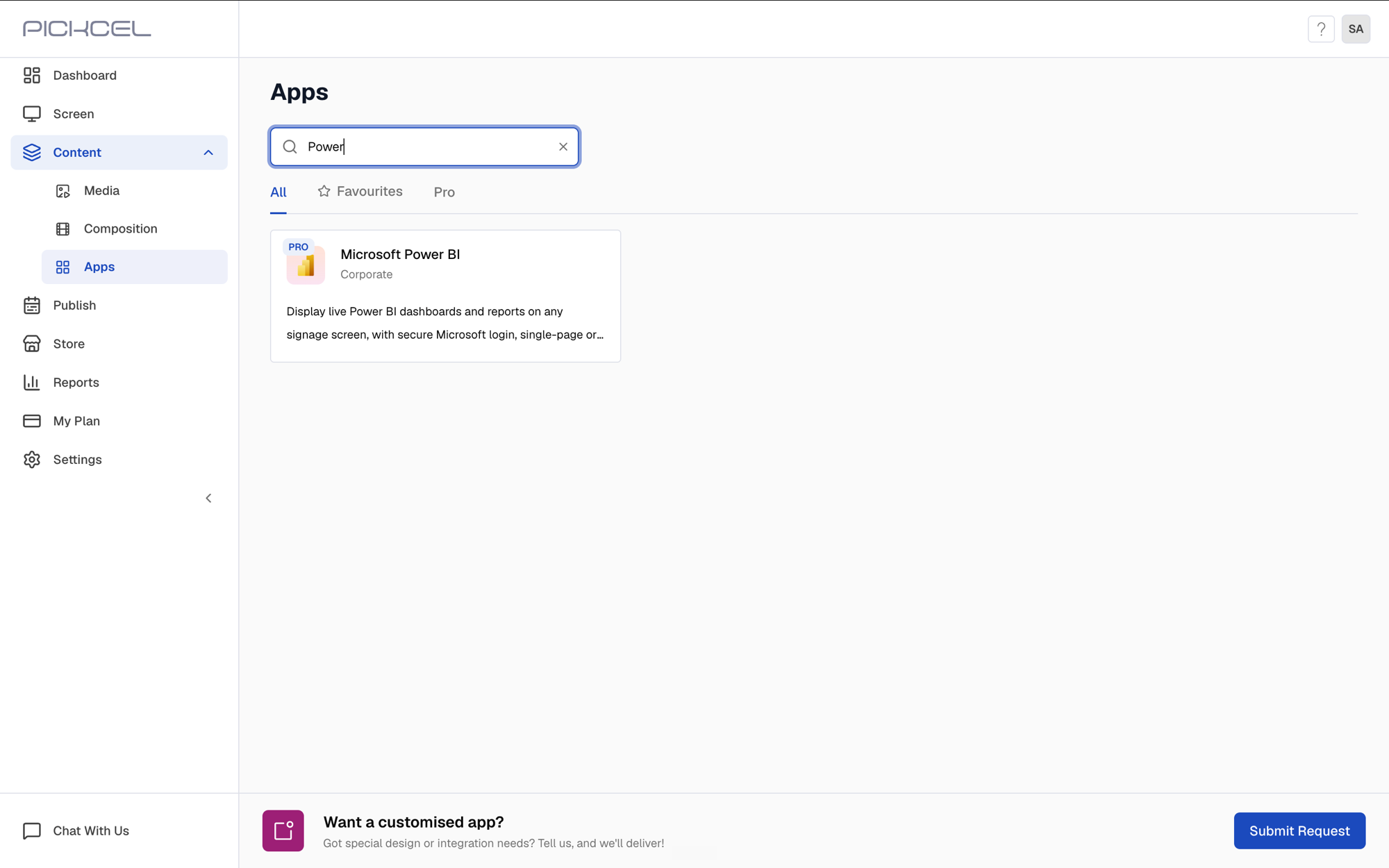 Click the Microsoft Power BI app card, then click Create App in the app details panel.
 Once authentication succeeds, you’ll see a Microsoft account connected confirmation and the app configuration form.
 Inside the workspace you can see the reports, semantic models, and dashboards it contains — the reports are what Pickcel can display.
 If you don’t have a workspace yet, create one in Power BI and move the reports you want to display into it. The workspace will then be available as a group in the Pickcel Power BI app, so you can pick its reports and show them on your digital signage screens.
 A confirmation appears once the app is created — it is saved to your Media library.