

Experience and innovation centres
Executive briefing centres
Showrooms and product galleries
Training rooms and auditoriums
How Experience Centre works
Before you start
- Rooms and the Experience Centre app enabled on your account. Both are enabled on request, so if you don’t see them, contact support@pickcel.com.
- A room created for each space, with its registered screens added to it.
- Your slide images or videos uploaded to Media, one file per screen per slide.
- A Pickcel user with the Operator role for each person running a room (Settings > Users).
- A tablet (iPad or Android) for each room, connected to the internet or, on premise, to your Pickcel server.
Create a presentation set
Open Experience Centre
- Log in to the Pickcel console and go to Content > Apps.
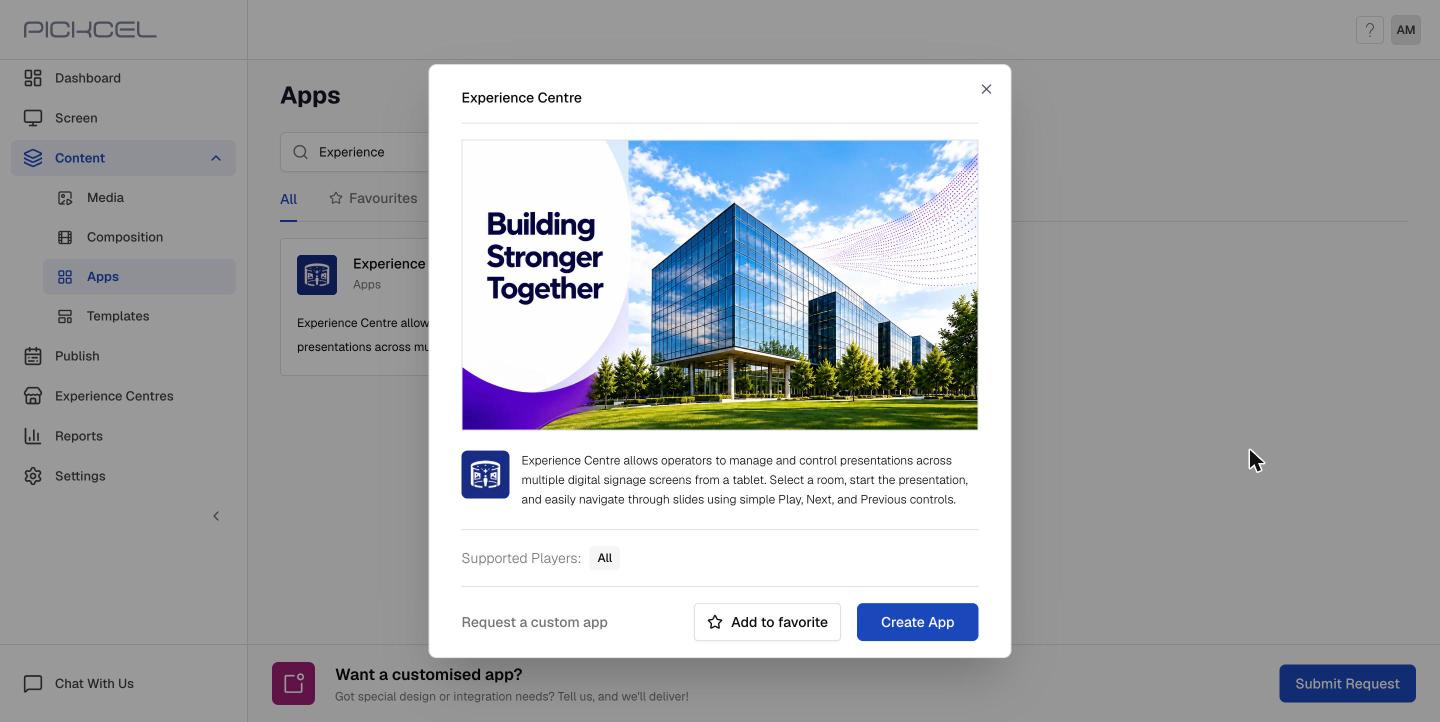
- Search for Experience Centre, open the card and click Create App.
Choose a room
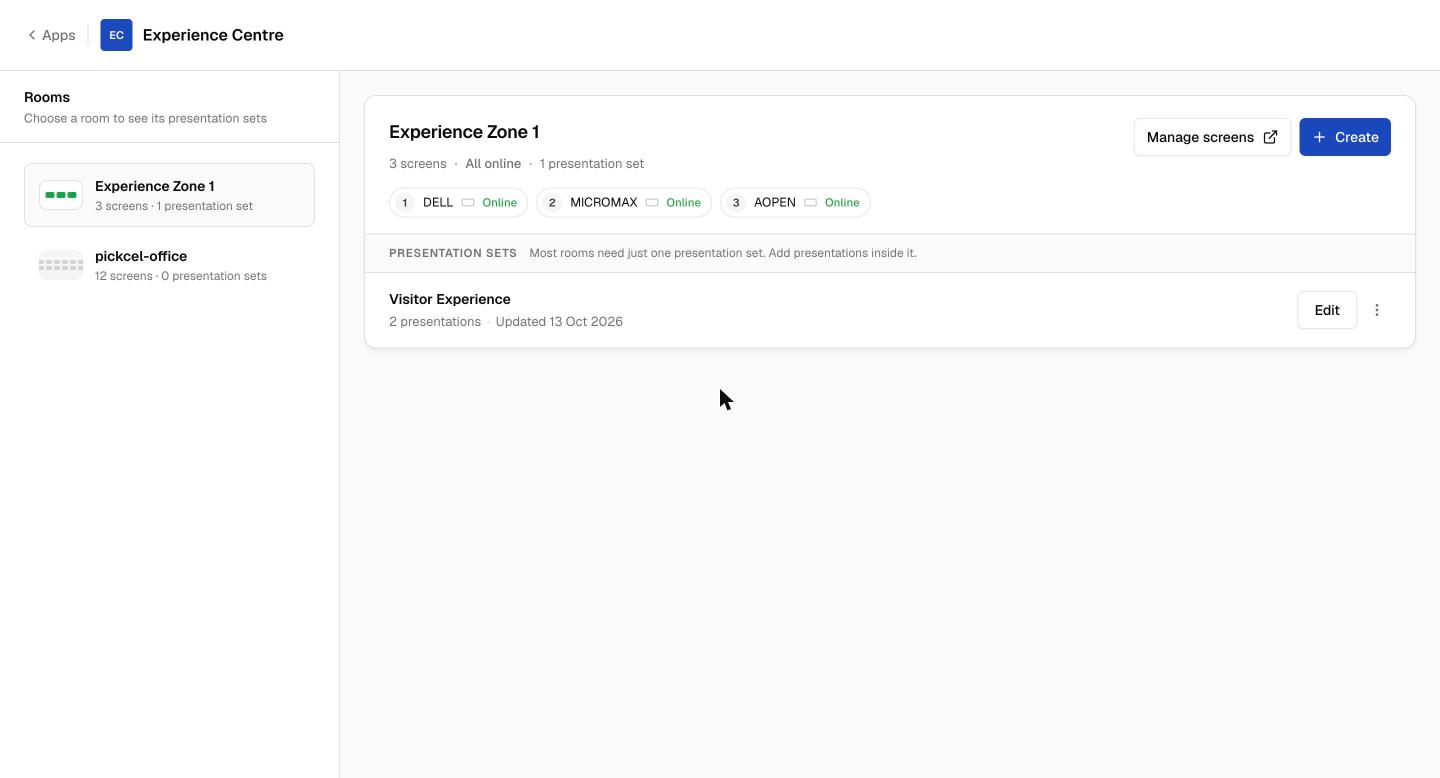
- Select the room from the Rooms list on the left.
- Check the screens shown for the room. The number next to each screen is the order its column appears in when you build slides.
- Click Create.
Name the presentation set
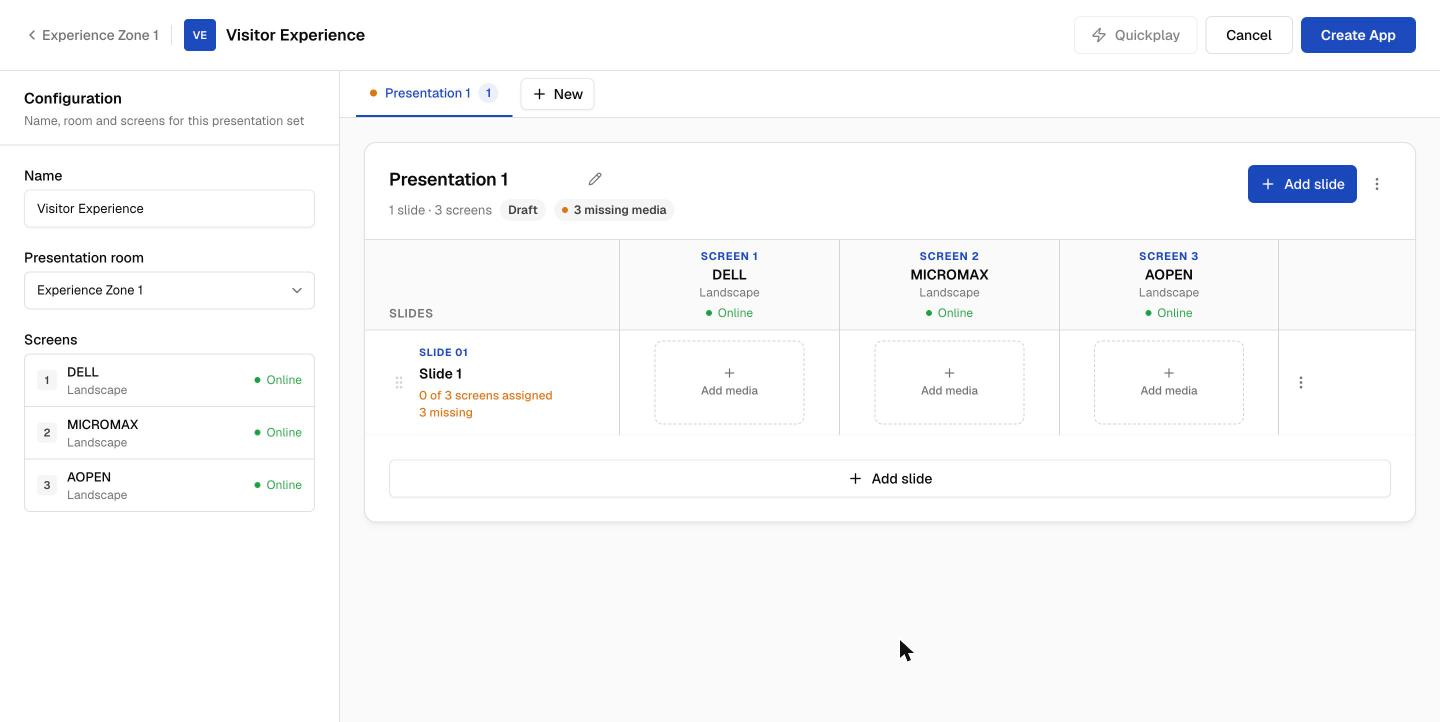
- Enter a Name, such as Visitor Experience.
- Presentation room is already set to the room you chose. The Screens list shows its screens in column order.
Build your first presentation
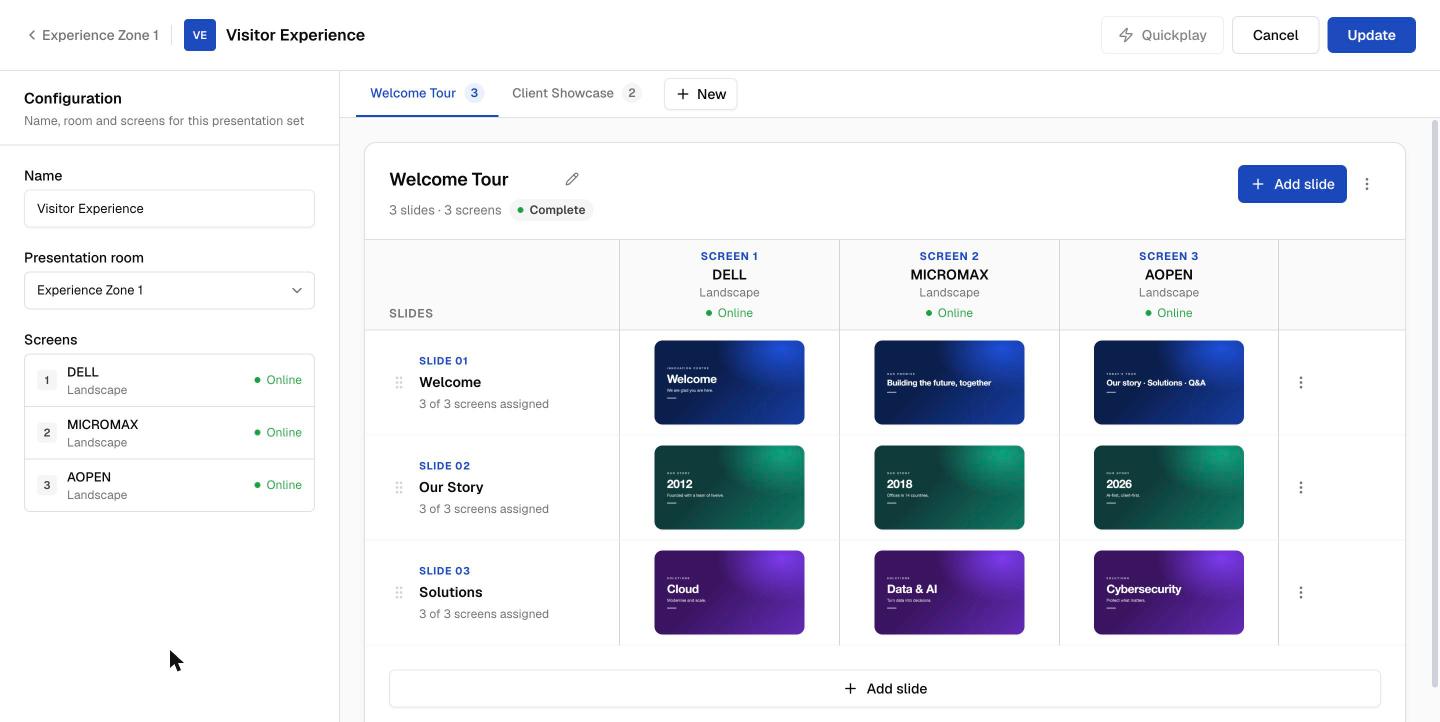
- Click the pencil next to Presentation 1 and rename it, for example Welcome Tour.
- Click the slide title (Slide 1) to rename it.
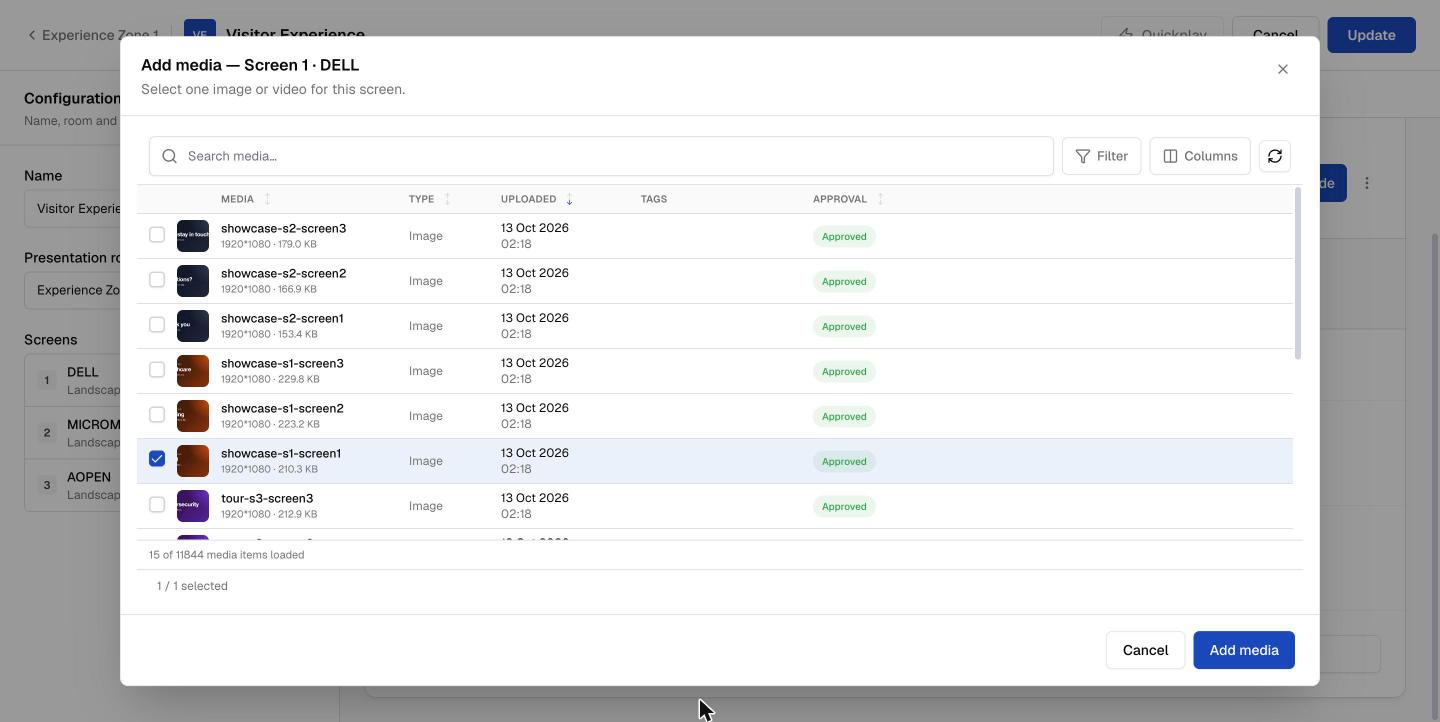
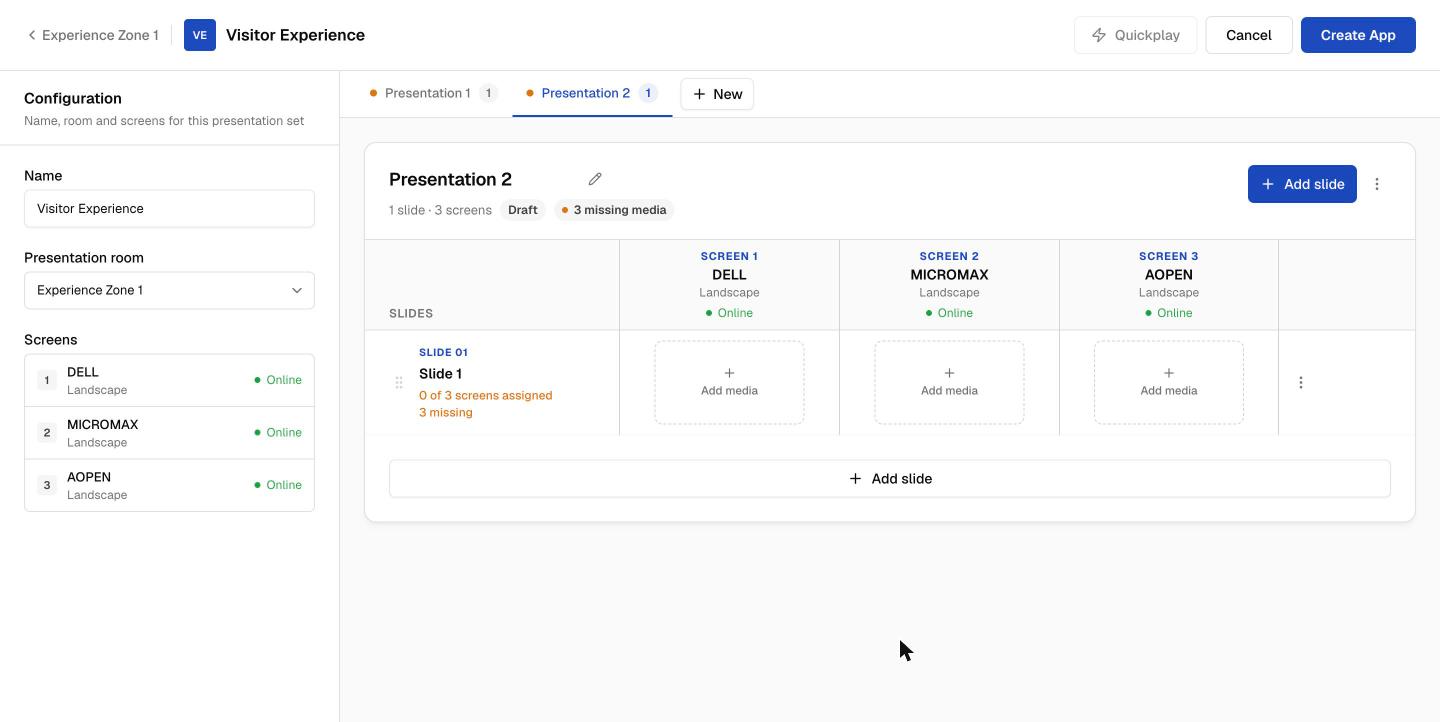
- Click Add media under each screen, select one image or video, and click Add media.
- Click Add slide for each new slide and fill every screen again.
Add more presentations
- Click + New next to the presentation tabs to add another presentation, such as Client Showcase.
- Build its slides the same way.
Save the presentation set
- Click Create App.
- The set appears under Presentation sets in the room view (as in step 2) and in your Media library as an app.
Edit slides and presentations
Open the set with Edit, make your changes, then click Update.Run a presentation from the operator app
Operators run the room from the Experience Centre operator app, built for a tablet but usable in any browser. Visitors don’t need it and can’t change the screens.Open the operator app
- On the tablet, open
https://console.pickcel.com/suite/experience-centre/. On an on-premise server, use your server’s address followed by/suite/experience-centre/. - Sign in with the operator’s Pickcel account.
- Add the page to the tablet’s home screen so operators can open it in one tap.
Choose a room
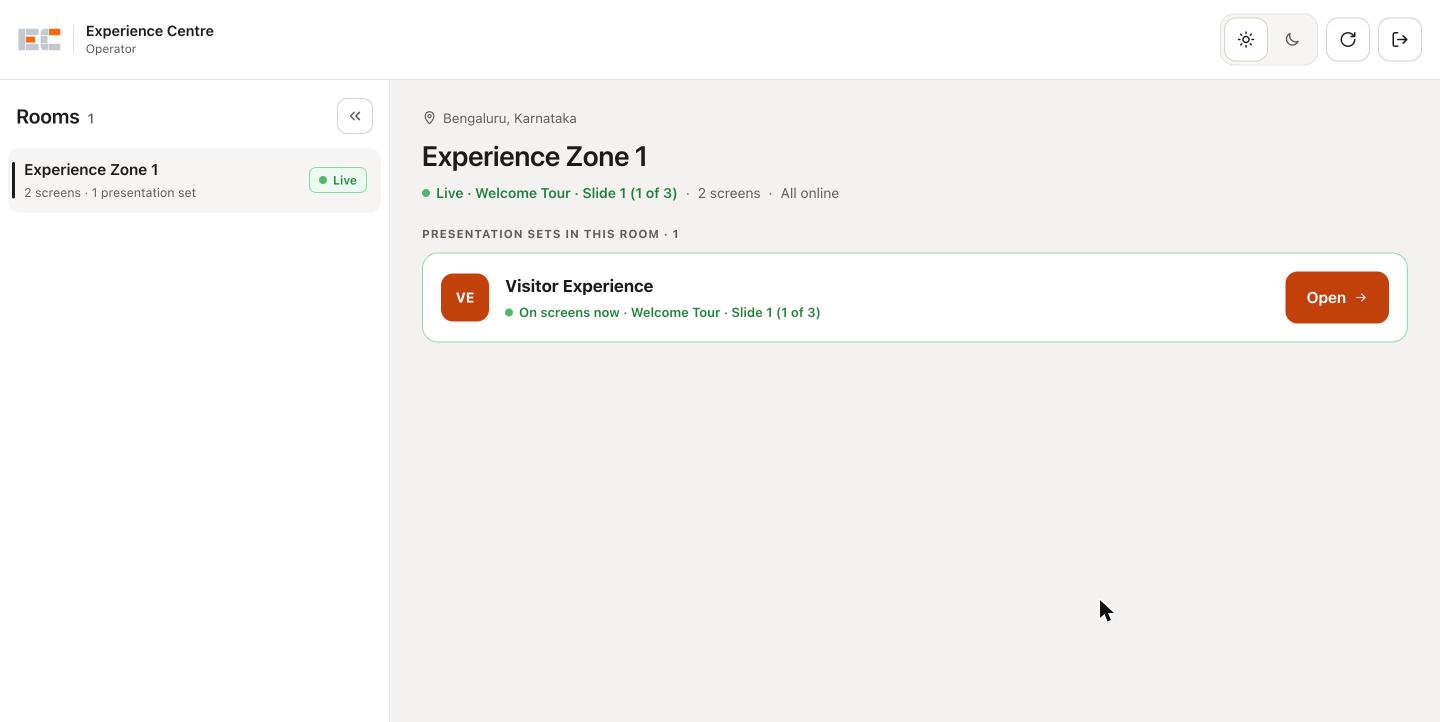
- Select the room from the Rooms list.
- The room shows its screens, whether they are online, and what is playing now.
- Click Open on the presentation set.
Start a presentation
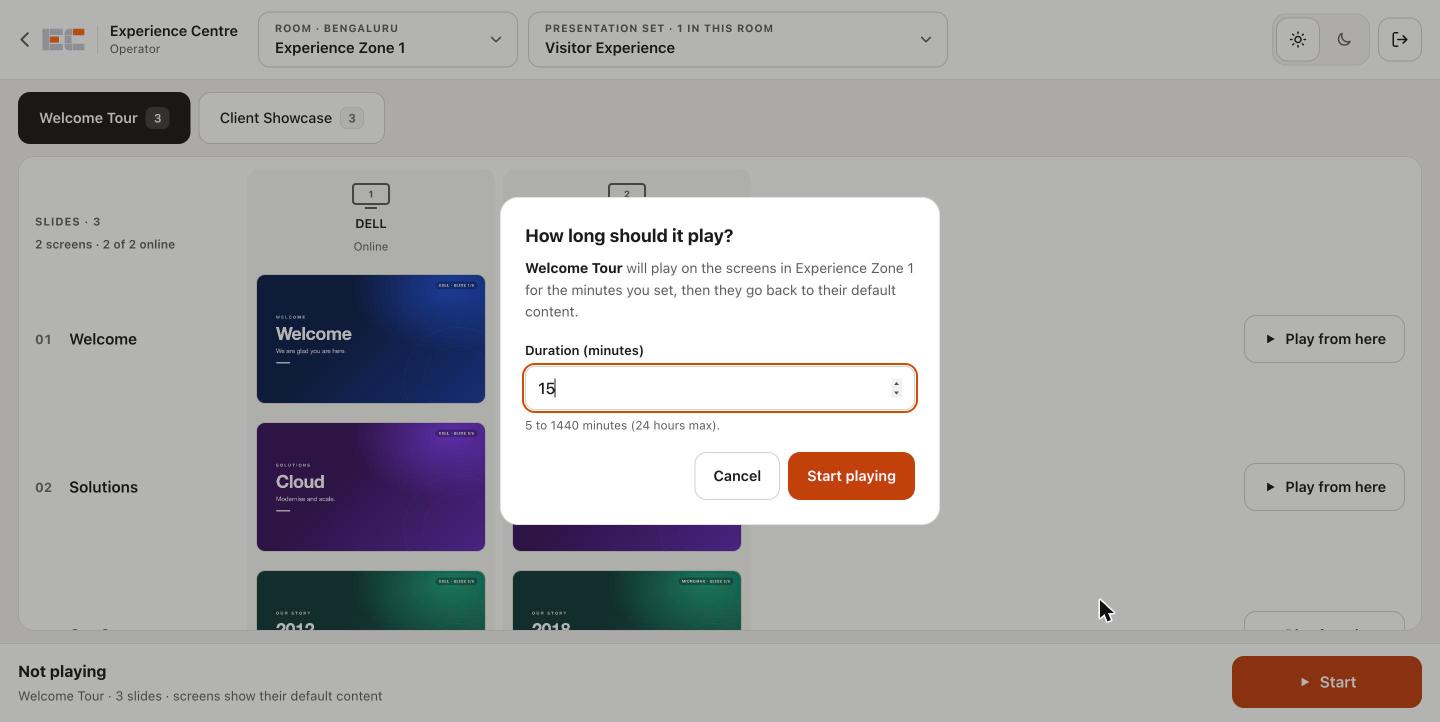
- Select the presentation tab, for example Welcome Tour.
- Click Start to play from the first slide, or Play from here on any slide.
- Enter how long it should play, from 5 to 1440 minutes (default 15), and click Start playing.
Move through the slides
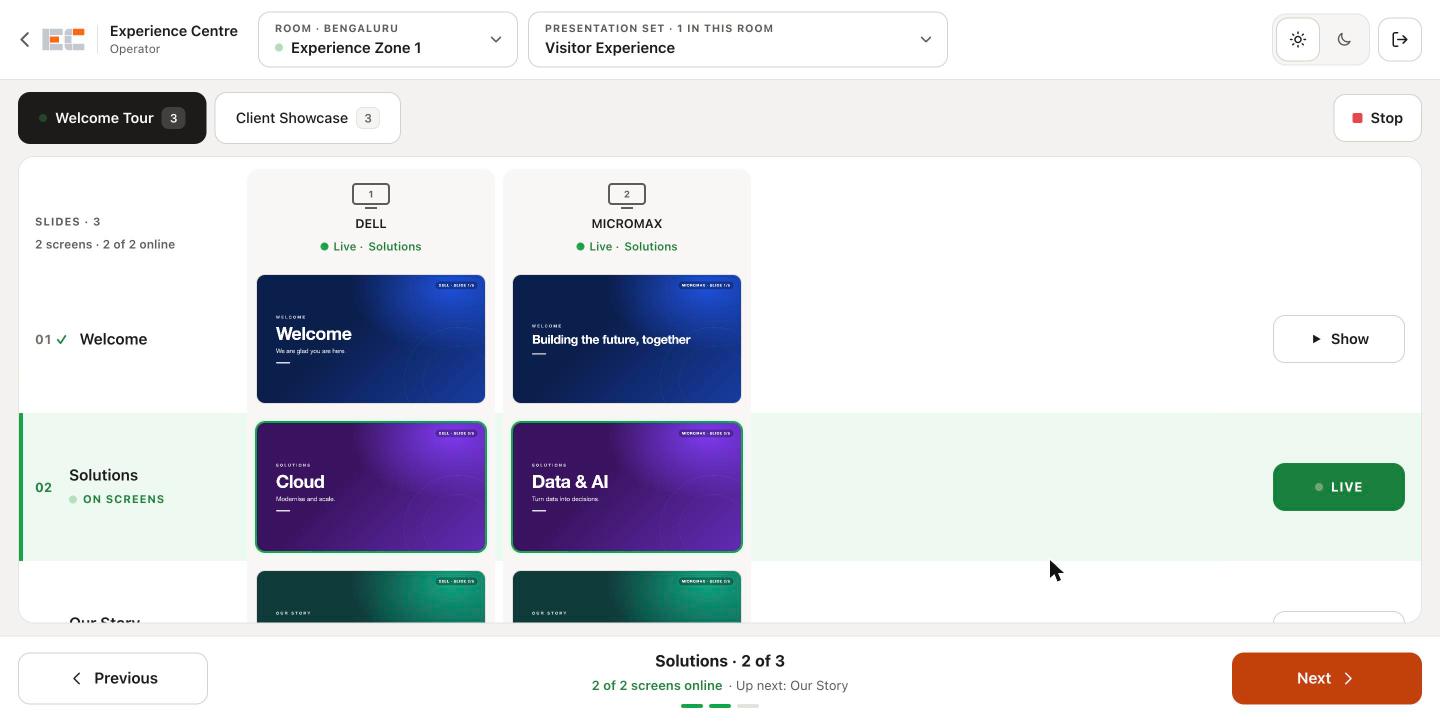
- Tap Next or Previous to move every screen in the room together.
- Tap Show on any slide to jump straight to it. On a keyboard, use the arrow keys.
- The slide on the screens is marked LIVE and ON SCREENS, and the following slide is marked UP NEXT.
- Each screen column shows Live · Slide N, so you can confirm every screen changed. Next is greyed out on the last slide.
Switch to another presentation
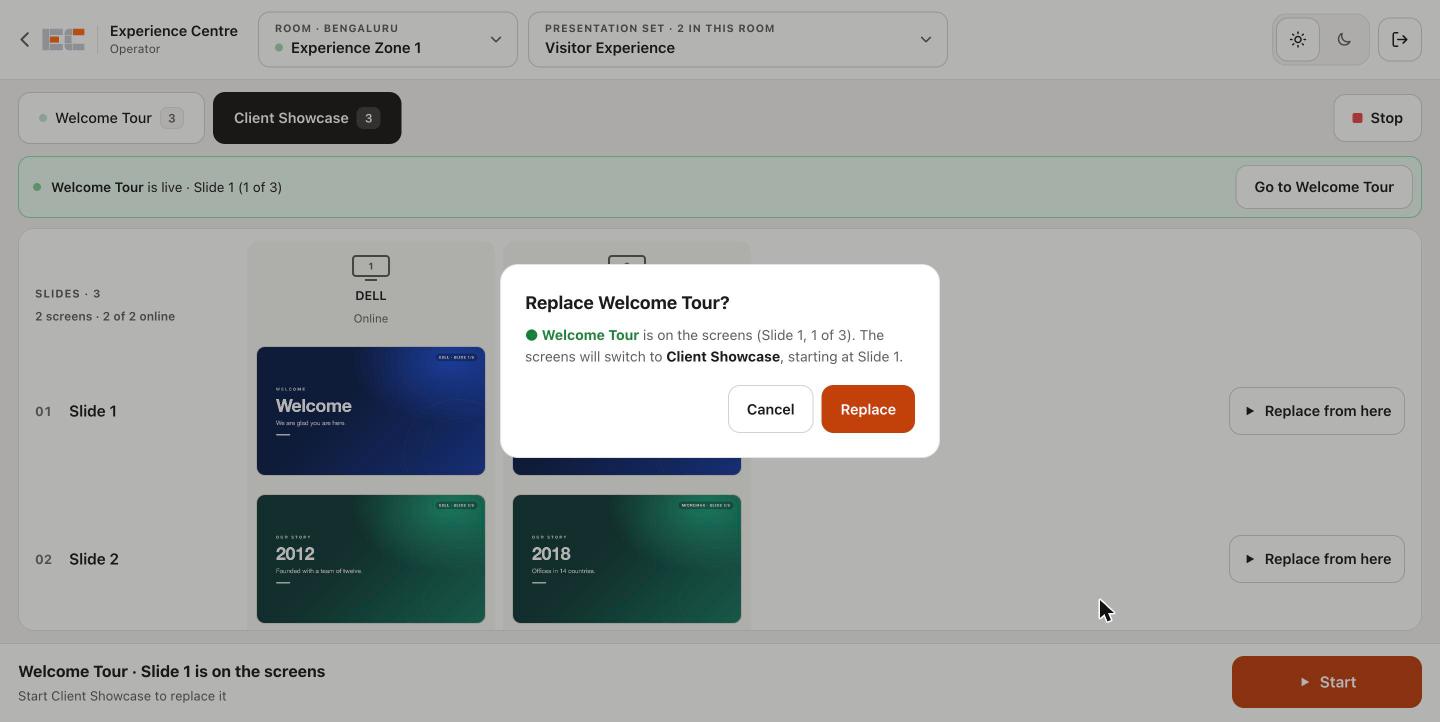
- Select another presentation tab. This only previews it; the screens keep playing.
- Click Start, or Replace from here on a slide, then Replace to confirm. No new duration is asked.
- To return to the live presentation without changing anything, click Go to presentation name.
Stop the presentation
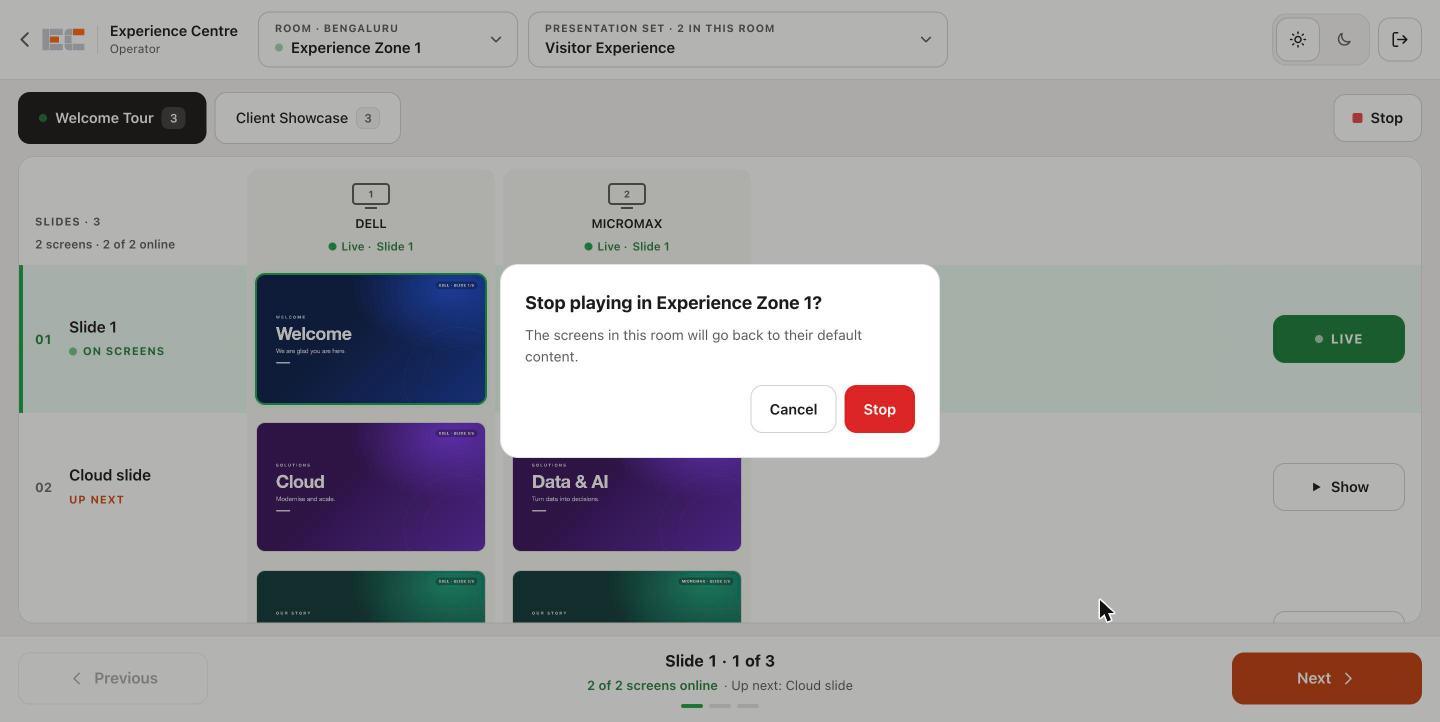
- Click Stop, then Stop again to confirm.
- The screens go back to their default content. Playback also stops on its own when the duration ends.
Manage presentation sets
Frequently asked questions
What is an experience centre in digital signage?
What is an experience centre in digital signage?
Why is a screen missing from my room?
Why is a screen missing from my room?
- Check that the screen is added to the room. Click Manage screens to see the room’s screens.
- Make sure the screen’s player is registered and has come online at least once.
Why didn't the screens change slide?
Why didn't the screens change slide?
- No screens are connected in this room: every screen in the room is offline. Check the players’ power and network.
- No screen confirmed the slide change: the screens didn’t respond in time and are still on the previous slide. Tap Next or Show again.
- A screen column marked Offline won’t follow the slides until its player is back online.
Why don't I see a room or presentation set in the operator app?
Why don't I see a room or presentation set in the operator app?
- The room needs at least one screen, and a presentation set created for it in the console.
- Tap the refresh button at the top right to reload rooms and presentation sets.
Why can't I save my presentation set?
Why can't I save my presentation set?
- A slide has media on some screens but not all. Fill the empty screens or use ⋮ > Clear media on that slide.
- A presentation has no media at all. Add media to at least one slide or delete the presentation.
- The set has no presentations. Add at least one.
Can I use videos as well as images?
Can I use videos as well as images?
Can I mix landscape and portrait screens in one room?
Can I mix landscape and portrait screens in one room?
How many presentation sets should a room have?
How many presentation sets should a room have?
How long does a presentation stay on the screens?
How long does a presentation stay on the screens?
Can I control the screens from an iPad or Android tablet?
Can I control the screens from an iPad or Android tablet?
Does deleting a presentation set delete my media?
Does deleting a presentation set delete my media?