

Who is this for?The Store Module is designed for enterprise customers managing multiple outlets or locations with numerous screens.Feature AvailabilityThis feature is not available by default. If you need this feature, please reach out to contact@pickcel.com and they can make this feature available for you.
Creating a New Store
1
Navigate to Store and Click Add Store
Log in to the Pickcel Console. From the left navigation menu, click on Store, then click the + Add Store button at the top of the page.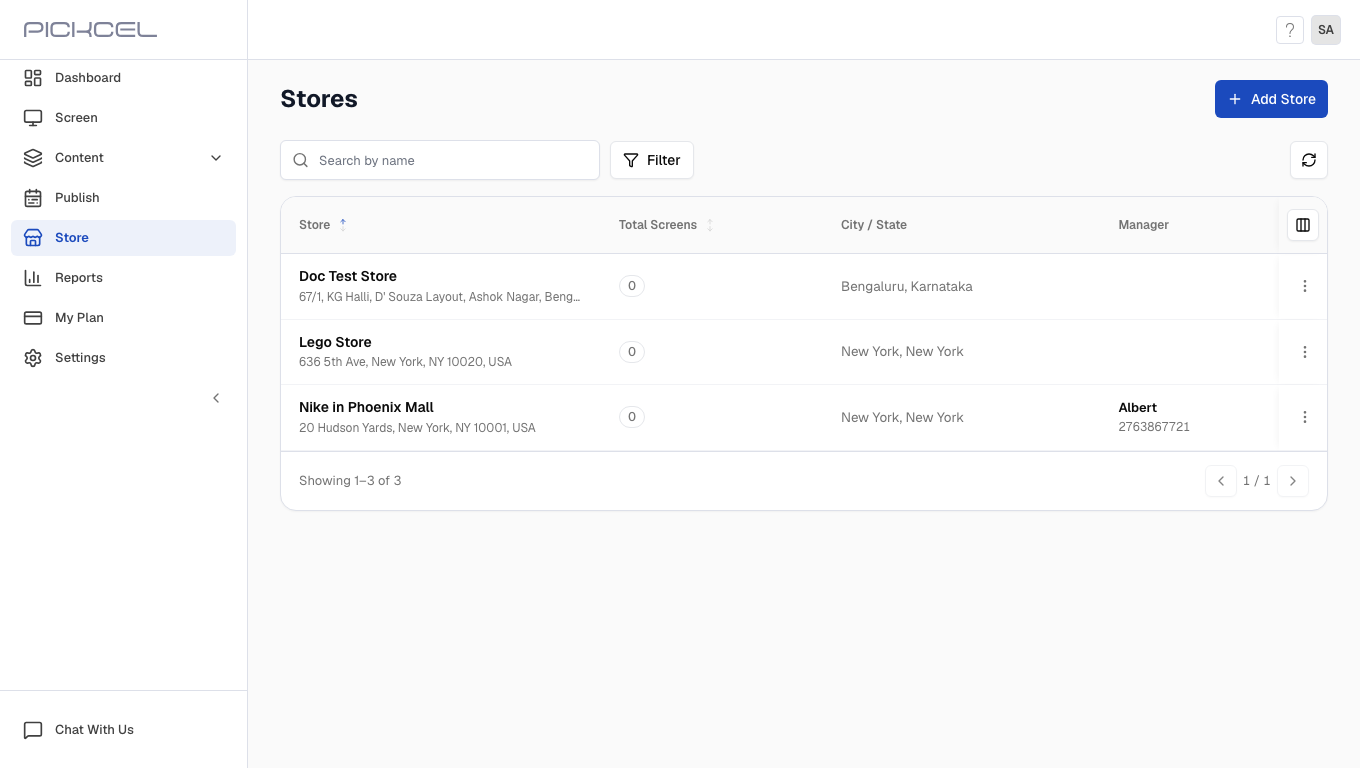
2
Enter Store Details
The Set Up Your Store modal will appear. Fill in the fields below. Those marked with * are required.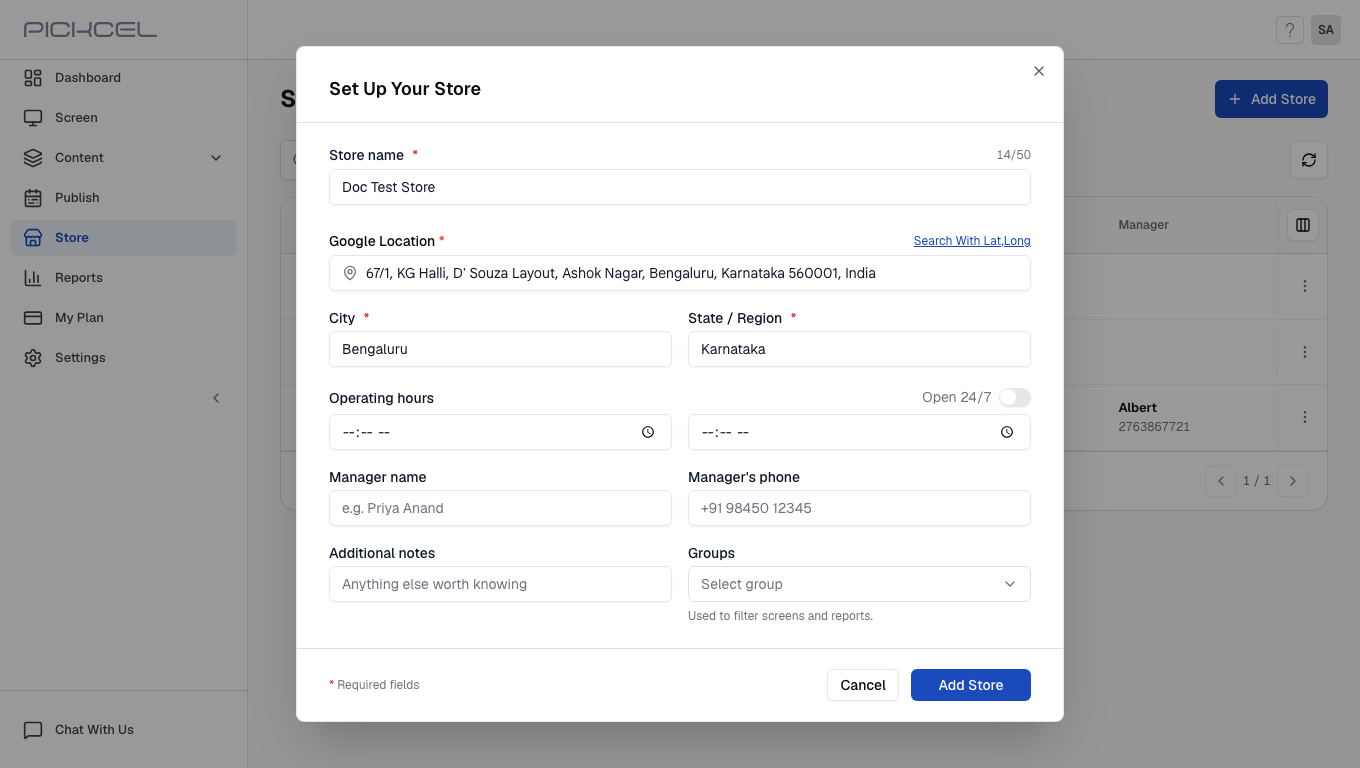
Add Custom Fields. If you need additional fields to configure your stores (e.g., category, type, region), request them and we can add them for you. Custom fields help you segment and filter stores based on your business needs, and are account-wide, once added, they appear for all stores in your account.
3
Save the Store
Click Add Store to create your store. Your store is now ready for screen association.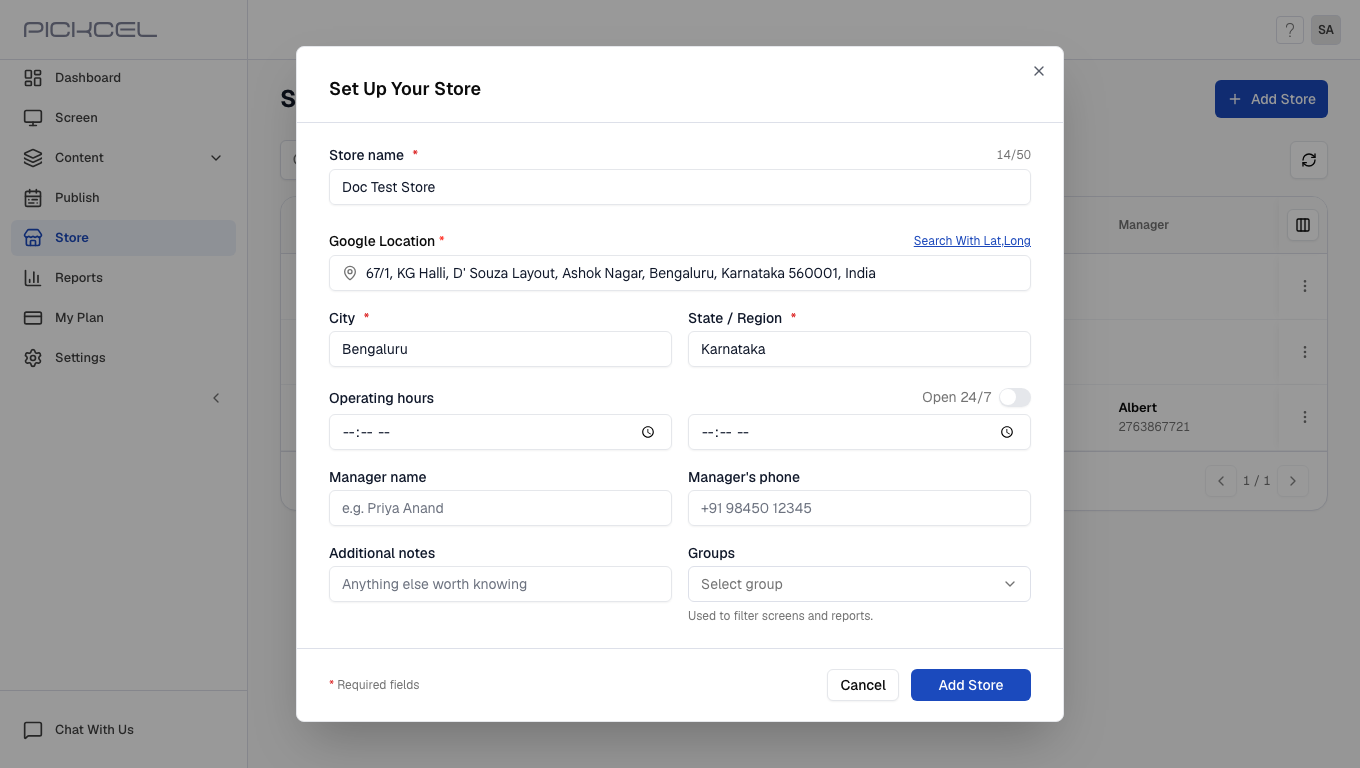
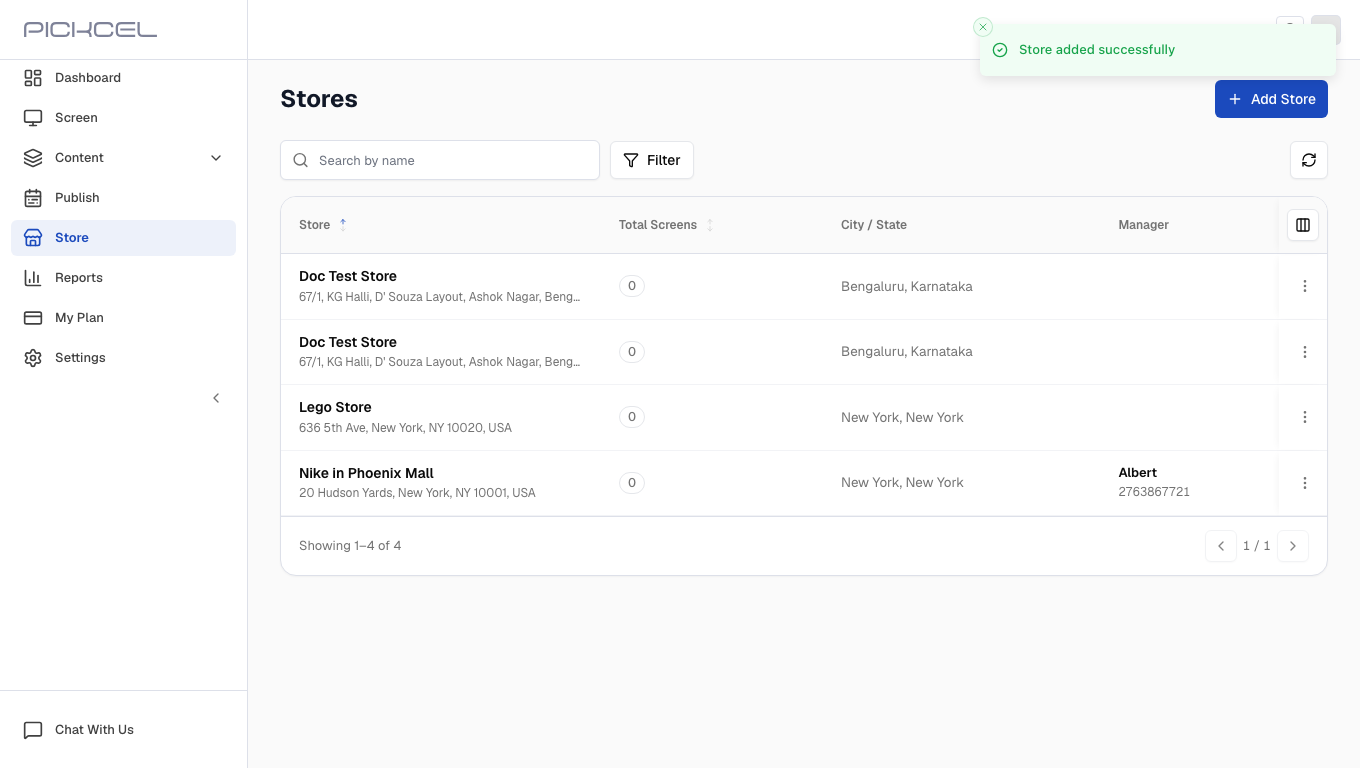
List of Stores that you have added
What’s Next?
Now that your store is created, you can start adding screens to it:
- Learn how to Add Screens to Your Store
- Explore Screen Grouping for advanced organization