

The Unified View
When you open a store, screens are displayed in a grid format and organized by their connectivity status: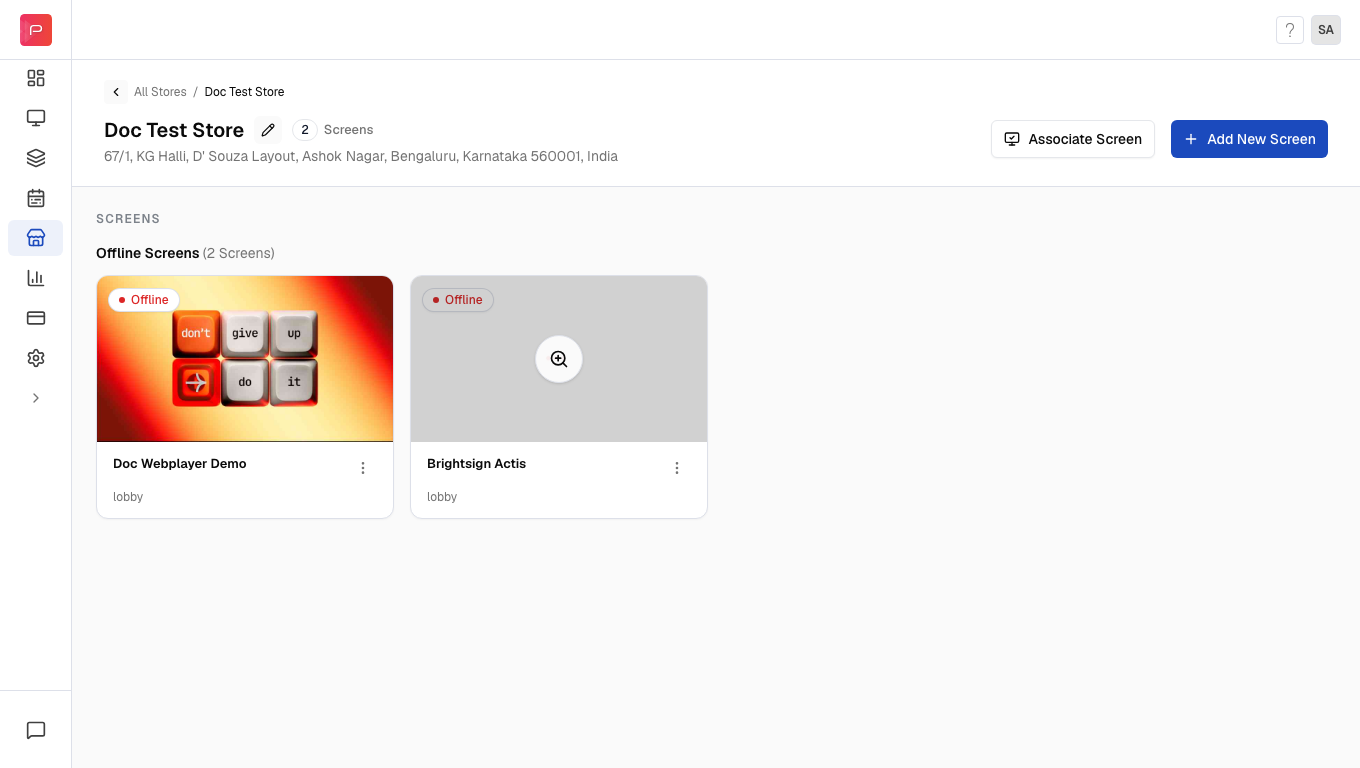
Online Screens
Online Screens
Devices that are currently connected to the Pickcel server and actively downloading or playing content. These screens show a live thumbnail of what’s currently playing.
Offline Screens
Offline Screens
Devices that have lost internet connectivity or are powered down. These screens require attention to restore their connection.
- Current content thumbnail - A preview of what’s playing
- Screen name - The identifier you assigned during registration
- Location within store - The specific placement (e.g., “Main Counter”, “Entrance”)
- Device specs - Operating system and app version
Screen Actions
Click the three-dot menu (…) on any screen card to access quick management tools: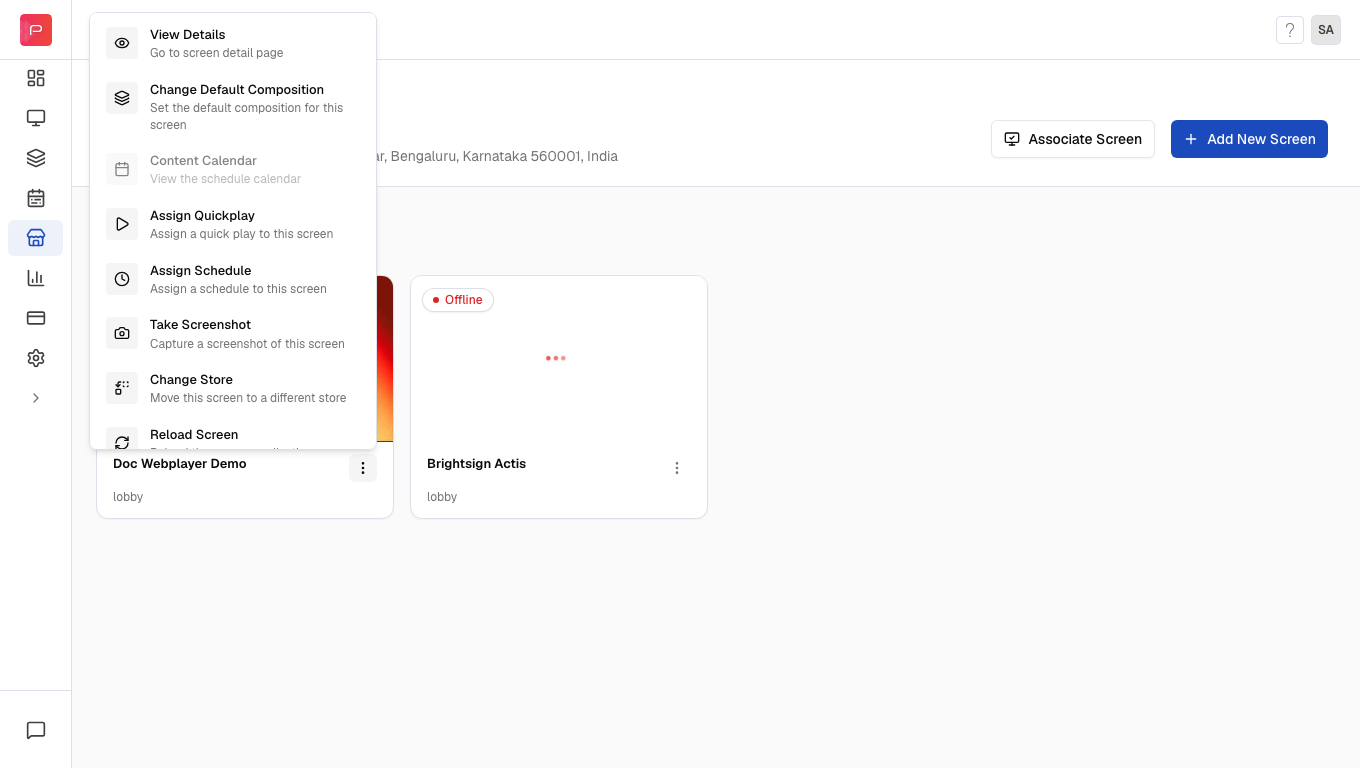
Filtering Screens
Within a store, you can filter screens to quickly find specific devices:1
Open Filter Panel
Click the Filter button at the top of the screen list.
2
Apply Filters
Filter by:
- Status - Show only Live, Offline, or Deactivated screens
- Category - Filter by store category attributes
- Type - Filter by store type attributes
- Tags - Select specific screen tags
- Groups - Filter by device groups
3
Toggle Filter Logic
Use the Any of these / All of these toggle to control how multiple filters are applied:
- Any of these: Shows screens matching at least one filter
- All of these: Shows only screens matching all selected filters
Quick Tips
Bulk Actions
Select multiple screens using checkboxes to perform bulk operations like assigning schedules or changing stores.
Portrait Screens
Portrait-oriented screens appear visually taller in the grid but follow the same card layout and actions.
Related Documentation
- Create a Store - Set up your first store
- Add Screens to Store - Associate or register screens
- Quick Play - Emergency content playback
- Schedules - Set up content schedules