Learn how to associate existing screens or register new devices to a store location in Pickcel
Once a store is created, you can populate it with screens. There are two ways to add screens to a store: associate existing screens that are already registered in your account, or register a brand new device directly within the store.
A screen can only belong to one store at a time. Associating a screen with a new store will automatically remove it from its previous store.
If you have screens already registered in your Pickcel Console, you can quickly map them to your store.
1
Open the Store
Navigate to the Store module and click on the store you want to add screens to.
2
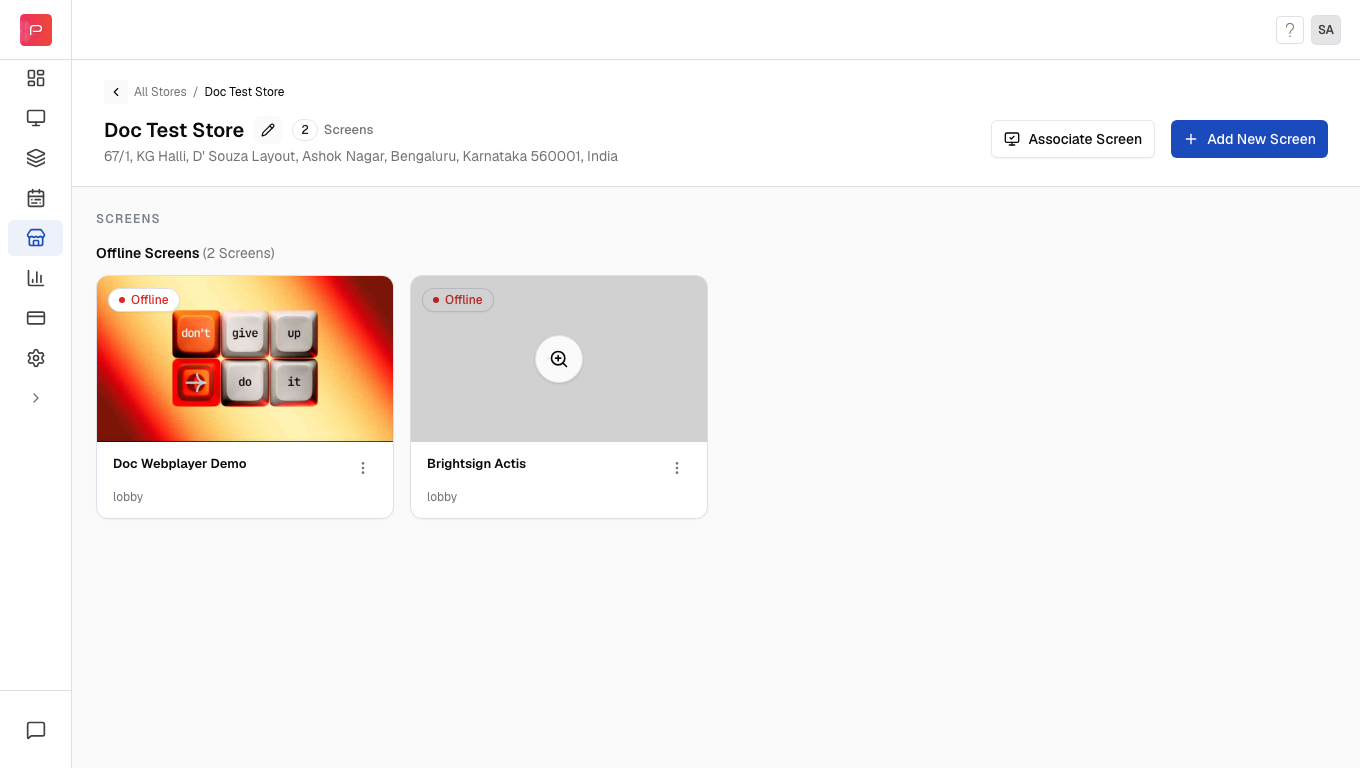
Click Associate Screen
Inside the store details page, click the Associate Screen button.
3
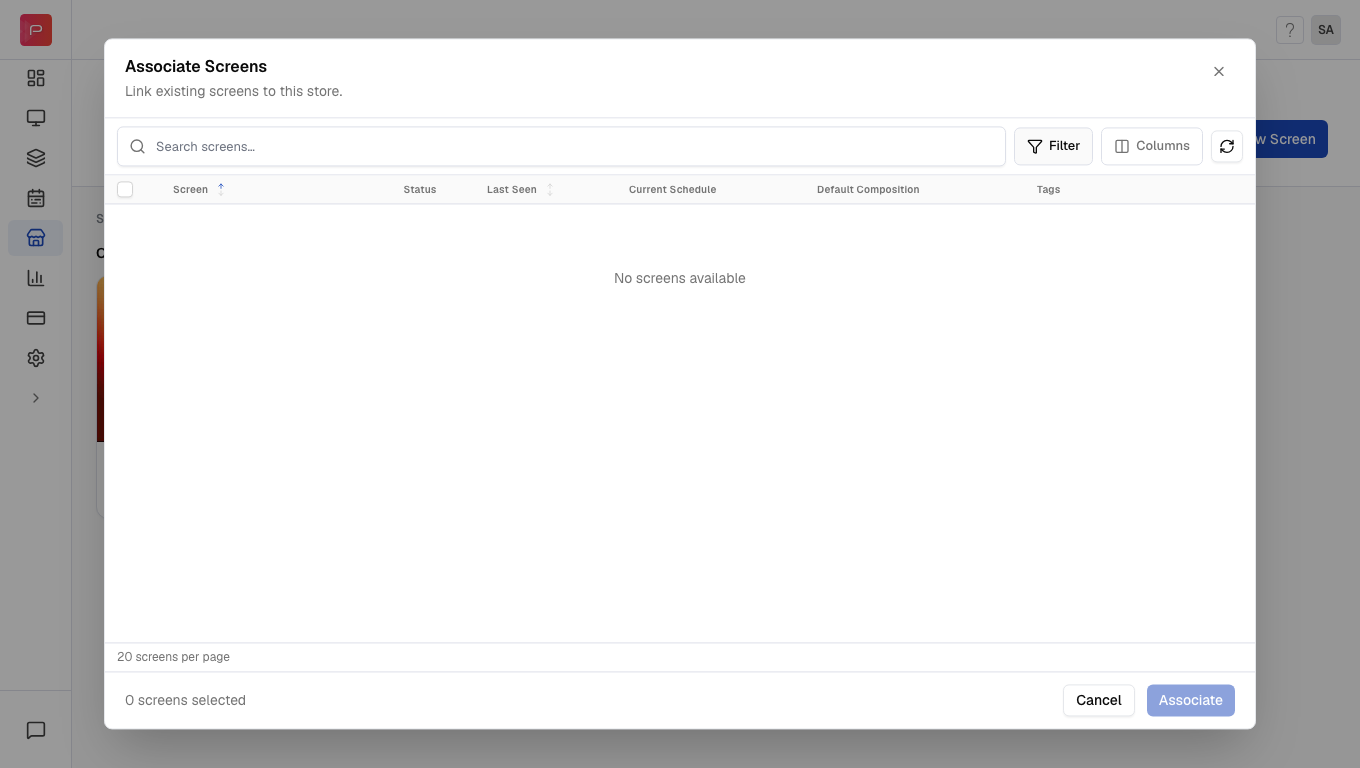
Select Screens
A modal will appear showing all available screens. You can:
Search by screen name to quickly find specific devices
Multi-select multiple screens to associate them in one action
Scroll through the list to browse all available screens
4
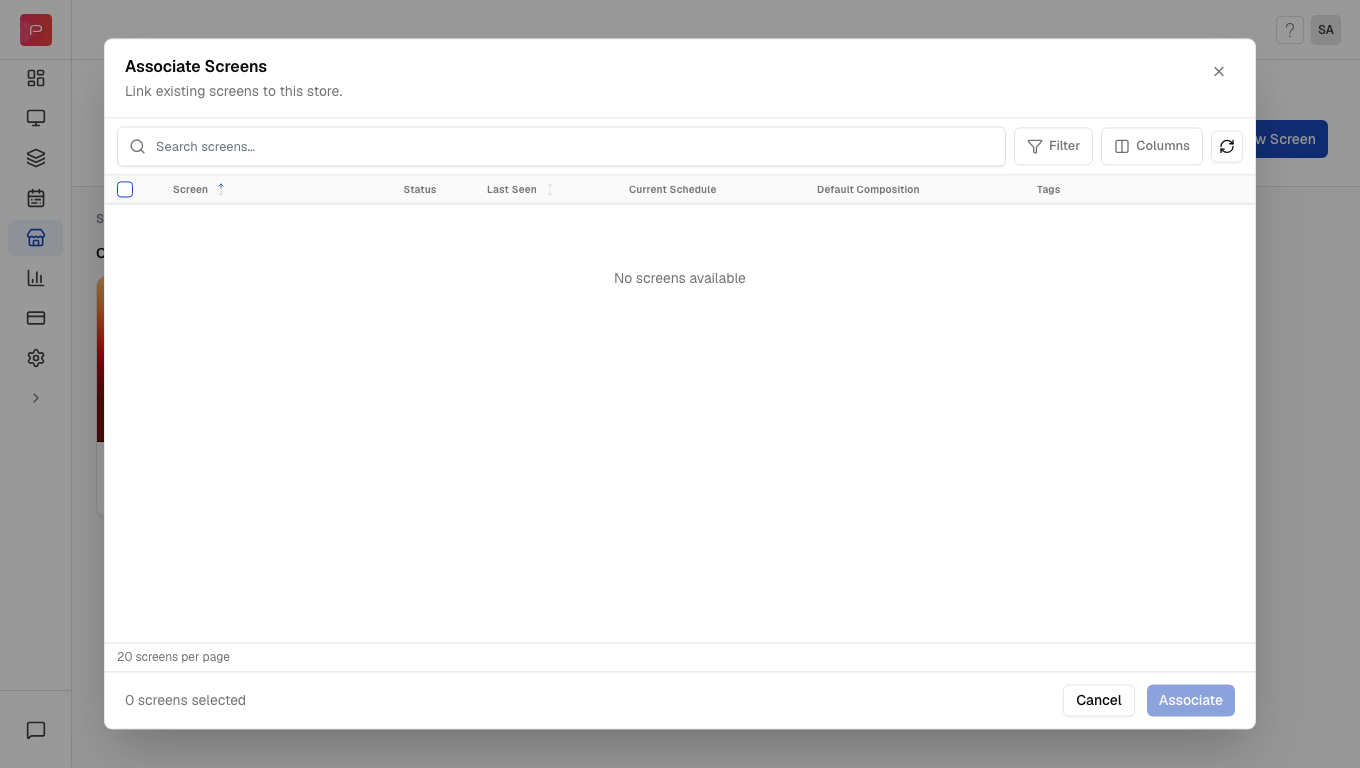
Confirm Association
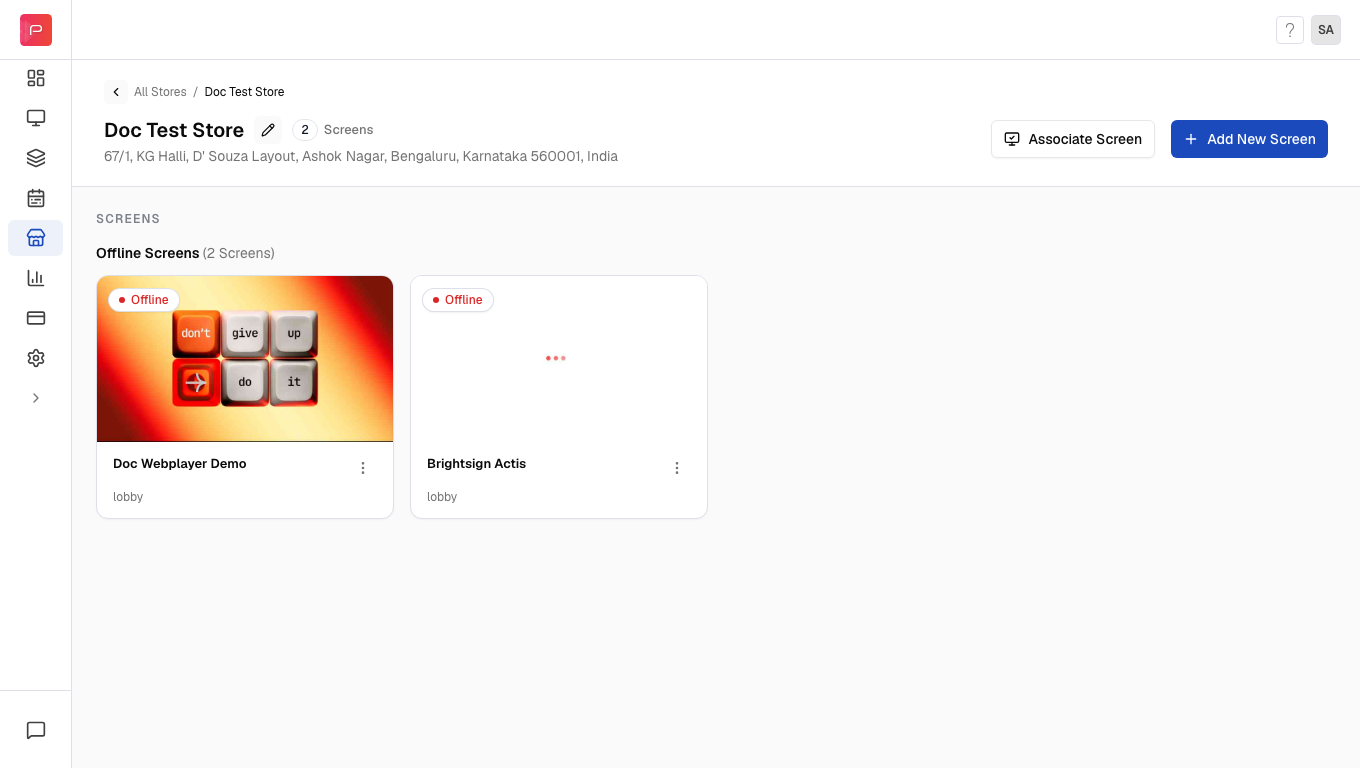
Click Associate to map the selected screens to this store.The screens will now appear in your store’s screen list and can be managed from within the store context.
Notice the screens that have been added, you can see how they look at a glance, including whether they're portrait or landscape, the groups and tags they belong to, and thumbnails of the content currently playing on each screen.
Use Screen Grouping to organize screens within your account for easier selection during association.
If you’re deploying a new device, you can register it directly within the store context. This automatically associates the screen with the store upon registration.
Prerequisites:
A display device with the Pickcel app installed
The 6-digit registration code displayed on your device
An active internet connection
1
Open the Store
Navigate to the Store module and click on the store where you want to add a new screen.
2
Click Add New Screen
Inside the store details page, click the Add New Screen button.
3
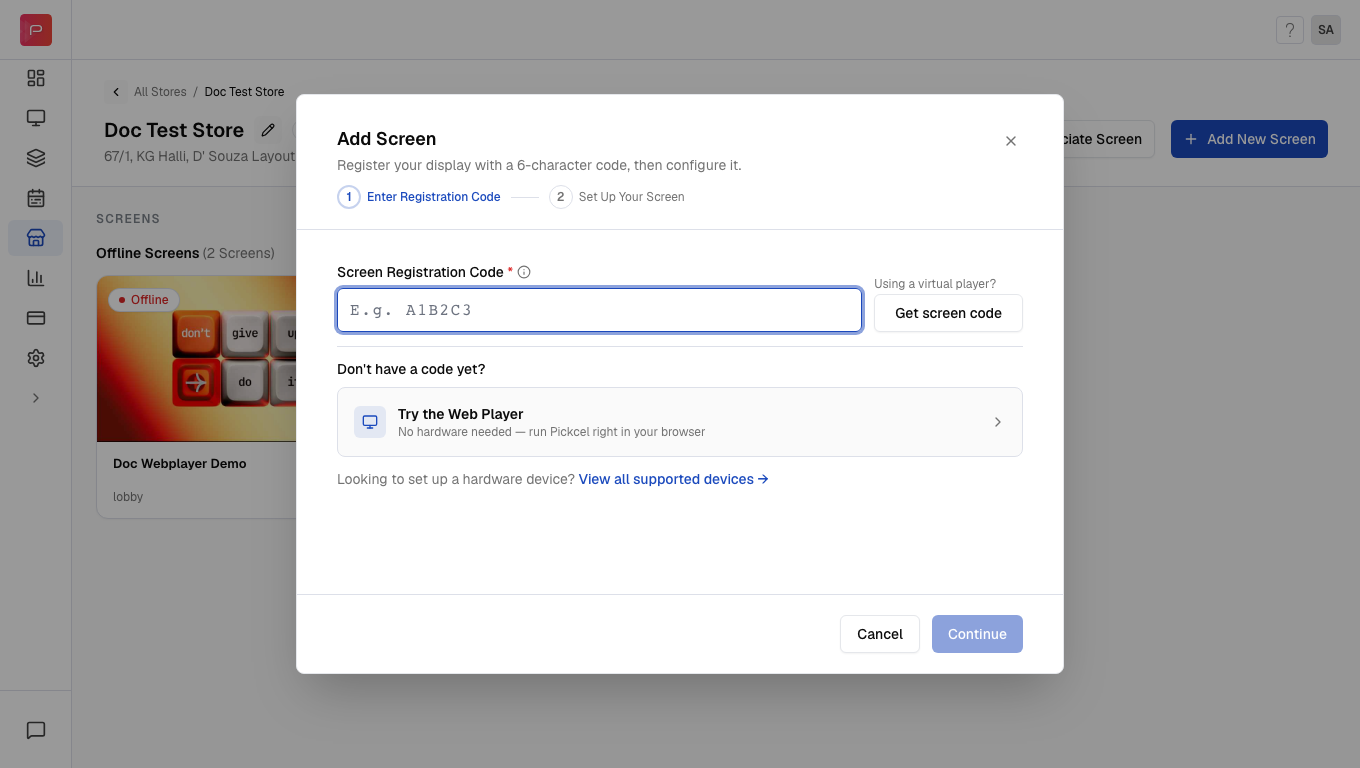
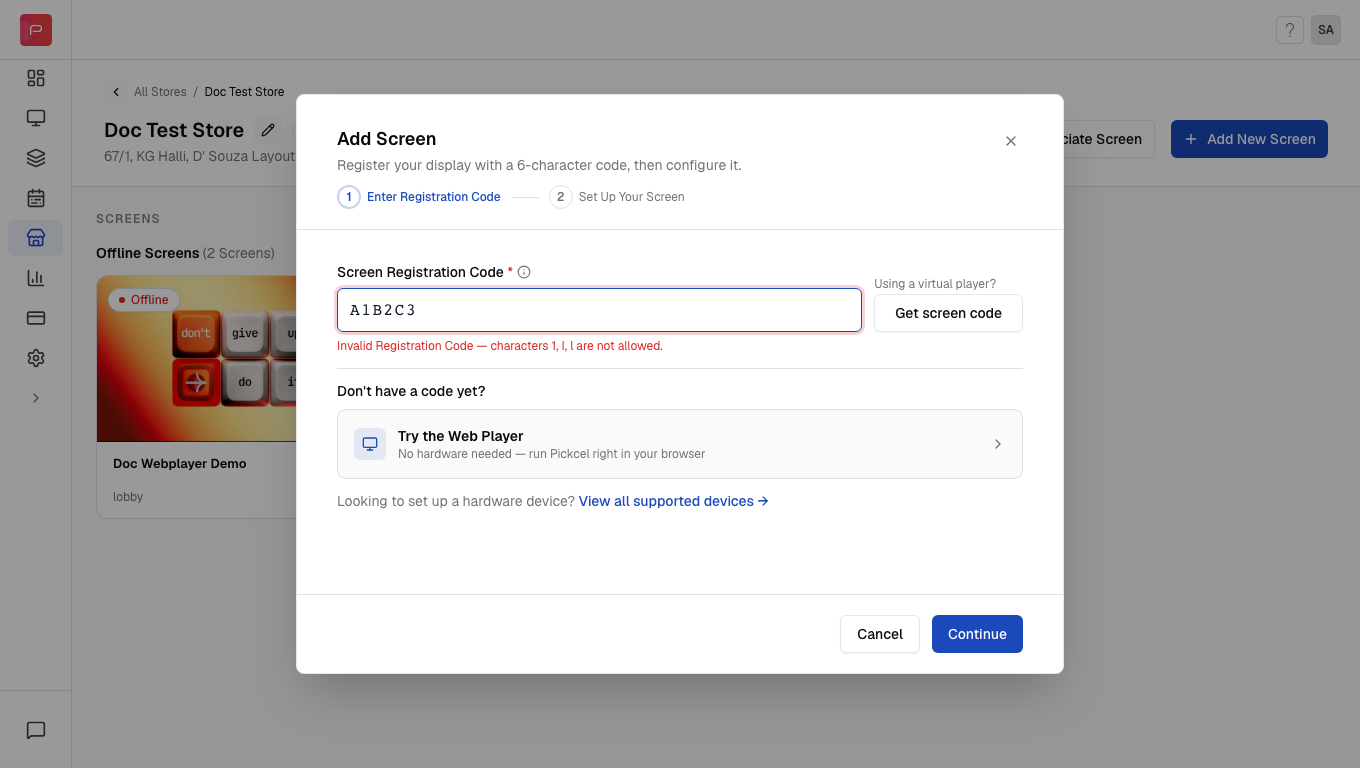
Enter Registration Code
Enter the 6-digit alphanumeric registration code displayed on your TV or device.
4
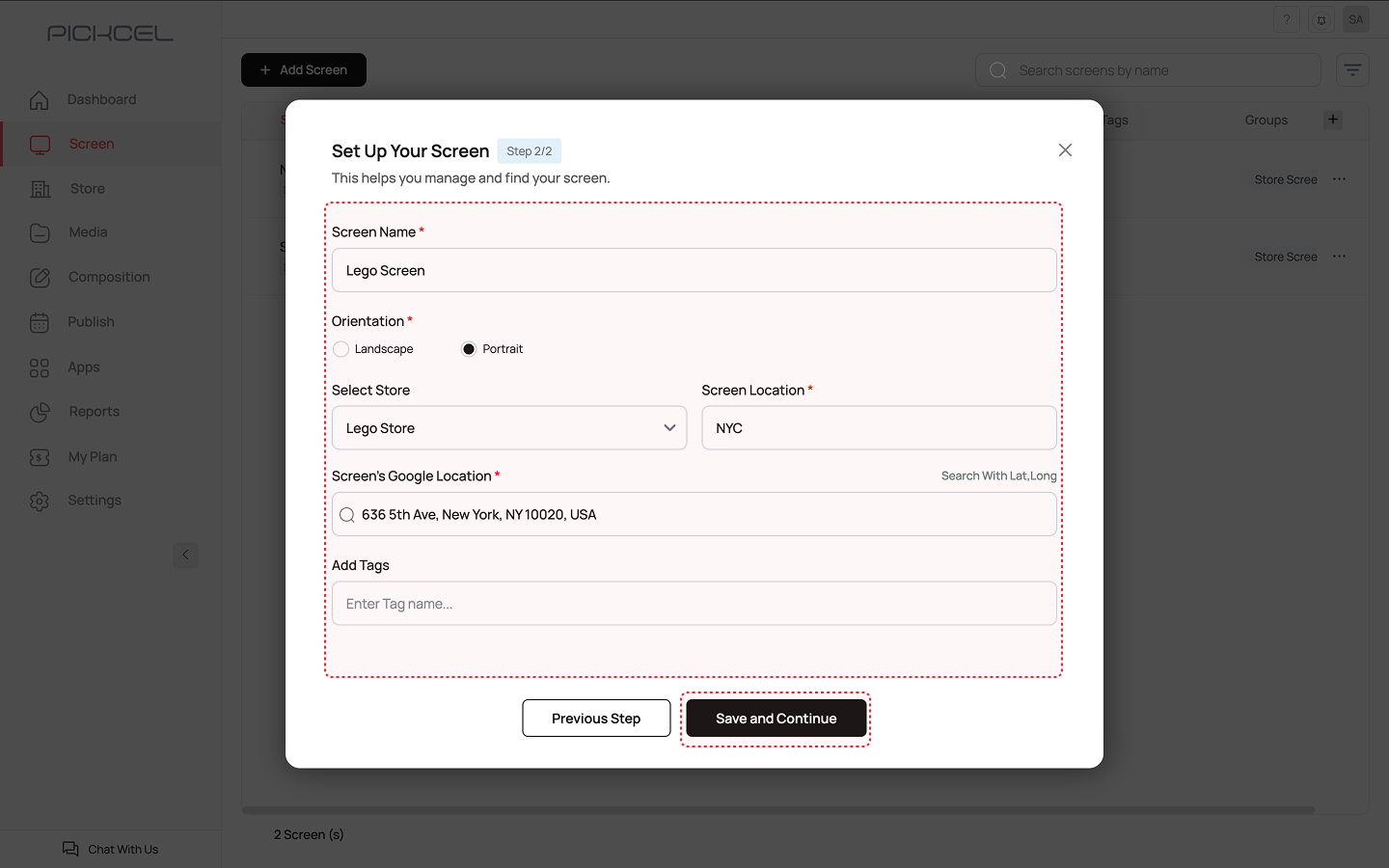
Configure Screen Details
Fill in the screen information. Fields marked with * are required.
Property
Description
Screen Name *
A descriptive name for the screen (e.g., Lego Screen, Entrance Display)
Orientation *
Choose Landscape or Portrait based on your display setup
Select Store
The store is automatically selected based on where you initiated the registration
Physical address with map coordinates. Use Search With Lat,Long to look up by coordinates. Defaults to the store’s location but can be adjusted
Add Tags
Optional tags for better organization and filtering (e.g., lobby, promotional)
5
Save and Continue
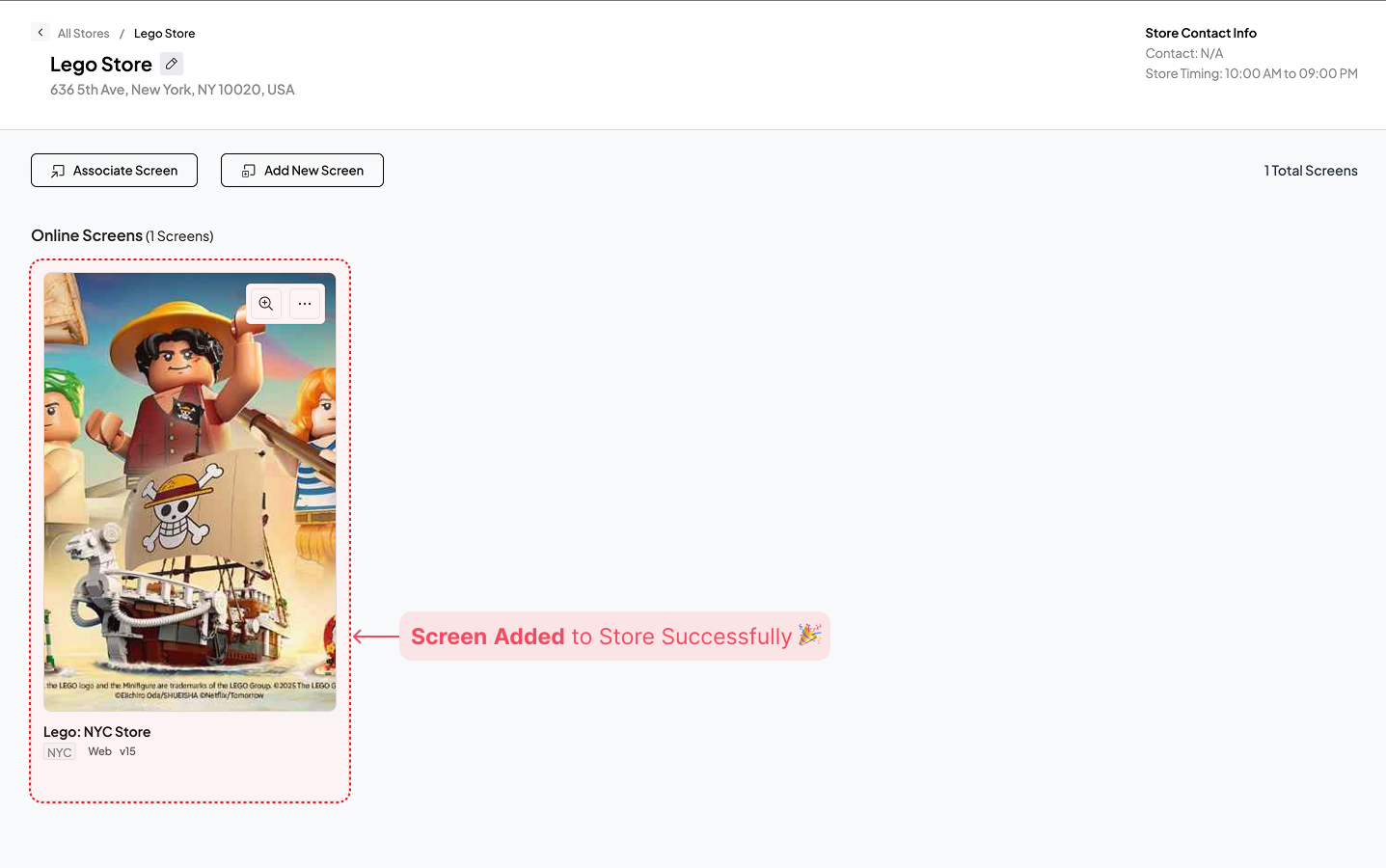
Click Save and Continue to complete registration.The screen is now online and automatically associated with this store.
Need more details on screen registration?Check out our complete Screen Registration Guide for step-by-step instructions on installing the Pickcel app and registering devices.