

Prerequisites: You’ll need an active Square POS account with your menu items already added, along with a Pickcel account.
Set up the integration
1
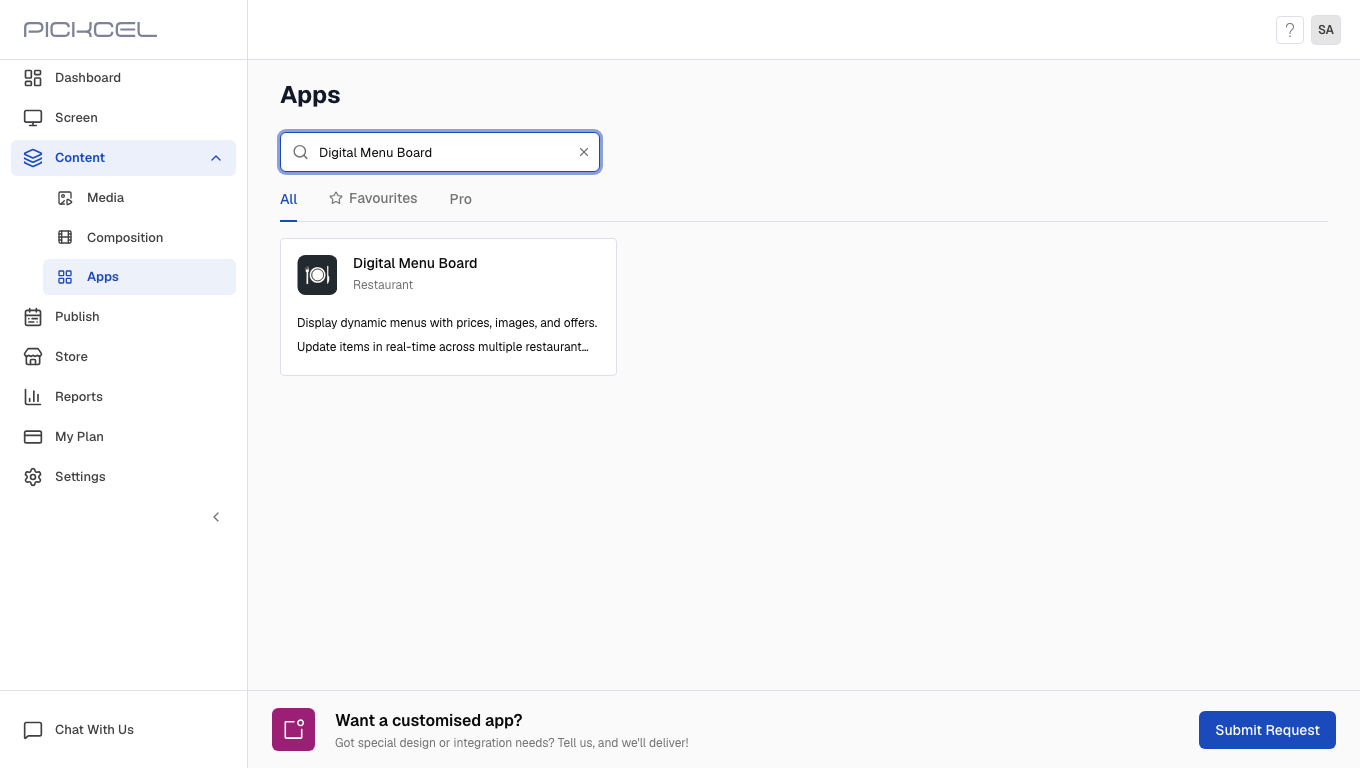
Log in to your Pickcel account and go to Apps
2
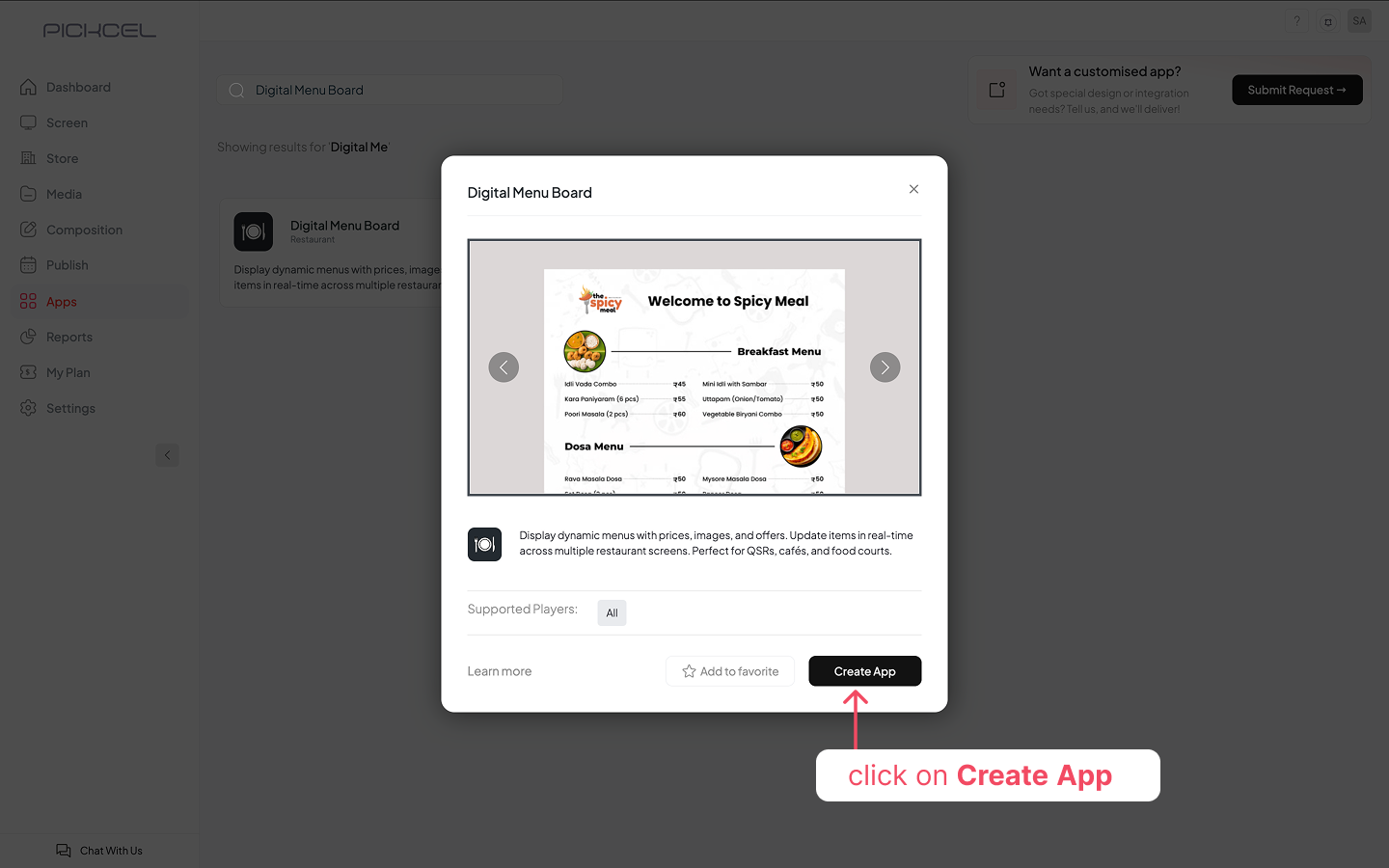
Search for Digital Menu Board and click Create App
3
Click + Create Your Own Design, then Import Data, then Sign In To Square
4
Complete Square POS authentication
Your menu items are fetched automatically and populated in the creation page once authentication succeeds.
5
Customize your menu
Categories and items are imported as-is from Square POS. You can toggle Availability per item or mark one as Today’s Special directly in the editor.Click the gear icon to open Settings, where you can switch templates, adjust fonts and colors, set slide duration, and add social links.
6
Save and assign to screens
Update menu items
When prices or descriptions change in your Square POS account, you can refresh the menu to pull in the latest data.1
Open the menu for editing from your media list
2
Click Refresh at the top of the editor
3
Review and update
Click Update to publish the changes to your screens.
If you have any questions or run into issues, contact support@pickcel.com.