

The display must run Android 7.1 or later. To check the version, open Admin Mode and go to Settings → About. Older models such as the BDL4050D run Android 4.x and are not supported.
Prerequisites:
- The Philips remote control
- A wired (recommended) or Wi-Fi network connection
- A USB drive formatted as FAT32, or a USB mouse if you install through Chromium
1
Complete the first-time setup
Power on the display and follow the setup wizard: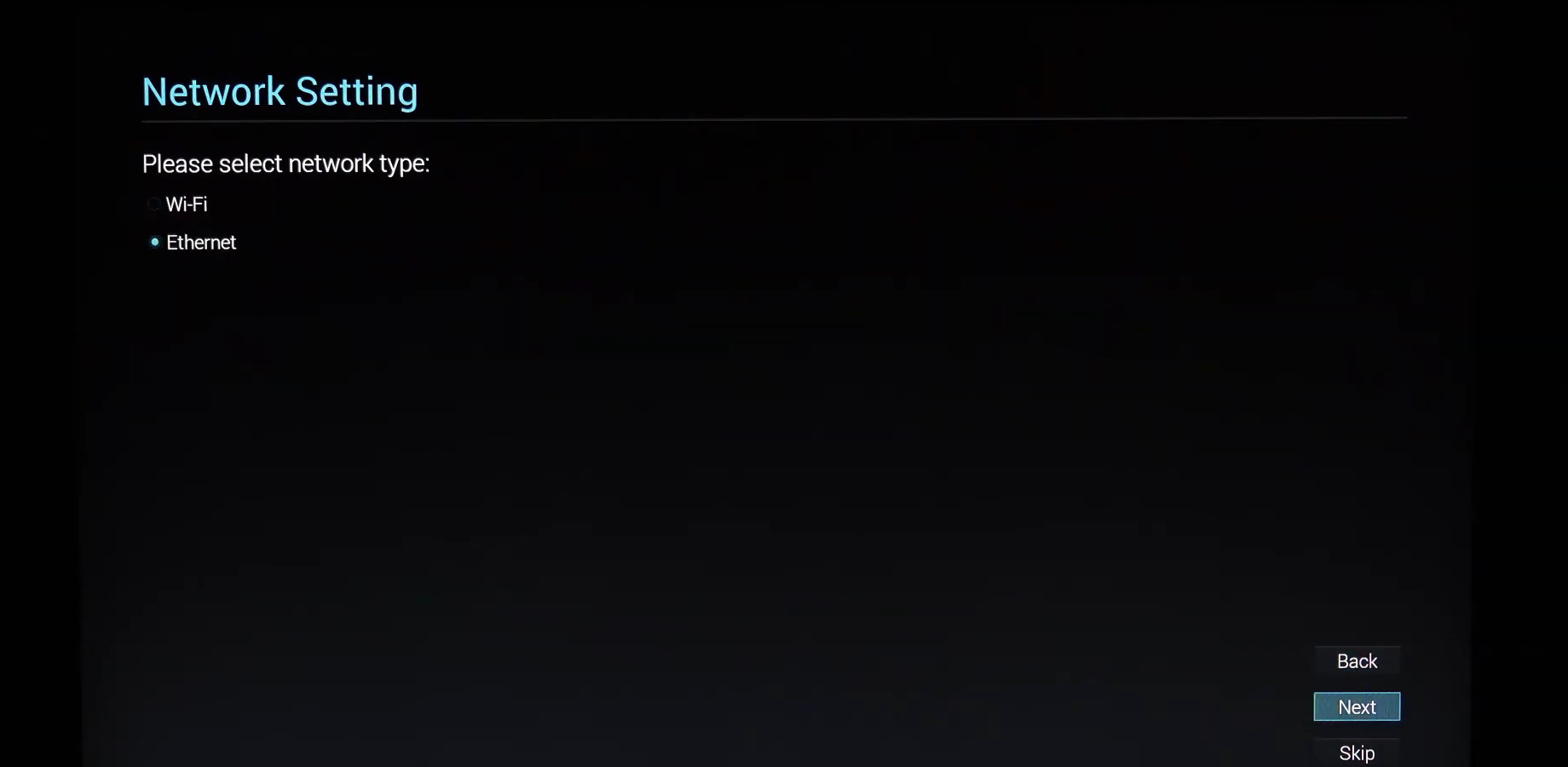
- Welcome: select your language and choose Start.
- Network Setting: choose Ethernet (then DHCP) or Wi-Fi, and choose Next.
- Signage Display Settings: choose Skip or Manual Setup. Skip any prompt to clone media or import settings.
- Setup Complete: choose Finish.
If the display was set up before, open Admin Mode and go to Settings → Signage Display → System Tools → Factory Reset to start fresh.
2
Open Admin Mode
On the remote, press Home, then 1 8 8 8 in quick succession. The Admin Mode menu shows Settings, Apps, Network and Help.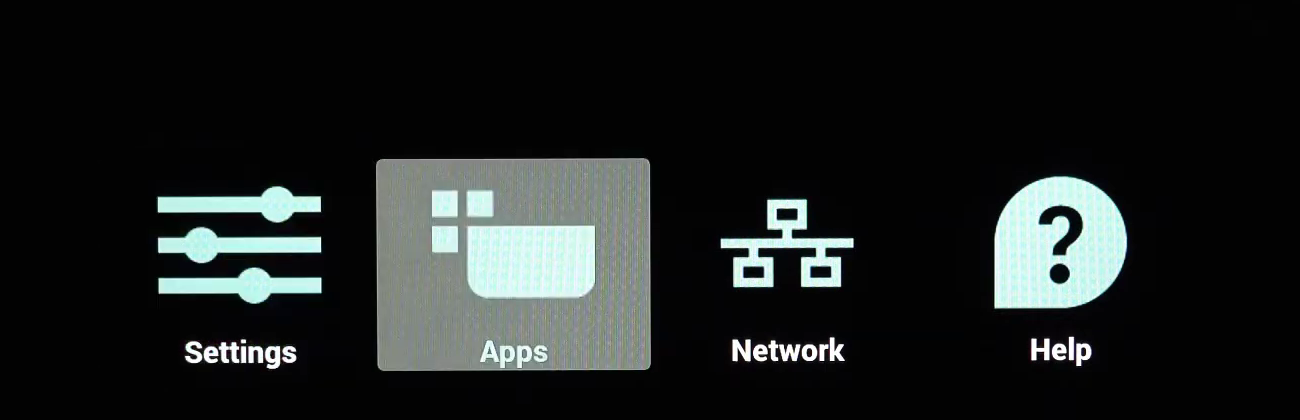
- If asked for a password, enter the default 1234.
- On touch models (for example BDL4151T and BDL4551T), press and hold Menu, then press Volume −.
3
Install the Pickcel APK
- USB drive
- Chromium
- On your computer, download the Pickcel Android APK (v7.2.0) and copy it to the USB drive.
- Insert the USB drive into the display.
-
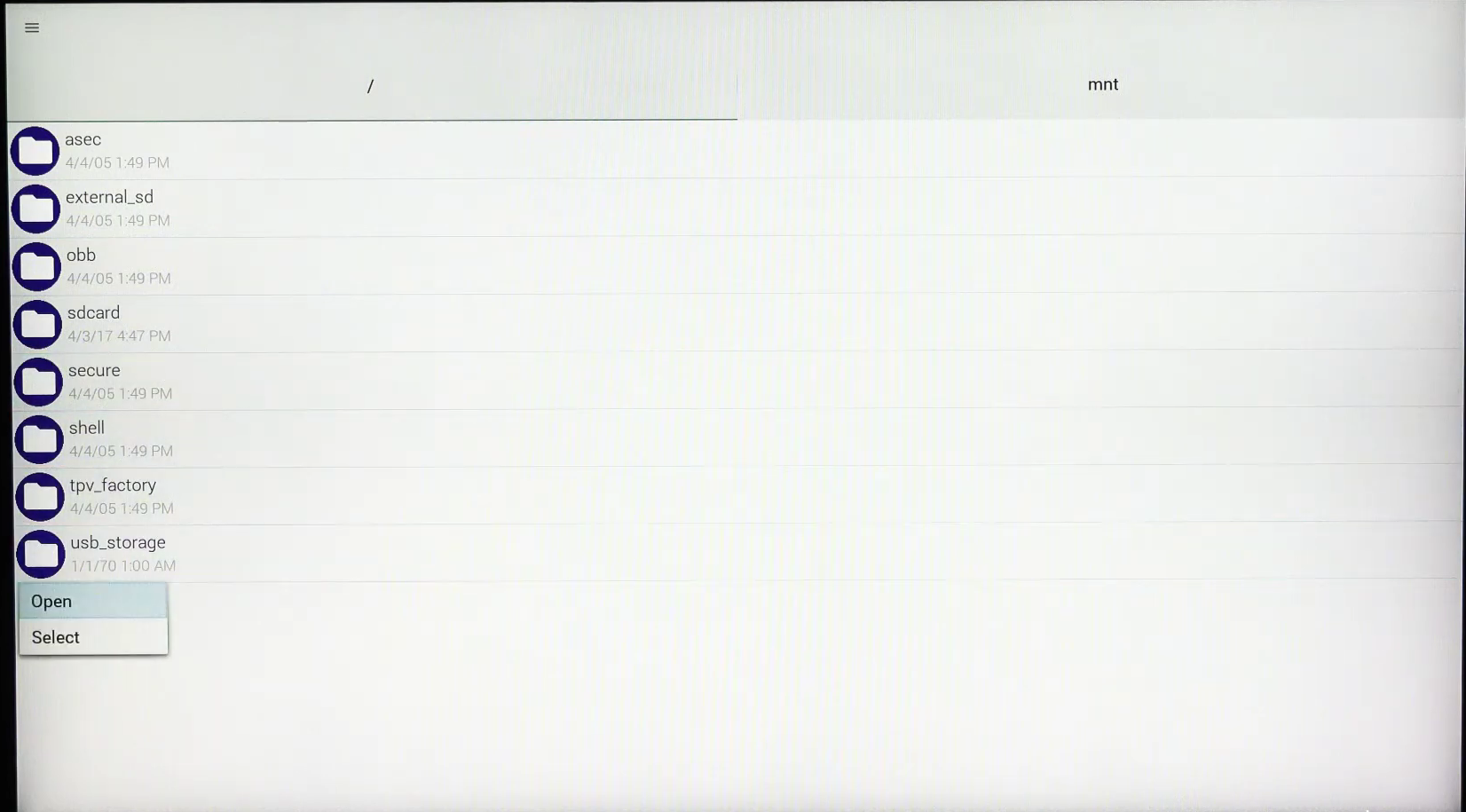
In Admin Mode, go to Apps → File Manager and open your USB drive.
-
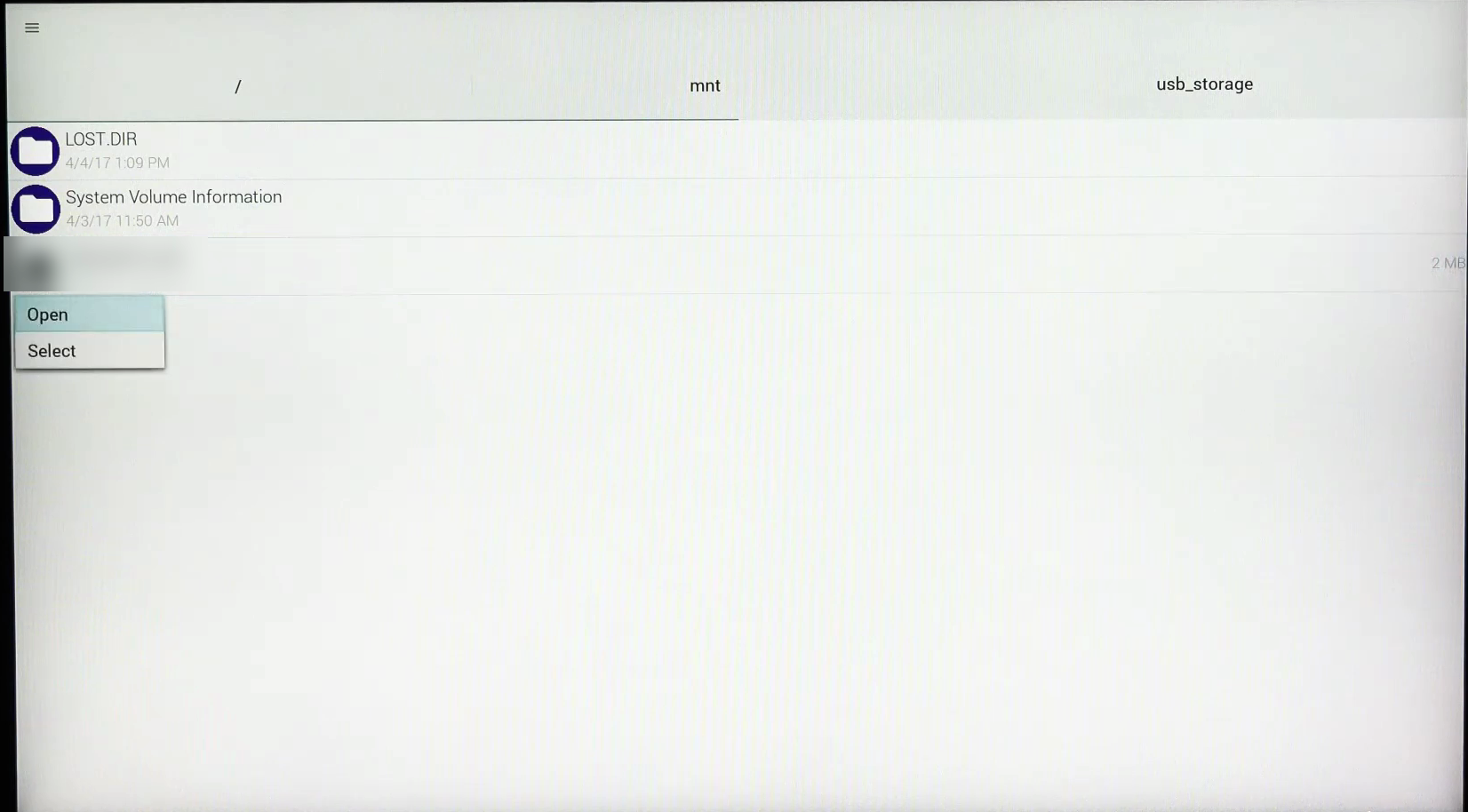
Go to the folder where you copied the APK, select the file and choose Open.
-
Choose Install, then Done when installation finishes.
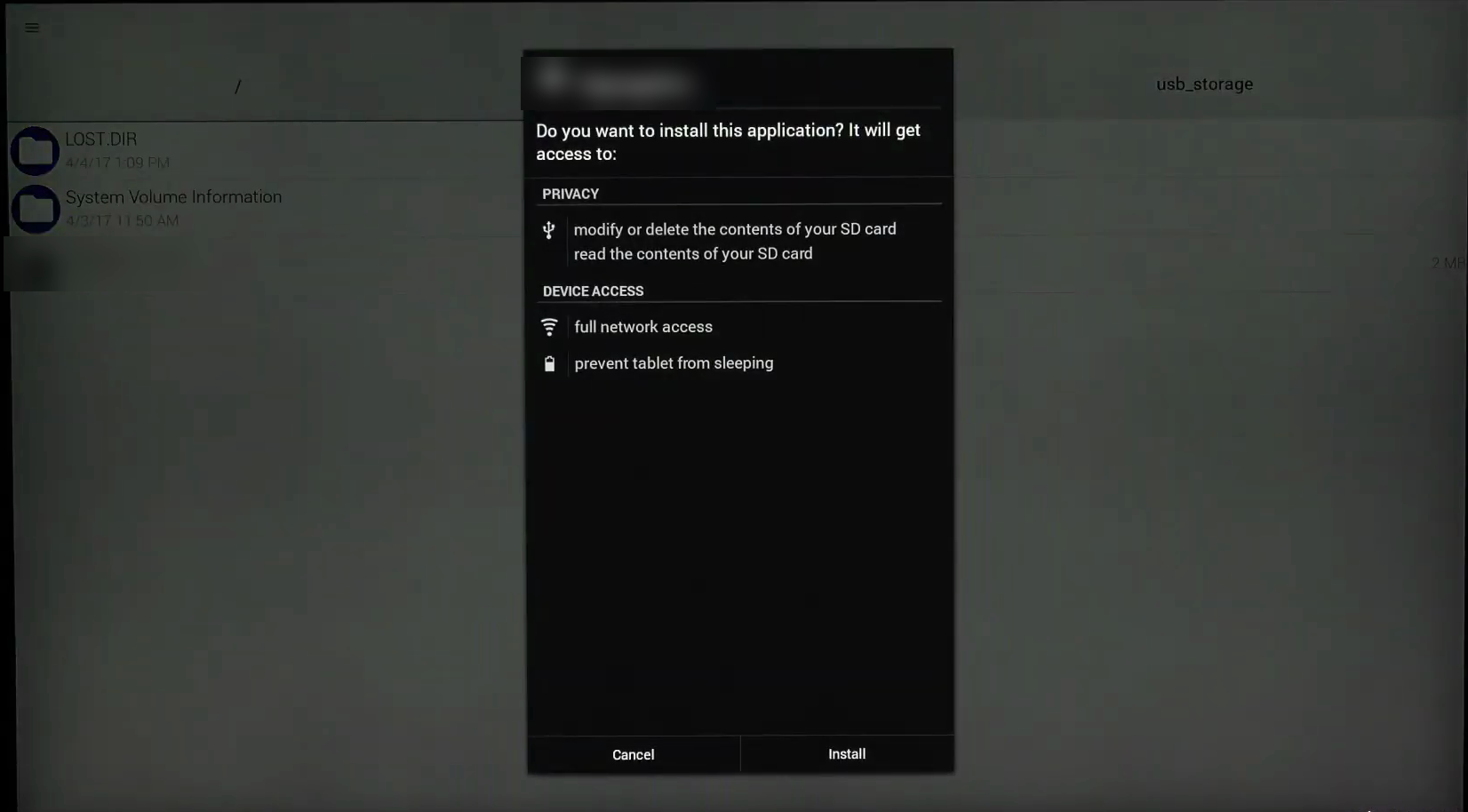
On some newer models, open the USB drive from Storage in Admin Mode instead of File Manager.
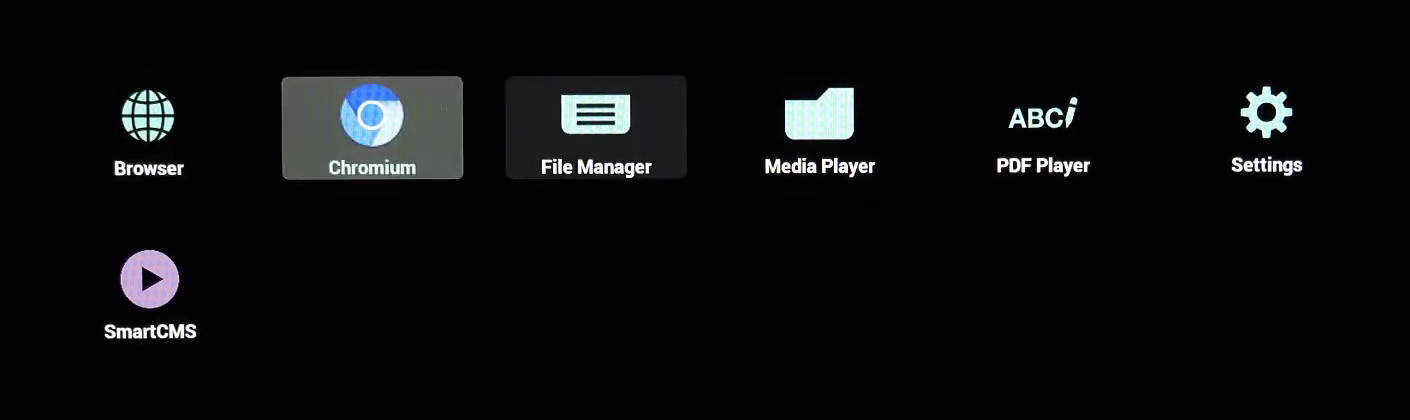
If installation is blocked, go to Settings → Security and enable Unknown sources. On newer models, select Settings → Allow from this source in the prompt.
4
Set Pickcel as the Custom app
In Admin Mode, go to Settings → Signage Display. Under Source Settings, select Custom app.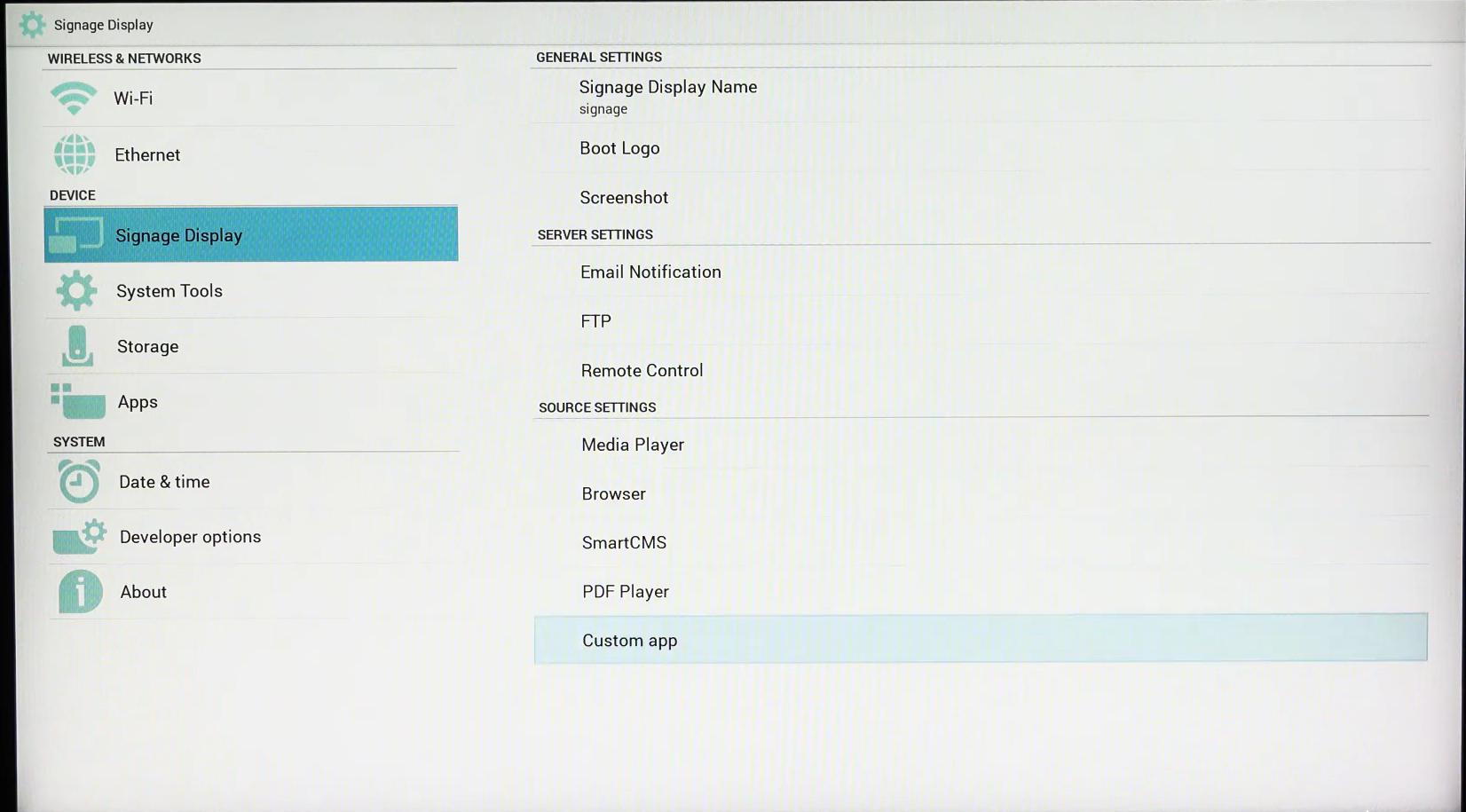 Select Select App, choose the Pickcel app and choose Save. If Force restart custom app is available, enable it.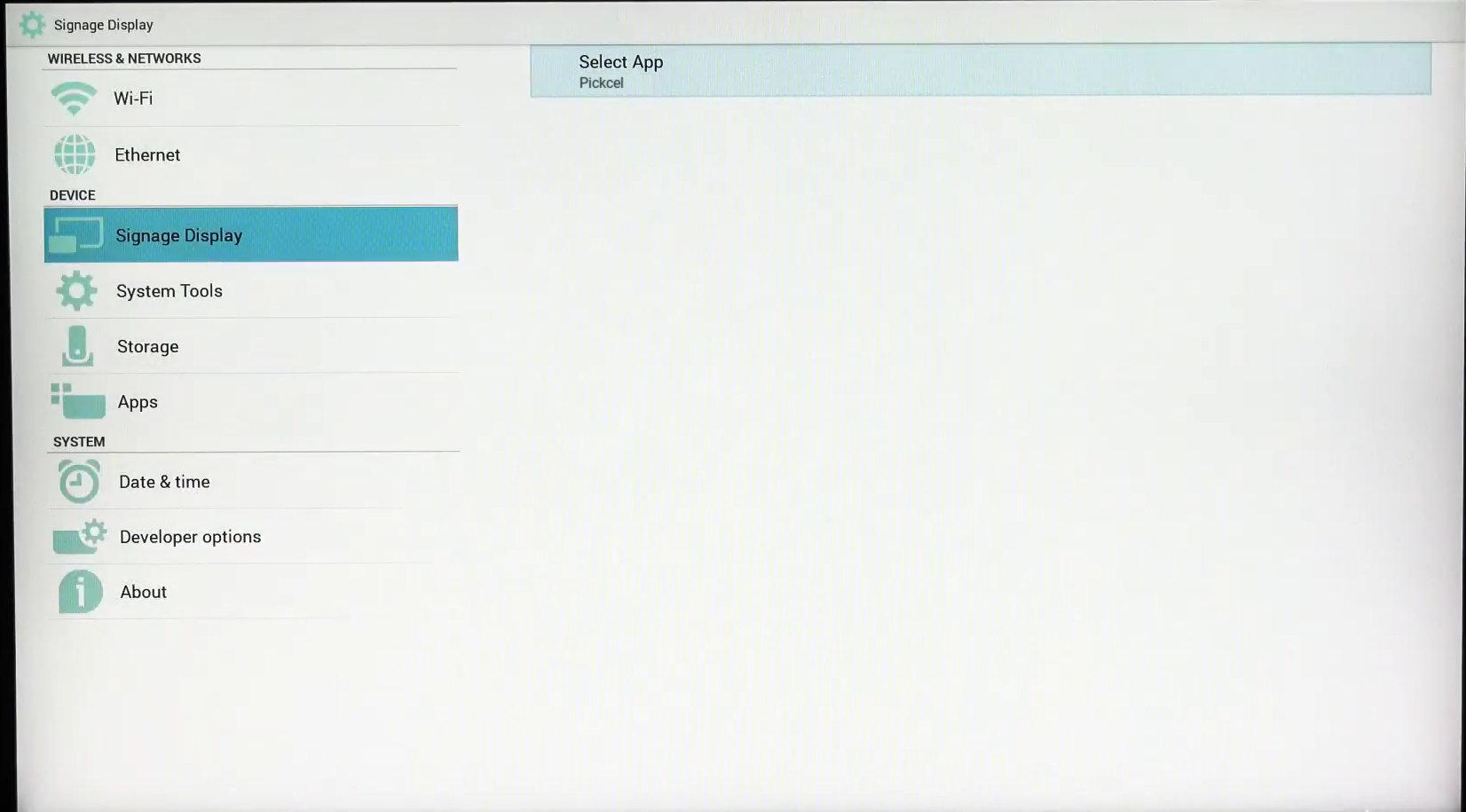
5
Start Pickcel on power-on
In Settings → Signage Display, go to General Settings → Boot on source and set Input to Custom app.
On older firmware, press Home on the remote and go to Configuration1 → Boot on source, then set it to Custom.
6
Set the date and time
In Settings → Date & time, select your time zone and confirm the date and time are correct. Scheduled content depends on this.
7
Launch Pickcel
Exit Admin Mode, press Source on the remote and select Custom.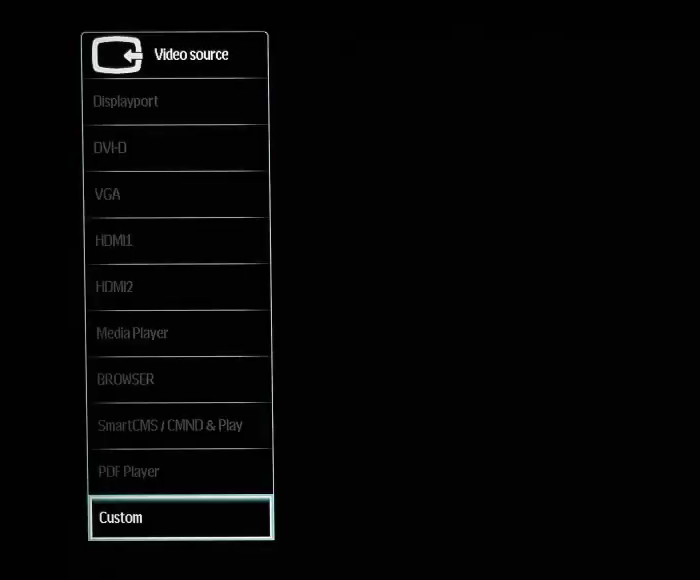 Pickcel opens. If asked for permissions, choose Allow. The app shows a six-digit Screen Registration Code.
Complete the SetupNow in a browser, sign in to the Pickcel Console and enter the six-digit code to complete the pairing of the screen.To learn how to pair your device with the Pickcel console, see the Screen Registration guide.