How to Display a Trello Board on Digital Signage Using Pickcel?
This guide shows you how to display a Trello board on your digital signage screens using Pickcel, which is excellent for visualizing workflows, tracking task progress, and managing team projects in a shared space.
This integration requires a direct Atlassian account login with an email and password. Federated login methods, such as signing in with a Google, Microsoft, or Apple account, are not compatible with this setup. Please ensure you use an account with basic authentication credentials.
Best Practice: For enhanced security and easier management, create a dedicated service account in Atlassian with read-only permissions for the Trello board you want to display. Use this account’s credentials for Pickcel.
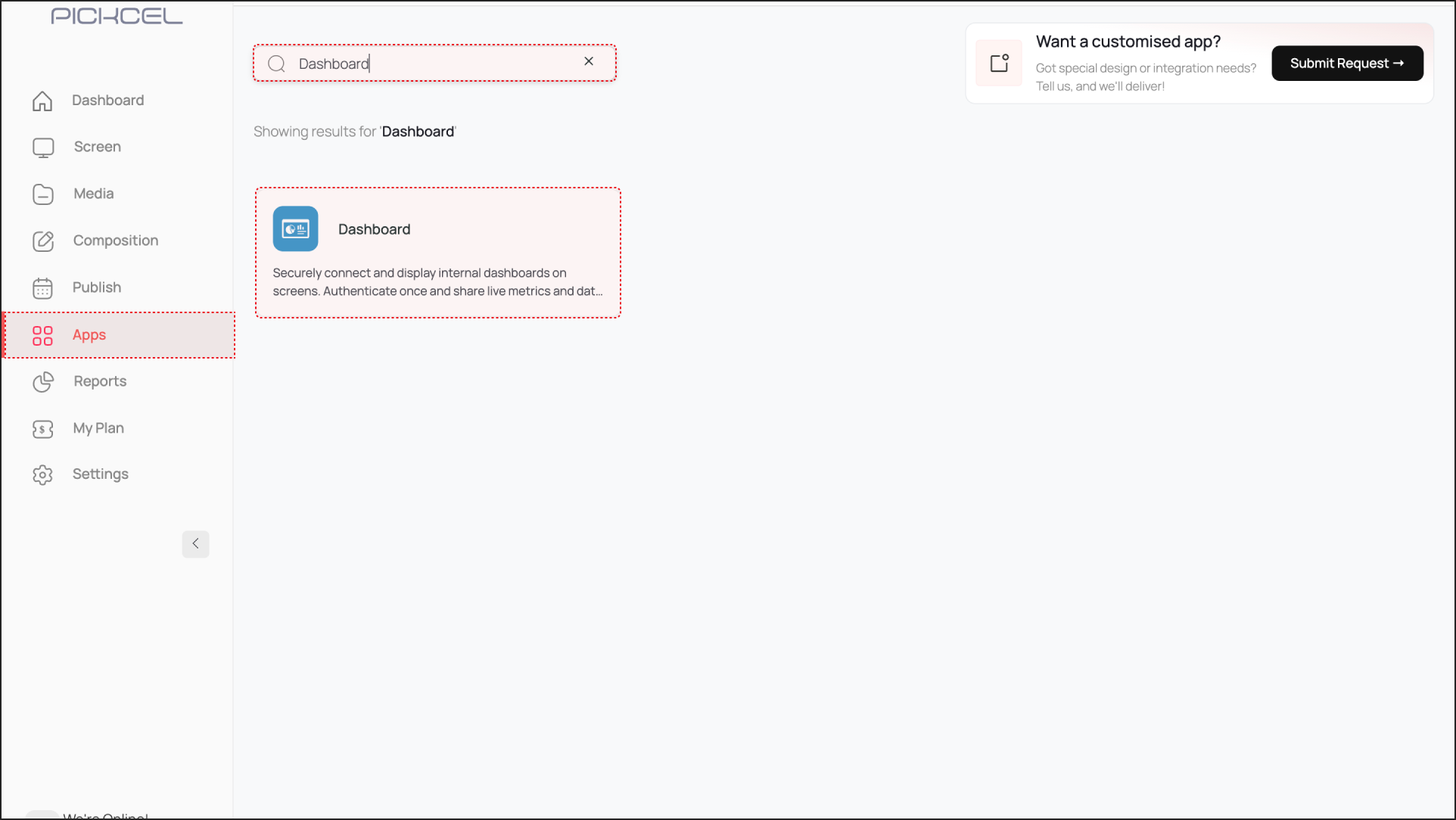
Log in to the Pickcel Console and navigate to Apps. Search for the Dashboard app and click on it. Then, click Create App.
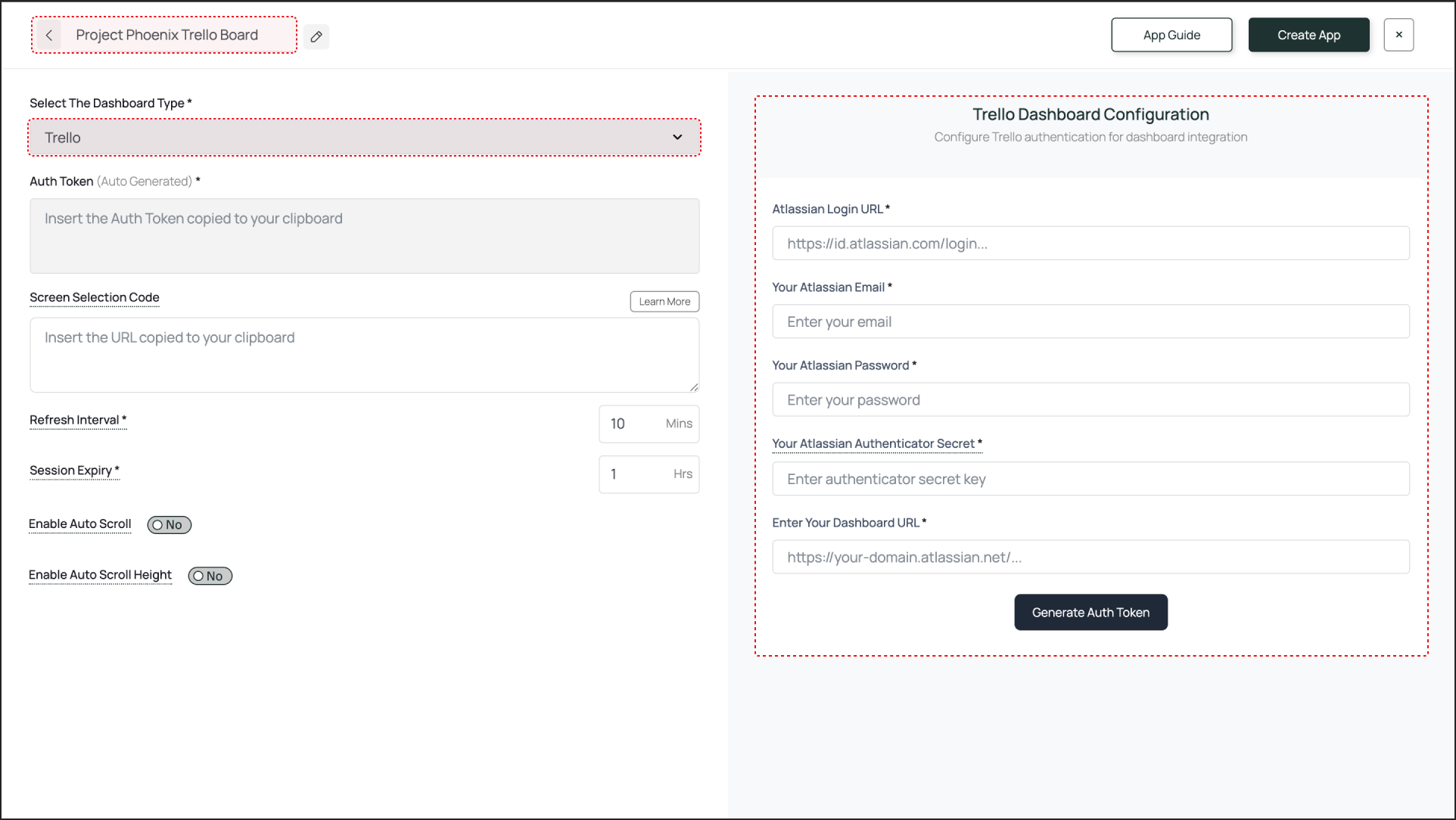
Give a name to the app instance based on the board you are configuring (e.g., “Project Phoenix Trello Board”).
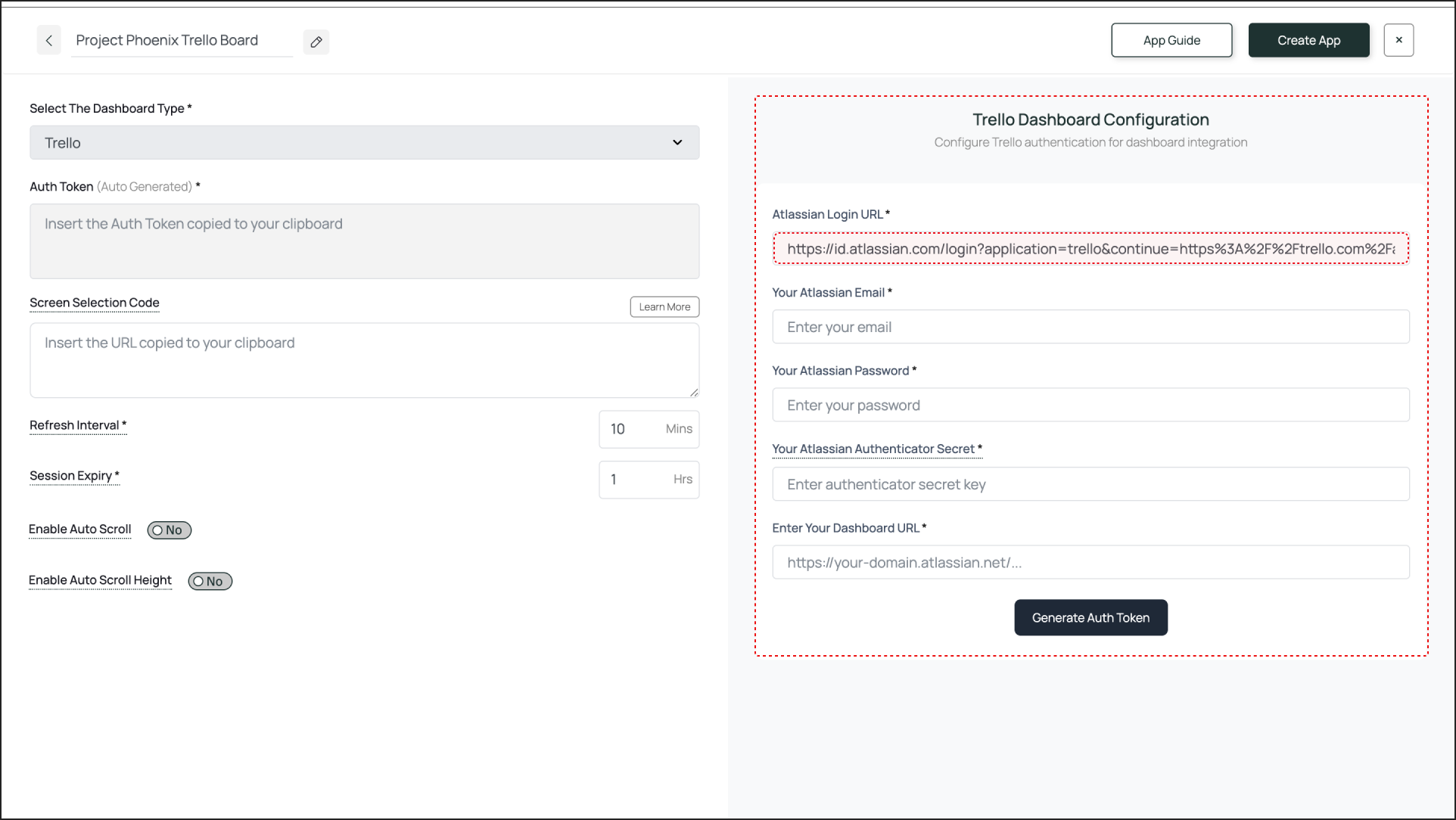
Select Trello from the dropdown menu. The configuration fields will open on the right.
2
Fill in the Fields for Trello Dashboard Configuration
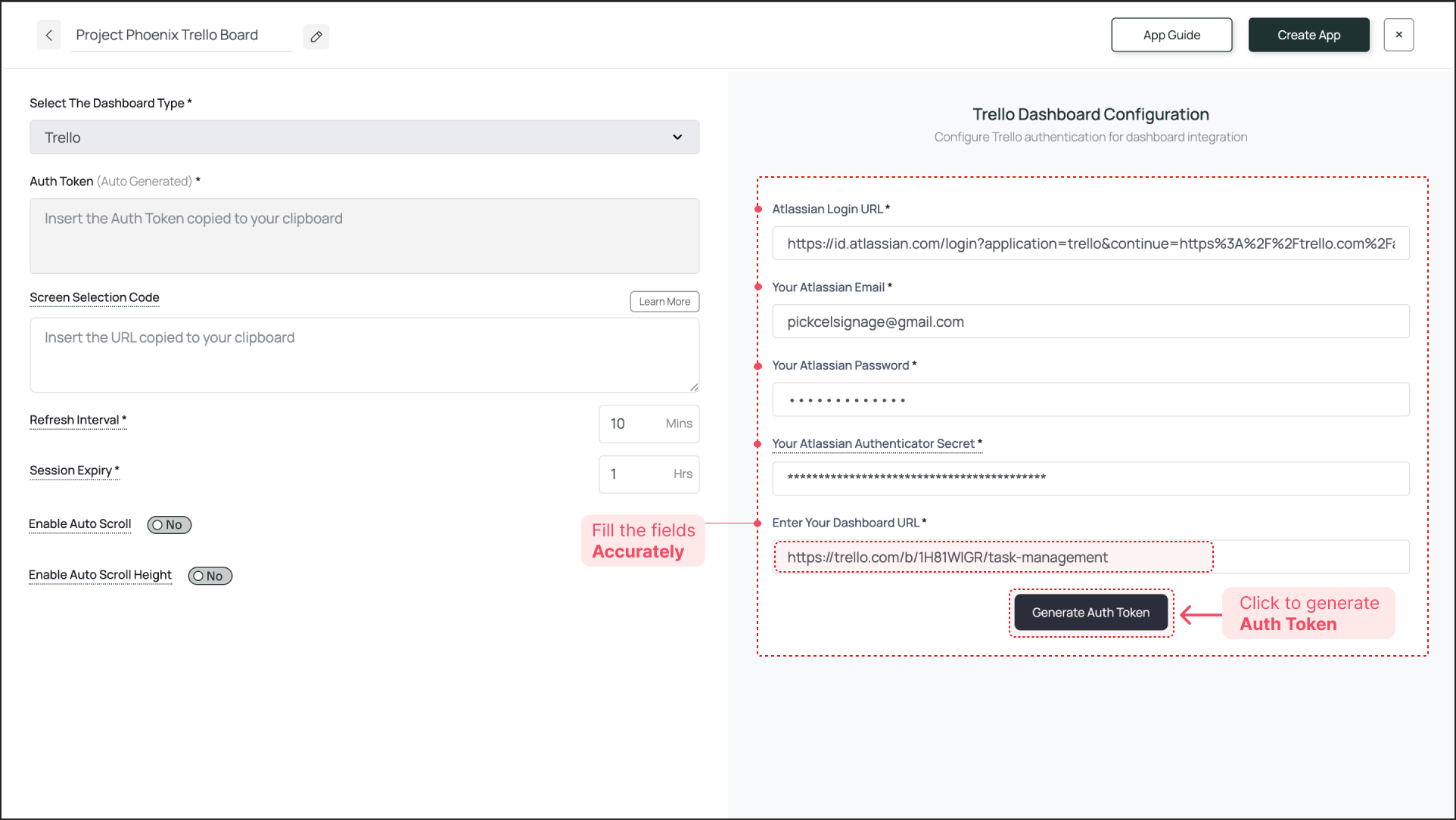
This section requires precise information to generate a correct and secure Auth Token.
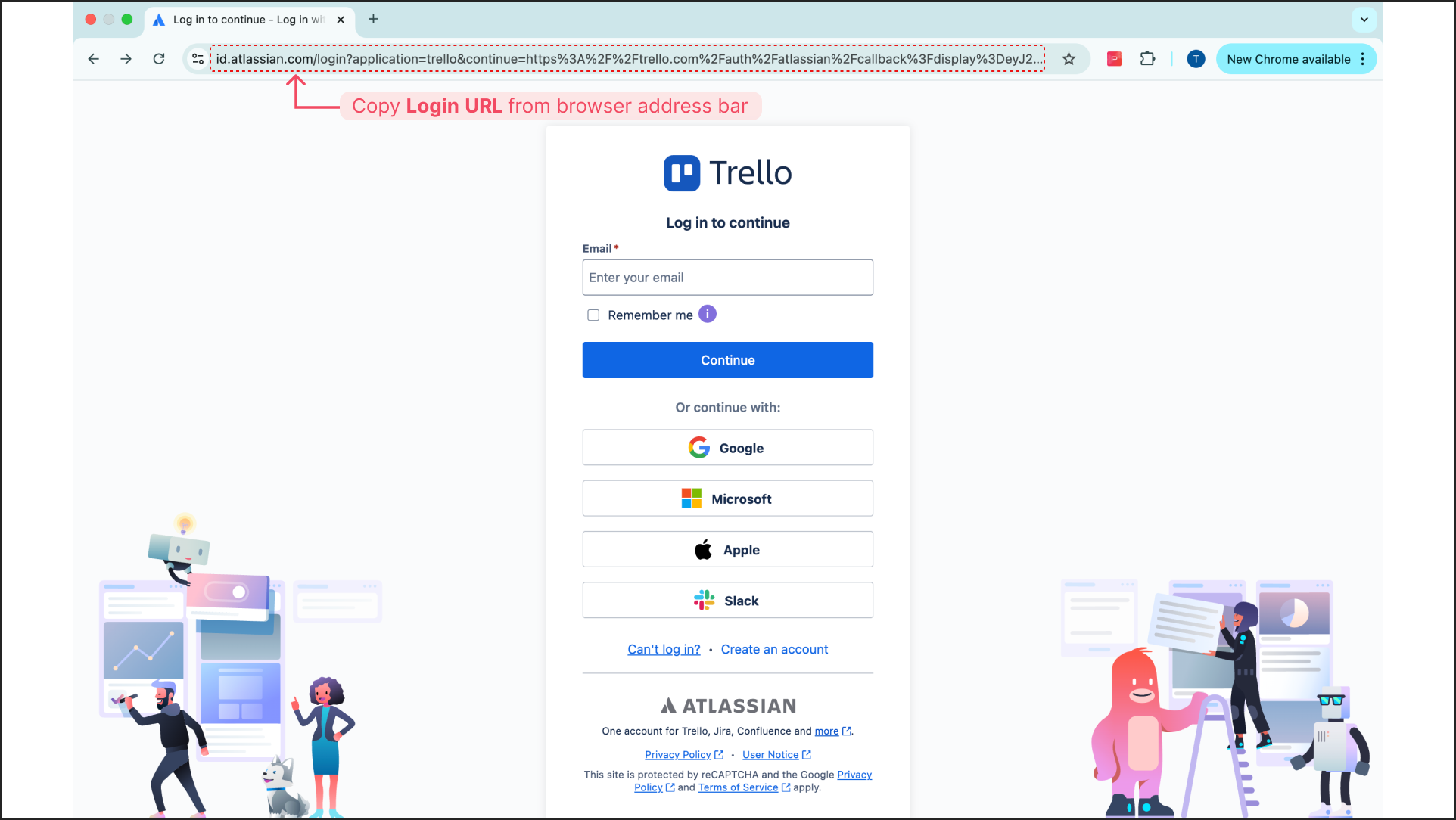
Atlassian Login URL: Log out of Trello. Go to the Trello login page. Copy the entire URL from your browser’s address bar and paste it here.
Atlassian Email ID: Enter the email address for your Atlassian Account.
Atlassian Password: Enter the password for that account.
Auth Secret Key: Paste the 2FA Secret Key you saved when setting up 2FA for the Atlassian account.
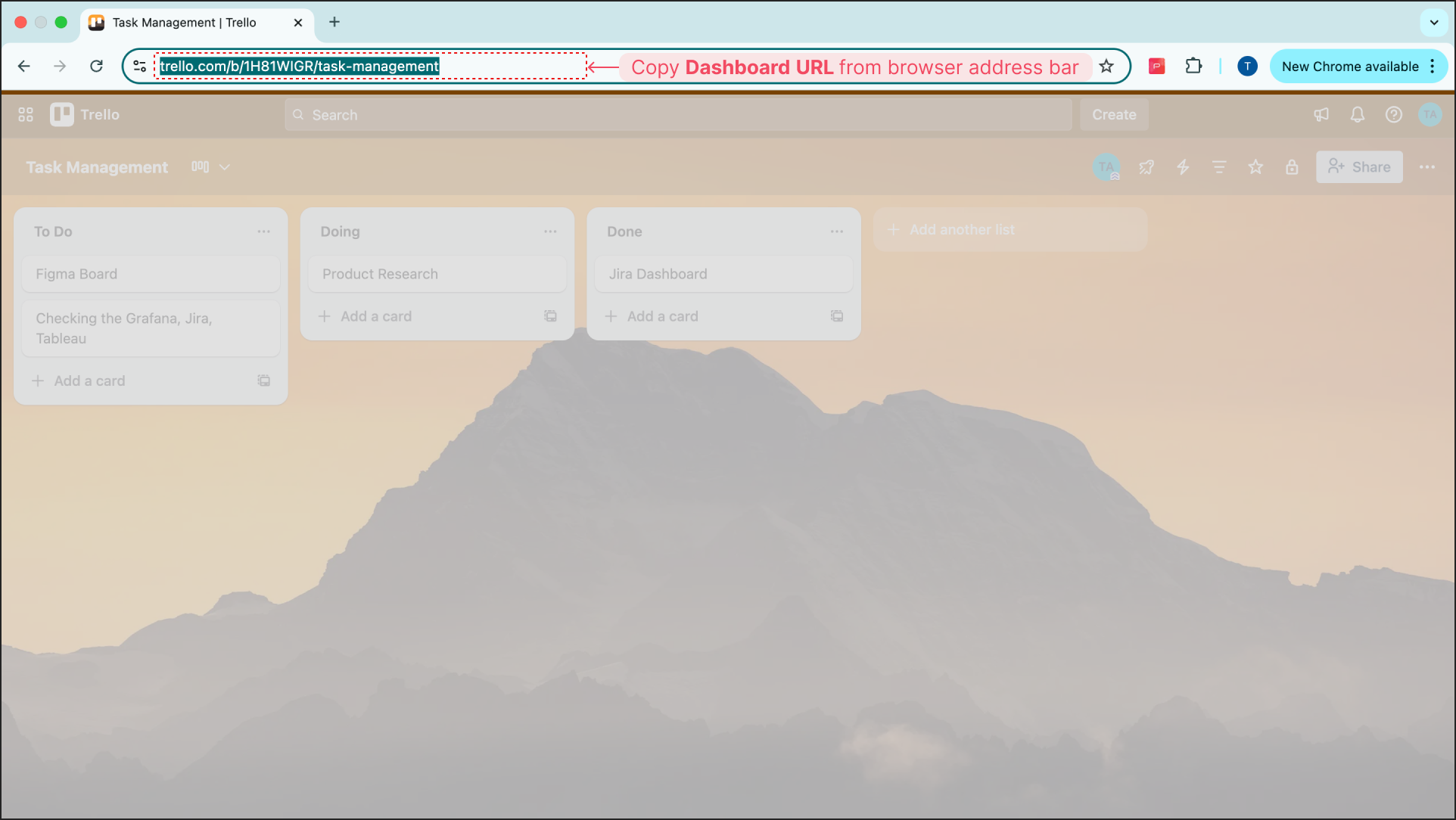
Trello Board URL: Log back into Trello and navigate to the exact board you want to display. Copy the entire URL from the address bar and paste it here.
Click Generate Auth Token. The token will be generated and automatically pasted into the Auth Token field on the left.
To display only specific lists on your board, use the Pickcel Dashboard Screen Mapper Extension. Select the area, and the generated code will be copied to your clipboard. Paste this code into the Screen Selection Code field.
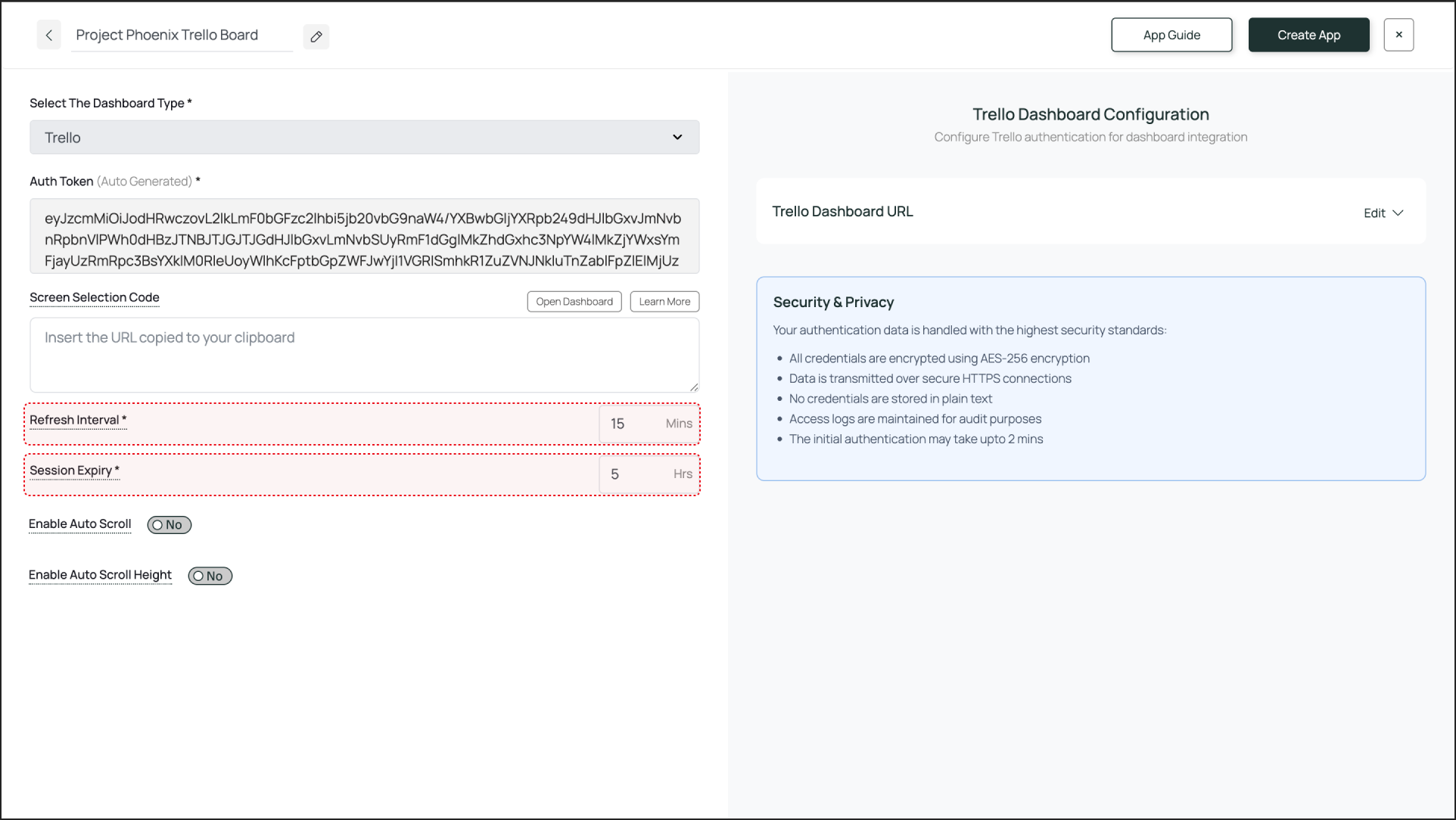
Refresh Interval: This setting defines how often the board screenshot is updated. An interval of 15 minutes is a good starting point for most Trello boards.
Session Expiry: This forces a fresh login to prevent session timeouts. A value of 5-8 hours is recommended.
4
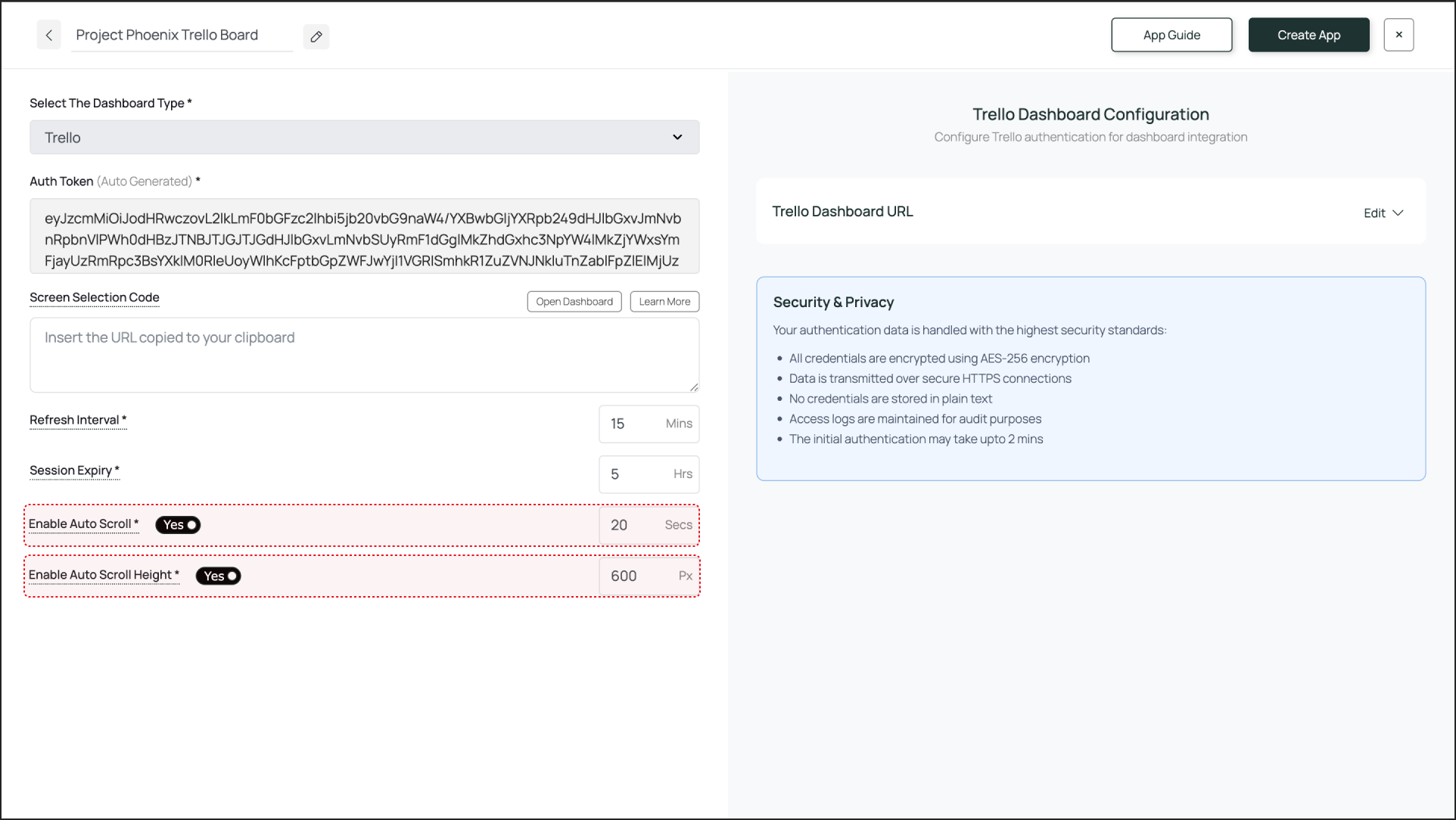
Enable Scroll Option for the Board (Optional)
Enable Auto Scroll: Set a scroll duration in seconds. For example, at 20 seconds, the entire board scrolls from top to bottom over 20 seconds.
Enable Auto Scroll Height: Set a scroll height in pixels. The screen scrolls down by the defined pixel height.
5
Create and Publish
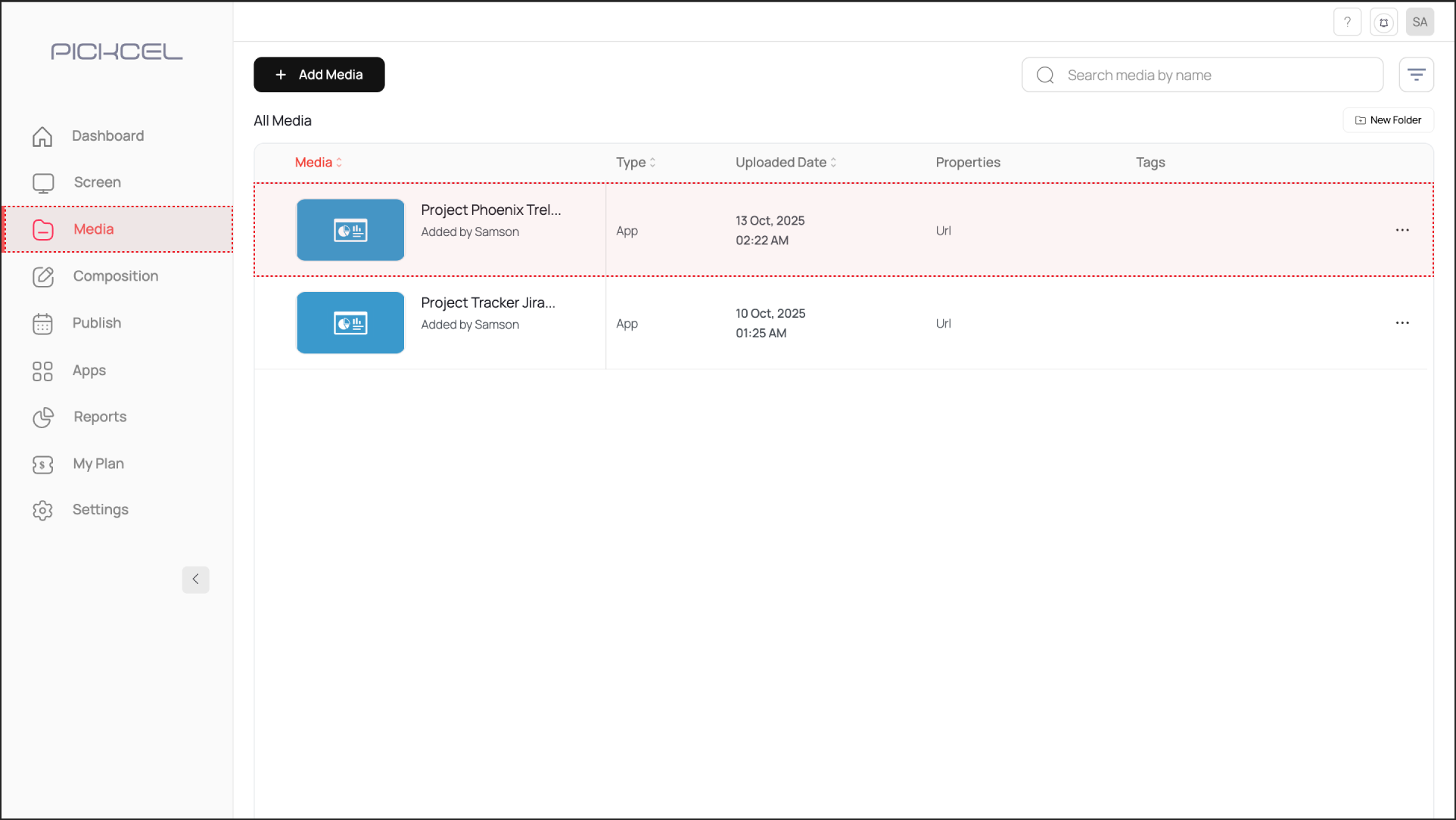
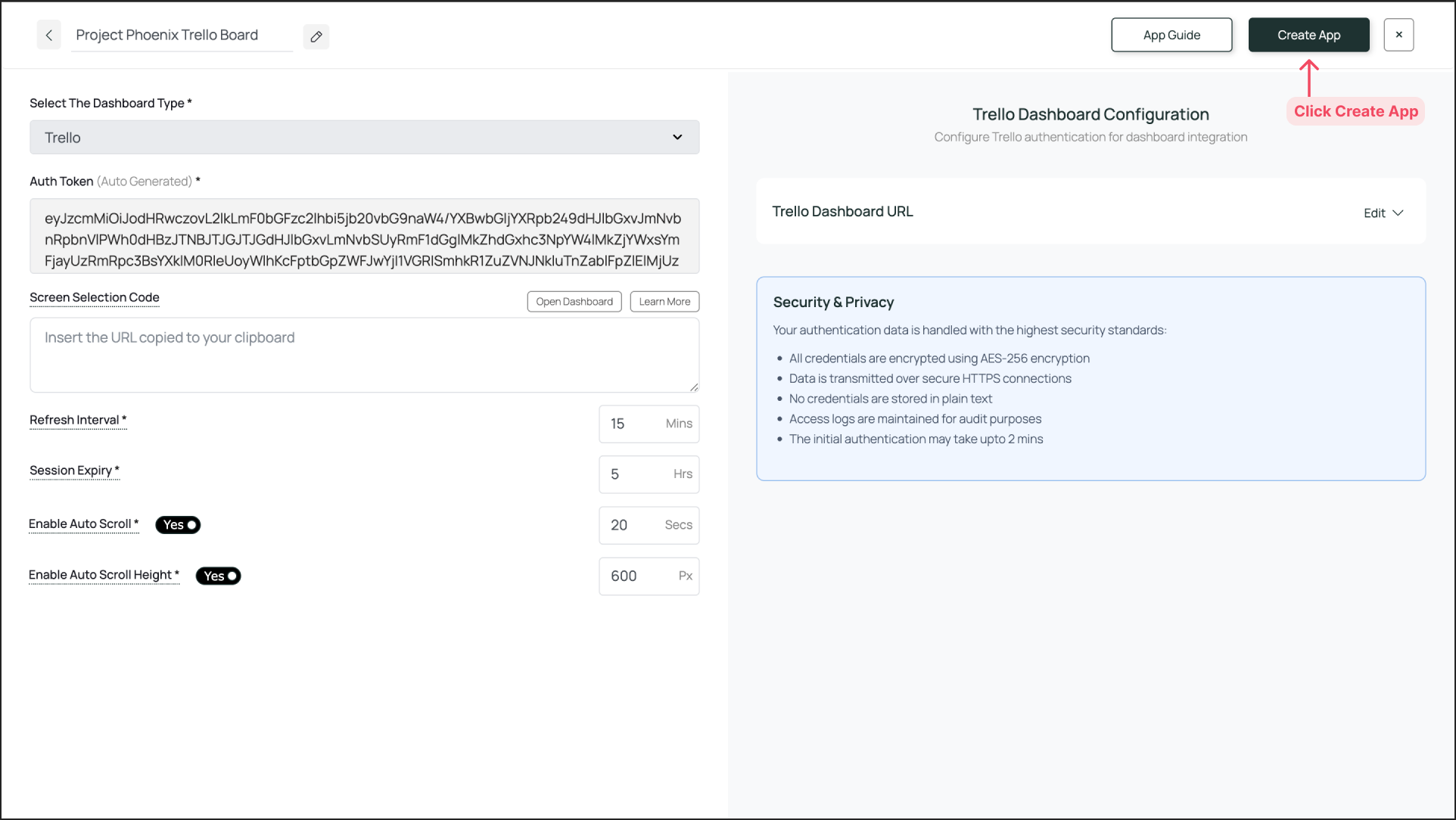
Once the configuration is complete, click Create App. The app instance will be available in the Media section.
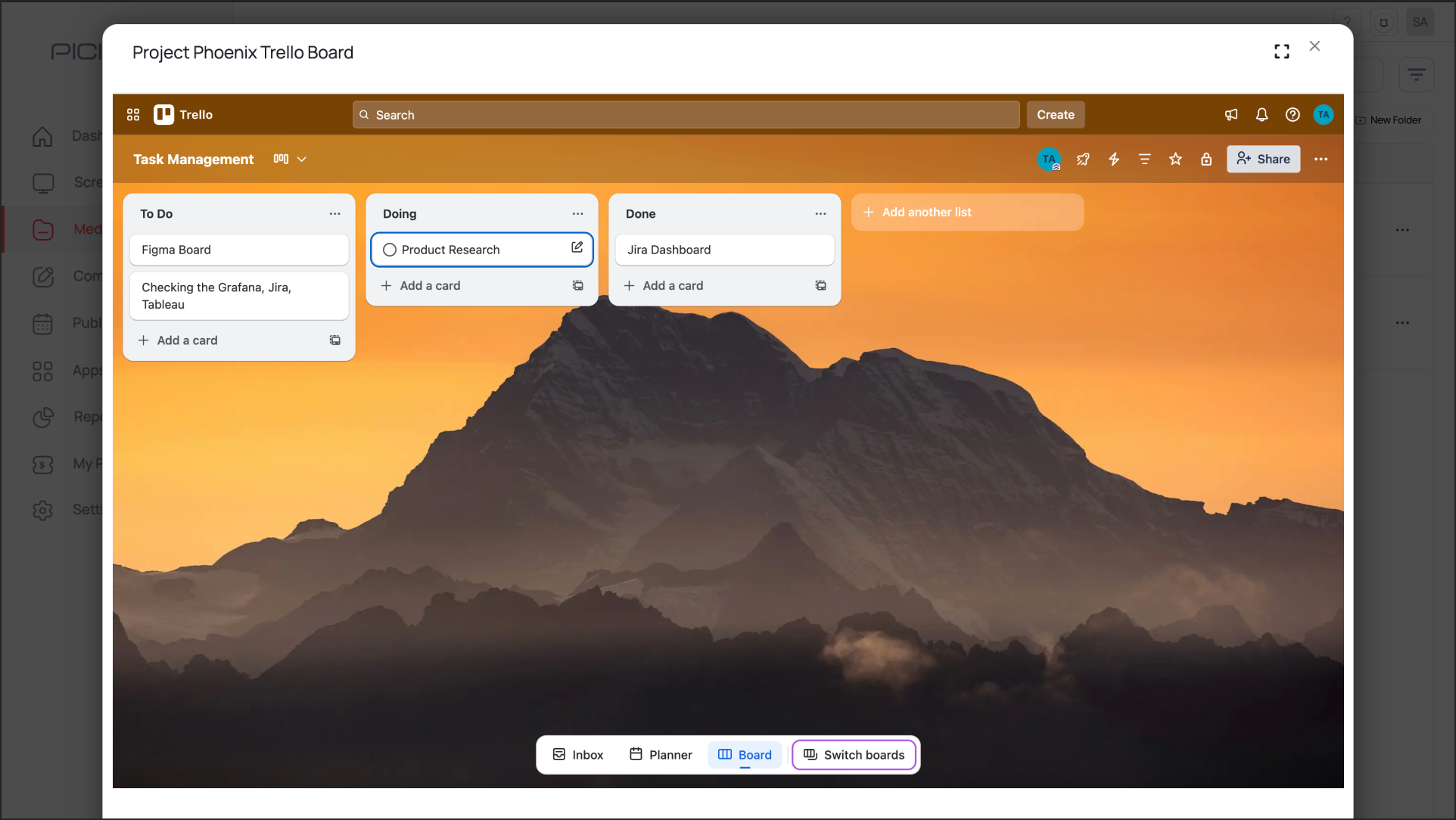
To preview, go to Media, find your app instance by name, and click its thumbnail. If you are happy with the result, assign it to your screens.
Preview of the Trello Board
If the password or any other credentials are incorrect, the process will stall on the login screen, displaying the login screen instead of the board.


 Click Generate Auth Token. The token will be generated and automatically pasted into the Auth Token field on the left.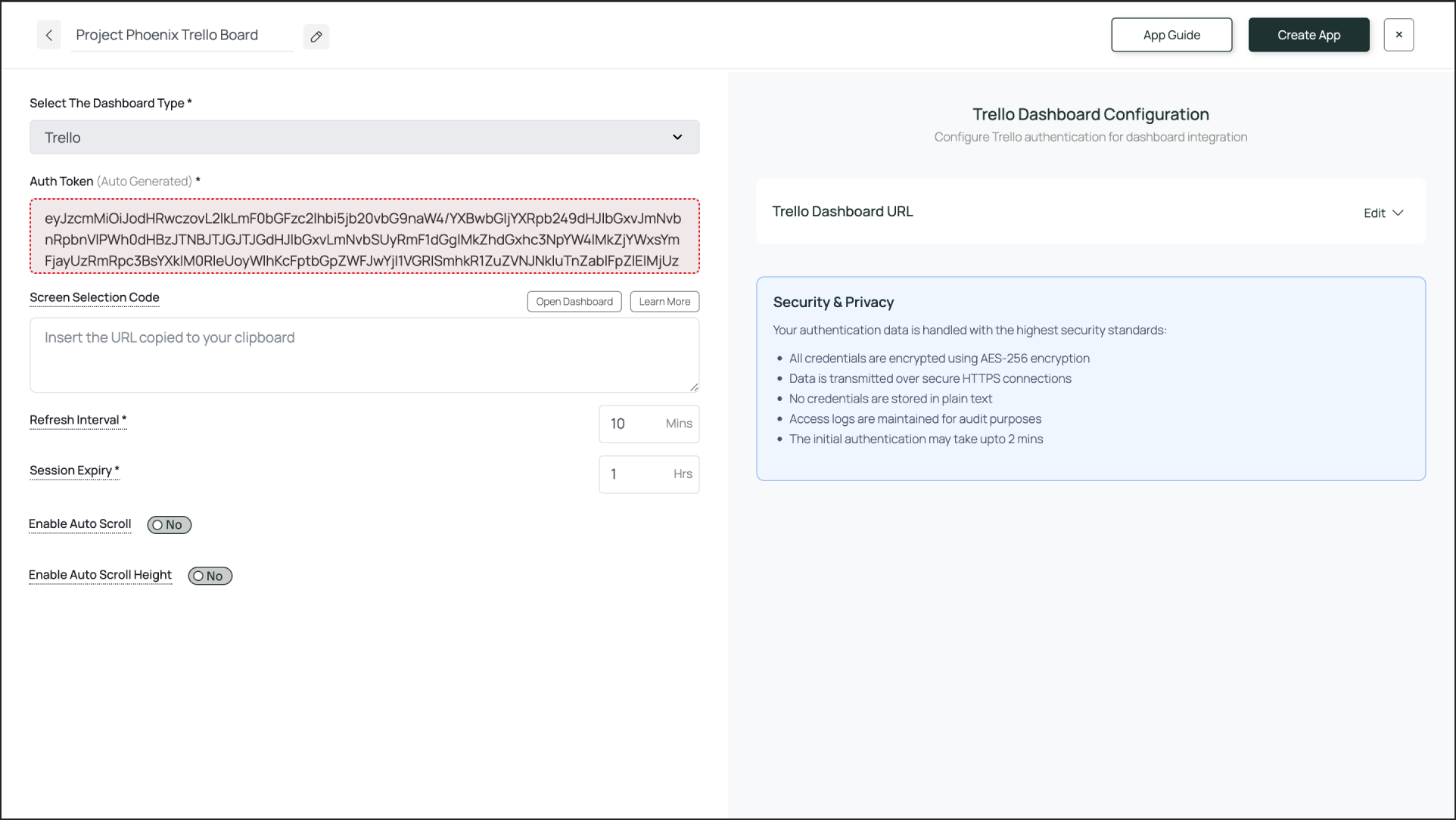
 To preview, go to Media, find your app instance by name, and click its thumbnail. If you are happy with the result, assign it to your screens.