

Installing the Extension
1
Visit the Chrome Web Store
Open the Chrome Web Store page for the Pickcel Dashboard Screen Mapper extension:
Install from Chrome Web Store
Click here to install the Pickcel Dashboard Screen Mapper extension
2
Add to Chrome
Click the Add to Chrome button on the extension page.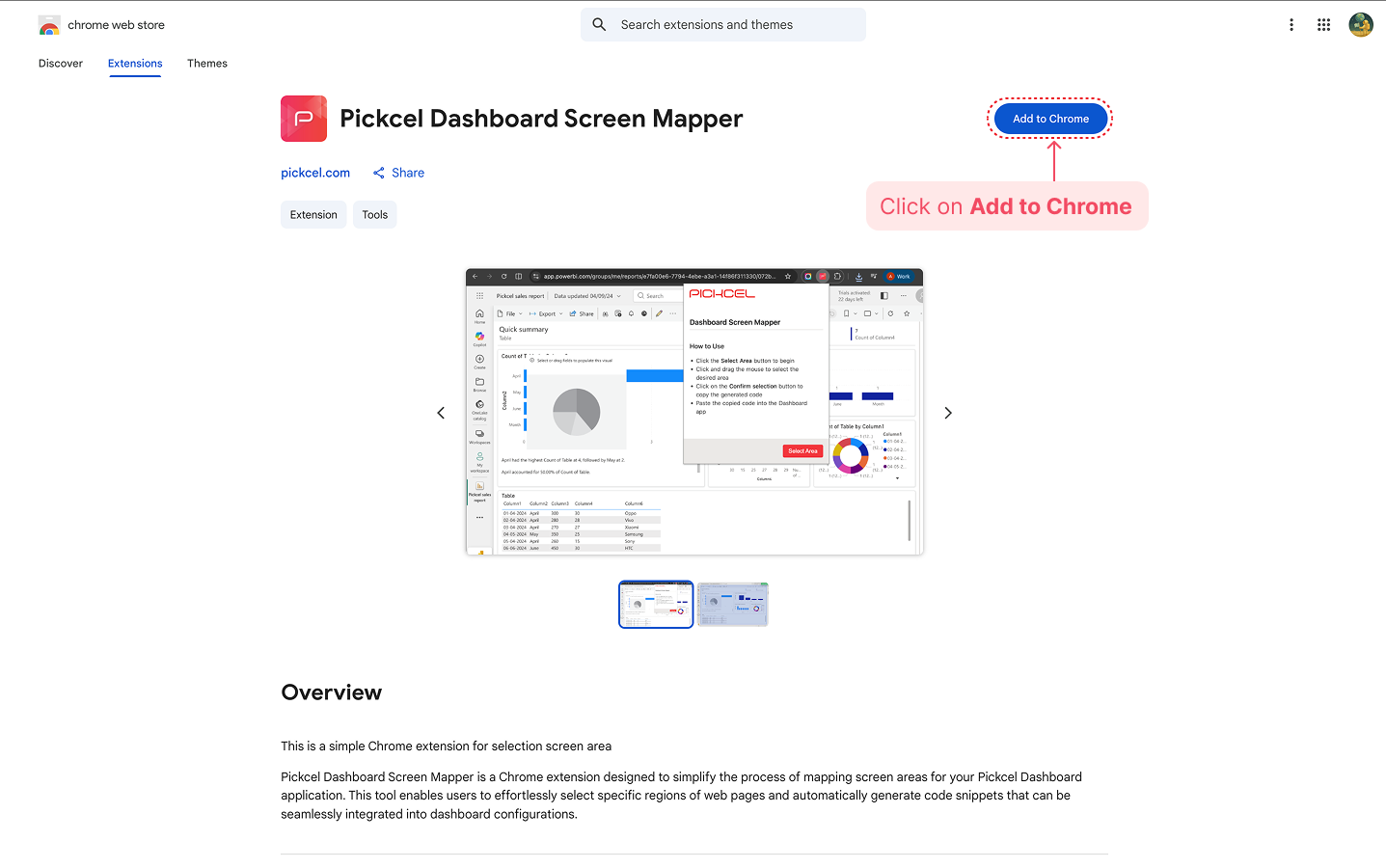
3
Confirm Installation
When prompted, click Add extension to confirm the installation. The extension will be installed and ready to use.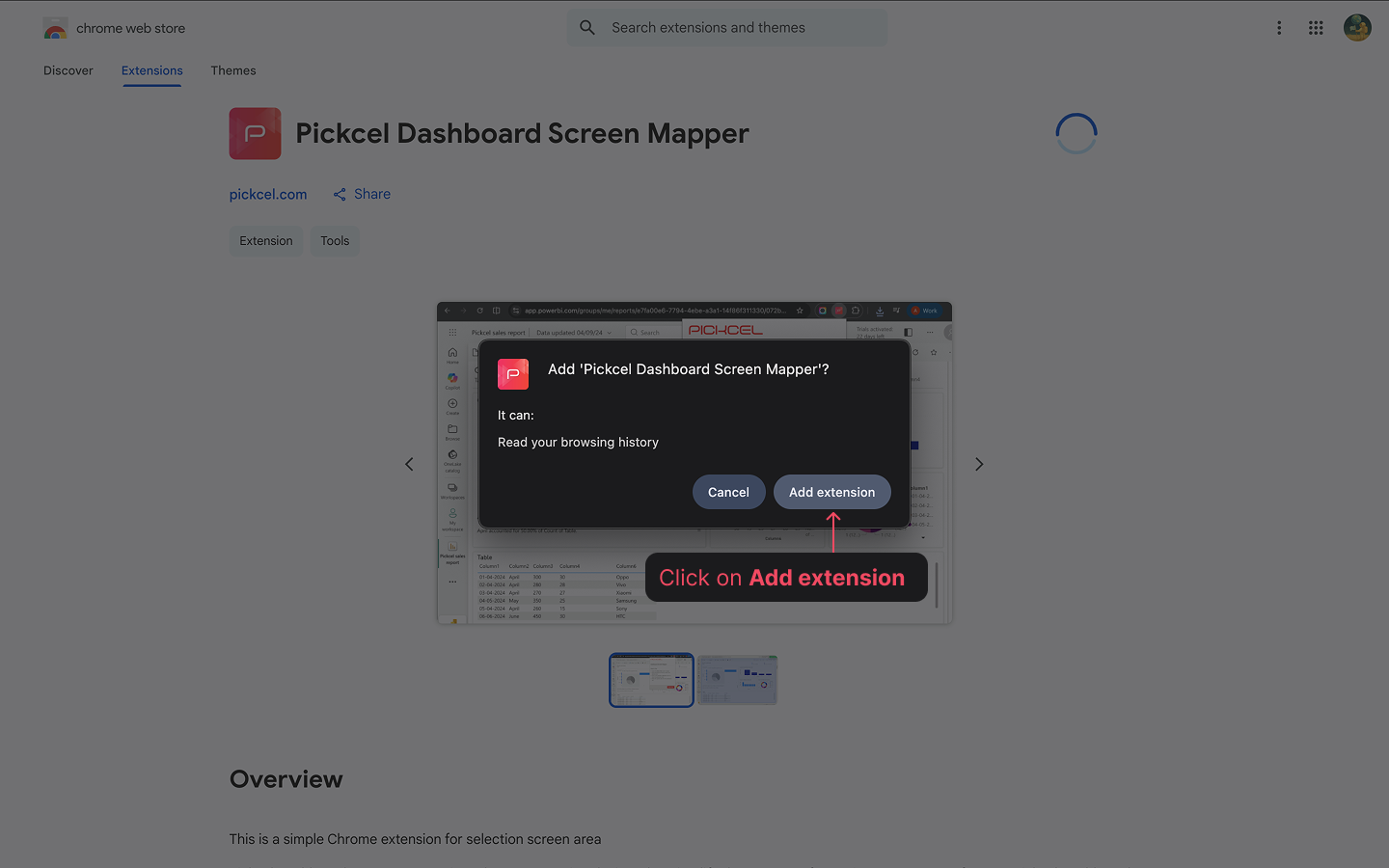
4
Pin the Extension (Recommended)
Click the puzzle icon in your Chrome toolbar and pin the Pickcel Dashboard Screen Mapper Extension for quicker access.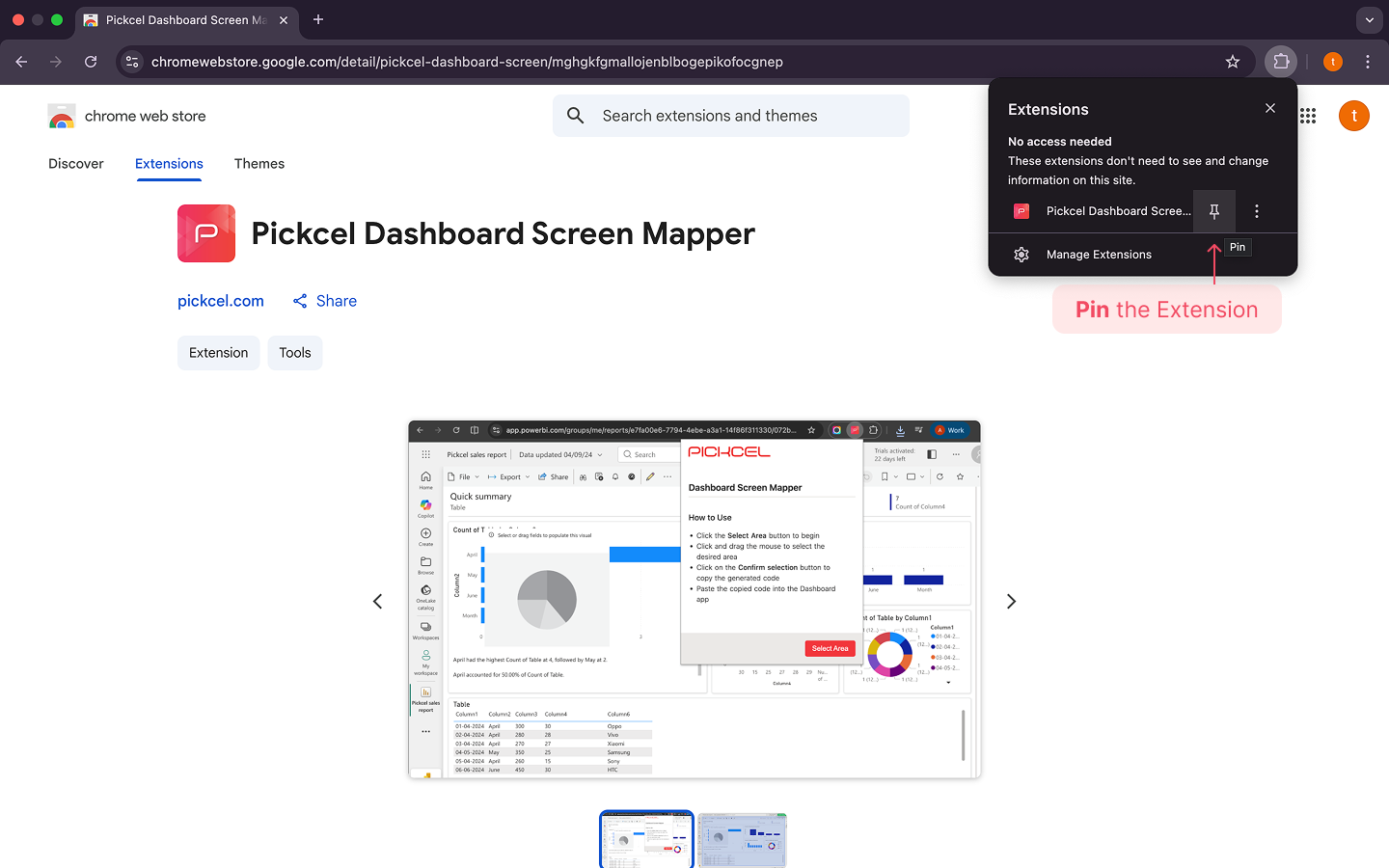
Using the Extension to Capture an Area
1
Open Your Dashboard
Open the dashboard page (e.g., in Jira, Power BI, etc.) you want to display.
2
Launch the Screen Mapper
Click on the Screen Mapper extension icon from your Chrome toolbar. Click the Select Area button.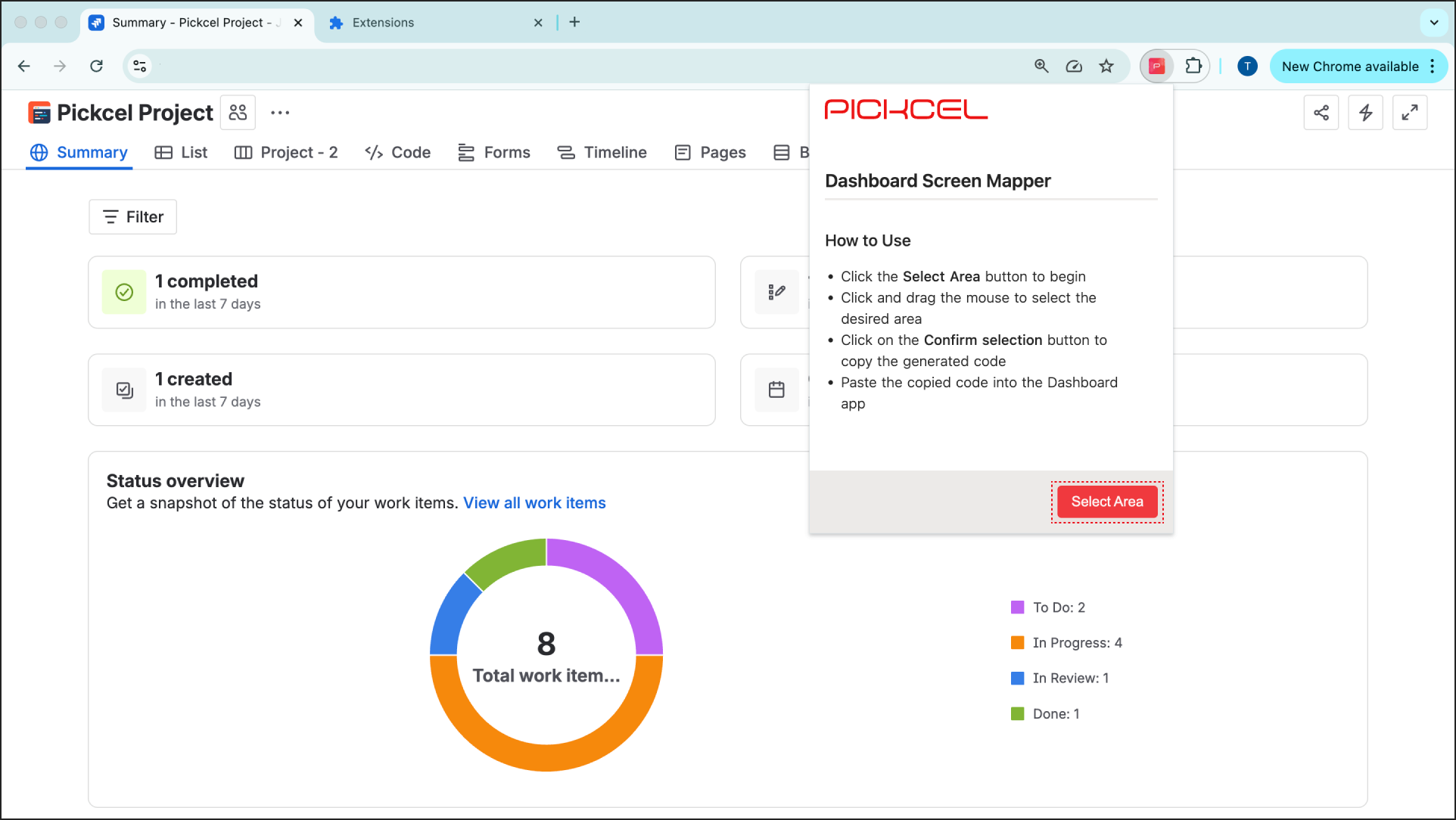
3
Select the Desired Area
Your mouse pointer will change into a area selector (+). Click and drag your mouse to select the exact portion of the dashboard you want to capture and display on your signage screen.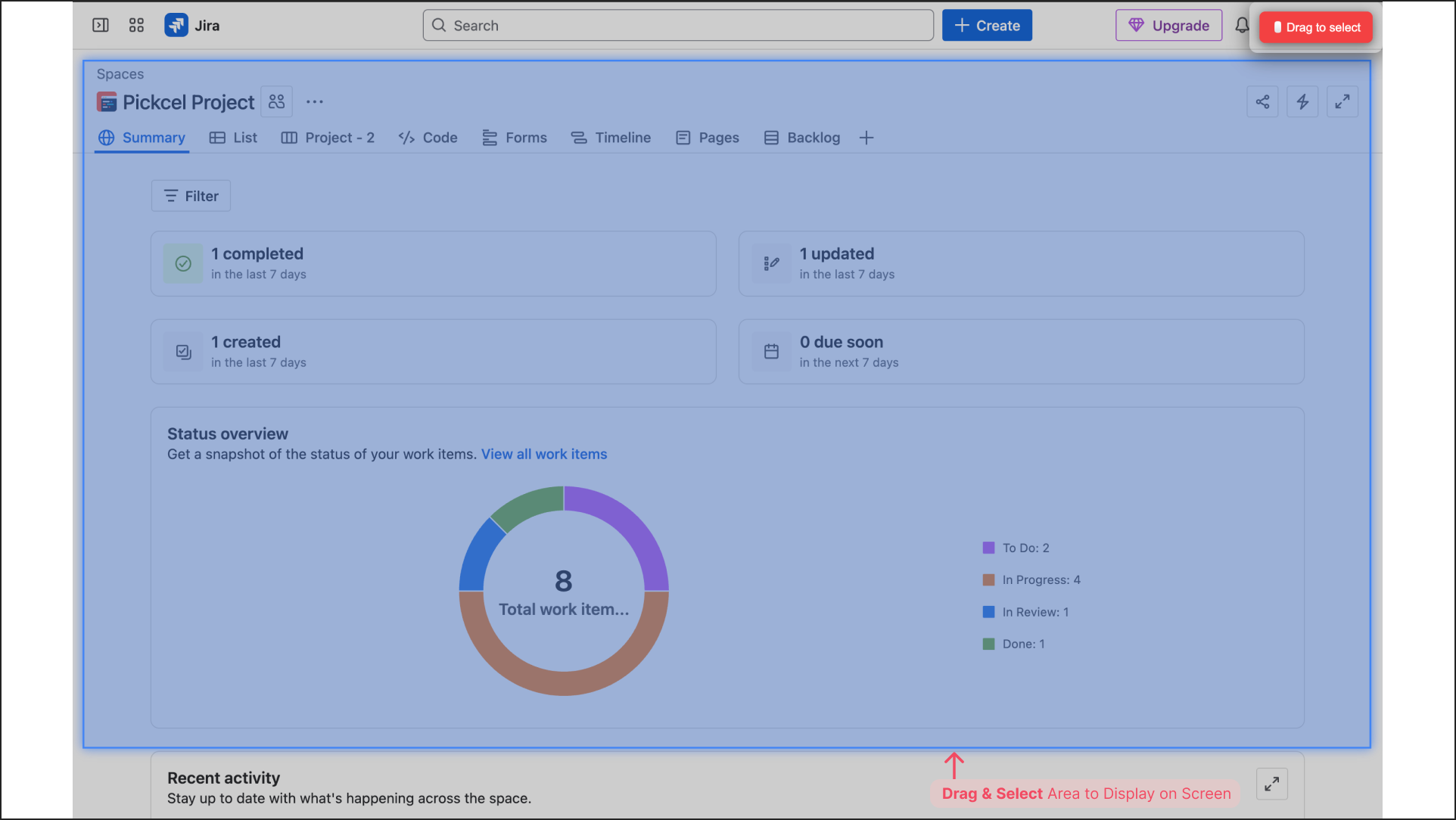
4
Confirm Your Selection
Once you are happy with the selected area, click the Confirm Selection button.A confirmation message will appear, and the necessary selection code will be automatically copied to your clipboard.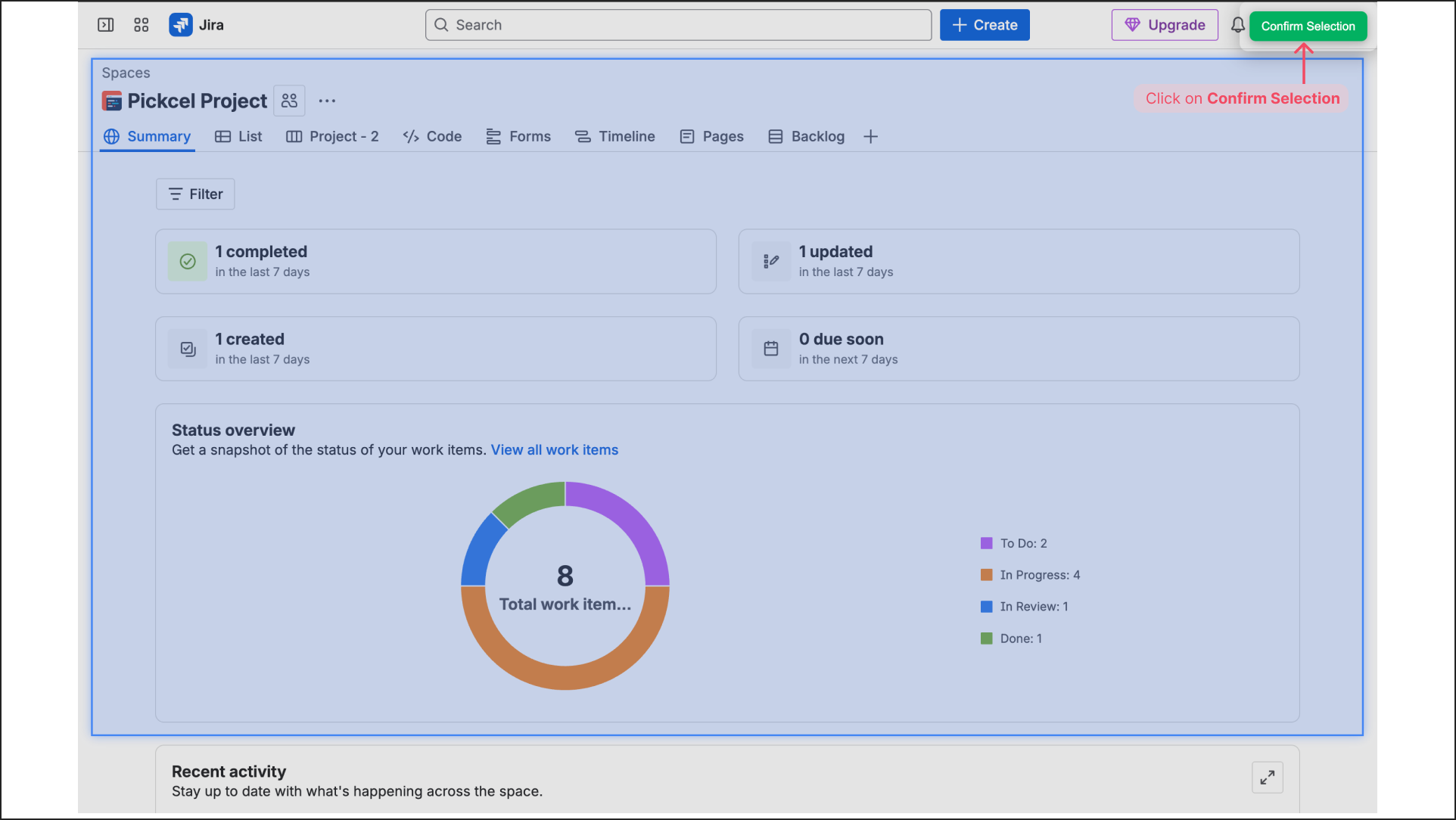
5
Paste Code in Pickcel Console
Go back to your Dashboard App configuration in Pickcel Console and paste this code into the Screen Selection Code field.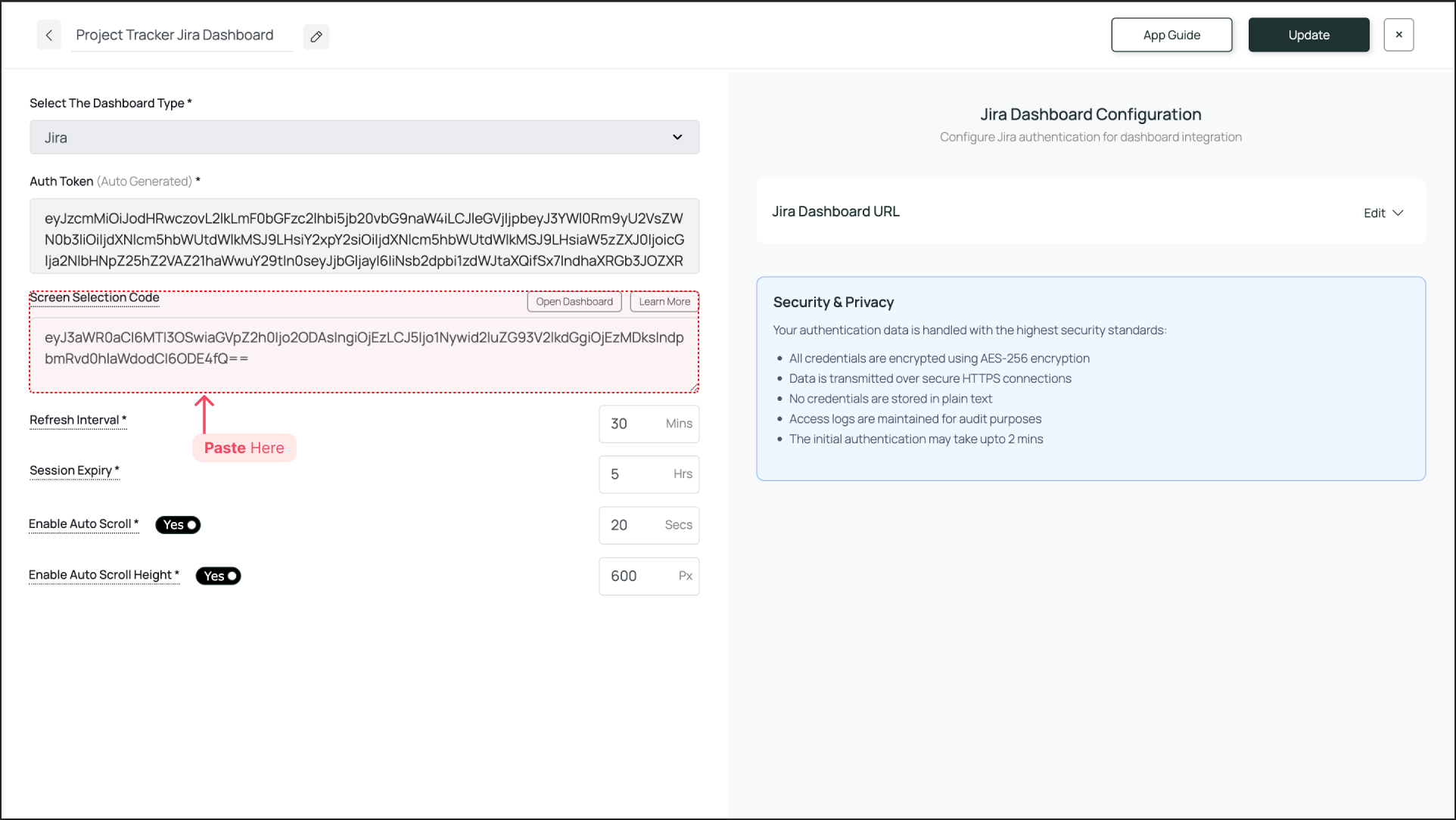
If this field is left blank, the entire dashboard will be shown. We recommend enabling the scroll functionality so that everything on the screen is visible.
That’s a wrap 🎉. After successful configuration, the selected area of your desired dashboard will be visible on your signage screen.
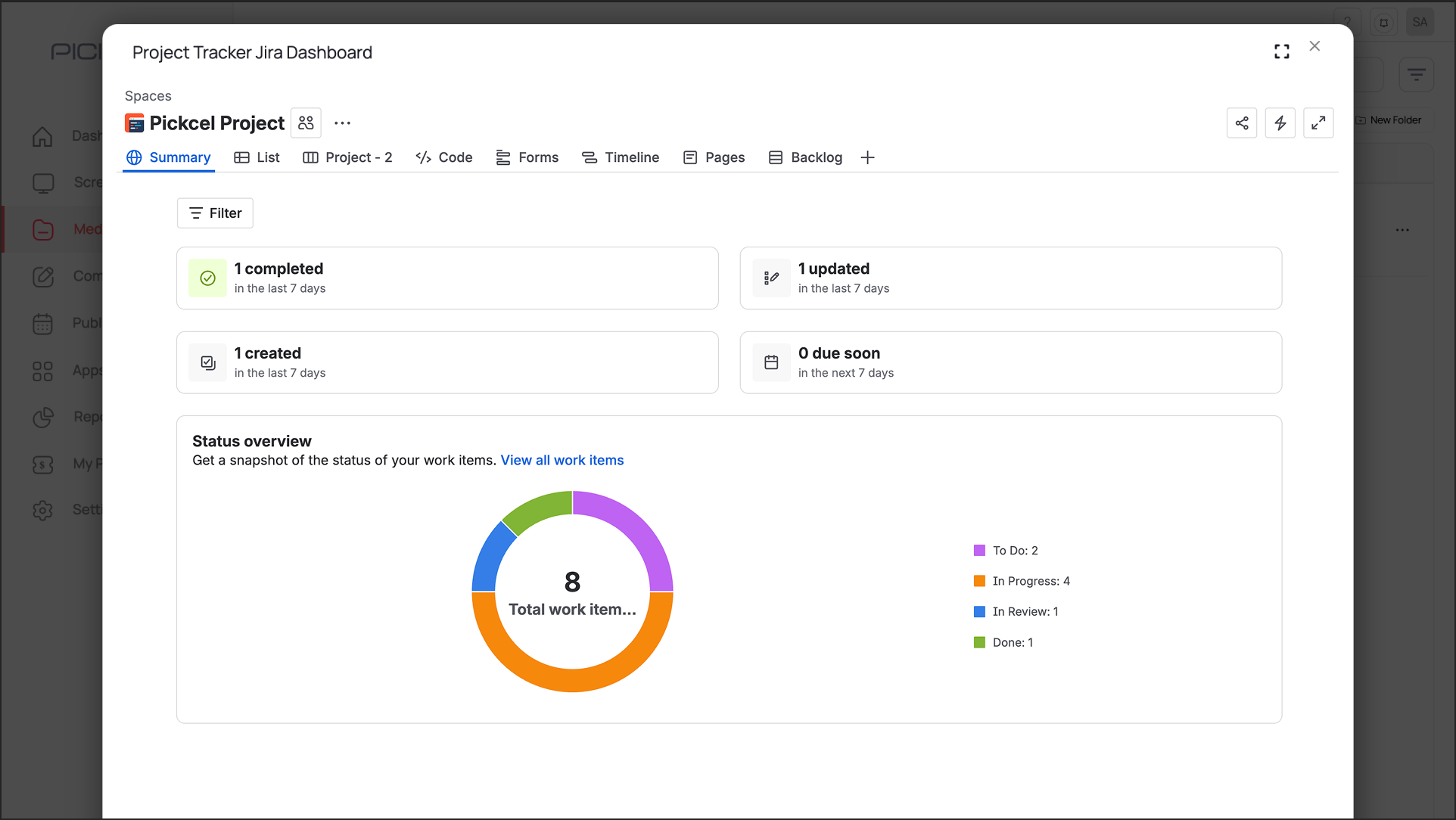
Selected dashboard area displayed on digital signage using Pickcel Dashboard Screen Mapper