How to Display a Zendesk Dashboard on Digital Signage Using Pickcel?
This guide explains how to display key Zendesk metrics on your digital signage to keep your support team informed about ticket volumes, response times, and CSAT.
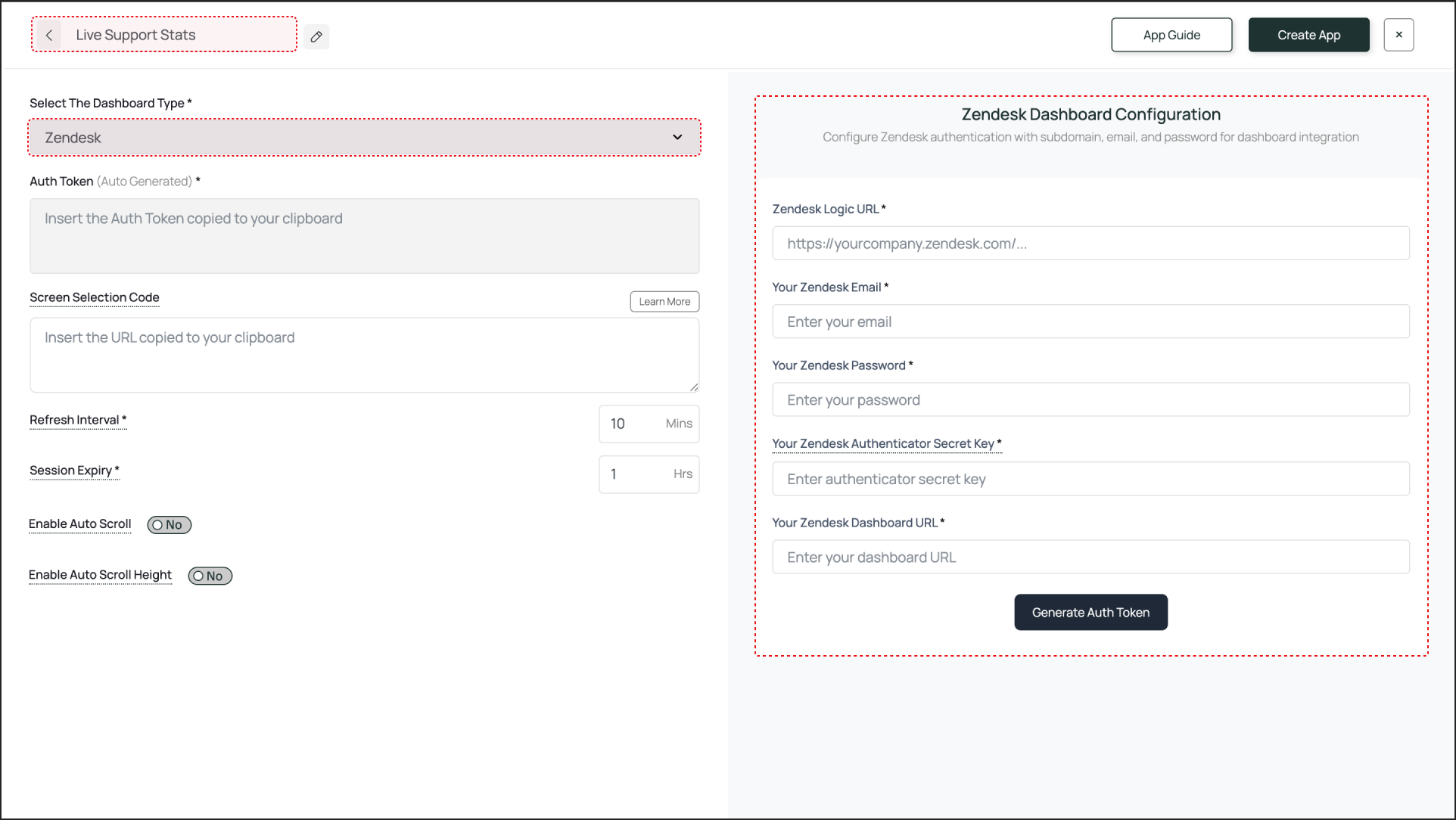
Best Practice: For enhanced security and easier management, create a dedicated agent account in Zendesk with read‑only access to the reporting dashboards you want to display. Use this account’s credentials in Pickcel.
If you want to display only a specific portion of your Zendesk dashboard, use the Pickcel Dashboard Screen Mapper extension. Select the area you want to display, confirm the selection, and paste the generated code into the Screen Selection Code field.
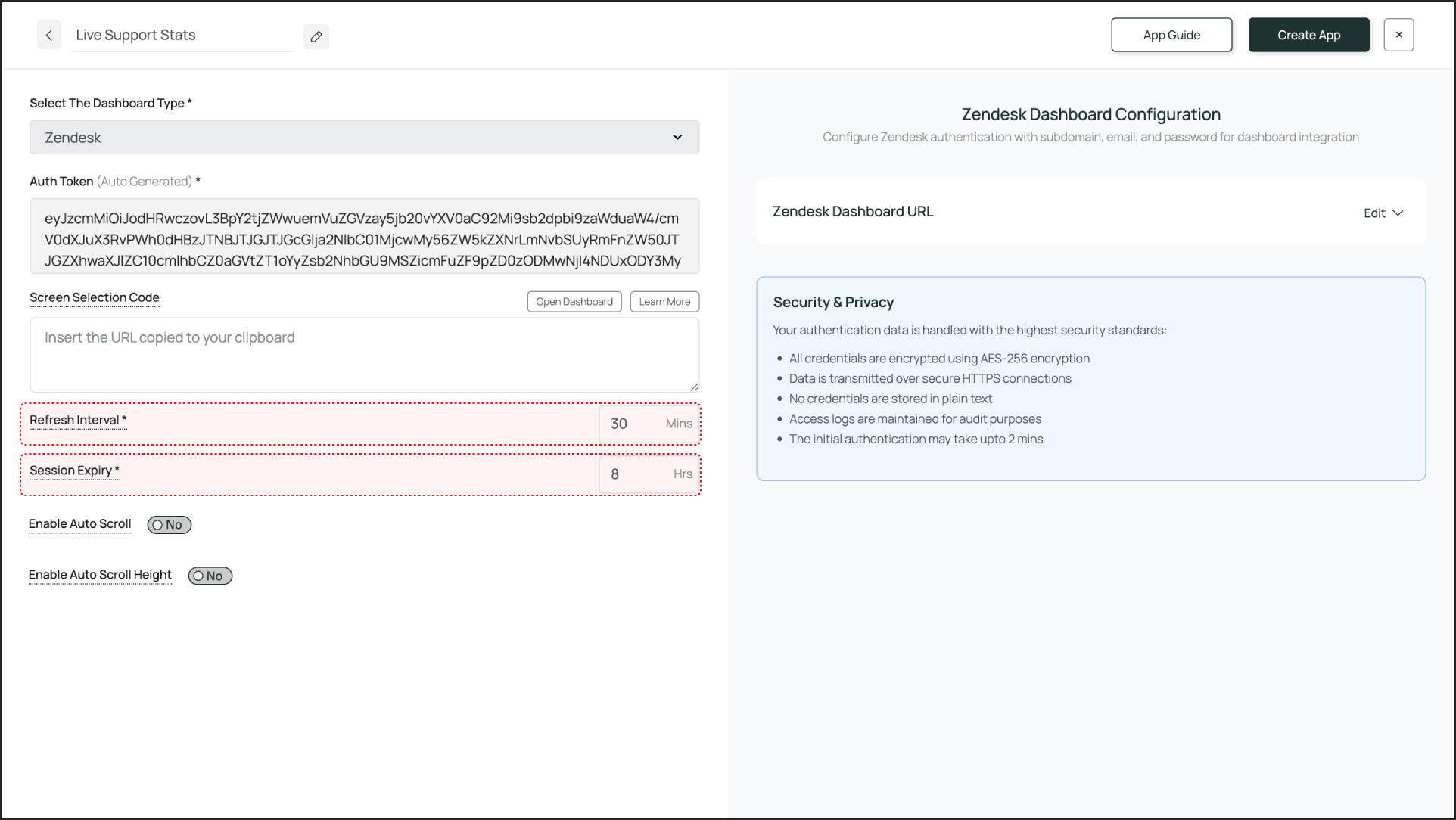
Refresh Interval: Defines how often the dashboard screenshot is updated. For live support metrics, 30 minutes is ideal.
Session Expiry: Forces a fresh login to prevent timeouts. A value of about 8 hours works well for a full support shift.
4
Enable Scroll Options (Optional)
If your dashboard content doesn’t fit on the screen vertically, you can use one of the following two scrolling options:
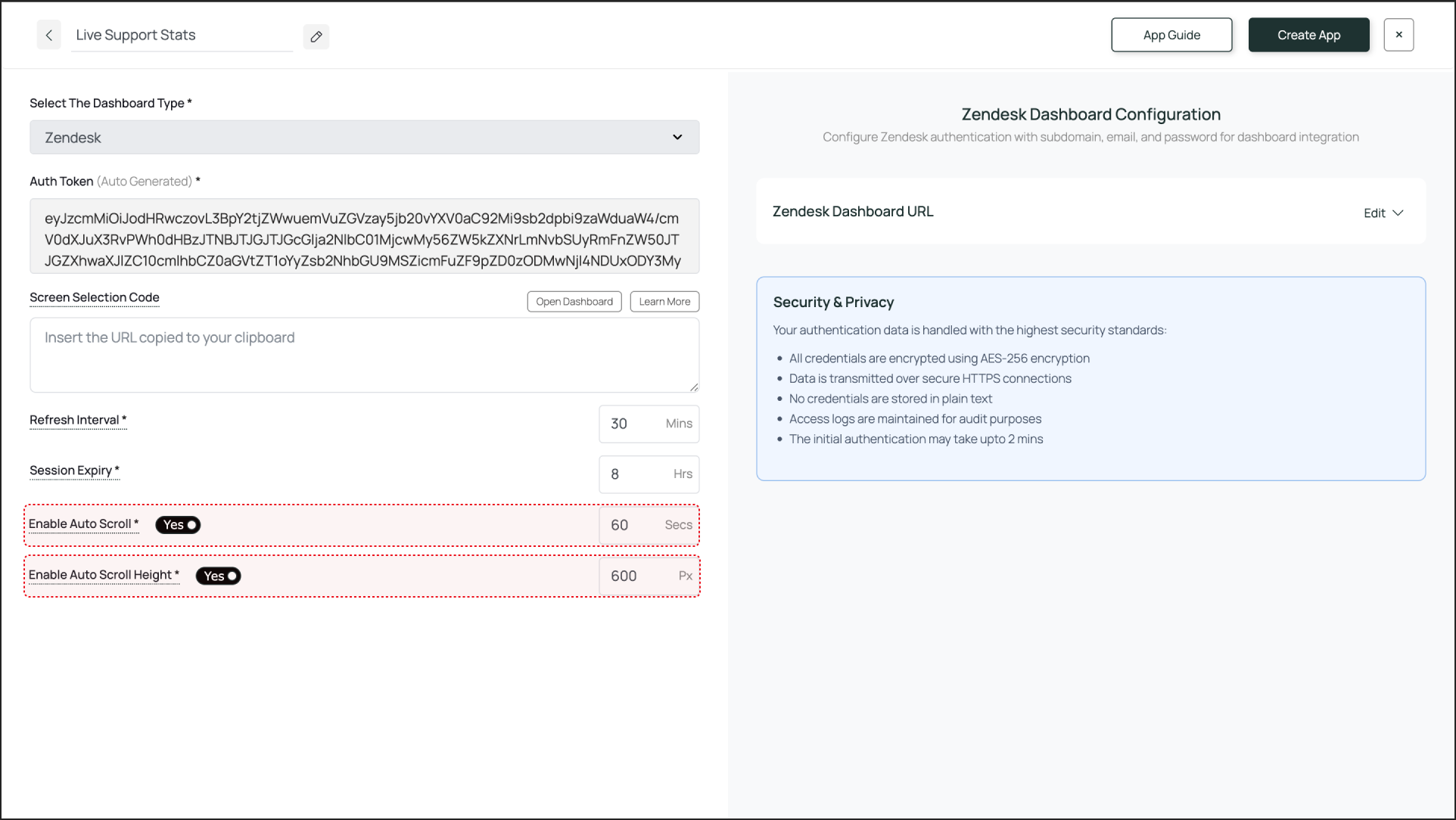
Enable Auto Scroll: This lets you set a scroll duration in seconds. For example, if you set it to 60 seconds, the entire dashboard will scroll from top to bottom over 60 seconds.
Enable Auto Scroll Height (Optional): This lets you set a scroll height in pixels. The screen will scroll down by the defined pixel height.
5
Create and Publish
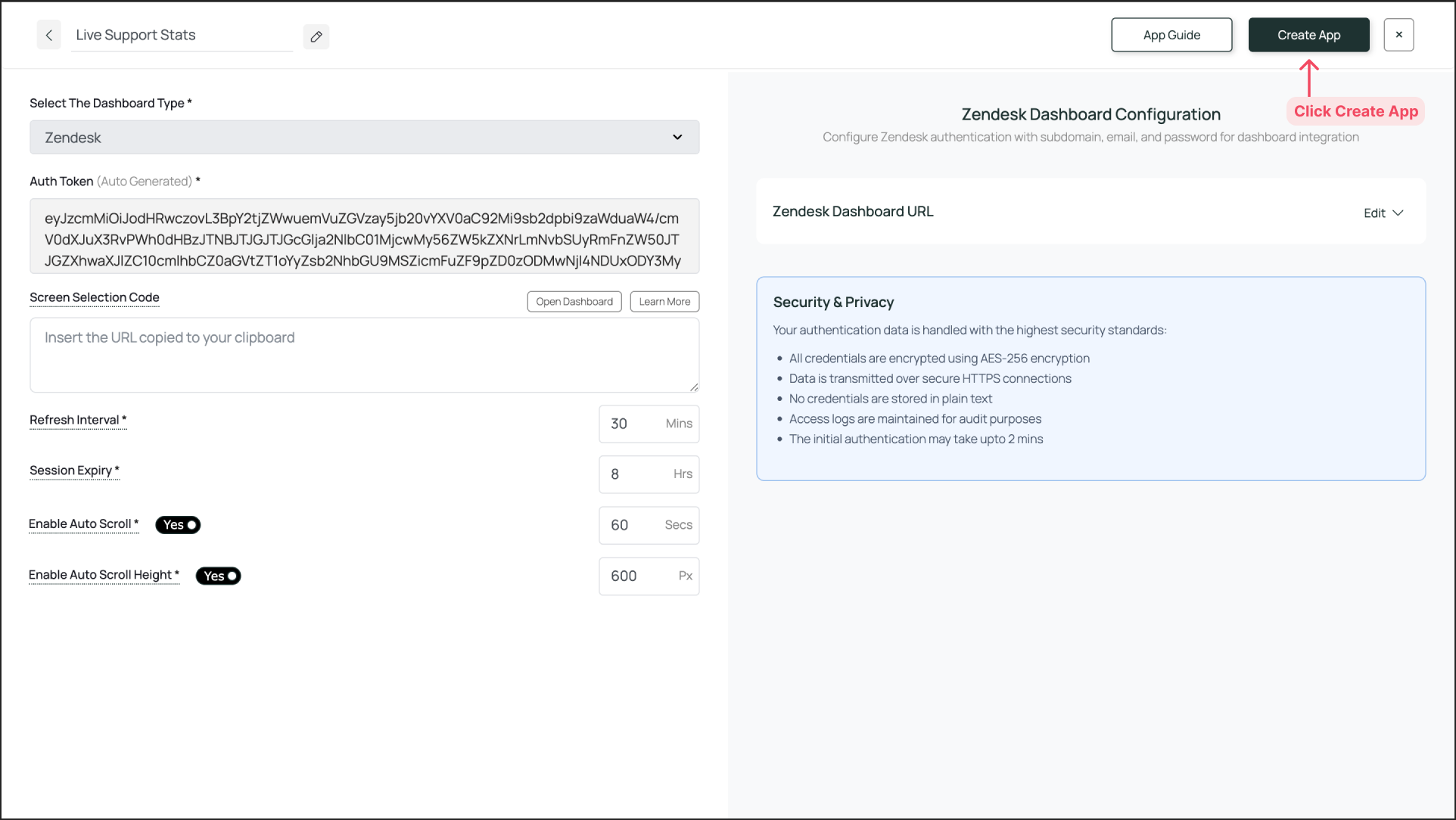
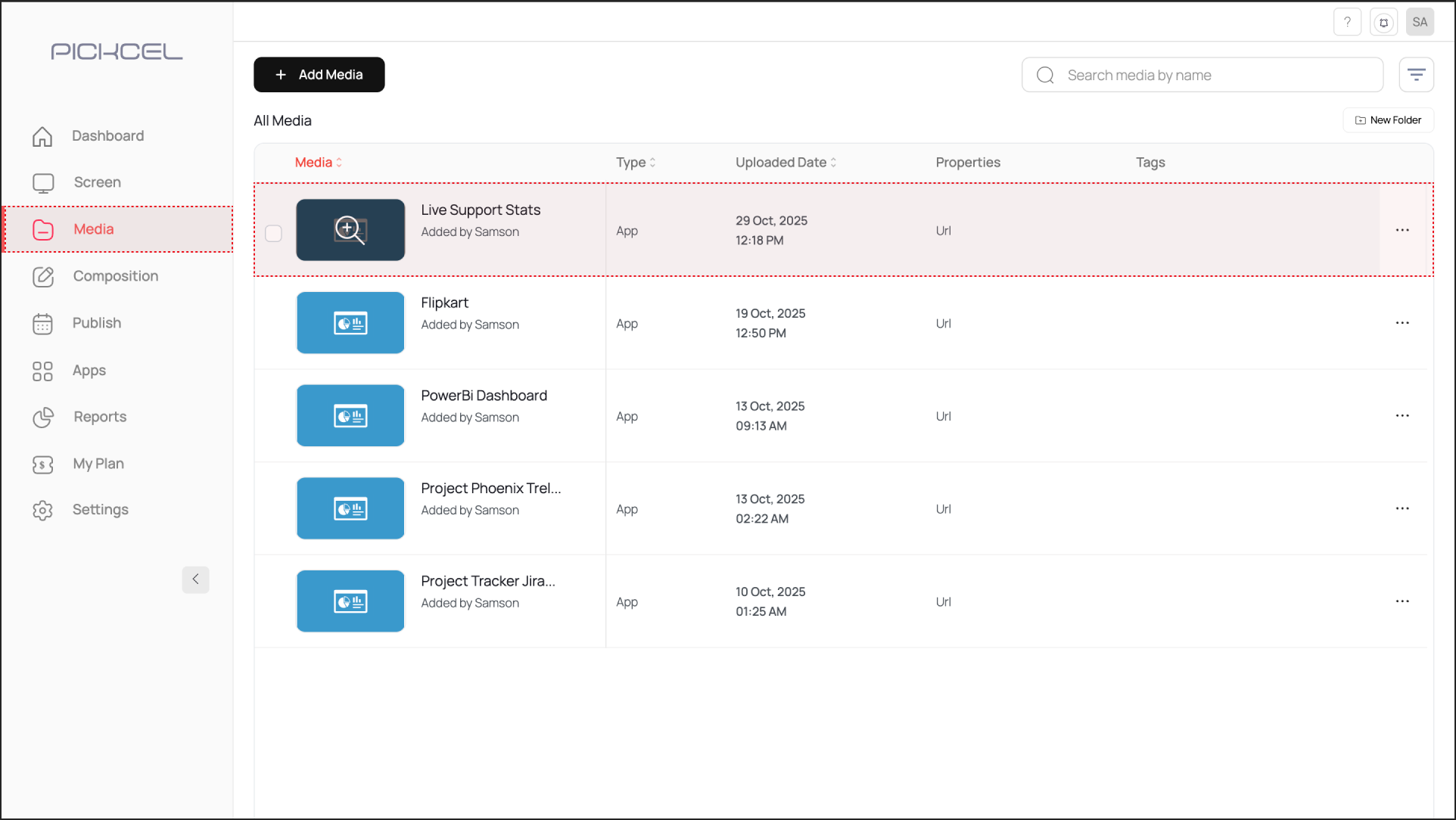
When configuration is complete, click Create App. The app instance will appear in the Media section.
To preview the dashboard, go to Media, find the app instance by the name you created (e.g., “Live Support Stats”), and click on its thumbnail (magnifier icon).
This will display a preview. If you are content with the result, assign it to your digital signage screens.
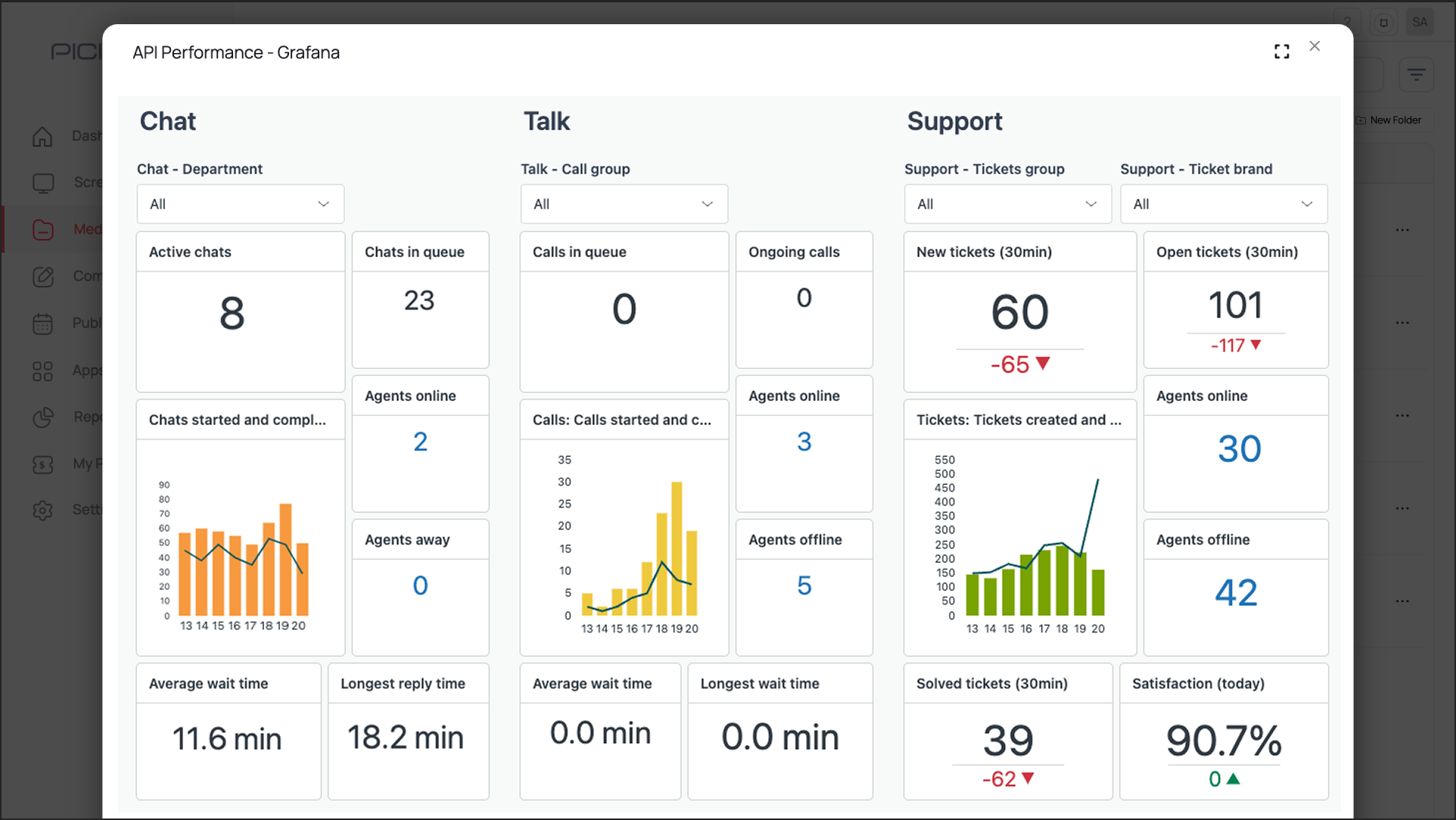
Preview of the Zendesk Dashboard
The output is visible as a preview in the media section as shown above. It may take some time for the dashboard screenshot to load, depending on the dashboard app that is configured.
If the password or any other credentials are incorrect, the process will stall on the login screen, displaying the login screen instead of the dashboard.


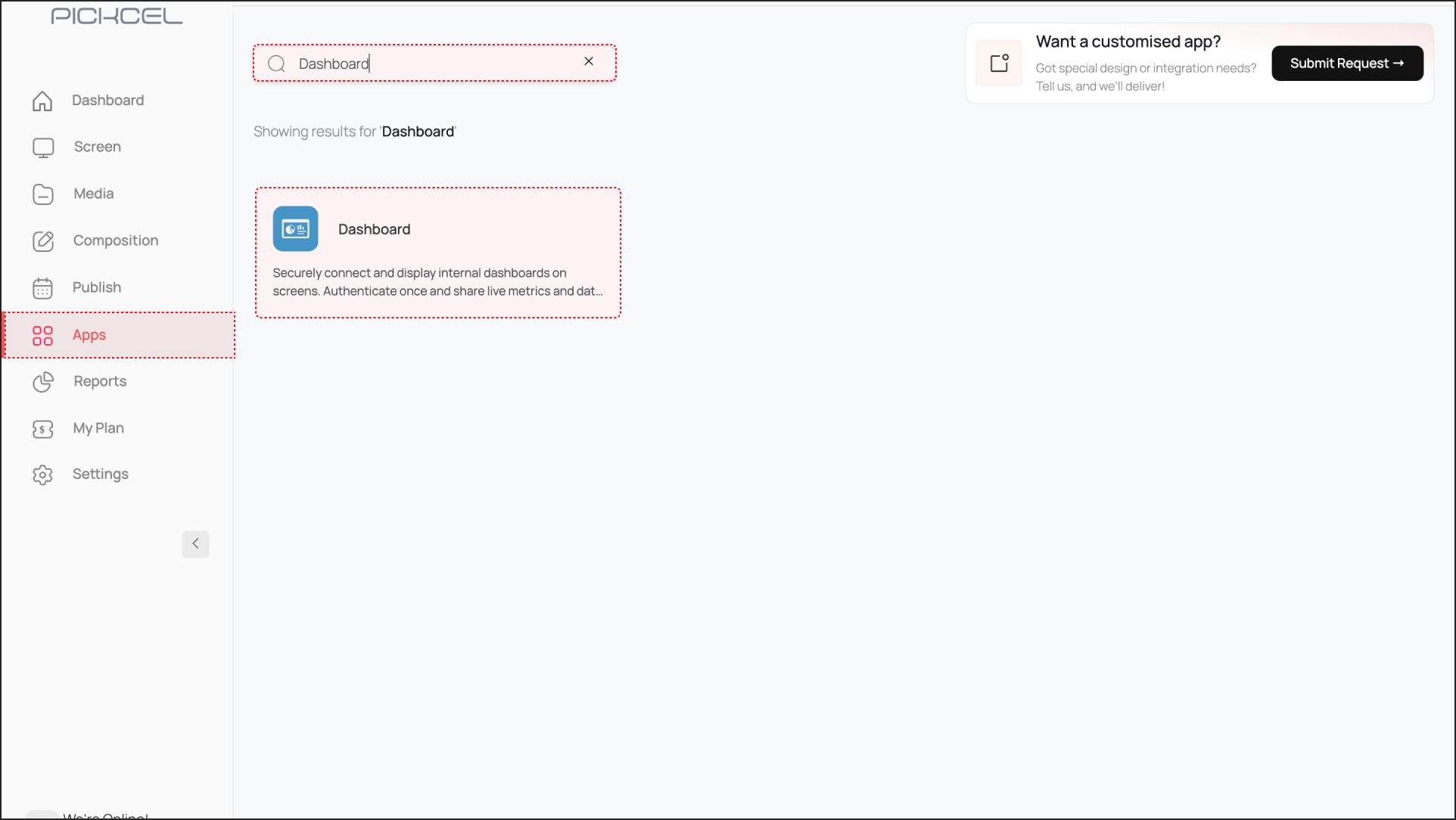
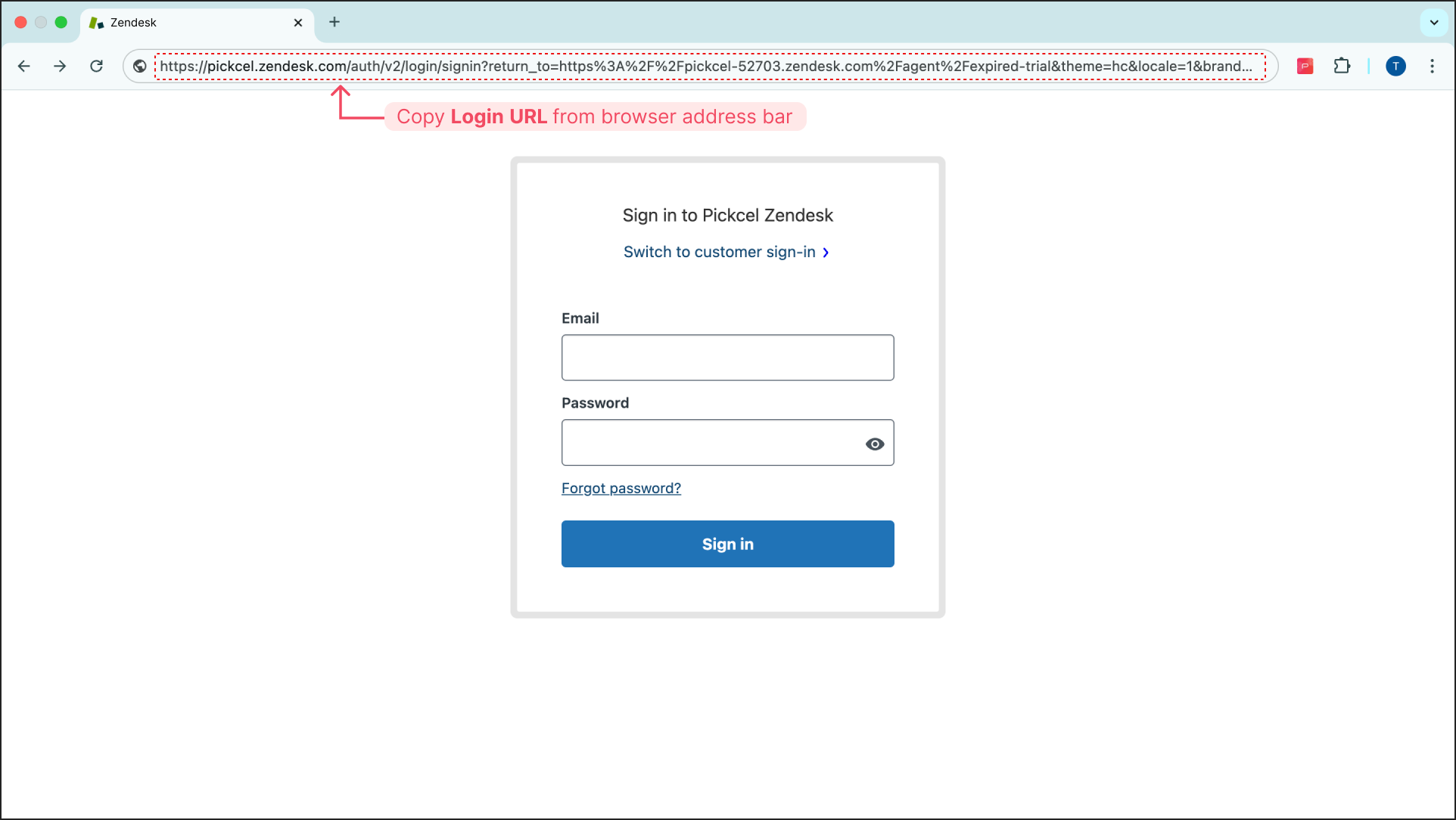 and Paste it in the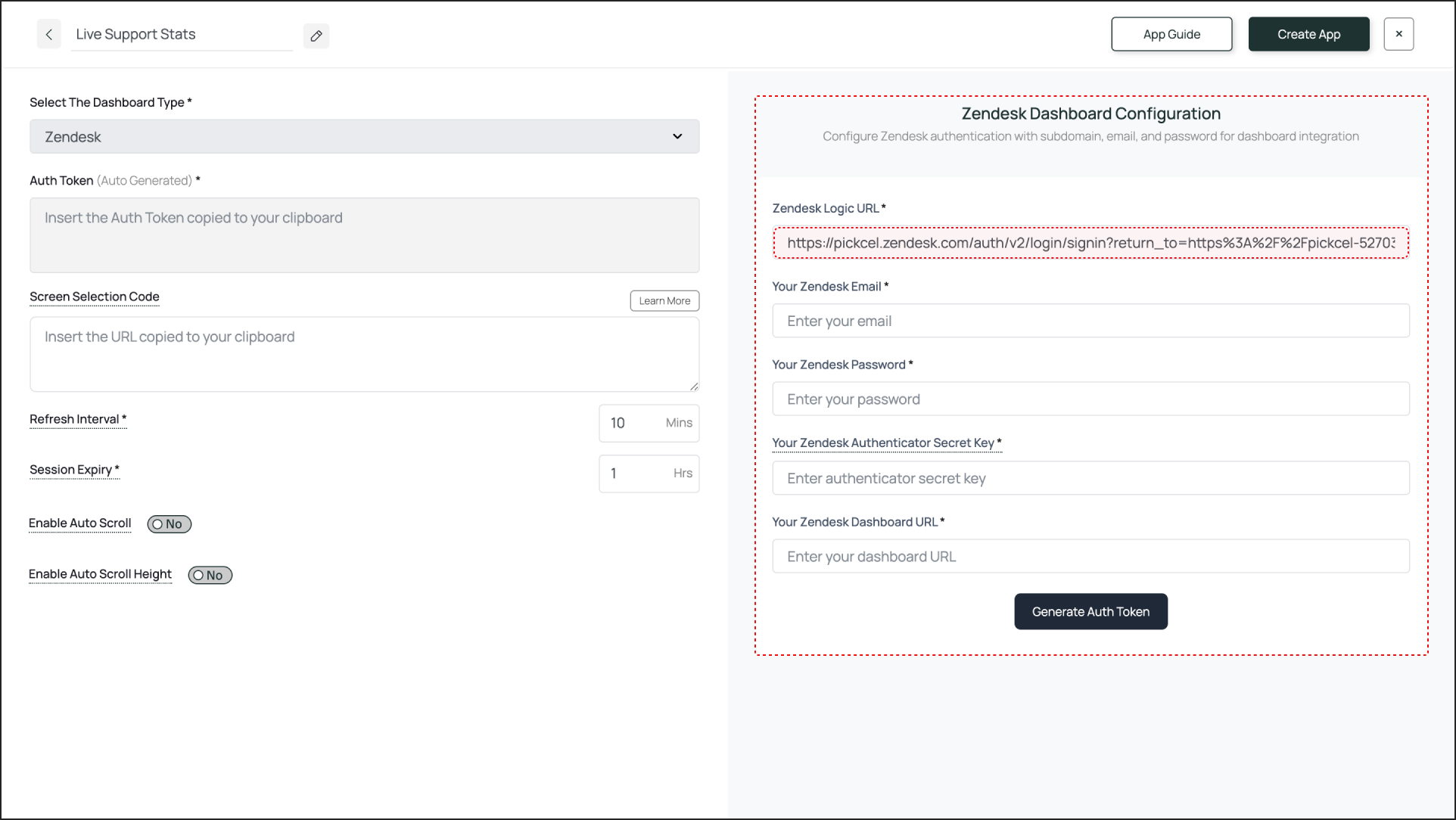
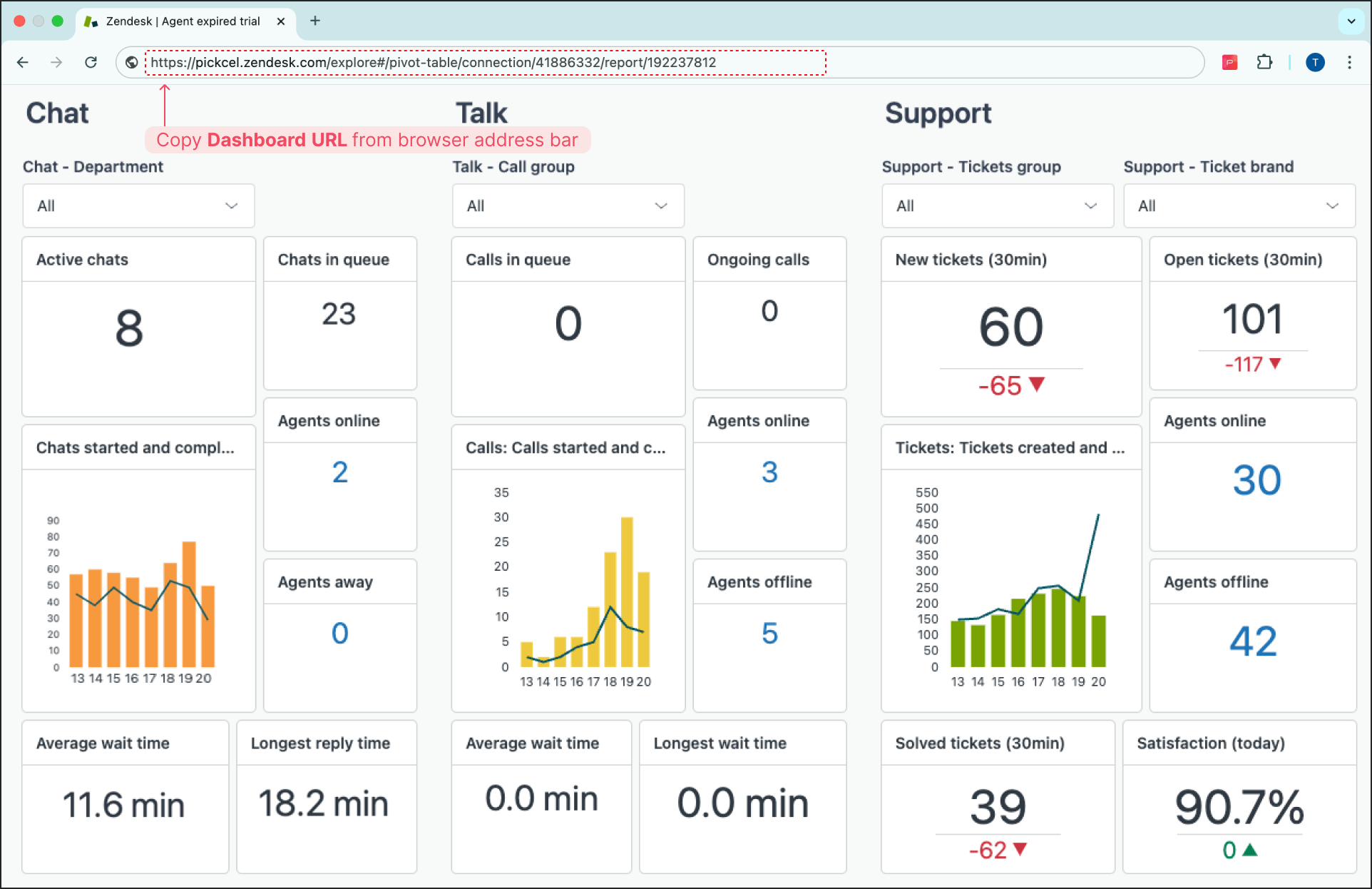 and paste it here.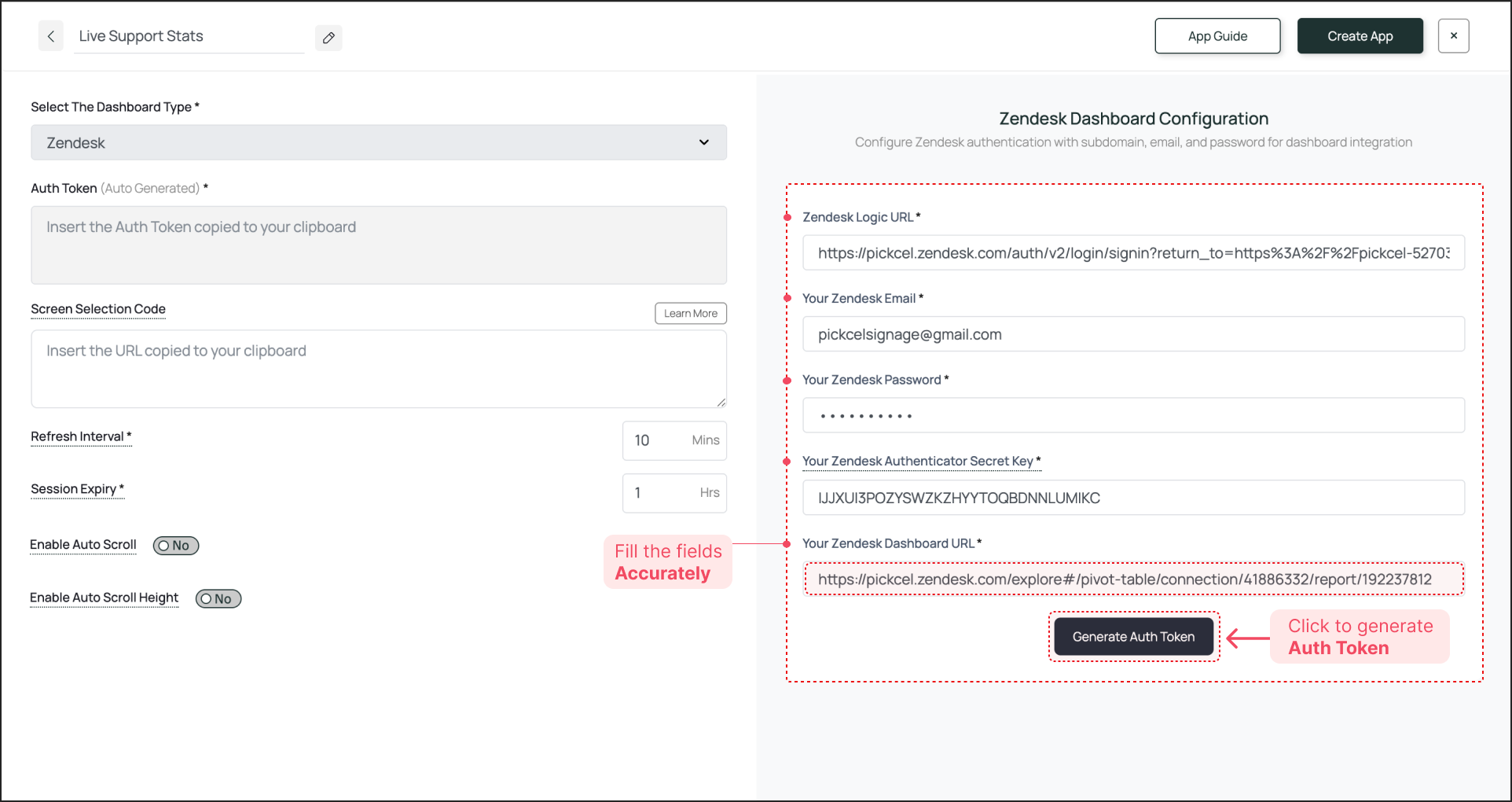
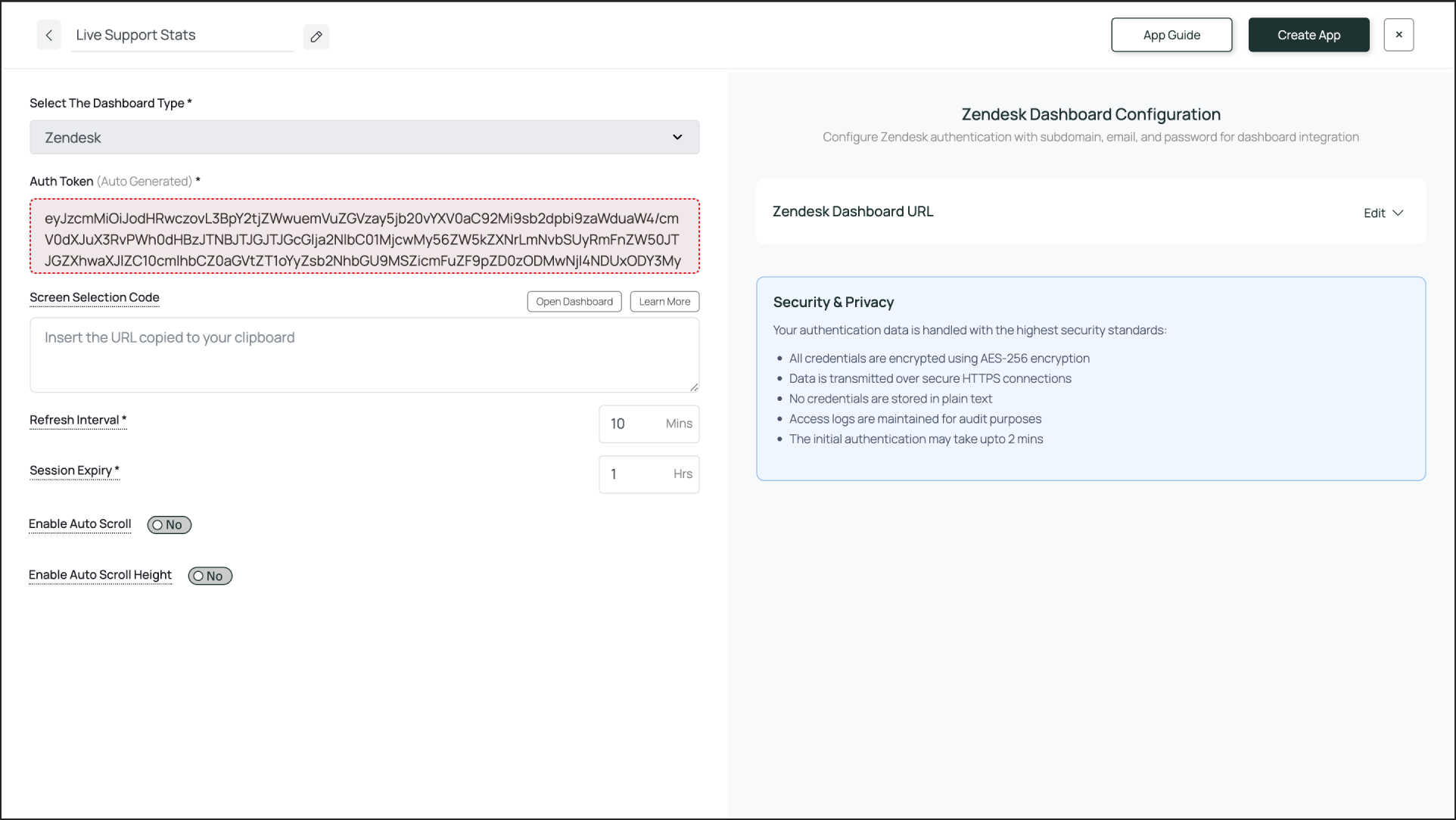
 To preview the dashboard, go to Media, find the app instance by the name you created (e.g., “Live Support Stats”), and click on its thumbnail (magnifier icon).
 This will display a preview. If you are content with the result, assign it to your digital signage screens.