

Why do I need a Secret Key instead of a QR Code?
The Pickcel Dashboard App logs into your services automatically to capture and display your dashboards. To do this with 2FA-protected accounts, it needs the secret key instead of a QR code.In simple termsThe secret key allows Pickcel to automatically generate the 6-digit 2FA codes that would normally appear in an authenticator app like Google Authenticator or Authy. This enables automatic login without manual intervention.
General Steps to Get the Secret Key
When you enable 2FA in services like Atlassian (Jira/Trello), Microsoft (Power BI), Salesforce, or Zendesk, you will be presented with a QR code. Instead of scanning it, look for an option like: Manual setup, Can’t scan the code?, Show secret key, Enter key manually. This will reveal a long string of text (usually alphanumeric). This is your Secret Key (also sometimes called Authenticator Secret or Auth Secret).Step-by-Step Instructions (Microsoft Account)
The screenshots below show the flow for a Microsoft account, which is required for Power BI. The same principle applies to other services — look for an equivalent path in their security settings.1
Open your Microsoft Account Security Settings
Go to mysignins.microsoft.com and sign in. Navigate to the Security info tab, then click + Add sign-in method.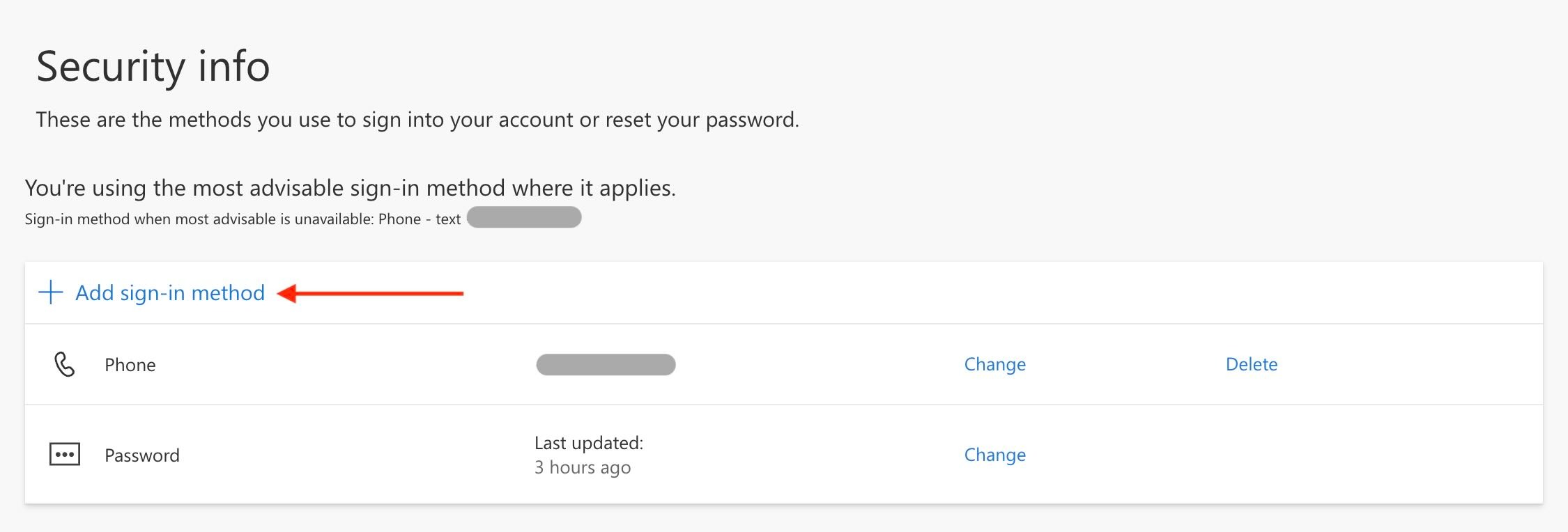
For other services, navigate to their Account or Security settings and look for an option to enable Two-Factor Authentication, Two-Step Verification, or Multi-Factor Authentication.
2
Choose Authenticator App and click 'Set up a different authentication app'
From the sign-in method list, select Microsoft Authenticator.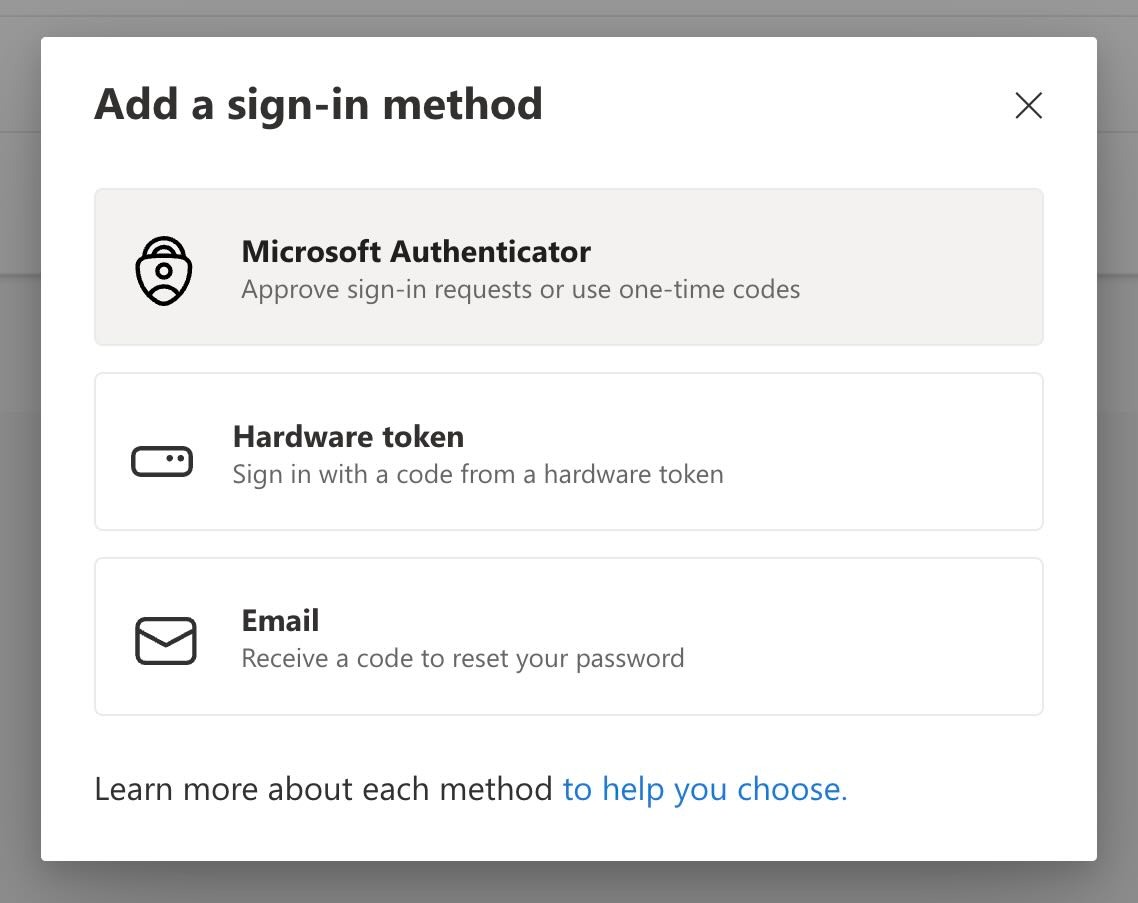 On the next screen, do not install the Microsoft Authenticator app. Instead, click Set up a different authentication app at the bottom of the dialog.
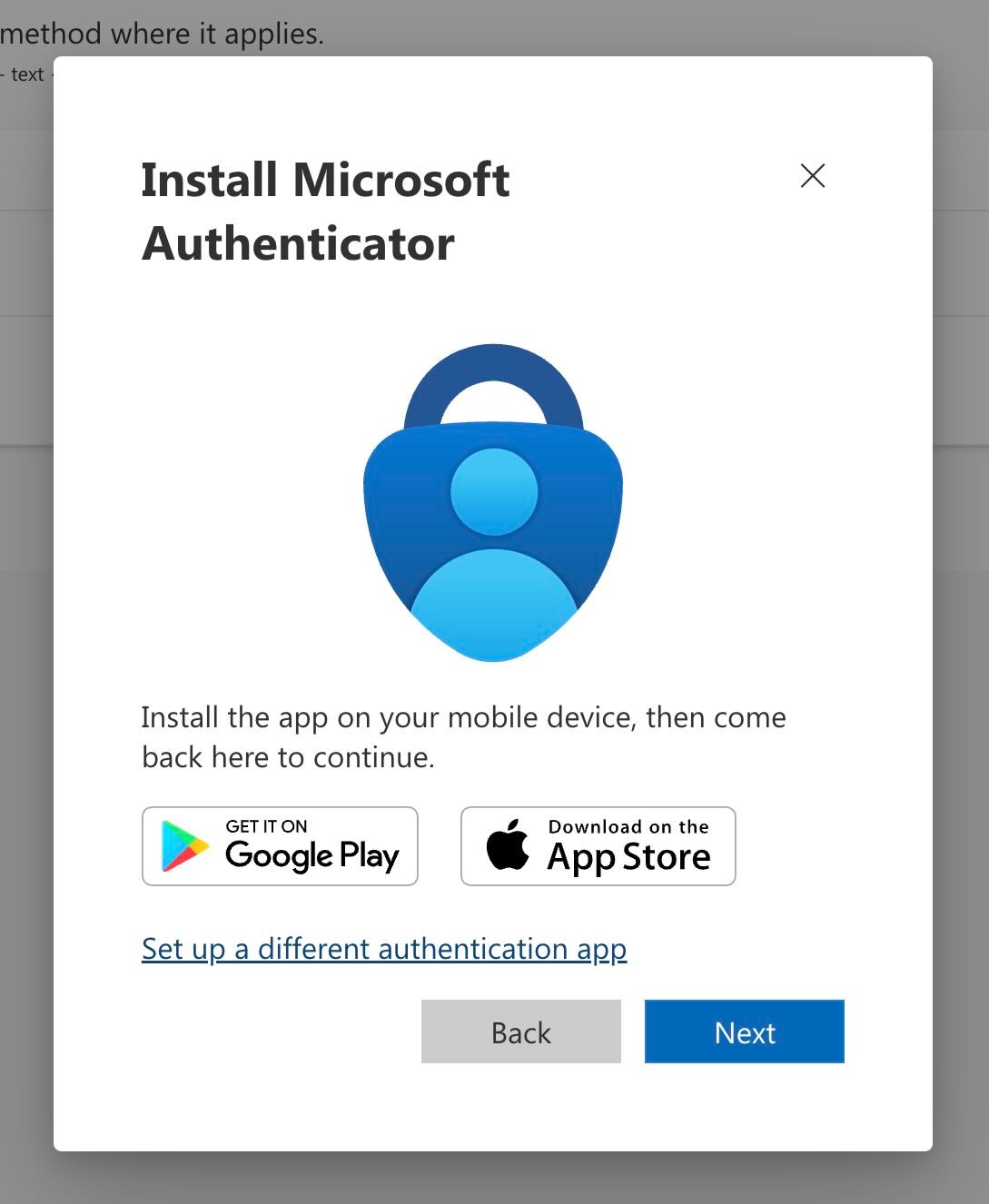 A new screen confirms you are setting up a third-party authenticator app. Click Next to continue.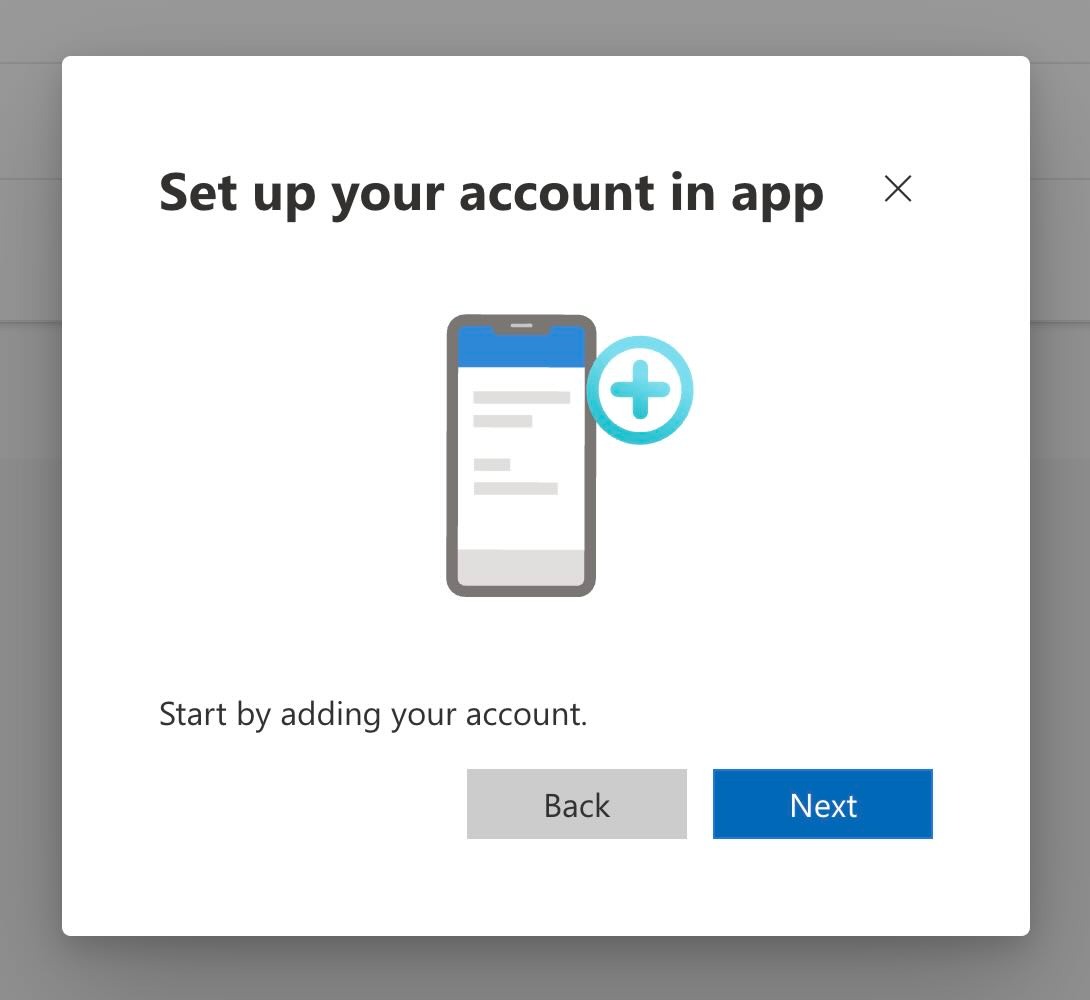
3
Click 'Can't scan the QR code?' on the QR code screen
A QR code will appear. Do not scan it. Instead, click Can’t scan the QR code? below the QR code image.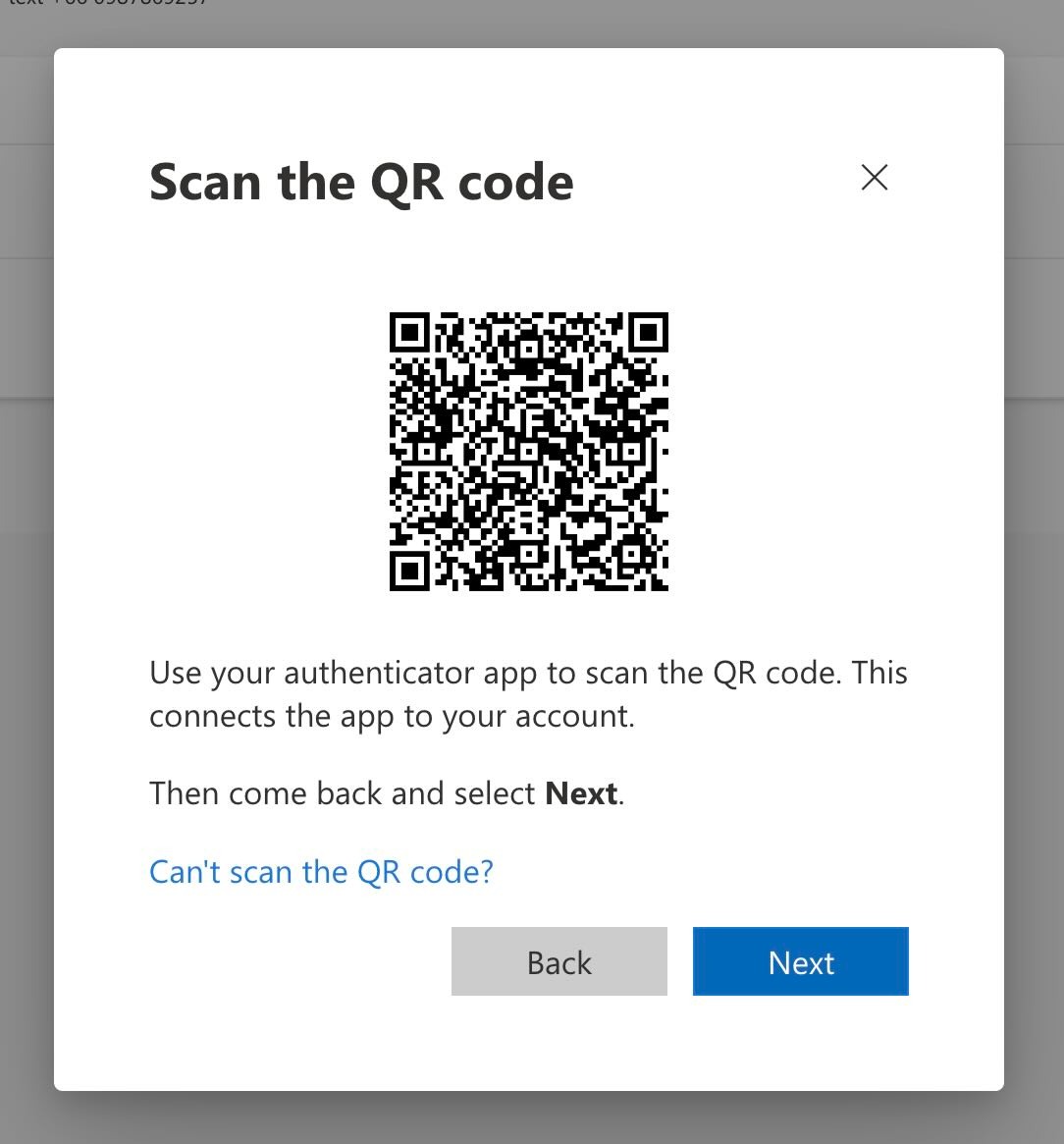
On other services this link may be labelled “Manual setup”, “Show secret key”, or “Enter a setup key” — it is always an alternative to scanning the QR code.
4
Copy the Secret Key
A new screen appears showing your Account name and Secret key. Click Copy key to copy it to your clipboard.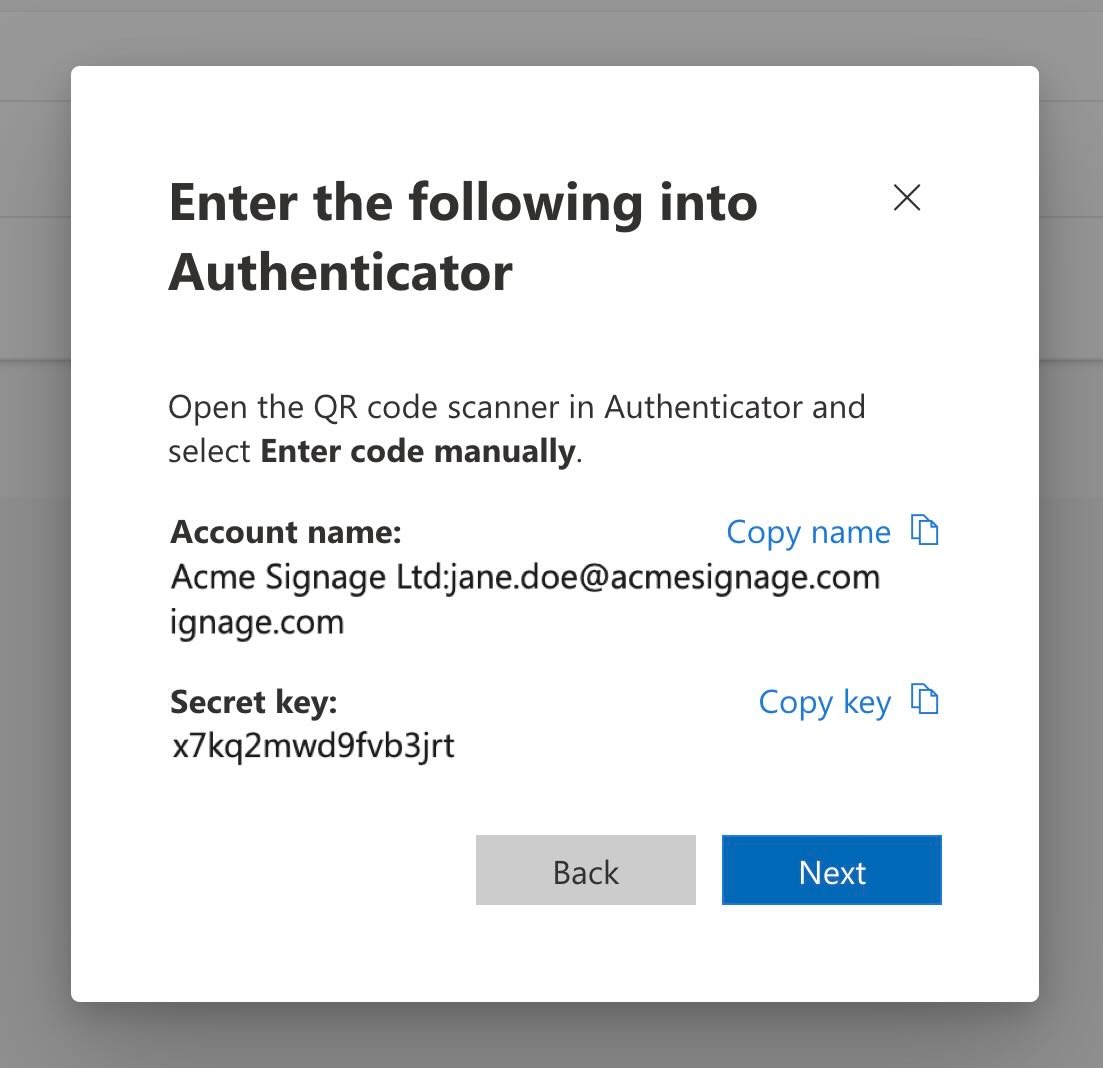 Save this key in a secure location such as a password manager, an encrypted note, or a secure company vault. You will need it when configuring the Pickcel Dashboard App.
5
Add the account to your authenticator app and complete verification
Microsoft requires you to verify the secret key works before 2FA is activated. Open the Microsoft Authenticator app (or any TOTP app — Google Authenticator and Authy work identically) and tap the + icon or Scan QR code.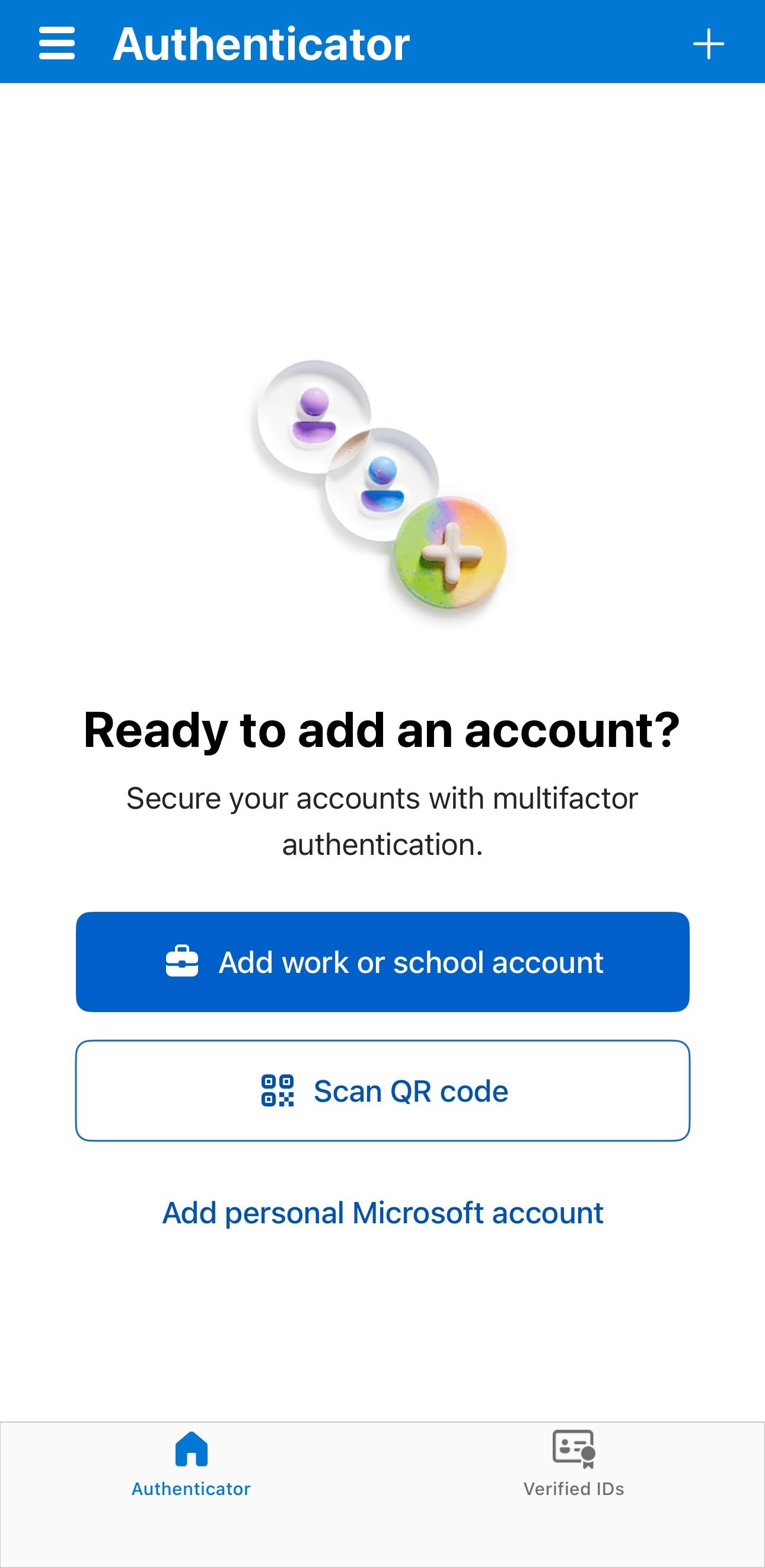 The camera opens to scan a QR code. Instead, tap Enter code manually at the bottom.
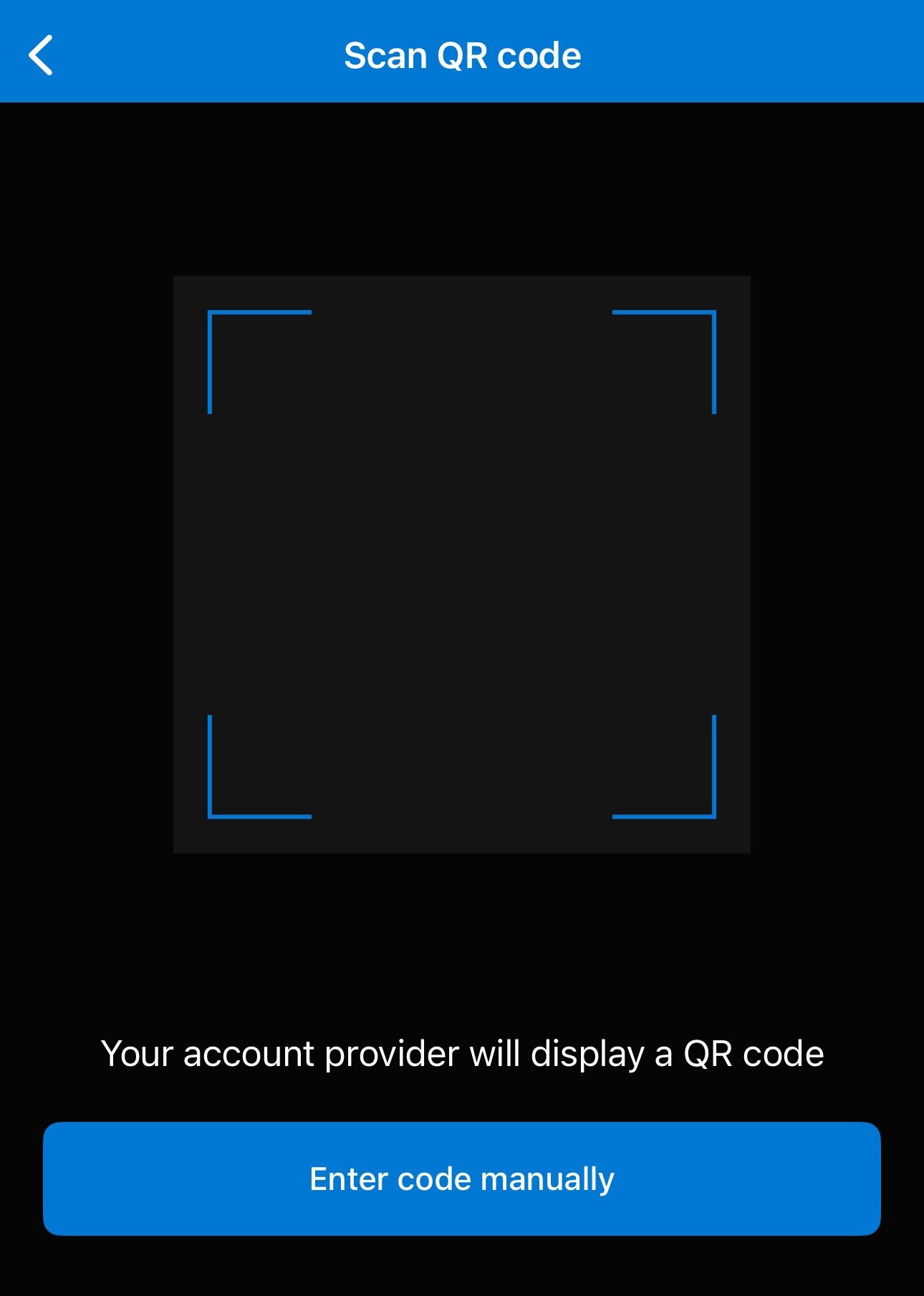 Choose Other (Google, Facebook, etc.) as the account type.
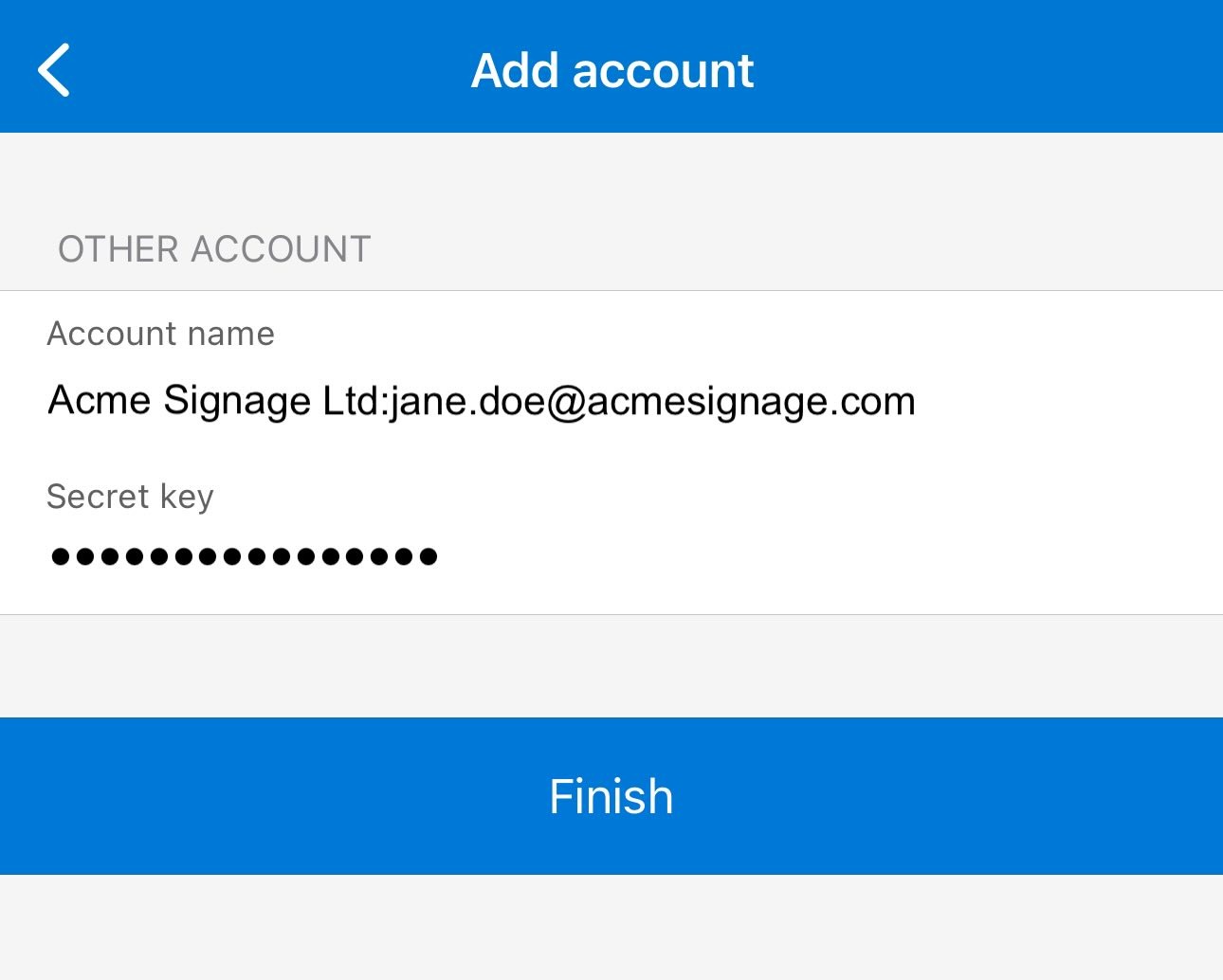
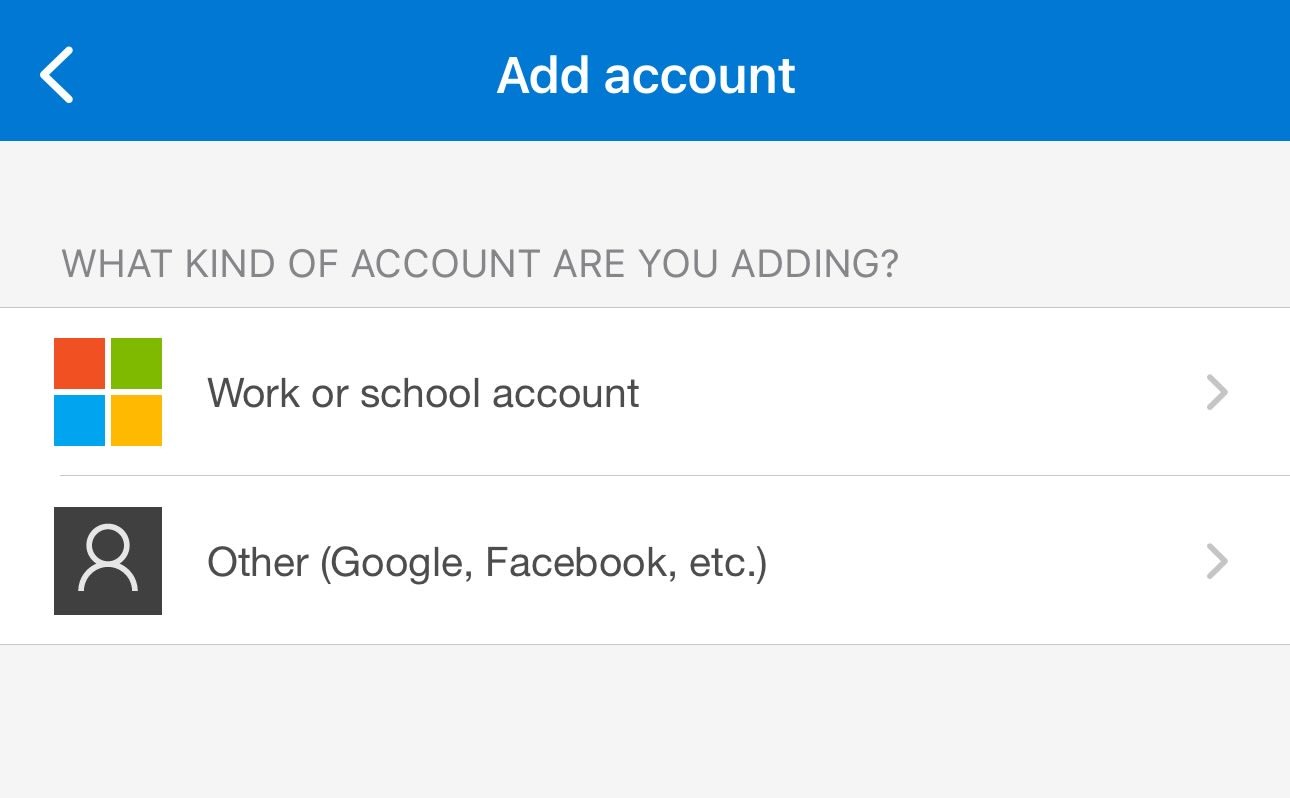 Paste the Account name and Secret key you copied from Microsoft into the fields, then tap Finish.
 The app immediately generates a 6-digit rotating code for your account.
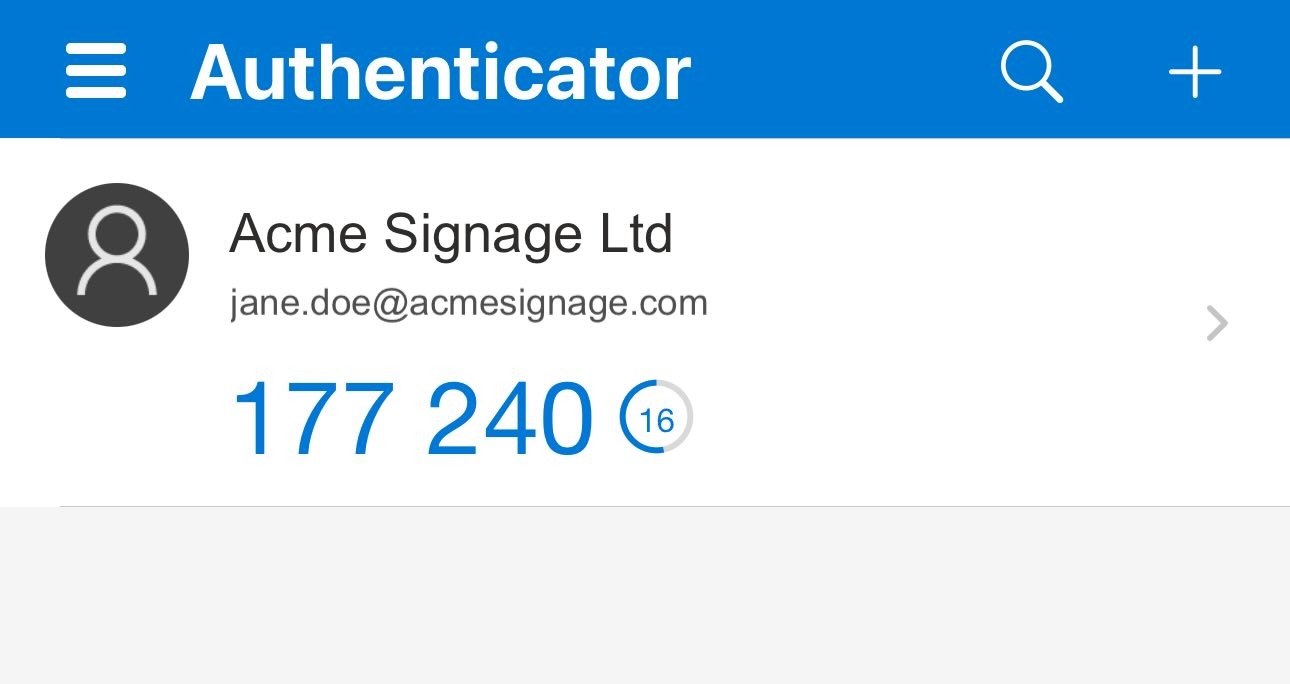 Return to the Microsoft 2FA setup page in your browser, click Next, enter the 6-digit code shown in the app, and click Next again. Click Done when Microsoft confirms the connection is established.You will see the new Authenticator app entry listed under your Security info, confirming 2FA is active.
This verification step is what activates 2FA on your Microsoft account. Once complete, Pickcel uses the same secret key to generate these codes automatically — no phone needed during signage playback.
6
Use the Secret Key in Pickcel Dashboard App
When configuring the Dashboard App in Pickcel, paste the secret key into the Auth Secret field. The exact label varies by dashboard type — it may appear as Auth Secret Key, Authenticator Secret, or 2FA Secret Key.Once entered, Pickcel will use this key to automatically generate the 6-digit codes during login.
Official Documentation Links
For detailed, step-by-step instructions directly from the service providers, please refer to their official documentation:Jira/Atlassian
How to set up two-step verification for Atlassian accounts
Microsoft/Power BI
How to use two-step verification with your Microsoft account
Salesforce
Enable MFA for Your Salesforce Users
Zendesk
Enabling two-factor authentication in Zendesk
Common Questions
Can I use the QR code instead of the secret key?
Can I use the QR code instead of the secret key?
Unfortunately, no. The Pickcel Dashboard App requires the text-based secret key to generate 2FA codes automatically. QR codes are designed for manual scanning with authenticator apps, which isn’t compatible with our automated login system.
Is it safe to give Pickcel my secret key?
Is it safe to give Pickcel my secret key?
Yes. Pickcel stores your secret key securely and uses it only to generate time-based codes for logging into your dashboard. It is never shared with third parties. However, as a best practice, we recommend using a dedicated service account with limited permissions rather than your primary admin account.
What if I already set up 2FA and didn't save the secret key?
What if I already set up 2FA and didn't save the secret key?
You will need to disable 2FA on your account and then re-enable it to get a new secret key. Alternatively, some services allow you to regenerate the secret key from your security settings without fully disabling 2FA.
Can I use the same secret key on multiple devices?
Can I use the same secret key on multiple devices?
Yes! The same secret key can be used on multiple devices and applications. You can add it to your personal authenticator app and also provide it to Pickcel. Both will generate the same 6-digit codes at the same time.
What happens if my secret key is compromised?
What happens if my secret key is compromised?
If you believe your secret key has been compromised, immediately disable 2FA on your account, regenerate a new secret key, and update it in the Pickcel Dashboard App configuration. Also consider changing your account password.