

Content Approval is available only on the Enterprise plan. To enable it for your account, contact our support team.
How the approval workflow works
Every uploaded file starts as Pending. A designated Content Approver or Admin reviews it and either approves or rejects it. Only Approved media can be added to compositions and published to screens.1
Log in to the Pickcel console
Sign in to your Pickcel dashboard with your credentials.
2
Upload your media
Go to the Media module and click Add Media to upload your content, images, videos, PDFs, or apps.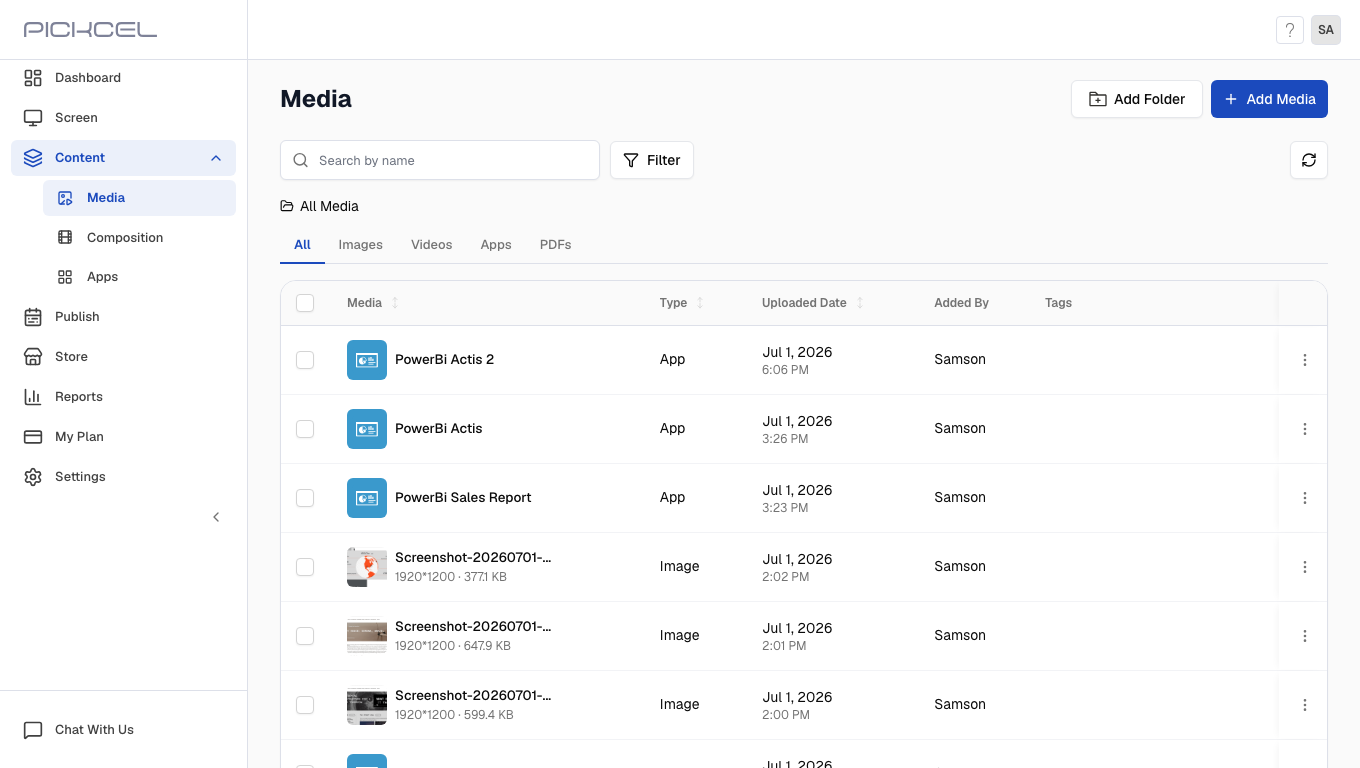
3
Media is added as Pending
Every uploaded file is set to Pending by default. You can see its state in the Approval Status column of the media list.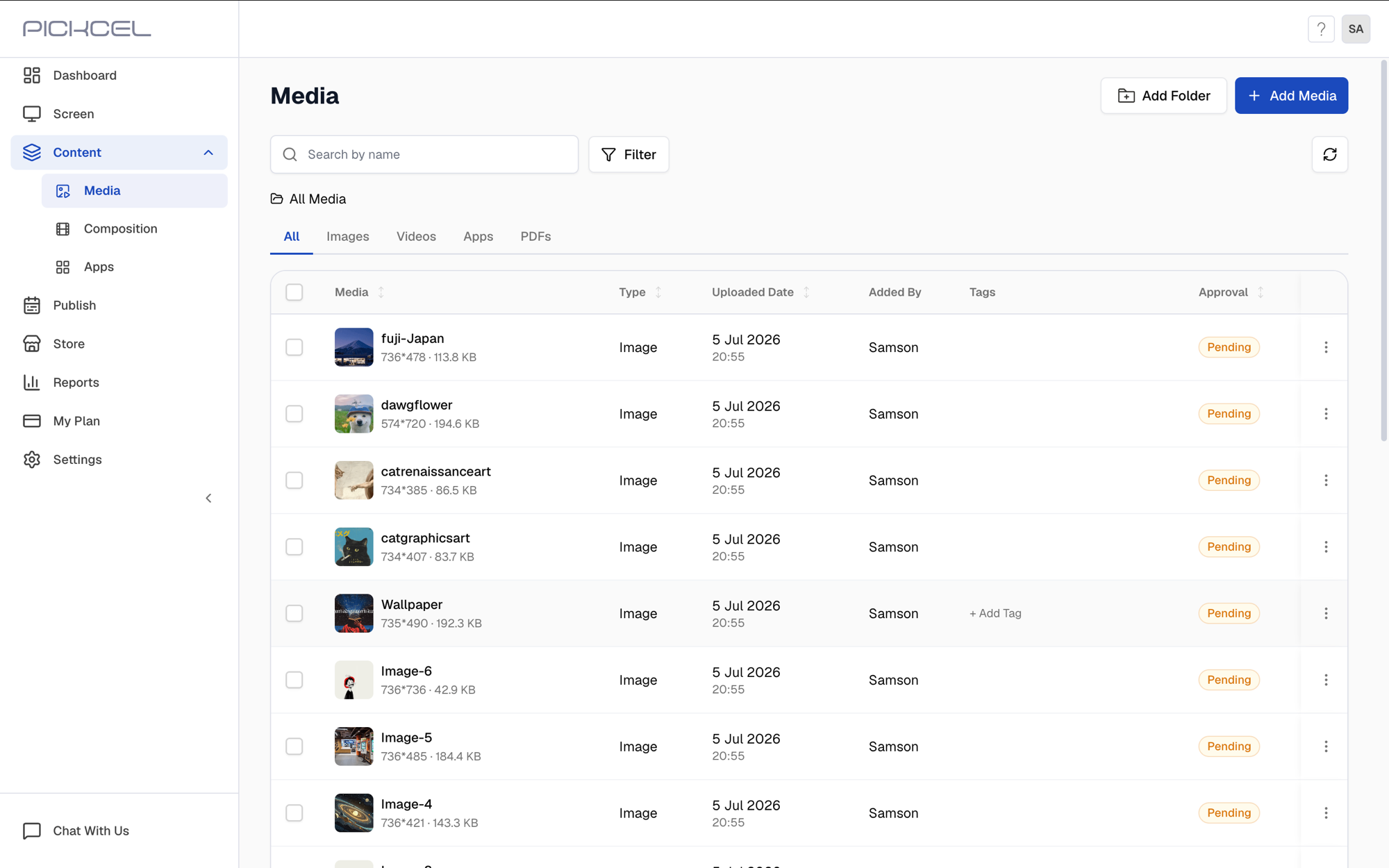
4
Approvers receive an email notification
As soon as media is uploaded, all Content Approvers and Admins receive an email about the new uploads. They can start the review directly from the Review & Approve button in the email.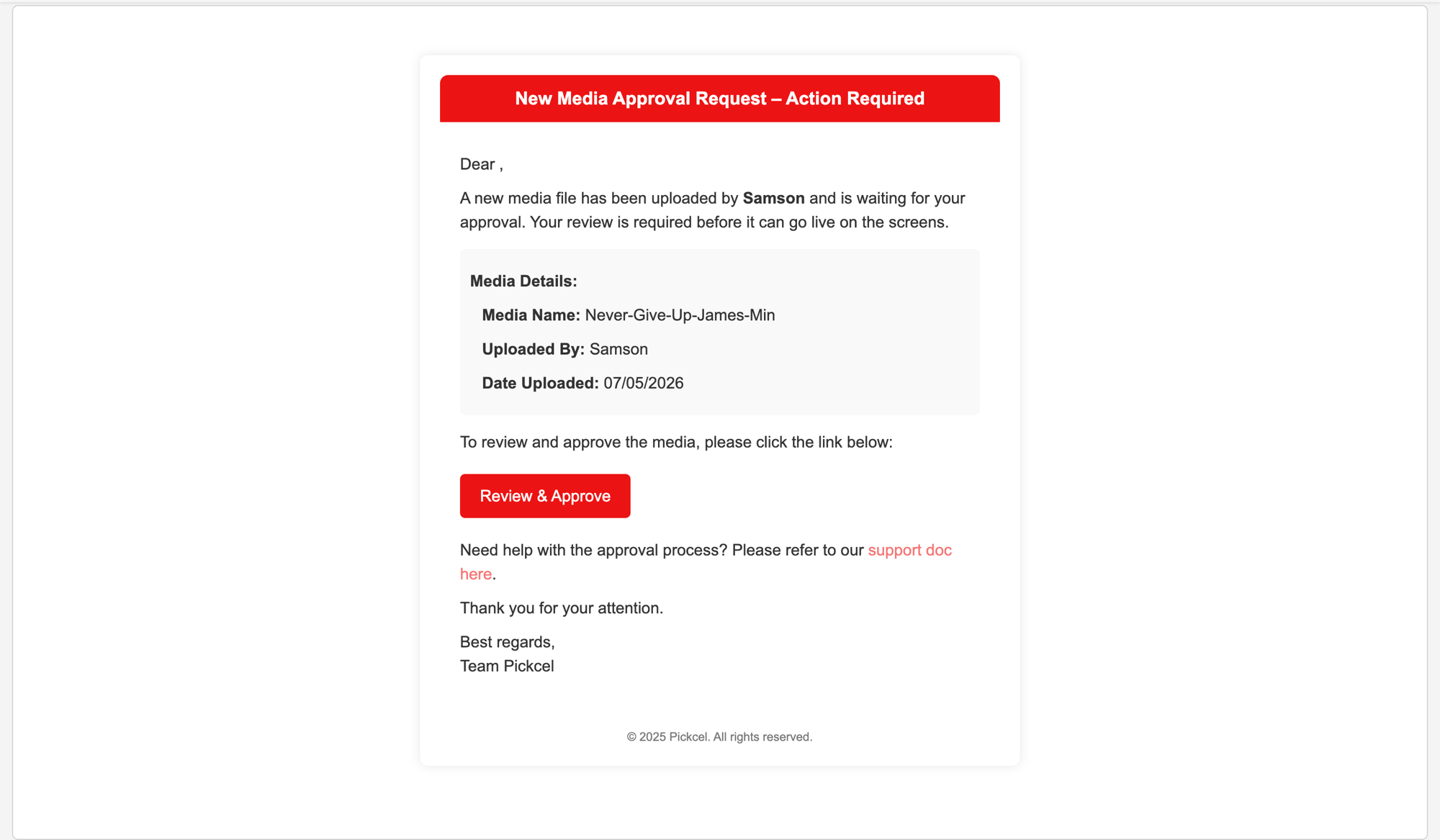
5
Open the media to review it
An approver can click Review & Approve in the email, or open the Media module and click the media thumbnail to review it.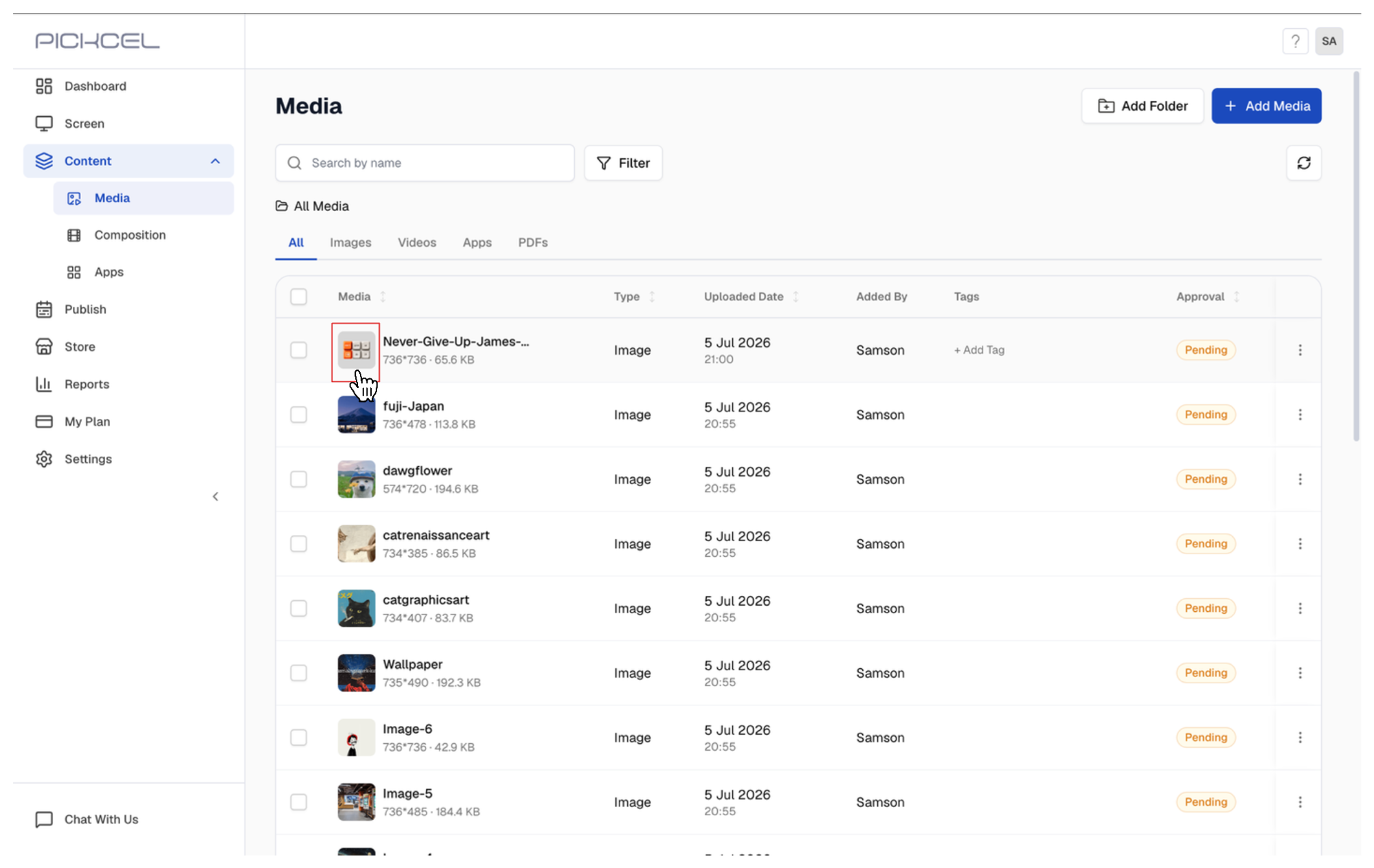
6
Approve or reject the media
After reviewing, the approver or admin selects Approve or Reject.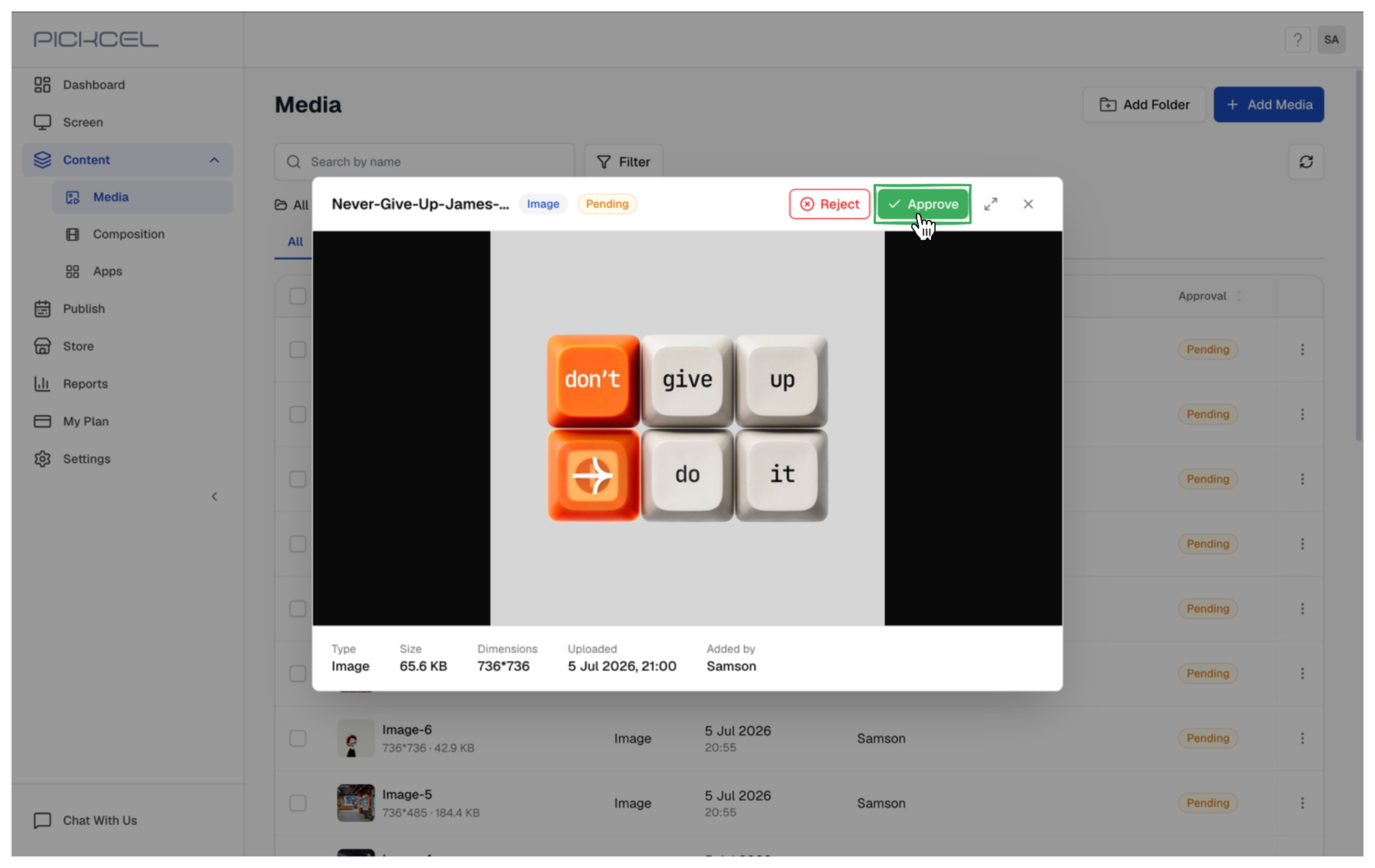
7
Check the approval status
You can track the decision in two places. In the media list, the Approval Status column shows the state of each file.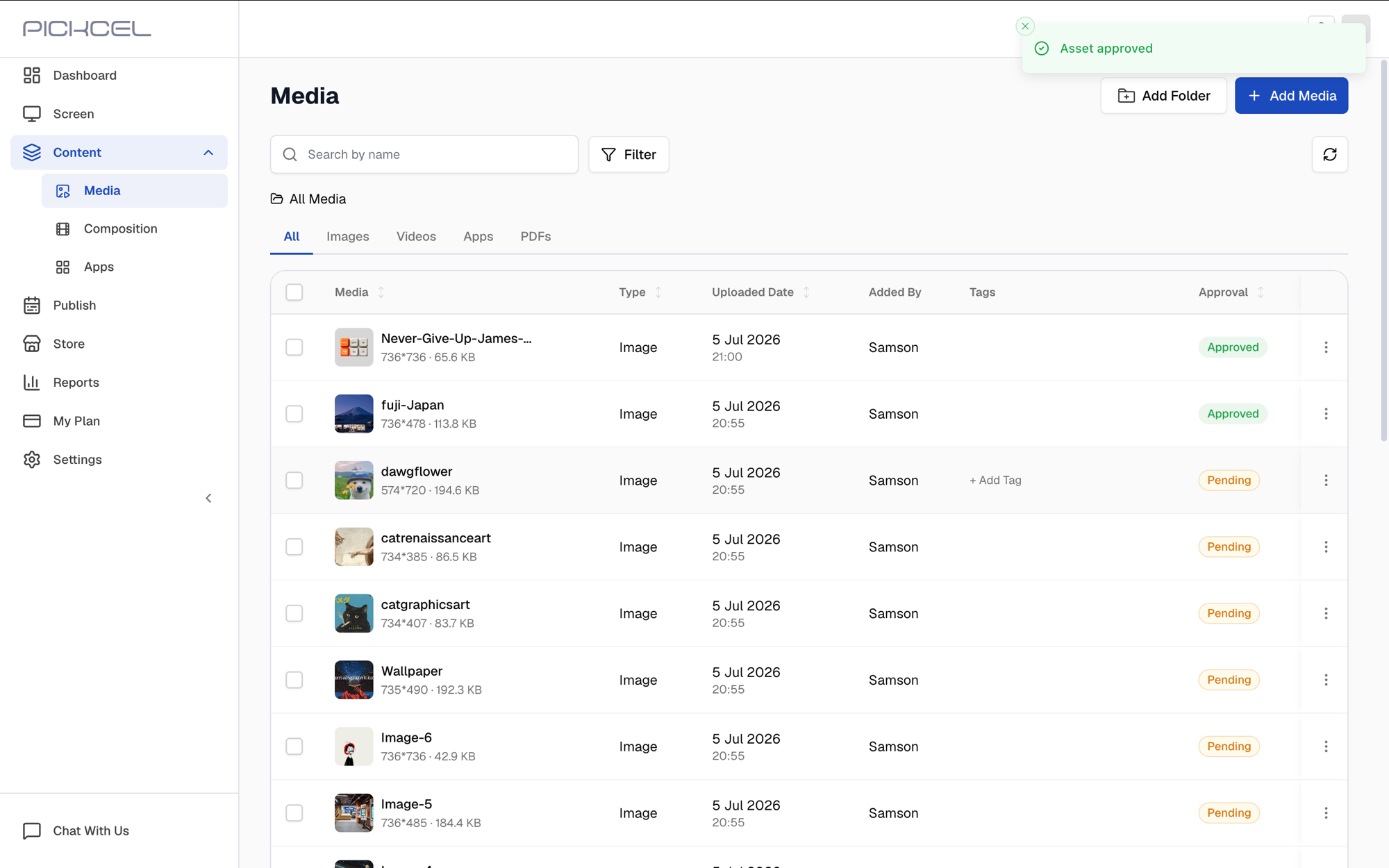 Clicking a media thumbnail opens its details, including the status, the file’s size and dimensions, and who added it.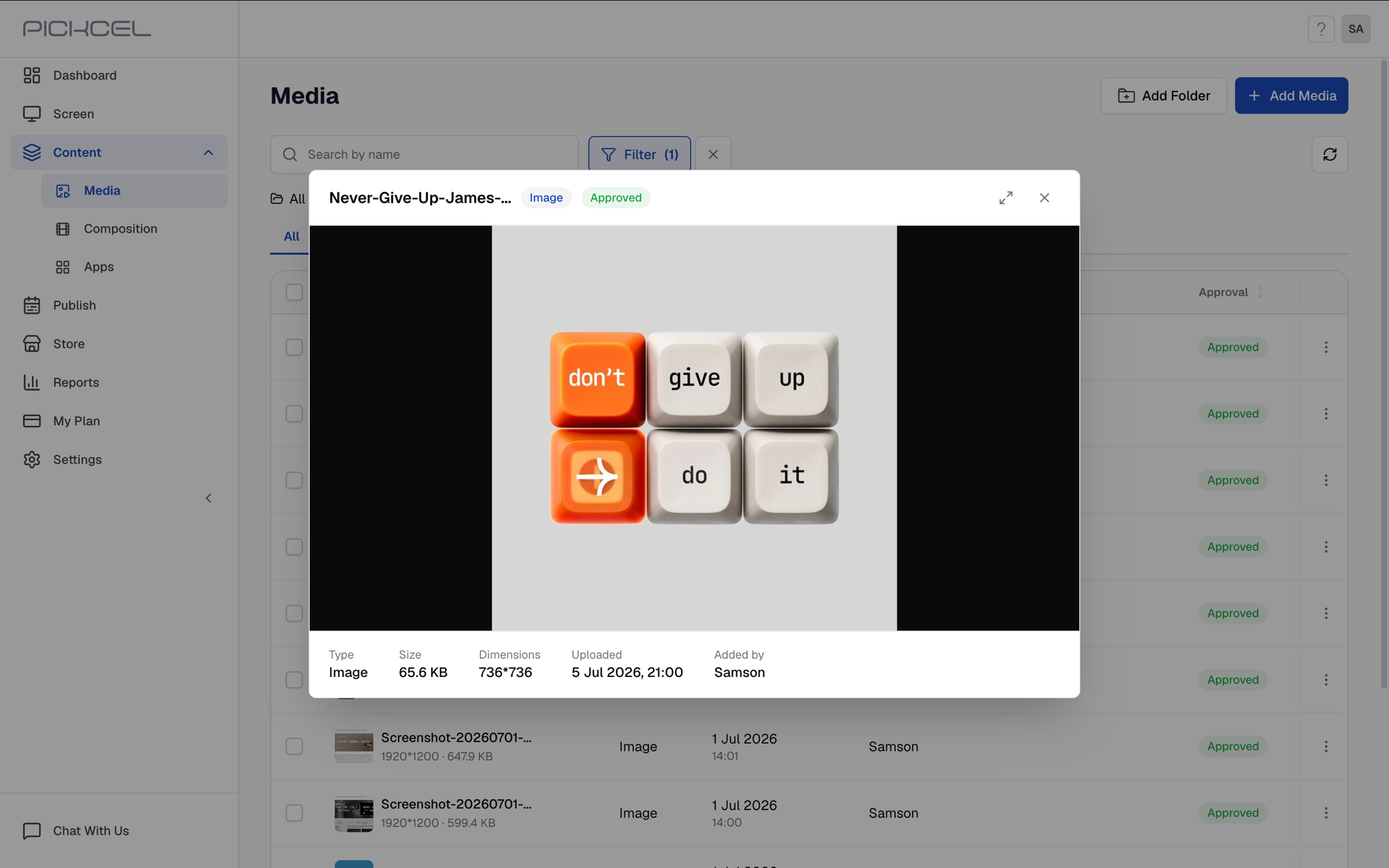
8
Use approved media in a composition
Once a file is approved, you can use it in a composition. See Create a composition for the steps.
9
Publish to your screens
With the composition created from approved media, head to the Publish module and publish it to your screens. See How to publish content for the full steps.
What each media state means
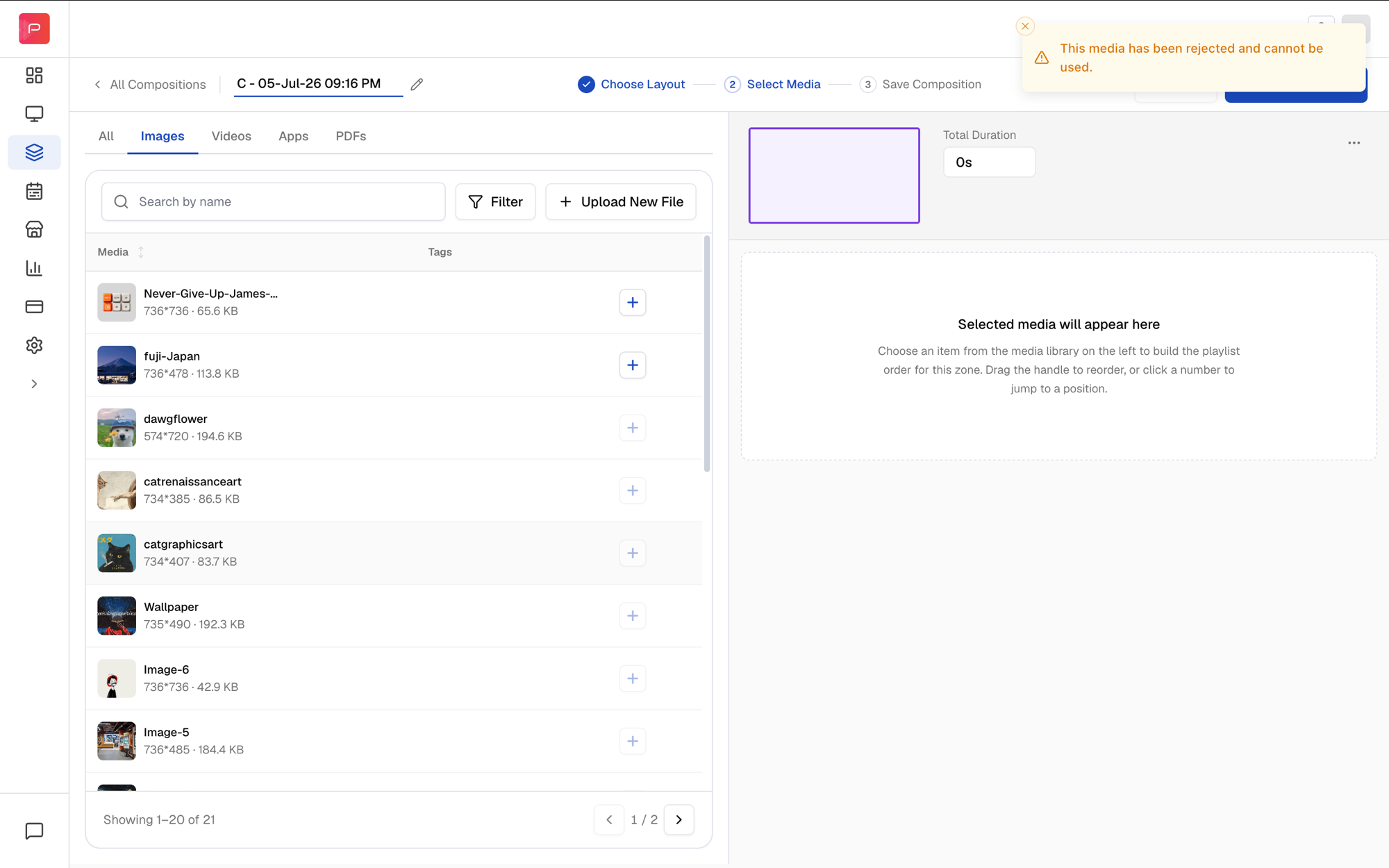
When you add media to a zone, its approval state decides whether it can be used:
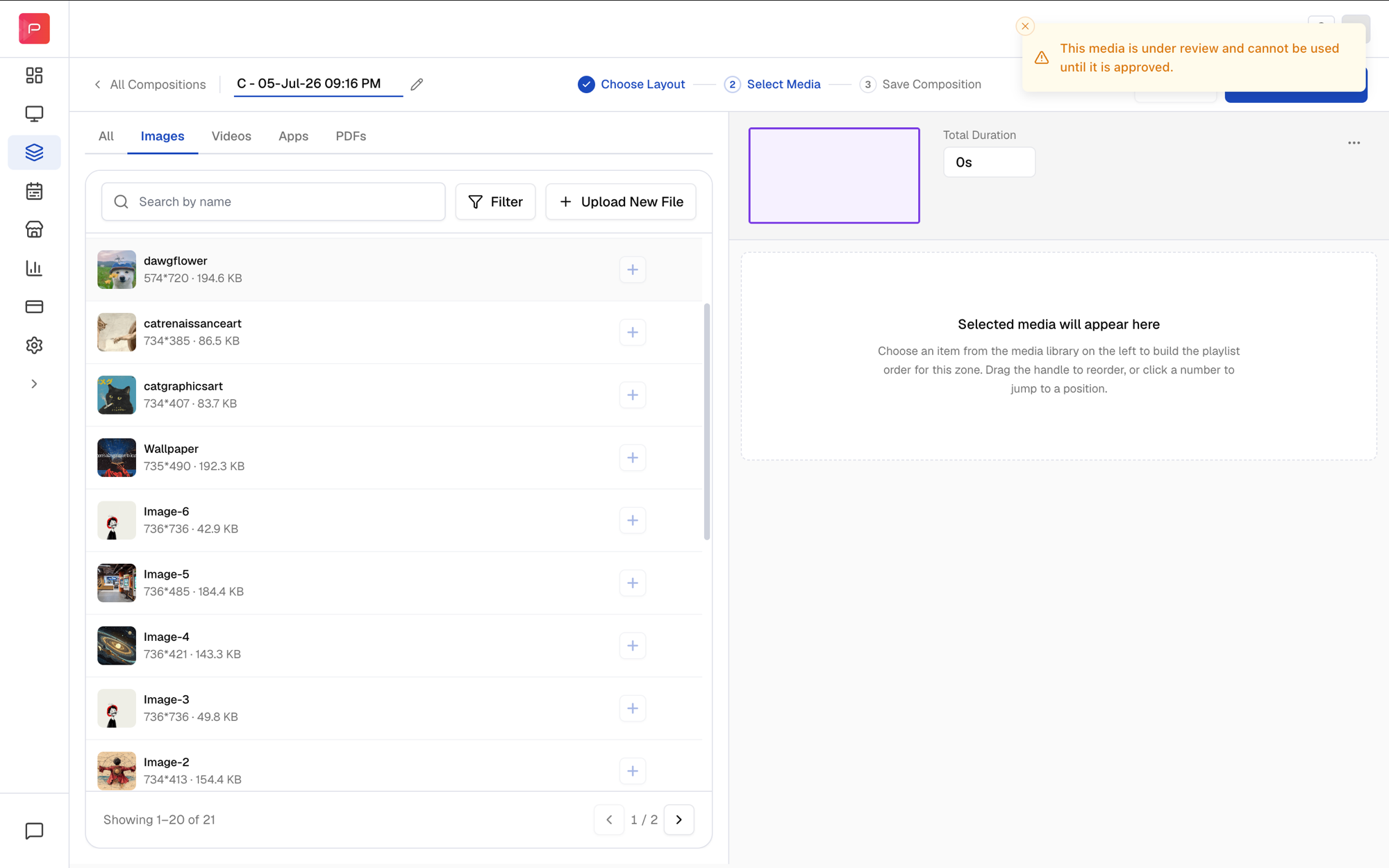
If you try to add a Pending file, Pickcel blocks it until review is complete:
Points to note
Frequently asked questions
Which plan includes content approval?
Which plan includes content approval?
Content Approval is available only on the Enterprise plan. To enable it for your account, contact our support team.
Who can approve or reject media?
Who can approve or reject media?
Only users with the Content Approver role or the Admin role can approve or reject uploaded media. Both are notified by email whenever new media is uploaded.
What happens if I use pending media in a composition?
What happens if I use pending media in a composition?
You can’t. If you try to add a Pending file to a zone, Pickcel shows a restriction pop-up and blocks it until an approver reviews and approves the file.
Can a rejected file be resubmitted for approval?
Can a rejected file be resubmitted for approval?
No. A Rejected file cannot be used and cannot be resubmitted, rejection is a one-time, final decision. To use similar content, upload a new file for review.
Do approvers get notified about new uploads?
Do approvers get notified about new uploads?
Yes. As soon as media is uploaded, all Content Approvers and Admins receive an email with a Review & Approve button that takes them straight to the review screen.
Where can I see a file's approval status?
Where can I see a file's approval status?
The Approval Status column in the Media list shows each file’s state. Click a media thumbnail to see more detail, including the approver’s name and the approval date.
Related guides
Add media
Upload images, videos, PDFs, and apps to your Pickcel media library.
User roles
Define roles and permissions, including who can review and approve content.
Create a composition
Build a multi-zone layout using your approved media.
Publish content
Schedule and publish approved content to your screens.