Streaming a town hall? Town halls don’t support the Custom Streaming app used here, follow the Teams Town Hall guide instead, which relays the stream through OBS.
1
Open Apps and search for Event Stream
Login to your Pickcel account, go to Apps, and search for the Event Stream app using the search field.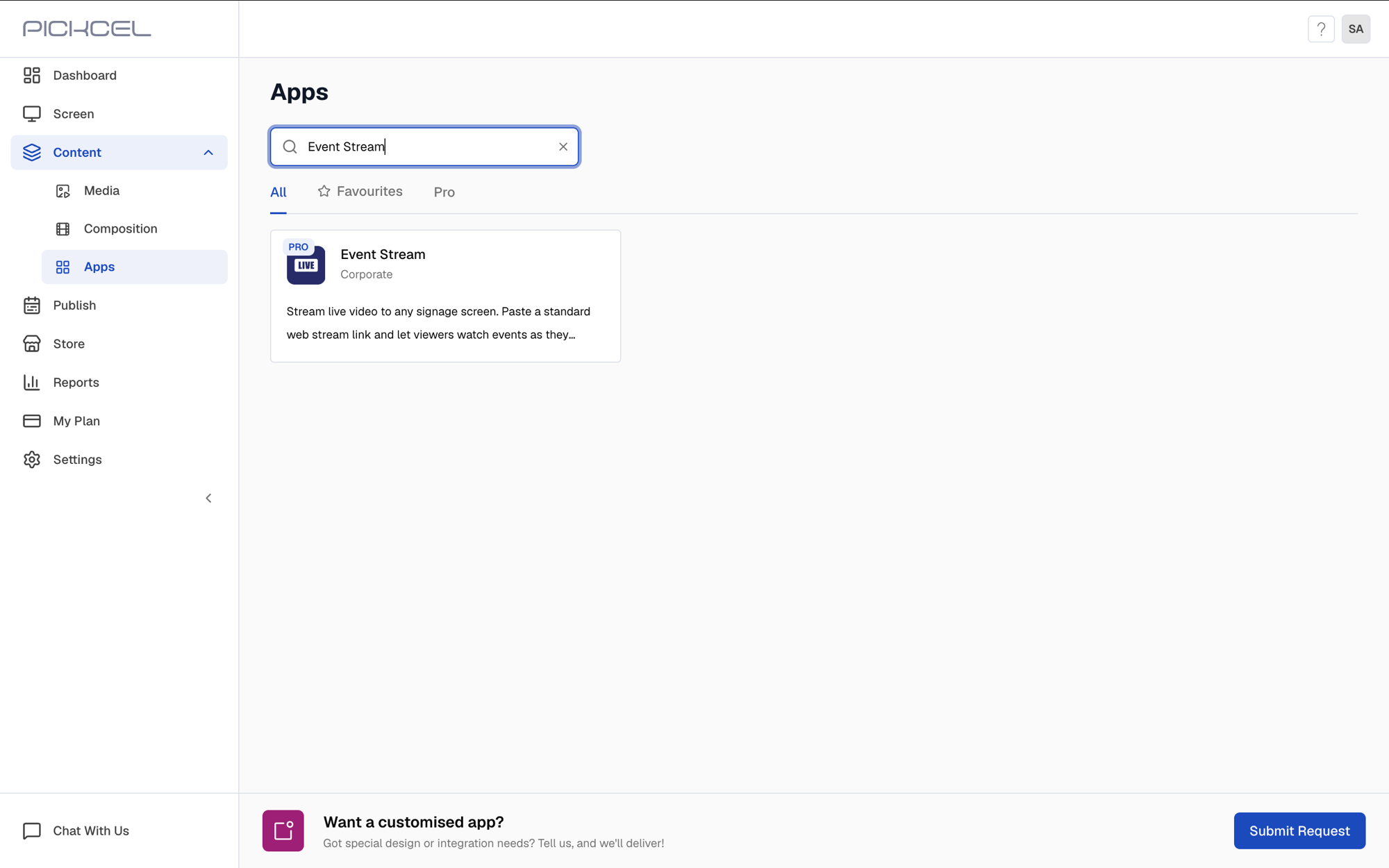
2
Create the app
Click the app thumbnail and click Create App.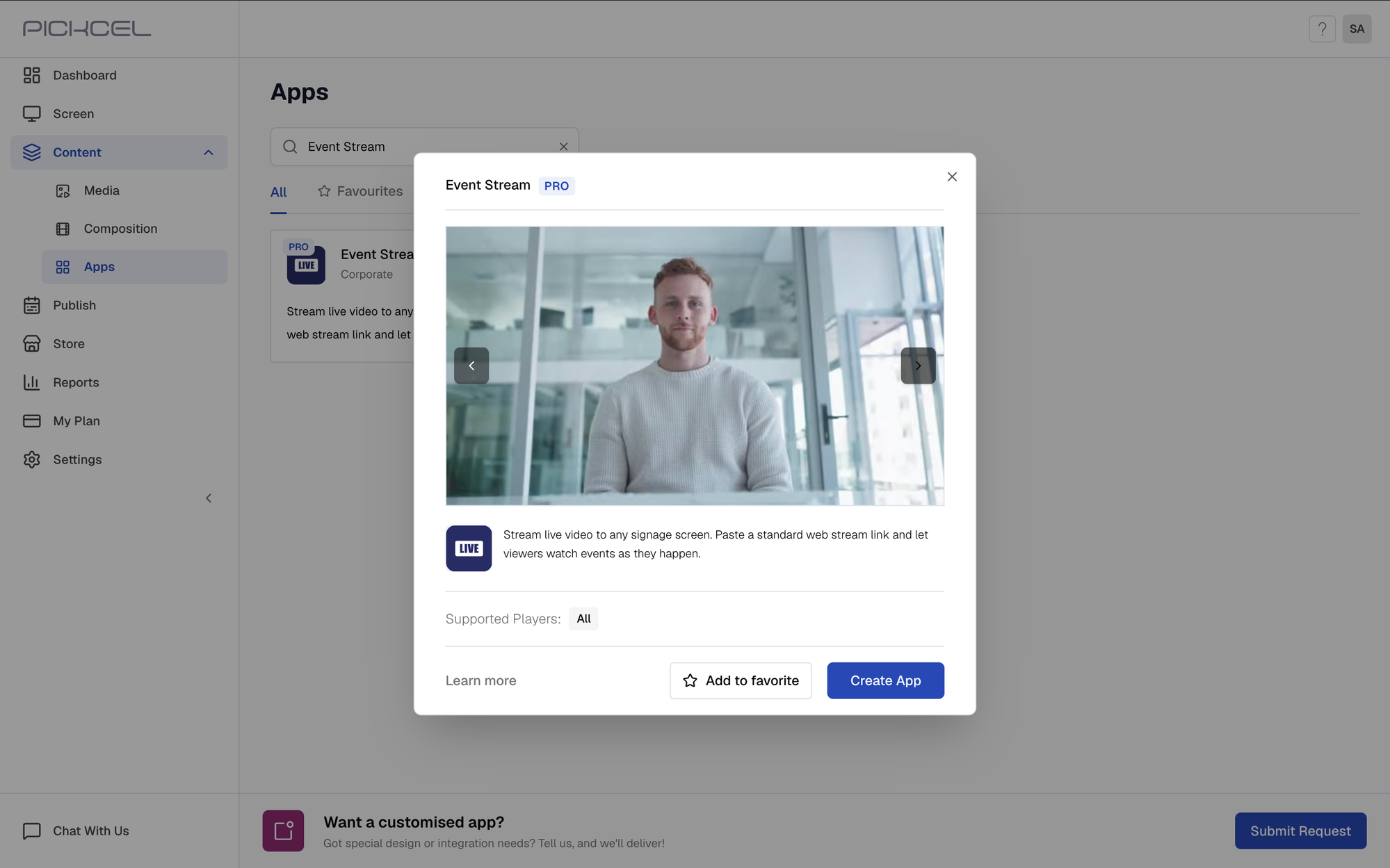
3
Name the app and create a stream channel
Enter a name for the app (no spaces or special characters), then click Create Stream Channel.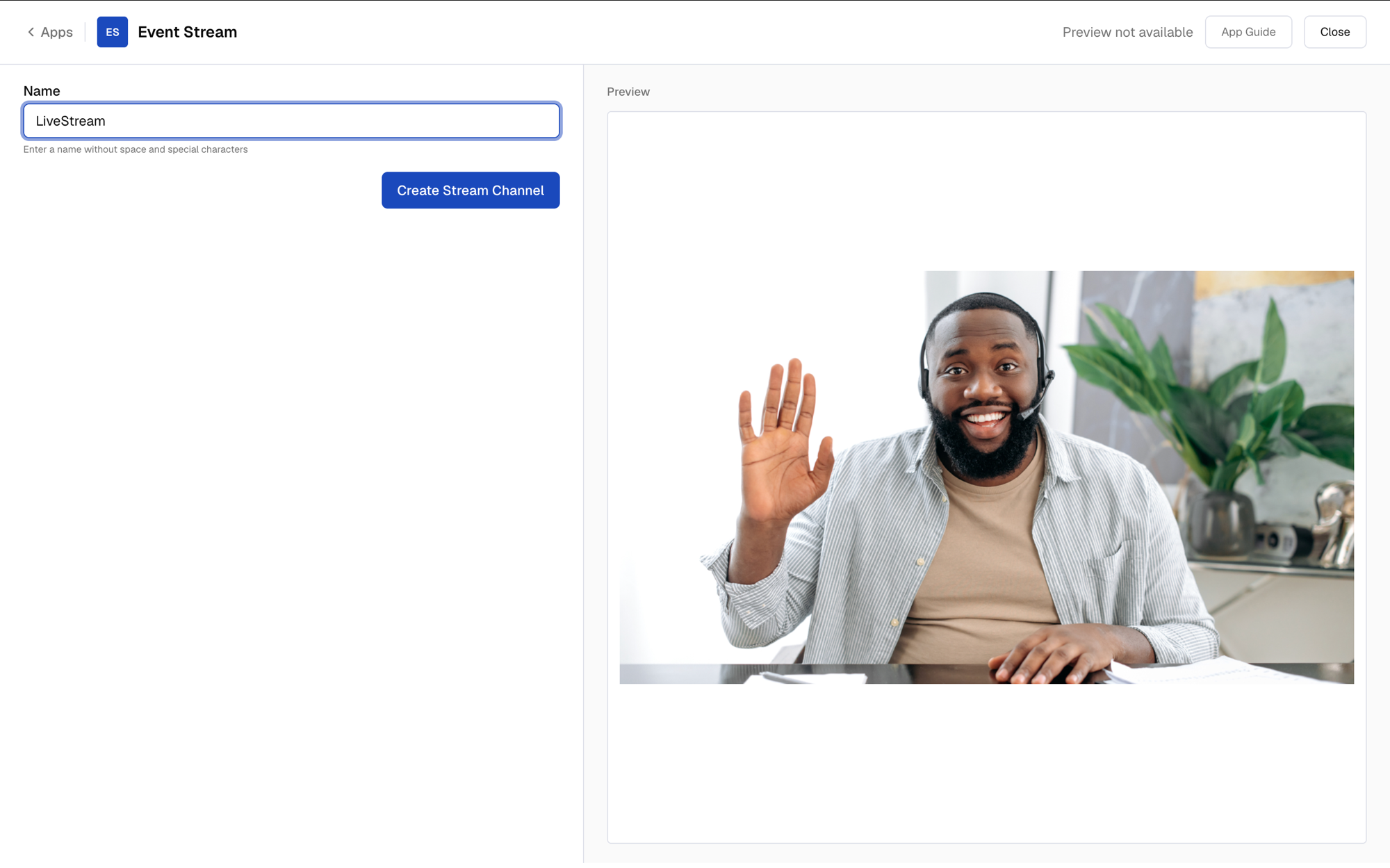
4
Copy the streaming credentials
You’ll see the credentials required to live stream the Teams meeting: Streaming URL and Streaming key. Leave this tab open, you’ll copy each one from here as you fill in the Custom Streaming form.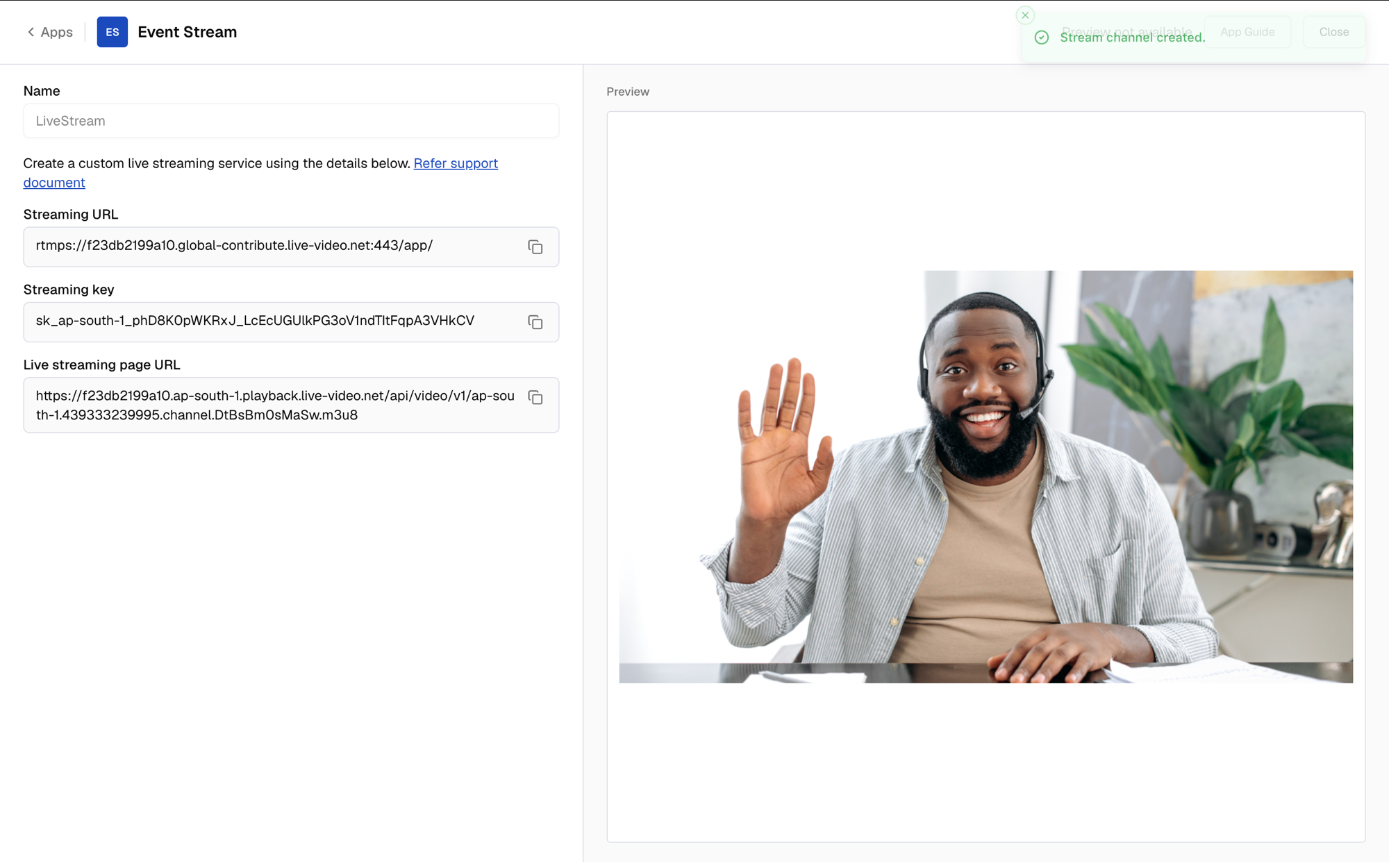 Click Close. The app is automatically added to your Media library.
5
Start the Teams meeting and open Apps
Start your Teams meeting or webinar, then click Apps in the meeting toolbar.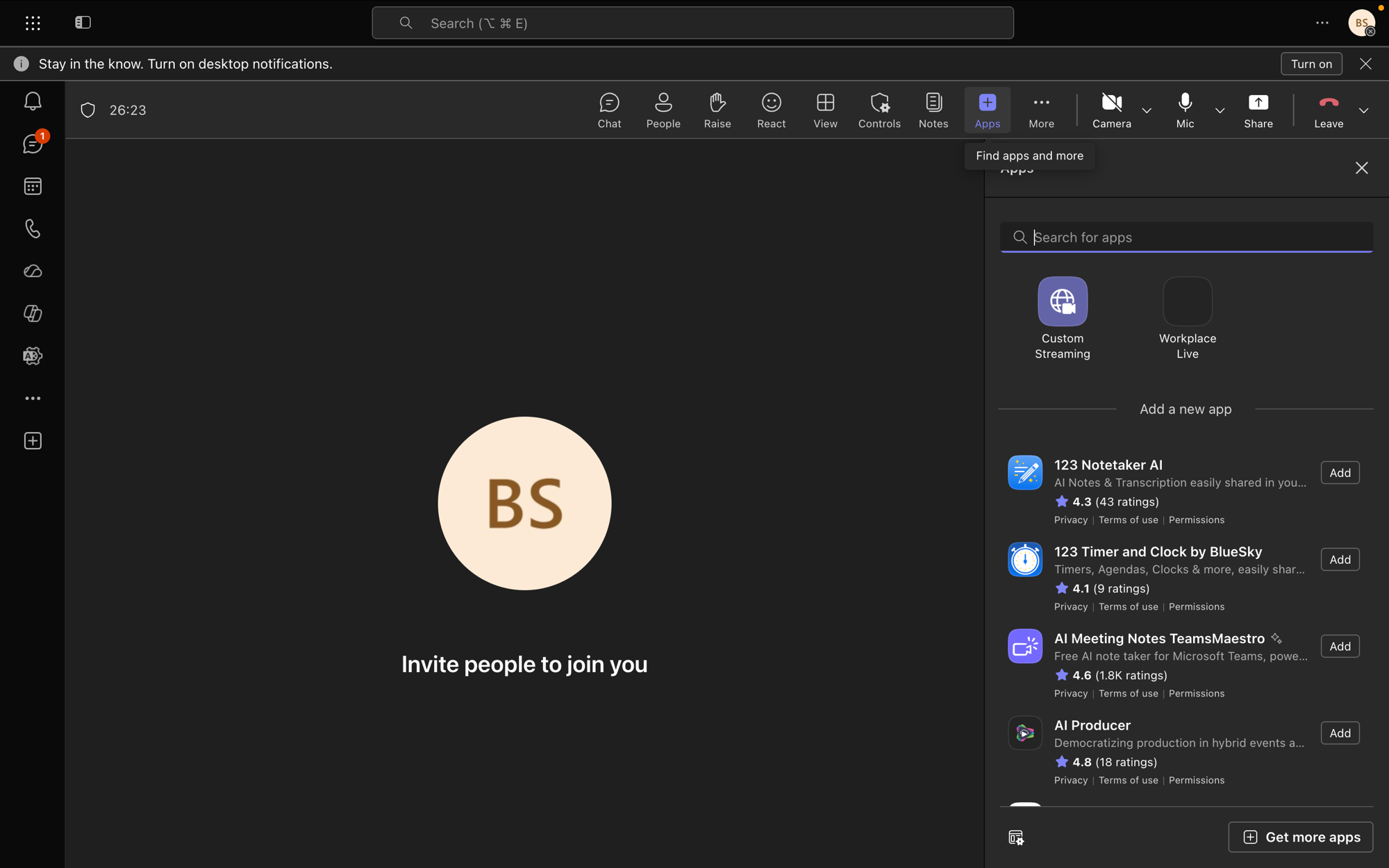
6
Add the Custom Streaming app
Search for Custom Streaming and select it. Teams adds it for everyone in the meeting.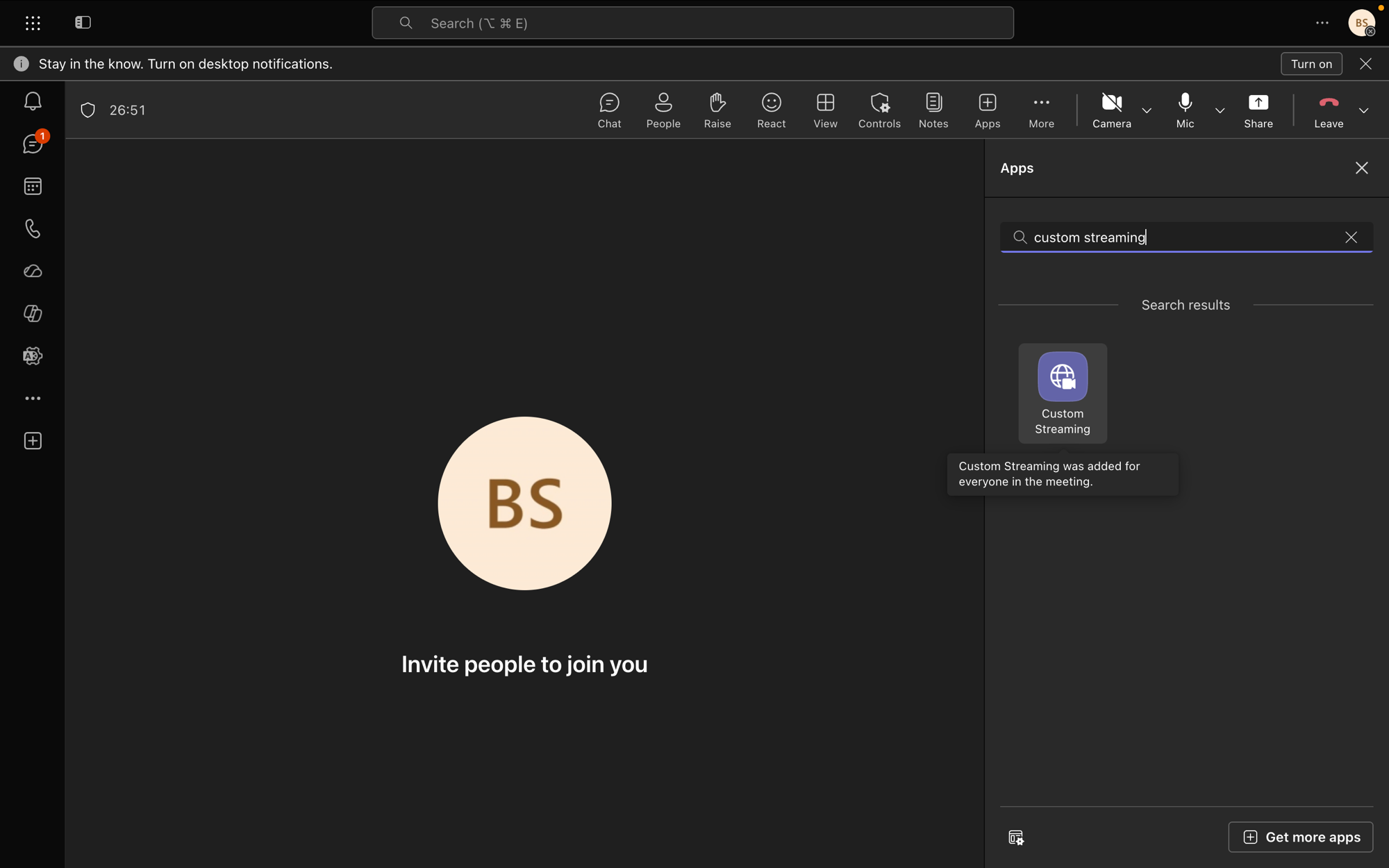
7
Save to open the streaming panel
On the Welcome to Custom Streaming screen, click Save.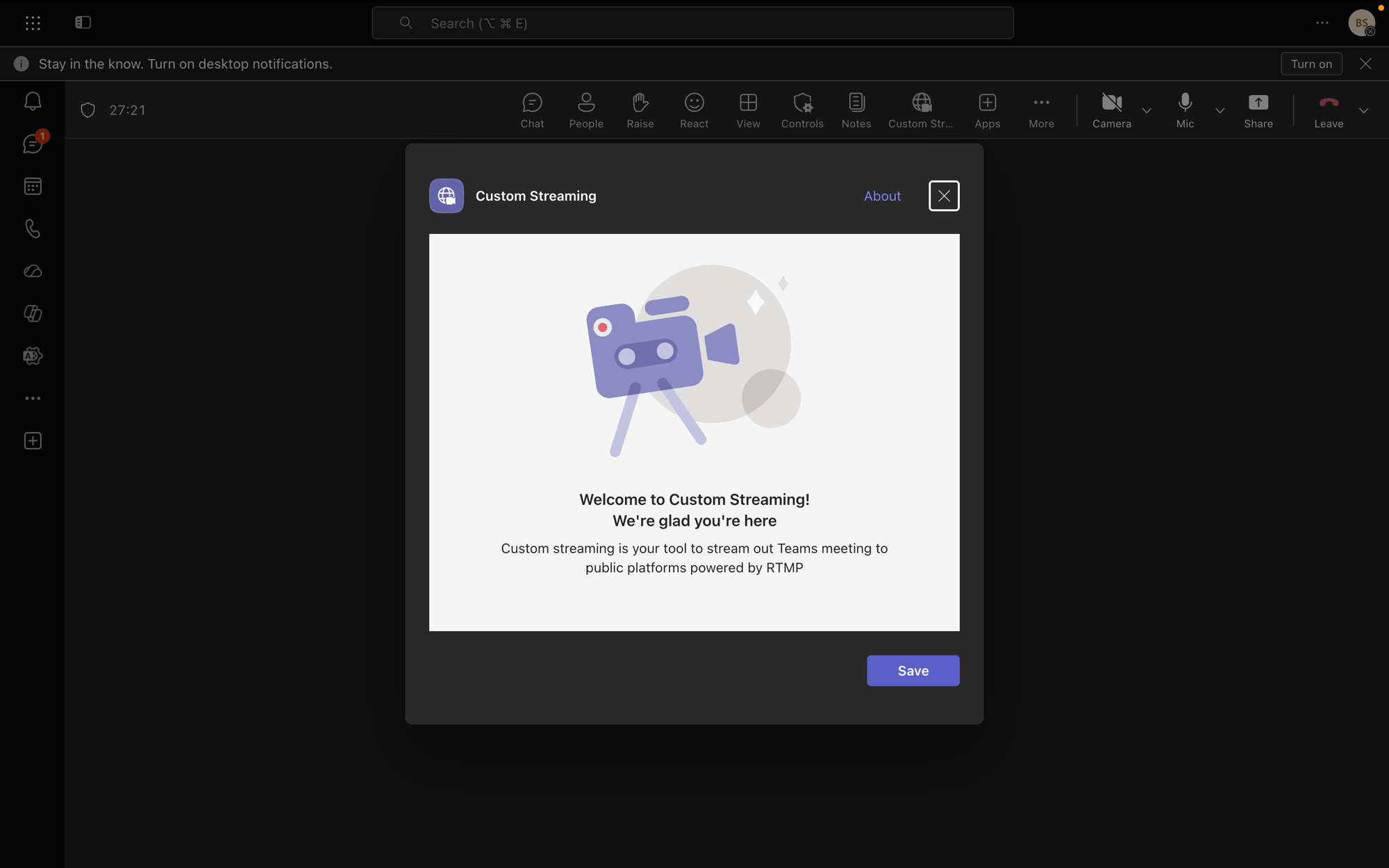
8
Enter the streaming URL and key
Switch to the Event Stream tab, copy the Streaming URL, then switch back to Teams and paste it into the Stream URL field.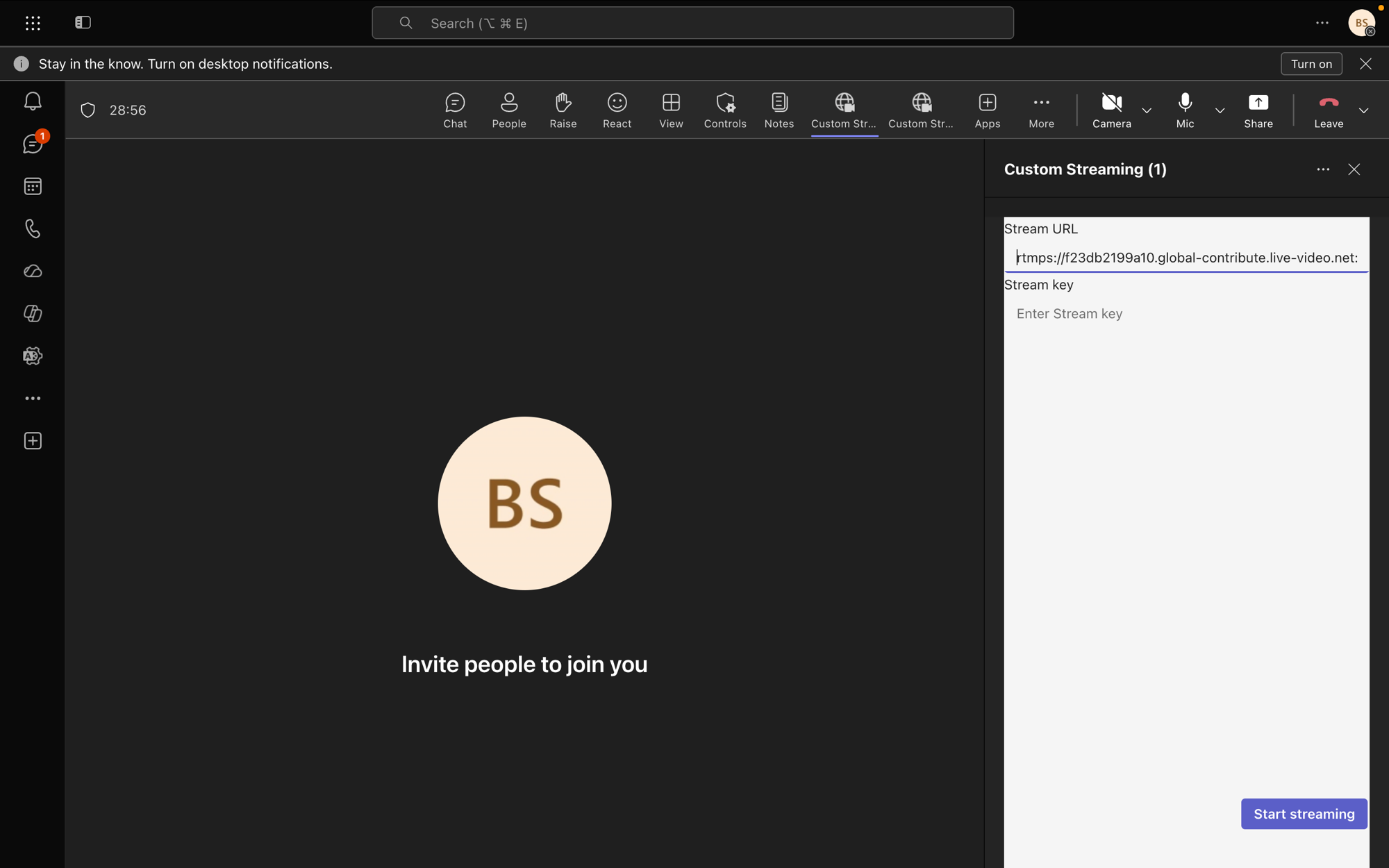 Switch back, copy the Streaming key, and paste it into the Stream key field.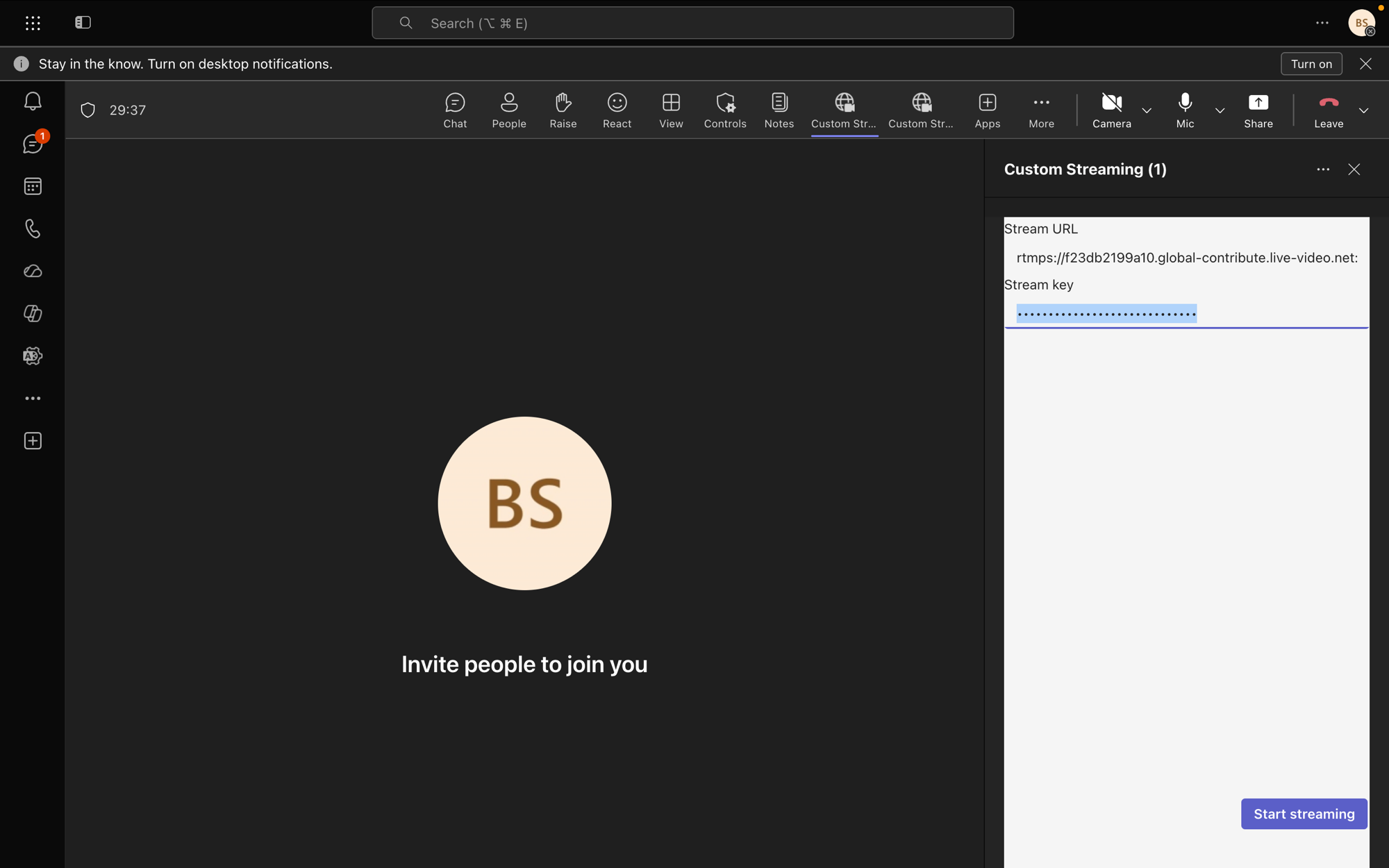
9
Start streaming
Click Start streaming.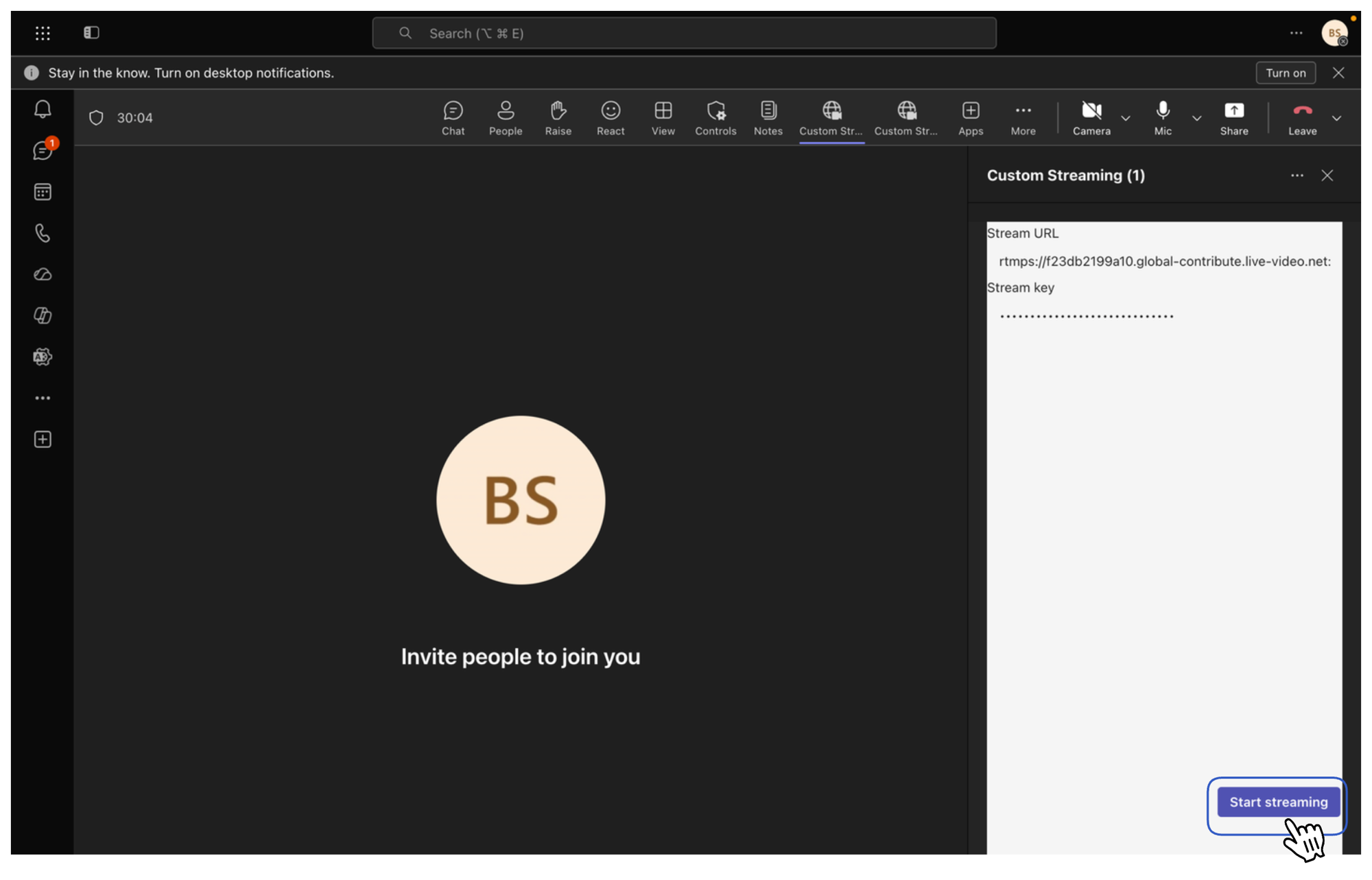
10
Allow Teams to share the meeting content
Click Allow on the confirmation prompt. Teams starts sending the meeting to your Event Stream channel.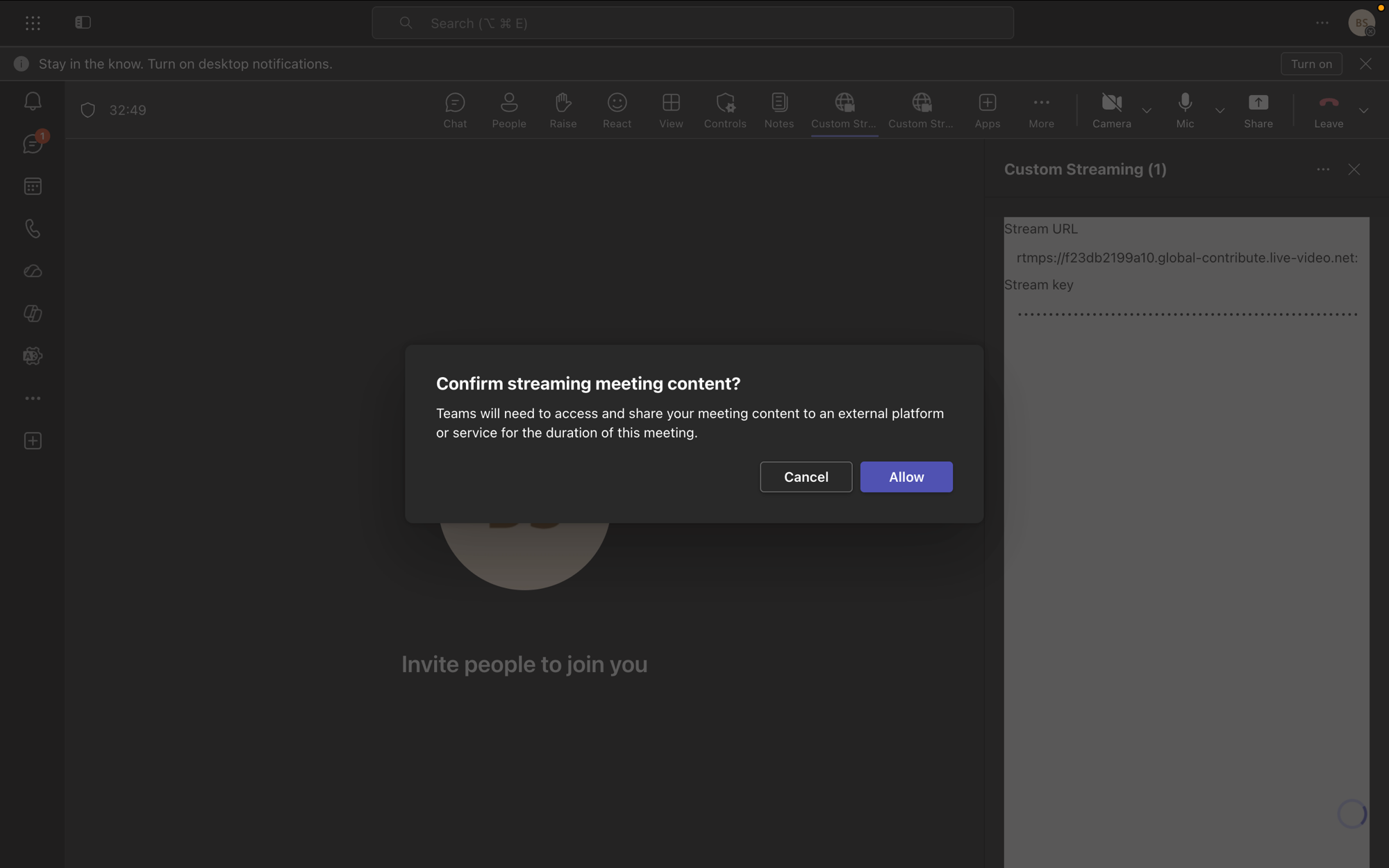
11
Assign the app to a screen
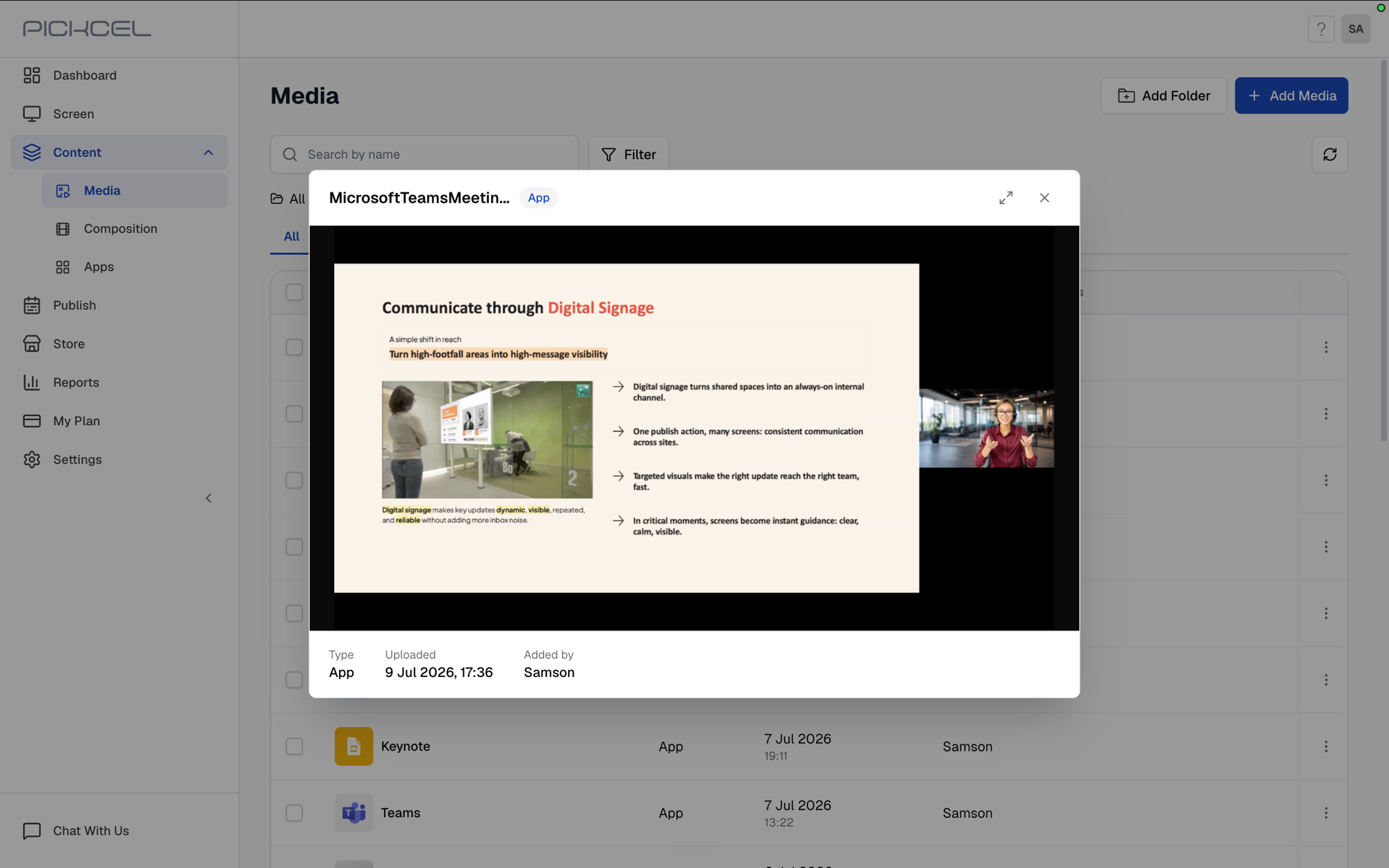
Create a composition using a single zone layout so the stream plays full screen, add this app to it, and assign it to a screen using Quick Play or a schedule. Since you’re already streaming, the stream appears on screen as soon as it’s published.
Assigning the app before you start streaming also works, the screen just shows black until streaming starts.
What’s Next?
Find the app in your Media library under the name you gave it.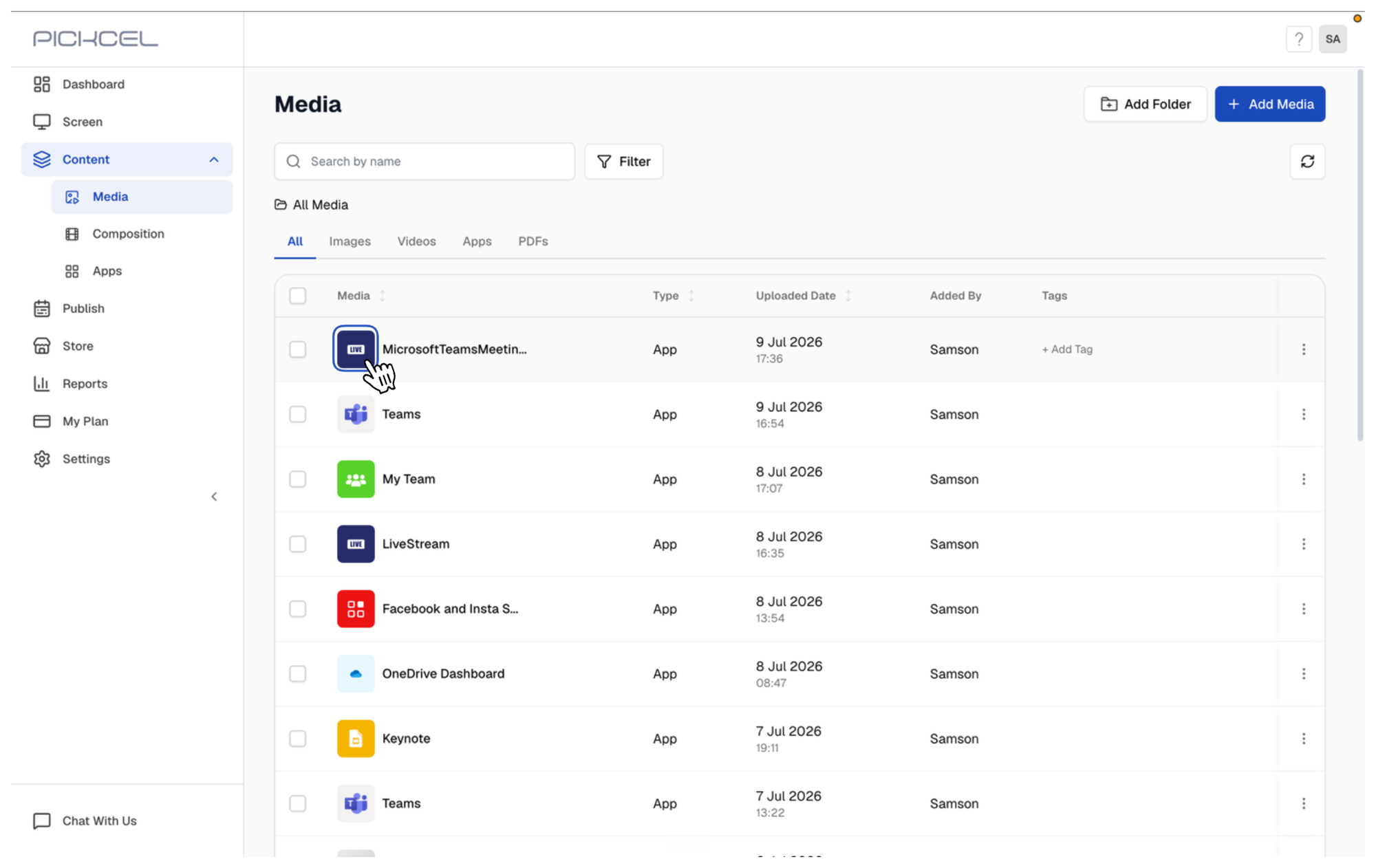
- Learn about Compositions
- Learn how to Publish or Schedule Content
Frequently asked questions
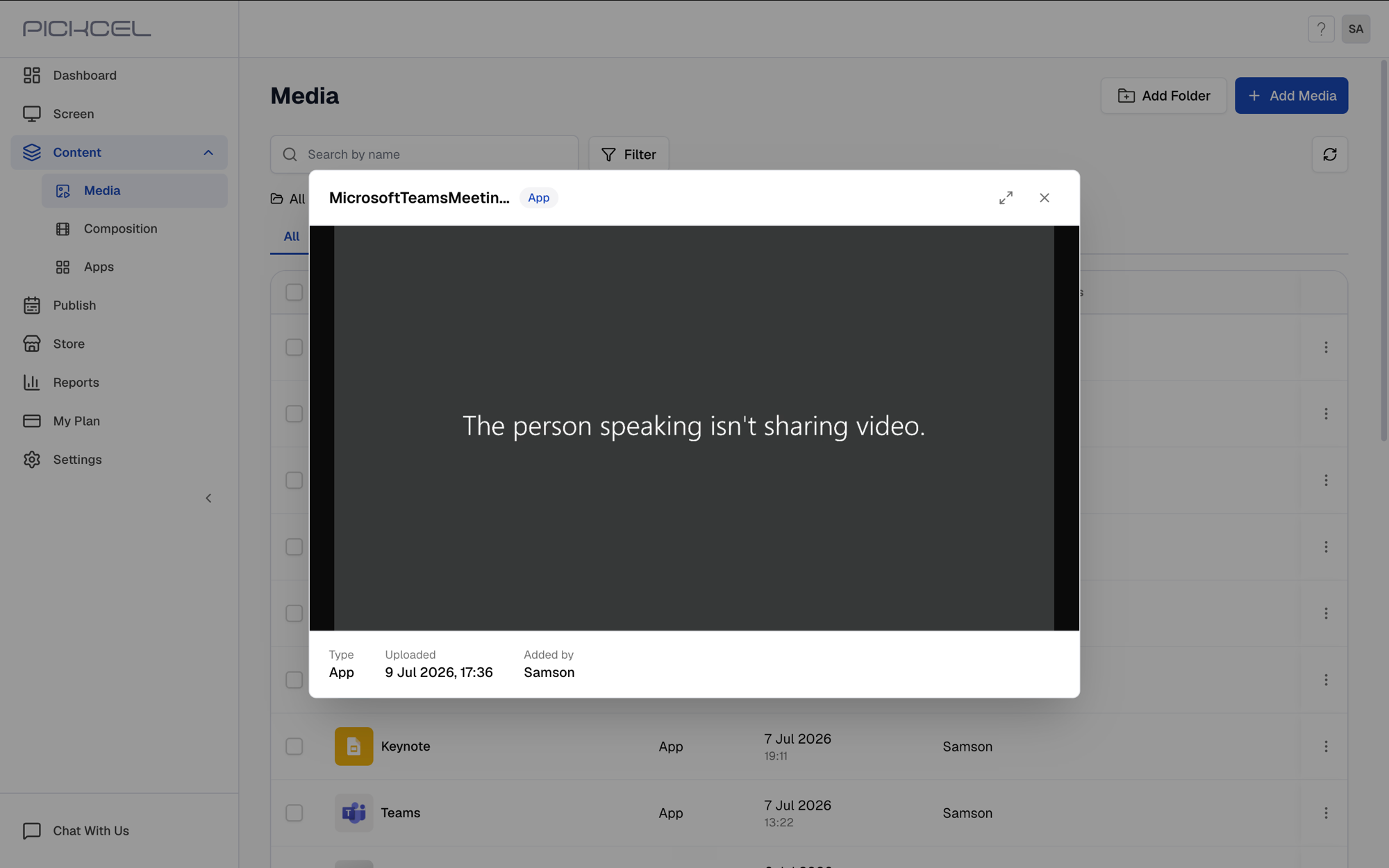
What if the screen shows 'The person speaking isn't sharing video'?
What if the screen shows 'The person speaking isn't sharing video'?