

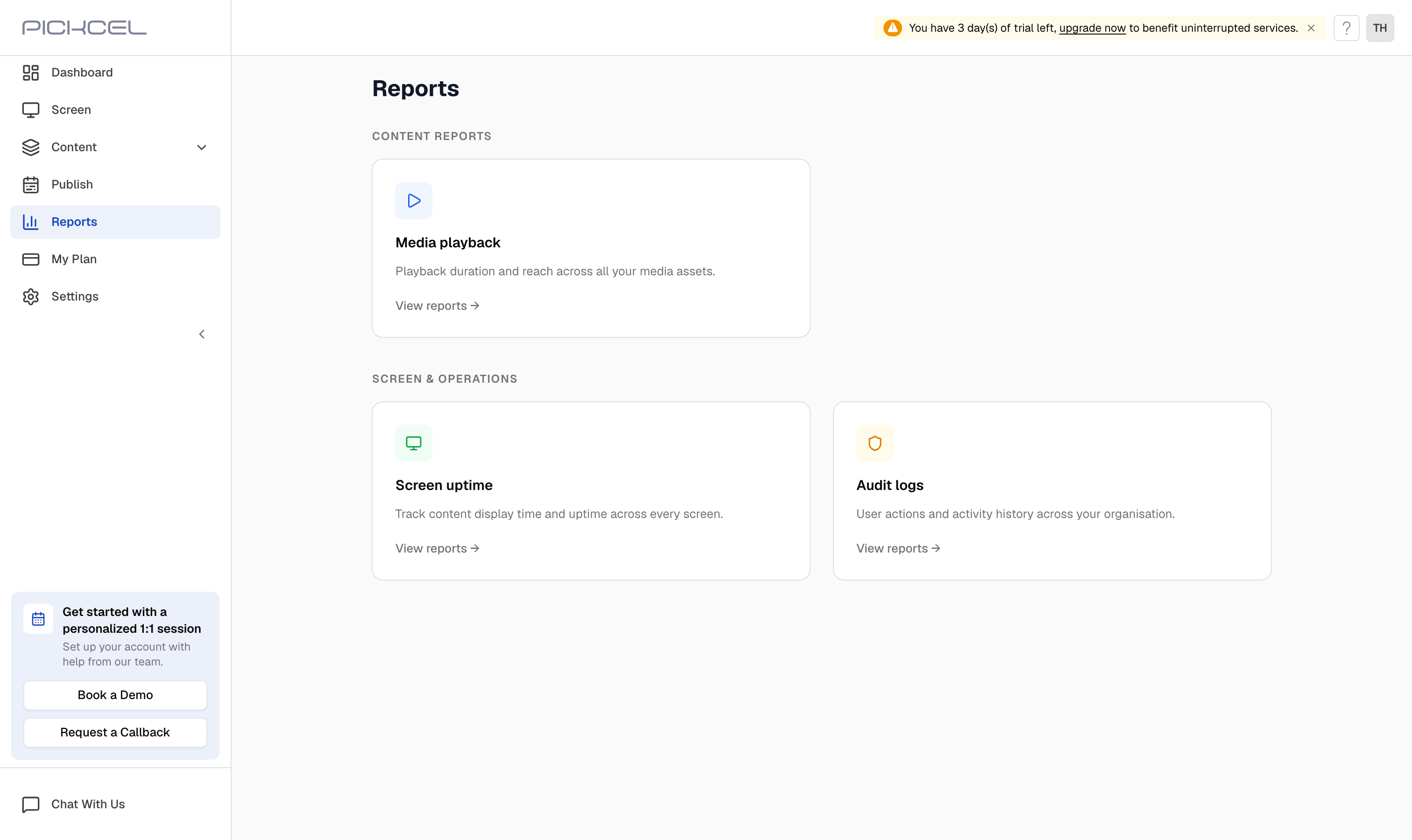
Types of reports
If you use the Campaign app, a Campaign Report also appears as a Proof of Play for campaign content, broken down by campaign, media, composition, and screen. It only shows up once you have created campaigns.
Generating a report
Open the Reports module and click View reports on the report you want.- Media playback opens a list of saved reports. Click Generate Report, choose the media files, pick a month or custom range, and generate. Each report is added to the list to review and download.
- Screen uptime and Audit logs open straight to a period picker. Choose Daily, Monthly, or Custom, then click Continue to see the results on screen.
Pickcel focuses on playback and activity reporting (Proof of Play, uptime, and audit logs) rather than broader audience analytics. For each report’s exact steps, see the detailed guides below.
Explore each report
Media Playback Report
See how many times each media file played and for how long, your Proof of Play.
Device Playback Report
Track how long your screens were online and displaying content (Screen uptime).
Audit Logs
Review the actions users performed across your console.
Dashboard
Get a live, at-a-glance overview of screens, content, and storage.
Frequently asked questions
Is Proof of Play available in Pickcel?
Is Proof of Play available in Pickcel?
Yes. The Media playback report is your Proof of Play: it shows how many times each image, video, app, or PDF was played and the duration of each playback. You can generate it for any month or custom range and download it as a .csv file.
Does Pickcel offer analytics?
Does Pickcel offer analytics?
Pickcel provides playback and activity reporting, media usage (Proof of Play), screen uptime, and audit logs, rather than broader audience analytics. These reports let you monitor how often content played and how long your screens were running.
Can I download reports?
Can I download reports?
Yes. After generating a report, you can download it as a .csv file to keep records or analyze the data in a spreadsheet.
What date ranges can I report on?
What date ranges can I report on?
Reports can be generated Daily (a single date), Monthly (a chosen month), or Custom (a date range you specify). Media playback supports Monthly and Custom ranges.