

How to view audit logs
1
Open the Reports module and select Audit logs
From the left sidebar, go to Reports. Under Screen & Operations, find the Audit logs card and click View reports.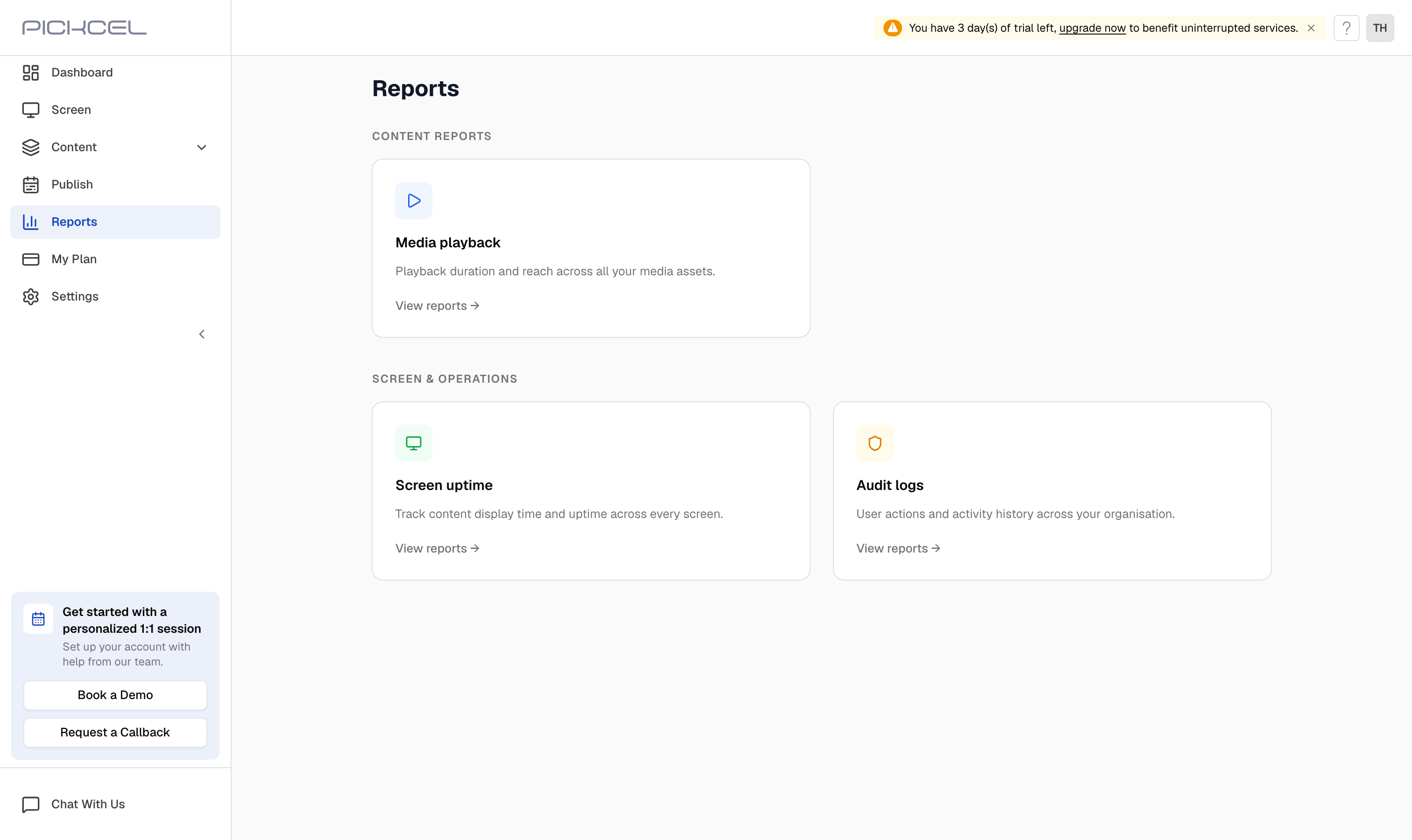
2
Choose how to generate the report
Pick the period you want to see activity for: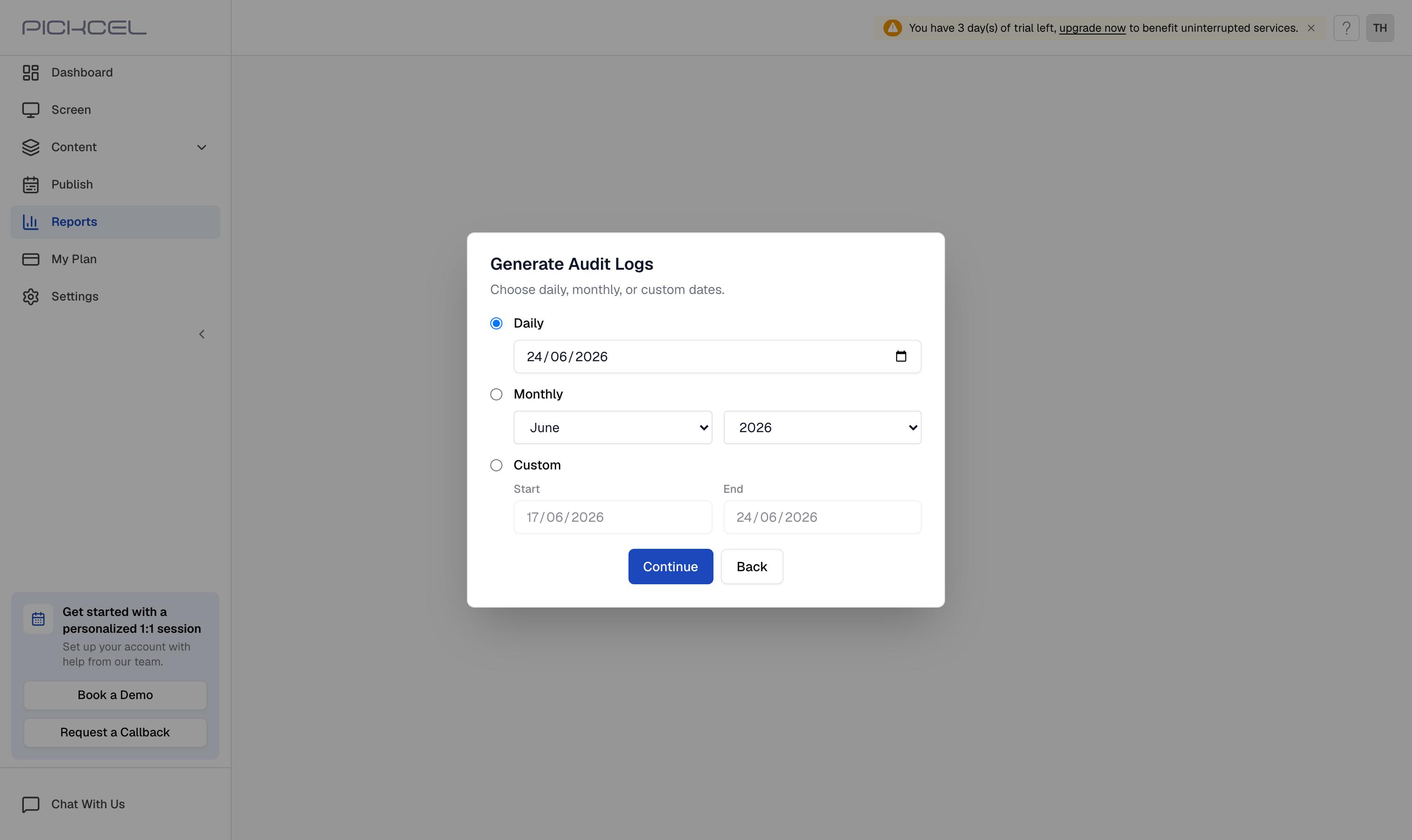
- Daily: select a single date from the calendar.
- Monthly: select a month and year from the dropdowns.
- Custom: select a start date and an end date for any range you need.
For a Custom range, the selected time period must be less than 60 days. To review activity over a longer span, generate the report in shorter date ranges.
3
Review the activity table
The report lists every logged action for the selected period. Each row shows when the action was Performed and a Message describing what happened, including the user who performed it. Use the Search box to filter entries, and next to page through longer logs.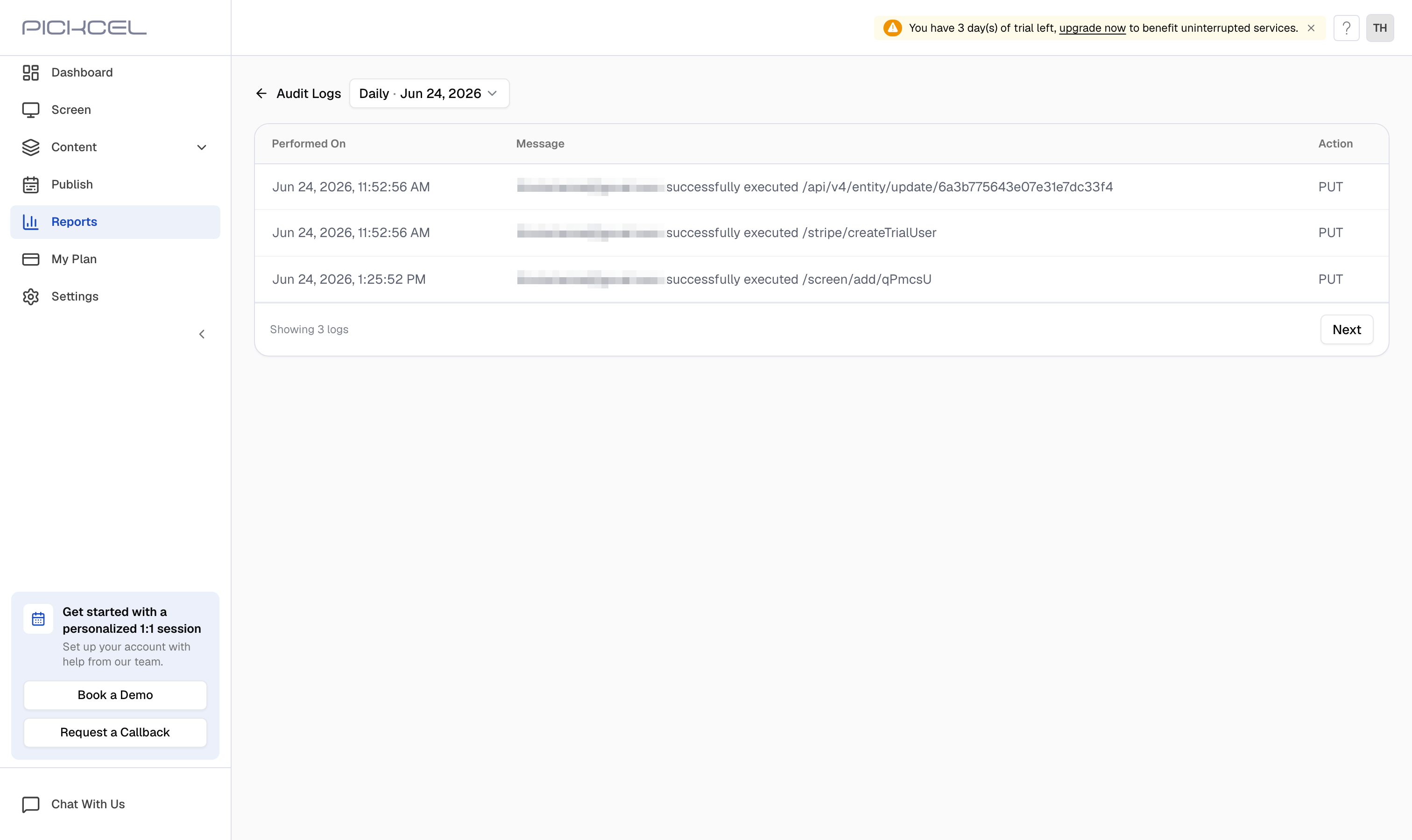
4
Open an entry for full details
Click any row to view the complete details of that action, Executed by (the user), the Message (the action performed), and the exact date and time it occurred, along with the full request information.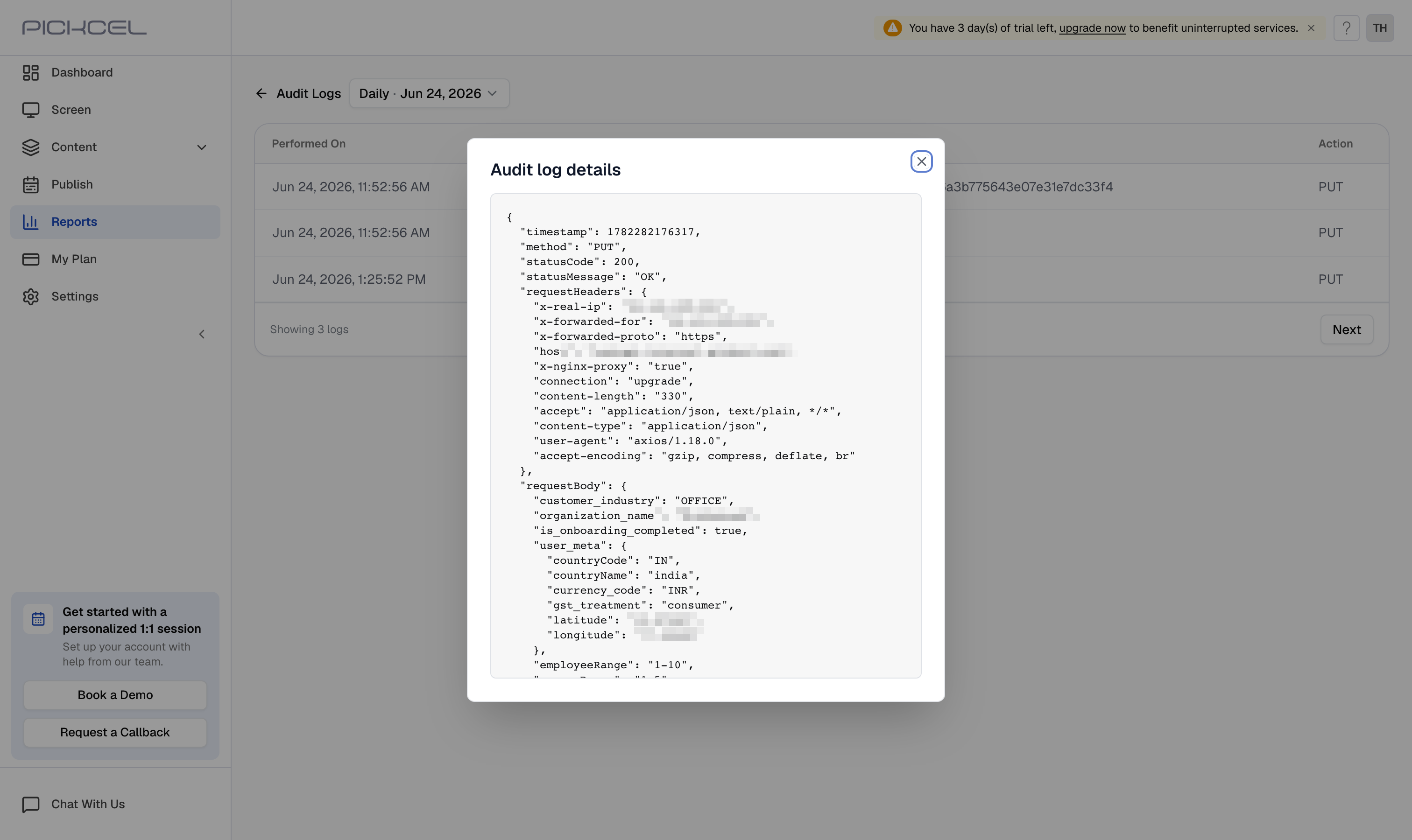
Frequently asked questions
What activities do audit logs record?
What activities do audit logs record?
Audit Logs capture actions performed by console users across modules, for example sign-ins, adding or saving schedules and sequences, and updating compositions. Each entry identifies the user and the exact time the action took place.
How far back can I generate an audit report?
How far back can I generate an audit report?
You can choose a Daily, Monthly, or Custom period. A custom range must span less than 60 days, to cover a longer period, run the report in consecutive shorter ranges.
Can I find a specific action quickly?
Can I find a specific action quickly?
Yes. Use the Search box above the results table to filter entries, then click a row to open its full details.
Who can view audit logs?
Who can view audit logs?
Audit Logs are available from the Reports module to users whose role has access to it. Review Settings → User Roles to manage what each sub-user can see.
Related guides
Media Playback Report
See how long each media file played across your screens.
Device Playback Report
Track how long your screens were online and displaying content.
Sub-users
Add team members and control who can access your console.
User Roles
Define what each role can view and manage in Pickcel.