

Before proceeding with the configuration steps, you must first install the Pickcel Digital Signage Software on your Raspberry Pi. Please follow the detailed instructions provided in the Pickcel Raspberry Pi Installation Guide to complete the initial software setup.
How to Change the Server Endpoint on Raspberry Pi with Pickcel
1
Launch the Pickcel App and access settings
Ensure the Pickcel Digital Signage App is running on your Raspberry Pi. Press Ctrl + Shift + S on your keyboard to open the Pickcel Settings page.
If the mouse isn’t responsive, press Ctrl + Shift + C to enable mouse functionality.
2
Open Settings Menu
Click on the Settings icon using the mouse.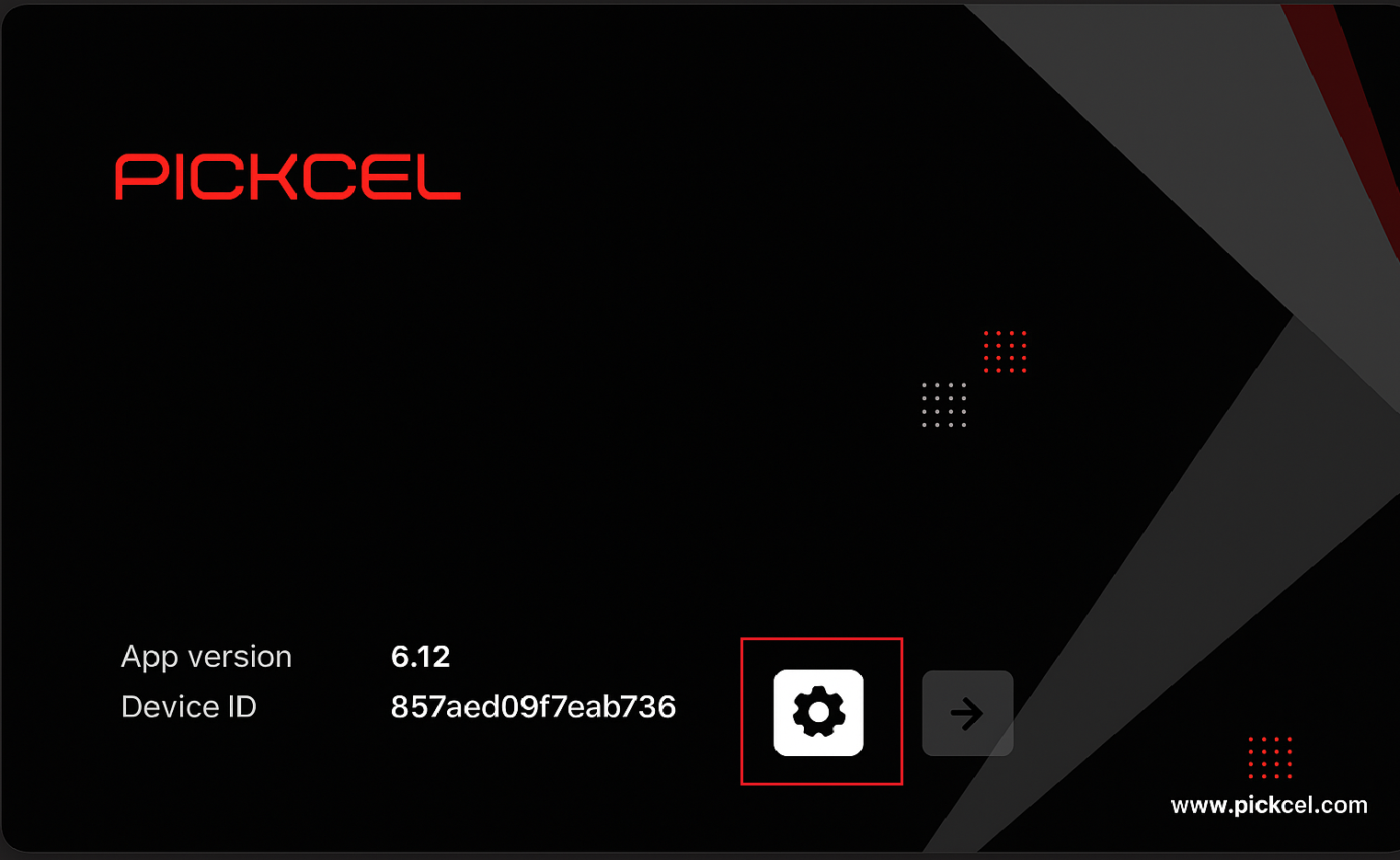
3
Update Server Endpoint
In the server URL field, enter your desired server address:For HTTP: 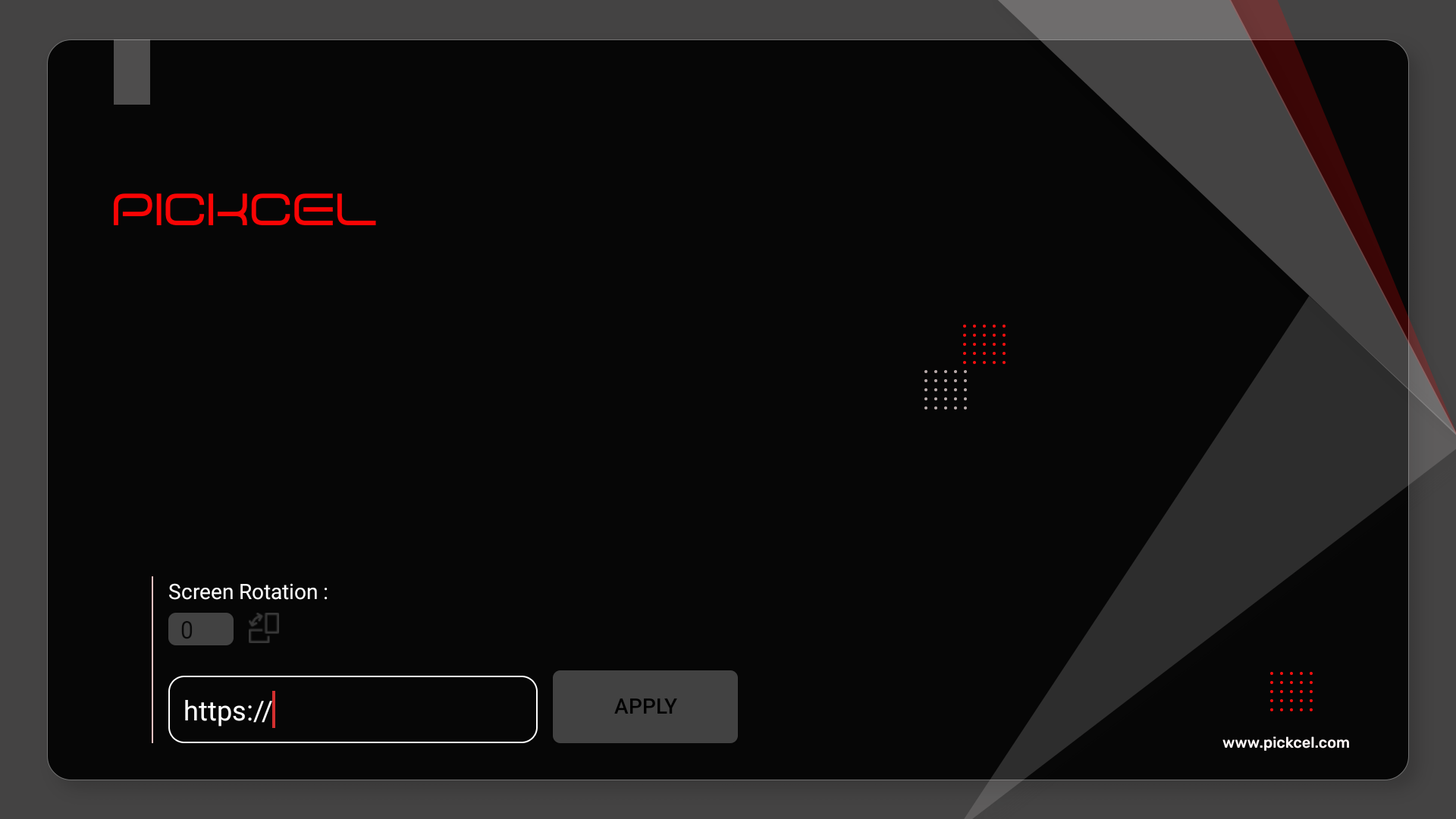
http://<your-server-ip>For HTTPS with a self-signed certificate: https://<your-server-ip> Example: https://172.17.0.19 or https://signage.pickcel.comClick on Apply to save the new server settings.4
Reboot and register
The Pickcel app will automatically restart and display a 6-digit registration code. Use this code to register your screen on the Pickcel console at https://console.pickcel.com
How to Change the Network on Raspberry Pi
1
Minimize Pickcel Player
Press Ctrl + M on your keyboard.
If the mouse isn’t responsive, press Ctrl + Shift + C.
2
Access Network Configuration
Right-click anywhere on the screen to open the context menu. Select Network Configuration to launch the Network Manager TUI.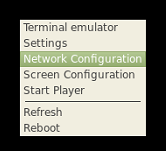
3
Connect to Wi-Fi
In the TUI, use the arrow keys to navigate to Activate a connection and press Enter.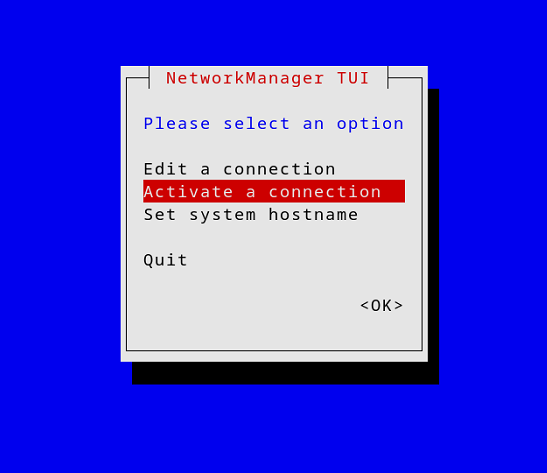 Select your desired Wi-Fi network from the list and press Enter. When prompted, enter the Wi-Fi password and confirm.
4
Finalize Connection
After a successful connection, return to the Network Manager TUI and click on Quit. The Pickcel app will automatically reboot and connect to the selected network.
How to Set the Timezone on Raspberry Pi
1
Minimize the Pickcel Player
Press Ctrl + M on your keyboard.
If the mouse isn’t responsive, press Ctrl + Shift + C.
2
Access Settings
Right-click anywhere on the screen to open the context menu. Select Settings.
3
Navigate to Localization Options
In the Settings menu, use the arrow keys to navigate to Localization Options and press Enter.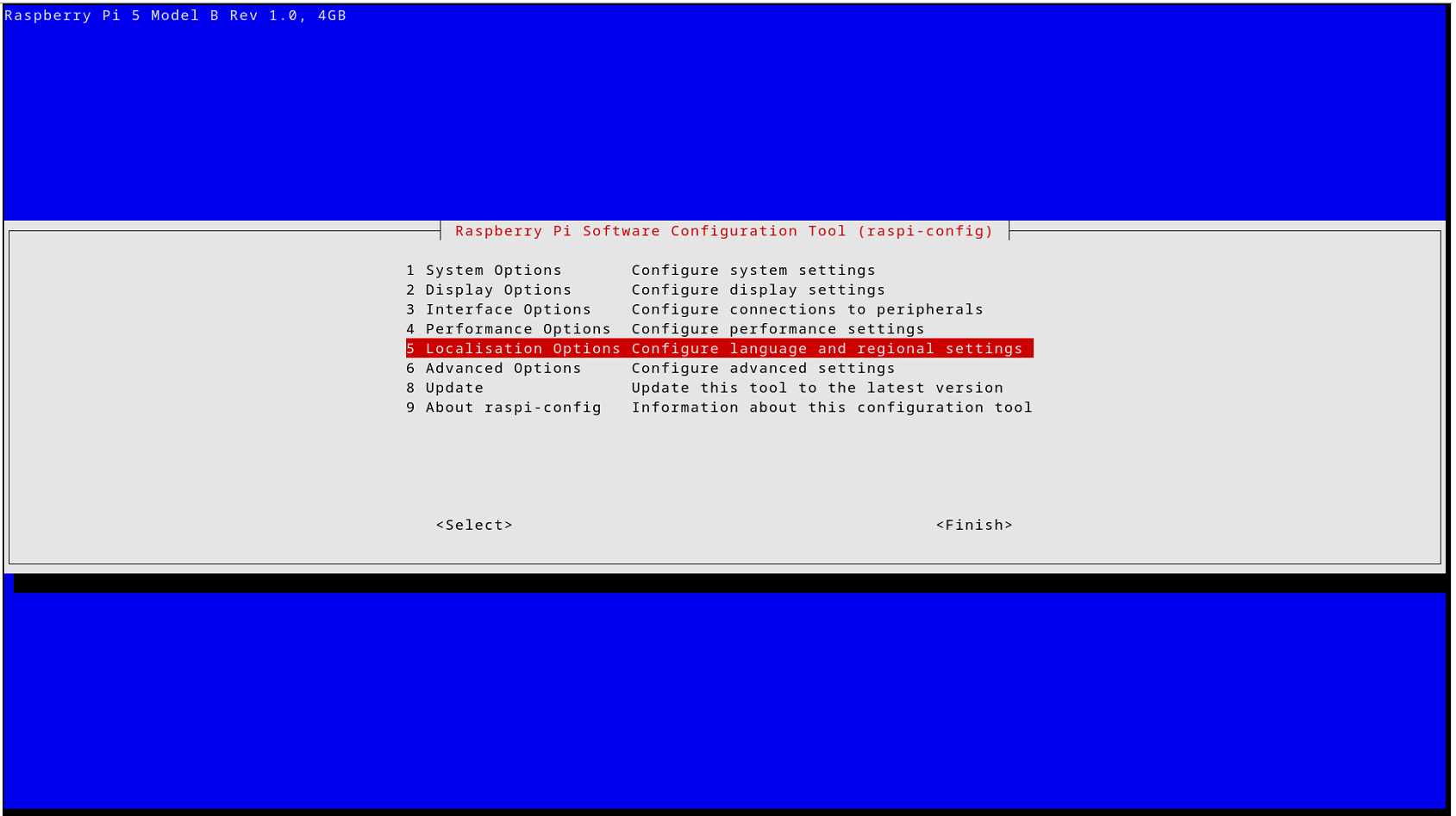
4
Select Timezone
Select Timezone (listed as L2 in the Localisation Options menu) and press Enter.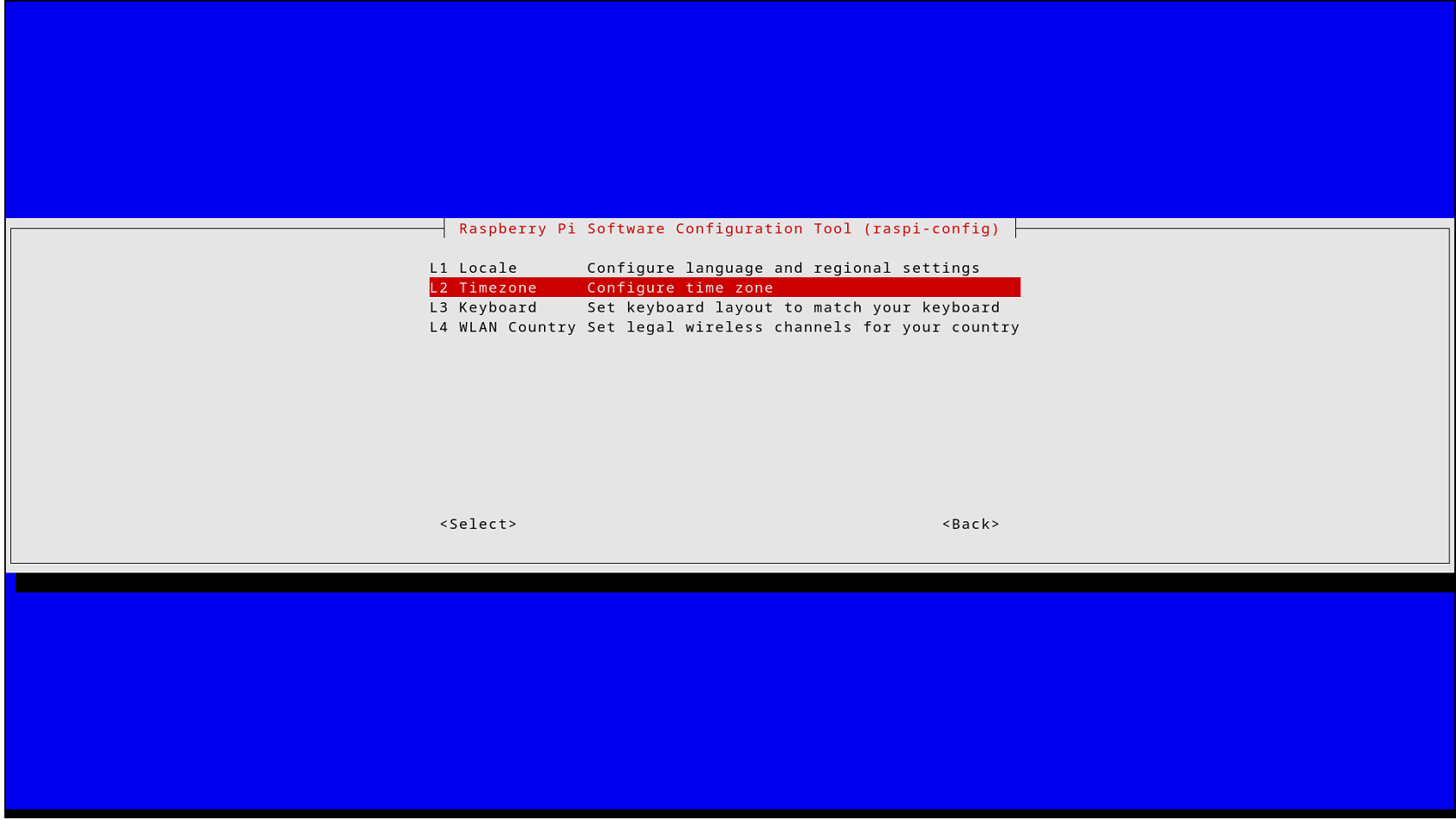 Configuring time zone data page appears, choose your geographic area and then your specific time zone city. After selection, press Enter to confirm.
5
Save and Reboot
You will be taken back to Config tool page, Navigate to Finish and press Enter. The device will automatically reboot, applying the new time zone settings.