

1
Install the Windows player app
Download and install pickcel-digital-signage-v4.2.2.exe on your Windows device.
2
Open the player app menu
On the player screen, right-click the three-dot icon in the bottom corner and select Settings.
3
Open the settings gear icon
On the info screen that appears, click the Settings gear icon.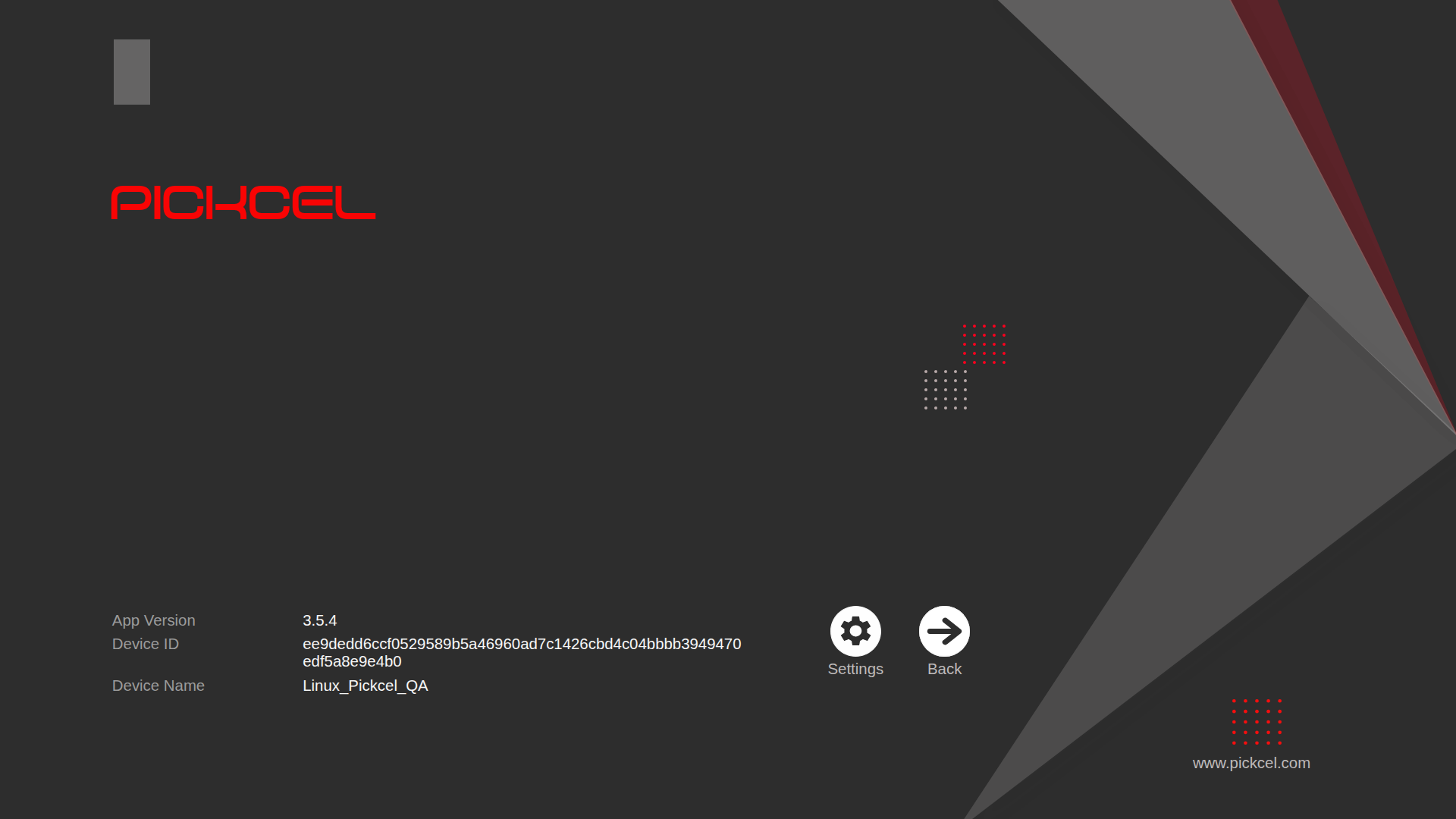
4
Enter the new server IP address and apply
Enter the new address in the Server Url field, then click Apply.
Should you encounter difficulties, please contact support at contact@pickcel.com for assistance.