

1
Login and go to Apps module
Login to your Pickcel account. Go to the Apps module.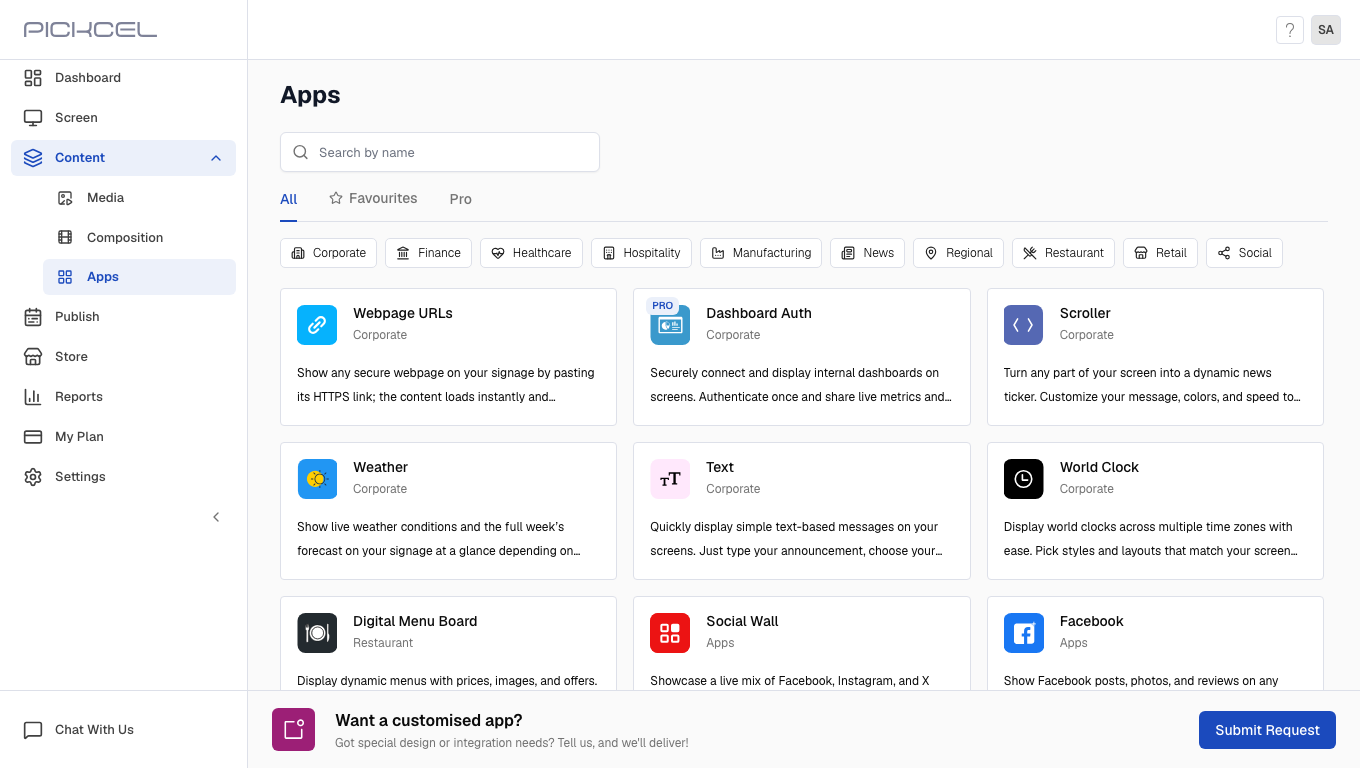
2
Search for YouTube app
Search for the YouTube app using the search field.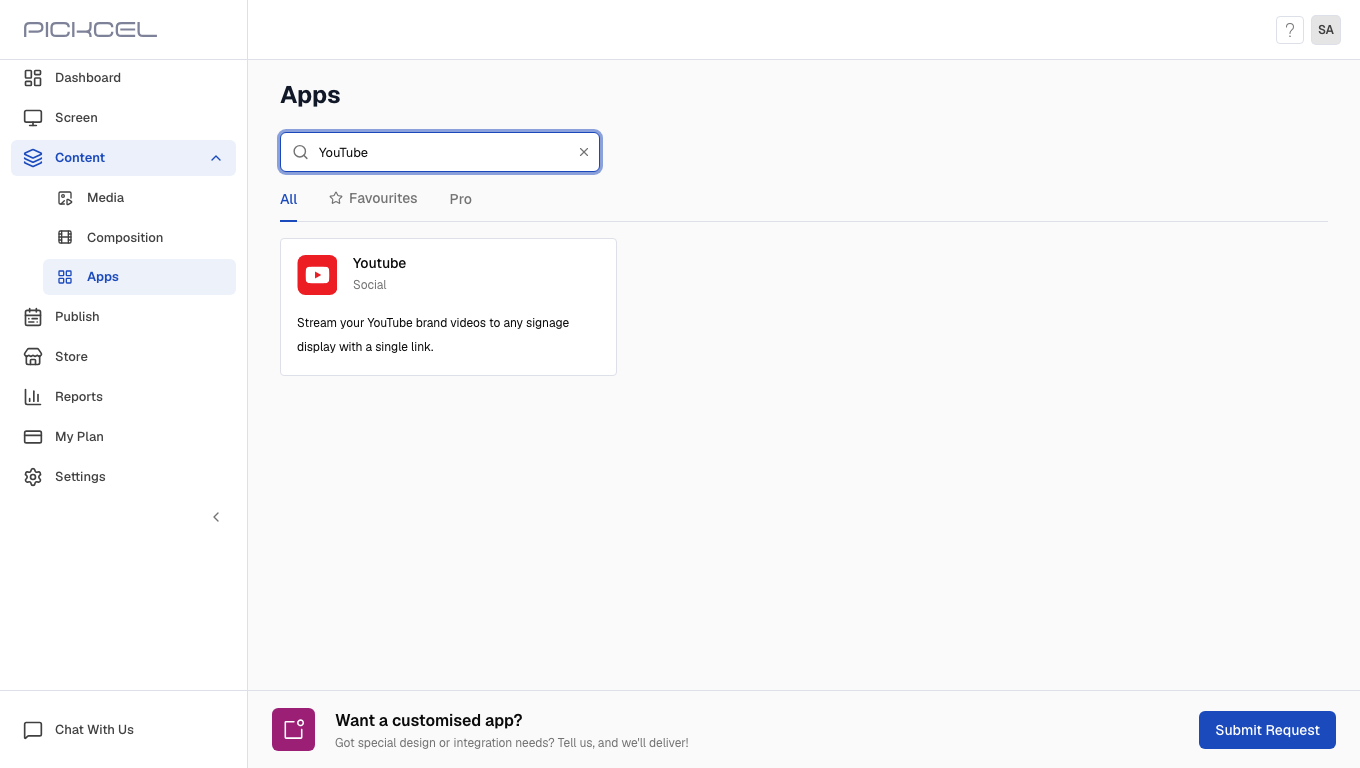
3
Click Create App
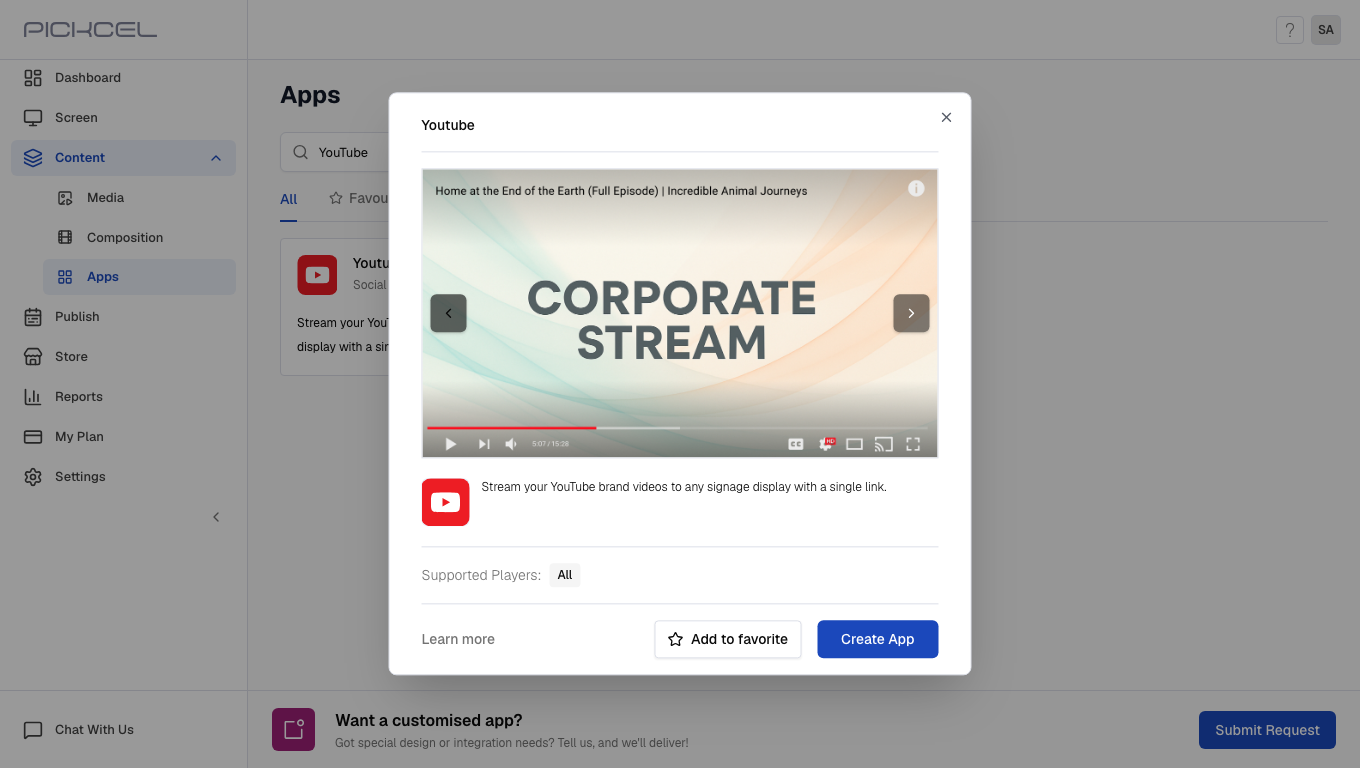
Click the YouTube app card, then click Create App in the app details panel.
4
Enter app name
Enter a Name for the app.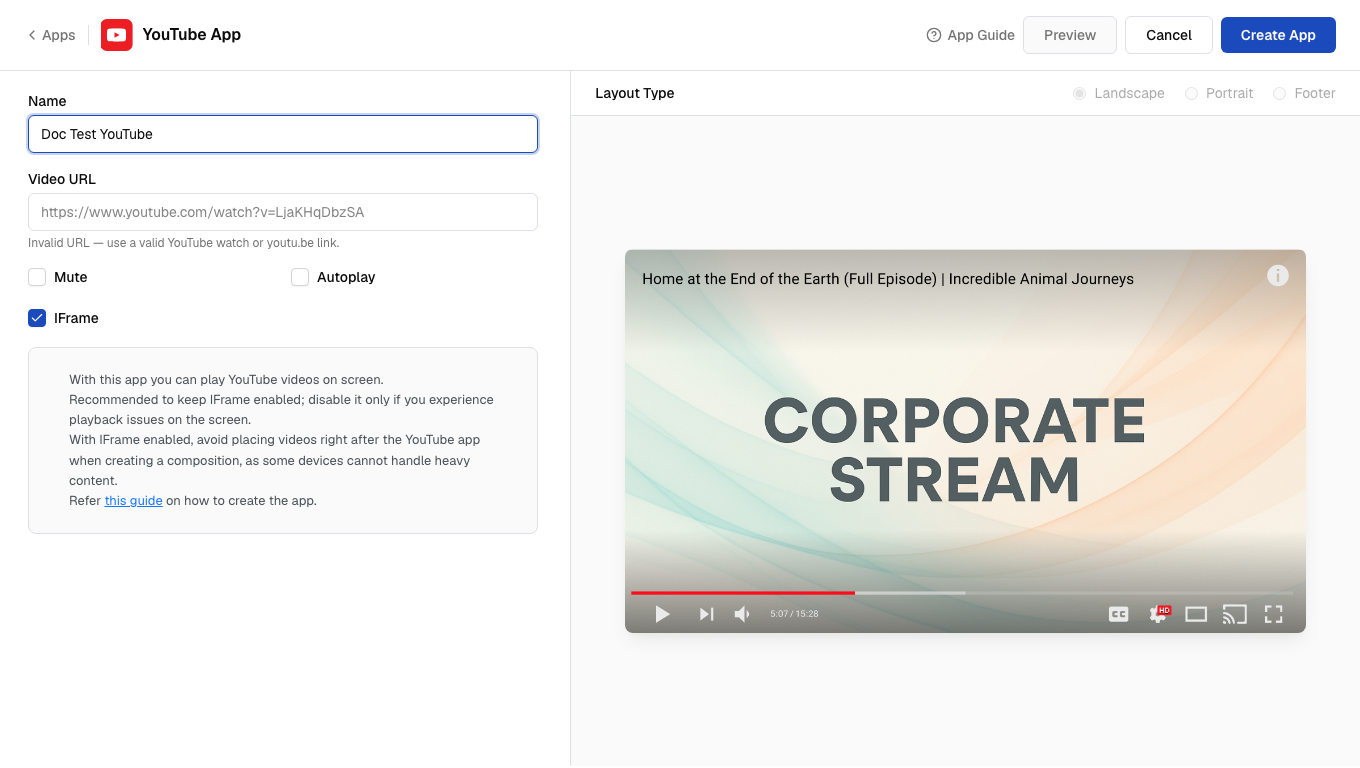
5
Enter video URL
Paste the Video URL of the YouTube video you want to play.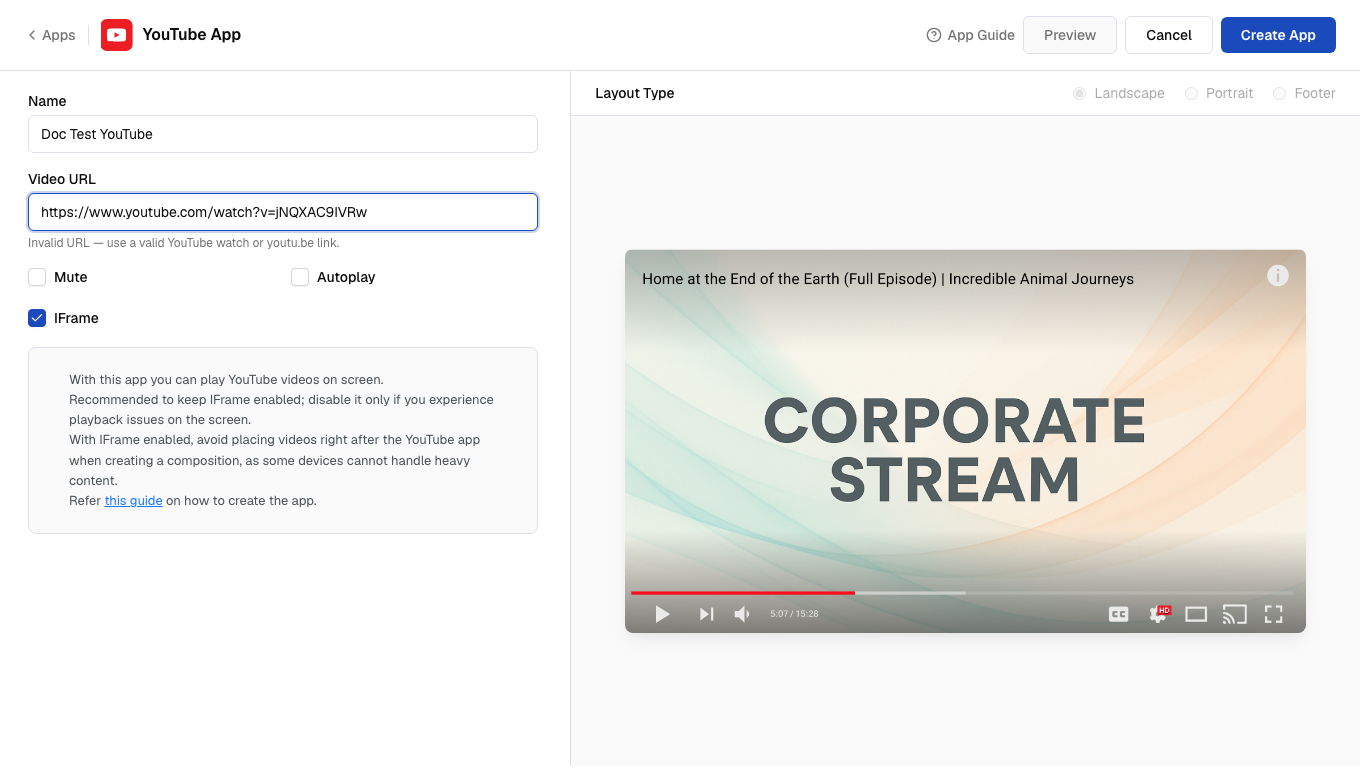 To get the video URL, open the YouTube video in your browser and copy the link from the address bar. Live-stream links work the same way.
6
Configure playback options
Toggle Mute, Autoplay, and IFrame as needed.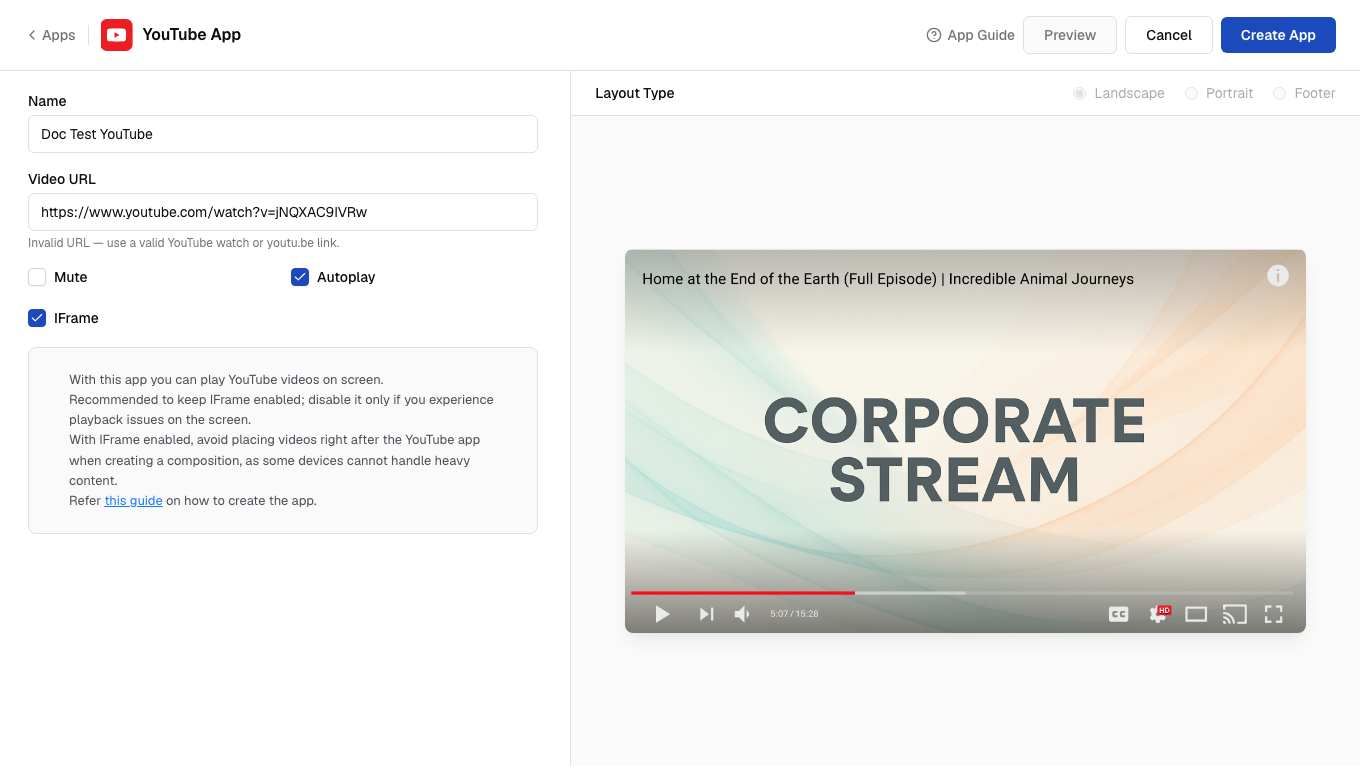
Autoplay is mainly for devices that do not automatically play videos. Keep IFrame enabled unless you experience playback issues.
7
Preview and create
Click Preview to check how the video plays, then click Create App to save.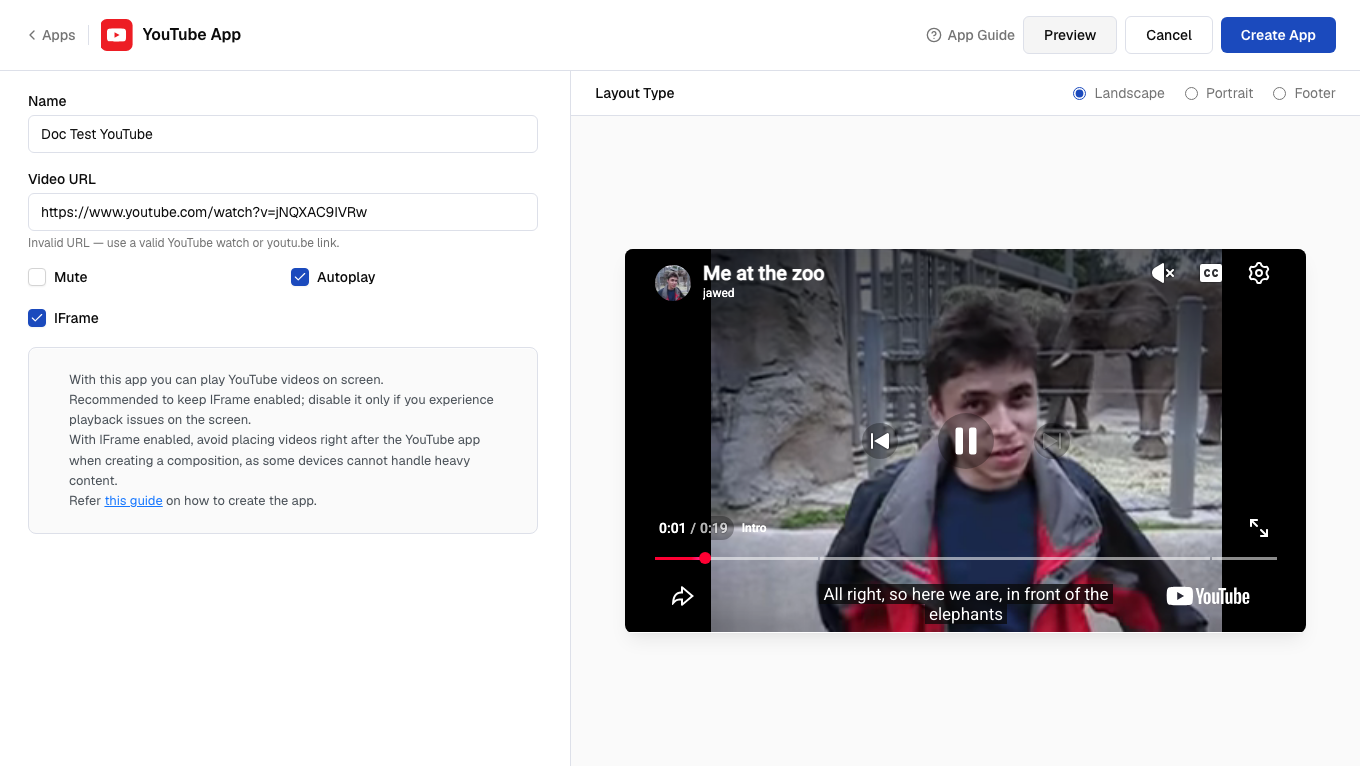 Your YouTube app is now ready to use.